Traditionally, OpenText Imaging Windows Viewer needs to be installed on every laptop or desktop in which an invoice needs to be viewed or commented on. When this capability is required for the larger audience (e.g., stores or distribution centers) to view the invoice documents that their vendors submitted, it becomes a huge deployment task to push the OpenText Imaging Windows Viewer software to hundreds or thousands of workstations. Learn the customizing in the SAP system to view invoices without the need for any external software.
Key Concept
Zero client quick deployment is a strategy based on using existing default software programs installed on local Windows computers where the images have to be viewed. No additional software programs need to be installed.
Enterprise business processes have a large number of paper documents crisscrossing tables. While most of them make their way to enterprise applications for processes such as vendor payment, entering sales orders, and contract management, occasionally they are misplaced or otherwise lost forever. To combat this issue and other issues related to non-payment of vendor invoices or lost orders, the content needs to be captured as soon as it’s received, managed at the appropriate repository, preserved until it’s needed, and delivered to the right person at the right time, via workflow. In the SAP context, the document should be visible within the transactions to which the document belongs.
One tool that is commonly used for this purpose is OpenText Imaging Windows Viewer. It accommodates both the need to scan documents and the need to view electronic documents. It covers both aspects of business document integration (Figure 1). To view these documents, you have a few different options. OpenText Imaging Windows Viewer is a client-side desktop application that displays archived documents on user workstations (Figure 2). This is a typical application that is normally installed in accounts payable (AP) and other relevant departments for end users to make annotations on the electronic form of paper documents.
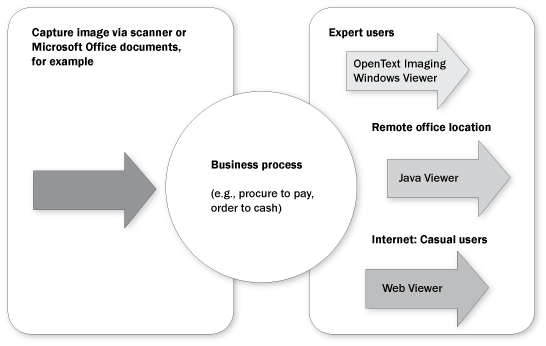
Figure 1
Viewer options
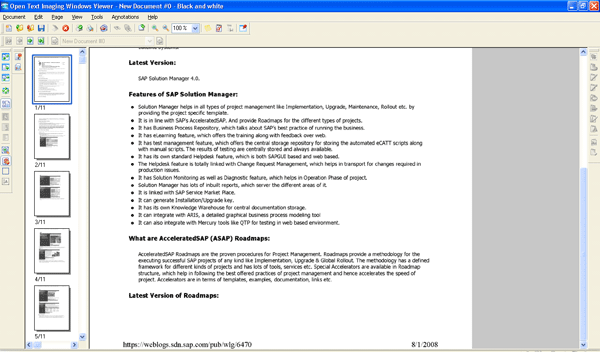
Figure 2
Display of a sample document within OpenText Imaging Windows Viewer
In addition to OpenText Imaging Windows Viewer, there are other viewers that can be used depending on the situation. The Web Viewer combines the benefits of several technologies and can be used in all imaging scenarios. Based on the new Web 2.0 possibilities, it provides a completely new Web experience for the end user. It is often used by more casual users. The Java Viewer is a Java applet that you can use for displaying and printing documents in Web-based scenarios and appending notes and annotations to these documents. It automatically loads on user workstations when a link is clicked to open a document. It is good for remote locations.
All three viewers support a set of standard document formats, including ASCII, Advanced List Format (ALF), OTF (Output Text Format), TIF, FAX, and JPEG. PDF documents are supported via the Livelink ECM – PDF Extensions option in Web Viewer and OpenText Imaging Windows Viewer. You also need Adobe Reader to view PDF documents regardless of which option you choose. Other document formats are displayed in their originating or associated application.
These viewers have their benefits, but all require installation or deployment on each individual user’s machine. This requires a massive deployment and maintenance undertaking for your support team. You have two additional options:
- Using SAP Engineering Client Viewer (ECL): ECL comes as part of the SAP GUI software package. Traditionally, this add-on module is not installed as it is primarily used for viewing 2D and 3D images as well as other files in SAP Product Lifecycle Management (SAP PLM). You can use this viewer on other document types as well, but it requires the same installation and maintenance effort as the others I mentioned.
- Zero client quick deployment: Based on my experience, this is the best way to address all the above problems and provide the capability for a quick, easy deployment to all users that need to view the scanned images, anywhere, any time. Access is controlled using the SAP authorization mechanism, thus providing information only to those users who need it.
I’ll go into the zero client quick deployment option in more detail by first showing you how to configure this strategy into your system using an example vendor invoice document. Then I’ll show you how this document looks in a variety of viewers so you can see the functionality available to different kinds of users.
Zero Client Quick Deployment
Let’s assume that vendor invoices that are sent via mail need to be integrated into the SAP procure-to-pay business process. Electronic forms of paper documents are sent by the vendor flows through a workflow, reviewed by the accounts payable clerk, and further approved by a manager, before being paid. You’d follow these steps:
- Receive a hard-copy invoice
- Scan the invoice
- Trigger the workflow
- Approve the invoice
- Have an AP clerk create an invoice in the SAP system
- Pay the invoice
Now imagine someone (say, an auditor, field employee, or district manager) wants to review the invoice image. Normally they’d need to get in touch with the support center or an AP clerk. However, with some simple customizing, you can enable this person to view the electronic documents (such as a FAX or TIFF) on their own, thus eliminating the additional burden on the support center or accounts payable department.
To enable this, log in to your SAP system and enter transaction OAA3 to bring up the SAP ArchiveLink protocols screen (Figure 3). Click the Protocol that you want to customize (e.g., IX_OLEU1) and click the green check mark icon to produce the screen in Figure 4. Note that the Protocol could be different depending on how your OpenText system is configured. Make sure your selection is used in your system by confirming in the Used in st. systems column in Figure 3.

Figure 3
Customize your protocol
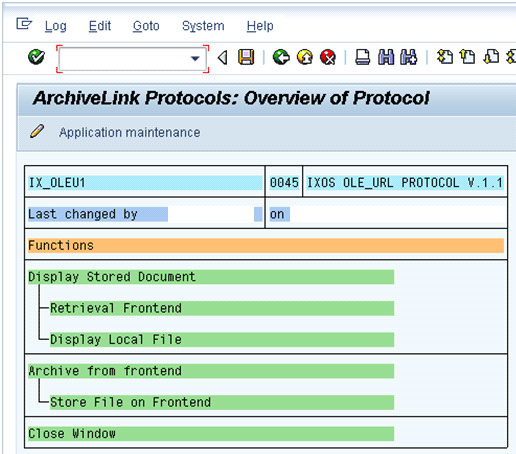
Figure 4
ArchiveLink protocol overview
Click Display Stored Document and then click the pencil (change) icon to bring up the screen in Figure 5. This is the most important piece of configuration. In this transaction, for each of the document classes, define how the document should be displayed. Make sure * is not maintained because it might supersede all other settings.
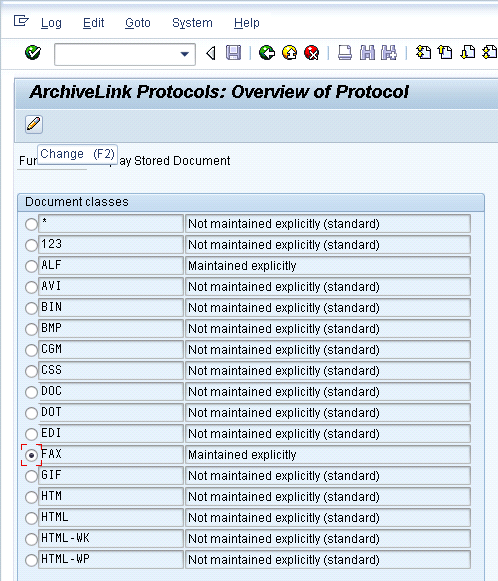
Figure 5
Overview document class
For example, if you want to enable fax documents to be displayed in remote locations, choose FAX and click the change icon to bring up the screen in Figure 6. Change the Communication Type to HTTP from the default OpenText Imaging Windows Viewer. You can do the same process for any other document classes for which you want to enable remote display without OpenText Imaging Windows Viewer.

Figure 6
Change the Communication Type
Once this customizing is complete, use transaction OAG1 (Figure 7). The only setting you need to change is to select the Deactivate Data Provider Cache check box.

Figure 7
Change the data provider cache setting
Note
You need to set up other settings (e.g., content repository, document type) to be able to use electronic imaging and archiving. Full details are beyond the scope of this article, but the IMG menu path to follow is SAP NetWeaver > Application Server > Basis Services > ArchiveLink > Basic Customizing > Define Content Repositories.
Now you are ready to see the differences in the screens of the different viewers. Figure 8 shows the vendor invoice display in transaction FB03. Figures 9 and 10 show the documents if OpenText Imaging Windows Viewer is running on, say, an AP clerk’s computer. Figure 9 shows a FAX/TIF document (normally FAX uses the TIF format to display messages) so the AP clerk can continue to make annotations. Figure 10 shows a PDF document display.
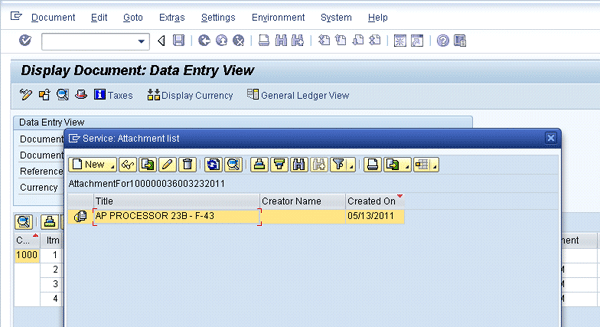
Figure 8
Vendor invoice display in transaction FB03

Figure 9
FAX/TIF document display using OpenText Imaging Windows Viewer

Figure 10
PDF document display
Figure 11 shows the document using Windows default programs for casual users and remote employees. If opening a FAX document type, make sure the Associated File Type is set correctly in the Windows folder option in the client machine as shown in Figure 12. Normally this association already exists, but in some client machines, it may have to be set up. In this example, I’m associating FAX with TIF Image.
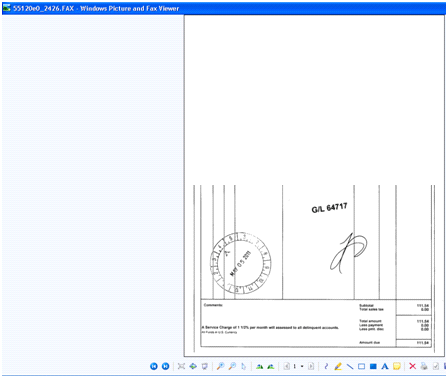
Figure 11
FAX/TIF document display using the Windows default viewer

Figure 12
Default folder setting
You also need to make sure the following Windows registry setting exists (Figure 13). Follow HKEY_CLASSES_ROOT > MIME > Content Type > image/tiff. This is required to automatically open FAX/TIF documents. If this association is not there, then the user has to choose the program every time to open the FAX/TIF document.

Figure 13
Windows registry setting
For the PDF document, it opens using Adobe Reader automatically (Figure 14).

Figure 14
PDF document display using Adobe Reader
Things to Consider
While the following do not normally present a major issue compared to the options I mentioned, you should:
- Open connections to the OpenText content server: Make sure there are enough connections for concurrent users, and the connections are closed after users log off or close sessions.
- Check the bandwidth capacity for response times to various remote locations: Different regions have different network response times. This activity is done by Basis administrators.
- Make sure you know any firewall or network settings (e.g., open the port) that you may have to explicitly allow based on company policy.
- Set any client-side settings to open the various document types.
Pandari Kubendran
Pandari Kubendran has been working on SAP NetWeaver technology for the past 13 years. He has architected and implemented various SAP solutions, including SAP NetWeaver Master Data Management, SAP NetWeaver Process Integration, SAP NetWeaver Portal, SAP Solution Manager, and SAP BusinessObjects Data Services.
If you have any comments about this article or SAP Professional Journal, or want to submit and idea for an article, contact the SAP Professional Journal editor.
You may contact the author at kpn.pandari@hotmail.com.
If you have comments about this article or publication, or would like to submit an article idea, please contact the editor.




 Premium