Do you have users collecting time spent on projects in spreadsheets and emailing them throughout your organization to be compiled? Do you extract financial results and perform Excel-based calculations for management reports? Are you developing product or project quotes for customers in a spreadsheet that is not integrated to your operational system? Learn how to use Business Planning and Simulation (BPS) to cut operating expenses and reduce cycle times associated with data collection and processing.
Key Concept
The Business Planning and Simulation (BPS) module enables the customized development of structured and dynamic input layouts and functions that update information directly into Business Information Warehouse (BW) InfoCubes. This concept can standardize and streamline many common business processes. BPS was formerly delivered only within the Strategic Enterprise Management (SEM) framework. SEM itself is installed as an add-on to an underlying BW installation. While it remains a component of SEM, BPS is also delivered within the core BW installation as of Release 3.5, further promoting its use as a cross-functionality tool set.
Business Planning and Simulation (BPS) provides for data entry into a centralized business intelligence environment to enable enhanced operational planning and subsequent enterprise performance improvements. You should not discount the capabilities of this tool set by limiting its involvement to your planning processes.
You could cast any existing process that involves compilation of data in a spreadsheet or repeatable calculations of results by an administrative user into a BPS-based solution. I’ll explore three example scenarios – information collection, allocation of actual expenses, and project quotation. Then I’ll walk through the steps you take automate them within BPS.
In a subsequent article, I’ll describe how to use BPS for recognizing the transfer of expenses within your SAP accounting modules. For example, you can retract the results of time collection from the analytic system back to the R/3 or ERP Central Component (ECC) system.
Keep in mind that BPS is like a box of building blocks. It is intended to facilitate ease of customization to fit your specific needs, so the examples that follow are intended to whet your appetite as much as they are intended to provide concrete solutions.
Note
The screenprints are taken from an SEM 4.0 system (underlying BW 3.5). For the straightforward solutions presented in this article, usability and functionality would be similar for earlier releases (SEM 3.0 – 3.5 installed on top of BW 2.1 – 3.3). Note that many of the current SAP applications, such as ECC 5.0, contain a BW installation that could be used to support BPS directly in the transactional system if an independent BW environment is not available.
Information Collection
A long-standing goal within organizations has been the creation of accurate profitability reporting to a granular level of detail, such as customer or product. This objective has proven elusive, particularly when allocating expenses from indirect cost centers such as sales and marketing or research and development. Implementing Cross-Application Time Sheet (CATS) along with internal orders or projects and subsequently moving primary expenses between cost centers, orders, projects, and profitability analysis has been a traditional approach to associating these expenses. Unfortunately, these solutions require significant time for implementation and have proven somewhat inflexible when faced with usability challenges or organizational change.
An alternative is to use BPS as a data collection and allocation engine. Users throughout the organization enter their time spent per project, product line, or customer. The interface provided may be Web-based and can include functions to streamline the data input process. For example, the user could copy time from last week into this week with the push of a button or copy projected hours into the actual hours spent column as a basis against which to enter updates.
Such raw information then serves as the basis for allocating costs into the profitability reporting BW InfoCubes. You can run actual expenses collected at the cost center level through allocation rules based on the actual time spent to drive expenses to a more accurate level of detail. You can keep allocations in a separate InfoCube and track by special characteristic values to maintain the underlying integrity of source data. As a result, you have a much more flexible and meaningful flow of actual cost data into your manageable areas of responsibility and can make better pricing and sales decisions. Let’s walk through a simple example.
Step 1. Create a transactional InfoCube. An example is shown in Figure 1. Your BW development team will complete this task for you using the BW Administrator Workbench. Be certain they create the InfoCube as transactional or you will need to use standard program SAP_CONVERT_TO_TRANSACTIONAL to make the InfoCube available for planning.

Figure 1
Create a time collection InfoCube
Step 2. Create a basic planning area in the planning workbench. Use transaction BPS0. Attach this planning area to the InfoCube you just created. Create a basic level such as the one shown in Figure 2 that includes the Employee, Customer, and fiscal period characteristics along with the quantity key figures (Unit of measure will be included, as it is required for quantity). Create user input variables for employee and fiscal period to enable dynamic future selection by the end user.
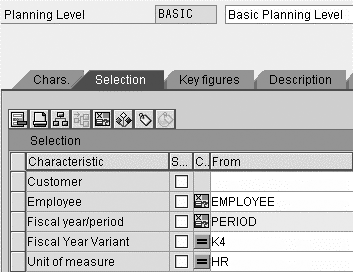
Figure 2
Create a basic planning leve
Step 3. Create manual planning layout to allow assignments. This view, shown in Figure 3, is used to assign hours to the customer for a given employee and fiscal period as selected by the user. You allow users to see how they assigned hours in the previous two periods and you could easily provide a function to copy those hours into the current period as a starting point.
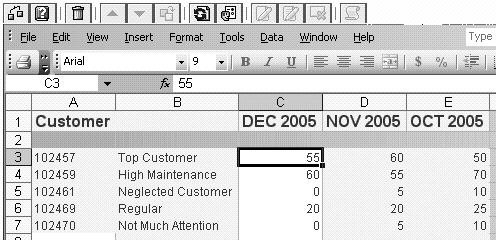
Figure 3
Manual planning layout
You can establish a characteristic relationship between employee and cost center to populate the cost center field in your InfoCube based on the underlying master data relationship between employees and cost centers. This will prove useful in the subsequent allocation of expenses. To create this relationship, ensure that your BW development team has defined InfoObject 0COSTCENTER as a characteristic on InfoObject 0EMPLOYEE. Then you can navigate to the Characteristic Rels tab of the planning area, choose the Attribute option on a blank row, and click on the button in the Detail column where you establish the relationship (Figure 4).
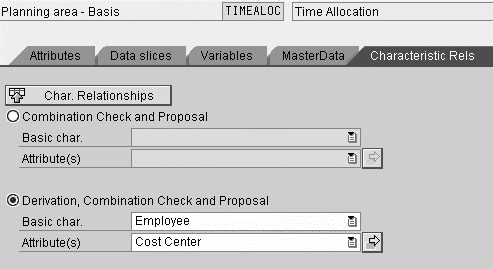
Figure 4
Characteristic relationship between employee and cost center
Step 4. Create a Web application to deploy this solution through a Web-based front end. Use transaction BPS_WB. Choose Web Interface>Create with Wizard from the menu path and step through the dialog screens to create a basic application. The first screen requests a unique name and description for your Web interface. This name becomes part of the Web address. You are also prompted for a package. If you don’t intend to transport your Web interface, you can choose $TMP. Otherwise, consult your development or Basis team to determine an appropriate package. Click on Continue to move to the second page where you select the planning areas to include in your interface.
In this case, choose just the single area created previously and click again on Continue to the next page. Select one planning level and click on Continue again. This brings you to the final input page, where you can create multiple pages with various combinations of layouts and functions. For the purposes of my example, navigate to the Layout tab and select the basic layout created previously. Leave the other options as the default. You have created a basic layout with Save, Refresh, and Exit buttons.
Now that I have walked you through the wizard dialogs, a folder interface with your configuration appears. Right-click on the Page1 icon and choose Create Subcomponent. Choose the SEL_VARVL option and fill in appropriate parameter values to the resulting object to add variable selector components for employee and fiscal period. You may right-click and add further components, such as logos and instructional text, to improve the interface. Follow the menu path Edit>Display in External Browser when you are ready to work with the interface. See Figure 5 for an overview of the configuration screen and Figure 6 for simple example of the Web planning interface.
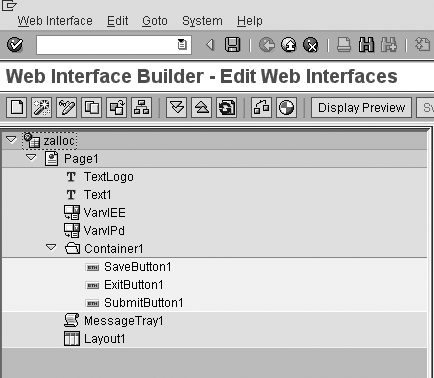
Figure 5
Web interface configuration
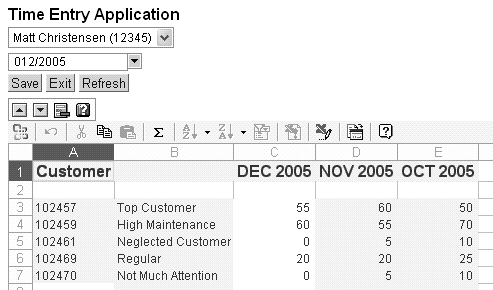
Figure 6
Sample Web application created using the wizard
The results of this data input are immediately available for reporting purposes using the complete suite of Business Explorer (BEx) reporting tools. This solution by itself could eliminate the need to email spreadsheets throughout the organization and compile them manually into consolidated repositories.
Allocation of Actual Expenses
Now that you have established a basis for collecting time spent by the customer, you can use this information to allocate cost center expenses at the customer level. For demonstration purposes, I’ll allocate cost center expenses without regard to the individual employee. If some expenses are tracked to the employee level, it would be beneficial to include the employee in this logic as well.
I will use and update information in multiple InfoCubes. To accomplish this task, you need a simple planning area for cost center actual expenses (InfoCube 0CCA_C11), another for your allocation InfoCube (a copy of your profitability analysis InfoCube), and a multiplanning area to join them all together. Figure 7 shows this relationship. Once this relationship is in place, you can create a planning function of type Formula to formalize the allocation logic. You can build a simplified formula programming language called FOX (Figure 8) within the multiplanning area to allocate current period expenses. For more information on the FOX formula, see the sidebar, “FOX Formula.” It uses the underlying expenses from actual cost center accounting to drive entries into a value field named OPEREXP in the allocation InfoCube. This allocation cube should be included in a BW MultiProvider, which merges multiple underlying InfoCubes to provide a single source of report results. The BW MultiProvider should also include the actual profitability analysis InfoCube to provide customer profitability reporting, including operating expenses.

Figure 7
InfoCube relationships
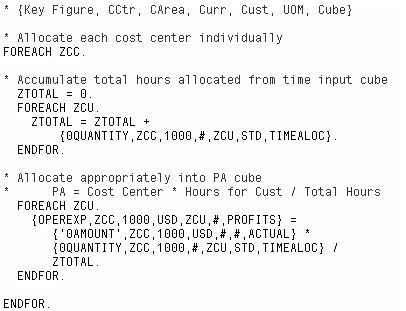
Figure 8
FOX formula
FOX Formula
The FOX formula shown in Figure 8 resides in the multiplanning area that you created to join your individual time allocation, cost center expense, and profitability planning areas. A new function of type
Formula was created and characteristics key figure, cost center, controlling area, currency, customer, unit of measure, and planning area were selected as fields to change. You then list values or variable names for each of these characteristics within the brackets to update values in BW.
The overall FOREACH loop against variable ZCC determines that the inner logic is repeated individually for each cost center found in the InfoCube data. The next FOREACH loop against variable ZCU sums up the quantities of hours associated with all customers for the current cost center, as found in the time allocation cube. The final FOREACH loop (again ZCU) performs the actual allocation by multiplying the total cost center expenses against a fraction based upon the hours assigned to the current customer as a portion of the total hours assigned to all customers. This result is stored in the profitability InfoCube, even though all underlying figures are taken from the cost center expense or time allocation InfoCubes.
Note that this solution took advantage of the input made through your manual time entry to calculate the allocation values. It is possible to automate many other calculated reporting values without the manual collection of further data. For example, perhaps warehouse operating expenses are allocated to products based upon the quantity currently held in inventory.
You could accomplish this easily with a function that would analyze the total warehouse expenses in the cost center expense InfoCube and allocate them to the product level based upon the quantity key figure in an inventory management InfoCube. You would create an additional basic planning area for the inventory management InfoCube, but could reuse the basic planning area you already created on the cost center InfoCube to form a multiplanning area where the allocation formula function would reside.
Project Quotation
Another common collection of data that resides in disparate spreadsheet solutions is the development and delivery of quotations to customers for proposed projects. Depending on the industry, you could consider a variety of factors in the development of these quotations, but they typically involve a series of input quantities along with pricing logic. Considering that input templates and pricing logic are often satisfied by spreadsheets, they are strong candidates for moving to BPS. This type of implementation provides improved reporting capabilities, enhances data integrity and reliability, and encourages standardization of process.
Figure 9 shows an example of a simple Excel-based quotation planning input screen that you could have customized in BPS0. In this case, the columns are defined by specific key figures in conjunction with the characteristic for cost center. You define the rows individually based on the various activity types potentially associated with a project.
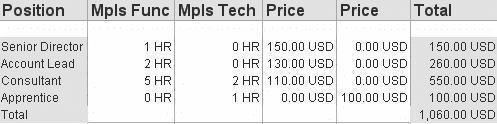
Figure 9
Quotation layout within Excel interface
One pivotal concept that is useful when delivering this type of planning solutions is that of ad hoc characteristic values. Consider a new project being developed for quoting purposes. Perhaps the project manager wants to develop a quick what-if estimate using the logic built into the system, but does not want to incur the overhead of creating a project master record. If the characteristic InfoObject is defined without With master data checked (Figure 10), you can use it for free-form entry in the planning interfaces. A report-enabled master record is created on the fly as the planning records are saved to the database without any effort expended to create the record in advance.
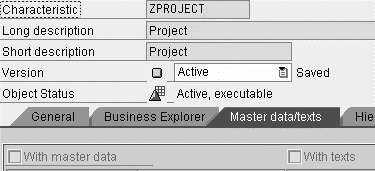
Figure 10
Define characteristic without master data
You could also use characteristic relationships of type EXIT defined within the planning area to generate and assign a unique project number as well as to track the project creator. Define these relationships in the same place as the attribute characteristic relationship between employee and cost center that you defined earlier. Rather than relying on BW master data, they call specified ABAP function modules where you can code logic to populate characteristic values. These tools are particularly useful if you are concerned that duplicate project descriptions might interfere with reporting accuracy.
Note
The intended result of functionality detailed in this article is to collect or modify values within analytic and transactional systems in support of reporting solutions. Another example of using this toolset to reduce time-to-market for advanced reporting solutions is discussed in my article “Get a Quick Start with SEM by Implementing Performance Monitoring in a Flash,” (FI/CO Expert, October 2004), in which I illustrate the ability to quickly deploy a Management Cockpit or Balanced Scorecard through the use of BPS as a key performance indicator collection tool.
Matt Christensen
Matt Christensen is the director of Enterprise Performance Management at PRAGMATEK Consulting Group in Minneapolis. He has more than seven years of experience implementing a broad set of SAP financial modules, including configuration and development in R/3, Business Information Warehouse, and Strategic Enterprise Management. Matt holds an undergraduate degree in computer science and an MBA in finance.
You may contact the author at matt.christensen@pragmatek.com.
If you have comments about this article or publication, or would like to submit an article idea, please contact the editor.




 Premium