Even when the OLAP cache is enabled in your BW system, the first query must read data from the fact table to fill the cache. This takes time and denies initial query users the performance boost that caching offers. Here’s a way to speed up the process for all users of your most popular queries.
Key Concept
Reporting Agent in BW 3.0B allows you to precache data by filling the OLAP cache prior to running a query, if attached to Web templates. The system also provides techniques to monitor the cache.
In November 2004, I wrote an article about providing the online analytical processing (OLAP) cache with access to a subset of data in the BW environment (“Help Your Queries Run More Quickly Using the OLAP Cache”). The OLAP cache stores query result sets that are used during subsequent query runs, saving time and enhancing system performance. The subset cache further improves performance by allowing a smaller result set to be read from the larger data set residing in the cache.
In the technique described in my last article, the first query must read data from the fact table even when the cache is enabled. It’s the result set from the initial query run that fills the cache. Future users then enjoy the benefits from the initial query because the cache is filled and queries don’t have to locate the transaction data fact table or aggregate again.
Under some conditions, it is possible to “prime” or prefill the cache by running queries in batch using Reporting Agent prior to the first user’s query. This precaching guarantees that even the initial query user benefits from the OLAP cache. After all batch loads are complete, the system runs your most popular queries to fill the cache. Other than faster running queries, there is no evidence to the end user that cache is being used.
Priming the cache via Reporting Agent is supported in BW Release 3.0B and later versions. Note that only queries or query views attached to Web templates can run with Reporting Agent in the background. You cannot use Reporting Agent to fill the cache via a BEx workbook. If Web functionality has not been implemented on your system, cache priming is not possible.
I will show you how to identify which queries are eligible for precaching and how to prefill the OLAP cache using Reporting Agent. I will also show you how to check and make sure your queries are accessing the prefilled cache.
The Best Candidates
Batch priming the cache works best if your user base runs one query multiple times with differing variable or free characteristic values. It is most helpful when a common report is used by many throughout the workday before the data is re-loaded. If many users seek the same data but each uses a different query, priming the cache wouldn’t make sense unless each of the queries is scheduled to run in batch because the cache is saved per query. Of course, this wouldn’t be practical because far too many queries would need to be set up and scheduled in batch and few users would see the benefits.
To prime the cache you must create a query view. A query view is a saved query with selected drilled-down free characteristics in the result set. A view gives a “snapshot” of the characteristics you want to precache without changing the query. This query view can then be attached to a Web template for use with Reporting Agent.
Queries typically contain a set of free characteristics so query views are used rather than queries. Users choose a subset of free characteristics for their analysis and query views allow you to choose those characteristics most used. A new query cannot be created with the required characteristics in the results set because a new query would call for a new pre-caching procedure, which defeats the purpose. To create a query view, open up a query, drill down to the necessary level, and click on the save icon. Select Save as View Global.
Remember that every query or query view used for priming the cache must have its own Web template. If several drill-down combinations are necessary to prime the cache, then you can create and run multiple Web templates, one for each view of the data. It is also possible to create and publish a view with many common characteristics in the result set to provide different drill-down combinations with access to the subset cache. Note, however, that the more granular the view, the longer the batch job will take to run.
The goal is to create a large view with many different commonly used characteristics already drilled down into the result set. If you create a view with calendar month, customer, material group, and item category already drilled down, any user that runs a query and drills down on any of these characteristics benefits from cache. The advantages come thanks to the subset cache, which I detailed in my previous article.
There are risks associated with establishing a view with many granular characteristics. You must actually run the view in order to create it, which can cause problems if the view is detailed. You can go over the limit of rows, or, worse yet, slow down the system as it populates the view with a multitude of characteristics.
To avoid these problems, it is possible to create views that do not display data. The system saves data in the cache even if the data is not displayed in the query result set. Setting up a query view with its data hidden establishes it more quickly and avoids the step of rendering data to the screen. When priming the cache, there is no need to display the data because the query is run in batch and the data is never actually seen.
You can hide all key figures and characteristics when creating the view by choosing the No Display setting in the Display As field (Figure 1). You can access this screen by right- clicking on each characteristic and selecting the Properties option. There is no global way of hiding all characteristics, so this process must be followed for each characteristic.

Figure 1
Hide the characteristics to allow for faster view creation
Prime the Cache
As I mentioned earlier, to set up the Reporting Agent job for precaching, you must first create a query view and attach it to a Web template. Enter Web Application Designer (Web AD) and use the report view icon ( ) to attach a query view, which allows you to run the view via the Web template, and then save the Web template.
Now you are ready to set up the Reporting Agent jobs. Go to the Reporting Agent tab in Administrator Workbench via transaction RSA1. Choose the option for Web Templates from the list on the left side of the screen (Figure 2). Right-click on the template that you want to use for priming and select New Setting to set the parameters for running the query.

Figure 2
The Reporting Agent screen shows the available Web templates for cache priming
The Reporting Agent also allows you to prime the cache for several different query variable parameters. If you want to prime a query for several specific sales organizations, for example, create those variants and use them to run the report. Create and enter variants in the field provide on the Variants tab at the bottom of the Parameter tab in the Reporting Agent settings screen (Figure 3). The system runs the Web template multiple times, filling the cache once for each of the variants you create.

Figure 3
Reporting Agent settings for a report with multiple variants
Once the variants are defined, drag the appropriate template to the Scheduling Packages area on the right side of the Reporting Agent screen to create and schedule a package. This step allows you to set up and schedule the job to be run in batch. Right-click on the screen and select the Schedule option (Figure 4) to schedule the template to run as needed (Figure 5). To schedule the package, click on the Start condition button and choose the date and time to start running the job. The job usually runs daily. Use the Period values button to repeat the job at a set time on a daily basis. The Web template batch job runs automatically for each period.

Figure 4
Schedule the Reporting Agent package via the Schedule option

Figure 5
Schedule the batch job
Tip!
Add your Reporting Agent jobs to the end of a batch in process chains.
The Web template schedule must coincide with the schedule of data being loaded into the data source. When data is loaded into a source InfoCube, it invalidates the data in the cache. In an ideal schedule, the Reporting Agent cache jobs are set up at the end of the batch schedule after all data loading is complete.
Tip!
Remember that all jobs created via the Reporting Agent have the prefix RA. This allows you to more easily find the job in SM37 after running it, and recognize when it is complete.
Verify Cache Population
Use the cache monitor via transaction RSRCACHE to determine which queries have been cached and by whom. The buttons on the left side of the screen correspond to query cache settings. If your query cache uses cluster tables across application servers, choose the Cross AppServer button. To see the cache settings on your query, use transaction RSRT and choose the Properties button.
You can also see the last user to access the cache in the Detailed Display screen (Figure 6). Double-clicking on a cached entry in transaction RSRCACHE displays the screen. In addition to seeing which other queries are in the cache, you can verify your batch job is added as an entry to the cache. Locate the ID of the user who scheduled the batch job and find the time it was last run.
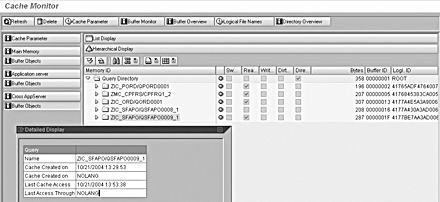
Figure 6
Transaction RSRCACHE shows all the queries in the cache, when it was created, and who last accessed the cache
You can also examine individual queries to make sure they are using the cache by running the query in transaction RSRT, which is an Administration Workbench transaction code for query troubleshooting. Through this transaction you can monitor what the system is doing with the queries when they are run.
Enter the transaction, choose the Execute and Debug option, and select Display Statistics Data (Figure 7). Select the desired drill-downs. When you exit the query, the system displays its statistics. Pay particular attention to column QTIMEDB in Figure 8 because it displays the amount of time spent accessing the database. If this value is zero, the system successfully read from the cache rather than the database. If any value other than zero is in column QTIMEDB, the system did not read from the cache.
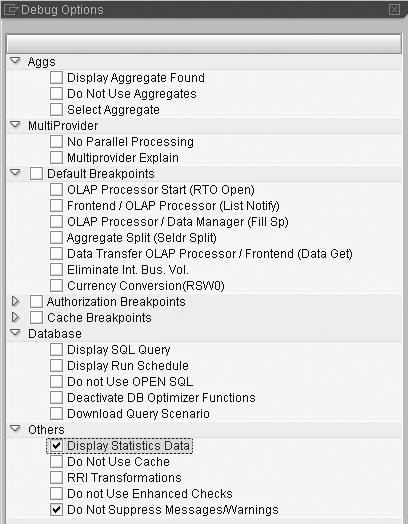
Figure 7
Transaction RSRT run with the Execute and Debug option
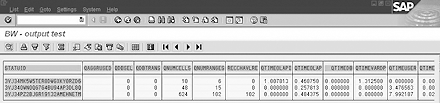
Figure 8
Transaction RSRT statistic results, note the values in the QTIMEDB column
The first time a query is run, you would expect a non-zero value in the QTIMEDB field because the system does not have any cache to read. On subsequent runs, however, the query that uses the cache will show zero values. If a non-zero value appears in QTIMEDB, it’s possible the query is either not turned on for caching or the cache settings may be incorrect. I discussed setting up your queries to use the OLAP cache in my previous BW Expert article, which I noted earlier.
Use table RSDDSTAT to see statistics on individual queries. It displays statistics for all queries as they are run. Again, look at the QTIMEDB column for cache statistics. This is sometimes more useful that using RSRT because you can look at many queries at once. You also are provided with an idea of just how many queries are hitting the cache. This is helpful because you can do a comparison after the cache has been implemented to see its impact.
It is recommended that you use standard BW statistics reports to monitor performance before and after priming the cache to determine its effect on each query run-time. This would allow you to benchmark and analyze how your precache efforts affect the end-user experience.
Best practices demand that you evaluate the most frequently run queries using the cache and create these as views for Web templates to be run in batch. To determine which queries are good candidates for cache priming, you can also use the statistics InfoCubes to find queries with a high number of navigations and a high mean database time. These types of queries typically make good cache priming candidates because they are used often and require a lot of time to read the database fact table. Examine the query to determine the popular drill-down characteristics by checking the statistics InfoCubes for the characteristics used in the query.



