Understand the meaning of an event detail record and the role it plays in the handling of high-volume billing scenarios by the mass billing or invoicing solution of SAP ERP 6.0. The solution is an extension to the SAP Contract Accounts Receivable and Payable component of SAP ERP.
Key Concept
An event detail record (EDR) is a record of billing-relevant information related to an individual use or consumption event. EDR management facilitates the billing and invoicing functions of SAP Contract Accounts Receivable and Payable by enabling the transfer of relevant billing information from external systems. This feature leads to the creation of billing and invoice documents for the use of services such as telecommunication, public transport, and electricity.
The billing and invoicing components of SAP Contract Accounts Receivable and Payable facilitate the mass creation of billing documents and invoices with the help of event detail records (EDRs). In different industries, EDRs may represent different types of events. For example, in the telecommunication industry, an EDR may represent an individual telephone call, an individual Short Message Service (SMS) message, or even an individual download while using an Internet connection. In the case of electronic toll collection, an EDR may represent an individual electronic toll charge on a highway. In the billing component of SAP Contract Accounts Receivable and Payable, the EDRs are received from external rating systems, aggregated, and used to create billing documents.
EDR management, which is part of the billing component of SAP Contract Accounts Receivable and Payable, monitors the transfer of EDRs from external systems, manages the information received, and prepares it for billing. Figure 1 provides a high-level overview of the process flow in SAP Contract Accounts Receivable and Payable for billing and invoicing functions.

Figure 1
A high-level process flow in billing and invoicing processes
An external rating system creates EDRs and transfers these priced EDRs to the SAP system. A rating system is an upstream system to the billing component that determines the cost of a particular individual event (e.g., a phone call) and transfers it to the billing component in the SAP system. The rating process involves converting data into a monetary equivalent value. For instance, in the case of telephone calls, a rating system uses these types of data about the calls for rating purposes and creating EDRs:
- Time of the call
- Duration of the call
- Destination of the call
- Origin of the call
Categories of EDRs
EDRs created by different external rating systems may have varied technical attributes depending on the application in which they are created. These attributes include amount, time of origin, and billing objects. EDR management in an SAP system allows grouping these installation-specific EDRs that have similar attributes into specific categories, thus making them available for billing and invoicing. A category of an EDR includes database tables containing fields that are required for billing. SAP provides a standard EDR category, TOLLCOLL, to transfer EDRs from an external rating system for billing toll charges. You also can enhance existing categories or define new custom EDR categories in a customer namespace to transfer EDRs having significantly different attributes.
At the time of an EDR transfer, a category of an EDR enables the SAP system to determine:
- Database tables for storing EDRs
- Business Application Programming Interfaces (BAPIs) that may be used to transfer EDRs from the external system
- Methods by which the database is accessed
- Key fields of EDRs
An EDR within each category can have three possible statuses in the SAP system: Billable, Provisionally Rejected, or Permanently Rejected. EDRs in these statuses are stored in separate database tables. In other words, each EDR category has three database tables for these EDR statuses.
To define a new custom EDR category, follow menu path Financial Accounting > Contract Accounts Receivable and Payable > Integration > Billing in Contract Account Receivable and Payable > Billing Account Based Billing > EDR Management > Define EDR Categories. The screen that appears displays the standard SAP EDR category TOLLCOLL. You assign this category to a standard EDR Class (Figure 2).
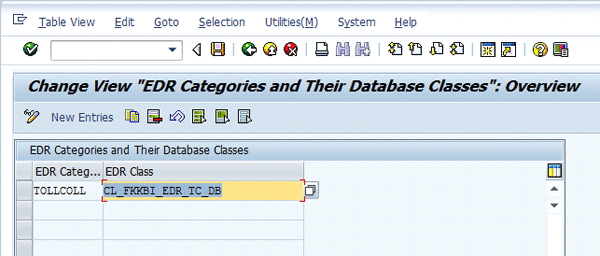
Figure 2
Define a custom EDR category
This EDR class includes reference to the three standard database tables for storing the EDRs in different statuses in the TOLLCOLL category. Before you create a custom EDR category, you need to create a corresponding custom class with the help of an ABAP developer. This custom class includes reference to the three custom tables required for storing the EDRs in this custom category. Note that the custom database tables of this new EDR category are based on the standard database tables of category TOLLCOLL.
Click the New Entries button on the menu bar. Enter the name of the new custom EDR category (starting with X, Y, or Z) and assign it to the newly defined custom EDR class. Click the save icon (Figure 3).
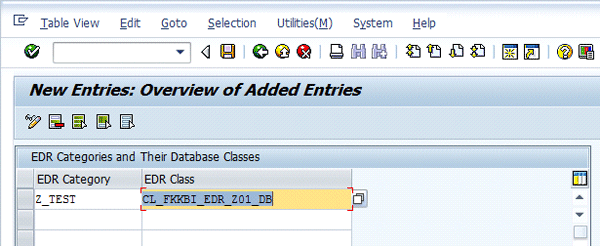
Figure 3
Enter new category name and class
To use an existing standard EDR category to store incoming EDRs or to use the custom EDR categories now defined, you must activate them. To activate the desired EDR category, follow menu path Financial Accounting > Contract Accounts Receivable and Payable > Integration > Billing in Contract Account Receivable and Payable > Billing Account Based Billing > EDR Management > Activate EDR Categories. Click the New Entries button. The EDR category is assigned to an application area to which such EDRs may belong, including telecommunication, utility, or public administration (Figure 4). Users cannot define these standard SAP application areas.
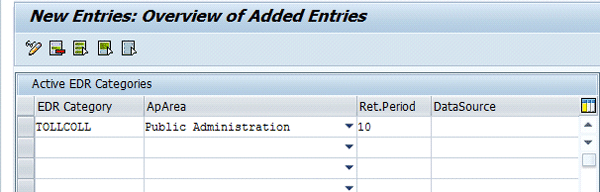
Figure 4
Activate the desired EDR categories
The system asks for a retention period in days of each EDR category. This retention period indicates the time period for which the EDRs in this EDR category must be maintained in the system and not deleted. Save the entry in this transaction to activate the EDR category.
Note
Once you activate an EDR category and create an EDR within this category, I recommend that you do not deactivate it. Otherwise, this may lead to data inconsistencies in the system. Reversal of a billing document is only possible if the concerned billed EDRs have not been deleted from the system.
EDR Types
Under each EDR category, if you create EDRs with different business meanings, then you may need to create EDR types within an EDR category. For example, an EDR category created for utilities (power) may include two EDR types that may pertain to a residential connection and for an industrial connection. Hence, you create EDR types for these multiple business types. You create at least one EDR type for each active EDR category. You can use a given EDR type for only one EDR category. An EDR type is used in billing for assigning an EDR to a billing account item, billing rule, and operand.
To define an EDR type, follow menu path Financial Accounting > Contract Accounts Receivable and Payable > Integration > Billing in Contract Account Receivable and Payable > Billing Account Based Billing > EDR Management > Define EDR Types. Click the New Entries button. In the screen that appears, enter an EDR type with its description and assign it to an EDR Category (Figure 5). Click the save icon.
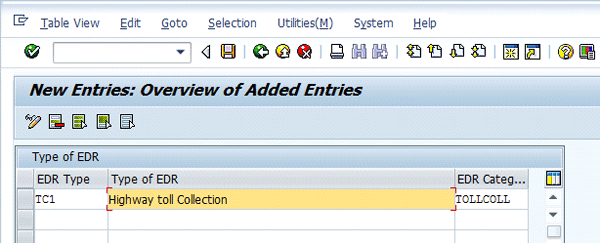
Figure 5
Define an EDR type
Transfer of EDRs from an External Rating System to SAP ERP
After you transfer EDRs to the SAP ERP system, you always assign them to a billing account, which enables the billing of EDRs. A billing account is a master record that contains the relevant information of the contract needed for billing, such as the type of billing account (e.g., toll charges or telephone calls) or periodicity of billing (i.e., monthly or quarterly). A billing account is always assigned to a contract account. In other words, a billing account is a link between EDRs and billing documents generated by the billing component of SAP Contract Accounts Receivable and Payable. To assign EDRs to billing accounts or to establish a link between EDRs and billing accounts, you need to customize a setting.
Follow menu path Financial Accounting > Contract Accounts Receivable and Payable > Integration > Billing in Contract Account Receivable and Payable > Billing Account Based Billing > Billing Accounts > Define Billing Account Type. Now assign a billing account type as shown in Figure 6.
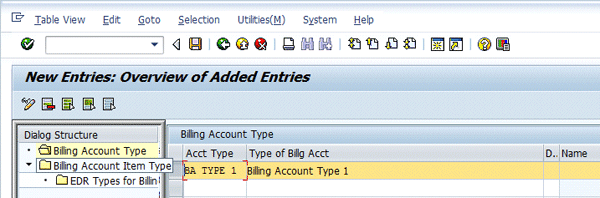
Figure 6
Define a billing account type
After you create a billing account type, create a billing account item type within the billing account type already created (Figure 6). Select the billing account type and then double-click Billing Account Item Type on the left. Once this step is done, enter the key data such as Item Type, Bill.Acct Type, Billing Cat. as EDR –Based Billing, and EDR Category as EDR in the next screen (Figure 7). Click the save icon.
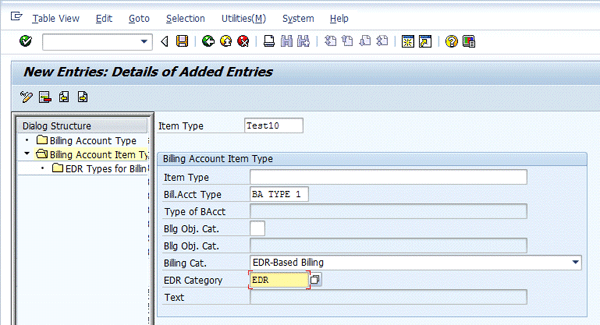
Figure 7
Define a billing account item type
After you create the billing account type and billing account item type, assign the EDR type to the billing account item type. Click the folder named EDR Types for Billing Account Item and enter the EDR Type within the billing account item type of the EDR type and billing account item type (Figure 8). Click the save icon.
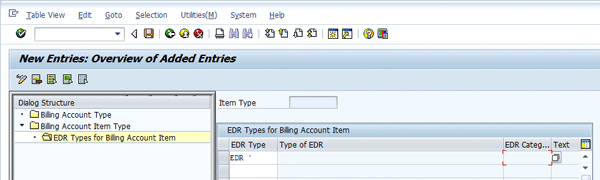
Figure 8
Assign an EDR type to the billing account item type
In the sidebar “Process EDRs into Billing Documents” I explain the key terms and the related IMG settings. I then discuss the end-to-end flow of EDR processing in a billing cycle until billing document line items are generated for a billing account.
Process EDRs into Billing Documents
Here are some important terms that are used in my overview of processing EDRs leading to the generation of billing document line items (I also discuss the relevant IMG settings in the SAP system related to these terms):
Operand and operand category. An operand can be referred to as a container or box in which the unbilled EDRs are bucketed for billing and are made available to a billing rule for processing. An operand category determines which data an operand can include. SAP has provided an operand category named EDR. Operands assigned to this category are filled with EDRs for further processing.
To define an operand category, follow menu path Financial Accounting > Contract Accounts Receivable and Payable > Integration > Billing in Contract Account Receivable and Payable > Billing Account Based Billing > Billing > Define Operand Category. SAP has already provided a standard operand category (EDR) to process EDRs
(
Figure A).
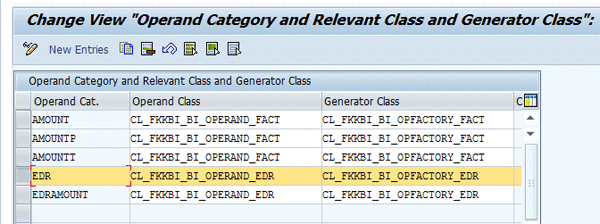
Figure A
Define an operand category
Operand class. The operand class determines the data that an operand of this operand category can contain. This class is used to supply the data to the billing rule during billing.
Generator class. The generator class fills all operands of this category with data.
Assign EDR categories to operand categories. Follow menu path Financial Accounting > Contract Accounts Receivable and Payable > Integration > Billing in Contract Account Receivable and Payable > Billing Account Based Billing > Billing > Assign EDR Categories to Operand Categories.
Figure B shows the assignment that is made.
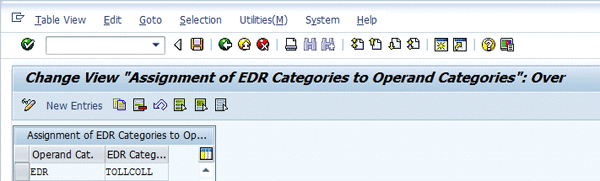
Figure B
Assign an operand category to the EDR category
This assignment ensures that EDRs or EDR types in EDR category TOLLCOLL are processed by the operands in the Operand Category EDR only.
Define operand. To define an operand follow menu path Financial Accounting > Contract Accounts Receivable and Payable > Integration > Billing in Contract Account Receivable and Payable > Billing Account Based Billing > Billing > Define Operand.
Figure C shows an example of operands created that you assign to the operand category.
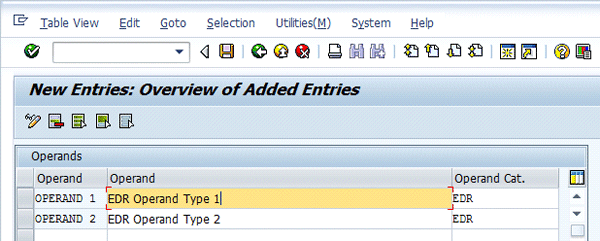
Figure C
Assign operands to the operand category
The setting maintained in
Figure C ensures that operands under the operand category EDR only bucket EDRs within the EDR category TOLLCOLL because you had already assigned EDR category TOLLCOLL to the operand category EDR in the previous setting shown in
Figure B.
Billing rule. A billing rule is a schema or rule that determines the amounts to be billed. It prepares the billing document items for processing EDRs. SAP has provided a billing rule named EDR01. This standard billing rule aggregates and processes the EDRs to create billing document items.
To maintain the standard billing rule EDR01 follow menu path Financial Accounting > Contract Accounts Receivable and Payable > Integration > Billing in Contract Account Receivable and Payable > Billing Account Based Billing > Billing > Define Billing Rules. A screen appears with standard SAP rules listed (
Figure D).
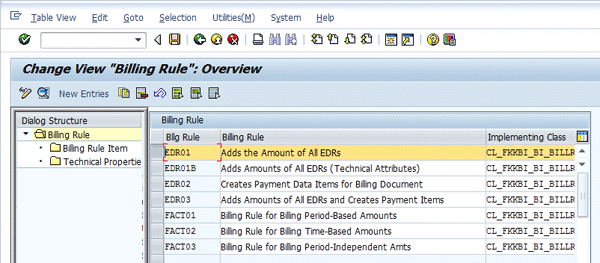
Figure D
Billing rules provided by the SAP system
Select rule EDR01and click Billing Rule Item on the left. Now you see the screen shown in
Figure E. This screen shows the description of the rule and operand category assigned to it (in other words, EDR types that this rule can process for billing).
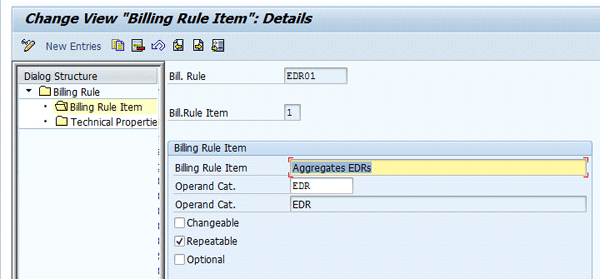
Figure E
Display properties of Billing Rule EDR01
Billing rate. A billing rate is the rate at which a service is billed. For a particular billing period, a billing rate is determined by combining the billing rate category and billing rate type. These two parameters are assigned to a billing account. Examples of billing categories are industrial electricity consumption and residential electricity consumption. Examples of billing rate types are peak hour or off-peak hour. A billing rate also comprises at least one billing rate item. A billing rate item is in turn assigned to a billing rule (EDR01). And finally, the desired operand is assigned to the combination of billing rate item and billing rule within the given billing rate.
To define a billing rate follow menu path Financial Accounting > Contract Accounts Receivable and Payable > Integration > Billing in Contract Account Receivable and Payable > Billing Account Based Billing > Billing > Define Billing Rate. Maintain a billing rate and assign it to billing category EDR base billing as shown in
Figure F.
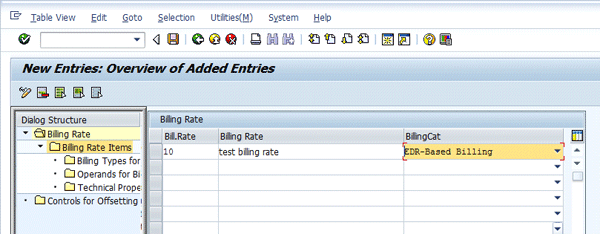
Figure F
Define a billing rate
After you define a billing rate, define the billing rate item within the billing rate. Select the billing rate defined and click the Billing Rate Items on the left. On the next screen that appears (
Figure G), create a billing rate item and assign it to the billing rule (EDR01 delivered by SAP for processing EDRs).
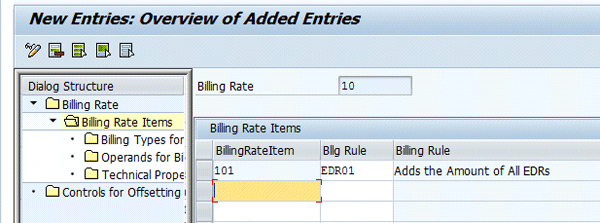
Figure G
Define billing rate items
After you define the billing rate item and assign it to the billing rule, the next step is to assign the operand to the billing rule within the billing rate item. Select the billing rate item displayed in
Figure G and click Operands for Billing Rate Items. On the next screen that appears (
Figure H) assign the operand to the billing rule.
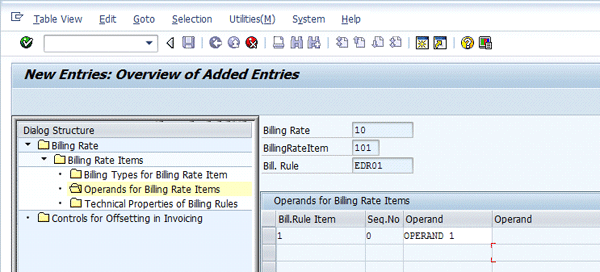
Figure H
Assign the operand to the billing rule
With the setting shown in
Figure H, you now establish a link between the billing rate, billing rule, and operand.
To summarize the IMG settings described here, establish the following relationships:
EDRs assigned to billing accounts
EDRs assigned to operands
Operands linked to billing rate and billing rule
Stages of End-to-End Flow of EDR Processing
The processing of EDRs leading to generation of billing document line items consists of five stages. Here is an overview of each of these stages.
Stage 1. Identification of Unbilled Billing Accounts
In the billing component of SAP Contract Accounts Receivable and Payable, you initiate the billing process by creating the billing order (transaction code FKKBI_BT_CRT). A billing order, which always refers to a contract account, picks up the unbilled billing accounts within the contract account that correspond to the billing cycle of the billing order. A billing order is a temporary data record that represents unbilled billing accounts that need to be billed. It is deleted after billing has successfully taken place for those billing accounts.
Stage 2. Identification of EDRs Assigned to the Selected Unbilled Billing Accounts
Once you select the billing accounts for billing, the EDRs that are stored in the EDR management database are assigned to the unbilled billing accounts and are read by the system (i.e., by the operands). I have already discussed in the previous sections how EDRs are linked or assigned to a billing account.
Stage 3. Determination of a Billing Rate
Processing of the EDRs as identified in stage 2 depends on the billing rate to be used for billing. This billing rate is determined based on the billing period, billing rate category, and billing rate type. Once, a billing rate is determined, the system automatically identifies the billing rule and operand for processing of relevant unbilled EDRs. In earlier sections, I discuss the IMG settings and showed how the link between billing rate, billing rate item, billing rule, and operand are established.
Stage 4. Fill Operands with EDRs
Because related operands were identified with the billing rate in the previous stage, in this stage the operands are filled up with the EDRs of the EDR type linked to the operand. In a previous section I establish a relationship between operand and EDR type.
Stage 5. Execute Billing Rule for Billing Rate Item and Generation of Billing Documents
At the time of billing run execution in the billing component of SAP Contract Accounts Receivable and Payable for identified billing orders, essentially the billing rule (EDR01) associated with the billing rate item is executed. This billing rule creates billing document items that are combined in a billing document. While you execute a billing rule, the billing rule pulls the billable EDRs now residing in operands and processes them. The schema in the billing rule aggregates the billable EDRs according to operand and EDR type. The billing line items created are aggregated in billing document. Finally the billing document is passed on to the invoicing component for further processing. Figure 9 shows the EDR processing in the billing component.
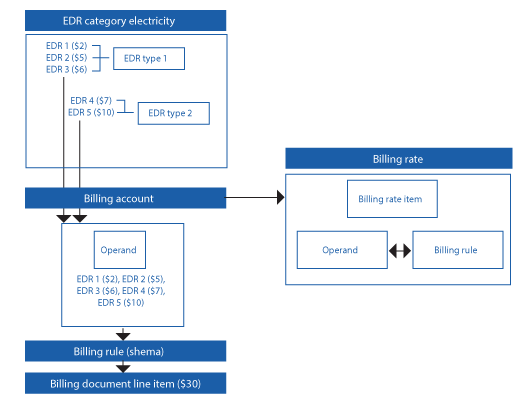
Figure 9
The EDR processing in the billing component
Harsh Mathur
Harsh Mathur is a senior consultant at Infosys Limited, a consulting and IT services major. By qualification he is a chartered accountant and a member of the Institute of Chartered Accountants of India. He carries 10 years of experience with expertise in SAP financials and controlling. He has worked on implementation, upgrade, and support projects for clients primarily in the high-tech industry.
You may contact the author at harsh1209@gmail.com.
If you have comments about this article or publication, or would like to submit an article idea, please contact the editor.



 Premium
