See how you can use a Business Document monitoring process in CRM Middleware to quickly uncover errors when transferring data between SAP CRM and SAP ERP Central Component.
Key Concept
CRM Middleware uses Business Document (BDoc) messages in queued Remote Function Calls when transferring data between SAP CRM and another system, such as SAP ERP Central Component. BDoc messages are based on BDoc types, which contain all the information for a particular business process, such as a collection of data related to a particular business partner.
On a recent job, the client had SAP ERP Central Component (ECC) 5.0 and SAP CRM 2005. With the large volume of data loads that move between ECC and SAP CRM, numerous Business Documents (BDocs) flow through queues. Usually the BDocs flow smoothly through the queues, but sometimes they become stuck in the queues due to errors. My task was to devise a way to monitor BDocs in SAP CRM to troubleshoot these errors.
For example, you could encounter an error when a business object is changed in the CRM Server, but ECC doesn’t receive this change. The same goes for the reverse process — SAP CRM may not reflect changes on the ECC side. SAP CRM doesn’t offer a systematic approach to troubleshooting and BDoc monitoring, so I devised the following procedure to streamline the BDoc monitoring process. I’ll show you a way to identify the BDoc error, find out where it occurred, locate the BDoc in the queue, and reprocess the BDoc.
Analyze the BDoc Messages
The first step in correcting the error is to analyze the BDoc messages, which you can access via transaction SMW01 (display BDoc messages) or via menu path Middleware>Monitoring>Message Flow>Display BDOC Messages. This takes you to the selection screen in Figure 1 in which you enter certain parameters to get information about specific errors.
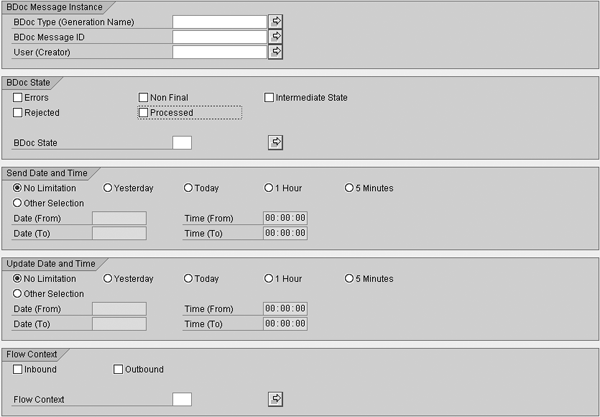
Figure 1
Selection screen for transaction SMW01 (display BDoc error messages)
For the BDoc Type (Generation Name), enter the BDoc type to use as a filter, such as BUPA_MAIN for a business partner message, BUS_TRANS_MSG for a transaction (order) message, or PRODUCT_MAT for a product message. For example, if you want to display all the error BDocs related to business transactions, enter BUS_TRANS_MSG in the BDoc Type field to filter BDoc errors by transaction.
If you want to display a particular BDoc and you know the 32-digit, unique BDoc ID, such as 464C8CA65C9E00AD00000000C0A870B2, enter it in the BDoc Message ID field. The system assigns this ID after it generates the BDoc. You can ignore this parameter if you don’t know the BDoc ID. In this case, the system displays all the BDocs based on the BDoc type. You can use the User (Creator) field to filter BDocs based on a given user.
The BDoc State describes the current processing of a BDoc. Table 1 shows the possible statuses for this field. Usually you encounter BDocs with a status that starts with an E or F. Statuses with an F are final and mean that the system processed the BDoc after initially encountering an error. Statuses with an E are error statuses that you must correct manually.
I01
|
Received (intermediate state) |
I02
|
Written to queued Remote Function Call (qRFC) queue (intermediate state) |
I03
|
After qRFC step (intermediate state)
|
I04
|
BDoc stored before update task (intermediate state)
|
T01
|
Temporary lack of resources in application layer
|
F01
|
Rejected (fully processed)
|
F02
|
Confirmed (fully processed)
|
F03
|
Set to processed (fully processed) |
| F04 |
Confirmed (fully processed by all receivers) |
F05
|
Information (no processing) |
E01
|
Technical error (incomplete)
|
E02
|
Partially send, receivers have errors
|
E03
|
BDoc cannot be read from database |
E04
|
BDoc validation error
|
E05
|
Inbound processing failed
|
E06
|
Outbound processing failed
|
E07
|
Conversion error
|
O01
|
Send to receivers (not all have confirmed)
|
D01
|
To be processed (debug)
|
R01
|
Retry after temporary error
|
|
| Table 1 |
BDoc state errors |
Finally, if you want to display inbound BDocs, select the Inbound check box in the Flow Context area. To display outbound BDocs, select the Outbound check box.
After entering the filter criteria in Figure 1, press F8 to execute the transaction with your selection parameters. The screen in Figure 2 appears. In the State field you see three circles. Successfully processed messages have the right circle shaded in green, those still in process have the middle circle shaded in yellow, and those with a terminal error condition have the left circle shaded in red.
If a message is in process and the system does not process it within a reasonable amount of time, you can restart, view, or discard the message. The next sections describe when and how you can carry out these functions.
View the Error Message
In Figure 2, click on the show BDoc message errors/receivers icon  to see the BDoc errors. In the screen that pops up, click on the Errors button to see the list of errors and their descriptions (Figure 3). Then click on the Longtext button to view the information about the cause of the error.
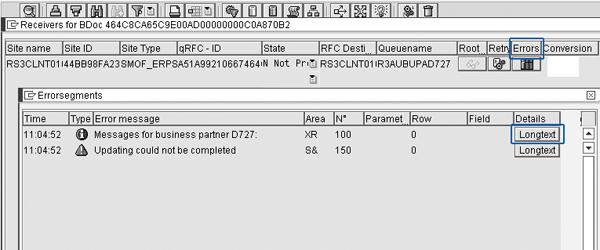
Figure 3
BDoc error segments
For example, if the system has triggered a business partner transfer, you may see the error text Pin code missing. This helps you see that this BDoc is stuck because the system encountered a missing pin code when it created the business partner in the source system. To find the business partner number and to check the pin code field value, you need to display the clas-sic and extension data as explained in the following sections. When you're finished, close the BDoc error segments window to go back to the screen in Figure 2.
Show Classic and Extension Data
You can find the business object the BDoc is carrying by clicking on the show BDoc message classic data icon . This shows you the BDoc header, segments, sender, and receiver site with high-level information such as the object name and GUID.
After you identify the object, you can check in the sender and receiver systems to see if the same object is available. If the object is not available in the sender system then you can delete this BDoc. If you find the object in the sender system and not in the receiver system, then you confirm that an error occurred during transfer. In this case you need to check the BDoc errors as explained in the previous section.
If the object is available in both the sender and receiver systems, then you need to find the detail data the BDoc is carrying. For example, say someone triggers a business partner transfer from ECC to SAP CRM. You found the business partner number by clicking on the classic data icon. In this case you need to check ECC and SAP CRM to ensure that the same business partner is available in both systems. The extension data shows this information.
Display the extension data by clicking on the show extension data icon  . Compare this data with the object in receiver system. If you find that the data is the same, then you can delete the BDoc. If the data is not same, then find the BDoc error as explained in the previous section.
Middleware Trace
Sometimes you may face a situation in which the BDoc has errored out and you are unable to find the cause of the error even after clicking on the display BDoc errors icon. In this case the CRM Middleware trace monitor helps you find the error by displaying the trace level and trace program name with the line number. You’ll need the assistance of your ABAP developer for this step.
Click on the show BDoc message trace icon  , use transaction SMWT, or follow menu path BDoc Message>Display>BDoc Message Trace to display the BDoc message trace. All methods lead you to the Middleware Trace screen (Figure 4). The developer uses this information to debug the trace program and find the error.
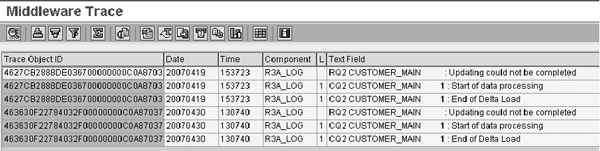
Figure 4
Middleware trace monitor with detailed message flow
Click on the troubleshooting icon  to see the information about troubleshooting this BDoc (Figure 5). Here you can find the steps you need to take to resolve the BDoc error.
After you correct the error, click on the reprocess BDoc icon  . In the screen that appears, click on the Yes button to reprocess the BDoc. The BDoc status turns green if it processed successfully or it may remain in same state with a new error. Then you need to follow all the above steps again to find the error until the BDoc is error free.
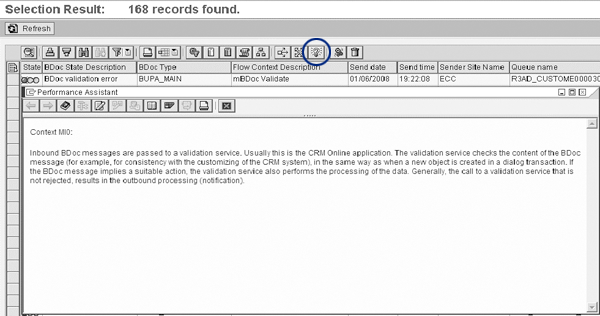
Figure 5
SAP guided procedure to resolve the error screen
Outbound and Inbound Queues
In the previous section I discussed how to display BDoc messages, identify the errors, and reprocess BDocs. In this section I discuss inbound and outbound qRFC queues. Sometimes you may face a situation in which you trigger an object download, but the object does not transfer to the target system and you cannot find a BDoc error entry using transaction SMW01. In this case you need to check the qRFC queues to find out why the BDoc is stuck in the system.
There are inbound and outbound qRFC queues. You can employ the same qRFC outbound queue monitoring that you use on the CRM Server for ECC. If an object is not processed correctly within ECC, and the system doesn’t return an error condition via BAPI parameters, you must check ECC using transaction SMQ1 (outbound) or SMQ2 (inbound). For example, when you download a product from ECC to SAP CRM, you can find the qRFC entry in ECC transaction SMQ1, which then flows to SAP CRM with the qRFC entry in CRM transaction SMQ2.
You display qRFC queues in three steps. For outbound queues, first go to transaction SMQ1 and click on the execute icon to access the qRFC Monitor screen for outbound queues (Figure 6). Select the Queue Name and then click on the display icon  to view the entries under that queue with the status and time stamp (Figure 7).
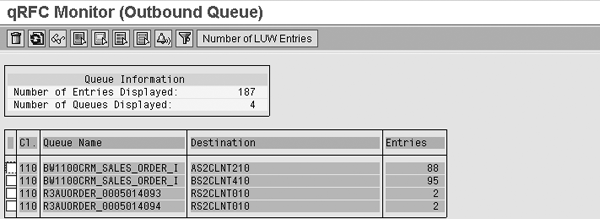
Figure 6
qRFC outbound queue display after executing transaction SMQ1

Figure 7
qRFC queue entries
You can access additional detailed items by selecting the queue and clicking on the display icon (Figure 8). In this screen you can delete ( ), execute (
 ), or debug an entry (
 ). For example, when a user triggers a product download from ECC to SAP CRM, you can delete the entry in Figure 8 (if the product is already available in CRM), execute the download (to send the entries to SAP CRM), or debug the download if it is stuck.
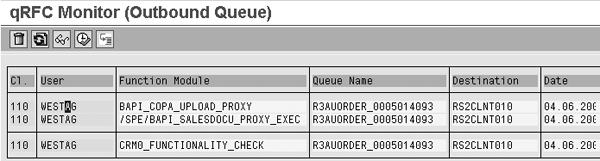
Figure 8
Details of each queue entry displayed
Reduce Data in Inbound and Outbound Queues
Analyzing the errors and reprocessing the BDocs following the processes described earlier reduces data in the CRM Middleware message store and in inbound and outbound queues. The qRFCs then empty the queues. However, you should delete or reorganize the data in certain circumstances, such as successfully processed BDocs or old logs.
Depending on the selected trace level in Figure 4, the system writes entries into internal trace tables. You must delete these entries in regular intervals to prevent the tables from becoming too big. Use the following process to reorganize data from traces, logs, and BDocs.
First, create a variant of program SMO6_REORG (reorganization) with transaction SE38. Determine the number of days you want to keep the most recent data. The SAP default is variant SAP&_MW_REORG with seven days. Then schedule the reorganization job by using transaction SM36 or by going to transaction SPRO and following menu path CRM>CRM Middleware and related components>Reorganization>Reorganize Log and Trace Data.
Pavan Kumar Sunkara
Pavan Kumar Sunkara is an SAP-certified solution consultant with six years of SAP experience, including five years with SAP CRM and one year with SAP ABAP. He has participated in three full lifecycle implementation projects and has expertise in CRM Middleware, Internet Pricing and Configurator (IPC), telesales, and teleservice. He currently works with SITA Corp. as a senior SAP architect. Pavan has worked with major clients from various industries, including hi-tech, manufacturing, and consumer goods.
You may contact the author at pavan.sunkara@sitacorp.com.
If you have comments about this article or publication, or would like to submit an article idea, please contact the editor.



