Companies are increasingly going to need HR reports based on information stored in various sources, including R/3, third-party tools, and the Internet. Business Information Warehouse (BW) provides that capability. The author has worked on numerous implementations of BW for HR, and explains some key considerations for companies thinking about their own BW for HR implementation.
Key Concept
An evaluation path is a part of the Personnel Management (PA), Personnel Development (PD), and Basis Components (BC) modules. It consists of a hierarchical chain of relationships among objects. Evaluation paths allow you to discover what relationships exist among objects and retrieve information that is relevant to specific organizational units.
As any HR expert knows, evaluation paths are a useful way to find people. For instance, you can use an evaluation path to find the owner of a cost center (evaluation path ID B250). The evaluation path configuration entered in transaction OOAW gives you the evaluation path name, its possible starting objects (position, org unit, job, user ID, etc.) and how to move around the org path to find the result objects (position, org unit, job, user ID, etc.). Having gone to the effort of configuring your evaluation paths, you can easily reuse them to find who should perform particular tasks in your workflows.
In workflow, the people performing tasks are called “agents.” When a task in a workflow needs to be performed by a real person, the workflow usually uses an “agent determination rule” to find the person (or people) to whom the task should be sent. The agent determination rule consists of the starting criteria and the calculation used to find the result list of people.
Conveniently, evaluation paths operate in much the same way. To use an evaluation path to find people for workflow, you need to use the starting objects of the evaluation path as the rule criteria, the evaluation path itself as the calculation used to find people, and the result objects of the evaluation path become the list of people returned by the rule.
At runtime, workflow actually applies the evaluation path SAP_TAGT, holders of HR objects, to the result returned by an agent determination rule. So if your agent determination rule returns positions, workflow automatically finds the people holding the positions. This means if one person leaves a position and another person is assigned to that position, then workflow automatically reassigns the task to the new person’s inbox, provided your agent determination rule returned a position. Of course, all holders of the HR objects returned by your rule must have user IDs; otherwise, they won’t have a workflow inbox.
To create the agent determination rule, use transaction PFAC_INS (Figure 1). Clicking on the create icon starts the creation of a new rule. You need only a few steps to create a rule based on an evaluation path:

Figure 1
Create the agent determination rule
- The first thing you need to do is to fill in the fields in the Rule Definition tab (Figure 2). Start with the Basic data section. You assign an abbreviation in the Abbr. field and a description in the Name field to the rule. These fields are free-format entry, so you can enter whatever you want as an abbreviation or description. These fields, especially the abbreviation, are used to help you find your rule again later, so be as specific as possible. For instance, if you can’t remember the technical rule ID that will be assigned when you first save your rule, you can search for the rule using the abbreviation when you add your rule to the workflow.
- Still in the Rule Definition tab, you now fill in the Rule definition section (Figure 2). This tells the rule what calculation is used to find the agents. You need to call the standard SAP function module RH_GET_STRUCTURE to execute the evaluation path, so you need to fill the Category field with Agent Determination: Function to be Executed from the drop-down menu. Make sure you select the correct category, as there are many other possible rule categories such as: Agent Determination: Responsibilities, Agent Determination: Organizational Data, Agent Determination: Function to be Executed Asynchronously, WebFlow: Specification of URL, and WebFlow: XML Format.
- Once the rule category has been entered, fields specific to that category are shown. Because you have selected Agent Determination: Function to be Executed, a Function Module field appears (Figure 2).
- Enter the special function module
RH_GET_STRUCTURE in the Function Module field. This is a special function module that requires another field, Evaluation Path to be entered. Once you have entered RH_GET_STRUCTURE, press Enter and the Evaluation Path field appears (Figure 2).
- Enter the evaluation path ID, e.g.,
B250, for the evaluation path to find the manager of the cost center (Figure 2).
- You can ignore the other fields on the Rule Definition tab. If you want to describe what your rule does for the benefit of your workflow developers or business process owners, then you can use the Description tab to enter more details.
- The last step is to use the Container tab to declare the starting criteria. The starting criteria for a rule are the same for all rules based on evaluation paths. An evaluation path rule requires three criteria to be entered in the Container tab of the rule using the create element icon. The starting criteria are fixed for RH_GET_STRUCTURE. Each container element represents one of the starting criteria. To add a new container element (i.e., a new starting criterion). you use the create element icon, the first icon in the Container tab (Figure 3). When you click on the create element icon, a pop-up window to define the container element appears (Figure 4).
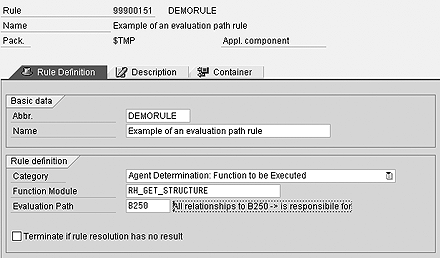
Figure 2
Fill in the Rule Definition tab
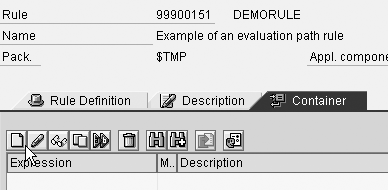
Figure 3
Add a new container element
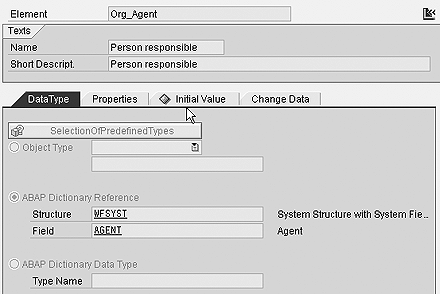
Figure 4
Define the container element criteria for Org_Agent
Tip!
You can create your own evaluation path in transaction OOAW or use one of the many predefined evaluation paths. Report RHWEGID0 is helpful for finding appropriate evaluation paths for the types of starting and result objects you want to use. For more information on evaluation paths, see A.J. Whalen’s article “Harness the Power of Evaluation Paths to Make Large-Scale Changes to PD Objects,” in the November 2003 issue of HR Expert.
Note
PFAC_INS creates a new rule. If you want to change a rule, use PFAC_CHG. To display a rule, use PFAC_DIS.
Tip!
PFAC_INS shows only the Function Module field once you have chosen rule type Agent Determination: Function to be Executed, and shows only the Evaluation Path field once you have entered function module RH_GET_STRUCTURE.
The evaluation path criteria are: Person responsible (technical name Org_Agent, Figure 4), Object type (technical name OType, Figure 5), and Extended object ID (technical name ObjID, Figure 6). You must create a container element for each of these criteria. Figures 4, 5, and 6 show the container element definition pop-up window and the settings required for each of these container elements on the Data Type tab. Make sure that you enter the technical name and ABAP Dictionary Reference settings exactly as shown. You don’t need to enter anything on the other tabs.
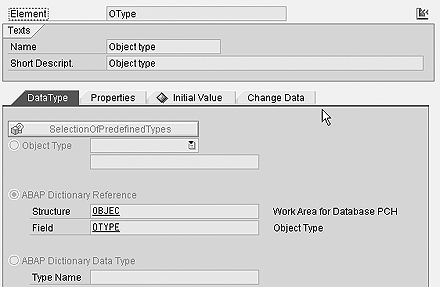
Figure 5
Define the container element criteria for OType
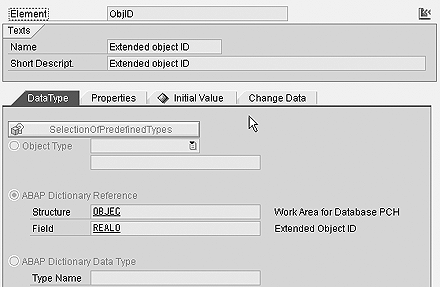
Figure 6
Define the container element criteria for ObjID
Your evaluation path rule is now complete. All you have to do is save it. Don’t forget to assign it to an appropriate package (development class) and change request so you can transport it to your production environment later.
You can use the simulate icon  to start a test of your new rule. You need to supply either the Person responsible (Org_Agent) as your starting object or the Object type (OType) and Extended object ID (ObjID).
If you want your evaluation path to start from Position 50003333, you need to tell the system both the type of organizational object and its ID. A position is type S. So you have to supply either Org_Agent or OType plus ObjID (e.g., Org_Agent = S 50003333 or OType = S and ObjID = 50003333.) Other types include organizational unit (O), job (C), cost center (K), and user ID (US). The complete list of types is found in table T778O.
The simulate icon shows you the result. You can even use the simulation to check if there are any holders of the result objects found.
To use your new rule in a workflow, just include it in the Agents section of your workflow step (Figure 7), and use the binding between the workflow and rule to fill either the Person responsible (Org_Agent), or the Object type (OType) and Extended object ID (ObjID). Another option is to give it to your workflow developer and let the developer include it in your workflow for you.

Figure 7
The Agents section of workflow
Jocelyn Dart
Jocelyn Dart is a senior solution consultant at SAP Consulting working in Australia/New Zealand. She currently specializes in workflow and Supplier Relationship Management (SRM). As well as speaking at various SAPPHIREs and at ASUG, Jocelyn is a co-author of the book, Practical Workflow for SAP.
You may contact the author at jocelyn.dart@sap.com.
If you have comments about this article or publication, or would like to submit an article idea, please contact the editor.




