Use the ABAP code in this article to enhance standard function modules in Strategic Enterprise Management Business Planning and Simulation so that you do not have to worry about externally formatted values.
Key Concept
SAP provides function modules in a function group called UPC_API such as API_SEMBPS_GETDATA and API_SEMBPS_SETDATA to read and write to InfoCubes using Strategic Enterprise Management Business Planning and Simulation (SEM-BPS) customized definitions. BPS function modules require the technical IDs of the planning area, planning level, and planning package as import parameters to determine the specifications for processing. Data returned from API_SEMBPS_GETDATA includes a set of internal tables containing the layout information and transactional data.
The format of these internal tables is difficult for ABAP developers to use because it’s not tabular. The returned data’s layout depends on your template’s layout. For example, if you designed your BPS layouts based on rows with hard-coded row values, then the data contains hard-coded values. The code in this article provides raw data rather than cryptic, coded selections.
Custom applications using Strategic Enterprise Management Business Planning and Simulation (SEM-BPS) often require ABAP development. For example, some companies require a Controlling (CO) planning application with a sophisticated user interface that the standard BPS business content does not provide. However, standard BPS function modules could retrieve template data that adheres to rigid formatting rules. This data makes it difficult to convert fields such as dates or decimals into the type of data that ABAP coding uses.
For example, Figure 1 shows a date in YYYY.MM.DD format. ABAP needs this date format in YYYYMMDD format with no decimals or slashes. I wrote ABAP code that converts this format for you. Another type of conversion that works with this logic is alpha conversion such as front-padded numbers (e.g., change 3 to 00003 or vice versa).
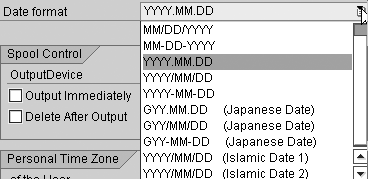
Figure 1
Date in YYYY.MM.DD format
The goal of my ABAP code is to supplement BPS standard function modules to put data in a more readable format. The code creates a new custom internal table. The benefit of this new table is that you can delete, insert, append, sort, and search in ABAP. It’s also easier to maintain because of these features. The internal table structure mirrors the structure of an InfoCube. This custom internal table works around an SAP format that involves several internal values and bypasses templates’ rigid formatting rules. I’ll provide technical information and practical business advice, so both ABAP programmers and BW developers can benefit from reading this article.
If you need to build customized and sophisticated ABAP real-time planning applications with the reporting ability of BW InfoCubes, then the following solution can come in handy. I implemented this technique in BW Release 3.5, Financials Basis 3.0, and SEM-BW 4.0. Companies that have multiple planning user interfaces would be likely to use this technique. This is especially useful when dealing with external systems — for example, when you must report in SAP BW with real-time postings, not BW scheduled loads. My technique is appropriate for real-time updates to InfoCubes from ABAP, but doesn’t apply to scheduled updates. You should use your BW extraction, transformation, and loading (ETL) transformations for those.
Technical Details
This technique doesn’t hard code; rather, it lets the program dictate the selection criteria. My code uses an internal table of structure type UPC_YS_API_CHASEL, which function module API_SEMBPS_ADHOCPACKAGE_SET also uses to dictate the selection criteria. By specifying the selection criteria, it permits optimal and efficient data retrieval, instead of retrieving more than required.
The ABAP class that I developed is based primarily on standard BPS function modules. To permit purely dynamic selection, my implementation does not use BPS variables; instead, it uses the planning package 0-ADHOC in conjunction with function module API_SEMBPS_ADHOCPACKAGE_SET. The 0-ADHOC planning package is a system-generated planning package that BPS provides for each planning level. This is similar to how you use ranges in ABAP.
You can download the code described in this article by clicking this link. The source code provided is implemented in one program for demonstration purposes. It would be a good practice to convert all the classes provided in the code into global ABAP objects so other programs could easily access it.
BW Expert’s Web site also includes two samples of the source code that illustrate how you could use it to retrieve data. The first example uses the generated internal table containing data by using ABAP field symbols. Example two uses a strongly typed Data Dictionary structure to store the data. Strongly typed refers to the data types in the Data Dictionary. As a prerequisite, you must create the Data Dictionary structure like the one in my example, which contains all the InfoObject names within the transactional InfoCube. These two examples require you to copy the source code before the START-OF-SELECTION. ABAP statement.
The code in the main program primarily offers two ABAP classes, the CL_SEMBPS_DATA_ACCESS_FACTORY and CL_SEMBPS_DATA_ACCESSOR classes. Start off by using CL_SEMBPS_DATA_ACCESS_FACTORY to create the CL_SEMBPS_DATA_ACCESSOR. CL_SEMBPS_DATA_ACCESS_FACTORY uses the arbitrary selections and BPS planning area to define the selections in the CL_SEMBPS_DATA_ACCESSOR class.
Then, CL_SEMBPS_DATA_ACCESSOR reads the data and populates the formatted internal table that your application uses. To save the data in the internal table, the code should call the save method from the CL_SEMBPS_DATA_ACCESSOR class, which overwrites the current contents of the InfoCube with the data in the InfoCube based on your selection criteria. The code in the main program also provides exception classes that you could use for error detection. If you try to introduce invalid or new master data that is not part of the InfoObject, the standard function module creates an error that’s reproduced in my code and propagated using an exception object.
Figure 2 shows an overview of the internal process flow embedded in the read/write logic to InfoCubes. The two ABAP classes provided in this technique, CL_SEMBPS_DATA_ACCESS_FACTORY and CL_SEMBPS_DATA_ACCESSOR, implement these processes for you. The communication between ABAP and InfoCubes uses planning areas, planning levels, planning packages, and planning layouts. The function modules require these objects as input. As a prerequisite, you must set up a standard set of BPS planning definitions before using the ABAP classes. I describe this in the setup section. By using all characteristics and key figures from the InfoCube in a planning level and planning layout, data retrieved from the InfoCube is at its lowest level of granularity. For data selection, you could specify robust selection criteria into the 0- ADHOC planning package.
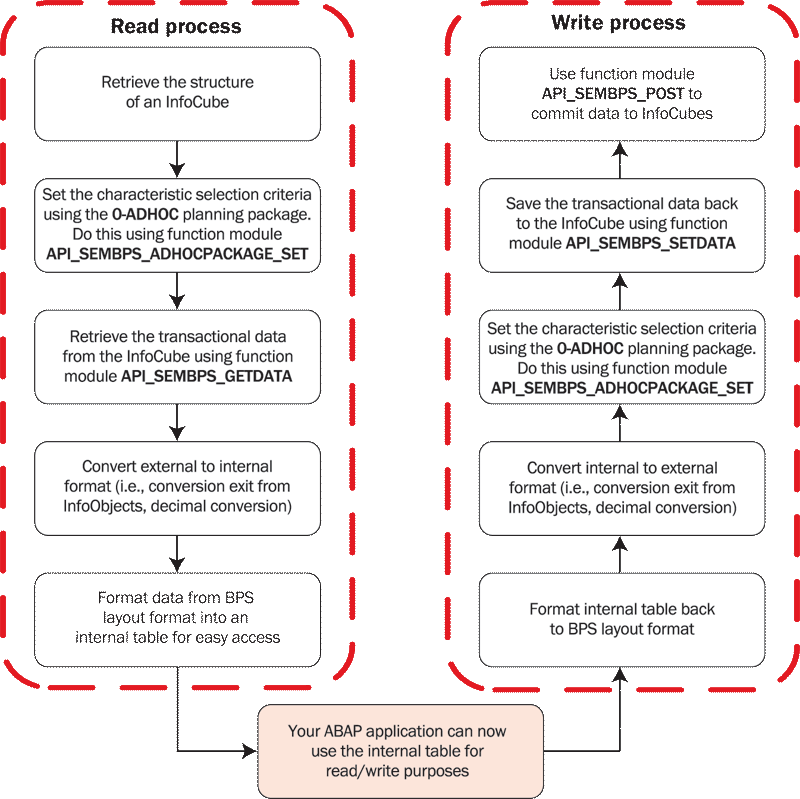
Figure 2
Read/write process to InfoCubes for this coding process
This technique limits ABAP communication to one planning level and one planning layout for each planning area and provides ease of maintenance of BPS definitions. For instance, changes to the InfoCube definition only require changes to one planning level and one planning layout. Furthermore, avoiding hard coding in the planning level, planning package, and planning layout improves maintenance of ABAP programs and BPS definitions. It makes it easier for BPS administrators to separate which layouts to use for ABAP and which ones to use for manual data entry. Since no BPS variables are embedded in the BPS definitions and no multi-planning areas are used, the architecture stays clean and simple. However, I should note that it is possible to set your InfoProvider as a MultiCube with InfoObject 0INFOPROV as part of the structure of the internal table. Table 1 lists the internal tables returned from API_SEMBPS_GETDATA. Table 2 lists the internal tables required for API_SEMBPS_SETDATA, which is used as part of the implementation.
| ETK_HEAD_INFO |
UPC_YS_API_HEAD_INFO |
1. CHANM
2. HIDE |
Technical info of header portion defined by BPS layout definition |
| ETK_HEAD |
UPC_YS_API_HEAD |
1. CHANM
2. CHAVLEXT
3. TXTLG |
Data contained in the header area |
| ETK_ROW_INFO |
UPC_YS_API_ROW_INFO |
1. CHANM
2. PRES |
Display setting for each characteristic in row
(e.g., characteristic and text) |
| ETK_ROW |
UPC_YS_API_ROW |
1. ROW
2. CHANM
3. CHAVLEXT
4. TXTLG |
Characteristic data for each row in layout |
| ETK_ROW_TEXT |
UPC_YS_API_ROW_TXT |
1. ROW
2. TXTLG |
Text displayed for each row for layouts with layout category in key figures in lead columns |
| ETK_COL_INFO |
UPC_YS_API_COL_INFO |
1. CHANM |
Column characteristic and key figures |
| ETK_COL |
UPC_YS_API_COL |
1. COL
2. CHANM
3. CHAVLEXT
4. TXTLG |
Column mapping from layout to its respective characteristic or key figures |
| ETK_COL_TEXT |
UPC_YS_API_COL_TXT |
1. COL
2. TXTLG |
Description of each column |
| ETK_DATA |
UPC_YS_API_DATA |
1. ROW
2. COL
3. VALUE
4. INPUT |
Transaction data mapped by rows and columns with the previous structures |
| ETK_RETURN |
BAPIRET2 |
1. TYPE
2. ID
3. NUMBER
4. MESSAGE
5. LOG_NO
6. LOG_MSG_NO
7. MESSAGE_V1
8. MESSAGE_V2
9. MESSAGE_V3
10. MESSAGE_V4
11. PARAMETER
12. ROW
13. FIELD
14. SYSTEM |
Standard Business Application Programming Interface (BAPI) return structure of any possible error/warning messages |
|
| Table 1 |
The internal tables returned from API_SEMBPS_GETDATA |
|
| ITK_ROW |
UPC_YS_API_ROW |
1. ROW
2. CHANM
3. CHAVLEXT
4. TXTLG |
Characteristic data for each row in layout |
| ITK_DATA |
UPC_YS_API_DATA |
1. ROW
2. COL
3. VALUE
4. INPUT |
Transaction data mapped by rows and columns with the previous structures returned from API_SEMBPS_GETDATA |
| ETK_RETURN |
BAPIRET2 |
1. TYPE
2. ID
3. NUMBER
4. MESSAGE
5. LOG_NO
6. LOG_MSG_NO
7. MESSAGE_V1
8. MESSAGE_V2
9. MESSAGE_V3
10. MESSAGE_V4
11. PARAMETER
12. ROW
13. FIELD
14. SYSTEM |
Standard BAPI return structure of any possible error/warning
messages |
|
| Table 2 |
The internal tables required for API_SEMBPS_SETDATA |
These two classes greatly simplify ABAP development. ABAPers won’t need to worry about external data formats such as date/decimal conversion or InfoObject conversion exits because the ABAP class should dynamically know how to convert them. In addition, the BPS layout formats (i.e., headers, column formats) and layout internal tables are converted into an internal table with the InfoCube structure. This is a lot easier to read and manipulate. In other words, this is similar to internal tables used in SQL select statements. Although it could dynamically generate an internal table by using references to the ABAP data object, it can also use strongly typed internal tables. This feature frees ABAPers from using dynamic field-symbols assignments and uses the ABAP compiler to detect any problems. This is handy when InfoCube definitions change.
Including new ABAP members to customizing BPS planning projects wouldn’t require such a steep learning curve. Using the ABAP class wouldn’t really require much knowledge of Administrator Workbench. Since the implementation of the solution uses ABAP object-oriented (OO) technology, it encapsulates many of the pieces and leaves only public methods for other application developers to use. SAP is promoting the usage of ABAP Objects, the OO extension to ABAP. Many ABAP developers will benefit from this change, which is an improvement over ABAP procedural programming.
There are some limitations with my code. The BPS layout can only retrieve 9999 rows (as documented in SAP Note 352766). Also, this solution isn’t meant for ABAPers who like to use BPS variables. As a workaround, you need to find out the selections of the desired BPS variable and pass those to the characteristics selections in ABAP. Depending on the layout specifications, the data is displayed in the layout format. Data returned from this function module is in external format. Typically, it would be easier in ABAP to look into data that is in internal format. For instance, date and decimal format is specific to SAPGUI configurations in their user profiles. Having multiple formats for dates and decimals may require separate conversions to handle in ABAP. Saving data would require additional work. As a typical best practice, I recommend reading data first and then saving the data using BPS function modules. Although the BPS function modules are rather primitive to use, they serve as a basis for accessing data through ABAP.
Set Up Your System to Use the Classes
To use classes CL_SEMBPS_DATA_ACCESS_FACTORY and CL_SEMBPS_DATA_ACCESSOR, follow these technical setup steps for each InfoCube.
Step 1. Go to transaction BPS0. Select an existing single planning area (Figure 3). In this example, it’s ZDEMO.

Figure 3
Select the technical name of your planning area
Step 2. Create a planning level. Right-click on the planning area ZDEMO and select the Create Level option. Name the planning level ZLABAP. The description could be anything, but for example purposes I have chosen ABAP read/write. Click on the Create button to see the screen in Figure 4.

Figure 4
Name your planning level ZLABAP
Step 3. Select characteristics, key figures, and selections. The Chars. tab automatically shows up after you click on the Create button. On the Chars. tab, select all characteristics in the Characteristic list table and move those up to the Selected characteristics table using the up arrow icon (Figure 5).
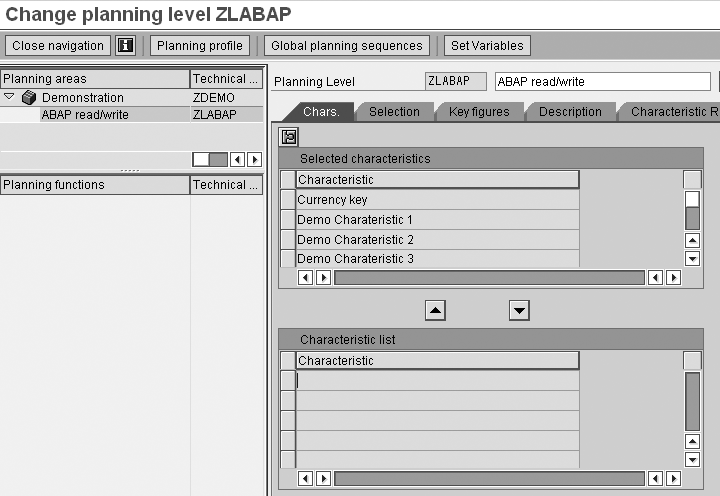
Figure 5
Select characteristics and move them to the Selected characteristics area.
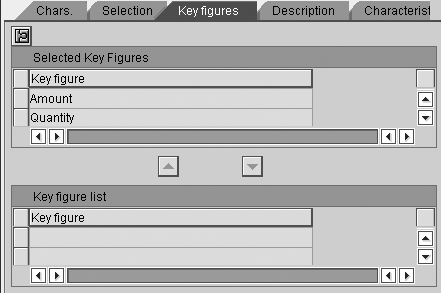
Figure 6
Select key figures
In the Key figures tab (Figure 6), select all key figures from the Key figure list and move those to the Selected Key Figures area. In this example, I selected Amount and Quantity.
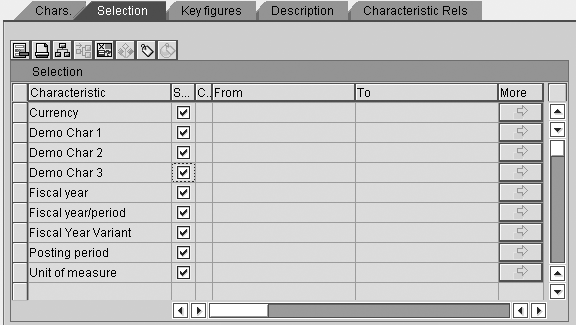
Figure 7
Select the check box for Selection in package
In the Selection tab (Figure 7), select all check boxes labeled S… (selection in package).
Step 4. Create a planning layout. Right-click on the planning level ZLABAP in the upper left part of Figure 5 and choose the Manual planning option. Name the planning layout ZMABAP and give it a description (Figure 8). Click on the Create button to see the screen in Figure 9.
Note
If you would like to learn more about planning applications, SAP Education offers these classes in the US: BW370 SAP BW-Business Planning and Simulation or BW370 BI-Integrated Planning (for BI NW2004s). For more information, go to
www.sap.com/useducation.

Figure 8
Name your planning layout ZMABAP
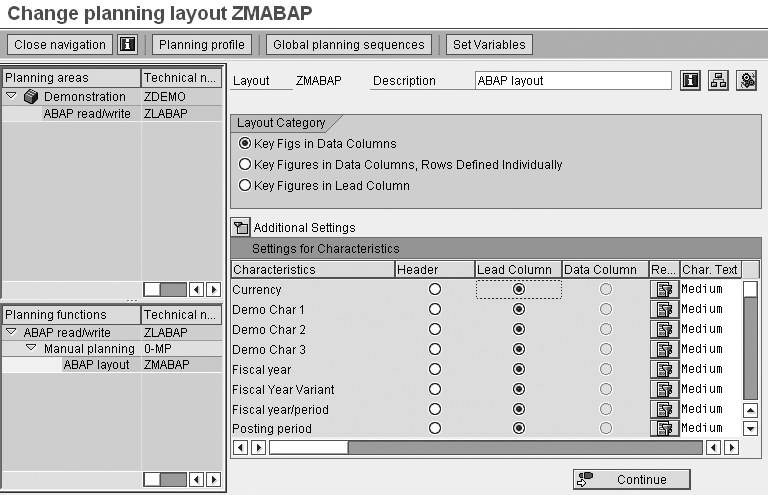
Figure 9
Choose the Key Figs in Data Columns button within the Layout Category area
Choose the Key Figs in Data Columns button within the Layout Category area of the level (Figure 9). Under Additional Settings, set every characteristic as Lead Column. Click on the Continue button.
Step 5. In the Data columns tab (Figure 10), insert all of the key figures as items within the data columns. This screen appears after clicking on the Continue button in Figure 9. Enter the key figures shown in Figure 6. Click on the Continue button, and then click on the save icon.

Figure 10
Add your key figures to the Data columns tab
Now that you have set up the planning levels and planning layout, you can add the code I wrote, available for download by clicking this link. Use transaction SE80 to enter the code into your BW system. I’ve provided detailed instructions about how to do this in the same download.
Alfred Ho
Alfred Ho graduated from the University of Calgary with a BS degree in computer science. He has been working as a dedicated programmer for the last five years in SAP ABAP, Java, C/C++, C#, .NET, and Web technologies.
You may contact the author at hoalf2002@yahoo.com.
If you have comments about this article or publication, or would like to submit an article idea, please contact the editor.



