SAP ERP HCM Performance Management enhancement package 4 has key features such as a user interface that includes Rich Islands for Adobe Flash and appraisal documents that are launched from the portal. Learn how to use these new features.
Key Concept
Many organizations are embracing performance management to identify and compensate top performers. Corporations use the Performance Management tool to get a 360-degree feedback (appraisal) on their employees. HR generalists use the performance management tool to conduct calibrations. Managers use the performance management tool to set team goals, identify development needs, and integrate the training needs to the learning solution. SAP ERP HCM Performance Management enhancement package 4 has a new user interface and makes conducting performance management an easy process.
Many managers take pride in developing the professional aspirations of their employees. SAP Performance Management enhancement package 4 provides many new features that facilitate this task. These new features include:
- User interface for the pre-defined performance management process is in Web Dynpro for ABAP. It uses Rich Islands for Adobe Flash.
- Facility to cascade goals
- Enhanced integration to the SAP Enterprise Learning. When an employee logs in to SAP Enterprise Learning, she can see the courses that the manager has assigned her to attend.
- Tighter integration of employees’ development plans with SAP Enterprise Learning
- Managers can perform team calibration in SAP functionality for manager self-services
All these new features make SAP Performance Management enhancement package 4 easier for managers and employees. When doing performance reviews, managers can better understand how individual employees have performed compared to the rest of the team by using calibration. Employees also benefit by better understanding their goals and development.
Technical Requirements
Before you begin to install enhancement package 4, install and implement the following:
- SAP ERP 6.0
- For implementing the Predefined Performance Management process, import business function HCM_OSA_CI_1
- For implementing the Flexible User Interface, import business function CA_HAP_CI_1
- Manager Portal business package 1.41
- Employee Portal business package 1.41
- Talent Management Specialist business package 1.40
- SAP NetWeaver - Adobe document services 7.01
- SAP NetWeaver – Internet graphics services 7.01
- Adobe Flash Player (needed to display Rich Islands for Adobe Flash)
Note
Review
SAP Note 1239426 for details on implementing the predefined performance management process. Review
SAP Note 1239427 for details on implementing the flexible performance management process.
In enhancement package 4, SAP Performance Management has two user interface options to perform the appraisal process, the Predefined Performance Management process and the Flexible Performance Management process. Predefined Performance Management is a standard (out-of-box) implementation, whereas Flexible Performance Management is custom developed. For this article, I am using the Predefined Performance Management process.
Predefined Performance Management Process
In the Predefined Performance Management process, the required settings are standard (hence the name, predefined). Table 1 describes the iView that launches the Talent Management in the manager portal.
|
Name of iView
|
com.sap.pct.erp.mss.14.performance_management
|
|
Name of application
|
hap_a_pmp_overview with parameter ROLE_ID=MA
|
|
Runtime technology
|
WebDynpro for ABAP
|
|
Datasource
|
SAP ECC 6
|
|
Support
|
PA-PD-PMP
|
|
| Table 1 |
iView to launch the Talent Management in the manager portal |
The iView that launches the appraisal document is shown in Table 2. The employee can access the document in the employee portal using menu path Career and Job > Predefined Appraisal Documents.
|
Name of iView
|
com.sap.pct.erp.ess.14.documents_ee_pmp
|
|
Name of application
|
hap_a_pmp_employee
|
|
Runtime technology
|
WebDynpro for ABAP
|
|
Datasource
|
SAP ECC 6
|
|
Support
|
PA-PD-PMP
|
|
| Table 2 |
iView to launch the appraisal document in the employee portal |
Table 3 shows the different phases and the process steps in the predefined performance management process.
|
Preparation phase
|
The HR generalist creates the appraisal template. She then prepares the schedule for the individual process steps in the different phases of the appraisal process.
Note: These two steps are performed in the IMG.
|
|
Planning phase
|
The manager sets the goals for her team and direct reports. The team’s goals are cascaded to the team. Some goals might be cascaded to the entire team, some team goals might be cascaded to a few employees only.
|
| |
The manager and the employee set the individual goals
|
| |
The manager and the employee complete planning and approve the individual goals
|
|
Review phase
|
The manager and the employee discuss and review the individual goals.
During the review phase the manager and the employee discuss the individual development needs.
The individual goals are updated, where required.
|
| |
The manager and the employee complete the review and approve the individual goals
|
|
Appraisal Phase
|
The employee conducts and completes a self-appraisal for the agreed-upon individual goals
|
| |
The manager conducts and completes the appraisals for the individual employees
|
| |
The manager conducts and completes the team calibration
|
| |
The appraisal document is completed by the manager
|
| |
The employee approves the appraisal
|
|
| Table 3 |
Predefined performance management appraisal phases |
You can access the Predefined Performance Management screen (Figure 1) by following menu path Manager Portal > Talent Management > Performance Management > Predefined Performance Management.

Figure 1
Performance Management in the manager portal
The Performance Management screen has four tabs: Tasks, Employee Documents, Team Goals, and Team Calibration (Figure 2). In this article, I discuss Tasks and Employee Documents.

Figure 2
Predefined Performance Management in the manager portal
In Figure 2, the panel at the top of the screen displays the schedule for the different phases of the appraisal process. For example, the Preparation Phase is set to begin on 01/01/2009 (not seen in Figure 2 as the system shows the begin date when you move your cursor to the start of the bar) and end on 01/15/2009. The Planning Phase begins on 1/16/2009 and ends on 03/31/2009. The Year-End Employee Self-Assessment starts on 11/01/2009 and ends on 11/30/2009, and the Year-End Manager Assessment starts on 12/01/2009 and ends on 12/31/2009.
When you move your mouse over the different phases in that panel, the tooltip displays the current date. The panel does not display the progress of the appraisal process. Rather it displays the date you are currently in. It reminds the manager by saying, “Today is 3/17/2009, and per the schedule the planning schedule should be completed by 3/31/2009.” Move your cursor in that control, and see the different tooltips that are displayed. This is one of the new UI features in the enhancement package 4.
Before I show you how to set individual goals in the SAP Performance Management enhancement package 4, let me share my experience and best practices in setting individual goals.
Discuss Goal Setting with Employees
During the beginning of the annual appraisal process, the manager usually schedules a meeting with employees to discuss the annual goals, the team goals, the employee’s career aspirations, and the development needs that are required.
In enhancement package 4 the user interface captures the different stages in the process in one screen – schedule the meetings, define the annual goals, assess team goals, edit the appraisal for the employee, approve goals, and end the appraisal process (Figure 3). The screen displays the employees you are responsible for and at what stage of the process they are currently in.
When you place a check mark in the meeting box displayed beside an employee’s name, the employee is automatically moved to the next process step — Define Individual, Competency, and Development Goals.
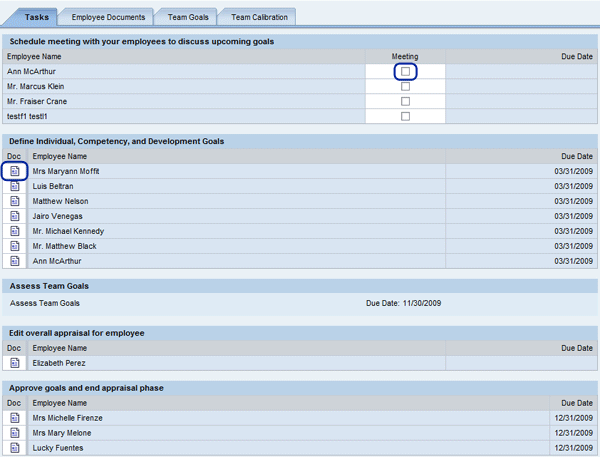
Figure 3
Tasks in the Predefined Performance Management process
The Define Individual, Competency, and Development Goals group displays employees for whom you need to complete tasks. The tasks could include defining the individual goals, for example. Click the document icon displayed next to an employee’s name to display the appraisal document of that employee (Figure 4).
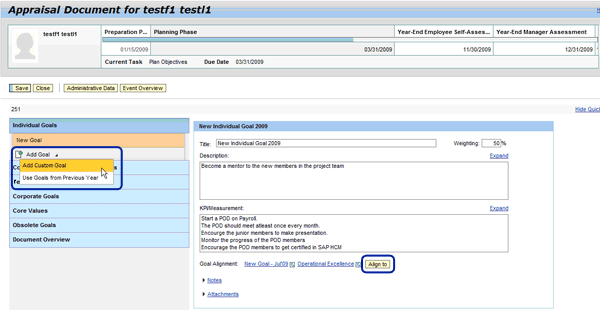
Figure 4
Appraisal document of an employee
In the appraisal document, click the Add Goal field and select Add Custom Goal. In the goal setting screen, you can enter the title of the goal and the long text of the goal. In the KPI/Measurement, you can enter the KPIs or how the goals are measured. The manager can also select the weight to use for each goal.
One of the best practices I have seen in building and motivating teams to achieve greater success is to always align team and corporate goals to specific, measurable individual goals. To align the goals, click the Align button in the appraisal document screen. This displays the dialog box (Figure 5), which lists the team goals that you have created and cascaded, as well the corporate goals that were cascaded and the core values. You can align the individual goal by selecting the team goals and the corporate goals that are displayed in the dialog box. Click the OK button to accept your selection.
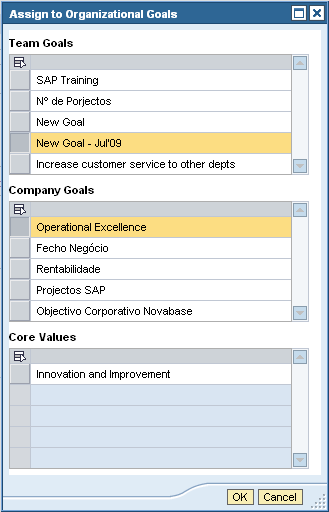
Figure 5
Goals alignment
The selected and aligned goals are displayed as links in the Goals Alignment field. Clicking the links displays the details of those particular goals. You can delete the goals by clicking the delete icon displayed next to each of the goals.
Adding Notes
A new feature of enhancement package 4 is the ability to add notes to goals, appraisal documents, or just about anything you would like. For example, you can add notes to the appraisal document by clicking the Notes link. This displays the Notes field (Figure 6), where you can enter the notes. Click the Add button, and the notes are saved and displayed in the bottom of the field as a grayed-out long text. You can restrict who can view the notes by checking and un-checking the three roles — Manager, Employee and Additional Appraiser — that are shown in the Display field.
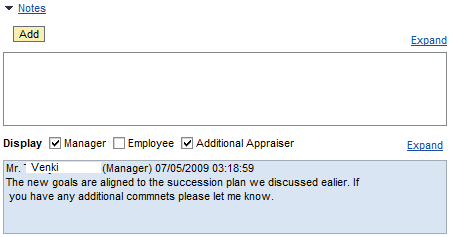
Figure 6
Add notes to the appraisal document
Attachments
You can add attachments to your appraisal document (Figure 7). Remember, you need to have a sufficient level of authorization to add attachments to the appraisal document. One would also require authorizations to view the attachment and to delete the attachment.
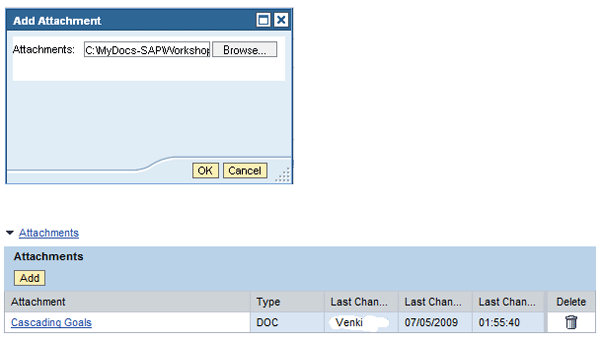
Figure 7
Add attachments to the appraisal document
If you wish to add an attachment, click the Add button displayed in the Attachments group. In the dialog box, you can upload the attachment that you wish to attach to the appraisal document. Click the OK button to accept your selection.
Note
In a collective bargaining environment, sometime you might need to upload attachments that detail the performance criteria and the goals. In a non-union environment, I have noticed managers uploading attachments that detail their individual discussion with the employee, or if the employee is on a performance plan, details about the agreed upon performance goals.
Competency and Development Goals
You can add competency and development goals to the appraisal document. Click the Competency and Development Goals section, and select Add Goal. Three options are displayed in a drop-down menu:
- Add Custom Development Goal
- Add Competency from Catalog
- Add Competency from Profile Match Up
Add Custom Development Goal
Managers can create new development goals for their employees (Figure 8) and can attach this new goal to the employees’ appraisal documents. As you can see in my example, I entered the title of the goal, created a time when the goal should be completed, and gave a rating to the goal. The Rating field is an Adobe Flash field. Drag the flash with your cursor. When the flash starts moving, the different ratings are displayed. Stop the cursor (flash) at the rating you want to assign. Incorporating the Rich Islands for Adobe Flash in the SAP ERP HCM Performance Management screens is one of the many new UI features in enhancement package 4. Rich Islands for Adobe Flash allows you to enhance your images, user interface, and user experience.

Figure 8
Add a custom development goal
While creating the development goal, you can also create the actions that need to be taken to meet the development goal (Figure 9).
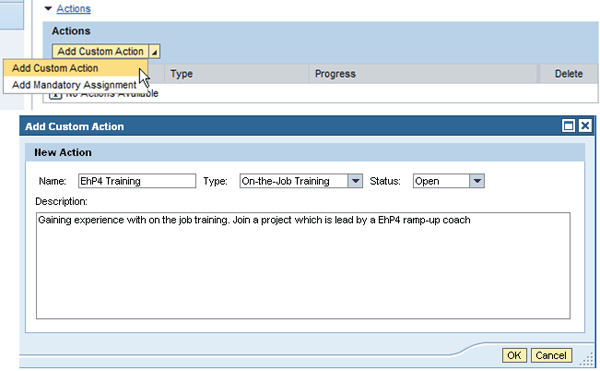
Figure 9
Add a custom action to the development goal
To add an action, click the Add Custom Action button. Choose the Add Custom Action option. This displays a dialog box, where you can enter the title and the long text of the action. You can set the type of action that needs to be taken. The standard types are On-the-Job Training, Mentoring, and Other. You can set the status of the action. The standard statuses are New, Open, Completed, and Obsolete. Click the OK button to accept your new action.
The Add Mandatory Assignment displays a catalog with the list of courses available in the course catalog. Select the course type that you like the employee to attend to enhance her skill or fulfill her development need.
Add Competency from Profile Matchup
If you wish to add a competency from the profile matchup, click the Add Competency from Profile Match Up option as shown in Figure 10.
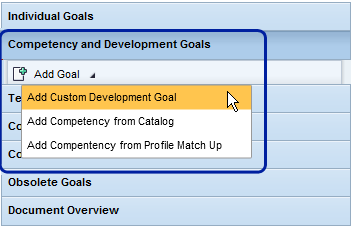
Figure 10
Add competency from the Profile Match Up
In the displayed dialog box (Figure 11), select the option Current Position if you know the employee’s position. Otherwise, in the option Search for Position, enter an asterisk (*) and click the Start button. Select the desired position displayed in the table and click the OK button.
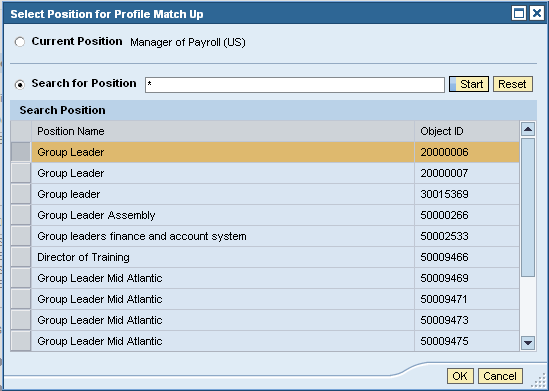
Figure 11
Select position for profile matchup
The list of competencies and the proficiencies required for the selected position is displayed in a dialog box (Figure 12).

Figure 12
Add goals from profile matchup
Select the competency that you wish to add to the appraisal document and click the OK button to accept your selection.
In Figure 13, the competency that I selected is displayed in the title. I completed the details, such as the date I feel the employee should attain this competency. The other details such as Actions, Notes, and Attachments are similar to what I described earlier.
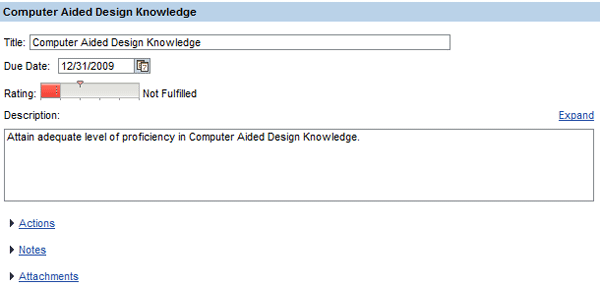
Figure 13
Add competency and development goal
Appraisal Document
Click on the Document Overview option in Figure 4 to display the appraisal document.
Figure 14 displays the appraisal document that I created for this article. The document displays the individual goals, the competency, and development goals that I created.
The appraisal document is displayed as an Adobe Form.
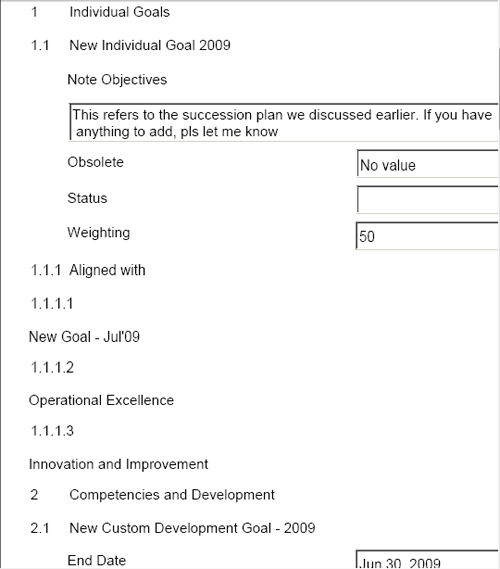
Figure 14
Appraisal document
The Administrative Data button in the task bar, (Figure 4) displays the administrative data of the appraisal document (Figure 15). In the displayed dialog box, you can add Additional Appraisers by clicking the Add link. You can change the manager of the appraisal document by clicking the Change link.

Figure 15
Administrative data of the appraisal document
The dialog box displays the different phases, the tasks, and the corresponding due dates. Click the OK button to accept your changes.
The Event Overview button in the task bar (Figure 4), displays the action log, the user name, and the date and time stamp of the activities in the appraisal document.

Venki Krishnamoorthy
Venki Krishnamoorthy is an author, speaker, and SAP ERP HCM talent management solutions subject-matter expert. He is currently an independent SAP ERP HCM functional consultant. Venki has over 10 years of experience as a functional lead, project manager, and program manager in the HCM space. Besides implementing SAP HCM solutions, he has implemented and acted as a trusted advisor on SAP ERP HCM talent management implementations, including E-Recruiting, HCM Performance Management, Succession Planning, SAP Talent Visualization by Nakisa, Learning Solutions, and Employee Self-Service and Manager Self-Services. He is the coauthor of three books: E-Recruiting with SAP ERP HCM, SAP ERP HCM Infotypes: Your Quick Reference to HR Infotypes,
and SAP Transaction Codes: Your Quick Reference to T-Codes in SAP ERP.
You may contact the author at krish.venki1@gmail.com.
If you have comments about this article or publication, or would like to submit an article idea, please contact the editor.