Migrating payroll from your legacy payroll systems into an SAP payroll system is a
highly complex process and is a major factor for ensuring the overall success of an SAP implementation. Follow this step-by-step process to compare your legacy payroll run with your SAP payroll run for the same period. See how to capture your year-to-date results in your new SAP payroll system, and get code snippets that you can use for your implementation.
Key Concept
This payroll comparison program is a set of custom reports that helps you compare your payroll processes. Any SAP ERP HCM payroll implementation requires the development of a program to compare the legacy and SAP payrolls as well as to validate the payroll configuration and HR master data payroll loads such as earnings, deductions, and taxes. The main goal of the payroll comparison program is to provide visibility into your payroll processes; identify issues at the wage type level; aid in fixing master data, data translation, and data mapping; and identify configuration issues. The tool helps you optimize SAP implementation time with proven techniques and step-by-step instructions, and without having to reinvent your payroll comparison strategy.
This custom program I designed and developed is intended to simplify the process of comparing legacy payroll data with data migrated to SAP payroll. It helps identify legacy data issues, identify and fix data mapping and translation rules, identify and fix master data issues, and fix payroll configuration issues. I have used this tool very successfully in many SAP payroll implementations. Without this tool, payroll administrators have to resort to using multiple SAP-provided reports to verify and validate payroll data. That process is complex, cumbersome, confusing, and time consuming. I also provide performance improvement tips to use when loading millions of records into payroll tables.
Note
At the end of this article, I provide code snippets to load your legacy year-to-date (YTD), quarter-to-date (QTD), and payroll period data into standard SAP payroll tables. Unlike SAP’s standard load programs, these load programs can handle high volumes, generate load statistics, and be scheduled to run in the background.
Process implementation teams usually have to resort to many manual processes and verifications that are time consuming and, in some cases, ineffective. A typical SAP payroll implementation involves these 11 steps to check if the payroll implementation was successful:
- Migrating all master data, payroll, time, benefit, and tax infotypes into your SAP system (as part of your data conversion process)
- Extracting, translating, and formatting your legacy system YTD payroll data into the proper format required by the standard or custom SAP load program
- Loading and validating data into SAP payroll tables T558B, T558C, and T5U8C
- Running payroll schema ULK9 (or ZLK9) to transfer data from SAP payroll tables into SAP tables and payroll clusters
- Comparing your YTD legacy data from SAP payroll tables with the YTD data loaded into SAP tables and clusters. This program helps with generating various reports and identifying issues with SAP ERP HCM master data and configuration (schemas, rules, and functions), as well as legacy-to-SAP system data translation and mapping issues. (The goal is to exactly match the legacy payroll data with the payroll data loaded into the SAP system. To ensure that this goal is met, you have to delete program RPUDEL20 and reload data multiple times from payroll tables and clusters to fine-tune data and payroll configuration.)
- Deleting payroll table YTD data from existing payroll tables
- Running the period payroll data in the legacy system
- Running payroll in the SAP system (program RPCALCU0). This payroll run stores data in the clusters and payroll tables.
- Extracting, transforming, and loading period data from the legacy system into SAP payroll tables (T* tables). This data is used by a comparison program.
- Running a comparison program report to compare variations in earnings, deductions, and taxes between the SAP payroll run and the legacy payroll run
- Adjusting data, mapping, and configuration. Delete current data; reload data, as needed; and fine-tune the data until the variance is under acceptable limits.
All SAP ERP HCM payroll implementations also need to check the success of the payroll run. To do so effectively, the system should be able to:
- Check the legacy payroll data migration
- Check the legacy earning, deduction, and tax code mapping and translation into SAP wage types
- Fix configuration by comparing payroll data runs in the legacy system with the SAP system
No single SAP standard report or tool is available for comparing legacy and SAP payroll data. You have several options for comparing SAP payroll data with payroll legacy data. I show you how to transfer legacy payroll data into the SAP system format, load it into the SAP system’s payroll tables, and then execute the payroll driver programs. You can use my payroll comparison program to compare legacy data with the data in the SAP system payroll clusters.
Here is the step-by-step guide to loading and comparing payroll results, which I have used with great success:
- First, outline how you can load your YTD and QTD results into the SAP system
- Run a payroll comparison report that compares legacy data with SAP payroll data (gross payroll and period payroll)
- Create tables to house the legacy payroll data for a payroll comparison
- Determine which of the various custom report options you can use to generate and compare various wage types (for my implementation I used all the reports)
Payroll comparison involves the following steps:
- Map legacy earnings, deductions, and tax codes to SAP wage types in a custom table
- Extract data from the legacy system as per the rules provided in your conversion strategy
- Define and extract data and file formats as required by payroll tables
- Load data and validate it. Fix data load errors as needed.
- Run the US payroll driver using US payroll schema ULK9 (or ZLK9)
- Verify payroll clusters and validate data using standard SAP system reports
- Use comparison reports to run four options of the report with wage type tolerance limits
Figure 1 shows the process flow.
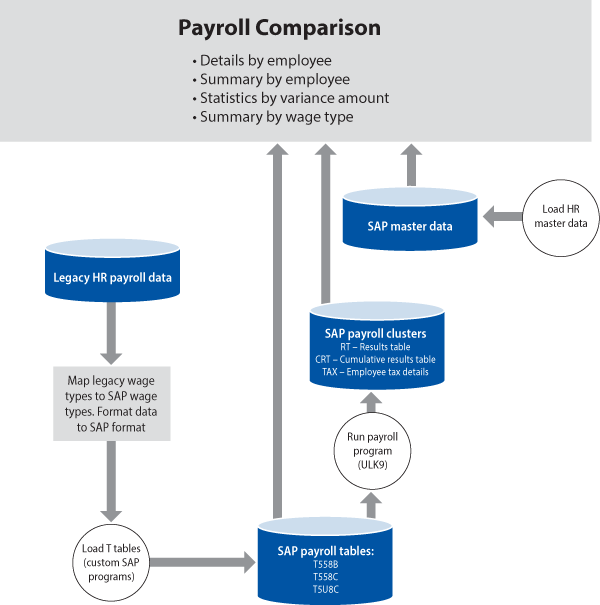
Figure 1
Flowchart of the payroll comparison process
In wage type mapping, you map legacy payroll (earnings, deductions, and tax codes) to the SAP system wage types as defined by your company. Based on your data conversion strategy, you can perform data mapping and transformations in the legacy system, the middleware or external system, or the SAP system. My recommendation is that you maintain your mapping table in the legacy system and perform all translations and data transformations in the legacy system. This method helps you avoid handling and processing the payroll files multiple times, which may lead to data issues.
The following tables are used for legacy data transfer (Figure 2) and for the transfer of payroll results from a legacy system (Figure 3). You can manually input data into these tables using transaction code SM31 (call view maintenance) or you can upload data using these custom programs:
- T558B (payroll account transfer): Payroll periods
- T558C (payroll account transfer): Old wage types (regular wage type information)
- T5U8C (transfer external payroll results [US]): Tax and arrears information
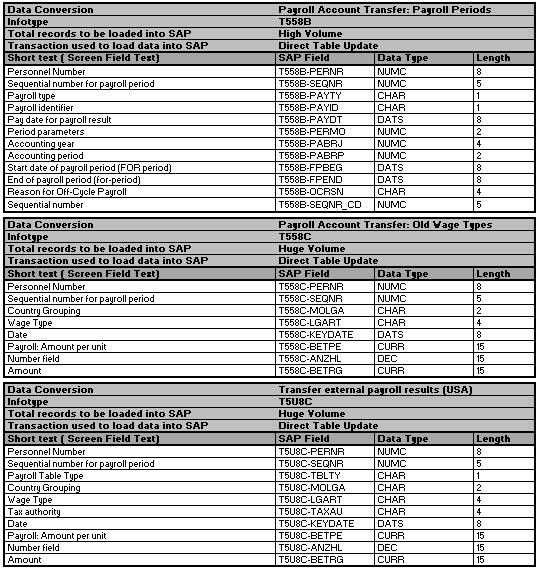
Figure 2
Legacy data transfer file formats
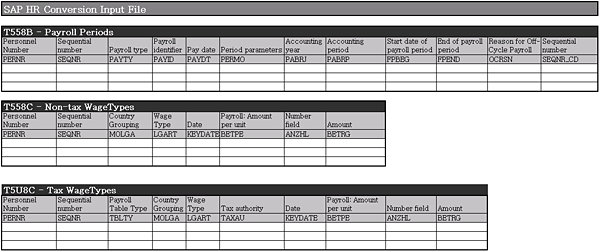
Figure 3
File formats to capture data from a legacy system
Master data must exist within the SAP ERP HCM payroll system for the employees for whom you are transferring payroll results. Before you load legacy payroll data into the three standard payroll tables (T558B, T558C, or T5U8C), make sure that the master, payroll, and organizational data is uploaded and validated. Figure 4 shows the infotypes I loaded for one of the major SAP ERP HCM projects I implemented. For more information about data conversions details, refer to my article, “Secrets to Successful Data Conversions.”
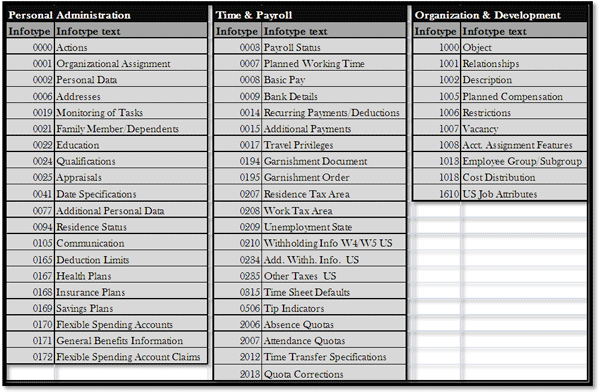
Figure 4
SAP ERP HCM infotypes
Clear the data from the T* tables (T558B, T558C, and T5U8C) before loading any data. You can design the load program to handle deletions based on given selection criteria (e.g., personnel number and payroll area). The reason for this option is to facilitate clearing the T* tables and reloading the data as needed. If the data is incorrectly loaded owing to extraction or mapping issues, you have the flexibility to programmatically delete data from these tables. Because of the large volume of payroll data, deleting the data manually is very time consuming and would extend your testing timeline. (There is download of sample code for table T558C at the end of this article; you can use this same logic for other tables.)
Use program RPUDEL20 (delete payroll results) to delete all the payroll results from your test system. You need this program to delete and reload the payroll data until your legacy payroll and the SAP payroll data match. You need to delete and reload the T* tables and payroll data multiple times in your test boxes to fix the following:
- Data extraction issues
- Mapping and translation issues
- Configuration issues
- Payroll schema, rules, and functions
- Infotype data
- Wage type catalogue and attributes
Note
Never use program RPUDEL20 in the production system to delete payroll data from the production system. SAP strongly recommends against this in production as it may corrupt your payroll data. This program is provided only for use in test boxes. If you have to delete data in production, use transaction code PCAL (delete current payroll result) to delete individual personnel numbers, or, to delete large volumes of data, create a batch data communication (BDC) custom program using transaction code PCAL.
Run the payroll driver program RPCALCU0 using the configured schema ULK9 (or ZLK9 if you customized ULK9 for your company). This program loads data in the PCL2 cluster. This payroll driver program extracts data stored in the T* tables (pay period data, wage type data, and tax and arrears data). My program stores this data in these payroll cluster data areas: B2 (time accounting results), CD (the cluster directory) of the CD manager, PT (texts for generated schemas), RU (payroll accounting results for the US), and ZL (personal work schedule).
Note
The data clusters in PCL2 tables are as follows:
B2 — Time accounting results
CD — Cluster directory of the CD manager
PS — Generated schemas
PT — Texts for generated schemas
RX — Payroll accounting results (international)
RU — Payroll accounting results (US)
ZL — Personal work schedule
After a successful payroll run, verify the data for an employee by using the standard SAP system report H99_DISPLAY_PAYRESULT for all countries or one of the payroll reports listed in Figure 5 to display country-specific payroll results. To display US payroll results for a given personnel number you can use program RPCLSTRU (use program RPCLSTRX to list international payroll results).
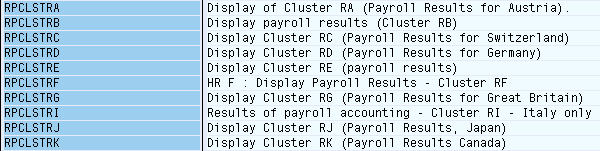
Figure 5
Display payroll results (country-specific programs)
The payroll driver uses a payroll schema that contains calculation rules. The standard country-specific payroll schema contains calculation rules that the driver can use. You can also create custom schemas by copying a standard schema and using it in your payroll driver program. To access the SAP system payroll schema, use transaction code PE01 (maintain payroll schemas). For US payroll, use standard schema ULK9 (transfer legacy data [US specific]) and click the Change button to make changes to the schema (Figure 6). Most SAP implementations customize some of the schema to fit their business needs. I suggest you copy the schema to the custom name range (ZLK9 in my example) and make changes to this custom schema.
To make changes to the schema, make a copy using the copy icon and name the custom schema ZLK9. Select the green check mark icon to clone schema ZLK9. Click the Change button to make changes to custom schema ZLK9 (Figure 7). (Compare schema ZLK9 with schema ULK9 in your system; for clarity, I deleted a few functions in Figure 7.)
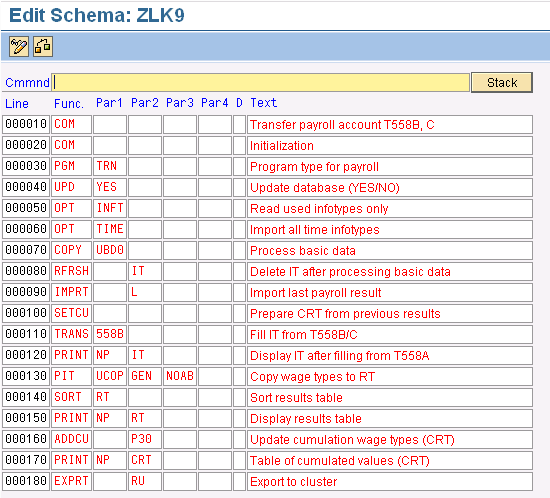
Figure 7
Custom schema in edit mode
Use schema ZLK9 in your program RPCALCU0 (payroll driver [US]) to transfer legacy data loaded from the T* tables into your SAP payroll cluster. For a regular US payroll run, use schema U000 (the US accounting schema for program RPCALCU0). Figure 8 displays the selection screen when you execute program RPCALCU0 by clicking the execute icon  or by pressing F8.
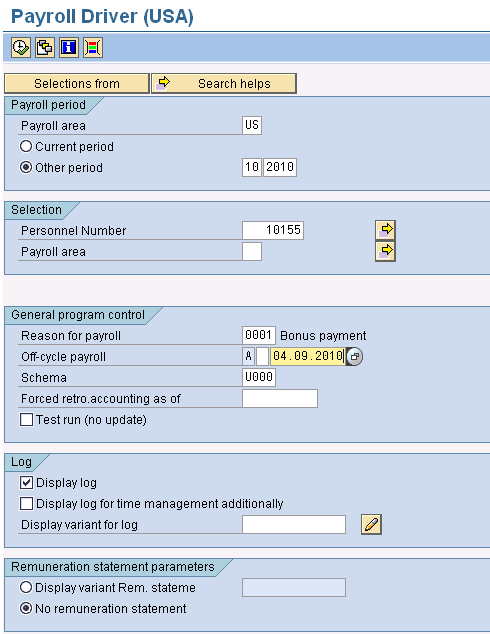
Figure 8
Program RPCALCU0 selection screen
After you execute the report the system generates a log. You have the option to run payroll in test mode. I strongly recommend that you do so before you run the actual payroll run. This test mode report displays the success and error details of your payroll run (Figure 9).
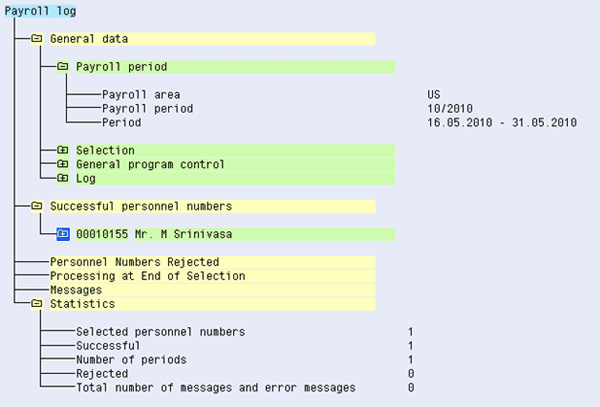
Figure 9
Payroll log details (output for execution of program RPCALCU0 using schema U0000 for one employee)
This data is transferred from various infotypes and tables into the payroll cluster RU tables WPBP, RT, CRT, BT, and other internal tables (Table 1).
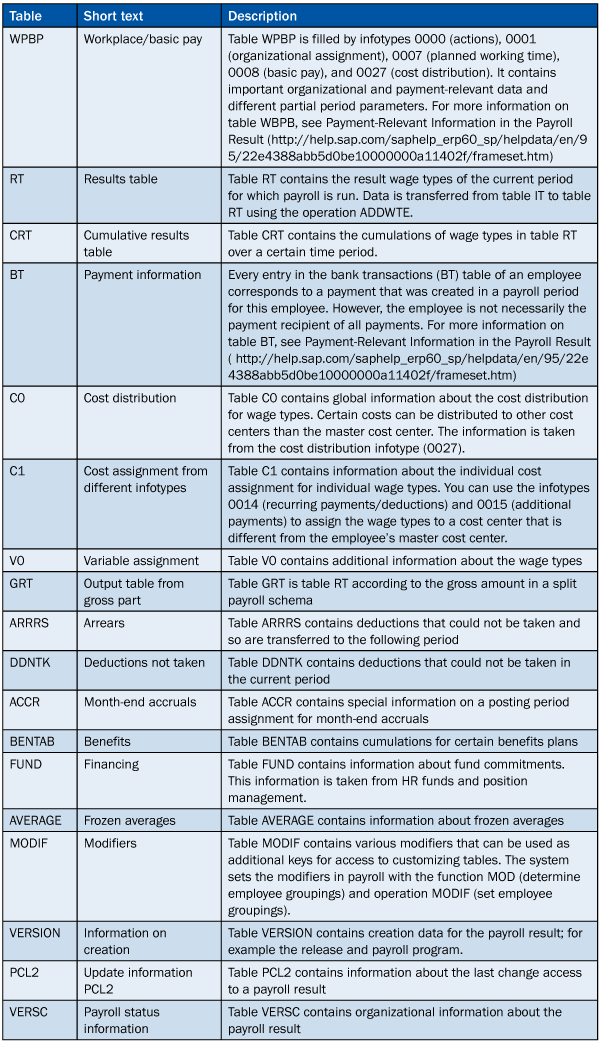
Table 1
Tables in payroll clusters
After a successful payroll run, you can access the data from the cluster using report RPCLSTRU, transaction code PC_PAYRESULT (display payroll results), or program H99_DISPLAY_PAYRESULT.
Follow IMG menu path SAP Easy Access > Human Resources > Payroll > Americas > USA > Tools > PC_PAYRESULT – Display Results. This transaction lets you drill down into the table one employee at a time (Figure 10). This report is very useful for validating and verifying the data.
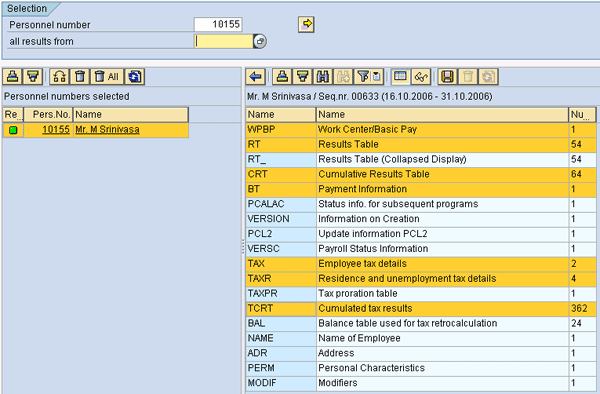
Figure 10
Output of report RPCLSTRU for a given personnel number
When you click one of the tables — say, the RT table — you see all the payroll wage types in the RT table (Figure 11).
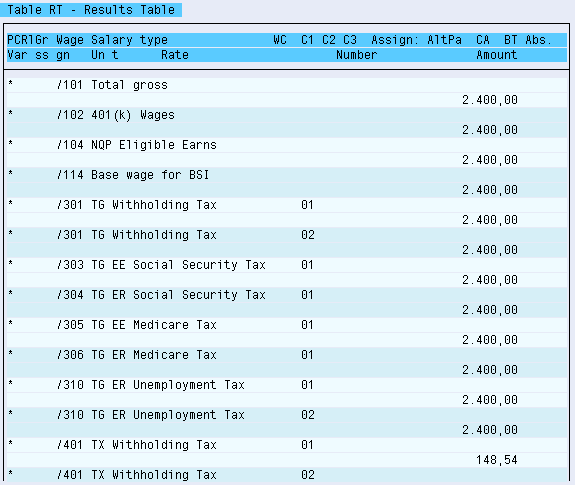
Figure 11
Table PCL2 RT – Results Table
After the data is loaded successfully into the payroll cluster for all the employees, you can use the custom payroll comparison report to read data from the T* tables and payroll clusters (sample code is provided in Figures 12 and 13). You can use this logic as a starting point to build your own payroll comparison report.
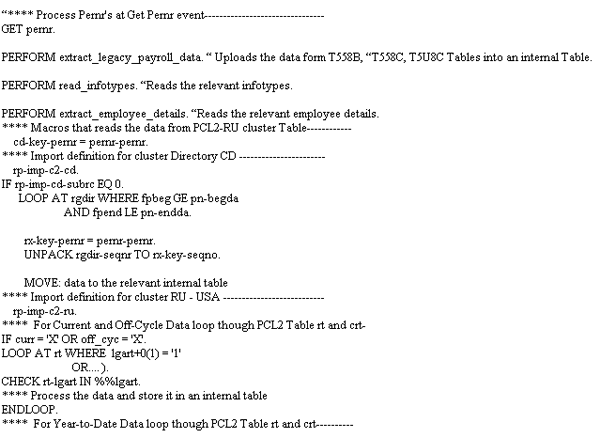
Figure 12
Payroll comparison (sample code 1)
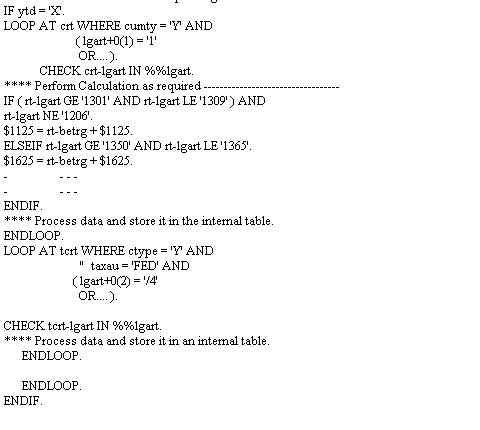
Figure 13
Payroll comparison (sample code 2)
You can run this report by:
- Payroll area, pay period, or personnel number
- Variance or tolerance for earnings, deduction, and tax wage types
- Specific wage types
You can sort the report output by:
- Details by employee
- Summary by each employee
- Statistics by variance amount for each wage type
- Summary by wage type for all the employees in the selection screen
The report selection screen is displayed in Figure 14.
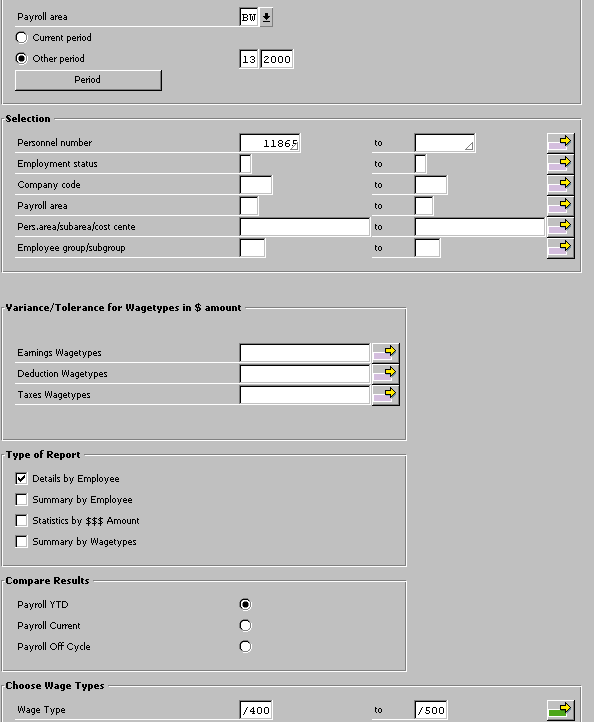
Figure 14
Payroll report selection screen options
Each report display option helps identify issues and fix them in one or more of the areas. You can identify and resolve potential issues by performing these five steps:
- Verifying legacy data in the legacy system and fixing extraction and translation in the legacy system
- Verifying wage type mappings and making sure that legacy wage types are accurately mapped to SAP wage types
- Verifying infotypes (master data, payroll, and taxes) and table T* data, and making sure they are loaded accurately
- Verifying payroll configuration settings such as wage type catalogue and attributes, as well as evaluations, and adjusting them accordingly. For example, a huge variance in wage type /401 [tax withholding], may be caused by incorrect attributes on the wage type configuration.
-
Verifying payroll schema. Adjusting schema, rules, functions, and sub-functions may potentially resolve the discrepancy during comparison.
Report Output: Details by Employee
The detailed employee report option output lists the employee details, payroll area, year, and start and end dates of the payroll period. This report displays the legacy amount, the SAP system amount, and the variance for earnings, deductions, and tax wage types (Figure 15).
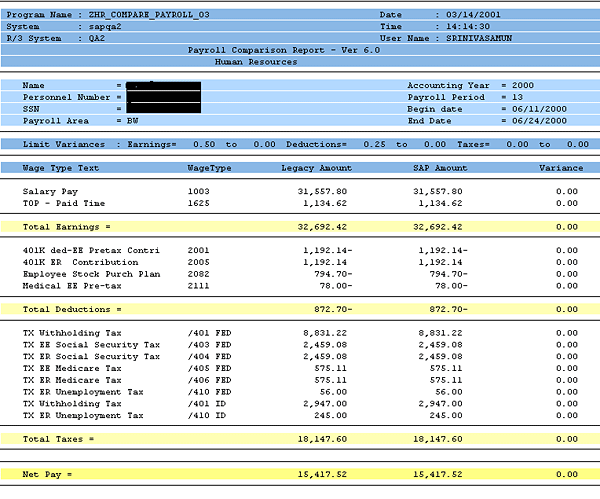
Figure 15
Report output for option details by employee
Report Output: Summary by Each Employee
The summary by each employee report displays a summarized report as shown in Figure 16. Earning wage types, deduction wage types, and tax wage types are cumulated and displayed for SAP payroll data, legacy payroll data, and their variances.
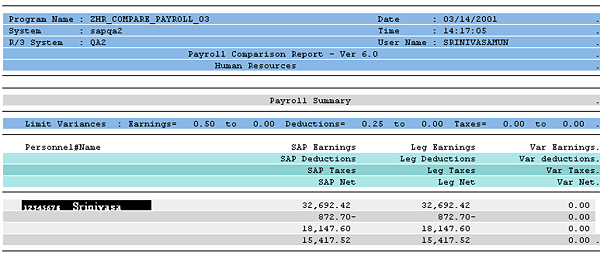
Figure 16
Report output for option summary by employee
Report Output: Statistics by Variance Amount for Each Wage Type
The same report option that lists the statistics by dollar amount for each wage type provides variances in dollar amounts for each wage type. This data helps you determine which wage types are not within the tolerance limits, and it also helps identify and fix the root causes of issues (Figure 17).
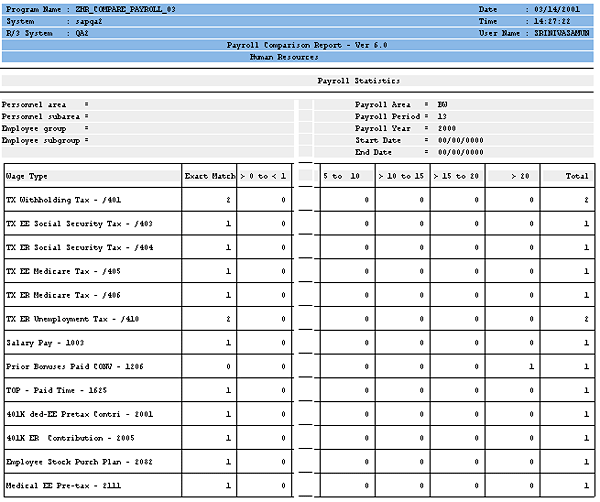
Figure 17
Report output for option wage type by dollar amount
Report Output: Summary by Wage Type for All the Employees in the Selection Screen
The options for this report identify which wage types don’t match. In the first run, I found a huge variance for certain wage types. I approached the issue step by step, found the root cause, and resolved the discrepancy (Figure 18). Take these three steps:
- Verify that the data was extracted accurately from the legacy system
- Verify the mapping between legacy and SAP wage types
- Verify the master data and payroll infotypes
In this case, I found an issue with the data loaded in infotype 0015 (additional payments) — the wage types were inaccurately loaded. After I fixed the wage type in infotype 0015 and re-ran the payroll, I was able to exactly match the wage types.
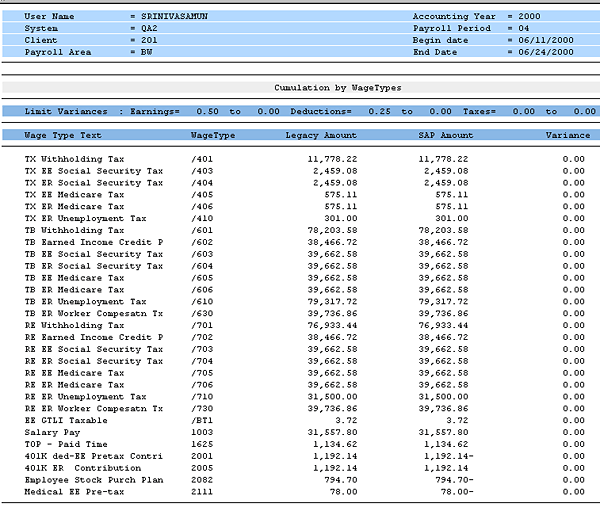
Figure 18
Report output for option wage type by dollar amount
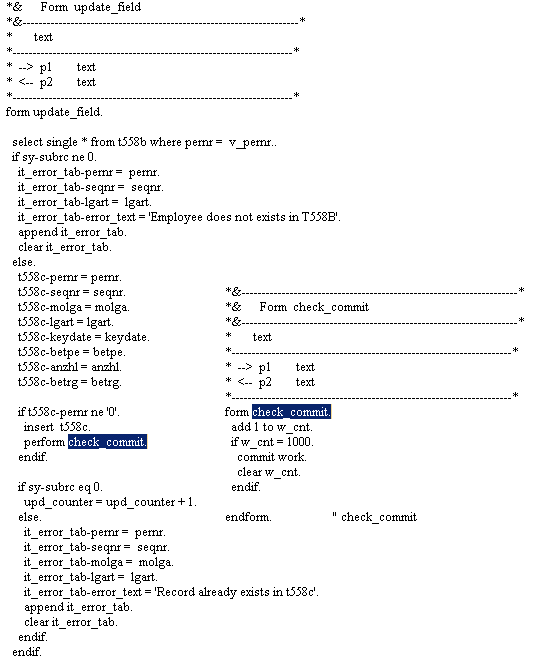
Figures 19 and 20 contain some of the tables used in all country versions for payroll. Check the routine check (check_commit.) in Figure 20. This simple performance improvement code snippet reduced load time by almost 85 percent; you can use the same logic for other tables.
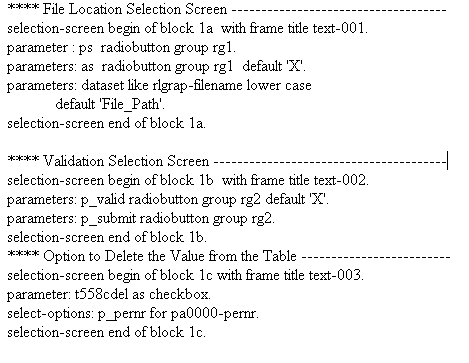
Figure 19
Selection screen options for loading data based on the personnel number and with the option to delete
Srini Munagavalasa
Srinivasa (Srini) Munagavalasa has 14 years of experience in various SAP modules. Srini has worked on multiple SAP global implementations at major clients. He has experience as a project manager, deployment lead, build manager, and technical development manager.
If you have comments about this article or publication, or would like to submit an article idea, please contact the editor.