Learn how to automate the price protection process by using SAP user exits and VOFM routines and requirements in SAP R/3 through SAP ERP Central Component 6.0. Having an automated solution helps both the buyer and seller save significant time because it effectively manages the price protection process.
Key Concept
Price protection is an agreement in which a buyer and seller fix the price of specified merchandise for the duration of a contract or a certain period. This marketing feature helps insulate buyers against imminent price reductions so they can feel comfortable deciding to go ahead with a purchase rather than waiting indefinitely for the next price drop. In some agreements, price fluctuations (as indicated by an agreed upon price index) beyond a certain range are taken into account.
Therefore, you want to automate your price protection process. Automation of this process facilitates reducing customer claims, effectively managing disputes, and closely monitoring the orders under price protection. You can automate your price protection process either manually or automatically. For the manual process, you need to create a variant and process it every day to check for orders within or outside the price protection period. Later, all the orders are re-priced accordingly. Alternatively, if you choose to create an automatic process, you can have the system monitor the updates for you. I discuss both manual and automatic processes, as well as their limitations and ways to overcome them.
Business Scenario
To make the concept of price protection simpler, let me explain it with a business scenario. Company XYZ promises to have price protection for 60 days. Table 1 shows list prices similar to the condition table for a customer and material combination in different validity periods.
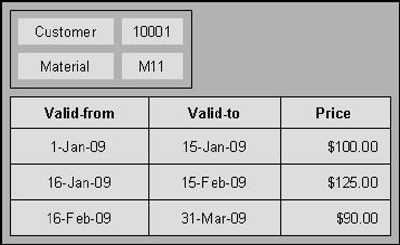
Table 1
Pricing table
When the customer is guaranteed a price protection, he should be invoiced at the lowest price ($90.00) during the transaction period. In the condition type definition, ( Figure 1 ) only one date can be specified in the pricing date field to calculate the price in the sales document. Figure 2 shows the entries that you can maintain in the Pricing date field for the condition type. For example, it is a good idea to use the goods issue date as the calculation date for all freight condition types. In this case, enter A as the identification code and the system calculates the freight amount on the goods issue date.
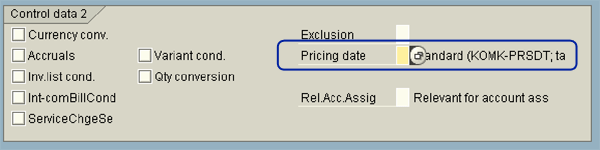
Figure 1
Condition type definition
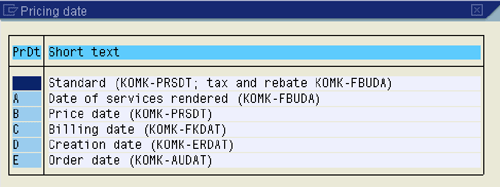
Figure 2
Pricing date values defined by SAP
Tables 2 and 3 show the ways that the system reacts if the orders are priced based on one date. Table 2 shows the price calculation by Order date and Table 3 displays invoice date price calculation. In my example, the Problem remark means that the SAP price is not equal to the expected price.

Table 2
Order date price calculation

Table 3
Invoice date price calculation
To keep the customer happy, the managers or users need to closely monitor these orders so that the customer is invoiced at the promised lower price. Now that you understand the problem, I will explain the solutions to monitor and calculate the prices according to the price expected by the customer.
Price Increases within the Protection Period (Manual)
Step 1. Create a variant for transaction VA05. This transaction extracts the list of sales orders based on search criteria such as customer, material, and purchase order. The first thing you need to do to initiate price protection manually is to create a variant for transaction VA05N (list of sales orders). The selection parameter should include the document date range with an upper limit of yesterday’s date minus two days because only the orders that are beyond three days are to be re-priced. With this date exclusion, the system fetches all orders created between yesterday and two days ago.
The sales department needs to list all the open orders on a daily basis. If the order is still open and not shipped yet, then based on the displayed data, the marketing department can inform the customer about the expiring protection period. The customer then can decide either to accept the order with a price increase or to cancel the order.
This solution acts like a calendar or alarm software on your system, or as a day planner. Both the employee and department can use the report to remind customers of expiring price protections one or two days before the term of protection.
Step 2. Update the master data using transaction MASS. You use this transaction to make mass changes to master data such as customer master, materials master, vendor master, and sales orders. The support staff typically uses this transaction to maintain master data. The remaining steps explain how to make changes manually using transaction MASS.
Step 3. List the open orders. Use transaction VA05 to list the open orders and filter them with the pricing date past the price protection period. Then, download the list of orders into a Microsoft Excel file. Use menu path System > List > Save > Local File to download the file.
Step 4. Execute the transaction. Open another session using transaction MASS. In the Object Type field, enter the BUS2032 object and execute the transaction by clicking the execute icon or pressing the F8 key. Select the sales order header in the Tables tab and the PRSDT field from the Fields tab. Then, click the execute icon again to process the session.
Step 5. Populate the Mass Maintenance: Sales orders screen. Copy the list of sales order numbers from step 1 and paste it into the sales document parameter field in the screen. Finally, press the Execute icon or press the F8 key.
Step 6. Enter the new date. Once you complete step 3, a new screen called Mass Maintenance pops us. You need to enter a new date in the Pricing date field (Figure 3), place a check in the Change field value check box, and save the transaction by clicking the save icon or pressing Ctrl-S. The system now re-prices all the orders using today’s date as the pricing date.
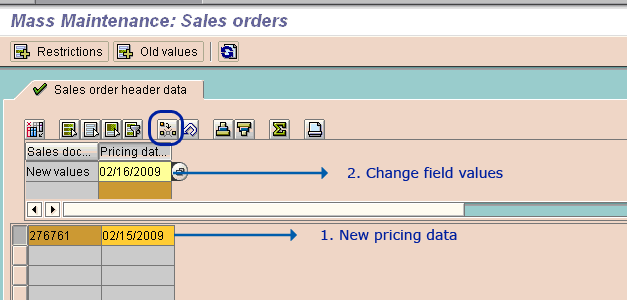
Figure 3
New pricing date in MASS transaction
The manual process works well if you like to work figures yourself. However, the process can be time consuming and involves a great amount of communication between the buyer and the seller to resolve issues.
Automation of Price Protection
As explained in the business scenario, when the item price drops below the customer-ordered price, the customer would have to file a dispute and later the seller would have to validate the claim. Table 4 shows the behavior of the system if the automated price protection solution is implemented. Due to this automated process the SAP price and the Expected Price are equal. Now that I have explained the various methods to manage the process manually, I will explain a step-by-step solution to administer the process automatically.

Table 4
Expected lower price calculation
Step 1. Create two sets of condition types. One set should have the first character as Z and the other set should begin with Y. This helps you distinguish between the two because the next three characters after the first letter of the condition types are identical. The condition types starting with Z take the order date as the price date and the Y condition types take the services rendered date (shipment date for delivery related items) as the pricing date.
The Y condition types have the corresponding Z condition types as the reference condition type. This ensures that you need to maintain prices for only the Z condition types. These price and discount condition types are represented twice in the relevant pricing procedure.
Assign routine 702 (Figure 4) to Z condition types in the requirement column (Table 5) using transaction V/08 to maintain the pricing procedure. Table 5 contains a sample pricing procedure. The procedure shows two sets of conditions: Z and Y. During billing, the system uses this routine to re-price the orders. A new field Z ZPRPRO is added to the field KOMP structure which acts as an indicator and is populated by the value after step 4 is performed. If the orders are not within the price protection, the KOMP- ZZPRPRO value is set to Y (later in step 4). As a result of using this VOFM routine, the Z conditions are zeroed out and only the Y conditions are applied in the invoice.

Figure 4
Code for the custom routine 702
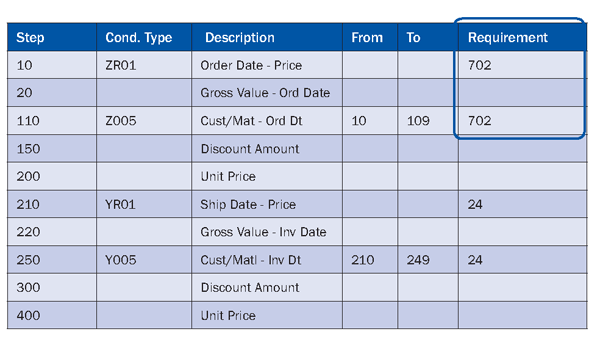
Table 5
Pricing procedure for price protection
Step 2. Create a condition exclusion grou p for each set of condition types. Then, allocate the condition types to a condition exclusion group. A condition exclusion group can contain any number of condition types. Enter the condition exclusion group in the pricing procedure that you use in pricing. In this case, you must choose the procedure C, which determines the best price between two exclusion groups. The set containing the best prices/discounts for the customer is active and all the other condition types from the other set are excluded. The conditions marked as inactive are not included in the calculation. Only values from the active conditions are passed on to accounting.
Step 3. Add new pricing fields. Add a new field ZZPRPRO with values X and Y in table VBRP. This table refers to billing item data with KOMP as the reference structure at item level. The values in the table represent the number of allowed days, which is the difference between the order date (TKOMP-AUDAT) and the services rendered date (TKOMP-FBUDA).
Step 4. Develop a user exit. Use the billing exit RV60AFZZ to program the logic to calculate the price protection period using the order date (TKOMP-AUDAT) and services rendered date (TKOMP-FBUDA). Then, check the difference against the special field that you need to maintain in the customer master (Step 6). For this special field, Customer Group 1 to Customer Group 5 could be used based on client’s requirement. If the difference is less than the value field in the customer master, the system returns an X. In all other cases, it returns a Y.
Step 5. Create a new VOFM requirement for pricing. Use transaction VOFM to create a new pricing requirement, which is a copy of standard pricing requirement 002 for the Z conditions only. Add logic to the VOFM requirement to validate the value for the ZZPRPRO, which is set in the user exit RV60AFZZ during the invoice processing. If the price protection is applicable, the logic returns a value X, and the system bypasses the requirement to the access sequence. If the logic returns a value Y, the system does not allow for further processing of the Z conditions during invoicing and applies only the Y conditions to the billing document.
Step 6. Add a master data field for the price protection period. You can use an additional data field (KNVV-KVGR1) in the customer sales area data in the customer master to maintain the price protection period ( Figure 5 ). The entry corresponds to the price protection period in days. A manager or user can maintain this screen for various kinds of scenarios such as changing the price protection period. The special field (Customer grp 1 through 5) in the customer master is checked in the user exit during invoicing. If the difference between the ship date and the order date is less than the value, the system suggests the lower price of the order date and ship date prices. If the difference is over the value, it applies the prices as on the service rendered. The date of services rendered corresponds to the goods issue date.
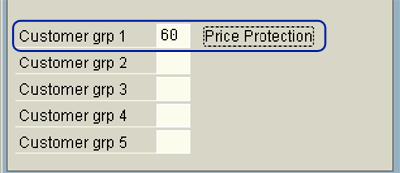
Figure 5
Field to maintain price protection period
Step 7. Process the orders. During order processing, only the Z conditions are applicable in the sales order and the prices are based on the order date. The Y condition types are not applicable in the sales order stage. The application of the Z and Y conditions at their respective dates is achieved using VOFM requirements for pricing.
Step 8. Process the invoices. During invoicing, the system performs a check in user exit RV60AFZZ against the sales area and customer table to check for the number of days. When you create the invoice, the system carries out new pricing for the Z and Y conditions. The Z conditions take the order date price and the Y conditions take the services rendered date price. The Y conditions calculate the price separately based on the services rendered date or the post goods issue date. Using the condition exclusion process, (step 2) the system compares the Z and Y conditions during invoicing and determines the best price for a customer .
The system now automatically carries out the checks for price protection and recommends the lower price in the billing document if the orders are within the price protection period. If the orders are outside the price protection period, the system applies the prices on the services rendered date. No alerts are sent during this course of action, but this solution could be enhanced to display a pop-up window.
Vamsee Mopuru
Vamsee M. R. Mopuru is a senior SAP SD consultant working with Quality Systems & Software (www.QSandS.com). Vamsee specializes in order management, pricing, disputes management, and credit management with commendable integration knowledge of other SAP modules such as MM, LE, and FI.
You may contact the author at Vamsee.Mopuru@QSandS.com.
If you have comments about this article or publication, or would like to submit an article idea, please contact the editor.




 Premium