See how to set SAP GRC Global Trade Services to use the appropriate agreement and license type for your imports and exports.
Key Concept
The US International Traffic in Arms Regulations stipulates that US importers and exporters must follow certain standards to operate for defense-related material and technologies. Included in this is the requirement to obtain different licenses based on the US Munitions List. The three main categories of licenses include hardware license, technical assistance agreement, and manufacture license agreement. Some cases call for multiple licenses across different processes.
Imagine that a defense equipment manufacturing company wants to bid on a design for equipment or a control system to be used in a missile or fighter jet. Before it can even engage on the bid and share specific product information, the US State Department requires the exporter to apply for a technical assistance agreement (TAA) to facilitate the sharing of information. The TAA operates very much as a license and you can designate it for a specific product, such as the US Munitions List (USML), customer, or country.
When an exporter wants to ship physical goods out of the country, the company needs to apply for an export license, such as a DSP-5 (for permanent export). The application for this license must refer to the existing and valid TAA associated with the project involved with this sale or shipment. The application of the DSP-5 must take into account the attribute on the TAA such as dates, values, and quantities. For a public exhibition, trade show, air show, or related event, even if the physical goods were previously licensed for public exhibition needs, you have to apply for a DSP-73 (for temporary export).
For situations such as these, you can make use of the agreements and license type functionality features within SAP GRC Global Trade Services Compliance Legal Control. I’ll show you some configuration steps to meet the US International Traffic in Arms Regulations (ITAR) requirement with license types referencing agreements and how the system manages them. I’ll continue with the example of the defense manufacturing company and show you how to create an agreement and assign a license to it so that the system uses the appropriate data in the sales order and display log. Though my example uses the defense industry, this article applies to any industry that deals with ITAR regulations or items specially designed for military use on the USML. I’ll start with some configuration steps and then move on to the master data setup.
Note
SAP GRC Global Trade Services was formerly known as SAP Global Trade Services or SAP GTS. Menu paths include these terms, but all refer to GRC Global Trade Services. This article applies to GRC Global Trade Services versions 7.1 and higher.
Configuration Steps
Step 1. Define the agreement. With GRC Global Trade Services 7.1 and higher, SAP introduced Compliance Legal Control Agreements functionality. As explained in the above scenarios, the company must start the information sharing in terms of a design document in the form of technical agreement. Follow menu path SPRO > SAP Global Trade Services > Compliance Management > Legal Control > Define Agreement (Figure 1). After you create an agreement, the system references it by the license type. While defining the agreement, go to the Objects to Be Checked section and select attributes within the transaction that you need to validate before assigning the agreement to the document or transaction.

Figure 1
Agreement definition with attributes Value Update and Quantity Update selected
In my example, I check the Value Update and Quantity Update boxes in the Update section and then selected the appropriate choices from the drop-down lists. Also make sure you define a depreciation group for use in the agreement quantity and value update. To do so, follow menu path SPRO > SAP Global Trade Services > Compliance Management > Legal Control > Define Depreciation Group. Create a name and description for the depreciation group, which helps to accumulate the value and quantity of the depreciation. After you define it, you need to assign it in the agreement definition in the screen shown in Figure 1.
Note
In the screenprints and examples I created, I used the EAR to demonstrate the ITAR example. I have also used dummy export classification numbers 2A292, 4D992, and 8E292, agreement AGREM, and license types ZVL1 and ZVL2.
Step 2. Define license type and assign agreement. ITAR uses temporary and permanent licenses. You might have to refer these licenses to the previous agreement. The license type defines the attributes you would like to have in the license. While defining the license type, you select the object to be checked, value, and quantity, respectively, for update. Follow menu path SPRO > SAP Global Trade Services > Compliance Management > Legal Control > Define License Type to display the license type definition (Figure 2). These definitions of attributes appear when you create licenses. This example shows Export Administration Regulation (EAR) instead of ITAR; were it ITAR the license type might show S05 for DSP-5 (permanent export) or S73 for DSP-73 (temporary export).
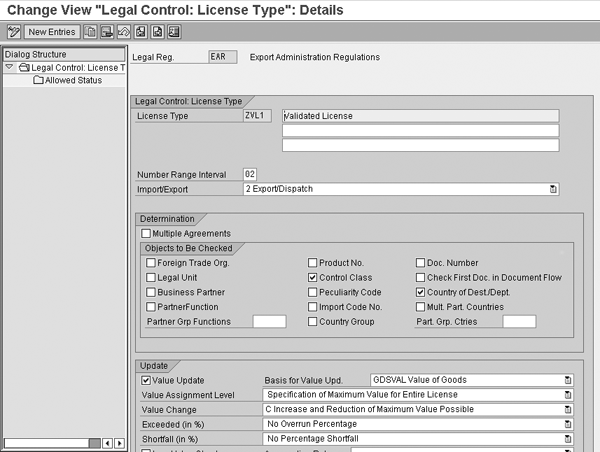
Figure 2
License type definitions with attributes
When you scroll down in the license type definition, you need to assign the agreement type to the license types. From the menu path for Figure 2, select the existing license type and click on the copy as icon. The screen prompts you to enter the new Legal Reg and License Type and make necessary changes to other attributes (Figure 3). Under the Agreement section, make sure you assign the Type of Agreement and Depreciation Group you created in step 1 by choosing them from the drop-down lists.
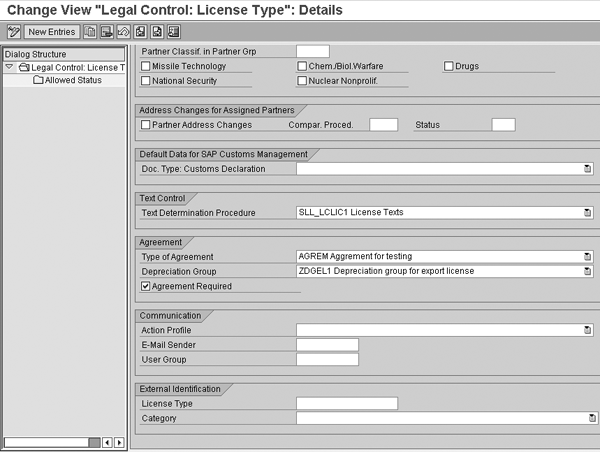
Figure 3
Assign the agreement and depreciation group to the license type
The previous steps explained the configurations to set up the agreements and license types. Next I’ll show you the master data setup you need to perform for this function to work.
Master Data Setup
Step 3. Build your determination strategy. Following the agreement and license type definition, you need to build the license type determination table. In the license determination, you maintain the search logic for the license type and agreement determination based on the determination procedure. For example, you determine the license type based on the departure country, destination country, grouping, and USML number. Follow menu path GTS cockpit > GTS Compliance Management > Legal Control – Export > Define Determination Strategy. Build the table against the license type (ZVL1) and agreement (AGREM) based on the grouping for hardware and technical agreement for the respective classification number.
Figure 4 displays the table that shows the legal regulation, grouping, departure country, classification number, and license type, based on the license type determination procedure you defined. In this example, dummy numbers 2A292, 4D992, and 8E292 represent ITAR classification numbers. If you click on the Copy Individually button, you see the entries appear under the Time Series section.

Figure 4
License type determination strategies by grouping for the license type and agreement
Step 4. Create agreements. Follow menu path GTS cockpit > GTS Compliance Management > Legal Control – Export > Maintain Agreements (Figure 5). Based on the agreement defined in the configuration step 1, you can maintain the agreements in this screen.
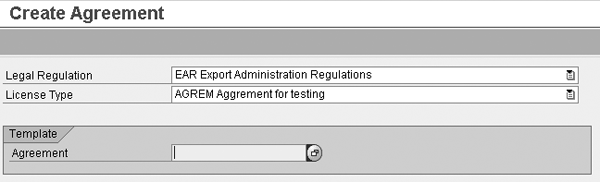
Figure 5
Agreement created based on the legal regulation and the agreement created in configuration
Click on the create icon to bring up the screen shown in Figure 6. The attributes selected in step 1 appear when you create the agreement, value, quantity, control classes, and country of departure or destination. The attributes I selected in the agreement in step 1 were values, quantities, control classes (USML), and country of departure or destination. In the Agreement field, the system defaults the internal number and external number, but you need to replace it and enter the actual agreement number. Enter dates in Valid from and to for the period. Then maintain the values and quantity based on the approval issued from the US government. Within Control Classes you maintain the USML number and within the Country of Dept. you maintain the country to which you’re shipping the product.

Figure 6
Agreement created with the status of active and other attributes selected in the configuration
Step 5. Create licenses. After you have the agreement in place, you can create licenses. When you create the license with the agreement assigned in the configuration, you must reference the agreement. You can create the license by following menu path GTS cockpit > GTS Compliance Management > Legal Control – Export > Maintain Export Licenses and click on Create (Figure 7). When you create a license for the license type defined in step 2 of the configuration, the system asks for an agreement reference. You then enter the Legal Regulation and License Type and select the Agreement Type and Agreement (number) that you want to assign to the license from the drop-down list.

Figure 7
License creations with the agreement reference
You can use an agreement created in step 4 in the agreement reference for license creation. Figure 8 displays a license created for which the agreement number is referenced. After you enter the details in the field shown in Figure 7 and click on the Continue button, it brings up the screen shown in the Figure 8. In the External Number field, you fill in the external license number based on the license approval received, and then enter the Valid from and to dates. The value and quantity are derived from the agreement and should not exceed the agreement quantity and values. Within the control you maintain the USML number and country of departure or destination. The status keeps the audit of the license and when it was created, applied for, and whether it is active or expired.

Figure 8
License display with the agreement number referenced
Following the license type creation with reference to the agreement, when you display in the agreement, it displays the agreement. Follow menu path GTS cockpit > GTS Compliance Management > Legal Control – Export > Maintain Agreements, click on Display, and you can see the license type assigned, such as ZVL1 (Figure 9).

Figure 9
License type assignment to the agreement
Step 6. Classify and group the product. You need to assign the material or products with the classification number (USML). These classification numbers and grouping in turn determine the license and agreement based on the license determination strategy you maintained in step 3. Figure 10 displays the assignment of the classification number and grouping to the product. To get to this screen, follow menu path GTS cockpit > GTS Compliance Management > Classification/Master Data > Under Export View for Customs Products > Maintain Products and click on Change. While you are here, you need to assign the USML in the Export Control Classification and Grouping fields. You can search the number and group from the drop-down list. Figure 10 displays the product with number assignment for license with group HW (hardware).
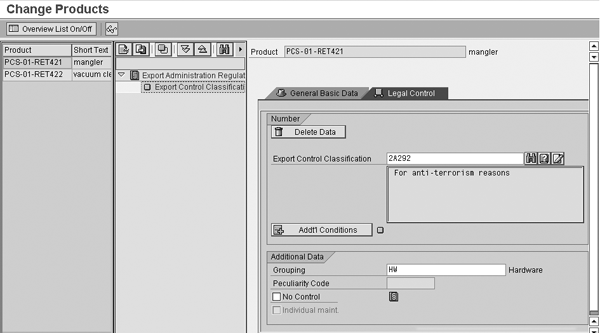
Figure 10
Classification number and grouping assignment to the product
Step 7. Assign the transaction of the agreement and license. Based on the configuration setting and GRC Global Trade Services cockpit setting, when you create the sales order, you have the license type and agreement assigned. You can see the document assignment to the agreement and license by following menu path GTS cockpit > GTS Compliance Management > Legal Control – Export > Display Assigned Documents. You can use the sales order number in the Ref. No. field and execute. In the report, if you click on the log, you bring up the screen shown in Figure 11.
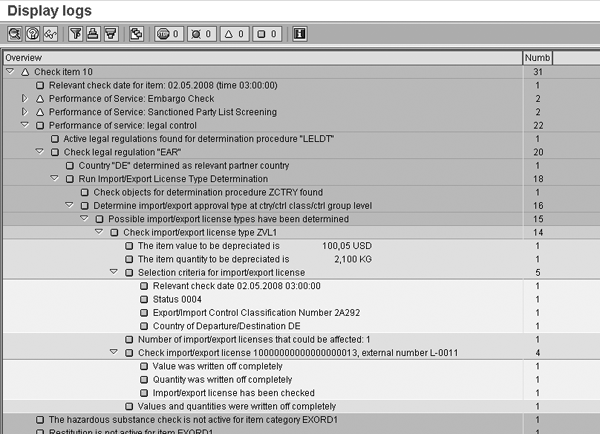
Figure 11
License type assignment (ZVL1) based on the legal regulation, destination country from the document, and the classification and grouping assigned to the product in step 6
Now that I’ve shown the document with the agreement and license type assigned, let’s go back to the agreement and license type display to see the updates.
To display the agreement, follow menu path GTS cockpit > GTS Compliance Management > Legal Control – Export > Maintain Agreements and click on Display (Figure 12). You can see the value and the quantity written off (depreciated) in the display log in Figure 11. Most of the variables are self-explanatory, but a few others to keep in mind are: the column Ref. No. represents the feeder system reference number (e.g., sales order or delivery), Val. W. Off represents the value depreciated, and Qty Wr. Off represents the quantity written off.

Figure 12
Display with the document and value written off
Now let’s see the updates to the license type. Follow menu path GTS cockpit > GTS Compliance Management > Legal Control – Export > Maintain Export License and click on Display (Figure 13). You can see the value written off in the license type. The Deprec. column represents the application area for the depreciation value. For example, MM0A01 represents purchase orders, SD0A01 represents sales orders, SD0B01 represents outbound delivery, and SD0C01 represents billing documents.
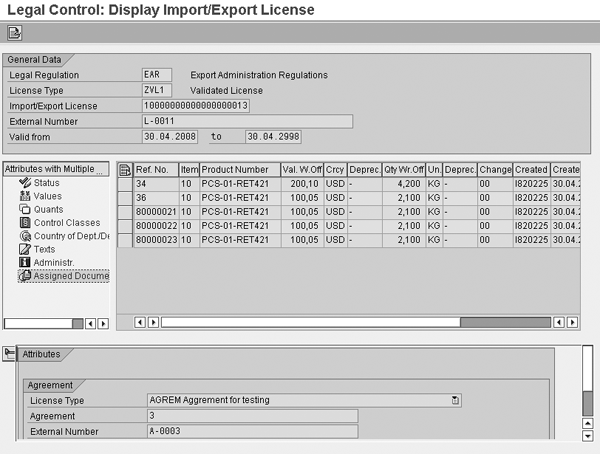
Figure 13
Display of the license with the value written off
Rajen Iyer
Rajen Iyer is the cofounder and CTO at Krypt, Inc. Rajen has written several in-depth, best practice articles, white papers, patents, and best-selling books on SAP Logistics and SAP Global Trade Services, including Effective SAP SD and Implementing SAP BusinessObjects Global Trade Services. He is also an invited speaker at industry conferences.
You may contact the author at Rajen@kryptinc.com.
If you have comments about this article or publication, or would like to submit an article idea, please contact the editor.