During an SAP Advanced Planning and Optimization (APO) project implementation, you design process chains in APO Demand Planning, Supply Network Planning, or other modules to run background jobs. The application support team needs to know how to execute and monitor the process chains after go-live. See also how to trigger email messages on errors, debug errors, and re-run process chains.
Key Concept
The process chain monitor (transaction RSPCM) allows you to check the status of the process chains that you run in Advanced Planning and Optimization (APO). Although this originally was an SAP Business Intelligence (BI) technology, with SCM 4.1 and later, you can access it with APO.
SM36 RSPCMIn addition to monitoring the process chain, you can configure the process chain to send an email notification
instantly when an error occurs. This saves time because the application support team finds out about the error
immediately. Also, using process chains, you only need to repeat the part of the process chain affected by the error,
which saves run time. I’ll present a common example of a preconfigured process chain and take you through the three
steps to execute and monitor it. These steps are:
Step 1. Go to the process chain monitor using transaction RSPCM
Step 2. Review the job log with the time stamp for the selected process chain
Step 3. Trigger an email message when an error occurs and repeat the process chain
This article assumes knowledge of process types, process variants, and process chains. Refer to my 2007 article “Step-by-Step Guide to Create and Use Process Chains in APO” in the SCM of SAPexperts to find out how to create
and execute these process chains.
Business Scenario
A company has implemented APO DP for statistical forecasting using three years of history loaded as a flat file
into an InfoCube. External APO consultants used process chains to create background jobs in DP and Supply Network Planning
(SNP). The process chain executes a sequence of steps that includes loading data into an InfoCube, regenerating indexes
for better performance, deleting the old forecast data, generating characteristic value combinations (CVC), transferring
historical data from the InfoCube to the planning area, and generating a statistical forecast.
To support this scenario, the APO consultant designed a process chain with two branches that run in parallel
(Figure 1). One branch has the process variant for an ABAP program to delete the old forecast and run the
AND process variant before loading data to the planning area. The other branch has the step to load data
to the InfoCube, regenerating indexes for better performance, generating CVCs, and transferring historical data from the
InfoCube to the planning area. The data load process variant has an error — the flat file to load data to the
InfoCube is not available. I will explain how to set up an alert so that the system triggers an email to the DP
application support consultant. Then I will show you how to rerun the process chain after fixing the error.
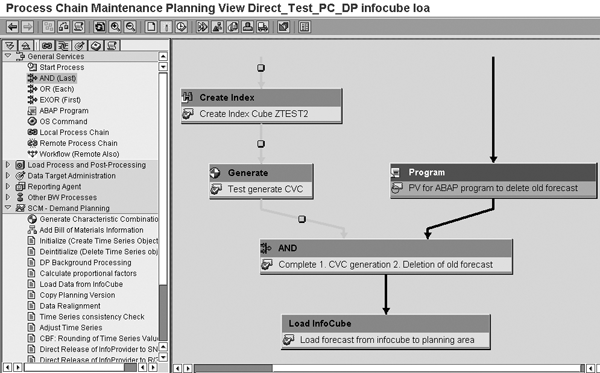
Figure 1
The process chain has two branches
Monitor and Debug a Process Chain
Step 1. Go to the process chain monitor. To monitor and fix errors in the process chain
after executing it, use transaction code RSPCM to go to the process chain monitor. Click on the create
icon to add a new process chain. Enter its name in the screen that appears (Figure 2). This step is
important because SAP APO does not include new process chains in the monitor automatically — you have to add them to
the monitor manually. Click on the process chain you added to the monitor to display the full process chain.
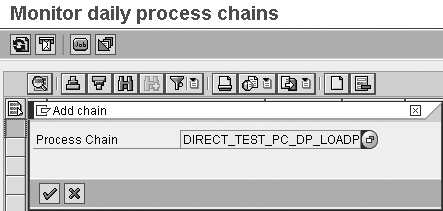
Figure 2
Add a new process chain to the process chain monitor via transaction RSPCM
Another way to reach the same screen and monitor process chains is from the log view of the process chain
maintenance screen. Go to the Maintain Process Chains screen in APO by following menu path Demand
Planning>Environment>RSPC - Maintain Process Chains or use transaction code RSPC. In the
screen that appears, click on the log view icon  .
.
Step 2. Review the job log with the time stamp. Double-click on the process chain log in
the left window to review it (Figure 3). Each time stamp shows the date and time the system executed the
process chain. For example, a run on 25.04.2007 at 11:56:51 generated a log with the ID 45KQL70TPXKE2OZ34EHNH4YD1.
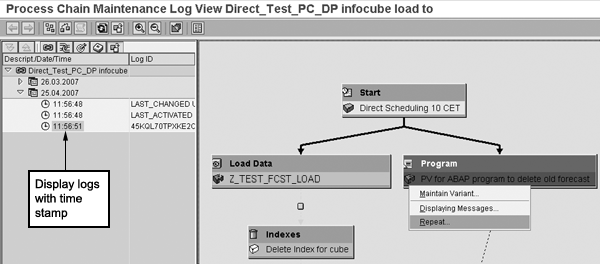
Figure 3
Focus on a highlighted process variant and right-click to display job logs
The system displays the process chain in the log view, but you cannot edit it as in transaction
RSPC. The colors for each process variant are red, yellow, green, or gray:
- Red indicates that the process variants were either cancelled by the system or completed with errors.
If you scheduled a follow-up event, such as an email message for errors, the system triggers it.
- Yellow indicates process variants that are active and running. This color means that the system
triggered the preceding event, but has not completed the process.
- Green indicates process variants completed without errors, and means the system generated the job logs
that recorded information according to process type. The system can display messages for the process run (e.g., the number
of records loaded from the flat file or number of characteristic combinations generated). If you schedule a follow-up
event, the system triggers it and continues the process chain.
- Gray process variants have not yet run. The system runs these process variants after those in yellow
status have finished. The gray state exists only if a chain is active and under execution.
Right-click on the process variant to display the log entries for the process variant and the status of
each step. Click on the Batch Monitor button to display the logs (Figure 4). Review
these messages to correct the error. For example, the ABAP variant may have errors in the material masters range. Then
correct the errors and repeat the process chain from any point in the sequence. You do not have to rerun the full process
chain, just the partial chain.
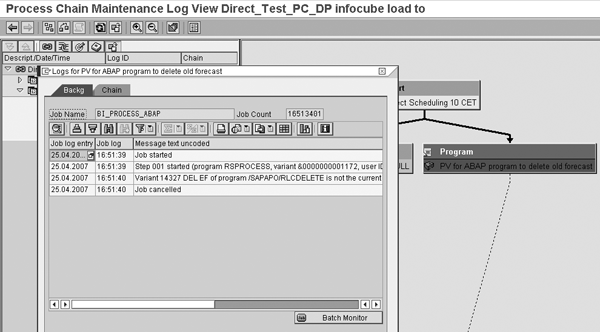
Figure 4
Job logs and error messages for each step
Step 3. Trigger an email message when an error occurs and repeat the process. For large
APO implementations with hundreds of users across the globe in different time zones, you can use advanced functions
— for example, to trigger an email message when an error occurs. To do this, use transaction RSPC,
right-click on the process variant, and select Maintain Message from the context menu.
In the message screen that appears, define the message variant using the Edit Document
button. You can use document templates to send predefined messages with possible bug fixes to application support
consultants, such as “For error ‘Data load failed’ check if file exists on server.” Pressing Ctrl-
Shift-F3 accesses the create attachment function, which lets you attach Word or Excel documents to the error message
(Figure 5).

Figure 5
Define a document template or create an attachment for the error message
You can send email messages to a person or distribution list via the Internet or SAP Office (Figure
6). To use the external email option, a Basis resource must set up the Internet gateway. You can choose other
options, such as distribution lists or a pager number, to notify the application support team. Click on the back arrow,
then click on the save icon to proceed.
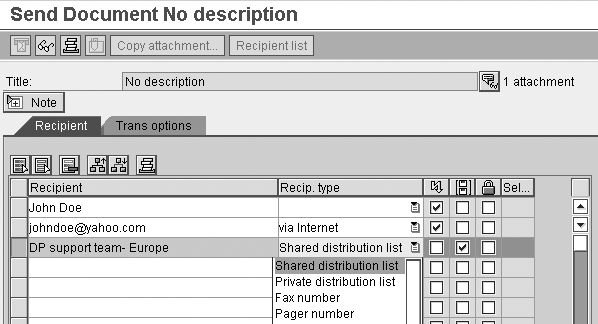
Figure 6
Send email notifications of errors to a person or distribution list
After you create the message variant you can reuse it for other steps (Figure 7). All
process variants that are APO DP relevant can use this message variant — SNP-relevant steps can use another message
variant. You can attach the variant, in my example Z_PV_EMAIL, to the APO DP process variant and the
system informs the DP consultant if errors occur.
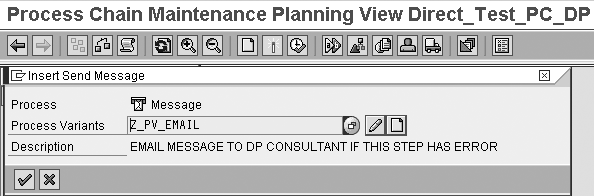
Figure 7
The new message process variant is ready to insert
You now have created the message variant and attached it to the InfoCube process variant. Any errors while
loading the flat file to the InfoCube trigger an email to the APO DP consultant (Figure 8).

Figure 8
The process variant is now modified for email intimation
Check Your Messages
I will now show you how to check your messages using transaction SO01 (SAP Office inbox).
The system triggers an email message in SAP Office to fix the error in the process chain using the email template defined
in the message variant. This can be an express message that pops up on the screen immediately. You can set this option for
each recipient when you create the message variant. APO support consultants also can check the inbox each morning to
review both critical and non-critical errors in the process chains run the night before (Figure 9).
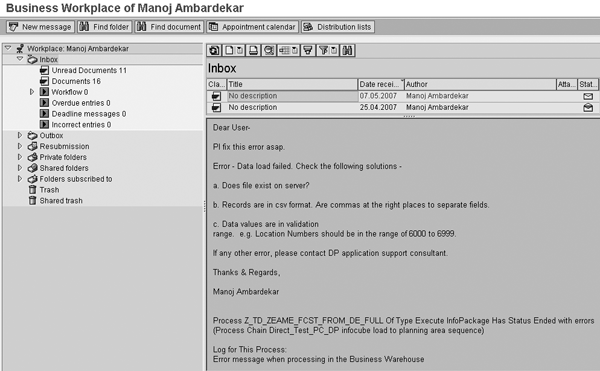
Figure 9
Check your messages with transaction SO01
Repeat the process variant that had an error and continue the process chain. This saves time as you do not
have to run the full process chain again (Figure 10). In my example the error in the data load was that
the upstream application did not generate the file, so it did not exist. The error was fixed and the CSV file was placed
in the right folder on the APO application server. Then the system repeated the process variant and the process chain
completed
successfully.
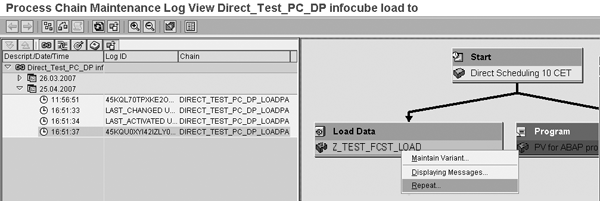
Figure 10
Repeat the process variant

Manoj Ambardekar
Manoj Ambardekar has more than 20 years of IT and manufacturing experience with firms such as IBM, Infosys, PricewaterhouseCoopers, and Siemens Information in the CPG, brewing, and process industries. He has more than 14 years of experience with SAP APO and SAP ECC with specialization in logistics. He has played multiple roles as functional and technical lead as well as project manager. He has implemented SAP applications at more than 12 large- and medium-sized projects since 1998. Manoj is a chemical engineer certified in production and inventory management (CPIM) from APICS – USA, and holds a master’s of engineering (industrial) degree from B.I.T.S. in Pilani, India. Manoj works on both large and SME clients to implement SAP as both a configuration SME in APO/ECC PP-MM/Solution Manager and project manager/team lead. He specializes in supply chain management solutions using software such as SAP APO, SAP SCM, SAP ECC, SAP Solution Manager, and business intelligence for North American clients.
You may contact the author at manoj_bits@yahoo.com.
If you have comments about this article or publication, or would like to submit an article idea, please contact the editor.





 Premium