Learn how to configure and implement shift reports in your SAP system for resources, work centers, and equipment and functional locations. Review common shift report functionality, such as using digital signatures to validate and authenticate the content of shift reports, sending shift reports by email to all stakeholders, printing them out, and performing TREX-based keyword searches.
Key Concept
With the installation of SAP ERP Central Component (SAP ECC) 6.0 enhancement package 3 or higher, the two interdependent features of shift note and shift report become available after the activation of their relevant node. A shift report is an output of information from previously created shift notes. Shift reports can be created for resources in the process industry (PI) module, work centers in discrete manufacturing in the production planning (PP) module, and equipment or functional locations in the plant maintenance (PM) module.
As of SAP ERP Central Component (SAP ECC) 6.0 enhancement package 3 and above, you have the option to record important shift details related to production or maintenance in the form of a shift note. The data from one or more of these notes can be output in the form of a shift report. A shift report can, for example, contain comprehensive details about all the activities and issues that may have occurred during the last three shifts in a 24-hour time period.
You can generate shift reports for resources, work centers, equipment, and functional locations. You can digitally sign, print, send by email, or even discard these reports if they were created with incorrect information. Shift reports can be generated for a single shift, all shifts in one day, or any other defined period as required by the business.
In this article, I cover the steps needed to successfully configure shift reports. I then describe how to assign the configured shift reports to a resource of production planning (PP) as a part of master data, while also highlighting how these can be used for equipment and functional locations of plant maintenance (PM). I also review how to create, digitally sign, print, send, discard, and search shift reports.
Configuration Node for Shift Reports
To activate shift report functionality, have your Basis team implement the LOG_PP_SRN_CONF. After this node is activated, the configuration menu to create a shift report becomes available. You can access it by following menu path SPRO > SAP Reference IMG (or press F5) > Logistics – General > Make Settings for Shift Reports. I now describe the steps needed to configure shift reports.
Define the Shift Report Type
A shift report type is the alphanumeric identification that includes a description about the type of shift report that needs to be configured in the SAP system. This configured shift report type is then assigned to either a resource (work center) in PP or to an equipment or functional location in PM. Only one shift report type can be assigned to any work center, equipment, or functional location. When you are generating a shift report, the system looks for a shift report type to determine the output and layout of the report.
To define a shift type, follow configuration menu path SPRO > Reference IMG (or Press F5) > Logistics – General > Make Settings for Shift Reports > Define Shift Reports Types (Figure 1). Click the New Entries button. In my example, I created the shift report type Z1.

Figure 1
The initial screen to define a shift report type
To define further details for a report type, double-click the Z1 report type entry or select the line item containing Z1 and click the detail icon  . This action takes you to Figure 2. It is important to define the correct usage here: Will this shift report be used in a PP work center/resource, or will it be applicable for PM equipment or functional locations? Also on this screen, you can enter the signature strategy, which defines how the process of digitally signing a shift report takes place. In my example, I assign the previously created signature strategy 00000001, which means that an individual signature is used when saving shift report Z1.
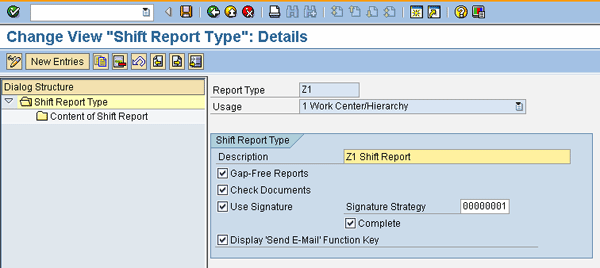
Figure 2
Define a shift report type
The indicator Gap-Free Reports ensures that the option to generate a new shift report is based on when the last report was generated and saved. For example, if the last shift report was saved on September 24, 2011, then the option to generate the next shift report has the start date of September 25, 2011. The indicator Complete ensures that the system checks whether all the digital signatures required to save and print the shift report have been completed and verified. To make the option to send a shift report by email available, select the Display ‘Send E-Mail’ Function Key check box.
Tip!
Because digital signature functionality is cross-application and can be used by different SAP modules, it can be independently configured. Therefore, I suggest that before you configure shift report functionality, you define a signature strategy so that you can assign it in Figure 2. Otherwise, you have to come back to this screen later to assign the signature strategy after defining it. Complete signature strategy configuration details are covered in the section titled “Digital Signature Functionality in Shift Reports.”
Once the details in Figure 2 are supplied, double-click Content of Shift Report on the left to move to Figure 3. Now you define the output form required to print out shift reports. In my example, the custom-developed output form is ZPM_COCF_SR_PDF_LAYOUT. You can use a company-specific, custom-developed ABAP form, or you can simply use the standard output form provided by SAP (COCF_SR_PDF_LAYOUT).

Figure 3
A detailed screen for a shift report type
Digital Signature Functionality in Shift Reports
The option to digitally sign a shift report before printing it or sending it by email brings enormous value to the business because it eliminates the need to print out and manually sign shift reports. In addition to the flexibility of having individual digital signatures when generating shift reports, the functionality also allows for a signature strategy that controls the one or multiple required signatures that are incorporated in a shift report before it can be printed.
Activating digital signatures begins with specifying the signature method for approval using a simple signature: the SAP log-in and password. The individual signatures are defined next, as well as which functions are allowed, such as the display of a comment box.
To activate digital signature functionality, follow configuration menu path SPRO > Reference IMG (or press F5) > Logistics – General > Make Settings for Shift Reports > Signature strategies for approval > Specify signature method for approval using simple signature (Figure 4). Define the signature method; that is, if the SAP log-in and password check is used or if some other external verification system, such as an employee swipe card, is used for verification. In my example, I set the signature method to be a simple SAP log-in and password check by selecting the option R in the Sign.Meth. column. R is the option for a system signature with a simple log-in and password check.

Figure 4
A Signature Object in a digital signature
To define individual signatures, follow menu path Logistics – General > Make Settings for Shift Reports > Signature strategies for approval > Define individual signatures (Figure 5). Click the New Entries button to define your signatures. I defined the individual signature as 00000001, the same name as the signature strategy for simplicity’s sake.

Figure 5
A list of individual digital signatures
Once individual signatures are defined, the next step is to define the signature strategy. A signature strategy states whether a single signature suffices or if multiple and incremental signatures are needed to generate a shift report. In my example, I defined the requirement as needing just a single signature.
To define a signature strategy, follow menu path Logistics – General > Make Settings for Shift Reports > Signature strategies for approval > Define signature strategy (Figure 6). Click the New Entries button and create signature strategy 00000001. Provide a description and define the signature method as R. Save the entry by pressing Ctrl-S.

Figure 6
Define the digital signature strategy
This action brings to an end all that is required to configure and implement shift report Z1 for a resource with an individual digital signature strategy.
Master Data Maintenance
The only master data maintenance required in this process is to assign a shift report type (previously configured) to a resource or work center in PP and equipment or functional location in PM. When you generate a shift report in an SAP system for one of these areas, the system looks for the shift report type assigned to it to generate the output in the format defined in the shift report type.
To change a resource in PP, follow menu path Logistics > Production – Process > Master Data > Resources > Resource > Change or use transaction code CRC2 (Figure 7). In my example, I set the plant as GM01 and the resource as Ammonia.
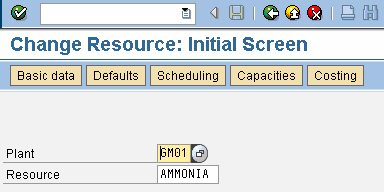
Figure 7
The initial screen for a resource
After populating the Change Resource screen, press Enter or click the enter icon  . As you can see, shift report type Z1 is assigned to the resource Ammonia in plant GM01 (Figure 8). If a shift note was previously defined, it appears here (in my example, X2) or you can assign it now. Save by pressing Ctrl-S or clicking the save icon
  .
.
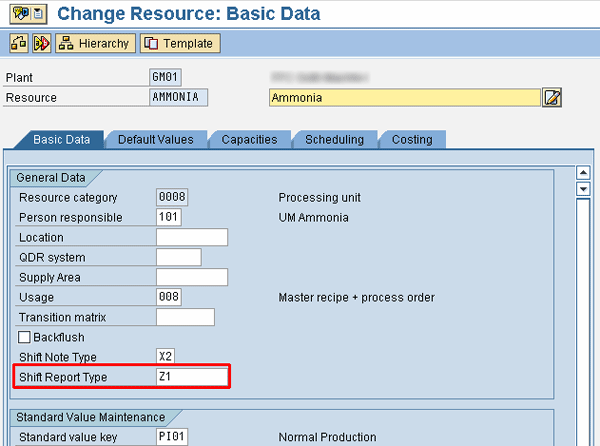
Figure 8
The basic data screen of a resource for which shift report Z1 is defined
To define a shift report in an equipment entry in PM, follow menu path Logistics > Plant Maintenance > Management of Technical Objects > Equipment > Change or use transaction code IE02 (Figure 9). Enter the equipment number and press Enter or click the enter icon. Assign the previously configured shift report in the field Report Type and save it by pressing Ctrl-S or clicking the save icon (Figure 10).

Figure 9
The initial screen for equipment
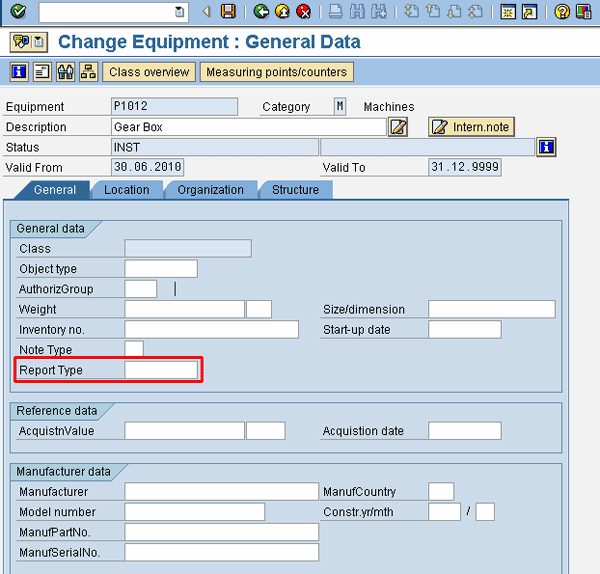
Figure 10
Assign a shift report in an equipment entry
To define a shift note in a functional location, follow menu path Logistics > Plant Maintenance > Management of Technical Objects > functional location > Change or use transaction code IL02 (Figure 11). Enter the functional location and press Enter or click the enter icon. Assign the previously configured shift report to the Report Type field and save by pressing Ctrl-S or clicking the save icon (Figure 12).
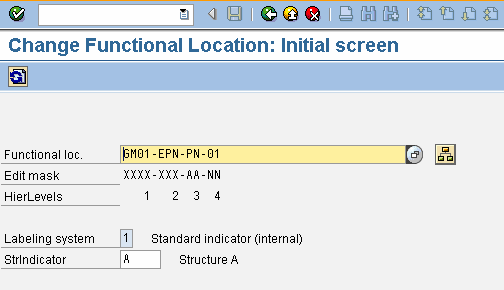
Figure 11
The initial screen for a functional location

Figure 12
Assign a shift report in a functional location entry
Create a Shift Report
To create a new shift report, follow menu path Logistics > Central Functions > Shift Notes and Shift Reports > Shift Note and Shift Report for Work Centers > Shift Report > Create or use transaction code SHR1 (Figure 13). In my example, I defined the initial parameters; that is, the resource (or work center) as Ammonia as well as the start and end dates of the period from which I want to generate my shift report.
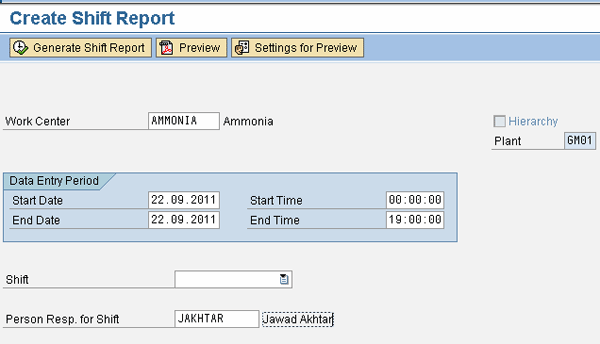
Figure 13
The initial screen to define parameters for the creation of shift reports
Once you define the parameters, click the Generate Shift Report button. This action leads you to a two-page shift report, as shown in Figures 14 and 15. Figure 14 is the cover page of the shift report. Figure 15 is the second page of the report that contains comprehensive details about the two shift notes entered for the resource (work center) Ammonia and plant GM01. These shift notes are 1100007 (for process order number 1200040) and 1100008 (for equipment P1012).
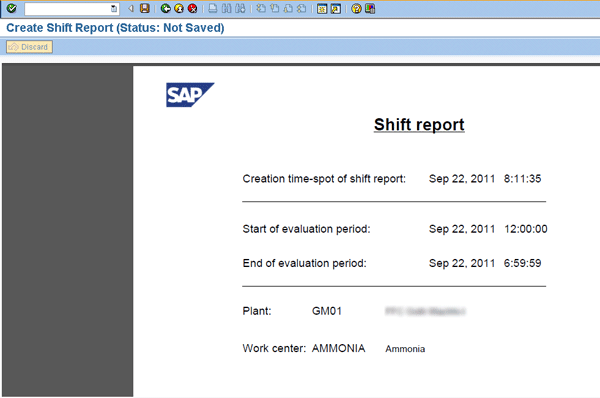
Figure 14
Page 1 (the cover page) of the generated shift report
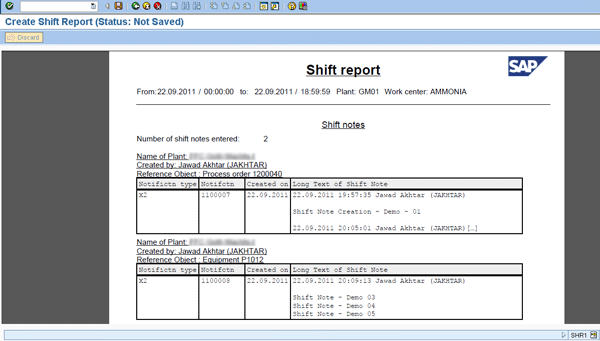
Figure 15
Page 2 of the generated shift report
Tip!
You can preview your shift note prior to generation by clicking the Preview button (Figure 13).
Save the shift report by pressing Ctrl-S or clicking the save icon. In Figure 16 you can see that the status of this shift report is that it needs to be signed first before it can be saved.
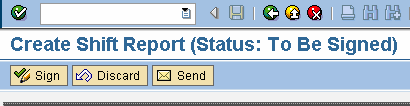
Figure 16
The status of the shift report
Click the Sign button. In the screen shown in Figure 17 the user is required to digitally sign the shift report by entering his or her SAP log-in and password. Notice that here you can also add comments related to the shift. After entering your SAP log-in and password, either press enter or click the continue digital signature icon  .
.
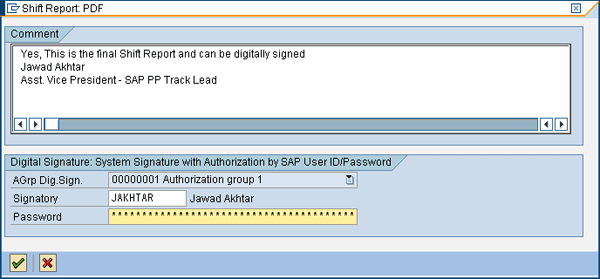
Figure 17
The digital signature pop-up screen
This action takes you back to the shift report screen in which you can see that the status has changed to Checked (Figure 18). If the shift report’s signature strategy calls for more than one person to sign the report, the status remains as To Be Signed until each necessary person signs it. You can now save the shift report by pressing Ctrl-S or clicking the save icon.
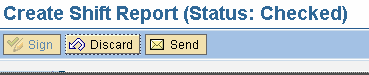
Figure 18
The status of shift report changes to Checked once it has been digitally signed
Other options available in Figure 18 allow you to discard the shift report or send it by email.
You might need to discard a shift report if, for example, incorrect information was entered or you need the report to have a different time period than what was originally used. After discarding the report, you can create a new one with the correct or revised information.
Shift Reports List
The shift reports list is an SAP report that you can use to search shift reports that meet specific criteria. For example, you can search for all the shift reports created during a given timeline or all the shift reports pertaining to any specific functional location.
To search shift reports, follow menu path Logistics > Central Functions > Shift Notes and Shift Reports > Shift Note and Shift Report for Work Centers > List Shift Reports > List Shift Reports or use transaction code SHR4 (Figure 19). In my example, I set up the search to look for shift reports that include the work center Ammonia and the plant GM01.
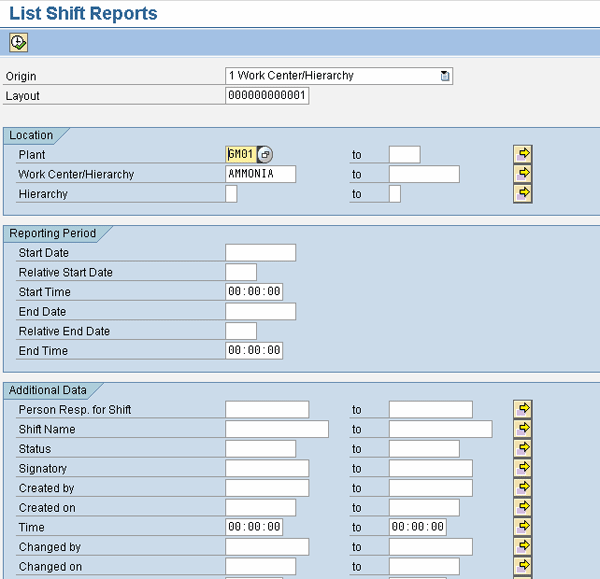
Figure 19
The parameter screen for the list of shift reports
After entering your parameters, press F8 or click the execute icon  . This action generates the list of shift reports that meet the specified criteria (Figure 20). Notice that standard shift report functions, such as display or change the shift report, are available here.

Figure 20
The list of shift reports
Keywords Search in Shift Reports
If your Basis team has successfully installed the search engine TREX, then a keyword search in the long text of shift reports is possible. To search shift reports for keywords, follow menu path Logistics > Central Functions > Shift Notes and Shift Reports > Shift Note and Shift Report for Work Centers > List Shift Reports > List Shift Reports or use transaction code SHR4 (Figure 21). Define the parameters of your search here. In my example, I specified that all shift reports starting from September 01, 2011, with the keyword Demo be displayed.
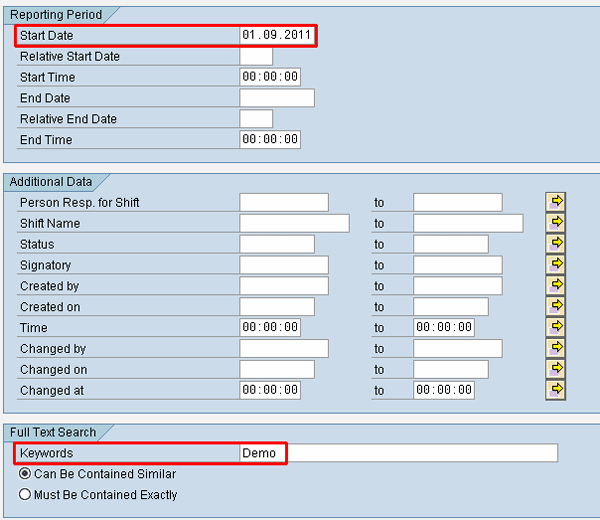
Figure 21
Search a shift report by start date of September 01, 2011, and keyword Demo
After setting your search parameters, press F8 or click the execute icon to display your search results. In Figure 22, you can see the results of this search.

Figure 22
Output of search results for the keyword Demo in the long text of a shift report

Jawad Akhtar
Jawad Akhtar earned his chemical engineering degree from Missouri University of Science and Technology. He has 17 years of professional experience, of which nine years are in SAP. He has completed eight end-to-end SAP project implementation lifecycles in the areas of PP, QM, MM, PM, and DMS in the steel, automobile, chemical, fertilizer, FMCG, and building products industries. He also has worked as an SAP integration manager and an SAP project manager. He has been proactively involved in a business development and solution architect role for seven years. He is the author of Production Planning and Control with SAP ERP, it's filled with in-depth infomation on discrete, process, and repetitive manufacturing types. His profile on LinkedIn is at https://pk.linkedin.com/in/jawadakhtar. You may follow Jawad on Twitter @jawadahl. Currently, he is associated with AbacusConsulting as Head of SAP Delivery.
You may contact the author at jawad.akhtar@live.com.
If you have comments about this article or publication, or would like to submit an article idea, please contact the editor.


 Premium