Discover how you can manage assembly and component scrap at various levels in an SAP system, including the master data and transactional data levels. In addition, see how to record scrap at the cost center level.
Key Concept
Successfully assigning assembly and component scrap in master data enables an SAP system to not only consider scrap during production planning—either by increasing production quantity to account for assembly scrap or increasing the issuance quantity to account for component scrap—but also during procurement planning. During the Materials Requirement Planning (MRP) run, the system takes the scrap percentage into account and reflects it in the planning proposals generated.
Organizations are often faced with problems relating to scrap materials, whether from defective finished goods produced, excess consumption of raw material due to wastage in the production process, or operational inefficiencies. These situations lead production and procurement planners into a quagmire, as they end up having to produce or procure materials to fulfill production targets. SAP offers several options to enter scrap or waste details at every level, be it at the assembly or at the component (raw material) level, so that production and procurement planning is closely synchronized with actual and practical situations. I go over these options, all of which integrate completely with the production process. I also show how you can record scrap details independent of the production or procurement process.
Based on historical data or practical experience, a user can maintain assembly and component scrap as master data, which subsequently facilitates production and procurement processes. Scrap is treated differently in an SAP system than it is treated physically by virtue of its definition. Scrap in real life can be available or even sold, but is not treated as inventory in the system. Assembly scrap is defined as a completely unusable finished or semi-finished product for which the raw material was issued in accordance with a bill of materials (BOM). Assembly scrap is different than co-products or by-products, which are inventory-managed in SAP. A component scrap allows the system to increase the issuance quantity of the component against a production order by the defined percentage to account for scrap or wastage during production.
I’ll start by reviewing the master data of both finished goods and raw material to show you how and where assembly and component scrap percentages are defined. After that, I’ll walk you through the BOM of finished goods, the different options available for entering scrap details, and how your system makes scrap calculations. Next, when each change in master data has a defined scrap percentage, I show you how to create a test production order displaying that in the defined master data of both the finished goods (i.e., assembly goods) and component material (i.e., raw material), scrap calculations are made through additional quantities of assemblies or components. Then, during the confirmation against the production order, I will show you the option to enter scrap at both the order level and the operation level. Finally, I describe how goods issuance against scrapping is handled in the cost center with a movement type.
After reading this article, you should be in a position to assess and evaluate the various options available to enter scrap details for both finished goods as well as for raw materials. These details help to optimize the production and procurement processes, as the system will take scrap details into account in all stages of logistics and supply chain management. When the planner runs Materials Requirement Planning (MRP) on the finished goods, the system not only takes the entered scrap details of finished goods, but also that of raw materials, and correspondingly increases the relevant quantities.
The Material Master
To view the details of assembly or component scrap in the Materials Requirement Planning (MRP) view of the material master, follow SAP menu path Logistics > Materials Management > Material Master > Material > Change > Immediately or use transaction MM02 (Figure 1). Here, enter the material number (I used 1659) and click the Select view(s) button. In the pop-up window, select the MRP 1, 2, 3, and 4 views and click the green checkmark enter icon. Then, click the Organizational levels button, which leads you to Figure 2.

Figure 1
Initial screen for material master change
In Figure 2, select the organizational level—that is, the plant. For this example, I used Plant 3000 and Stor. Location 0001. To complete this step, click the green checkmark icon.
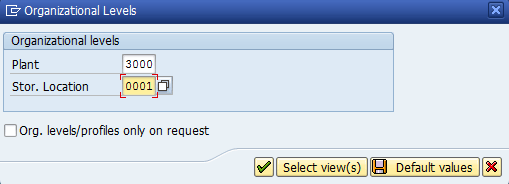
Figure 2
Organizational level of material master
This takes you to the screen shown in Figure 3, which is the MRP 1 view of the material master. Here, enter the assembly scrap in the form of a percentage. If this material is then used as an assembly in the BOM, the system considers it during scrap calculation by correspondingly increasing the production order quantity. Click the MRP4 tab to advance to the screen shown in Figure 4.

Figure 3
MRP-1 view of material master with Assembly scrap field
Figure 4 contains the field Component scrap (%) field, in which the value you enter increases the quantity by the specified percentage to account for scrap at the component level. For instance, entering 10% scrap for 100 KG of material increases the quantity to 110%. Click the save icon (not shown in Figure 4).
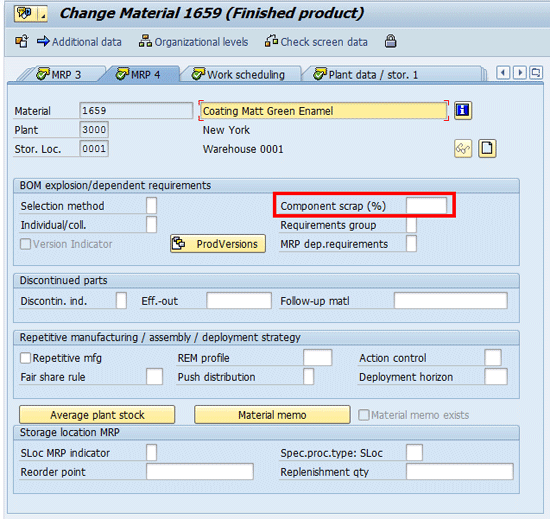
Figure 4
MRP4 view of material master with component scrap field
Bill of Materials
For the next example, I used the BOM of assembly 1659, which contains the component CH-1670 in the quantity of 1 KG. So, to produce 1 PC of assembly material 1659, the required component quantity is 1 KG.
To change the BOM for assembly 1659, follow menu path Logistics > Production > Master Data>Bills of Material > Bill of Material > Material BOM > Change, or use transaction CS02. You see the screen shown in Figure 5, which is the initial screen to change the BOM of a material. Enter the appropriate values for the Material (in this example, 1659), Plant (3000), and BOM Usage (1).The value 1 in the BOM Usage field denotes that this BOM is used for production purposes. Next, click the Item button to reach the screen shown in Figure 6.
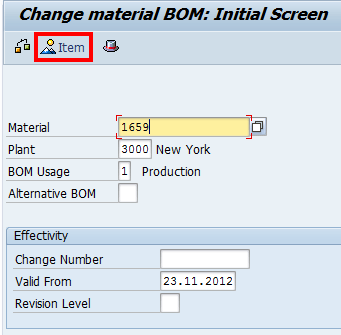
Figure 5
Initial screen for a change in BOM
Figure 6 shows the item overview of the BOM for material 1659 in plant 3000. Here, material 1659 is an assembly, while material CH-1670 is a component. The ratio of assembly to component is also one to one (i.e., to produce one piece of assembly material 1659, the requisite component CH-1670 needed is one KG). I have intentionally made this example a simple one so that it is easier to understand the BOM relationship, especially with respect to scrap handling.
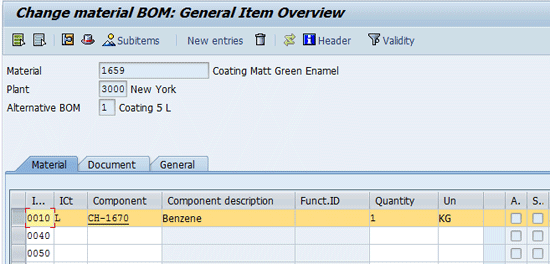
Figure 6
Item overview of BOM
Once your screen resembles Figure 6, whenever a production order for material 1659 is created, the system reads its BOM and automatically calculates the quantity given for component CH-1670. For example, a production order of 100 PC of assembly material 1659 will calculate the component CH-1670 quantity required to produce the material as 100 KG.
Now that you know the basic concepts for assembly and its scrap handling, component and its scrap handling, and BOM quantity calculation, I will show you how they each have a direct effect on scrap calculation during production order creation.
Assembly Scrap in the Material Master
Since material 1659 is an assembly, enter a scrap percentage of 10% (this is an example value) as assembly scrap in the MRP1 view of the material master. The implications of this entry appear during the creation of a production order for material 1659.Again, to view the details of assembly or component scrap in the MRP view of the material master, follow menu path Logistics > Materials Management > Material Master > Material > Change > Immediately, or use transaction MM02 (Figure 1).
Note
Because the initial screens (Figure 1 and Figure 2) and the menu path for material master changes are always the same, from this point forward I only reference the change of material master and its transaction as MM02.
In the screen shown in Figure 1, enter the material number as 1659 and click the Select view(s) button. In the pop-up window, select the MRP 1 view and click the green checkmark icon. Next, click the Organizational levels button and select the organizational level (i.e., plant). For my example, I used plant 3000 and storage location 0001. Press Enter on your keyboard or click the green checkmark icon. This takes you to the screen shown in Figure 7. Here, enter the assembly scrap percentage as 10 and save the material master.
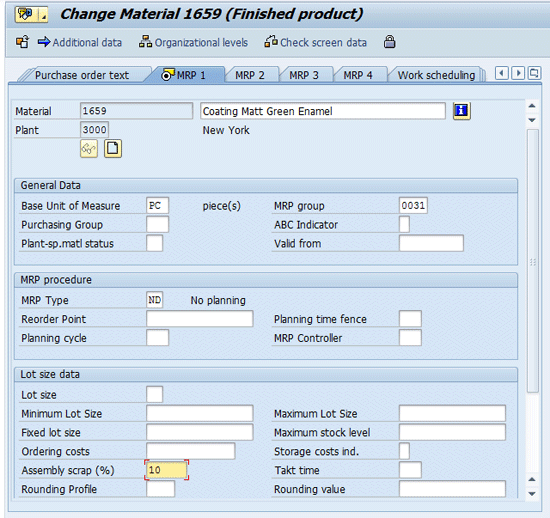
Figure 7
Assembly scrap of 10% in material master MRP 1 view
To create a production order, follow SAP menu path Logistics > Production > Shop Floor Control > Order > Create > With Material or use transaction CO01 (Figure 8). In the screen that appears, enter the material number (1659) and plant (3000), as well as order type PP01, and then press the Enter key.
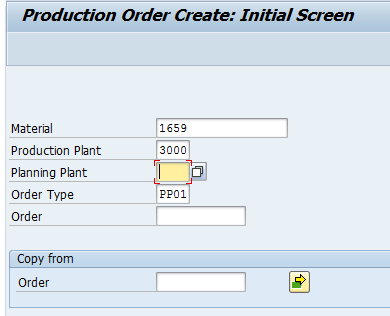
Figure 8
Production order creation
Note
Because the initial screen (Figure 8) and menu path for the creation of a production order are always be the same, from this point on I only reference the creation of the production order and its transaction as CO01.
In the screen that appears (Figure 9), notice that when you enter the total order quantity of 100 PC, the system issues a warning message at the bottom of the screen that the order quantity is increased by 10 PC (10% as defined in Figure 7) due to scrap consideration (Figure 10). Because you defined a 10% assembly scrap, the system automatically increases the production order quantity to account for this scrap.
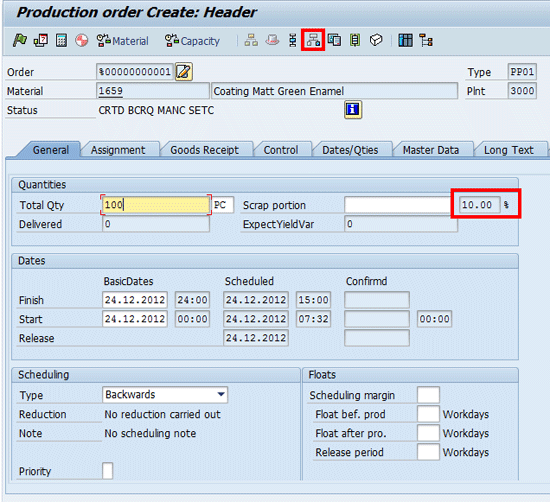
Figure 9
Header details of production order creation

Figure 10
System warning about order quantity
Next, click the component overview icon  to see how assembly scrap affects the component quantity. You will see the screen shown in Figure 11, which shows that because the production order quantity was increased to 110 PC, the quantity of the component (CH-1670) correspondingly increased to110 KG (as it was defined in the BOM of material 1659 that 1PC of material 1659 will require 1 KG of material CH-1670). Whenever a user enters the production order quantity and the system increases its quantity to account for scrap, the system then reads the BOM to calculate the component quantity. For an order quantity of 110 PC, the system calculates the component quantity so that it also equals 110KG.
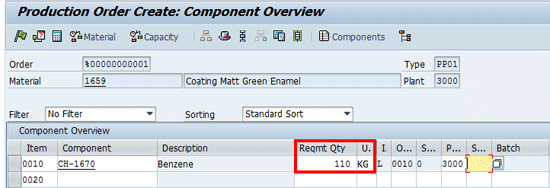
Figure 11
Component view of production order
Next, I’ll show you an option for only maintaining component scrap – not assembly scrap – in the material master.
Component Scrap in the Material Master
Before proceeding to incorporate the component scrap percentage in the material master record of the component (CH-1670), delete the assembly scrap of 10% for material 1659 that you defined in Figure 7. You can do this in a few quick steps: enter transaction MM02, enter material 1659 and plant 3000, select the MRP1 view, delete the 10% assembly scrap, and save the material master.
Now, to enter component scrap, use transaction MM02 again. Enter the component material (CH-1670) and the plant (3000), and then select the MRP4 view (Figure 12). In this example, material CH-1670 is defined as a component, and you define a component scrap of 15% in Figure 12 and save the material master.
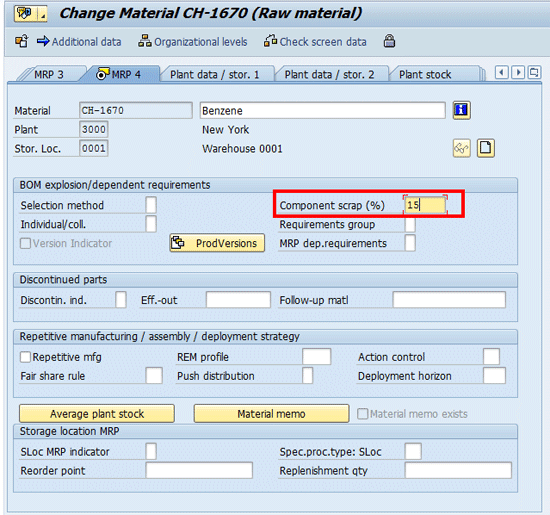
Figure 12
Add the component scrap of 15% in the MRP 4 view
To assess the impact of defining the 15% component scrap to material CH-1670, create a new production order. To do this, use transaction CO01. On the initial screen, enter the material number as 1659, the plant as 3000, and the order type as PP01. After you press the Enter key, enter a production order quantity of 100 PC for material 1659 in the screen that appears (Figure 13).
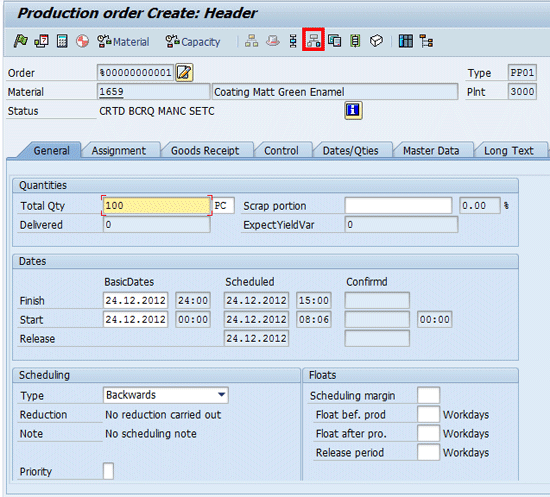
Figure 13
Header view for production order creation
After you press Enter, click the component overview icon (highlighted in red in Figure 13) to reach Figure 14. Here, the system initially calculates the quantity of component CH-1670 required to produce 100 PC of material 1659 as 100 KG. It then adds another 15% to account for component scrap, as you defined in Figure 12.
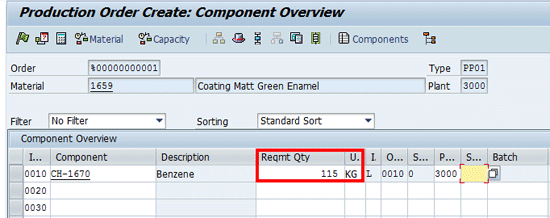
Figure 14
Component view of production order
Assembly Scrap and Component Scrap in the Material Master
Now, I’ll show you how defining both assembly and component scrap affects quantity increases during production order creation. First, re-enter the assembly scrap percentage of 10% to material 1659 (Figure 7) and leave the component scrap of 15% for material CH-1670 (Figure 12) unchanged.
Using transaction CO01 to create a new production order, enter the values for Material 1659, Plant 3000, and Order Type PP01 and press Enter, which takes you to the screen shown in Figure 15. Here, enter a total production order quantity of 100 PC. The system immediately provides a message at the bottom of the screen that due to scrap, the order quantity is increased to 110 PC (Figure 16).
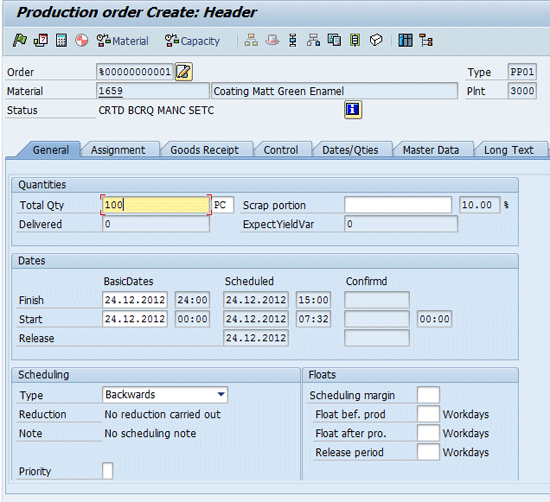
Figure 15
Header screen for production order creation
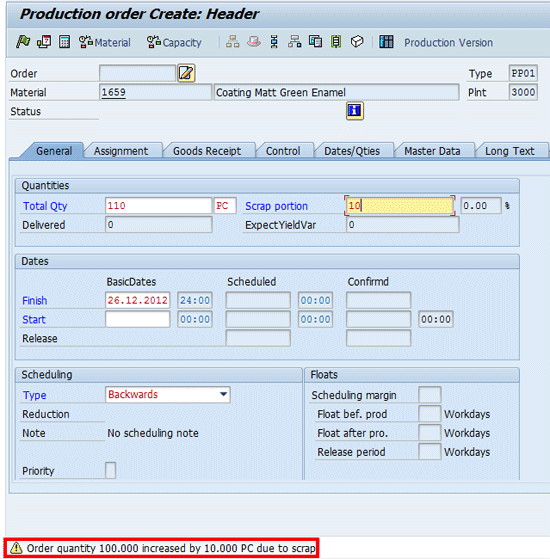
Figure 16
Production order quantity increased by 10% to account for assembly scrap
Click the component overview icon to reach the screen shown in Figure 17. Here, the system first calculates the component’s (i.e., material 1659) quantity at 110 KG, based on the increased production order quantity of 110PC. It then adds another 15% to account for the component scrap. Hence, the 15% increase of the quantity of 110 KG is shown as 126.5 KG. In this way, the system has accounted for both the assembly scrap of 10% and the component scrap of 15% in the same production order.
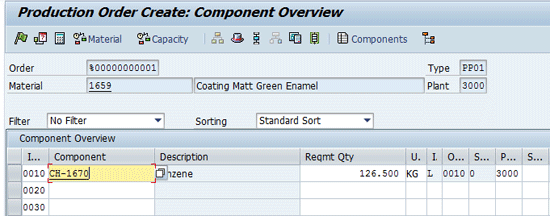
Figure 17
Component quantity increases after factoring in both assembly and component scraps
Component Scrap in the BOM
So far, I have only covered assembly and component scrap by directly incorporating the requisite information in the respective material masters. However, there is a disadvantage to this approach: the assembly and component scrap information becomes applicable to all the materials in which these records are used. This may not be the case in actual production and can vary from one component to another, as some materials undergo greater component wastage during production—hence the need to issue such a component in a greater quantity for one assembly, as compared to another assembly using the same component. The component scrap and the operation scrap (which is defined as wastage of component material encountered during the production stage of a production process) are managed at the item level of the assembly’s BOM. This information overwrites the details given in the material master of the component.
Note
Before proceeding to define operation and component scrap at the BOM’s item level, delete the previously-defined assembly (1659) and component (CH-1670) scrap, which you defined in the MRP 1 and MRP4 view of respective material masters.
To counter this disadvantage, you can define the component and operations scrap in the BOM of the assembly material (in this example, material 1659). To change the material BOM, follow menu path Logistics > Production > Master Data > Bills of Material > Bill of Material > Material BOM > Change or use transaction CS02. Figure 18 shows the initial screen for the change. Enter Material 1659, Plant 3000, and BOM Usage 1 (which, again, is for the production BOM). Press Enter and you see the screen shown in Figure 19.
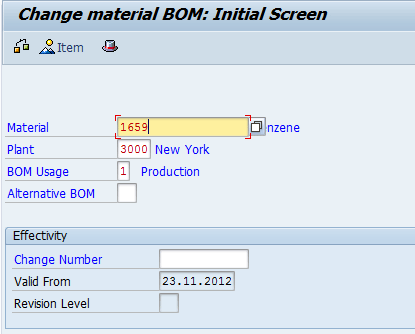
Figure 18
Initial screen for change in BOM
Figure 19 is the item overview of material BOM for material 1659. It stipulates that to produce 1 PC of material 1659, the component CH-1670 needed is 1 KG. Select the line item 0010 and click the item detail icon highlighted in red in Figure 19.
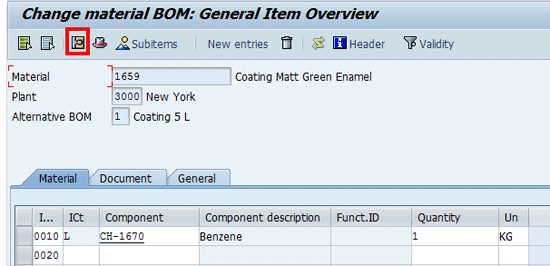
Figure 19
Item overview of BOM
In the screen that appears (Figure 20), you see two options to enter scrap details: Operation scrap in % and Component scrap (%). The basics of component scrap are the same as mentioned in the material master section of this article, but now it is specifically applicable to material 1659. For example, if another material (assembly) is produced that makes use of the component CH-1670, then those material-specific scrap details can be entered in the BOM’s item level. For this example, enter an operation scrap of 10% and select the checkbox for Net ID, which is a mandatory requirement when defining operation scrap. Net ID indicates that it is the total (net) component scrap that the system calculates for all operations of the production order. Save the material BOM by clicking the save icon.

Figure 20
Detailed view of BOM item
To show the implications of defining operation scrap in a production order, enter transaction CO01. On the initial order creation screen, enter Material 1659, Plant 3000, and Order Type PP01, and press Enter. This takes you to Figure 21, which contains the header details of production order creation.
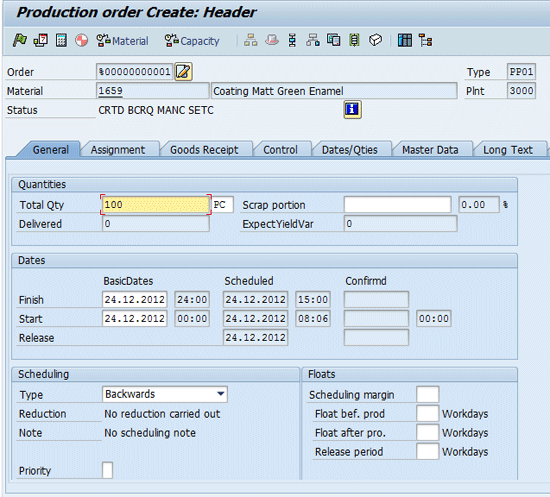
Figure 21
Header screen for production order
Enter the production order total quantity as 100 PC. Next, click the component overview icon to reach the screen shown in Figure 22. Here, you can see that the system has automatically taken care of the 10% scrap percentage for operation and increased the component quantity to 110 KG.

Figure 22
Component overview of production order with operation scrap
Next, return to the change in BOM for Material 1659, Plant 3000, and Usage 1 by using transaction CS02. This leads to the screen in Figure 23, where this time you should also enter the component scrap of 10% in addition to operation scrap of 10%. Then save the BOM. The objective is to evaluate the implication of defining operation and component scrap in the item details of the BOM and see how this affects quantity while creating the production order.

Figure 23
Detailed view of item of the BOM
With the details of scrap provided for both operation and component in Figure 23, you should now create a production order for Material 1659, Plant 3000, and Order Type PP01. Figure 24 is the header screen for production order creation where you can enter a total order quantity of 100. Next, click the component overview icon to reach the screen shown in Figure 25.
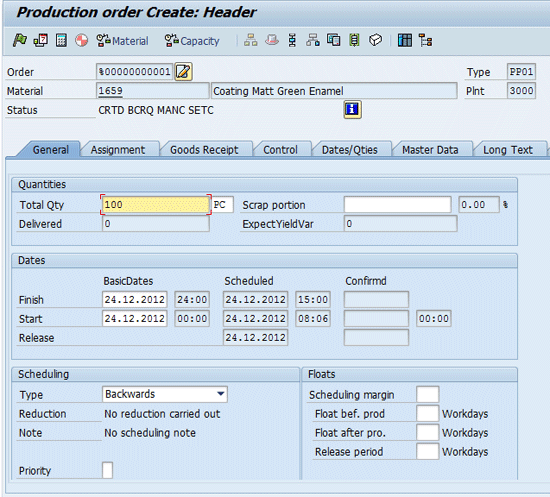
Figure 24
Header view of production order creation
Figure 25 shows that system has twice increased the component quantity of 100 KG to calculate the final value as 121 KG, after first taking operation scrap and then component scrap into account. That is, it used the calculations 100 KG x 1.10 = 110KG and then again 110 KG x 1.10 = 121KG. Next, double-click the number 0010 in the left column to reach the screen shown in Figure 26.
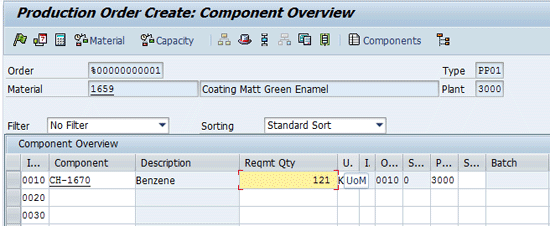
Figure 25
Component view of production order taking operation and component scrap into account
Figure 26 is the detailed component view of material CH-1670. Notice that the system took both the operation and component scrap into account to calculate the quantity of 121 KG. This information was directly read from the BOM of material 1659 (Figure 23).
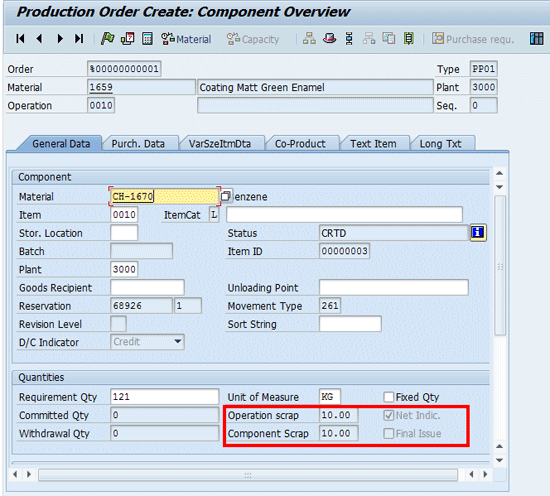
Figure 26
Component view of production order taking operation and component scrap into account
Assembly Scrap in the Material Master and Component Scrap in the BOM
Now, I’ll show you the impact of defining assembly scrap in the material master of assembly 1659 on the component’s (CH-1670) quantity calculation. The item details of component CH-1670 for the material BOM 1659 still contain the previously defined operation scrap of 10%, as well as component scrap of 10% (Figure 23).
Figure 27 is the material master change screen accessed by transaction MM02. Enter the Material number as 1659 and Plant 3000, and then select the MRP1 view. The assembly scrap is again defined as 10%. Save your work to proceed.
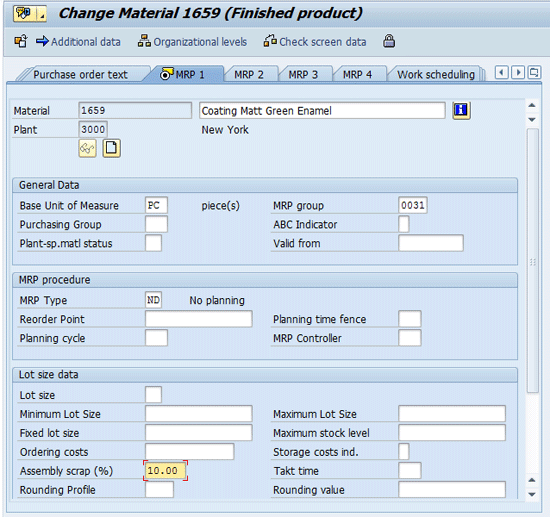
Figure 27
MRP1 view of material master with assembly scrap defined as 10%
To check the impact of assembly scrap and component scrap during production order creation, use transaction CO01. On the initial screen, enter Material number 1659, Plant 3000, and Order Type as PP01, and then press Enter. In the screen that appears (Figure 28), the total order quantity of the production order is increased by 10% to account for the assembly scrap defined in Figure 27. Next, click the component overview icon to reach Figure 29.
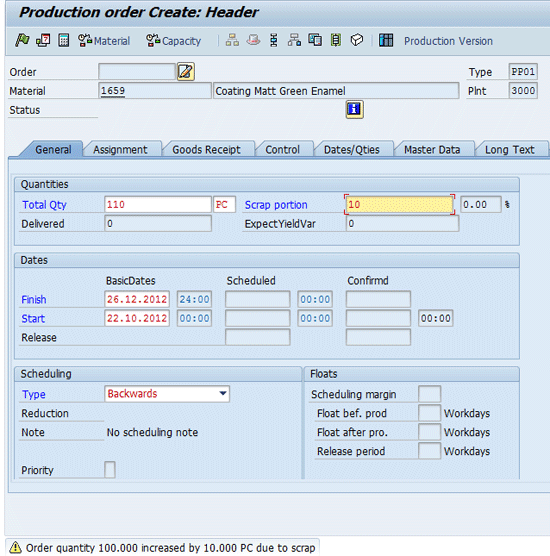
Figure 28
Header screen for production order creation
Figure 29 shows that the system only takes the operation and component scrap into account (Figure 23) and thus the calculated quantity is 121 KG. In other words, the system has not taken the double impact of assembly scrap and operation scrap, and then calculated the component scrap. Had that been the case, the system would have first increased the component (CH-1670) quantity to 110 KG (to account for total order quantity of assembly to 110 PC) and then added 10% for operation scrap (110x 1.1 = 121 KG) and then another 10% for component scrap (121 x 1.1 = 133.1 KG). The total component quantity would have been 133.1 KG.
Instead, the system first increased the total production order quantity by 10PC while it considered the original order quantity of 100 PC, read the assembly’s BOM, and then undertook the necessary calculation for component quantity after taking into account the defined operation and component scrap in the assembly’s BOM.
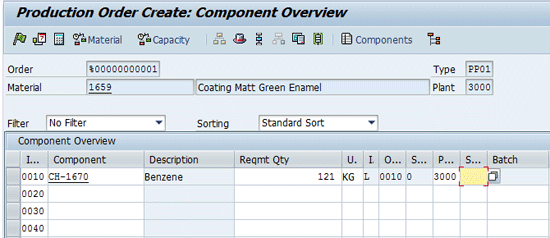
Figure 29
Component view of the production order
Thus far, I have covered the planned scrap (both assembly and component) as master data, which automatically makes your system perform the necessary calculations and other updates during transactional data work (e.g., the creation of production order). This helps you see how much additional production order quantity needs to be increased and how much a component’s quantity is increased to account for various scrap types during production.
Assembly Scrap in the Production Order
You can also manually enter the planned assembly scrap during production order creation. To create a new production order, enter transaction CO01.On the initial screen, enter Material number as 1659, Plant 3000, and Order Type PP01, and press Enter to reach the screen shown in Figure 30. Here, notice the option to enter planned assembly scrap quantity (the Scrap portion field), which when entered automatically calculates the percentage of assembly scrap. When you enter a production order quantity of 100 PC and a scrap portion of 10 PC, the system automatically calculates the scrap percentage as 11.11%. The calculation is as follows: Scrap portion = (10 / (100-10)) * 100 = 11.11%. The production order in Figure 30 stipulates that out of a total quantity of 100 PC, 90 will be produced as good or usable, while a quantity of 10 PC is expected to be scrap or unusable. To proceed, click the component overview icon.
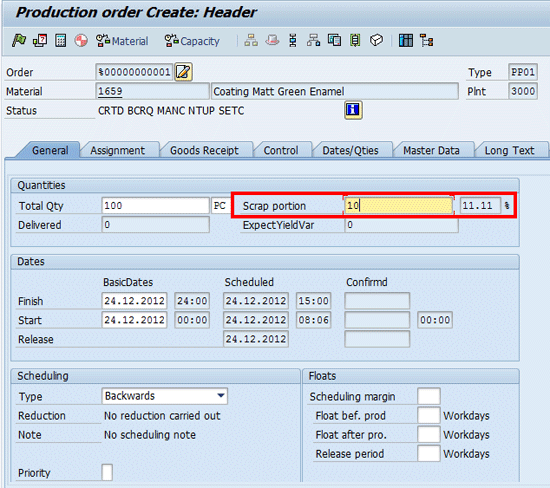
Figure 30
Header screen for production order creation with manually entering the scrap portion
In the screen that appears, notice that incorporating an assembly scrap of 10 PC does not increase the component quantity. It still remains at 100KG (Figure 31).

Figure 31
Component overview of the production order
Scrap Handling in Production Order Confirmation
Everything I have discussed above involved planned scrap calculations to ensure goods issuance against a production order, taking the relevant scrap factor into account. None of my previous examples have direct financial implications until the material is actually issued against the production order. At that time, the system updates all the costs incurred in producing a product.
Next, I show two different ways that you can enter actual scrap quantity for the assembly in a production order’s confirmation. A confirmation against production order in SAP reflects the status of actual and physical material produced against a production order (i.e., a planned production quantity).
For Order
One can record the total and overall production scrap of an assembly against a production order during confirmation of that order. To record production order confirmation, use menu path Logistics > Production > Shop Floor Control > Confirmation > Enter > For Order or transaction CO15 (Figure 32). Figure 32 is the initial screen for production order confirmation. For this example, enter Order number 60003509 and then press Enter.
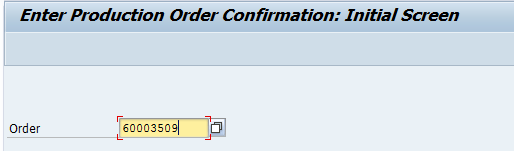
Figure 32
Initial screen for production order confirmation
The screen that appears is the production order confirmation screen in which the quantity given in the field Yield to conf. field reflects the actual quantity produced against a production order that is being confirmed (Figure 33). The quantity entered in the Confirmed scrap field is used to record and report the unusable scrap produced. Note that the system displays the quantity it expects the user to confirm against the production order, which in this case is 100.

Figure 33
Production order confirmation
For Operation
The option to enter assembly scrap at an operation level is also available. The advantage of recording scrap at any given operation ensures that only the yield quantity is available for confirmation in the next operation’s confirmation. For example, in operation 10, if the user records a yield of 90 and a scrap of 10 units against a production order of 100 units, then at operation 20 (the next operation), the system will propose only 90 units for yield’s confirmation.
To confirm the operation of a production order, follow menu path Logistics > Production > Shop Floor Control > Confirmation > Enter > For Operation > Time Ticket or use transaction CO11N (Figure 34). Here, enter the production order number and operation 0010 and then press Enter. A yield of 95 PC and a scrap of 5 for operation 0010 is recorded when you save your work.

Figure 34
Operation confirmation against a production order
Goods Issue Against Scrap
Apart from declaring and recording assembly or component scrap during the production processes, the system also provides an option to account for or record scrap against a cost center. This cost center can be a production cost center. However, this option has no direct relation to production orders or production processes.
To record scrap against cost center, follow menu path Logistics >Materials Management > Inventory Management > Goods Movement > Goods Movement or use transaction code MIGO (Figure 35).For this example, I selected Goods Issue, Other, and the movement type 551 (in the field GI scrapping). Movement type in SAP denotes an indicator and control function for all of a material’s movement. For example, the movement type for goods issuance against cost center is 201, the type for goods issuance against production order it is 261, and for goods issuance against scrapping it is 551. In Figure 35, enter Material number CH-1670 and click the Quantity tab, which takes you to the screen shown in Figure 36.

Figure 35
The Material tab of goods issue against scrap
Next, enter the scrap quantity of 100 KG and click the Where tab, which takes you to Figure 37.

Figure 36
The Quantity tab of goods issue against scrap
Enter the Plant as 3000 and the Storage Location as 0001. Click the Account Assignment tab to reach the screen shown in Figure 38.

Figure 37
The Where tab of goods issue against scrap
This tab holds key information such as the cost center, which you record scrap details. Enter the Cost Center as 1000, click the Check button, and finally, click the save icon to save the transaction.

Figure 38
Goods issue against scrap, Account Assignment tab

Jawad Akhtar
Jawad Akhtar earned his chemical engineering degree from Missouri University of Science and Technology. He has 17 years of professional experience, of which nine years are in SAP. He has completed eight end-to-end SAP project implementation lifecycles in the areas of PP, QM, MM, PM, and DMS in the steel, automobile, chemical, fertilizer, FMCG, and building products industries. He also has worked as an SAP integration manager and an SAP project manager. He has been proactively involved in a business development and solution architect role for seven years. He is the author of Production Planning and Control with SAP ERP, it's filled with in-depth infomation on discrete, process, and repetitive manufacturing types. His profile on LinkedIn is at https://pk.linkedin.com/in/jawadakhtar. You may follow Jawad on Twitter @jawadahl. Currently, he is associated with AbacusConsulting as Head of SAP Delivery.
You may contact the author at jawad.akhtar@live.com.
If you have comments about this article or publication, or would like to submit an article idea, please contact the editor.



 Premium