This article provides useful information about how to perform calculations with date characteristics that are not defined as key figures. The author's technique can produce a report that shows the elapsed time between events - i.e., when a sales document is created and when it is billed. He walks you through six easy steps that calculate dates using replacement variables to represent dates as numbers.
In a number of business situations, it would be great to perform calculations with date characteristics that are not defined as key figures. This is possible in BW with a technique I developed. It uses replacement variables to represent dates as numbers. With these calculated key figures, users can then perform calculations to determine the period between events.
Consider this example: A time lag exists between when a sales document is created and when it is actually billed to the customer. The accounts receivable (A/R) manager wants to know how efficiently the company invoices customers and requests a report for each sales document displaying the date that a sales order was created, along with the actual bill date and how many days it took to bill the customer.
My technique allows you to provide the A/R manager with the required report. It is easy to use and should not require changes to the existing design of your InfoCubes or ODS files, because most InfoObjects are set up using a default that establishes a date as a characteristic. My method is ideal for item-level reporting, and you can extend its summarized reporting by evoking the Before Aggregation option for calculated key figures. It also eliminates some of the disadvantages of using key figures such as zero InfoCube compression.
I will show you how to employ my technique in a BW 3.1 environment. It will work in BW 2.x as well because variables also are available in the older system. It is end-user-friendly and requires no additional ABAP coding or other help from your Basis team.
Step-by-Step Solution
Initially, the A/R manager’s report shows the sales document create date and the actual bill or invoice date. To add the number of days between the two, use the BW Variables Wizard in the BEx Query Designer and create replacement variables for the sales document date and billing date following these steps:
- In the BEx Query Designer, right- click on Key Figures and select New Formula (Figure 1). Right-click on Formula Variable as shown in Figure 2 and select New Variable, which launches the BW Variables Wizard.
- On the General Information screen (Figure 3), provide a technical name and description for the variable and select Replacement Path in the Processing by field, which in this case permits the variable populated at runtime to be replaced by the value of the sales document date. Click on Next. (For more details about creating variables, see “A Simpler, Cleaner Approach to Trend Reporting in BW Using Variables.”)
- Selecting a replacement variable in the Processing by field displays all the available InfoObjects in the Characteristic screen. Because you want to use a computable number for the sales document create date, select the Sales Doc Create Date (YSALDOCCR) and click on Next.
- In the Replacement Path screen (Figure 4), choose the appropriate option in the Replace Variable With field to tell BEx which variable will be replaced by the sales order date. Because no other format is computable, select Key to allow for calculations and click on Next.
- The Currencies and Units screen is displayed next, where you will select Date as the Dimension ID. With this dimension, the system calculates the days since January 1, 0000 to generate a number for date calculations. BW translates the date November 1, 2003, for example, into the number 731521 because it has been 731521 days since 00.01.0000. Click on Next.
- The last window (Figure 5) confirms our variable; click on Finish to save the variable.

Figure 1
Click on New Formula in the BEx Query Designer

Figure 2
On the New Formula screen, click on New Variable to launch the Variables Wizard

Figure 3
BEx Query Designer provides a wizard to create variables
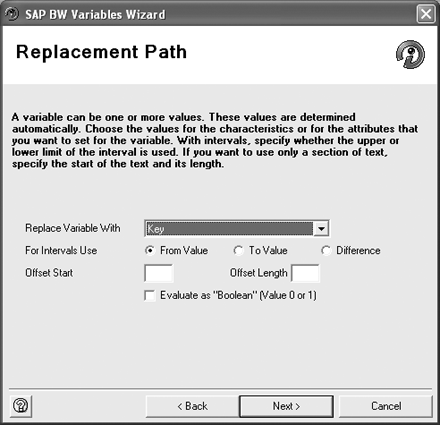
Figure 4
The BW Variables Wizard allows you to set the appropriate replacement option
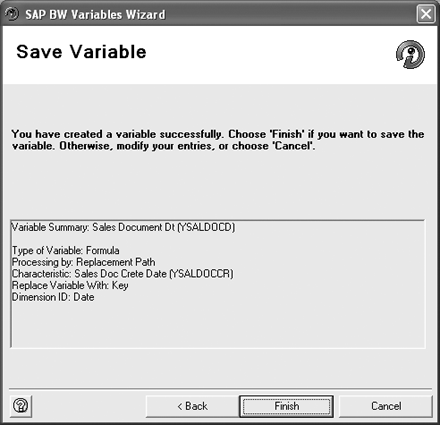
Figure 5
The wizard presents users with this last screen to save or cancel the variable
Follow the same steps to create a second variable for the actual bill date using the variable name YBILLDOC and the description Bill Document Date on the General Information screen of the BW Variables Wizard (see Figure 3).
Calculating Dates with Replacement Variables
Once you have created the replacement variables, you need to define the calculated key figure to generate the days in between the sales document date and the actual bill date. Return to the New Formula screen in the BEx Query Designer and enter a Description for the calculated key figure, in this case, Days Bet Bill Dt and Sales Doc dt (Figure 6).

Figure 6
After you have dragged and dropped the formula variables into your new formula, click on OK to save the calculated key figure
Next, drag the Bill Document Date variable into the Formula window and enter a minus (“-”) sign. Drag and drop the formula variable Sales Document Dt. Clicking on the OK button saves the calculated key figure.
After clicking on OK in the Formula Syntax Check dialog box (Figure 7), which verifies that the formula is correct, the query definition should like Figure 8. Click on Save and execute the query.
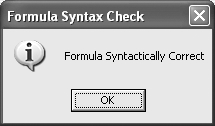
Figure 7
Click on OK to verify that the new formula is syntactically correct

Figure 8
Your new query should look like this
Figure 9 shows the resulting report. The query correctly calculates the number of days between the actual bill date and the sales document date. In this example, the billing department’s worst effort resulted in a 44-day gap between the sales order data and invoicing. Conversely, billing managed zero days to generate an invoice for one customer, meaning the bill went out on the same day as sales document date.
| Sales Doc Create Date |
Actual Bill Date |
Days Bet Bill DT and Sales Doc dt |
| 03/03/2003 |
03/07/2003 |
4 |
| 04/04/2003 |
05/05/2003 |
31 |
| 08/01/2003 |
08/09/2003 |
8 |
| 09/01/2003 |
09/12/2003 |
11 |
|
10/15/2003 |
44 |
| 10/01/2003 |
10/10/2003 |
9 |
| 11/01/2003 |
11/01/2003 |
0 |
| 01/01/2004 |
02/01/2004 |
31 |
| 02/03/2004 |
02/04/2004 |
1 |
|
| Figure 9 |
Using variables, your reports can provide the number of days in a certain period |
|
Raj Mani Thiyagarajan
Raj Mani Thiyagarajan is an SAP Certified BW consultant with more than 3 years of experience implementing, mentoring, and teaching BW. He is the director of SAP Practice at Kays Systems Inc., and the author of BW Interview Questions and Answers Book.
You may contact the author at raj@bwinterviewquestions.com.
If you have comments about this article or publication, or would like to submit an article idea, please contact the editor.