Learn how to generate the Security Optimization Service (SOS) report in SAP Solution Manager 7.1. Discover the level of security in your SAP landscape and learn proactive actions you can take in your system to improve its security.
Key Concept
The SAP Security Optimization Service (SOS) report scans selected SAP systems for critical security settings. To determine the actual risk, all perceived vulnerabilities are ranked using SAP best practices based on severity and probability. The SOS report contains all identified vulnerabilities of the analyzed SAP system landscape together with prioritized recommendations to eliminate or reduce identified vulnerabilities.
Maintaining a vigilant approach to potential security breaches is necessary to achieve the following benefits:
- Reduce the risk of system intrusion
- Protect critical business confidentiality
- Maintain SAP and operating system user authenticity
- Reduce potential downtime errors caused by the wrong staff having unmetered access to business data
- Help determine who is logging on to the production system
SOS reports perform the following security checks:
- Password authentication
- Basis administration security
- Change management security
- User authorization
- SAP NetWeaver application server
- SAP router
- Customer-specific authorization
- Human resources
The SOS report is one of several guided self-services delivered with SAP Solution Manager 7.1. These guided self-services can help Enterprise Support companies improve several common problem areas such as system performance, data volume management, change management, and business process.
I start by showing you the recommended landscape for using these reports, and then describe a few prerequisites. Finally, I take you step by step through how to set up and use SOS reports in your SAP Solution Manager system.
Recommended Landscape
Figure 1 depicts the systems to which I refer in this example. In this case, SAP Solution Manager is known as PM0, and the managed system is an SAP ERP-based system known as MP1. I create the SOS report in SAP Solution Manager PM0 for the managed system MP1.
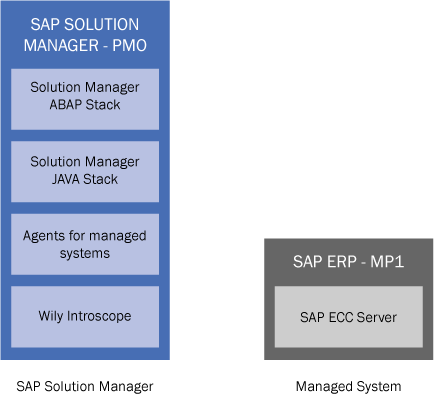
Figure 1
Systems in this example
Prerequisites
Now I look at checking the minimum SAP Solution Manager software configuration and perform some prerequisites. Table 1 shows the minimum and recommended Support Package level to which you must patch your systems to derive the most benefits from the SOS report. To check your current software levels, use transaction SPAM (Figure 2) or follow menu path System > Status.
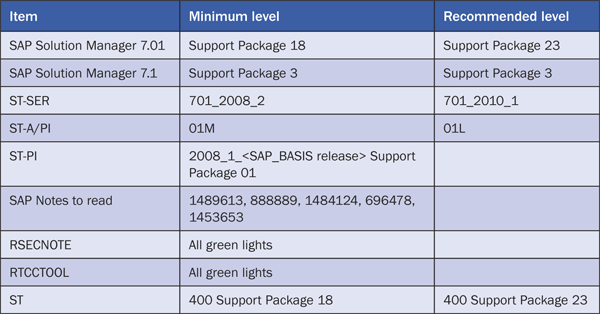
Table 1
Prerequisite Support Package levels
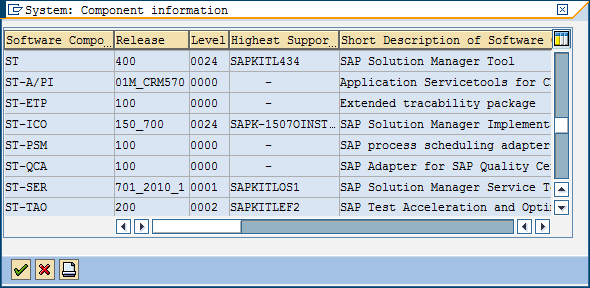
Figure 2
Check your Support Package levels
Once you have the implemented the minimum software levels, you must analyze the currency of the SAP Solution Manager service tools using transaction ST13 (Figure 3). Note that you need to follow this process both for the SAP Solution Manager system (PM0 in my example) and managed systems (MP1 in my example).
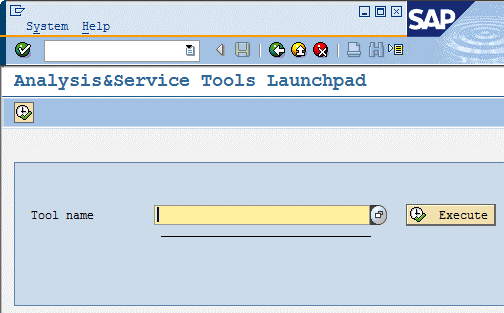
Figure 3
Analyze the service tools
From the drop-down list, select the RTCCTOOL and RSECNOTE service tools names in turn. Click the Execute button (Figure 4).

Figure 4
Choose the relevant service tools
To get the most out of the SOS report (and other SAP guided services) ensure that you click the Settings button (Figure 5) and that you select the appropriate check boxes for the guided services you wish to enable (Figure 6).
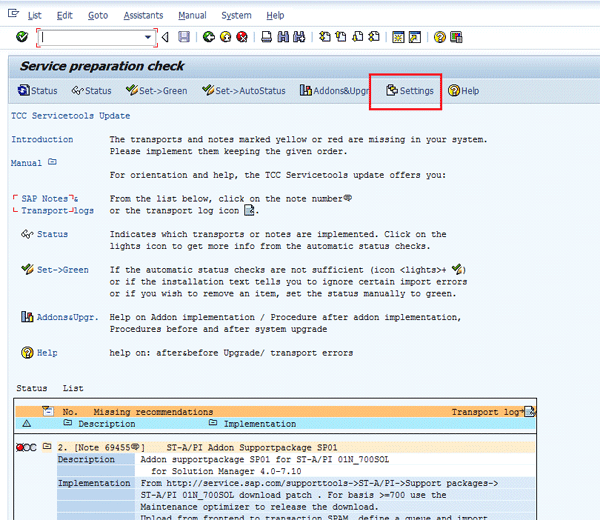
Figure 5
Select the settings
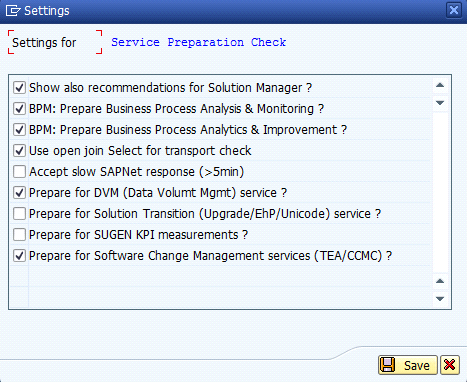
Figure 6
Select the appropriate settings
The next step is the most time consuming of the entire process: application of missing SAP Notes and maintenance. Apply the recommended SAP Notes and associated maintenance based on the list at the bottom of Figure 7. Verify that all the status list items have green lights beside them to receive the most up-to-date and accurate SOS report.
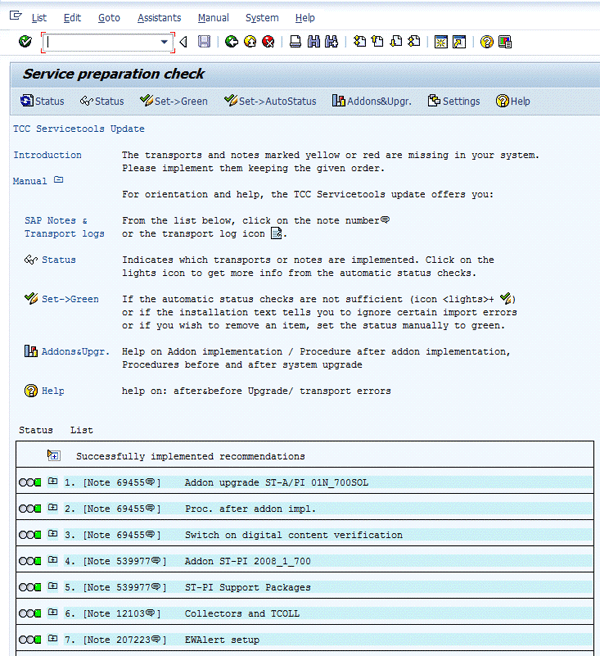
Figure 7
Apply the SAP Notes and missing maintenance
Advanced users may wish to define additional critical authorizations to be selected by the SOS report. To define these authorizations, select the SOS_CUSTOMER_DATA service tool from transaction ST13. Select the authorizations in the customer name range of 9000 to 9999 (Figure 8).
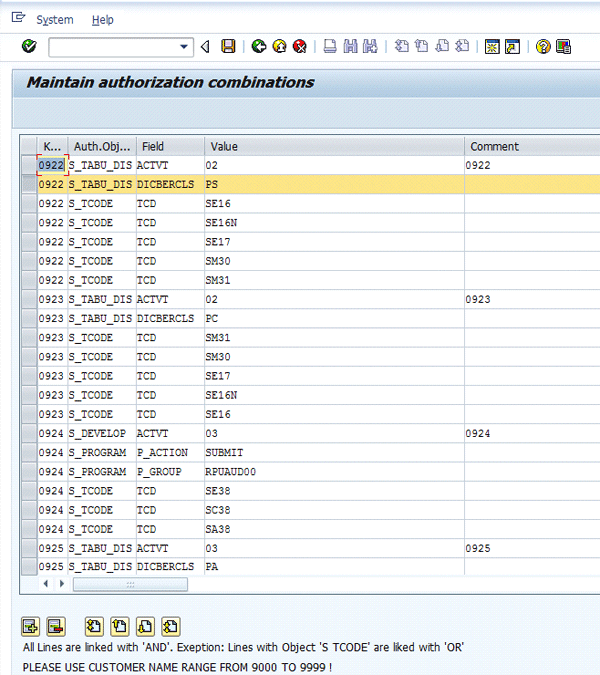
Figure 8
Additional customer authorizations to be checked by the SOS report
Step-by-Step Process
Now that you have completed the preparation for both SAP Solution Manager and the managed system, you can begin configuration of the SOS report. Follow a three-step process:
Step 1. Create the Self Service Request in SAP Solution Manager
Log in to the SAP Solution Manager system and navigate to the SAP Engagement and Service Delivery work center. Select the Services node from the left navigation panel (Figure 9).
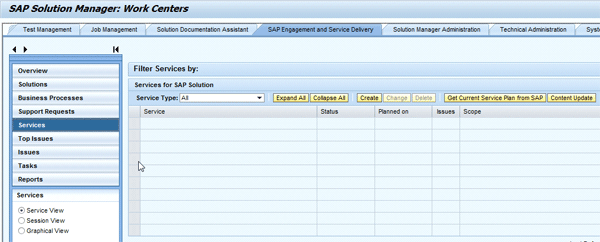
Figure 9
The SAP Engagement and Service Delivery work center
Now you can create a self-service session for SOS. Navigate to the Self Services tab and select the SAP System Security Optimization service for the managed system of your choice. Click the Create button to create an empty report shell (Figure 10).

Figure 10
Select the target managed system for the SOS report
In the report shell (Figure 11) you can fill in the data from the managed system. Leave the screen as it is and then move on to the managed system (e.g., MP1).

Figure 11
Create the SOS report shell
Step 2. Generate and Extract the Security-Based Data in the Managed System
Log on to the managed system using transaction ST14. Click the Application button and select the Security Optimization radio button to download the appropriate data (Figure 12).

Figure 12
Download the appropriate data
Click the green check mark icon and then click the Schedule job button in Figure 13.
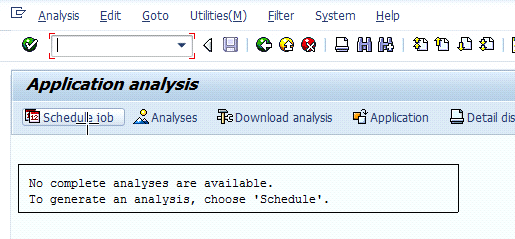
Figure 13
Schedule the job
Select ABAP or Java (or both) in the Analysis scope options section (Figure 14). Click the Schedule job button.
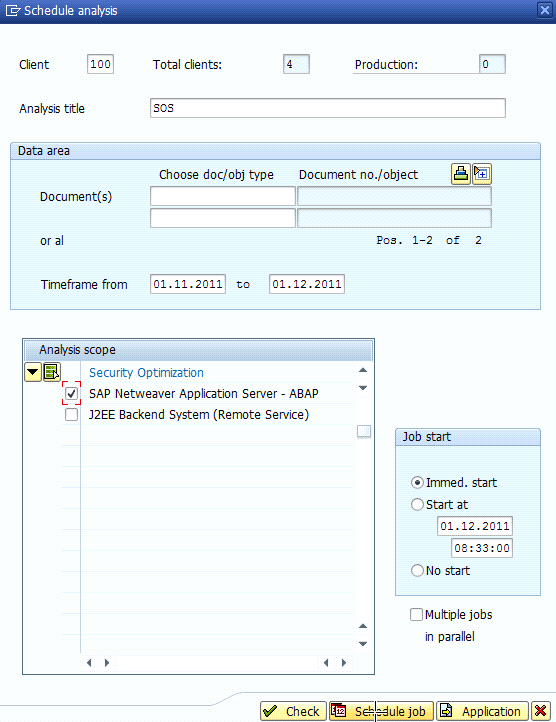
Figure 14
Select analysis scope options
When the data collection has ended, the status of the analysis changes from in process to completed. There is no auto-refresh, so keep checking manually. When finished, navigate to menu path Utilities > Analysis browser (Figure 15).
Tip!
If the job has finished after two or three seconds, you probably did not have the authorization settings properly defined. Consult SAP Note 696478.
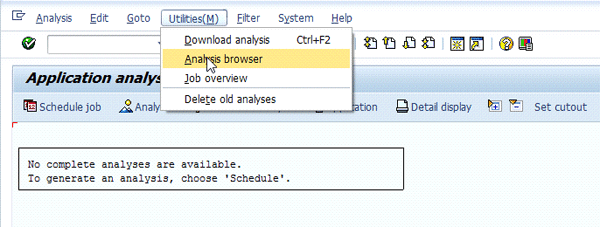
Figure 15
Wait for the job to finish
Once your job is finished, you notice a unique GUID associated with the transaction ST14-generated analysis for your managed system (Figure 16). Each subsequent run has a different GUID for easy identification once the data is extracted from the managed system into SAP Solution Manager. Select the Solution Manager radio button and then click the Send button to forward the transaction ST14 analysis data set to SAP Solution Manager.

Figure 16
The analysis browser showing the GUID
If your send process works correctly, you see green lights similar to those shown in Figure 17.
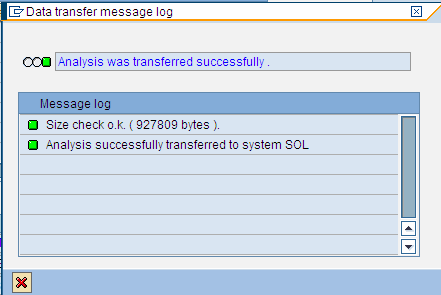
Figure 17
The analysis transferred successfully
Should you have an error at this point, you may need to manually send the transaction ST14 data set to SAP Solution Manager by using transaction SDCCN in the managed system. Start by searching for a Refresh Sessions task in transaction SDCCN (Figure 18). Note that this process displays sessions for that day only. If it is scheduled for a future date, you may have to wait up to a week. If you cannot see one, create a Refresh Sessions task.

Figure 18
The SDCCN refresh session
Once this session ends successfully, a Security Optimization task appears in the To do tab of SDCCN (Figure 19). Follow menu path Edit > Start Now to send the data back to the SAP Solution Manager screen. The SOS report in SAP Solution Manager cannot access the extracted data until you complete this step.
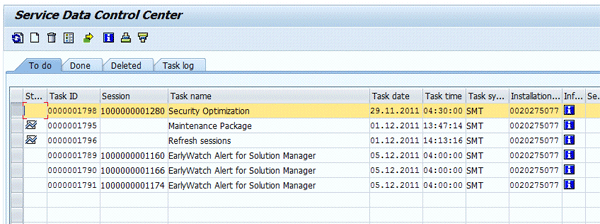
Figure 19
The SDCCN Security Optimization session
Step 3. Build the SOS Report in SAP Solution Manager
Log on to SAP Solution Manager and navigate to the Engagement and Service Delivery work center. Select Services from the left navigation panel (Figure 20). Expand the SAP System Security Optimization service you previously created.
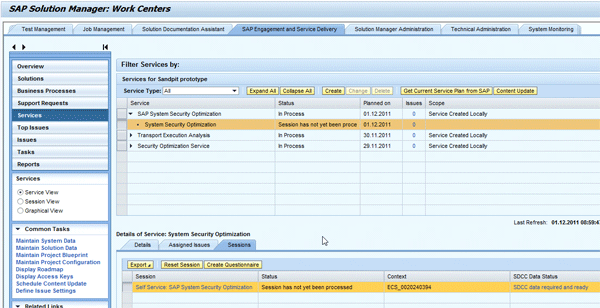
Figure 20
The SAP Engagement and Service Directory work center
Navigate to the bottom section of the screen and select the Sessions tab (Figure 21). Highlight the newly created session. Click the Create Questionnaire button to create a blank SOS report in the background. A message confirms that the questionnaire was created.

Figure 21
Create the questionnaire
After you double-click the self-service report, SAP Solution Manager creates another SAPGUI session for the Document Map Workbench screen (Figure 22). This process may take one or two minutes on slower systems, so don’t be impatient and repeatedly double-click. You may also need to confirm the questionnaire session language in multilingual systems.

Figure 22
The SOS Document Map Workbench
Navigate to the Collect Data node on the navigation panel (Figure 23). Once you confirm that your GUID matches the one that you created in Figure 15, click the Collect button.
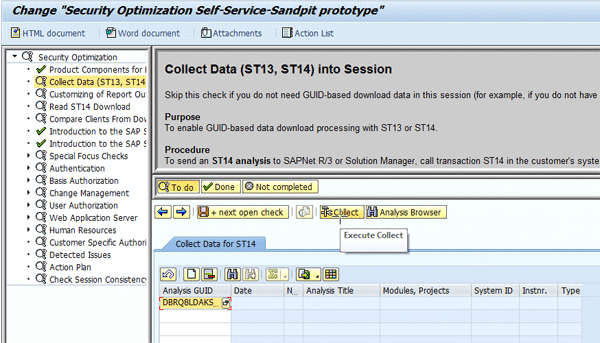
Figure 23
Confirm the GUID on your session
You can see an expanded view of the GUID display in Figure 24. Once you have collected the data, the details are filled. Now you are ready to click the Done button and proceed to the next step.
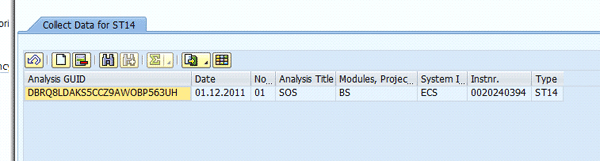
Figure 24
A close-up of the GUID
Navigate to the Read ST14 Download node in the navigation panel (Figure 25). Make sure you are on the Specify ST14-Data tab, select the Execute check box, and then click the Done button.
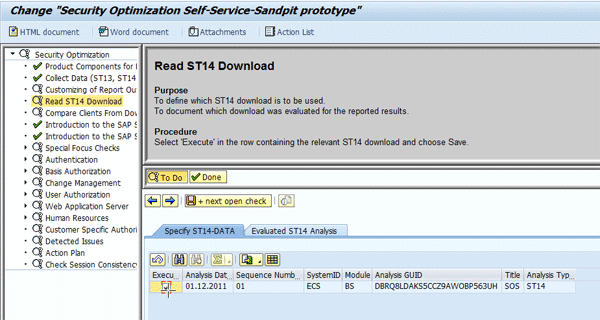
Figure 25
The SOS document map
You can customize the rest of the questionnaire based on your needs (Figure 26). At this point, you can choose to exclude superusers so the SOS report does not provide a huge list of administration users who are well known to the organization. Some companies that use Centralized Emergency Access (formerly known as Firefighter), for example, would get a long list of users beginning with FF who have access to reprocess failed updates. This might be interesting for the first SOS run, but would be superfluous for subsequent SOS runs. Save the report, and it is created. Then click the HTML document or Word document buttons in the top-left corner to display the reports and distribute them via email.
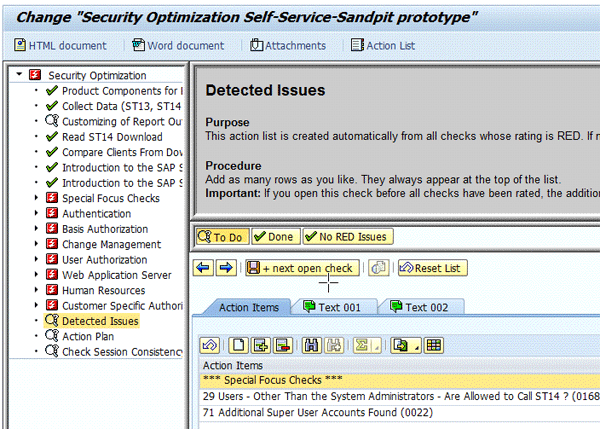
Figure 26
Finish up the report and display it
The report may be up to 50 pages long depending on the size of your transaction ST14 file. Figures 27 through 30 show examples of the report. You can download a copy of the example report at the bottom of this article.
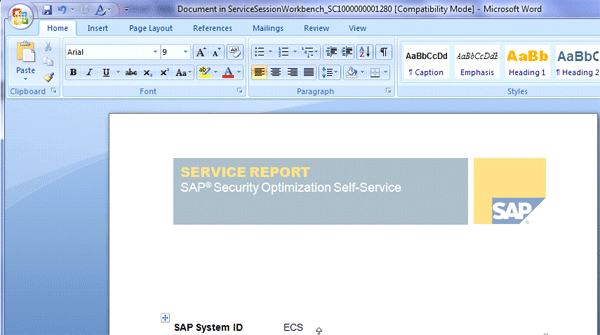
Figure 27
The initial page
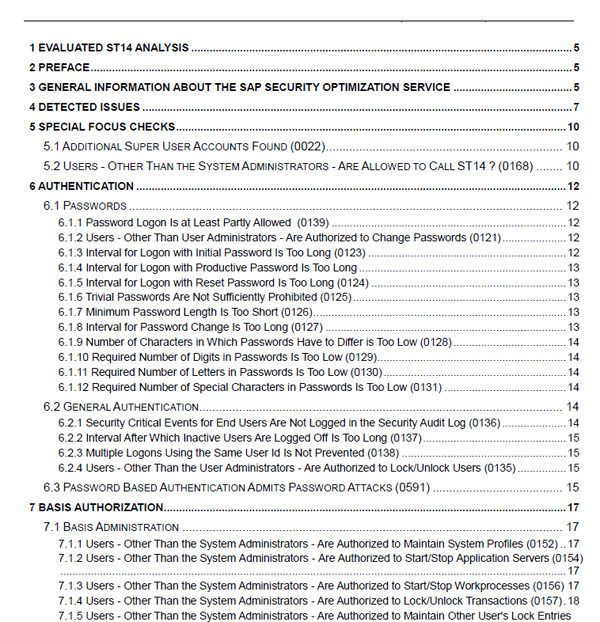
Figure 28
The table of contents

Figure 29
Some recommendations

Figure 30
Customer-specific recommendations
Note
You can find more data about the SOS report at:

Tony de Thomasis
Tony de Thomasis has been working with SAP software since 1986. He installed the first SAP R/2 system in Australia for Mobil Oil in 1989. Tony has several years of Basis experience with large companies including National Australia Bank, Telstra, Coles Myer, BHP Billiton, and Australia Post. Tony enjoys SAP NetWeaver system and landscape design, extracting the best out of the database, operating system, disk subsystem, and server platform. He is very keen to virtualize, consolidate, and reduce downtime. Most recently, as an SAP Mentor Tony has taken on an application life cycle management thought leadership role in the SAP community. In his role as NetWeaver Practice Lead for Acclimation, Tony is passionate about deploying SAP Solution Manager as an initiative to reduce support costs, introduce proactive and innovative capability, and manage change. Follow him on Twitter at https://twitter.com/c821311.
You may contact the author at tony.dethomasis@acclimation.com.au.
If you have comments about this article or publication, or would like to submit an article idea, please contact the editor.