Walk through how to use SAP NetWeaver Visual Composer to build and deploy attractive Web-based reporting dashboards — without the need for coding.
Key Concept
SAP NetWeaver Visual Composer is a Web-based dashboard building tool that is delivered with every SAP NetWeaver BW system. The tool builds Web applications, without needing code, but historically it hasn’t been used within SAP NetWeaver BW projects. Because of this, developers often avoid using SAP NetWeaver Visual Composer, yet it can build polished and professional-looking dashboards without substantial development effort.
SAP NetWeaver Visual Composer enables you to create display pages within SAP NetWeaver Portal. SAP NetWeaver Visual Composer allows a developer to bring together different user interface (UI) elements, without using code, to provide attractive, intuitive dashboards and interfaces.
Senior managers sponsor IT projects and want to see evidence that its deliverables have been met. A summary dashboard is a great tool for this and provides the data in an attractive and easy-to-use way. What’s more, with visible adoption from senior management, a dashboard can reduce the instances of department staff that refuse to use the SAP system.
Figures 1 and 2 show the two tabs in a completed dashboard that would take a developer only a few hours to deliver. Without using any additional techniques, the dashboard could be considerably enlarged to provide a very comprehensive overview of the data.

Figure 1
Summary tab of the finished dashboard, showing purchase order spend by month for the organization

Figure 2
Detail tab of the finished dashboard
In the following example, I walk you through the building of a dashboard for a procurement project. The dashboard contains two tabs:
Step-by-Step Directions
This example assumes that you have access to a procurement InfoCube with some basic characteristics (you can also substitute other data you have available):
- Calendar month
- Company code
- A value key figure (currency)
- A quantity key figure (units)
Figure 3 shows the completed model for the example dashboard. You may want to refer to this diagram as you work through the steps.

Figure 3
The finished SAP NetWeaver Visual Composer model
Step 1. Access the Modeler
Before you can use the SAP NetWeaver Visual Composer development tool, you must install the Adobe Scalable Vector Graphics (SVG) Viewer on your computer. This software is available from the Adobe SVG Viewer download page.
You access SAP NetWeaver Visual Composer using Internet Explorer. Your Basis team should be able to tell you its URL, but it is likely to be similar to your portal, only with a different suffix (e.g., https://devbwserver:52000/VC).
Note
A common authorization error is often encountered when accessing the SAP NetWeaver Visual Composer modeler. To develop in SAP NetWeaver Visual Composer, you need to be assigned the portal role VCRole. Your administrator can assign this by following menu path User Administration > Identity Management within the portal.
Step 2. Create the SAP NetWeaver Visual Composer Model and Its Structure
All development in SAP NetWeaver Visual Composer is done using the development tool. You can create the model either in your user’s My Models folder or in the Public folder where they are visible to all users. I suggest keeping all your portal objects in the Public folder structure because they can be difficult to locate if they become lost. To create a model in the Public folder, go to Manage Models > New Model and give the model a name of your choosing. Once you have created your model, open it up by using the Open Model command.
NoteAll SAP NetWeaver Visual Composer models are visible in the Content Administration function in the portal. Open the Portal Content tab and follow menu path Portal Content > Visual Composer > Models to see all the available models.
My example model contains an iView, which in turn contains two tabs, each with different report components. An important choice is to decide how to navigate within your iView. There are two basic navigation types commonly used in Web pages, though others are available in SAP NetWeaver Visual Composer:
- Tab: The user can freely navigate
- Wizard: The user must sequentially step through the screens in a predefined order
The Tab option is preferable in this instance because you don’t want to constrain the user.
To create and configure the iView, click the Compose button on the right. Then, drag an iView object from the compose pane on the right into the design window on the left (Figure 4). Right-click the iView and select Configure Element. Give the iView a name (window title), such as Procurement_Dashboard. Then set the Navigation Control, also found in the Configure Element pane, to Tab Strip.

Figure 4
Create and configure the iView
You can add the individual tabs on the tab strip by creating layers in the iView. Each new layer adds a new tab to the tab strip and the new tabs automatically appear in the iView Configure Elements pane. The layers contain the components that are displayed on each tab. To create the layers, double-click the iView it to open it. Drag two layers into the iView from the compose window on the right. You can resize these layers to improve legibility without affecting the dashboard layout visible to the user.
When the iView is opened, you want the Summary tab to be displayed first. Configure both the names of the tabs and the default tab within the iView by right-clicking one of the layers and selecting Configure Element. Rename one tab as Summary and the other as Detail. Then set Summary to be the default, as shown in Figure 5. (The glasses icon indicates the default tab.)

Figure 5
Maintain the tabs within the iView
Finally, drag a Start connector into the iView. This becomes your Start Node that triggers the execution of all the components within the iView.
Step 3. Build Two BEx Queries
In this example, you use two BEx queries within the dashboard. You create these using BEx Query Designer.
- Query 1: ZVC_QUERY_COMPCODES. This query provides the list of company codes for display within the drop-down menu on the Detail tab (Figure 6). You may want to include filters or conditions to remove irrelevant company codes, such as those with no posted transaction data.

Figure 6
BEx query to populate the drop-down menu
- Query 2: ZVC_QUERY_VOLUME. SAP NetWeaver Visual Composer applies navigation functions when accessing data within a query. You can use a single query to provide data for a number of different dashboard outputs. As long as the desired characteristic is defined as a free characteristic, you can use it within the SAP NetWeaver Visual Composer model. The query shown in Figure 7 provides the data for the example dashboard.

Figure 7
Query used to populate the dashboard’s tables and charts
To access this query from within the dashboard, you need to create a BI query object. Click the Find Data button on the right side and select your SAP NetWeaver BW system. Enter the first few letters of the queries you’ve created and already exist, for example, ZVC*, then click the Search button (Figure 8). Drag the query into your layer to create the BI query object. You need to do this twice, creating an object in both layers.

Figure 8
Create a BI query object
A common error in a chart is to have a spike in the values at the end of the data series. This happens because a totals row is included within the dataset. You can remove this row by right-clicking the new BI query object and selecting Suppress sum (Figure 9).

Figure 9
Remove the totals row from the BI query object
Step 4. Create the Navigation Block and Filter Items
My example dashboard contains a navigation block to allow dynamic reporting. You can apply the selection from the drop-down menu to the contents of certain tables and charts.
You need to create the drop-down menu and populate it with values based on the first query (ZVC_QUERY_COMPCODES). You then apply the outputs from the Navigation Block to the table objects you want to affect.
Create the navigation item by dragging the form view item into the detail layer. Right-click the form object, which is the navigation block. Select Configure Element and in the Field panel, click the + button to select a drop-down list. Give it a name, such as Company_Code (Figure 10).

Figure 10
Select Properties to configure the drop-down menu settings
Configure the drop-down menu by selecting the Drop-down List control in Figure 10. For the General tab, set a Default value to ‘2000’ (Figure 11). You must use single quotation marks even though you are specifying a key value.

Figure 11
Set the Default value for the drop-down list
Next, in the Entry List tab, set the List scope to Dynamic (Figure 12). Choosing a dynamic list scope populates the contents of your selection list with the results of the BEx query. For the Data service, select the ZVC_QUERY_COMPCODES query. When assigning the query, select your query object and map the input port to Input and the output port to Output by using the drop-down menus.
Note
Once set, these parameters cannot be viewed or edited. If you set them incorrectly, you could stop your dashboard from operating correctly. Unfortunately, the only way to check the parameters is to reassign the query.
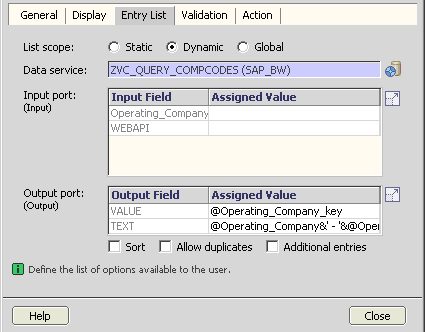
Figure 12
Enter the Entry List settings for the drop-down list
For the Output port settings, specify the text output to concatenate the text and key, and the Output Value to be the key. You can use the Formula Editor to help you with the correct syntax. Enter the Formula Editor by placing your cursor in the Assigned Value field and clicking the fx button that appears.
VALUE = @Operating_Company_key
TEXT = @Operating_Company&’ – ‘&@Operating_Company_key
Finally, in the Action tab, set the System action to Submit form (Figure 13). This in turn sets the Action code to SUBMIT. Choosing Submit form means that when the filter item is changed, an event automatically triggers and processes, updating the restrictions of the reports. Close this dialog box. When the value selected in the filter item has changed, the system needs to refresh the query and update the dashboard.
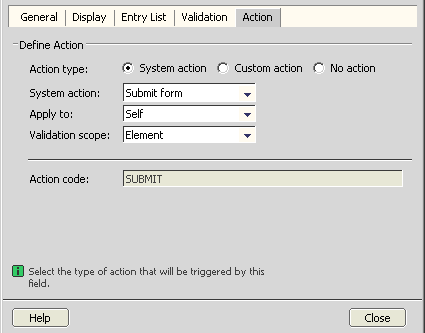
Figure 13
Configure the Action tab for the drop-down list
Once you have returned to the model, connect the start node to the navigation block’s input by dragging a connector between the two. This ensures the query runs when the dashboard is opened and the values are populated in the filter menu (as seen in the completed model in Figure 3). Then, connect the navigation block’s output to the query’s input. You need to edit the connector properties by right-clicking the connector to ensure the company code is transferred. When the filter value changes, the new value is then passed to the query and used as the restriction.
Step 5. Create the Table Objects for Displaying the Data
By including table objects in the iView, you can display the data as a table. Begin by connecting the start node to the query object’s Input connector within the Summary layer. This is similar to what you’ve just done in step 4.
When the dashboard opens, the company code ‘2000’ is already selected in the drop-down menu. However the BI query is not yet restricted to show only the data for company code ‘2000’. To guarantee that the dashboard is consistent, you must ensure that the query is initially opened with a default company code restriction of ‘2000.’ You can do this by connecting the query’s Input and the start node. In the Configure Element panel of the connector (on the right), set a default value of ‘2000’ (with the single quotation marks) for the company code.
Your dashboard displays the output of two queries. Drag two table view objects into your iView (one into each layer), and connect each to its respective query object’s Output connector. Name them Summary and Detail. You can view the completed connections in Figure 3.
In addition to the purchase order data, I also want to show the technical attributes of the data in the InfoCube to show the user the data has been recently updated from the source system with other information. Create a third table object within the Detail layer and call it Data Status. Then connect the Data Status’s Input to the query object’s Info connector.
By default, all the columns are hidden in a table object. By right-clicking the Table Object and selecting Configure Element, you can choose the fields for display (Figure 14). Within your query, choose to display the Month, Value, and Volume. It’s likely you’ll want to experiment to find settings that show the values in your desired format.
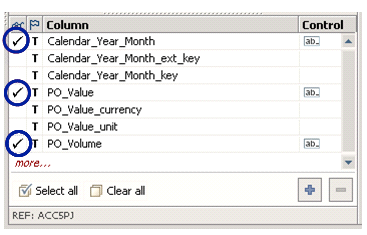
Figure 14
Choosing the visible columns in a Table object
Step 6. Create a Chart Object for Displaying Data
You configure the charts in a similar way to tables. You connect them to the output of a query object and configure them to display in the desired format. In SAP NetWeaver Visual Composer, drag a Chart View over into the iView’s Summary layer. Connect the Query’s Output to the Chart’s Input, as shown in Figure 3.
Configure the chart to display the data in a suitable way. In my example, I could:
Step 7. Compile the Model
To view your model, you must compile and deploy it into the portal. First, you need to configure the model’s runtime as Flex2 (other runtimes are available). Follow menu path Tools > Options > Compiler. As shown in Figure 15, set the Runtime to Flash (Flex2). If you miss this step, you may get compilation errors.
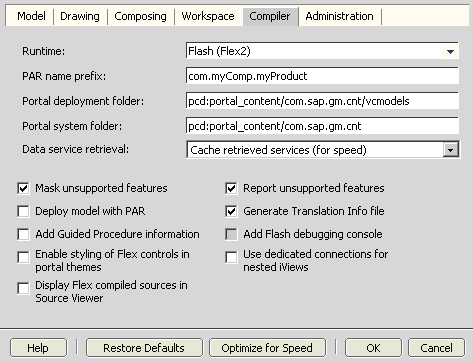
Figure 15
Set the model’s runtime
Second, you must compile and deploy your model by clicking the Deploy button on the right side of the modeler. Select the Deploy entire model check box and click the Deploy button (Figure 16).
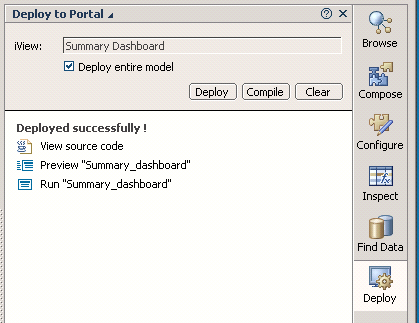
Figure 16
Compile and deploy the model
When the model finishes compiling, you can view it two ways. Click the Preview link to view just the dashboard in its own window. Click the Run link to view the dashboard within the portal.
Step 8. Arrange Your Dashboard
SAP NetWeaver Visual Composer dashboards can be very attractive or simple, rudimentary affairs. The visual appeal of the dashboard is directly proportional to the amount of time you spend optimizing its layout. Typically, this involves making and testing a series of minor changes until the desired finish is achieved.
Run your dashboard and you see that its components are haphazard and poorly arranged. By using the Layout tab within the SAP NetWeaver Visual Composer modeler, you can size and position each element within the iView. This can be a little awkward to begin with, but play around with it and it becomes easier to control. Both the elements and the components within them need to be arranged.
Note
The size of the iView is determined by the contents of the largest tab.
Step 9. Create a Portal Role
The dashboard is now complete. You can now publish the dashboard to make it visible to users. You should consider how your users access the dashboard and what roles you want users to have. You need to:
- Create a portal role
- Assign the SAP NetWeaver Visual Composer model into the role
- Assign the role to a user
Your portal administrator can advise you on the way that your company does this. You can also find further details in Glen Leslie’s article “Publish SAP BI Content More Easily with SAP Enterprise Portal 6.0.”
Going Forward
You have now completed your first SAP NetWeaver Visual Composer dashboard. The only limit to your dashboards is your imagination and time available. Some further steps you may wish to take with your dashboards are:
- Experiment further with table and chart items. Many different display options are available, including animation. These two items provide the basis for all your dashboards and should be well understood.
- Create a button toolbar on a table object and assign actions to the buttons. For example, a button could open a pop-up window, showing the master data for a customer selected in the table.
- Execute code from within your SAP NetWeaver Visual Composer model. For example, this could allow the business to schedule an extra data load or execute a BI-Integrated Planning (BI-IP) function. You can do this by adding a data service in a similar way to adding a query (find this within the Find Data function) and setting the system to SAP_BW_BAPI.
George Campbell-Kelly
George Campbell-Kelly is a certified senior BI consultant at Bluefin, the United Kingdom’s largest dedicated SAP consultancy. Since first working with SAP BW in 2000, he has led the delivery of BW systems that operate with SAP R/3, SAP CRM, and Oracle JDE.
You may contact the author at george.campbell-kelly@bluefinsolutions.com.
If you have comments about this article or publication, or would like to submit an article idea, please contact the editor.