SAP BusinessObjects Analysis, edition for Microsoft Office allows you to connect Microsoft PowerPoint and SAP NetWeaver BW. This connectivity enables users to insert SAP NetWeaver BW data directly into a PowerPoint presentation. You can create a PowerPoint presentation that is fed from SAP NetWeaver BW, without using a universe.
Key Concept
SAP BusinessObjects Analysis, edition for Microsoft Office is the new generation front end for OLAP analysis in SAP BI tools. As an add-on to Microsoft Excel and PowerPoint, SAP BusinessObjects Analysis, edition for Microsoft Office can connect directly with SAP NetWeaver BW queries as well as with SAP BusinessObjects universes. SAP BusinessObjects Analysis does not replace BEx Analyzer directly; it is the premium application for analysis. BEx Query Designer remains the query design tool, regardless of whether you use SAP BEx Analyzer or SAP BusinessObjects Analysis.
Imagine that you are a finance analyst and preparing presentations for your managers with financial figures, including the balance sheet and profit & loss statement. If you are updating your figures often, it becomes time consuming to enter data into PowerPoint after collecting and formatting the data from SAP NetWeaver BW. With every update, you need to clear the cells and deal with the size and format of the raw data. SAP BusinessObjects Analysis helps you to easily put your data into PowerPoint and format it. Moreover, you can update your data by just one click without the need to format again and again after every update.
It is very hard to distinguish this new add-on from the usual Microsoft interfaces. It comes as a tab and groups functionalities inside the tab. Here is how to use SAP BusinessObjects Analysis and PowerPoint to display SAP NetWeaver BW data.
Step-by-Step Connection
First you have to install SAP BusinessObjects Analysis on your PC. For further information about installation, check Ingo Hilgefort’s article “SAP BusinessObjects Analysis, Edition for Microsoft Office — Your First Steps.”
As a prerequisite you need the following software installed on your client computer:
- Microsoft PowerPoint 2007 or later
- SAP GUI 7.x with SAP BW 3.5 and SAP NetWeaver BW 7.x Add-Ons
- Windows XP or later
For more information about system requirements, refer to SAP Note 1466118 (Hardware & Software requirements for Advanced Analysis).
From the Start menu, open Advanced Analysis for Microsoft PowerPoint under SAP BusinessObjects. This opens a blank PowerPoint document with a new tab called Advanced Analysis (Figure 1).
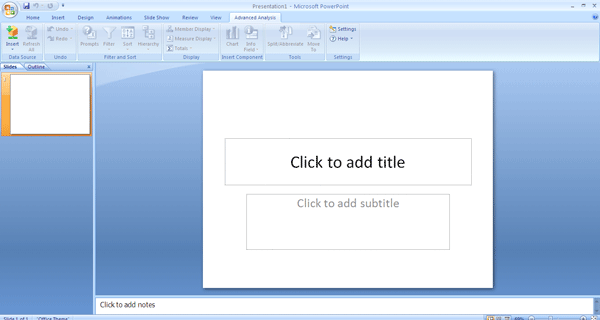
Figure 1
Open SAP BusinessObjects Analysis, edition for Microsoft Office
Click the Insert button and then the Select Data Source button. This takes you to the logon screen. If you have SAP BusinessObjects installed with Voyager license and have a valid universe, enter the Web service URL. Otherwise click the Skip button (Figure 2) to go to the SAP System selection screen (Figure 3). This screen shows all the SAP systems that are defined on your SAP Logon Pad. Select your SAP NetWeaver BW system (e.g., HWD in my example) and enter your username and password for it.
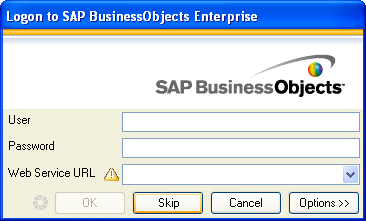
Figure 2
Skip this screen to select your SAP system
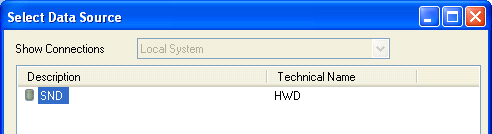
Figure 3
SAP systems defined in the SAP GUI are listed automatically
After you select your system, enter your username and password and the system validates them. You then see a query selection screen. By default it shows your queries under Roles. If you want to see queries by InfoArea, select InfoAreas (Figure 4).
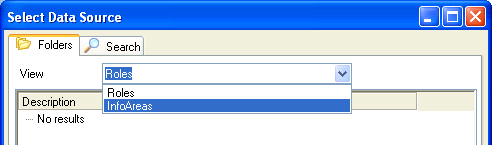
Figure 4
Select InfoAreas
Select your query from the available InfoProviders (Figure 5). In my example, I selected ZTEST_DEMO_01. If there is no mandatory variable, you are not asked for the prompts. Mandatory variables are specified in BEx Query. If a variable is specified as mandatory in the BEx Query, then this variable must be selected from the Prompts screen in SAP BusinessObjects Analysis. In my example, the BEx query doesn’t have any mandatory variables. In the Prompts screen you can collapse optional prompts via an Actions drop-down box. On this screen you can write the value of variables manually or select from a list of values.
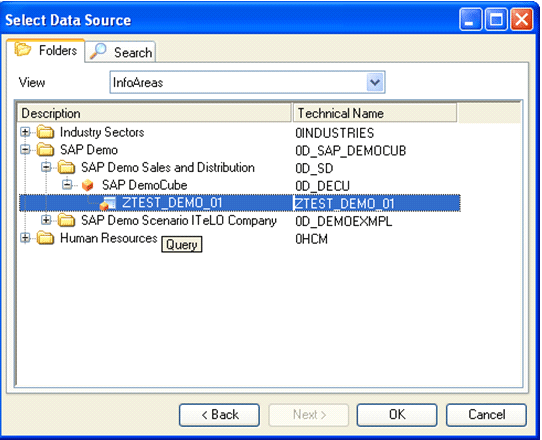
Figure 5
Navigate through InfoCubes and queries
In Figure 6, the system asks you to specify the maximum number of rows. For example, if you have 100 rows of data in the query, you can show the first 10 records in one PowerPoint slide or you can choose to show all 100 rows, but split that table across multiple slides. In my example, the Maximum number of rows option restricts data to 12 rows of data extracted from SAP NetWeaver BW. If these 12 records don’t fit on one slide, then you can show 10 records (omitting the last two) or you can split the rows across two slides with 10 rows in first slide and two rows in second slide.
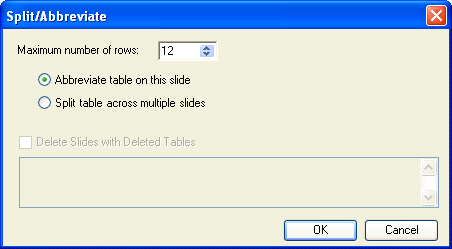
Figure 6
Abbreviate the table to show only 10 rows
Figure 7 shows the table that the system created based on my criteria. The characteristics are in the rows and the key figures are in columns as designed in the BEx query.
Note
After the system creates the table, you may want to adjust the formatting. Fortunately, almost all the PowerPoint functionalities work with SAP BusinessObjects Analysis. You can change the font, color, or cell size as you wish. Figure 7 shows my table after I adjusted the cell sizes.
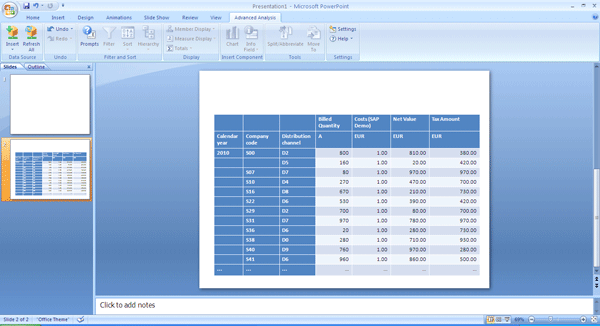
Figure 7
PowerPoint table with SAP NetWeaver data embedded
Main Functionalities
To make your presentations fancier, you can turn your table into a chart in one step. Click an area on the table (the menu will not be active unless you click a table). Then click the Chart button and the system automatically creates a chart. If you create your table with a limited number of rows and columns, your charts become more understandable. Charts are created on the same slide as the source table. You can move your charts into other slides by clicking the Move To button (Figure 8).
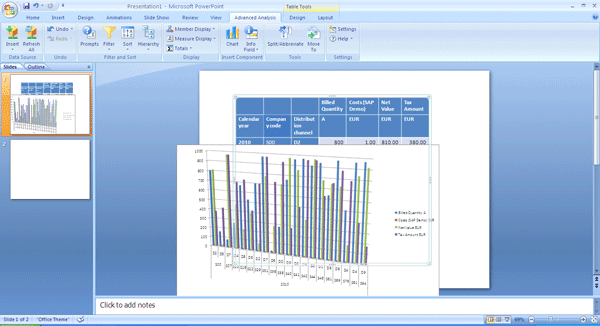
Figure 8
Create charts from the table with SAP BusinessObjects Analysis functionalities
After adding the table and chart, you can explore other functionalities listed under the Advanced Analysis tab (Figure 9). You can add information about your SAP NetWeaver BW query or data source such as a data source name, the last update, and variable values. This kind of information is useful if your manager or audience asks about the source or age of the data.
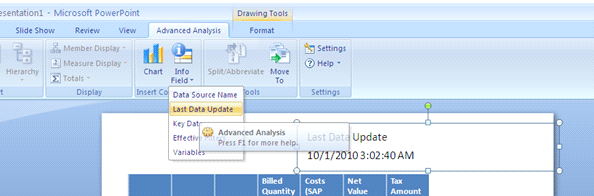
Figure 9
Add information to your presentation
If you want to split your query into slides, click the Split/Abbreviate button, which opens the window in Figure 6. Select Split table across multiple slides. The Move To button gives you the ability to change the slide of your table. You can change the slide number by using the drop-down menu, then clicking the OK button.
The Filter button allows you to filter either by measures (key figures, such as tax amount) or members in the universe (characteristics, such as between 0 and 500).
When you want to filter by measure, you have to select the measure and its limit or interval. You can add multiple filters based on different measures. The result set is the intersection of the added filters. Filtering based on members provides functionality to select values of members as usual (Figure 10).
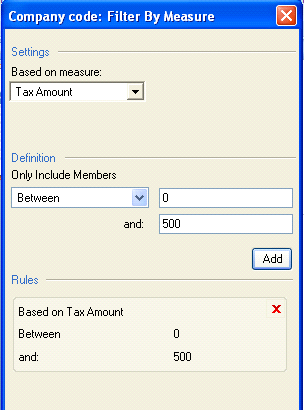
Figure 10
Add filters
Figure 11 shows the filtered table based on what I entered in Figure 10. Note that the values of the Tax Amount are all below 500 €, which is the upper limit I entered for the members. You can sort the measures in ascending or descending order by clicking the Sort button. Keep in mind that to use the sort function, you first have to select a member from the table.
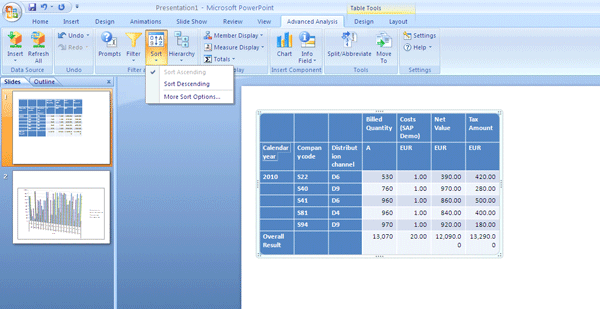
Figure 11
Sort the data
Mustafa Aydogdu
Mustafa Aydogdu is a senior BI consultant with Turkish Telecommunications. Prior to this, he worked at Accenture, helping large companies implement complex data warehouses in retail, FMCG, pharma, and telco industries. He has worked with several BI tools including SAP NetWeaver BW, SAP BusinessObjects, and QlikView. He has extensive experience in data modeling, design, configuration, and performance tuning of BI systems.
You may contact the author at maydogdu@gmail.com.
If you have comments about this article or publication, or would like to submit an article idea, please contact the editor.




 Premium