Know your options for enhancing the SAP HR Organization and Staffing interface via transaction PPOME. Use this guided procedure to incorporate custom relationships in your entire organizational structure view.
Users often encounter relationships in a business scenario or project that are not currently provided by standard SAP systems. To meet your particular business needs, you must create custom relationships. If you create a custom object and want to show the relationship of that object to other objects, the easiest way to view those objects and relationships is via transaction PPOME (sometimes referred to as the PPOME user interface).
However, based on my experience, I’ve identified a common question that users ask: Once the custom relationship is created, how can I view it along with the rest of the organizational structure? Most users are unaware of the options available for collectively viewing custom relationships within the entire org structure. This option is especially useful when standard SAP HR only defines one relationship in the org structure and the business scenario at hand requires you to define multiple relationships.
For example, say a company wants to grant signing privileges to two employees for an org unit. Standard SAP HR only delivers one option for this scenario — the chief relationship. Now, you must have two chiefs, one subordinate to the other, but still acknowledge their respective signing privileges. To do this, the user creates a custom business manager relationship, which is similar to that of the chief relationship, but incorporates a second-in-command employee who has signing privileges. To view this relationship in the org structure, you need to add this custom relationship to the Organization and Staffing interface via transaction PPOME.
Note
This article assumes you have already created a custom relationship and a custom evaluation path that includes your new relationship.
Here is a solution to this problem frequently encountered by users. It involves customizing the Organization and Staffing interface viewed through transaction PPOME. You use the Organization and Staffing interface to create, display, and edit organizational plans, such as org units, positions, and employees. One standard view includes all org units and their relationships to one another or the employees that belong in those org units. Another standard view displays one specific position and the position that ranks directly above it.
I’ll show you how to add your custom relationships into the Organization and Staffing interface view so that you see them in a comprehensive layout view, as they relate to your organizational plan. The following customization steps are only intended for custom relationships (not custom objects) and apply to SAP R/3 4.6 and higher.
Step 1. Add your custom relationship. To incorporate your custom relationship into the Organization and Staffing interface, follow menu path IMG > Personnel Management > Organizational Management > Hierarchy Framework > Integrate New Object Type > Display Object Type in Structural Overview Object. The screen shown in Figure 1 prompts you to select the activity you wish to perform.
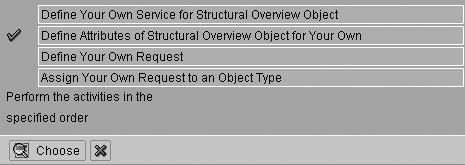
Figure 1
Add Custom Relationships to Your Organization and Staffing Interface
Step 2. Specify the activity you want to perform. Select the option Define Attributes of Structural Overview Object for Your Own by double-clicking on the second row.
Step 3. Locate the relevant scenario. Identify scenario OME0 (Organization and Staffing), as highlighted in Figure 2. OME0 is the standard Organizational Management (OM) interface scenario that is displayed via transaction PPOME. You use this scenario to maintain your new relationship. Highlight the selection and double-click on the Definition Service node in the Dialog Structure on the left side of the screen. The Change View “Definition Service”: Overview screen appears (Figure 3). See the sidebar “Custom Options Available in Your Hierarchy Framework” for more information on scenario definition.
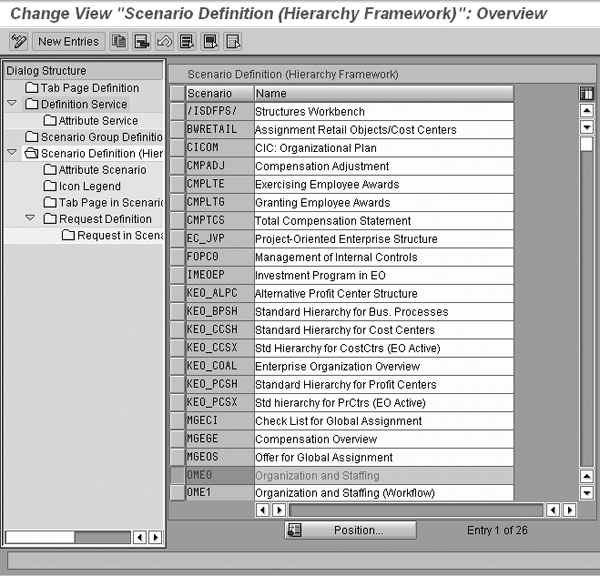
Figure 2
A list of different scenarios available in the hierarchy framework
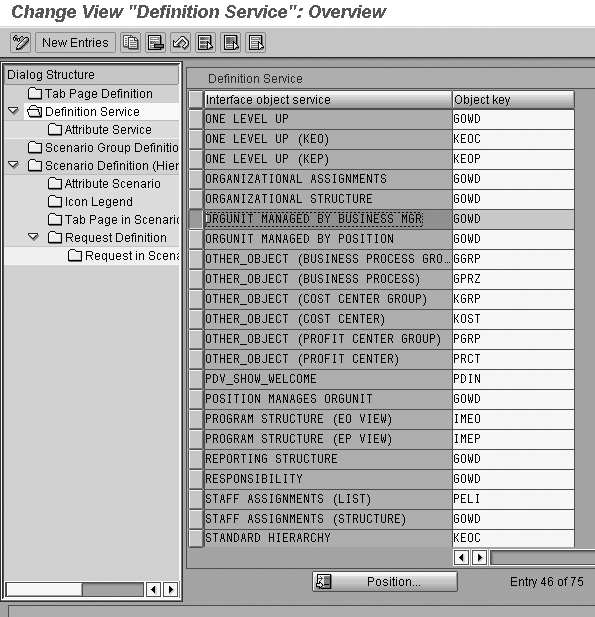
Figure 3
Overview of interface object services and their corresponding object keys
An interface object represents a concrete instance of an overview, detail, time, or status object. The interface object service is an overview or detail object that provides various available functions for use by other interface objects in the hierarchy framework. These functions are uniquely defined by specific services (Figure 3).
The object key provides an OM service. Each interface object is uniquely identified by an object key (in this case, GOWD). If you call up GOWD with this service and an object, the detail object displays the organizational assignment of that object (Figure 4).
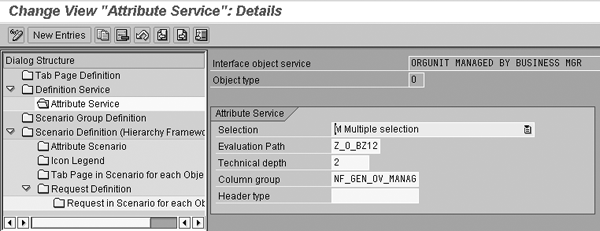
Figure 4
The relevant details of your newly created interface object service
Step 4. Choose a comparable service. Select an interface object service that is similar to the custom relationship you created. Copy it by clicking the copy icon  and entering the new name of the relationship in the Interface object service field. As illustrated in Figure 3, I copied the ORGUNIT MANAGED BY POSITION interface object and renamed it ORGUNIT MANAGED BY BUSINESS MGR in Figure 4.
Step 5. View the pop-up window options. A pop-up window appears and asks you if you want to copy all dependent entries as well. Click the YES button. Dependent entries are other table entries that are related to this specific object.
Step 6. Update the evaluation path. You need to update the evaluation path that your newly customized interface object points to. To do this, double-click on the Attribute Service folder on the left side of the screen to view the details of your new attribute service in Figure 4.
Step 7. Enter the new evaluation path. The Evaluation Path field contains the evaluation path that was related to the entry you copied. This is an example of a dependent entry. Replace the old entry with the new evaluation path that you created for your custom relationship (Z_O_BZ12). A Column group is a collection of different columns that defines the initial visibility and display sequence of the columns assigned to it. Use the drop-down selection to see several standard options. For this example, because the custom relationship Z_O_BZ12 is similar to the chief relationship BOSSONLY, the column group (NF_GEN_OV_MANAG) remains the same. Click the save icon at the top of the screen in Figure 4.
Step 8. Go to your dialog structure. Next, double-click on the Request Definition folder in the Dialog Structure (Figure 5).
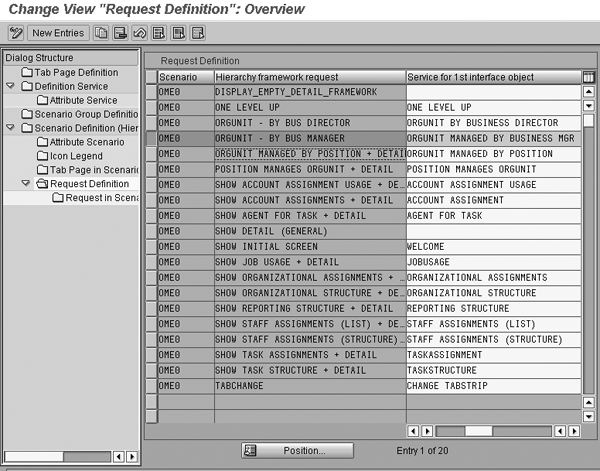
Figure 5
Request a definition to customize the user interface
A request is defined by a unique request name. It consists of one or two services from different detail and overview objects, and belongs to a specific interface scenario.
As shown in Figure 5, you need to search for a hierarchy framework request that is similar to the view you want to display. In my example, I chose the delivered hierarchy request ORGUNIT MANAGED BY POSITION + DETAIL and copied it by clicking the copy button. I then changed the entries to my custom services for the interface object ORGUNIT MANAGED BY BUS MGR highlighted in Figure 5.
The name that is in the Service for 1st interface object field is what you will see in the Organization and Staffing interface, so make sure you name it in a way that employees easily understand what it means. For example, ORGUNIT MANAGED BY BUSINESS MGR is the name that appears in the Organization and Staffing interface. Always double-check that you are in the correct scenario (OME0) before you copy. Scenarios are listed in the first column.
Step 9. Define your service. Scroll to the right to the Service for 1st interface object column and enter the same name that you created earlier in the definition service (ORGUNIT MANAGED BY BUSINESS MGR) in the Service for 1st interface object field. It must match exactly or an error message occurs.
Step 10. Go to the SAP Easy Access menu. Follow the menu path Human Resources > Organizational Management > Organizational Plan > Organization and Staffing > PPOME – Change.
I copied the org unit managed by position relationship — which is a delivered scenario — in step 4, so my custom relationship is now displayed in Figure 6.
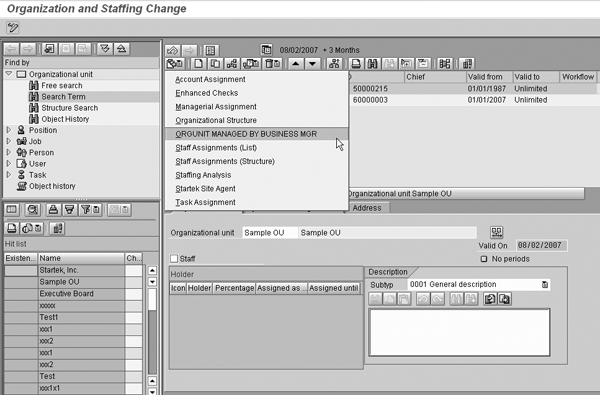
Figure 6
The Organization and Staffing interface now includes your newly created custom relationship
Step 11. Bring up an org unit in the overview area. The overview area is located in the upper-left side of your screen. Click the Go To icon  . You then see a list of available views. Your custom view (ORGUNIT MANAGED BY BUSINESS MGR) should appear in this list. Now you are able to see your new option in the menu. By clicking on your custom relationship, you view the results of your evaluation path.
Custom Options Available in Your Hierarchy Framework
The
Hierarchy Framework (scenario definition) offers a range of options to configure your Organization and Staffing interface, including:
- Custom formatting of the overview area
- Choice of tab pages displayed for each object type in the detail area
- Adjustable search area options
See
Figure A for an illustration of the
Search area, Overview area, Selection area, and
Detail area.
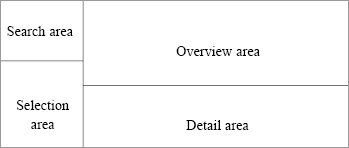
Figure A
A specific configuration of the hierarchy framework is represented by a hierarchy framework scenario
Julie DeLaTorre
Julie DeLaTorre is a senior SAP HR consultant with Symphony Management Consulting. She has worked in SAP for 12 years and focused on HR for 10 of those years. She has both her public-sector certification and HR certification. She specializes in PA, OM, PD, and Training and Event Management.
You may contact the author at jdelatorre@symphony-consulting.com.
If you have comments about this article or publication, or would like to submit an article idea, please contact the editor.



 Premium