BI
SAP Professional Journal
In this step-by-step tutorial for developing an Android-based mobile application on SAP HANA, learn how to expose data from SAP HANA as an OData service, how to consume data from the OData service on a Web application, and how to create an Android mobile application by using the PhoneGap hybrid Web container. This article uses SAP HANA Service Pack 6, Android developer tools, and Cordova version 3.4.0.
Key Concept
The SAP HANA platform consists of an In-Memory database and an application platform. Data from SAP HANA is exposed as an OData service. An Android mobile application can be built using HTML5, JavaScript, and PhoneGap. The mobile application consumes data from HANA that is exposed as an OData service.
Mobility is one of the most disruptive technologies of the past few years and it has profoundly changed the way employees interact with each other and also how day-to-day work is done. Many businesses realize the potential of harnessing mobile technologies to optimize employee performance. Although in general adoption of mobile applications has grown exponentially, it has not grown at the same rate in the enterprise landscape. One of the primary reasons is the speed at which the underlying application or database layer provides data to the mobile application. This is where SAP HANA brings in a lot of value. HANA is the new SAP in-memory database and it can perform real-time operations at high speed—in many cases within sub-seconds.
Note
To understand the concepts discussed in this article, you need a basic understanding of SAP HANA studio, OData services, SAPUI5, JavaScript, and Java. Knowledge of Android Developer tools and PhoneGap API is also very helpful.
In one of my earlier BI Expert articles (“An Overview of Developing Mobile Applications on SAP HANA”), I explained the overall design for developing a mobile application on SAP HANA. In this article I do not cover the design aspect of this, but take you through a step-by-step tutorial of the various steps involved in developing a mobile application. If you would like to know about the technical architecture or design aspects, please read my other article.
There are many development techniques for building a mobile application. Typically mobile applications can be categorized into three different paradigms:
- Native – These mobile applications are built natively for each platform. Most consumer apps are native applications and since they provide complete control of the device APIs to the developer, they have the best user experience.
- Web based – With the increasing power of mobile devices, Web-based mobile application development is also gaining traction. Web browsers on a mobile device have the same capability as that of a desktop browser. There are many HTML5 frameworks that can be used. SAP has its own HTML5 framework called SAPUI5. SAPUI5 is the core of all mobile-based user interfaces (UIs) for SAP.
- Hybrid Web container – A hybrid Web container is a native application executing locally available Web assets in an embedded browser. PhoneGap is a popular hybrid Web container. It uses JavaScript as its controller language and HTML5 and CSS3 for UI definition. It provides plug-in code architecture, from JavaScript to native code. One advantage of using PhoneGap is that it has native application wrappers for various platforms. For example, if a mobile application needs access to the mobile device’s camera, the user does not have to write code to access the camera’s APIs in Java (in the case of Android) or Objective C (in the case of IOS). Using the PhoneGap API the code to access the camera of the mobile device can be written once and can be re-used for all the mobile application platforms. Not all browsers are HTML5 capable. In this tutorial I use the Google Chrome browser to test the Web application. Chrome supports HTML5 and all mobile devices browsers also support HTML5.
Following the steps described in this article you can develop an Android-based mobile application that consumes data directly from the HANA database. I show how to create an app that can read data from SAP HANA tables and show it on the mobile list of UI controls.
The following is the list of tools that you need to develop this HANA-based mobile application:
- SAP HANA server and HANA Studio – In order to develop a mobile application you need to fetch data from a back-end system. In this example, data is stored in the HANA database and is displayed on a mobile device. You use HANA Studio to create an OData service from HANA.
- SAPUI5 libraries – SAPUI5 is an extensible JavaScript-based HTML5 library for business applications. This is the core of modern SAP system Web-based business applications. You use SAPUI5 to create the UI interface of the mobile application. To learn more about SAPUI5, go to: https://sapexperts.wispubs.com/Search?q=SAPUI5&exact=1&loc=37403C454C3F4FAEAB38415AF46AB5FC&loc=634F76AAA33341AE810B6911D6F3913D&type=All&sort=relevance&start=&end=.
- Android developer tools – Android developer tools contain all the libraries and tools that you need to develop an Android application. These can be downloaded from here: https://developer.android.com/sdk/index.html. Android developer tools contain:
- The Eclipse and Android Development Tools (ADT) plug-ins
- Android Software Development Kit (SDK) tools
- Android platform tools
- The latest Android platform
- An Android emulator
- PhoneGap – PhoneGap is a free and open source framework that allows you to create mobile apps using standardized Web APIs; it is also known as Apache Cordova. You can download it from https://phonegap.com/install/. This is the hybrid Web container in which the mobile application runs.
- Google Chrome – This is not necessarily needed for mobile application development, but to debug JavaScript and test the Web application in a Web browser you need Google Chrome. First you develop the mobile application as a Web application, create a mobile app using PhoneGap, and then copy the files from the web application to the mobile app.
I show you the steps for creating very simple mobile application that displays customer names and addresses from a HANA database table on a mobile device. To achieve this, I show how to create a HANA Extended Application Services (XS) project and expose data as an OData service. To keep it simple, the HANA database has one table to store customers’ name and addresses. The mobile application queries data from the OData service and shows the customer names as a list view. When you click the customer’s name, the complete address of the customer is shown.
This guide is divided in four sections:
- Develop a HANA XS project and expose data from HANA as an OData service
- Create a Web application to access data from SAP HANA
- Create an Android application using PhoneGap
- Integrate the Web application with the Android project and deploy it on an emulator
Develop a HANA XS Project and Expose Data from HANA as an OData Service
Before you start, make sure that HANA studio is connected to the HANA server. If you are starting HANA Studio for the first time, go to the SAP HANA Systems tab and create a new system connection.
Below are the steps for creating a HANA project and exposing data as an OData Service.
First, open HANA Studio and navigate to the Modeler section. Then follow menu path Windows > Open Perspective > Other. In the screen that opens (Figure 1) select Modeler and click the OK button. This opens the HANA Studio Modeler perspective where you create a database table in the modeler perspective.
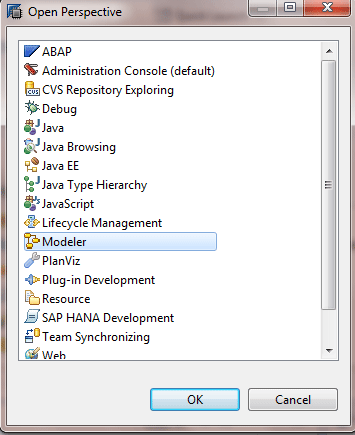
Figure 1
Select the Modeler option
Next you want to create a database table to store customer names and addresses. You can either create a database table or you can upload a Microsoft Excel file. If you upload an Excel file the system automatically creates the database table and also populates it with data. In this example I am uploading an Excel file. To upload data from Excel, follow menu path File > Import SAP HANA Content > Data from Local File (Figure 2), and click the Next button. This opens the screen in Figure 3 where you select the target system (HANA) where you want to import the file. After you select the file, click the Next button and the screen in Figure 4 opens.
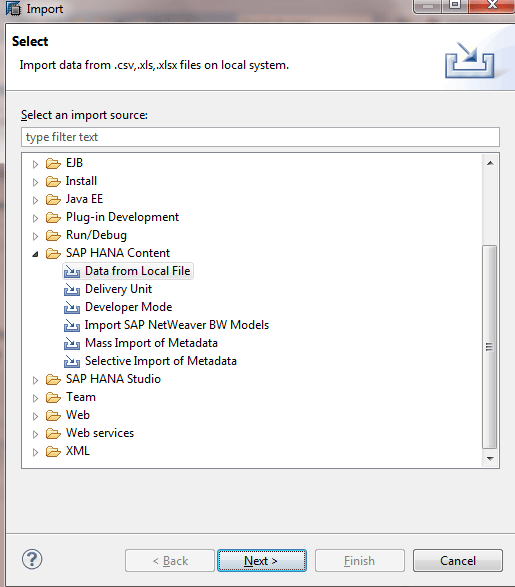
Figure 2
Select the Data from Local File option
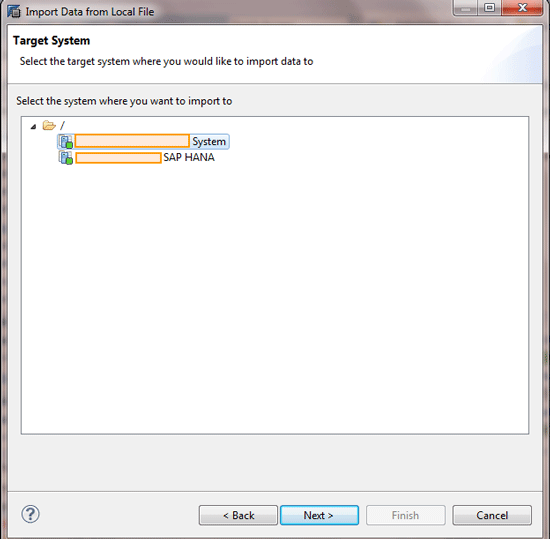
Figure 3
Select the HANA system

Figure 4
Upload the Excel file
Select the file you want to upload, give it a table name, and select the database schema under which the table is to be created. For the target table schema, select the schema under which you want the table to be created. In most cases the database schema is created by the administrator.
The next step is to map the column names. Click the Next button in Figure 4 which opens the screen in Figure 5. Click the Finish button to complete the mapping step.

Figure 5
Manage the table definition and data mappings
The database table is now created. The next step is to create a HANA XS project that exposes data from this table as an OData service.
Previously you were in the modeler perspective. To create a HANA XS project you need to go to the HANA Development perspective. Open HANA Studio and navigate to the SAP HANA Development perspective by following menu path Windows > Open Perspective > Other (Figure 6). Select the HANA Development option and then click the OK button to change the perspective. Once the perspective is changed you are able to perform the next steps.

Figure 6
Select the SAP HANA Development option
Next you want to create a new repository work space. HANA is the source code repository but a representation is needed on the local machine for every HANA system. This is where the user checks out and stores their local files. In this step, create a workspace on the local machine and connect it to the HANA system. That way you can browse the content of that particular system. To create a HANA repository workspace, go to the SAP HANA Repositories tab and click the Create Workspace option, which opens the screen in Figure 7. Select the HANA system and enter the workspace name and the location of the workspace folder.
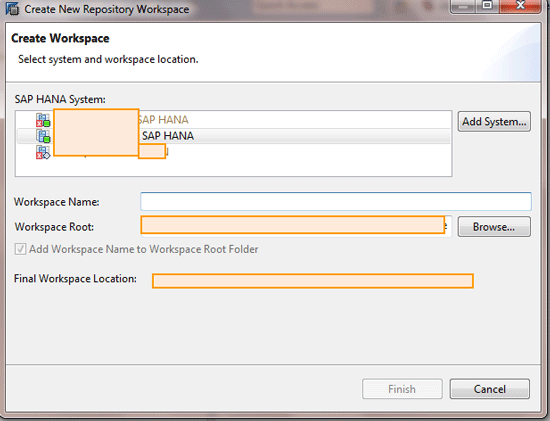
Figure 7
Create a repository workspace
Once the HANA repository is created, a local folder is created on the file system and you are able to view the contents of the connected HANA system.
The next step is to create a package on the HANA server where all the artifacts of the HANA project are stored. In the SAP HANA Systems tab right-click the Content folder. This opens the context menu (Figure 8) where you create a package. From the content menu click New then Package. This opens a pop-up window (not shown) where you enter the package name and package description, then click the OK button to finish creating the package. In my example the package name is FirstMobileApp.

Figure 8
Create a package
Once the package is created, right-click the package name (FirstMobileApp) and create a sub-package named demo. A sub-package is created only to organize the development artifacts. Now go to SAP HANA Repositories, FirstMobileApp > Demo (Figure 9), right-click demo, and from the context menu select Check Out.
>
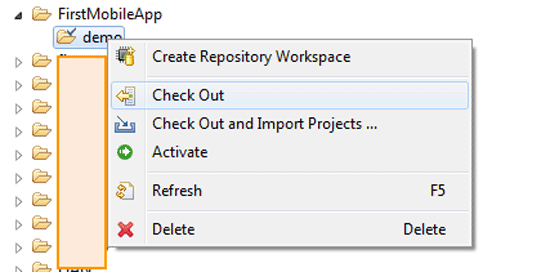
Figure 9
Create a sub-package
Now the package folder structure is represented on the local machine and you are ready for the next step, which is to create a HANA XS project.
In the Project tab click File > New > Project > SAP HANA Development > XS Project, and enter the project name. For the location overwrite the default location and point it to the demo folder on the local machine. This is a key step—otherwise you are not able to connect to the server. Now the project is created and it appears in the Project Explorer tab.
The next step is to connect the project (FirstMobileApp) to the server. Right-click the project (FirstMobileApp) and then, in the context menu, select Team and then Share Project (Figure 10). Click the Finish button and the project is connected to the server.

Figure 10
Share the project
Now you need to create two files in the HANA project. Create file .xsapp (application descriptor) and file .xsaccess (application access). The .xsapp file is completely empty and it just denotes to the system that this package and all the sub-packages are XS-based applications. To create an .xsapp file, right-click the FirstMobileApp folder, and then click New and then File in the context menu (not shown). Enter the file name as .xsapp and click the Finish button to create the file (Figure 11).

Figure 11
Create file .xsapp
To create the file .xsaccess follow the same steps that you performed to create an .xsapp file. The .xsaccess file controls the access and authentication mechanism to the XS application. Enter the source code (shown in Figure 12) in the .xsaccess file.

Figure 12
Create the .xsaccess file
Next you create the service definition file (an .xsodata file). To create an .xsodata file follow the same steps that you performed to create the .xsaccess and .xsapp files. You need to supply a name for the service (service namespace). Usually the namespace is the name of the package hierarchy. You also need to specify the table schema and the table name that was created in the previous step. Finally enter the name of the entry for this OData service. When consuming the service you do not see the table name but you do see the entity name. The service definition file tells the system what to expose, how to expose it, and to whom to expose the data.

Figure 13
Create the customer details .xsodata file
Next you need to commit and activate the service (Figure 14). To commit and activate the service first select the project name (FirstMobileApp) and then the next icon in the toolbar. This opens the screen in Figure 15 which shows the activated OData service.
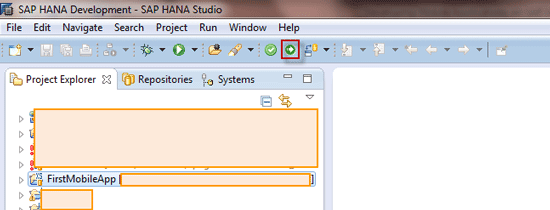
Figure 14
Commit and activate the new service

Figure 15
The OData service
Once the activation is complete (Figure 15), you have a URL that points to the OData service. The OData service can now be viewed in a Web browser. To look at the metadata of the service definition, you can append /$metadata to the URL.
To view the data in a .json format, append /CustomerDetails?$format=json to the URL. The .json format is a lighter-weight format than atom XML and is the preferred format if the data has to be consumed in JavaScript. In this example the data is exposed in the .json format as shown in Figure 16.

Figure 16
Data in the .json format from the OData service
Now you have an OData service from HANA that displays information from the CustomerDetails database table. The next steps are for creating a Web application that consumes data from this OData service.
Create a Web Application to Access Data from HANA
Although you can create a mobile application directly without creating a Web application, the preferred method is to first create a Web application. This is because it is easier to troubleshoot any issues or debug a JavaScript file in a Chrome Web browser. Once the Web application has been tested and is ready, it can then be integrated with the Android mobile application. The following are the steps for creating a Web application.
In HANA Studio follow menu path File > New > Project and create a project with the name CustomerDetails_WebApp. This opens the New Project screen in Figure 17. Here you open the General folder, select the Project folder, and click the Next button, which launches the wizard. In the screen that opens (not shown) enter the project name as CustomerDetails_WebApp. Then click the Finish button.

Figure 17
Create a Web project
Next double-click the CustomerDetails_WebApp folder to open it (Figure 18) and create three new sub-folders. Sub-folders can be created by right-clicking the project name (in this case, CustomerDetails_WebApp) and clicking New and then Folder from the context menu options. These sub-folders contain the controller, .js, and view files, respectively. Once all the sub-folders are created, you see the folders as shown in Figure 18.
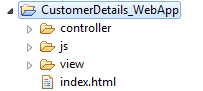
Figure 18
Web application folder structure
Next you create an index.html file and cut and paste the code shown Figure 19 into it. (Click here for a copy-and-paste version of the code: Index.html code.)

Figure 19
The index.html file
The different views are separated into files and each view has its own controller. The index.html code is the entry point to the application and it includes the following .js files:
- https://sapui5.hana.ondemand.com/resources/sap-ui-core.js (contains all the SAPUI5 libraries)
- datajs-1.1.1.js (contains the libraries to read JSON data from the OData Web service)
- CustomerList.view.js (contains the list view to show the customer list details—the customer list view shows the customer ID and name).
- CustomerList.controller.js (this is the controller for the CustomerList.view.js file and it handles all the events generated on the view)
- CustomerDetails.view.js (contains the list to show the customer details; the customer details view shows customer ID, and customer name and address [street name, country, and ZIP code]).
- CustomerDetails.controller.js (handles the events that are generated from the CustomerDetails.view.js file)
- App.view.js (the application view; it contains both the customer list view and customer details view).
- App.controller.js (the controller file for the App.view.js file)
The next step is to create the App.view.js and App.controller.js files in the view and controller folders, respectively. These are the main controllers of the application. The App.view.js file contains the application object and it is set as one of the properties of the App view. The instances of all the views are created here and they are added to the App view as pages. The instance of the application object is retuned back from this view. The app view instance is placed at the root element in the document in the index.html file.
Copy and paste the codes in Figure 20 into the App.view.js and the App.controller.js. files, respectively. (Click here for copy-and-paste versions of both codes: App.view code and App.controller code.)
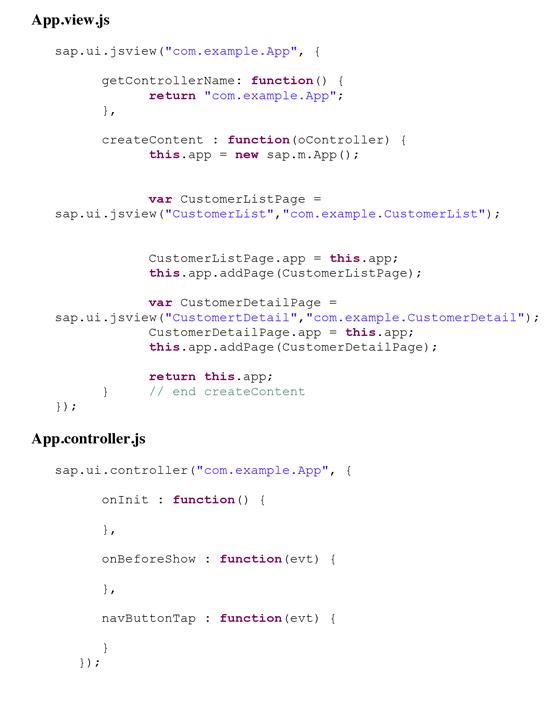
Figure 20
The App.view.js and the App.controller.js. files
Now you need to create a CustomerList.view.js file and a CustomerList.controller.js file in the respective folders. The CustomerList view contains a SAPUI5 list and the header is called Customer List. Create an item template for this list and bind the ID and Name for this list. Later on the whole list is bound to the root object in the CustomerDetails data model. The root object with the CustomerDetails data model is populated from the JSON service in the index.html file. This is called aggregated binding because you are not just binding one object but an array of objects. Lastly create a page and add the list to the page.
The CustomerList.controller.js file has the function that is called when the list item is clicked. The first thing it does is it gets the source of the event. The source of the event is the list item that is clicked. To get the data from the list item all you need is the binding context. This object is then passed to the CustomerListDetails so that the details of that object are shown in the CustomerDetails view. Both codes are shown in Figure 21. (Click here for copy-and-paste versions of both codes: CustomerList.view.js code and CustomerList.controller.js code.)

Figure 21
The CustomerList.view.js and CustomerList.controller.js files
Next create the CustomerDetails.view.js file and the CustomerDetails.controller.js file in the respective folders (Figure 22 shows the codes—click on these links to open copy-and-paste versions of each: CustomerDetails.view.js code and CustomerDetails.controller.js code). The CustomerDetails view is called from the customer list view. The onBeforeShow event gets thrown just before a view is being shown. This event evt has the data that you need to display. When the application navigates to this screen it passes the event data. Part of the event data are the CustomerList details. The CustomerDetails controller has method onBeforeShow in which you have the event and the event has the data and also the context. The context is the binding context that you passed—that means that only the context of the data on which the list item is clicked is shown. This view is different. Although you are using a list you do not use aggregation binding. Instead you bind a single object. A Display List item is created for each object you want to show, explicitly setting the binding for each object you want to display.

Figure 22
The CustomerDetails.view.js and CustomerDetails.controller.js files
After all the files have been created, the structure of the Web application looks like the screen in Figure 23. You can test the application by opening the index.html file in the Google Chrome browser.
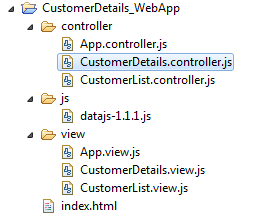
Figure 23
Web application file and folder structure
Note that you have to open Google Chrome with the disable-web-security parameters or the call to the OData service will fail.
Customer List
After you have opened the index.html file in Google Chrome, you should see a customer list as shown in Figure 24. This is the list of customers that were entered in the database table.
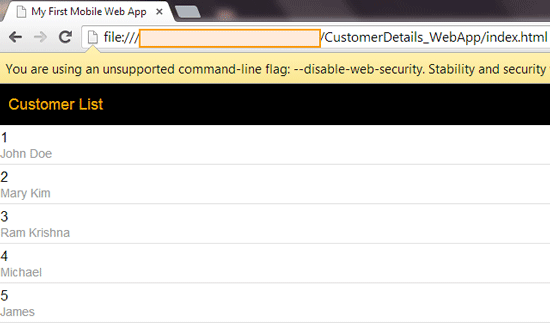
Figure 24
The Customer List page
Customer Details
Once you click any of the customer names on the Customer List screen (Figure 24), it takes you to that customer’s details page where the details for the customer (such as ID, street, city, and ZIP Code) are shown. See Figure 25 for an example when the customer John Doe is selected in Figure 24.
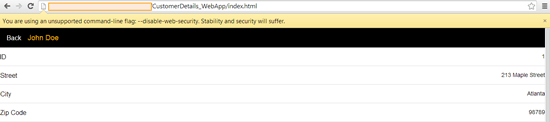
Figure 25
The customer’s details page
Create an Android Application Using PhoneGap
Now that the Web application is ready, you need to put it in a hybrid Web container. First you need to generate the Android application using the PhoneGap generation tools. After the app has been generated you then embed the Web assets in this mobile application.
Two major components have to be downloaded and configured even before you start the development of the mobile application. These are the Android development tools and PhoneGap APIs. The details for how to do this are as follows:
1. Download the Android ADT. You can click the following link to go to the site and download it: https://developer.android.com/sdk/index.html. The Android ADT contains everything that you need to develop an Android mobile application. The ADT consists of:
- Eclipse (this is the Integrated Development Environment [IDE] that is used to develop Android mobile applications)
- The ADT plugin
- The Android SDK tools
- The Android platform tools
- An Android emulator
2. Set up the IDE (follow this link for more details about how to do this: https://developer.android.com/sdk/installing/index.html).
3. Download the latest version of PhoneGap from https://phonegap.com/install/. In this example you use PhoneGap only to create the Android project. However, this presents a good opportunity to start using PhoneGap as you might need to use it to develop some complex mobile applications that access some of the native capabilities of the mobile device later on.
4. Create an Android project by using the Cordova Command Line interface; you can learn more about this interface by following this link: https://docs.phonegap.com/en/edge/guide_platforms_android_index.md.html#Android%20Platform%20Guide. Make sure that the Windows path variables are set properly for Java, or else you won’t be able to use this command line interface to create the Android project.
When you need to create the project, go to the folder and create it using the Create command. It needs three parameters: the name of the folder under which the application will be created, the namespace, and the name of the application.
Use the Cordova utility to create a project. Below in Figure 26 is an example of how you can create the CustomerDetails_MobileApp project with this tool.

Figure 26
Cordova command line utility
To create an Android application project go to the CustomerDetails_MobileApp folder and execute the Cordova command. Use the Cordova command line parameters in Figure 27 to create an Android project.
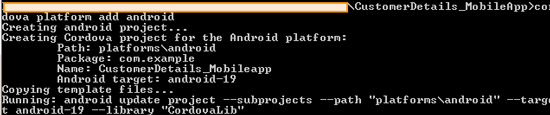
Figure 27
Create a new Android project using the Cordova command line utility
Your Android application project is now created. The next step is to import this Android project in Eclipse.
First you need to create an Android Application project. To do this, follow this menu path: Go to File > New > Other > Android Application Project from Existing Source Code (Figure 28). Click the Next button, which opens the screen in Figure 29.

Figure 28
Select the Android Project from Existing Code option
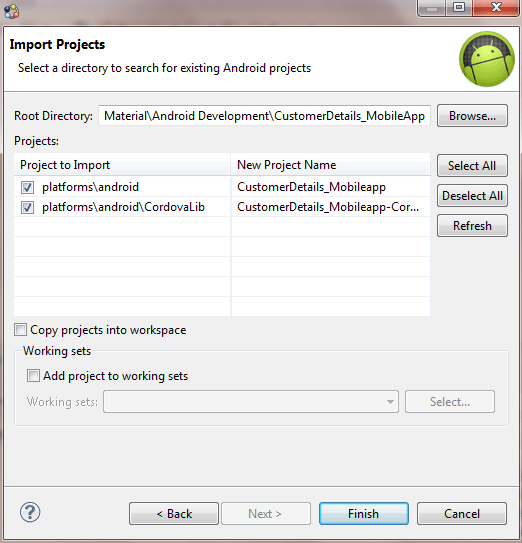
Figure 29
Import the new Android project
Select the CustomerDetails_MobileApp folder (the Root Directory) where the Android project was created by the Cordova Command Line Interface (CLI. Then select the files you want to import by checking the appropriate checkboxes. In this example, select the CustomerDetaials_Mobileapp and CustomerDetails_Mobileapp-CordovaLib files you created previously. Then click the Finish button. In the screen that appears (Figure 30), you see that two projects have been created, CustomerDetails_MobileApp and CustomerDetails_MobileApp–CordovaLib. The next step is to test them.

Figure 30
The Android project structure
To test the Android project you created with PhoneGap, execute it as an Android application in an Android emulator. You can execute it as an Android application by right-clicking the project folder to open the context menu, and then select Run As and then Android Application (Figure 31).
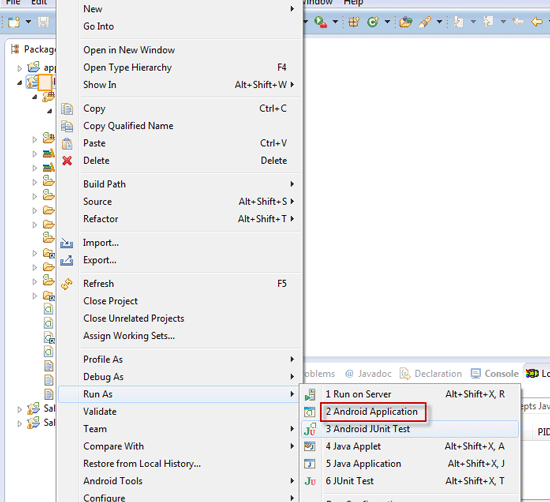
Figure 31
Run as an Android application
If the files have been created and imported correctly you see a screen like Figure 32.

Figure 32
The Android emulator
Integrate the Web Application with the Android Project and Deploy It on an Emulator
Now that you have set up the Android project successfully, the next step is to integrate the Web application that you built with this mobile application.
Put all the Web assets in the Assets folder of the Android application as shown in Figure 33. You can just copy paste the files in their respective folders. Files need to be copied in the Android project because when it is deployed as an Android application, these files need to be executed on the device.
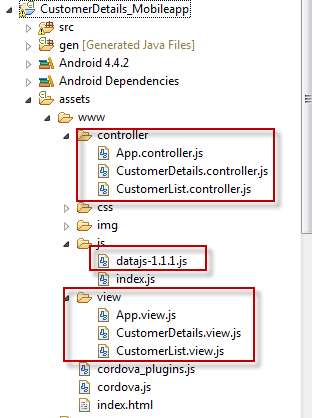
Figure 33
Android project structure
Modify the index.html file and replace it with the source code (shown in Figure 34; click here for a copy-and-paste version: Replacement index.html source code). Include all the view and controller files that are needed for this mobile application. The app.initialize() code is very important—it kicks off an event when the Cordova Web container is ready to render the HTML code and it is only at that point that you would like to make calls to the backend and display the pages. To respond to app.initialize() you need to modify the index.js file.
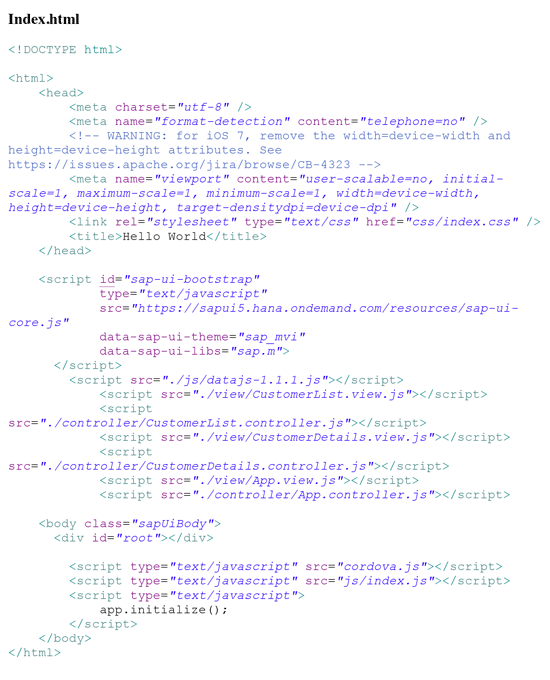
Figure 34
The index.html of the Android mobile application
Go to the index.js file under the JS folder and modify the onDeviceReady() function with the code in Figure 35; click here for a copy-and-paste version: Code to modify the onDeviceReady() function. This new code instructs the OData to read to the service, initialize the model, initialize the app, and navigate to the first page.

Figure 35
The onDeviceReady function
Next, go to the src folder and open the CustomerDetails_MobileApp.java file (Figure 36). Change the timeout value to 60 seconds (if you are making online queries to load JavaScript files from the server or make OData calls, then it could take longer than the 2 seconds). The default timeout setting is 2 seconds and increasing it to 60 seconds ensures that the application does not time out.
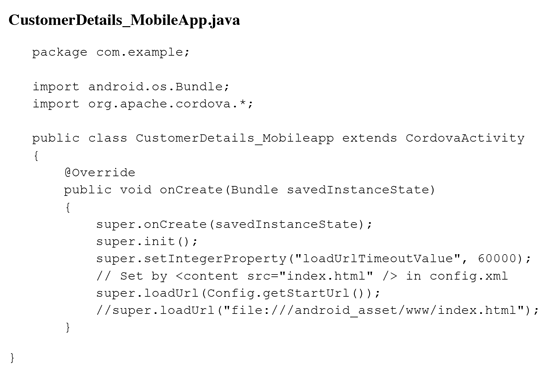
Figure 36
The CustomerDetails_MobileApp.java file
Now that all the setup is done, you are ready to deploy this mobile app on an emulator. Right-click the project name (Figure 37) and from the context menu select Run As and then Android Application.

Figure 37
Run as an Android application
The Android Application opens in an emulator and you can see the customer list view on your mobile device (Figure 38). When you click CUSTOMER LIST at the top, you can navigate to the customer details view (Figure 39).

Figure 38
List of customers
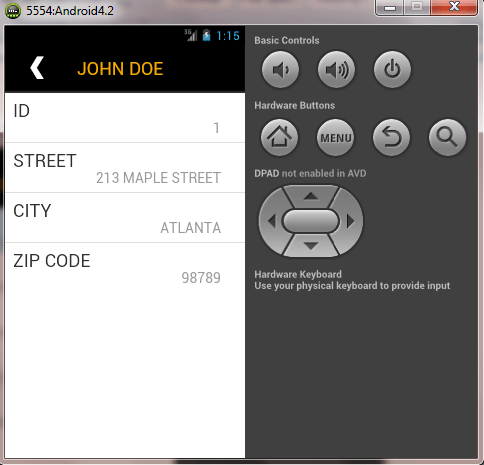
Figure 39
Details for customer John Doe
This article focused on creating an Android application, but most of these same steps can be followed to create an IOS application (e.g., the OData service and the HTML5 and JavaScript on the UI can be used as is). The ISE—Integrated Development Environment—for building an IOS app is XCode and you have to use the Cordova command line interface for IOS to create an IOS project.
Vivek Sharma
Vivek Sharma is a Manager with Capgemini US and has 11 years of experience in SAP. He is certified by SAP AG as “Application Associate for SAP HANA”. His expertise includes SAP UI technologies, SAP HANA Application Development, and SAP Mobile Application Development. His experience includes multiple full cycle SAP implementations spanning the pharmaceutical, food and media industries. Over the years he has played the role of a developer, solution architect, development lead, and project manager. Views expressed in this article are his own and not those of his employer. You may follow him on twitter at @vivsharma20.
You may contact the author at vivsharma20@gmail.com.
If you have comments about this article or publication, or would like to submit an article idea, please contact the editor.




 Premium