Manager
Learn a strategy to make your SAP screen layouts in Change Request Management (ChaRM) more intuitive and easier for end users to navigate. This strategy is based on SAP standard customization that allows the changes to be easily maintained through upgrades. A streamlined set of screen layouts allows end users to quickly reach their goals.
Key Concept
Well-designed screen layouts are vital to allowing users to easily accomplish their intended tasks in Change Request Management (ChaRM). You should always review the standard screen layouts supplied by SAP and identify which fields and buttons are required. You can then use SAP standard customization to improve the usability of the system. Once your improved screen layouts are implemented, the system is easier for users to learn about and use.
A common problem many companies face is end users becoming confused while entering information into SAP-provided layouts of input screens when they use Change Request Management (ChaRM). Without significant training, an end user is often unable to identify what the correct input should be. This can even be true for end users who are very familiar with the concepts and functionality but do not use it on a regular basis. This situation often results in frustration or incorrect data entry.
Here’s an example: When some companies create a change request, they rarely create a correction that is not an urgent one. If this is the case at your company, you could streamline the process by making urgent correction the default entry. Another area of confusion is the change request screen layout. For example, the Product ID field and the icon next to it tend to confuse end users. Because this field and button are not required by ChaRM, you can hide them. You can ease confusion with the use of transaction and screen variants to make data entry simpler and easier. You can remove unnecessary fields or buttons or default common values in fields to make the process of filling out the input screen more intuitive.
In this article, I’ll show you how to make urgent corrections the default entry and how to remove certain fields and buttons from your screen. You will learn how to decide which partners should be displayed on the change request fast screen entry, how to copy the existing screen layout variant, how to change your variant so it has mandatory fields and default values, how to remove fields or buttons, and how to activate and deactivate screen variants.
Note
I describe the steps involved in this for ChaRM, but you can also apply the process of changing the layout to the Service Desk. The steps are based on standard SAP configuration that can be done by anyone with a basic technical understanding of an SAP system.
Start with the Change Request Screen
The example I’ll use is the fast entry change request screen, because in my experience this is one of the most frequently requested screens for customization (Figure 1).

Figure 1
Standard fast screen entry for a change request
During the design phase of a ChaRM implementation, you define the process and the people (i.e., roles) involved in the process. When you start to create a change request, you must specify the roles involved in the change process. For example, you need to specify the sold-to party (usually the business unit), change requester, IBase/component (i.e., the production system that requires the change), business analyst, system analyst, developer, tester, and release manager. All of these are called partners in the SAP system. You should define these partners early in the design of the change request process to allow for a smooth transition from person to person throughout the process. Therefore, it is important that the entry of these roles be mandatory for end users when they start to fill in the entry screens. Once these roles are defined, the process is able to flow smoothly. I will show you where to define these roles and how to make them mandatory so that when the end user runs the process, it flows well.
In ChaRM, all partners can be found in the Partners tab within the Transaction data tab (a tab within a tab, part of which is shown in Figure 1). There is no limit to the number of partners you can define in a request, but there is only room to display four partners on the reference section of the fast entry screen. For example, you could have 12 defined partners, but only four of them would appear on the main fast entry screen. You see the other partners in the Partners tab.
In Figure 1 the Sold-To Party, Requester, Change Manager, and Current Processor are the four partners that I chose to display in the fast entry screen. Which four partners are displayed on this fast entry screen is determined by IMG settings that I explain in the next section. Because these partners will be part of your fast entry screen layout, it is important that you decide which partners should be displayed before creating any screen layout variants. If you change any of the four partners after creating a new screen layout variant, it affects the screen layout. Therefore, you need to finalize which partners are displayed on the fast entry screen before making the screen layout variant.
Define the Main Partners to Display
Navigate to the partner selection by following IMG menu path SAP Solution Manager > Configuration > Scenario-Specific Settings > Service Desk > Service Desk > Partner Determination Procedure > Define Partner Determination Procedures. Open the Partner Determination Procedures folder under the Dialog Structure on the left side of the screen (Figure 2). You’ll see many partner procedure entries. Each partner procedure entry has partners associated with it and corresponds to different screen layouts. In this example, you need to copy the screen layout for the change request screen. Select the change request screen by clicking the Position button.
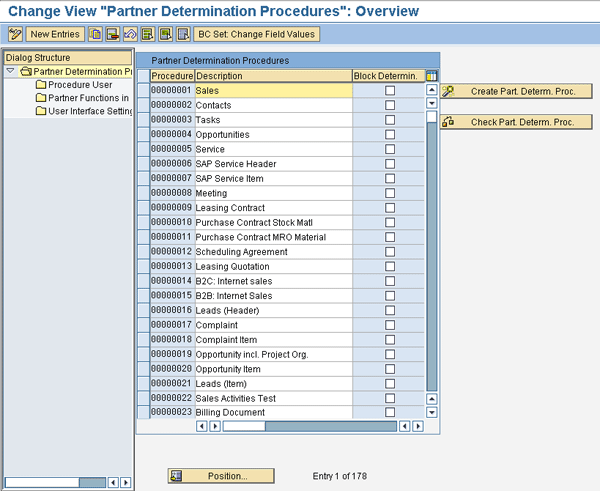
Figure 2
IMG area for defining partners
In the screen that appears, enter SDCR001 to select the change request partner determination procedure (Figure 3). Then click the green checkmark icon.
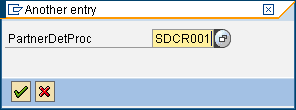
Figure 3
Position to the change request procedure
You are taken to the screen shown in Figure 4. Note that SAP delivers some of the entries with blank or non-unique entries. The system may ask you to enter a description. Do not change the SAP-delivered descriptions. If this happens, press the Enter key to skip this step until you see the screen in Figure 4.
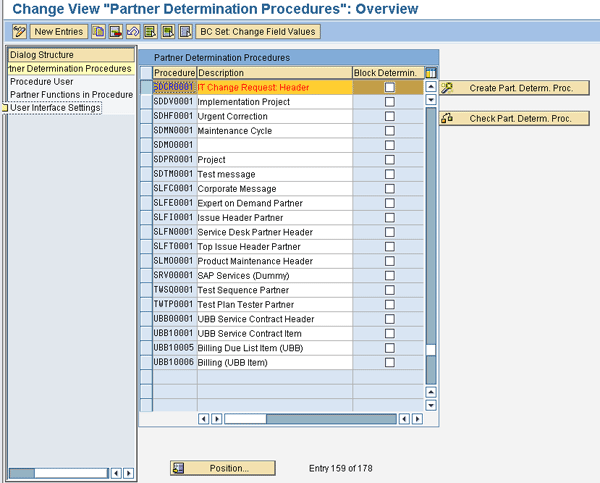
Figure 4
Transaction for defining partner position on change request
Navigate to the User Interface Settings folder under the Dialog Structure to see the partners that will be displayed in the fast entry screen (Figure 5). You can use the drop-down menus to select which four partners you want displayed in the change request fast entry screen layout (Figure 1). Now that you have finalized which partners are to be displayed in the fast entry screen, you can start to create your screen layout variant.
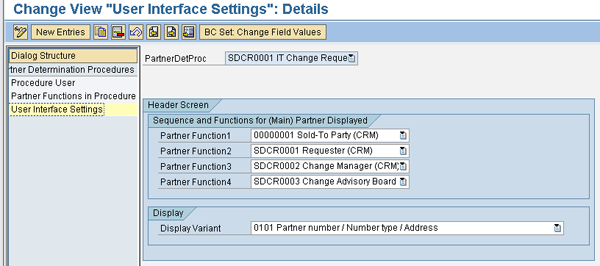
Figure 5
Select the partners you want to display
Show the Technical Values of Drop-Down Lists
When customizing the layout that will display to end users, it is much easier when you can see technical values in the drop-down lists. To see these, you can set the option using the customize local layout icon that is found at the top of all SAP GUI screens. Click this icon (or press Alt+F12) and select Options. Then simply check the check box next to Show Keys in All Dropdown Lists in the Expert tab (Figure 6).
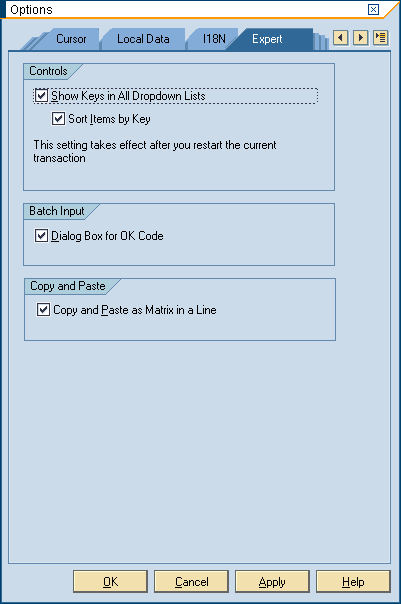
Figure 6
Select the Show Keys in All Dropdown Lists check box
Create the New Variant
You should not change the existing transaction and screen variant. Instead, copy the existing transaction and screen variant and then adjust it for your requirements. A transaction variant contains many screen variants, so copying all the screen variants can seem like a slow process because you have to press Enter so many times. However, it gives you an opportunity to see all the parts of the screen layout.
Start by executing transaction SDH0. Enter transaction CRMD_ORDER in the screen that appears (Figure 7). Enter ZSDCR1 for the new Transaction Variant. Then, click the create icon at the top left corner of the screen.
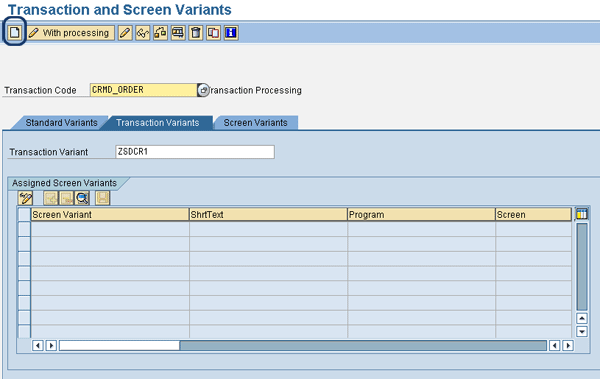
Figure 7
Create a new transaction variant
The screen in Figure 8 appears. The system asks for the business transaction. It is not necessary to specify the business transaction for the transaction variant. Continue by clicking the save icon at the top.
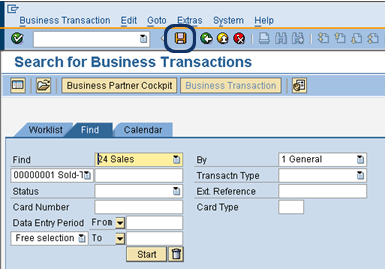
Figure 8
Select the Change Request Business transaction
Enter the name of screen variant and the screen variant short text (Figure 9). Now you need to copy the entries from the existing screen layout for the change request business transaction to your new screen layout. Note that at this point, there are no entries in your new screen variant. Click the Exit and Save button to start the process of copying the screen variant entries.
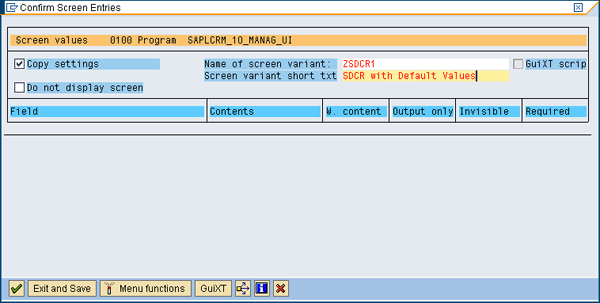
Figure 9
Confirm screen entries and variant name
The screen in Figure 10 appears. Enter the Screen variant short text. You now have a new variant without any defined subscreen entries. The subscreens define all the fields, buttons, and labels, as well as their properties on the screen.
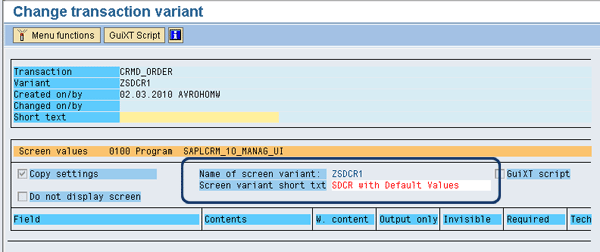
Figure 10
Save the new transaction variant
The variant has been defined but not yet saved, so click the save icon to save your new transaction and screen variant. Then, go back to the main screen of transaction SHD0. You need to copy all the subscreens into your variant. In the version I am working with for this example, there are 34. You start the copy by clicking the With processing button (Figure 11). This takes you to Figure 12 automatically.
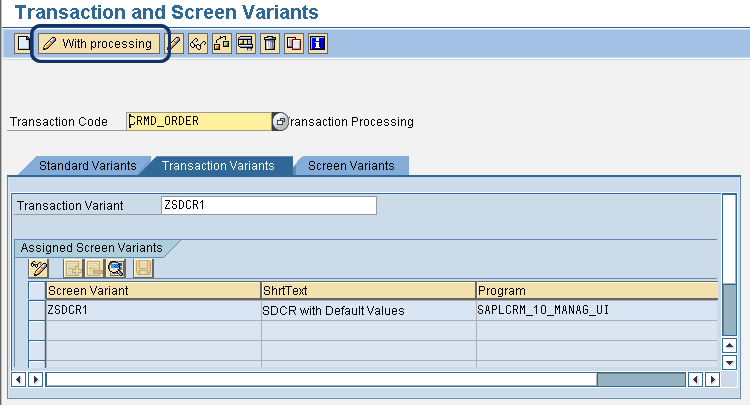
Figure 11
Create the subscreen entries
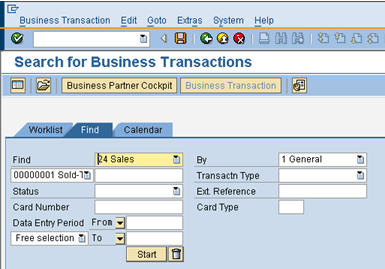
Figure 12
Create the change request business transaction
From the screen shown in Figure 12, select Business Transaction > Create from the top menu bar. This takes you to Figure 13. If the system asks you at this point to confirm a screen entry, click the green checkmark icon to continue. This happens when there is no main screen defined for the variant yet
In this example, you want to copy the variant for the change request screen, so select Change Request under Service Process and click the create icon (Figure 13). This copies all the subscreen entries for the existing change request screen variant to your new screen variant.
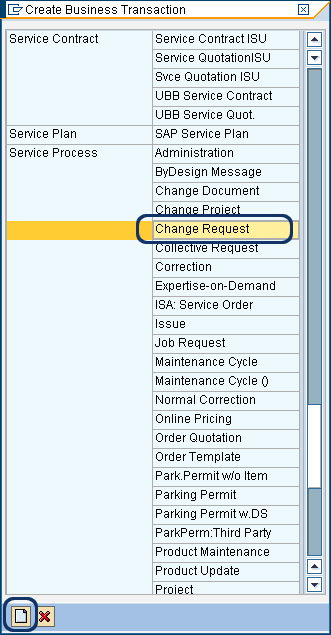
Figure 13
Select a business transaction
Step through all the subscreen entries and confirm each one by clicking the green checkmark icon. Every screen variant must have a name. You should use the transaction variant name as a prefix (Figure 14). Usually the system fills this in for you. If it is not filled in, manually enter a name for the screen variant and then click the green check mark icon.
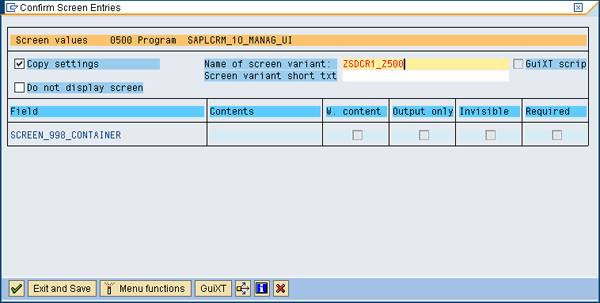
Figure 14
Add a screen variant field
Continue confirming the copying of the subscreen entries until all the subscreen entries are added. Eventually, you see what appears to be the change request screen (Figure 1) after all the variants have been copied. It looks just like you are actually creating a change request, but it is simply a display of the screen layout.
Press the enter key to proceed to Figure 15 and then click the save icon. You now have a copy of the standard screen variant layout supplied by SAP. You can execute transaction SHD0 to display or change your variant.
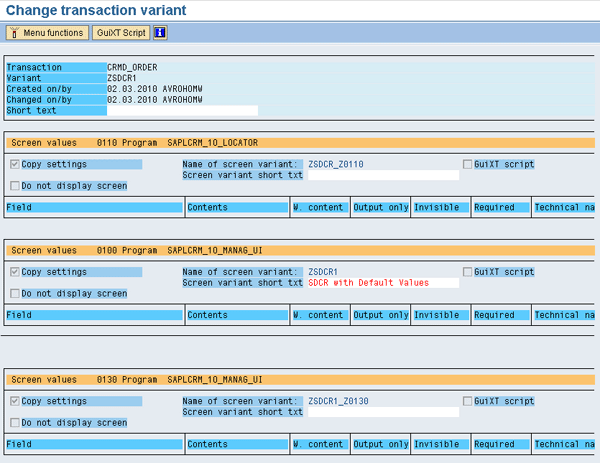
Figure 15
Variant with all the screen fields and their values
Set Your Own Default Values
Execute transaction SHD0 and enter the transaction code as CRMD_ORDER and the transaction variant name (in my example, I used SDCR1). Press the enter key to display your variant (Figure 16). To change the content of your variant, click the With processing button. The system asks you to confirm the subscreen entries. Click the green check mark icon to continue until you reach the change request screen (Figure 17).
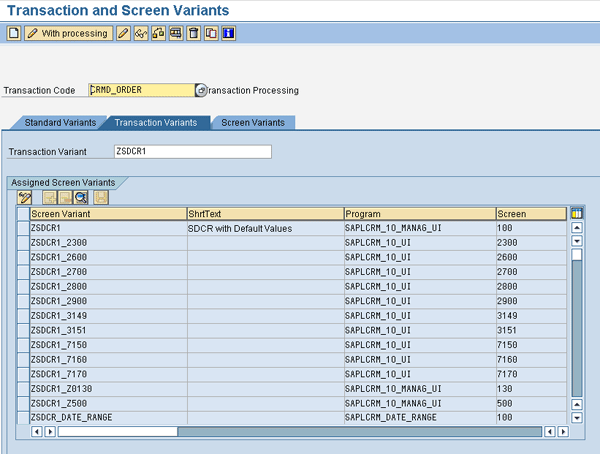
Figure 16
Screen variant with subscreen entries
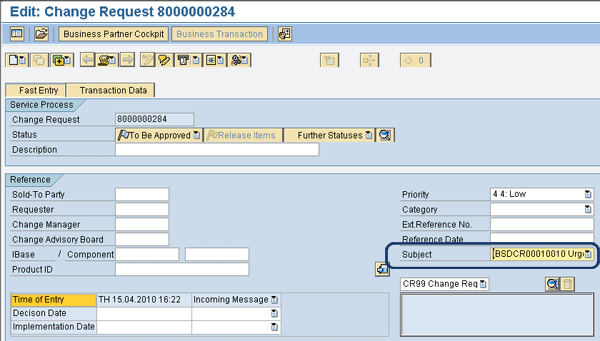
Figure 17
Change request input screen
This process mimics the creation of an actual change request, but once again it is only a display of the screen layout. You now enter the values you want to set as the defaults. For this example, I chose the value IBSDCR00010010 Urgent Correction from the Subject drop-down list. IBSDCR00010010 is the technical value, and it is shown because of the settings performed earlier in the “Show the Technical Values of Drop-down Lists” section. The technical value is the value that you need to enter in the screen variant. After you enter the values in Figure 17, press the Enter key. The system then asks you to confirm the subscreen entries (Figure 18). Confirm each screen entry with the green check mark icon.
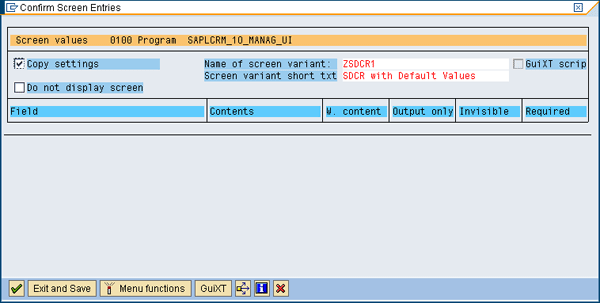
Figure 18
Confirm the screen variant field
Eventually you see a screen entry with your new default value (Figure 19). IBSDCR00010010 in the Subject line is the technical value for an urgent request that you added in Figure 17. To make this the default value for the subject, check the W.content box for the Subject line (Figure 20). You have now defined a subscreen entry with the subject defaulted to IBSDCR00010010 (the value for urgent requests).
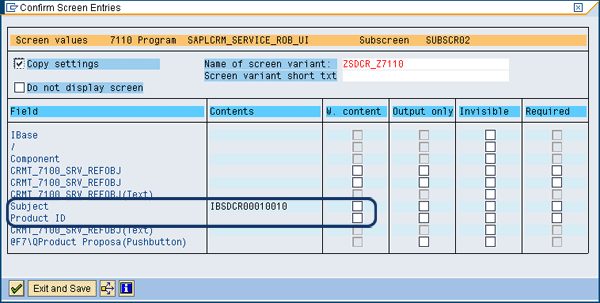
Figure 19
Screen variant field containing content for Subject
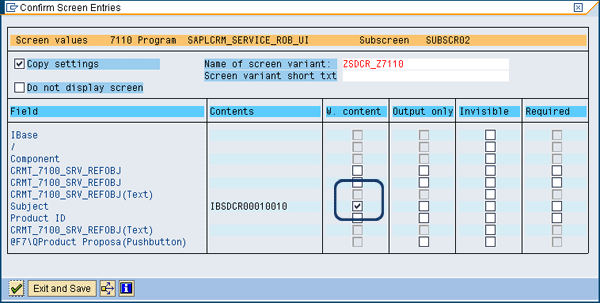
Figure 20
Select the check box for W. content
You can use other attributes in the screen variant to customize the screen layout. If there are fields that are not used and tend to confuse the end user — for example, the Product ID field and its corresponding icon mentioned at the beginning of this article — you can select the Invisible check box (as shown in Figures 19 and 20) and the system will no longer display them in the screen layout. If you want to make a field mandatory, select the Required check box.
Note
Alternatively, there is another way to make the entry of partners mandatory: You can do this from the IMG under the Partner determination procedure mentioned earlier in this article. The main difference between setting a mandatory field under partner determination procedure and with a transaction screen variant is that with partner determination procedure, an error is generated if there is no entry. With a transaction screen variant, you cannot save the screen until a value is entered in the mandatory field.
After changing the screen variant, click the Exit and Save button. Because you made a change, the system opens a pop-up dialog asking if these new changes should be saved (Figure 21). Click the Yes button to confirm the changes.
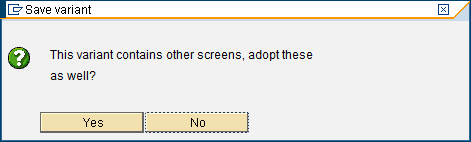
Figure 21
Save all changes to the variant
You are taken to a summary of your screen variant with all its default values (Figure 22). The line beginning with Subject shows the contents IBSDCR000100010 and the W.content box is checked. Click the save icon to keep your changes.
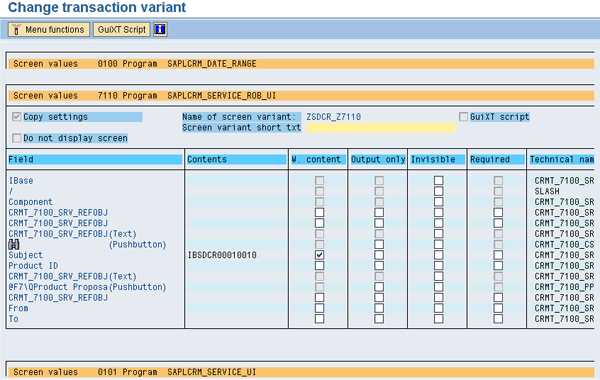
Figure 22
Your default value is now visible in the variant
Activate Your New Variant
Now that you have created a new transaction screen variant, you need to activate it. Up until this point, you haven’t changed anything in the operation of the system. The new screen variant layout only takes effect when you activate the variant in the IMG by linking the SAP CRM transaction type to your transaction screen variant. In this example, you link SAP CRM transaction type SDCR to your variant, ZSDCR001.
Start by entering transaction SPRO and following menu path Customer Relationship Management > Transactions > Basic Settings > User Interface Settings > Assign Transaction Types to Transaction Variants. In the screen that appears, click the New Entries button (Figure 23).
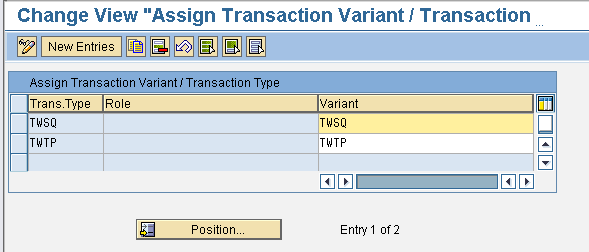
Figure 23
List of the screen variants linked to business transactions
Enter a new entry with the transaction type (SDCR) and your new variant (ZSDCR1), and then click the save icon (Figure 24). This activates your new customized screen variant layout. From now on, when a change request screen appears, it will contain your screen layout. If you want to remove these changes and revert back to SAP standard, you can simply delete this new entry.
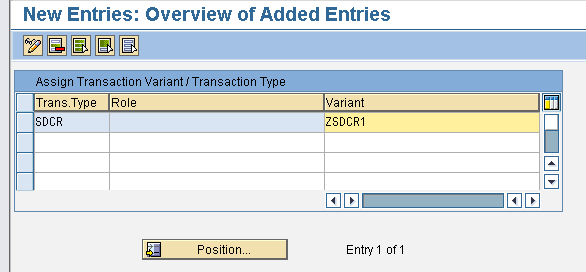
Figure 24
Assign the screen variant to a business transaction
Going through the above procedures gives you a good feel for what you can do with transaction screen variants. You can create transaction screen variants for each business transaction. You should then review exactly which fields need to be in a screen layout and which ones you can hide. By reviewing the change request process, you can determine which fields need to be mandatory and when they need to added into the process. Implementing such a strategy leads to a simpler and easier system to maintain.
Avrohom H. Weissman
Avrohom Weissman received his bachelor’s degree in computer science from the University of Maryland. He has more than 30 years of professional computing experience, with 10 years of SAP consulting experience ranging from a software developer to a technical architect. His experience has been across many industries, including government, chemical, financial, and automotive. He has an energetic drive and develops solutions using critical thinking and problem-solving skills. He has a proven track record in quickly diagnosing problems and opportunities and developing strategic and realistic solutions.
You may contact the author at Weissman@mweb.co.za.
If you have comments about this article or publication, or would like to submit an article idea, please contact the editor.




 Premium