Manager
Learn how to record and edit SAP End User Experience Monitoring (EEM) scripts in SAP Solution Manager with enhancement package 1. See how to configure EEM from a technical perspective and get it ready for use.
Key Concept
| An End User Experience Monitoring (EEM) script is recorded content for specific SAP transactions that will be monitored later via EEM robots, also known as Solution Manager Diagnostics (SMD) agents. |
To monitor end-user experiences using SAP Solution Manager, you need to define key SAP transactions to monitor. Once the key transactions are defined, they need to be recorded, deployed, and executed via End User Experience Monitoring (EEM) in SAP Solution Manager. In this article, I’ll show you how to go about creating, recording, and deploying EEM scripts.
The detailed configuration in the text and screenprints in this article are based on SAP Solution Manager 7.0 with SAP enhancement package 1 and Support Package 25, running on Microsoft Server 2003 SP2 with a MSSQL 2005 SP2 database. To set up EEM you need at least Support Package 20 or later, along with SAP Solution Manager Diagnostics (SMD) agent 7.2 Java Development Kit (JDK) 1.5 or later.
Some prerequisites to install and record SMD agents are:
To configure EEM functionality, you need to perform the following steps:
- Step 1. Install SMD agent 7.2
- Step 2. Record and edit the ABAP EEM script
- Step 3. Record and edit the HTTP EEM script
- Step 4. Deploy the ABAP and Java EEM scripts to SMD agents
- Step 5. Perform EEM administration
- Step 6. Perform real-time monitoring of the end-user experience dashboard
In this article, I’ll go over the first three steps of this process.
Step 1. Install SMD Agent 7.2
The SMD agent is a central component that runs on each of the SAP managed systems. Its purpose is to gather information and report to the SAP Solution Manager system. An SMD agent in the context of EEM is used to simulate the execution of recorded end-user business transactions as the end user is doing it by measuring availability and response times and reporting back to SAP Solution Manager. The SMD agent runs as its own instance on the managed system and is based on Java technology. SAP also refers to SMD agents as robots in the context of EEM. You can install SMD agents on a desktop, laptop, or a server, and you can use them to execute EEM scripts.
First, download installation files for SMD agent 7.2 by going to SAP Service Marketplace https://service.sap.com/swdc and navigating to Support Packages and Patches > Browse Download Catalog > SAP Technology Components > SAP SOLUTION MANAGER > SAP SOLUTION MANAGER 7.0 EHP 1 > Entry by Component > Agents for managed systems > DIAGNOSTICS AGENT 7.2 > Select Operating System. In this case I’m going to download the SMD agent for Windows, Windows Server on x64 64-bit, .SAR file name DIAGAGT72SP00_0-20006928.SAR.
Now that SMD agent 7.2 files are downloaded, you need to extract the .SAR files by opening the prompt screen MS DOS Command Line and navigating to the .SAR path. Run the command sapcar –xvf DIAGAGT72SP00_0-20006928.SAR (Figure 1).

Figure 1
Extract the SMD agent files
After the SMD agent is extracted, the SMD720_00_IM_WINDOWS_X86_64 folder will be created automatically in the same folder where you ran the extraction of the file. This contains the installation files of SMD agent 7.2. Open the folder and proceed to the installation process by double-clicking sapinst.exe (Figure 2).

Figure 2
Launch sapinst.exe to begin the installation process
The SMD agent wizard welcome screen appears (Figure 3). Select the Diagnostics Agent option by navigating to Solution Manager Diagnostics Agent > Installation Options > Standalone Engines > Diagnostics agent in SAP Solution Manager > Diagnostics Agent. Then click the Next button.

Figure 3
Choose Diagnostics Agent and click Next
During the installation, you need to define some parameters. First, enter the name of the server where the SMD agent is being installed in the Host Name field (Figure 4). Then click the Next button.

Figure 4
Choose a Host Name and click Next
Choose the SMD agent SID and the destination drive (Figure 5). The SID can be any three letters, or you can leave it as SMD by default (as I have in this example). Click the Next button.

Figure 5
Enter the Diagnostics Agent System ID and click Next
SAP does not deliver the Java Cryptography Extension (JCE) Jurisdiction Policy files as part of the SAP JVM, but you can download them from https://java.com/en/javaforbusiness/sap_download.jsp or by using SAP Note 1240081. Without these files, the cryptography functionality inside the SAP JVM is blocked. Specify the path for the JCE Unlimited Strength Jurisdiction Policy (Figure 6). Note that you must not unzip the archive. After you’ve chosen the file, click the OK button and then click the Next button.

Figure 6
Browse for a JCE zip file
Choose to install the SMD agent as a Local Domain, Domain of Current User, or Different Domain (Figure 7). If there is no Windows domain configured, then you choose Local Domain; if the user is on an existing Windows domain, then choose Domain of Current User. Different Domain depends on the domains installed in the network. This step automatically creates the system user accounts for the SMD agent. System user accounts are local users used to stop and start the SMD agent. Click the Next button to continue.

Figure 7
Choose the Domain Model
After choosing the domain, the next step is to enter the passwords of choice for users and confirm them. The users shown in Figure 8 are used to start and stop the SMD agent at the local operating system.

Figure 8
Enter passwords and confirm
After you click the Next button, choose the path for the self-check file (Figure 9). Normally, the system automatically detects the XML file so you don’t have to browse for it.

Figure 9
Locate a data file for check
Then you need to choose the Instance Number, which controls internal processes, for the SMD agent (Figure 10). This number must be unique for this installation host. Click the Next button.

Figure 10
Choose the instance number
Next is agent registration, where you have two options (Figure 11). The first option is to register the existing central System Landscape Directory (SLD), which you would select if you’re not using SAP Solution Manager. However, if SAP Solution Manager is up and running, you should choose the second option, No SLD destination. Click the Next button.

Figure 11
Choose No SLD destination
Now choose the SMD Agent connection type (Figure 12). SAP recommends you choose the P4 Connection via SCS message server radio button because the P4 platform includes functionality for user authentication, data encryption, and other services. Click the Next button.

Figure 12
Choose the connection type to diagnostics in SAP Solution Manager
In the next screen, you specify the connection information. In this example, enter sapsrv01erp as the Host FQN (fully qualified name) and 81<SID> (8100) as the HTTP SCS (SAP central system) Message Server Port (Figure 13). Enter the password for the SMD Administrator role (SMD_ADMIN) and click the Next button. SMD_ADMIN is a mandatory communication user that allows the SMD agent to connect to SAP Solution Manager.

Figure 13
Enter the appropriate data
Then the system automatically detects the path where you unpack the archives (Figure 14). If there is a newer version of the archives then browse to those files to add them.

Figure 14
Unpack archives
Click the Next button and the Summary page is displayed (Figure 15). Here you can revise the entire configuration by selecting what you want to change and clicking Revise. Otherwise, click the Next button and the system performs the installation (Figure 16).

Figure 15
Click Next to begin the installation

Figure 16
Installation of SMD agent in progress
After the steps of installation are finished the system produces a pop-up window telling you that the installation was successful (Figure 17). Click OK.

Figure 17
Installation has been successfully completed
Step 2. Record and Edit the ABAP EEM Script
To be able to record and edit EEM scripts, you must download the script recorder for HTTP scripts and the EEM editor. Follow the instructions in SAP Note 1475198 and extract the installation files EemEditor-win32.win32.x86.zip and EEMRecorder.zip into a temporary directory. Open the directory eemeditor in your temporary directory. The ABAP Script recorder is available in the ABAP instance and needs to be activated.
Enabling Recording in the ABAP System
To enable recording, first you need to change parameters. Log on to SAP Solution Manager with your user name and password. Enter transaction code RZ11, which allows you to temporarily change parameters. (Transaction code RZ10 allows you to permanently change parameters, but you don’t want to do that in this case.) In the resulting screen, enter sapgui/user_scripting as the Param. Name and click the Display button (Figure 18).

Figure 18
Display parameters
Click the Change Value button and change the value from FALSE to TRUE in the New value field to enable Script recording (Figure 19). Click the save icon. Log out and log in again so the changes take effect.

Figure 19
Change the parameters
Recording the Script in ABAP
After logging in, you can see that Script Recording and Playback is now an available option from the customize local layout icon (Figure 20). Select it to produce the screen in Figure 21.
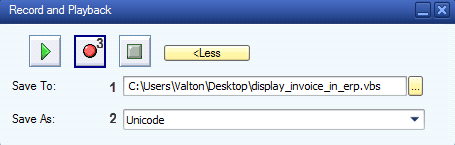
Figure 21
Record the session
Choose the destination where the file will be saved and then select Unicode in the Save As field. Click the record icon to save the recorded script as a Visual Basic script (.vbs file) which can later be edited and deployed. Once you click the record icon, the entire session is being recorded.
One of the most-used transaction codes is MIR4 for displaying an invoice so let’s use that as an example. Enter the appropriate Invoice Document No. and Fiscal Year and click the Display Document button (or press Enter) (Figure 22). This produces the invoice document (Figure 23).
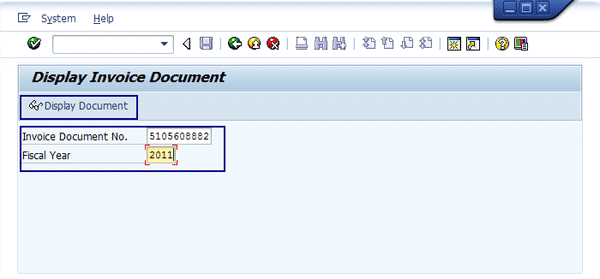
Figure 22
Display an invoice
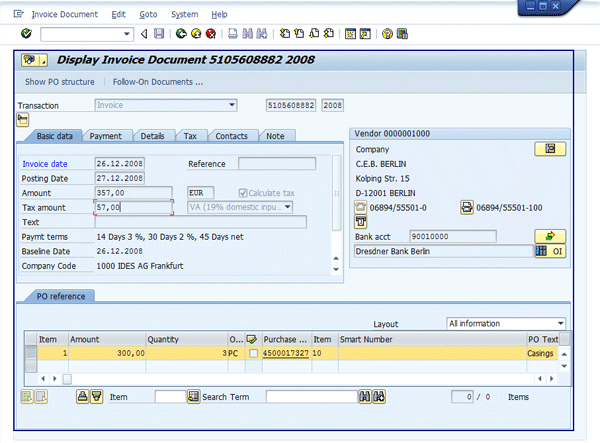
Figure 23
Display the invoice document
To keep the example in this article manageable, click the stop recording icon. To test the script, click the play icon and navigate to the folder where the script is located. Double-click the script (Figure 24).

Figure 24
Running the script
Editing the Script
Open the folder where the EemEditor.exe is located and double-click the program (Figure 25).
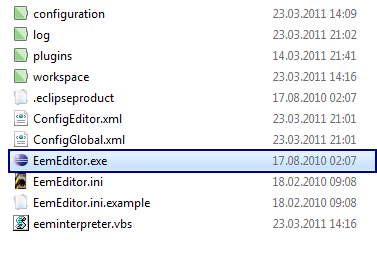
Figure 25
Launch EEM editor
After the editor is launched, create a new project by navigating to File > New… > Project. Give it a name (e.g., Display Invoice). After the project is created right-click the project folder and select Import Recording from the context menu (Figure 26).
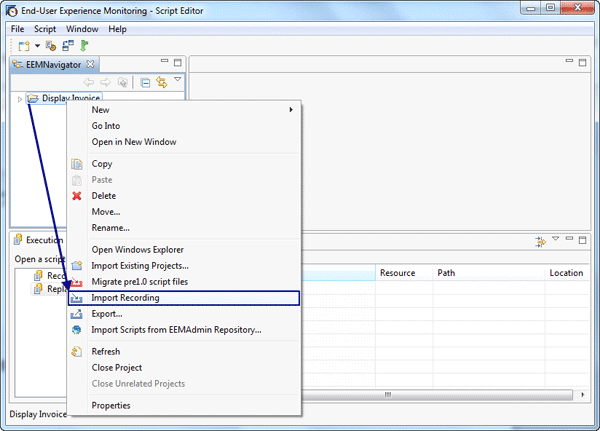
Figure 26
Import the recorded script into the project folder
Navigate to the folder where the script is located and open it (Figure 27).
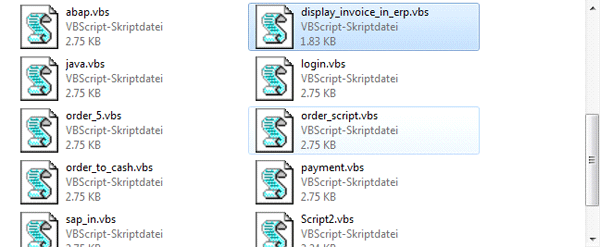
Figure 27
Upload the recorded script
It now appears under the Display Invoice folder (Figure 28). Double-click it to activate parameters. Then click the script configuration icon circled in Figure 28 to open the configuration window. Here you can configure the communication between the script and EEM.
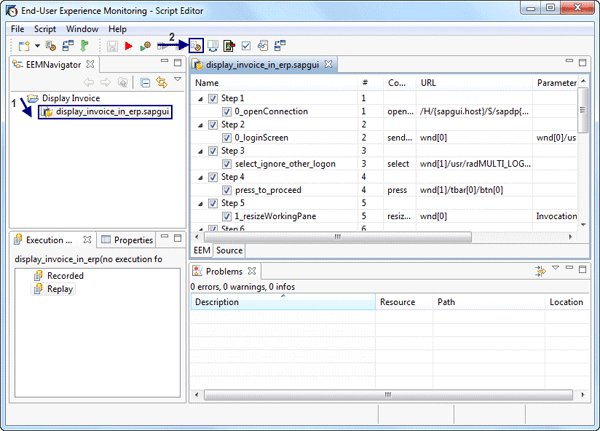
Figure 28
Edit the script
After the Script Configurations window has opened (from the directory where the EEM editor is executable, <dir>: EEM SetupEemEditor-win32.win32.x86eemeditor), navigate to Variables. Double-click it to enter information and click OK (Figure 29). You need to configure the variables and add the information needed to connect to the SAP system. Enter the variables appropriate for your system.
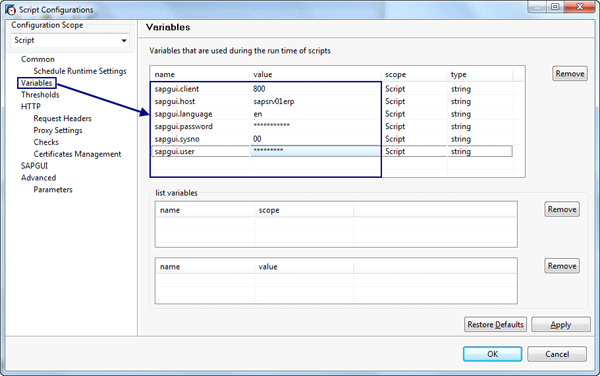
Figure 29
SAP system information
Start the script by clicking the red run script icon or by pressing F8 (Figure 30).
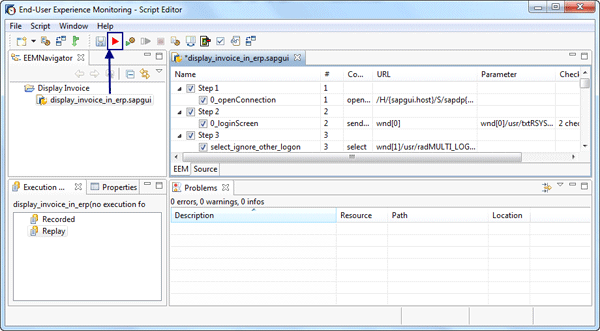
Figure 30
Running the script
The script goes through all steps, including the response time and how long it took to log in or to call the transaction. You can also see the summary of each step by double-clicking the step (Figure 31).
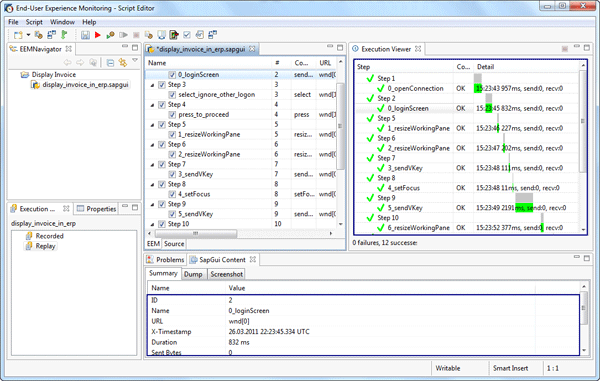
Figure 31
Execution view of the script
Step 3. Record and Edit the HTTP-Based EEM Script
This step describes the recording of an HTTP-based script in which the user opens SAP NetWeaver Portal, logs in, and displays a user profile in an SAP NetWeaver Portal system. To record HTTP EEM scripts you should have installed Microsoft Internet Explorer version 6, 7, or 8. (Internet Explorer 9 is not yet supported.) Before starting the recording session, close all currently running instances of Microsoft Internet Explorer.
Start the plug-in by navigating to the EEM folder, and double-clicking plugin-starter-gui.exe which is located under <dir>:EEM SetupEEMRecorder_20100809 (Figure 32).
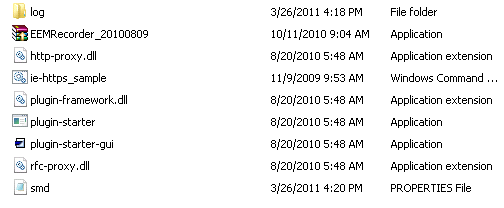
Figure 32
Navigate to the folder
This brings up the End-user Experience Monitoring screen (Figure 33).
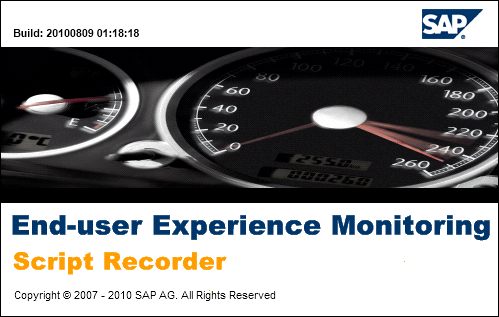
Figure 33
Main screen
After the Recorder has been launched, in the Application drop-down menu choose Microsoft Internet Explorer(8) (or IE 6 or 7 if that’s what you’re using) and click the Launch button (Figure 34).
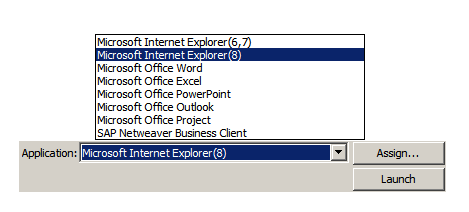
Figure 34
Click Launch to launch Microsoft Internet Explorer
After launching Microsoft Internet Explorer 8, a blank page opens (Figure 35). In the End-user Experience Monitoring Recorder window, type the parameters needed. In the Business Transaction Name field, enter an appropriate name based on what you’re doing (e.g., DisplayUsersPortal). In Executed Step Name, enter OpenURL (or whatever step name you are working on). In Output Directory, put the directory where the files are stored during the recording. Then click the Start Transaction button.
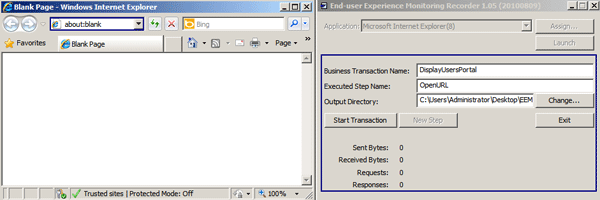
Figure 35
Start recording
After starting the recording, enter the URL (e.g., <Server>:<Port>/irj) in Internet Explorer to open the main page of the portal. Click New Step to change the name of the executed step and enter LogIn (Figure 36).
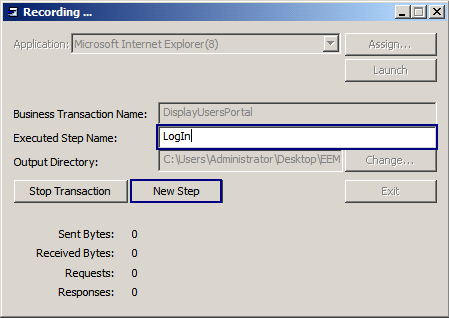
Figure 36
Write the new executed step name in the box
A main page of the portal opens; enter your user name and password and log on. Click the New Step button and in the Executed Step Name field enter the next step name (e.g., NavigateUsersAdmin) (Figure 37).
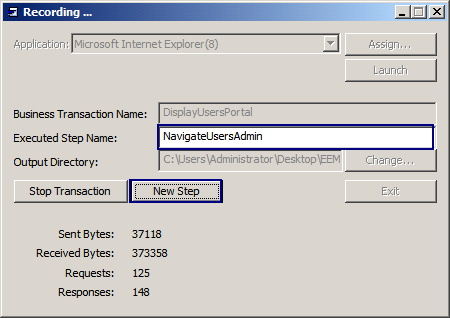
Figure 37
Enter the next step
In the SAP NetWeaver Portal screen, click the User Administration tab (Figure 38).
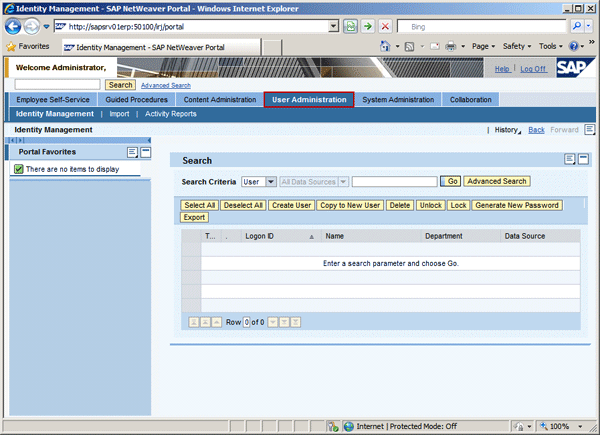
Figure 38
Navigate to User Administration
Click the New Step button again and this time enter the next step name (e.g., SearchUser) in the Executed Step Name field (Figure 39).
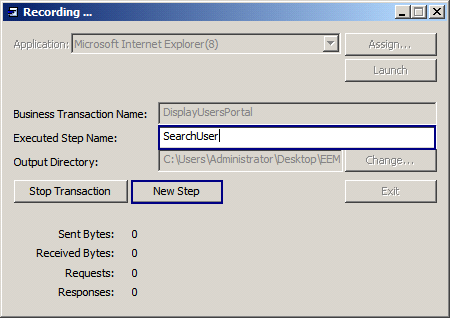
Figure 39
Next new step
On the Search page, choose User in the Search Criteria drop-down list and in the associated field type the user name you are searching for (e.g., administrator) and click the Go button (Figure 40).

Figure 40
Search for users
The last step is to display information about the user. Click the New Step button once again and enter DisplayInfo in the Executed Step Name field (Figure 41).
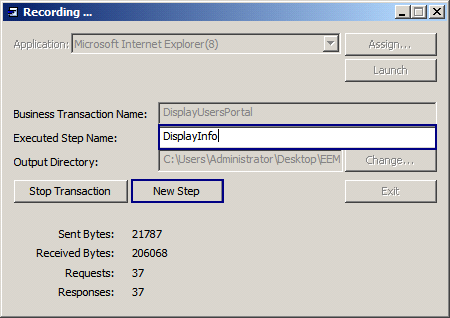
Figure 41
Record the steps
After you click Go the system displays the user (Figure 42). Double-click the user name in the Logon ID field (e.g., Administrator) to see the detailed information shown in Figure 43. All the steps are recorded.
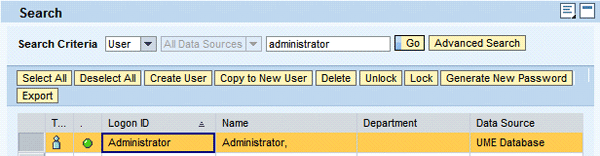
Figure 42
Display users
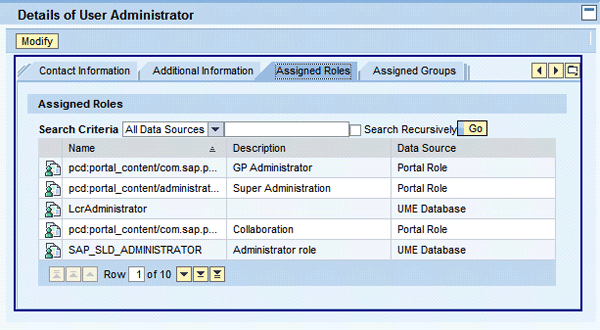
Figure 43
Detailed user information
To finish recording click the Stop Transaction button (shown in Figure 41) and all recorded steps are saved in the output directory, which contains the folder with all DTA files, output_IEXPLORE.trc (.trc is a trace file) and also an XML file that is needed to edit and deploy the script (Figure 44).
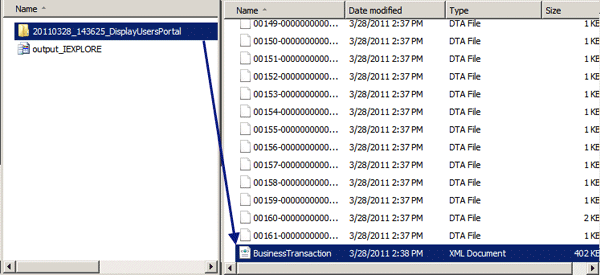
Figure 44
BusinessTransaction.XML file is located in the output directory defined in the first step
Now you can proceed to editing the XML file in the EEM editor (EemEditor.exe). After the editor is launched, create a New Project by navigating to File > New… > Project. Give it a name (e.g., Display Users). After the project is created, right-click the project folder and select Import Recording (Figure 45).
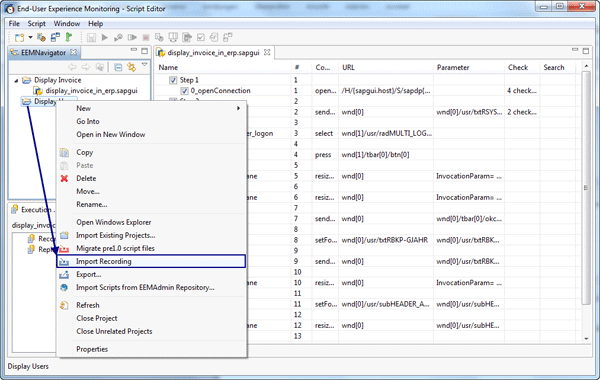
Figure 45
Import the recorded script
After the script is imported, double-click it and the steps that you recorded appear (Figure 46). Click the red run script icon to run all the steps, and the Execution Viewer shows the results of the script.
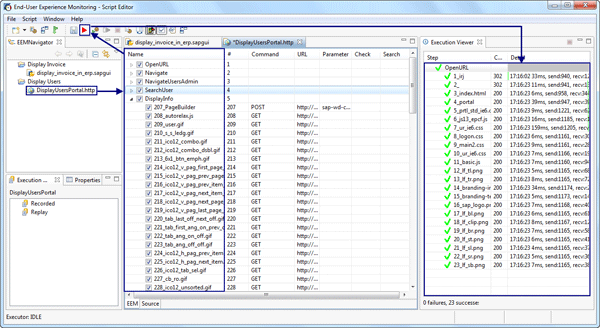
Figure 46
Script Editor
Valton Berisha
Valton Berisha has more than 15 years of consulting experience in managing, developing, and implementing software solutions, including SAP solutions. He has been associated with several SAP implementations in various capacities. Valton is the co-founder of Corealm Consulting Company, specializing in SAP consulting — in particular, application life cycle management, SAP Solution Manager, and third-party solutions that are integrated with SAP Solution Manager. He is Microsoft, Red Hat Platform, and Novell certified.
You may contact the author at valton.berisha@corealm.com.
If you have comments about this article or publication, or would like to submit an article idea, please contact the editor.



 Premium