The asset acquisition process is very important for many companies. Discover the advantages of setting up a standard process for asset acquisitions using functionality within the investment management (IM) and project system (PS) modules.
Key Concept
An
appropriation request (AR) can be interpreted as a funds request that is subject to business approval. It can also be referred to as authorization for expenditure (AFE). Besides the purely financial function, the same request can serve for technical approvals or business partner approvals (for example in joint ventures). An AR can also carry out custom analytics for environmental accounting and sustainability reporting, for example, as well as links to relevant documents. If it is approved, it can be converted automatically to an order or a project. The respective order or project can inherit some of the AR data attributes, including cost planning that later can be converted into a budget. The same order or project is used to create an asset.
The asset acquisition process is very important for many companies. Quite often it involves allocation of significant funds, additional internal and external labor, and different local accounting rules for asset capitalization.
Management needs to have a business approval preceding asset acquisition and continuous budget control for allocated funds. In addition, the business needs overall budget control for capital expenditures (CAPEX) that are projects managed internally, ready-made assets, or mixed cases involving additional internal or external labor and services.
The investment management (IM) module can cover a variety of business requirements. IM uses two major master data elements: investment programs and appropriation requests (AR). You can use them in combination (to benefit most from standard functionality) or separately. I focus on the AR functionality for this article mainly because it can be easily deployed, having little or no dependency on other system configurations. Therefore, it can represent some quick wins for the business.
Note
Vehicle acquisition is an example of a direct asset purchase. An example of a combination of an asset and services is equipment that requires installation and configuration performed separately. An IT system implementation project is likely to have a mix of internal and external resources creating an intangible asset over an extended timeline.
Setting up an asset acquisition process through the Investment Management module provides you with a few advantages:
- Standard multilevel approval workflow for an appropriation request
- Cost planning for an appropriation request that can be inherited by a future order or project
- The possibility to configure user fields with check tables provided as standard to account for custom and business-specific analytics
- Availability of standard change documents functionality for audit trace
- The possibility to attach supporting documentation with an AR using either the document management system (DMS) or simplified functionality for attachments outside of DMS
- The possibility to create an order or project automatically and inherit some master data attributes from the AR master record
- The possibility to apply different capitalization rules for various depreciation areas using capitalization versions and capitalization keys
Process Overview
In Figure 1, I outline the SAP master data flow during the asset acquisition process. Although it might look quite involved, especially for simple direct purchases, it is a universal flow for any kind of asset acquisition including the most complex scenarios.

Figure 1
Master data flow in asset acquisition
Figure 2 shows some key processes mapped with their respective master data elements.
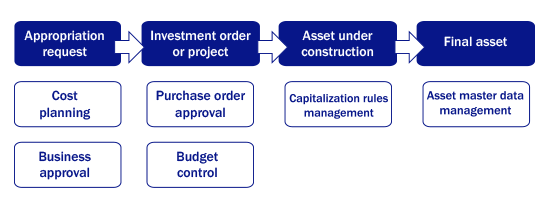
Figure 2
Processes associated with asset acquisition
Appropriation Request Master Data
The key element to defining AR master data is the appropriation request type. The appropriation request type combines a number of important settings, such as:
- Numbering rules (important for coding)
- Planning profiles (important for cost and revenue planning)
- Partner determination procedure (important for workflow setup)
- Investment program type (for integration with IM programs)
- Allowed investment measures (orders and projects)
I recommend using external numbering for appropriation requests because it allows you to build in specific business logic into the ID code. The type of coding is defined within the AR type (Figure 3).
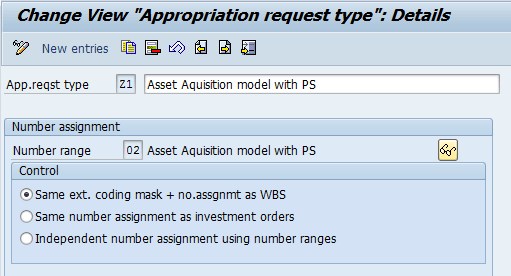
Figure 3
Number assignment options for the AR type
The coding mask can be interpreted as a set of formatting rules for the data object ID. Usually, it consists of the prefix followed by several sections of fixed length. The main purpose of the coding mask is to simplify the reporting and data selection processes. Besides, it makes the code more meaningful and transparent as opposed to simple sequential numbering. Usually, the most important business analytics, such as project type, geography, and business ownership, are incorporated within the coding mask.
The coding masks setup is shared between appropriation requests and projects. You configure coding masks with transaction code OPSJ (Figure 4). For the certain prefix defined within configuration (that also serves as the ID for the coding mask in the first column) you can define a number of numeric or alphanumeric code sections divided by special symbols. The coding mask is configured so that the SAP system automatically validates and formats the code according to the settings made during the configuration.
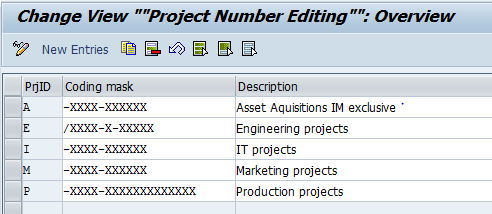
Figure 4
Define coding masks for AR and projects or work breakdown structure (WBS) elements
Another benefit of using the coding masks is related to the fact that special symbols used to structure the code into several sections are used only within the user interface and do not occupy any space within database tables. For example, if you name your project DE-C100-2010 without use of a coding mask, it takes 12 characters, but if you are using coding mask DE-XXXX-0000, it takes only 10 characters and is kept in a database such as DEC1002010.
Tip
An appropriation request coding mask can be aligned or mapped with the project coding mask. That would make the IM/PS link more transparent simply because the same code or prefix is shared between the master data elements.
To align coding masks or create mapping rules follow the IMG path Investment Management > Appropriation Requests > Master Data > Coding Mask for Approp. Request Number > Restrict and Convert Coding Mask.
Figure 5 includes the settings that show coding mask mappings between AR and projects based on the sample AR type Z1. A is the ID of the coding mask shown in Figure 4. At the first level of the dialog structure you can select the AR type, and at the second level, you can define the relationship between coding masks.
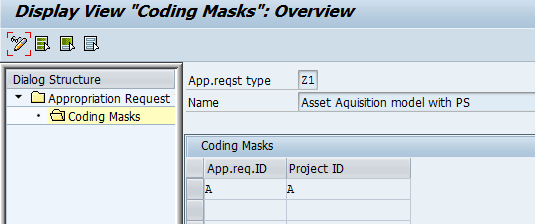
Figure 5
Mapping AR and project ID coding masks
Another important advantage of using appropriation requests is the availability of change documents functionality. The business can make sure that all master data changes are traced and available for auditing at any time. Refer to the standard change documents report (Figure 6).

Figure 6
A change documents report
Next, I show you how to configure a multilevel approval scenario for the appropriation request.
Set Up an Appropriation Request Workflow Approval Scenario
The standard workflow setup for an AR type has five configuration steps (Figure 7).

Figure 7
Configuration sequence to set up AR approval workflow
Watch this video showing the above sequence in action.
Standard Workflow Setup for an Appropriation Request Approval
Cost Planning for an Appropriation Request
A standard SAP system provides two options for AR cost planning, and only one method can be used at a time for the planning variant. I recommend using Easy Cost Planning (ECP). ECP provides much more functionality in terms of planning detail compared with another standard alternative. Refer to the SAPexperts article “Streamline Your Capital Investment Process with Appropriation Requests” with a focus on AR pre-investment analysis where costs are planned as lump sum annual values.
ECP supports preconfigured templates to make planning even more user friendly by using predefined custom characteristics and formulas. These templates are called planning forms or models (Figure 8) and you can set them up with transaction CKCM.
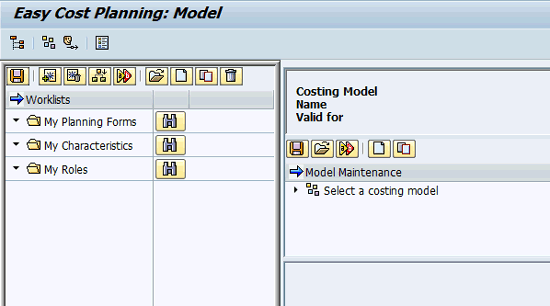
Figure 8
Define ECP models in transaction CKCM
After you define the new costing model, you need to associate it with a specific reference object (Figure 9). A reference object is a type of SAP master data (e.g., AR, order, project, or network). It is any object that is supported for ECP. This is a technical requirement to link the template to a specific object type, so that the system can automatically filter templates based on a specific object type. In my example I associate the costing model with the AR for exclusive use.
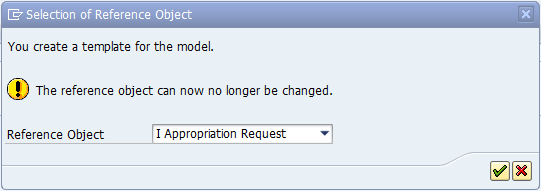
Figure 9
Associate the planning model with a reference object
After you associate the costing model with a reference object, open the ECP function. Within the AR master data maintenance in transaction IMA11 browse to the AR planning variant and click the ECP icon, also known as the unit costing icon . If you want to use the planning forms, click the Choose Planning Form button on the right part of the screen. The ECP function filters available templates (planning forms) based on the reference object (Figure 10).

Figure 10
Select the costing model within the ECP function
ECP with AR has a number of distinctive advantages compared with the planning of overall annual values (i.e., the simplified alternative planning option provided by a standard SAP system):
- It supports preconfigured models with quantitative characteristics and formulas
- It supports detailed planning at the level of cost elements and different item categories
Figure 11
Figure 11
The ECP function
Automatic Generation of Project Structure Based on Approved AR
Once an AR is approved, the SAP system can generate the project structure using the project template. To create a project template use transaction code CJ91 or follow the menu path Project System > Basic Data > Templates > Standard WBS.
You need a project template (also called a standard WBS) to generate the project structure once an AR is appproved directly from the AR master data. My sample template contains three levels of WBS elements (Figure 12).

Figure 12
Project template (standard WBS) maintenance screen
To maximize the IM/PS integration use a single WBS element at level 1. This can be enforced through the project profile setup. Figure 13 shows a project profile in the Control tab. Note that the Only one root check box is active on the project profile.
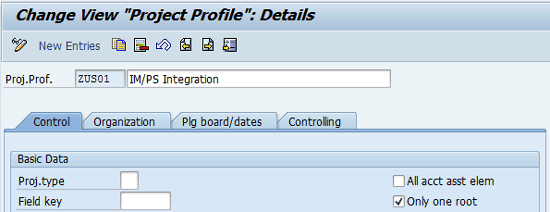
Figure 13
Project profile configuration screen
This setup is important to ensure a one-to-one relationship between the AR and the WBS at level 1 (project).
Note that the standard system also supports one to many relationship between AR and level 1 WBS and such business scenario is possible. My personal option is to use only one project associated with AR as it is the most common and simple solution.
Use a standard project definition field within AR master to automatically create the whole project structure once an AR is approved (Figure 14). Also note that I chose the Adopt plan values radio button within the Plan value transfer section to pass the planning data to the investment measure.
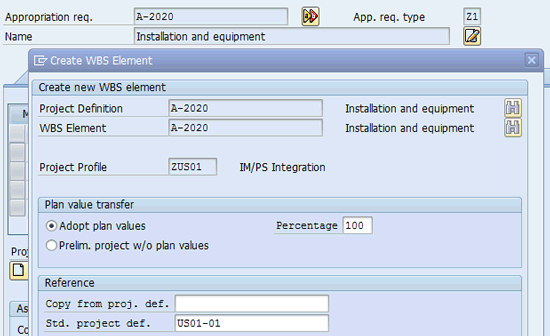
Figure 14
The project can be automatically generated from AR editing function
As a follow-up the system issues message AO191 (Figure 15).

Figure 15
System message to confirm project generation upon saving the AR
You can set up several standard projects (templates) to be used with ARs depending on the nature of the asset. It can be a simple one-level structure for out-of-the-box assets and more complex structures for engineering and construction projects with multiple service providers, for example.
After you create the project, you can also confirm that the cost estimate from the AR was adopted by the newly created project. To navigate to the ECP screen open the project with transaction CJ20N (Project Builder). Click the unit costing icon for Easy Cost Planning (Figure 16).
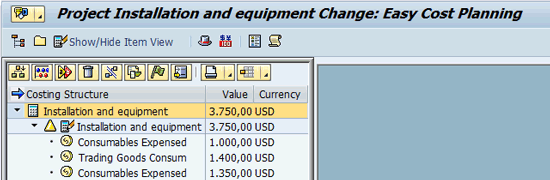
Figure 16
ECP function for the project within Project Builder
If there is no link to an investment program within the budget profile, the planning data can be copied into the original budget with transaction CJ30 (Figure 17). Otherwise, the budget can be only allocated from the investment program position assigned with the project (normally, inherited from the parent AR).

Figure 17
Original budget maintenance for the project
You can use the menu path Edit > Copy View within CJ30 transaction and select Planned Total figure to copy the plan value into the original budget.
Capitalization Versions and Capitalization Keys
Although this setup is localized within Investment Management configuration, it is completely independent from appropriation requests and investment programs and can be used separately.
To configure capitalization versions, follow IMG path Investment Management > Projects as Investment Measures > Capitalization Values per Depreciation Area > Define Capitalization Versions. To configure capitalization keys follow IMG path Investment Management > Projects as Investment Measures > Capitalization Values per Depreciation Area > Maintain Capitalization Keys.
Note
Capitalization rules can differ between International Financial Reporting Standards (IFRS), which are normally defined as a leading ledger in the SAP General Ledger, and local Generally Accepted Accounting Standards (GAAP), which are defined as a legal (or local) ledger. You can address these differences through the setup of capitalization versions and capitalization keys. In some countries local accounting rules do not permit capitalization of particular costs (e.g., internal labor). Therefore, for a specific depreciation area aligned with local GAAP, you need to exclude specific cost elements from capitalization.
The capitalization key joins multiple capitalization versions (normally two, but exceptionally can be more) through capitalization rules (Figure 18). Although it is assigned directly to the asset class, capitalization rules have the company code as a key field. That also means that the same asset class in different company codes (normally belonging to different countries) can use different capitalization rules if necessary.
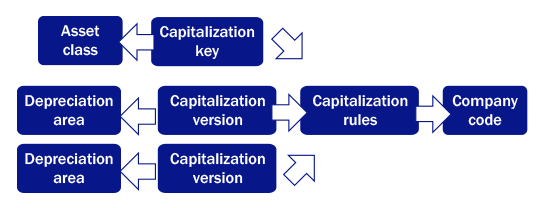
Figure 18
The capitalization key and versions data links
Refer to the following video to see the setup of different capitalization rules per depreciation area. You can define capitalization versions per each accounting principle. Normally, that means one for the group ledger and respective depreciation area and another for the legal ledger and respective depreciation area.
Understand Where and How You Can Set Up Different Capitalization Rules for Different Depreciation Areas
Paulo Vitoriano
Paulo Vitoriano started his consulting career with Arthur Andersen Business Consulting in 1997. Since then, he has helped many global clients on SAP implementation projects, including DHL, Carlsberg, Nestle, Shell, AXA, Electrolux, and Maersk. During the last 18 years he has covered more than 10 end-to-end SAP implementations working on-site in 16 different countries. He has project experience with seven different oil and gas companies, and his current focus is on SAP IS-Oil and system integration.
You may contact the author at pavitoriano@gmail.com.
If you have comments about this article or publication, or would like to submit an article idea, please contact the editor.



 Premium