Learn to address the functionality of religion-specific holidays in SAP Time Management and analyze its impacts in SAP Payroll.
Key Concept
The holiday calendar option in the SAP ERP HCM system is a key configuration aspect in terms of its effect across the system (i.e., on Time Management, Payroll, workforce management, and shift planning). Configuration of company-specific holiday calendars (i.e., movable and immovable holidays, country- and region-specific holidays, as well as religious holidays) is a key aspect of successful SAP time implementation.
Many Asian companies, especially in places such as India, are required to provide days off for certain employees for religion-specific holidays based on their religious specification in the SAP ERP HCM system. I have implemented this time-management requirement in many of my projects. I show how companies can design their holiday calendars to accommodate these religion-specific holidays and create the desired payroll integration.
I am using a case-study format, based on my own implementation experience, to help readers understand the concept and learn how to implement this in the standard SAP time system.
Case Study
Company A has the full-fledged SAP ERP HCM system with Personnel Administration, Time Management, and a well-integrated payroll system. The company has a region-specific holiday calendar that caters to the needs of the particular region, but doesn’t cater to the religion-specific needs of its employees.
Here is an example of the current holiday calendar of Company A (Figure 1).

Figure 1
Company A’s current holiday calendar, change view
Figure 1 lists the common holidays which all employees of Company A are entitled to have off in India. This list does not include religion-specific holidays, as those are configured manually by time administrators, which I show how to do later in this article.
In addition to these six days, employees are also eligible for religion-specific holidays, depending on which religion they register as being affiliated with. For example:
As it currently exists, the company calendar does not include options for these holidays, and time administrators must manage these holiday requirements manually.
Now I show you how to configure the system with the three religious holidays listed above and how to apply these lessons-learned so that you can configure your system for any similar holiday requirements.
Prerequisites
Before you begin, you need:
- A full-fledged SAP ERP HCM system with Time Management
- Payroll integration (optional)
Configuration Steps
Following these configuration steps, I show how to:
- Create religion-specific holidays in the SAP system
- Assign the religion-specific holidays to a specific calendar
- Update the existing work schedule rules
- Run the test case before and after assigning the religious data
- Assign the employee’s religion in personal data for applicable employees
Step 1. Create Religion-Specific Holidays in the SAP System
Since my example is India, I show you how to create religion-specific holidays in the SAP system for the following religions:
- Buddha Purnima (Buddhism)
- Eid al-Fitr (Muslim)
- Diwali (Hinduism)
Here is a quick reference table of the required religion-specific holidays for these religions in 2013 (Table 1):

Table 1
List of the case study religious holidays and their dates
Note
Movable holiday refers to the fact that the holiday is not associated with any one date in the year, but can depend on other factors, such as a different religious calendar or a lunar calendar. (For example, Christmas is always December 25th on the Christian calendar, but the date for Passover changes yearly depending on the Jewish calendar.)
To create a new religion-specific holiday in the SAP system, follow SPRO menu path
Time management > Define Public Holiday Classes, and click the execute icon  . This results in the screen in Figure 2.
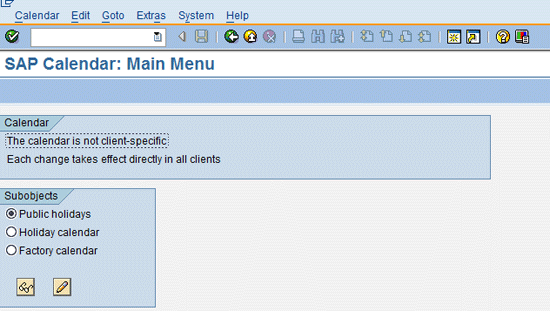
Figure 2
Create a new holiday subobject
Select the Public holidays radio button and click the change icon  . This takes you to the screen in Figure 3.
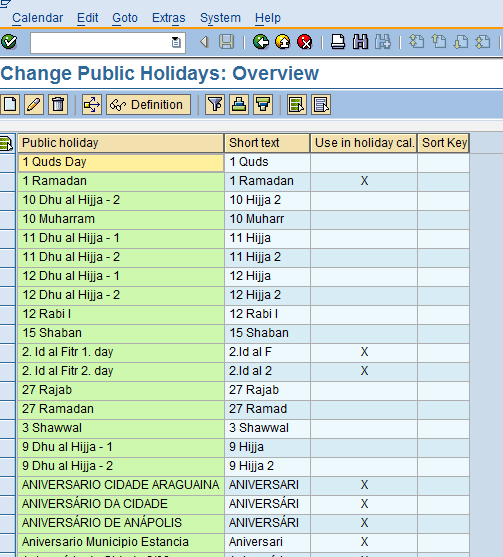
Figure 3
Change the holiday
Note
Holiday calendars are not client-specific, so making changes to them affects all the clients in your landscape. As a result, it is important to be specific and keep documentation of all of your changes.
If required, check this list (Figure 3) to see if the desired holiday already exists and do the modifications, but in my example I am defining them from scratch. Click the create icon  to add new holidays to the list (Figure 4).
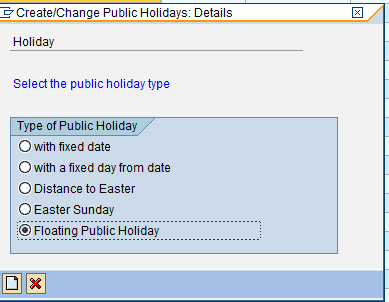
Figure 4
Create a new public holiday
In the screen in Figure 4, make sure that you choose the Floating Public Holiday radio button. This means that the dates may change from year to year, and that the dates will be published or announced at the beginning of the year. Then click the create icon, which takes you to the screen in Figure 5.
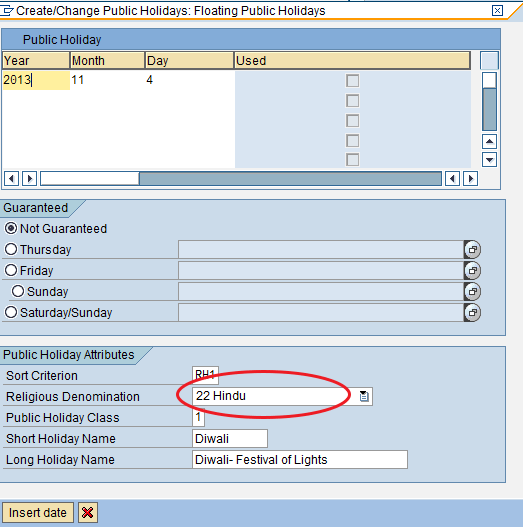
Figure 5
Create a public holiday (floating) for Diwali
Enter the details as shown in the screen.
Not Guaranteed radio button: Select this radio button to ensure that, for holidays that fall on a weekend, the employees still get a day off, moving it to the previous or next work day. For example, if Christmas is on a Sunday, you can choose to move the day off to Monday or Friday.
Sort Criterion: RH1 in the Sort Criterion field stands for religious-specific holidays; you can sort the holidays alphabetically with this option.
Religious Denomination: This is where you assign the religion to a holiday. This drop-down field is provided by the standard SAP ERP HCM system (22 is the sort key).
Public Holiday Class: This field specifies the holiday type. In this case, I specified 1, which is for a common public holiday (for example, Republic Day or Gandhi Jayanti), 2 is for a half-day holiday, and 3 is for a company-specific holiday. This is a standard drop-down option.
The Short Holiday Name and Long Holiday Name: These fields create a holiday for Diwali with the proper dates (Diwali and Diwali- Festival of Lights, respectively).
Once you have entered all the necessary data, click the Insert date button, which allows you to enter the future dates for this holiday, then click the create icon (these steps are not shown). The system adds this new holiday and its future dates to the common holiday list.
You have to repeat these same steps for each of the religious holidays you want added to the list (Figures 6 and 7).

Figure 6
Create a public holiday (floating) for Buddha Purnima
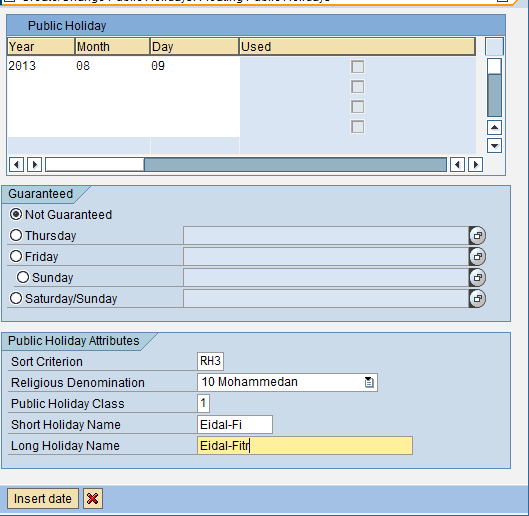
Figure 7
Create a public holiday (floating) for Eid al-Fitr
Step 2. Assign the Religion-Specific Holidays to a Specific Calendar
Now that all the specified holidays from Table 1 are available in the system, you need to assign these new dates to the relevant holiday calendar. The holiday calendar used for Company A is IN (as shown in Figure 1).
To modify the holiday calendar to include the newly created holidays, follow SPRO menu path Time management > Define public holiday classes (Figure 8).
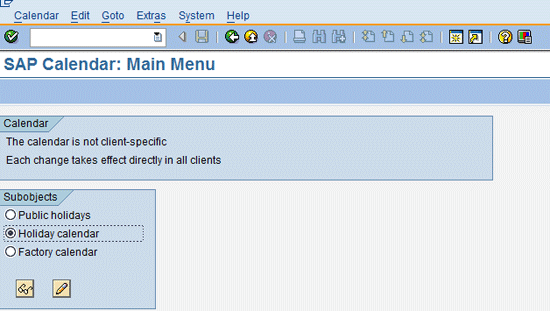
Figure 8
Holiday calendar change view
Select the Holiday calendar radio button and click the change icon, which takes you to the screen in Figure 9.
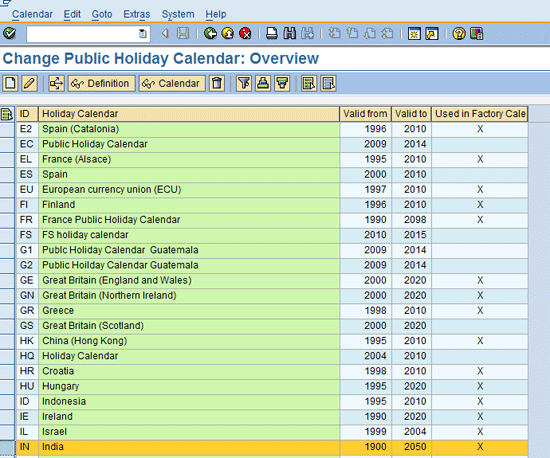
Figure 9
Change the holiday calendar
Choose the relevant calendar (IN India, in my example) by highlighting the row, and then click the change icon again. This generates the screen you see in Figure 10, which is where you can make modifications to the holiday calendar.
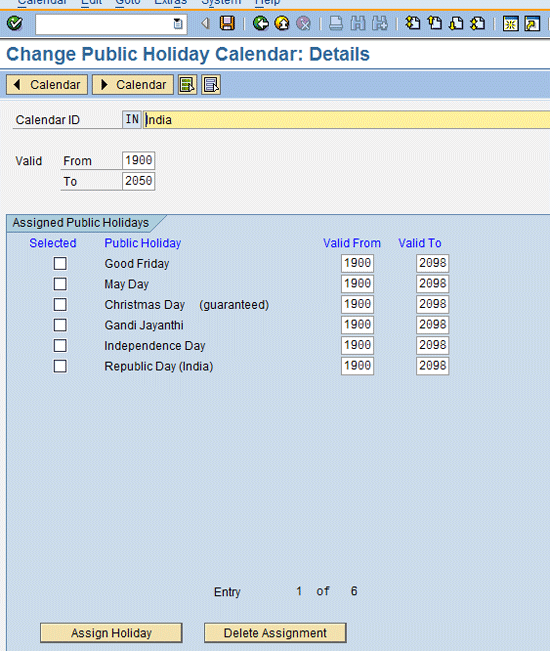
Figure 10
Assign the new public holidays
Click the Assign Holiday button to assign your newly created holidays, as shown in Figure 11.

Figure 11
Insert the new holidays in the public holiday list
Select the check boxes next to the new holidays in the pop-up window and click the Assign publ.holiday button to assign them. After you have selected the newly created holidays and assigned them, you see the screen in Figure 12, which shows that your new holidays have been properly assigned to the holiday calendar.
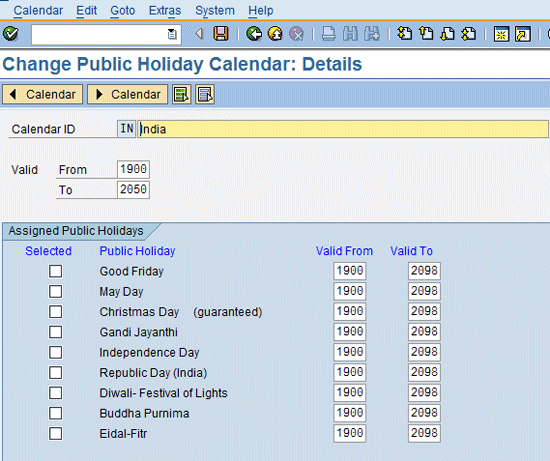
Figure 12
Save your new public holiday calendar
Click the save icon to save your changes and exit this screen.
Note
Read all of the relevant pop-up screen messages and standard warnings carefully when you save your changes, and follow any instructions given by the SAP system carefully.
Step 3. Update the Existing Work Schedule Rules
Now you need to update the relevant work schedule rules in the system to make this change effective. Follow SAP Easy Access menu path SAP Menu > Human resources > Time management > Work Schedule > Change (Figure 13).
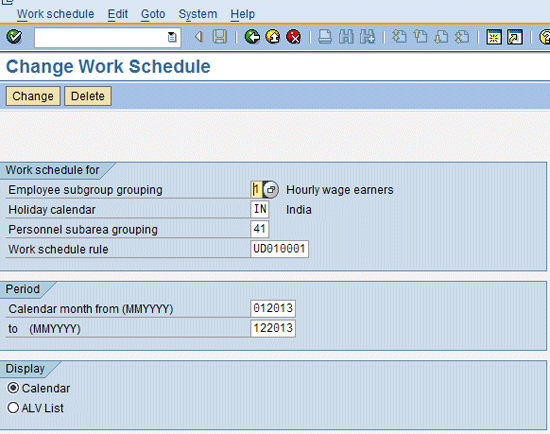
Figure 13
Change the employee’s work schedule
Here you enter the relevant details: Employee subgroup grouping, Holiday calendar, Personnel subarea grouping, work schedule rule, and Calendar month from and to. Then select the Calendar radio button. Click the Change button and the save icon to save your new employee work schedule, and you get the following message (Figure 14).

Figure 14
Confirm that your new work schedule has been created
Step 4. Run the Test Case Before and After Assigning the Religious Data
Now that the work schedule has been regenerated, let’s see how it affects the employee master data for the employee. I have chosen one employee for this test, and he does not have any religion attached in his employee master data. Display the HR master data and infotype 0002 via transaction code PA20 (Figure 15).
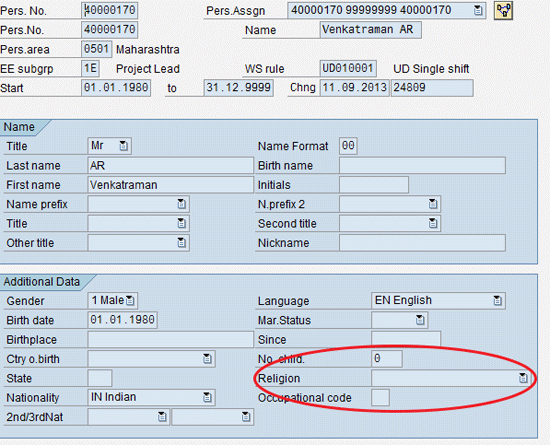
Figure 15
View the employee personal data
Note that the Religion field for this employee is left blank.
Next, go to the planned working time screen to review the work schedule for this employee in infotype 0007 (planned working time), via transaction code PA20 (Figure 16).
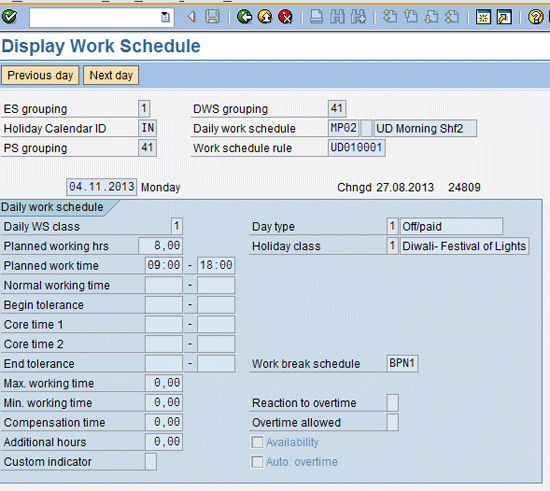
Figure 16
The employee’s master data (infotype 0007) work schedule
This is where things get tricky and time administrators commonly become confused. His work schedule shows that he has a holiday on 04.11.2013 with the Holiday class 1 (off/paid). As a result, this holiday should appear as off/paid for this employee in the SAP Payroll system as well. However, since the employee has not specified a religion in his personal data (Figure 15), according to the payroll calculation engine this is a normal working day.
To clarify this step, let’s take a look at the payroll log for this employee; I am running a payroll simulation to illustrate. To analyze the payroll impact, choose the payroll log as shown in Figure 17, and double-click the PSP line. This takes you to the screen in Figure 18.

Figure 17
Payroll log view for the employee
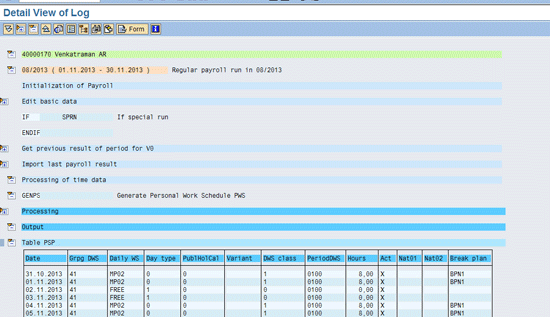
Figure 18
Payroll log view of table PSP
According to the payroll log, the Day type is 0 for Date 04.11.2013 and the public holiday class (PublHolCal) is also 0, which means that this religious holiday is just a normal working day for this employee, not a paid day off.
Step 5. Assign the Religion in Personal Data for the Applicable Employee
To test the effect of the religion-specific holiday in the system, I have assigned Hindu as the religion in the employee’s personal data (Figure 19) via transaction code PA30 (infotype 0002), and saved it.
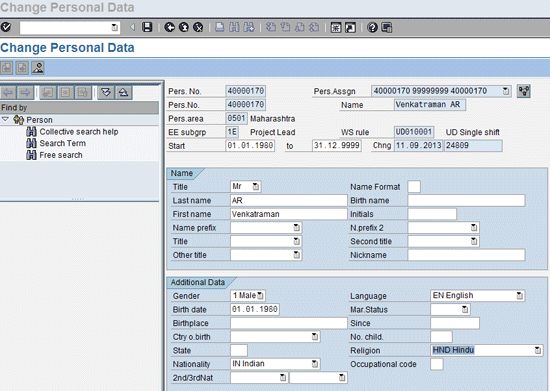
Figure 19
Employee’s personal data with Hindu assigned as the religion
This makes the employee eligible for holidays specific to particular religion. In this case, he is eligible for a day off on Diwali (assigned to the religious denomination of Hindu.)
Now let’s run the simulation and review the PSP table (Figure 20).
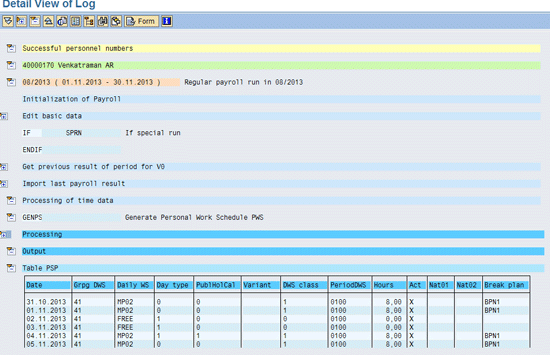
Figure 20
Payroll simulation view after assigning religion in personal data
As shown in Figure 21, the payroll log for 04.11.2013 has the Day type as 1 with a public holiday class of 1, which means that 04.11.2013 is a paid public holiday for this employee. However, during this same payroll run, for the other, non-Hindu employees, this day is shown as a normal working day.
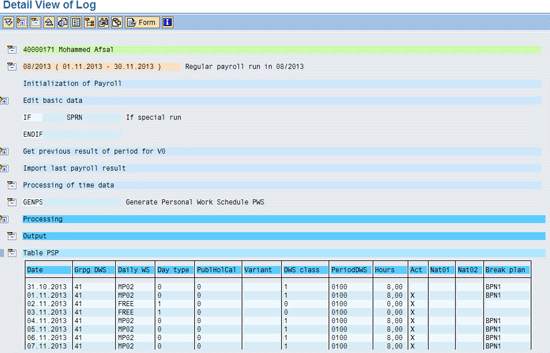
Figure 21
Payroll simulation view for the employee of different religion
You can test the other scenarios by assigning respective religions to test employees and running the payroll on applicable month. Then review the results to make sure it’s working the way you intended.
Raghavendran Parthasarathy
Raghavendran Parthasarathy works for Hexaware Technologies as a Principal Consultant,where he manages SAP solution design for customers across the globe. He has worked in SAP ERP HCM for over 14 years in various capacities, including payroll projects in the Middle East, Europe, and Asia/Pacific. In addition to payroll, Raghavendran has experience in negative time management, personnel administration, and recruitment. He has also been a part of portal implementations. Currently, he is involved with cloud-based HCM applications such as SAP SuccessFactors and Workday.
You may contact the author at raghs99@yahoo.com.
If you have comments about this article or publication, or would like to submit an article idea, please contact the editor.