It can be difficult to interpret the standard traffic-light exception symbols when you quickly scan a report. Find out how you can replace these symbols with something more meaningful, such as a medal to indicate sales success.
Key Concept
Analysis Web Item parameter modification modules provide a straightforward customization platform. In particular, the exception symbol module allows you to replace the standard SAP exception symbols (generally traffic lights) with relevant symbols. By inserting a simple reference to standard SAP code in the XHTML tab of your template, you can quickly increase the relevance and use of your reports.
As companies try to get more out of their existing systems, they want to extract more value from BEx Web Application Designer (BEx Web AD). One way to do this is to increase the relevancy and use of reports by making some quick visual changes. I’ll help you accomplish this with your existing toolset.
Before reading this article, you may want to read my previous article, “Take the Challenge Out of BEx Report Formatting: It’s Easier than You Think.” This second article extends the content covered previously and uses the same scenario-based process to provide you with the knowledge and skills required to customize your exception symbols.
I will use the example of an existing sales executive performance report. This is a monthly report indicating the metrics used to assign monthly bonuses. The national sales managers have issued a directive for their report to be made more visual. They want the current exception symbol to be replaced with one that creates a more relevant visual reference.
I will show you how to solve this problem by following these three simple steps:
Step 1. Identify the exception that needs a new image
Step 2. Define the new exception symbol and load it into the MIME Repository
Step 3. Add the new exception symbol to the XHTML and adjust the parameters to suit the report requirements
Note
The following example applies to SAP NetWeaver BW 7.0 Support Package 7, Patch 1, Revision 473 and onward. The functionality may not be available with earlier versions.
Step 1. Identify the exception that needs a new image. Embedded in the BEx Web Application Designer (BEx Web AD) template is a query that contains the exception that needs to have its image replaced. Open the query in BEx Query Designer by following menu path Start > Programs > Business Explorer > Query Designer and then select the Exceptions tab. The system displays the existing exception (Figure 1).

It is important to note the level assigned to the exception (Good, in this example). You use this level later in the implementation of the XHTML code. The code you will be implementing replaces all current Good images within the query with a new, relevant image.
Note
Unless defined, all other exception level symbols remain as the standard SAP image.
Step 2. Define the new exception symbol and load it into the MIME Repository. Ensure that a .gif file that represents the image you wish to use as an exception symbol has been created. In this scenario, I am going to use a medal to replace the Good exception symbols. I selected a medal because the business wanted any sales manager (who may or may not be familiar with the report) to be able to scan the report and instantly associate the exception symbol with the person who has achieved success. The current green traffic light exception symbol does not project what the exception symbol is aiming to convey. A medal, which is commonly associated with achievement and success, was considered more appropriate.
Note
Make sure the pixel dimensions of your image are appropriate — each line of your analysis grid that has an exception symbol automatically expands to meet the size of the image.
In this scenario, I am going to replace the current symbol used for a Good exception. To do this, you need to load the new image into the MIME Repository, which stores all the images, styles sheets, scripts, and icon objects for use in an application.
To open the MIME Repository, use transaction SE80 and click the MIME Repository tab. Navigate to the directory /SAP/BW/CUSTOMER/IMAGES, right-click the Images folder, and select Import MIME Objects (Figure 2).

Fill in the details on the Shared tab, and then click the save icon (Figure 3). The image is loaded to the MIME Repository, where it can be referenced in step 3.

Step 3. Add the exception symbol module to the XHTML and adjust the parameters to suit the report requirements. Applying the exception symbol parameter modification is a relatively simple process. It is a matter of calling a piece of standard SAP Java code and using parameters to make it behave as you desire. To do this, navigate to the XHTML tab of your BEx Web AD template. The name of the module to be implemented is com.sap.ip.bi.rig.ExceptionImage.
Each parameter modification module is data provider specific. The piece of code in Figure 4 identifies the Data Provider for which I want to change the exception symbol.
| Figure 4 |
Identify the Data Provider that uses the new exception symbol |
Insert a line after bi:DATA_PROVIDER_REF value="DP_1" /> and insert the code in Figure 5 into the XHTML.
|
<bi:ANALYSIS_ITEM name="ANALYSIS_ITEM_1" designwidth="400" designheight="200" >
<bi:DATA_PROVIDER_REF value="DP_1" />
<bi:MODIFICATION type="CHOICE" value="MOD_SINGLE_MODULE" >
<bi:MOD_SINGLE_MODULE type="COMPOSITE" >
<bi:ACTIVE value="X" />
<bi:MOD_SELECT type="CHOICE" value="MOD_GENERIC_MODULE" >
<bi:MOD_GENERIC_MODULE type="COMPOSITE" >
<bi:MOD_REFERENCE value="com.sap.ip.bi.rig.ExceptionImage" />
<bi:MOD_PARAMETER_LIST type="ORDEREDLIST" >
<bi:MOD_PARAMETER type="COMPOSITE" index="1" >
<bi:MOD_PARAM_NAME value="ALERT_GOOD" />
<bi:MOD_PARAM_VALUE type="CHOICE" value="IMAGE" >
<bi:IMAGE value="bwmimerep:///sap/bw/mime/customer/images/medal.gif" />
</bi:MOD_PARAM_VALUE>
</bi:MOD_PARAMETER>
</bi:MOD_PARAMETER_LIST>
</bi:MOD_GENERIC_MODULE>
</bi:MOD_SELECT>
</bi:MOD_SINGLE_MODULE>
</bi:MODIFICATION>
<bi:EXCEPTION_RENDERING value="SYMBOL" />
</bi:ANALYSIS_ITEM>
|
| Figure 5 |
Code to change your exception symbol |
The code in Figure 6 shows the addition and manipulation of the parameters. In this code, I have defined the alert level that is subject to the exception symbol change, and also the image that replaces the exception symbol, as defined in step 3.
|
<bi:MOD_PARAM_NAME value="ALERT_GOOD" />
<bi:MOD_PARAM_VALUE type="CHOICE" value="IMAGE" >
<bi:IMAGE
value="bwmimerep:///sap/bw/mime/customer/images/medal.gif" />
|
| Figure 6 |
Define the alert level for the exception symbol change |
| Note |
| You can define images for the nine standard alert levels that are available in BEx Query Designer using the parameter value name Alert_1 (representing Good 1) to Alert_9 (representing Bad 3). |
After you insert this code into the XHTML, click the correct and format icon  on the BEx Web AD toolbar and save your BEx Web AD template. Then execute the BEx Web AD template (Figure 7).
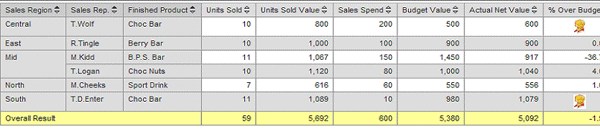
The exception symbol displayed now is no longer the standard SAP image, but a custom image. In my example, the medal is relevant and adds value to the report. This satisfies the users’ demand for a visually pertinent report, delivered at minimal cost.

Stuart Chambers
Stuart Chambers is currently a technical team lead for Innogence, Australia’s largest SAP NetWeaver BW and SAP BusinessObjects consulting firm. During the previous three years, Stuart has worked with many of Australia’s top FMCG and business services organizations on both BI Greenfields and enhancement projects. His previous project was recently awarded “Best Business Intelligence Solution Implementation” by SAP. During this time, Stuart has developed a particular interest in front-end design and developing strategies for successful BW project delivery. Stuart is SAP NetWeaver BW certified, has completed a masters of Enterprise Resource Planning Systems (SAP) degree from Victoria University (2007 – “Most Outstanding Student”), and a bachelor of commerce, economics and commercial law degree from Deakin University. Prior to working in the BW field, Stuart was a FI-CO power user in the music industry in the UK.
You may contact the author at stuart.chambers@innogence.com.
If you have comments about this article or publication, or would like to submit an article idea, please contact the editor.


 Premium