Manager
Learn how to centrally monitor SAP landscapes by setting up and using SAP Solution Manager’s Computing Center Management System (CCMS) functionality.
Key Concept
Computing Center Management System (CCMS) allows continuous monitoring of SAP R/3 and SAP ERP systems at the operating system, network, database, and application levels. This is SAP’s central infrastructure for monitoring system landscapes: All landscape components are continuously checked. As a first and most important check, CCMS ensures the availability of all productive components. If something is wrong, an alert is triggered, and a person in charge can be notified automatically.
Monitoring a system landscape is a complex, important task for every company that operates one or more SAP systems. While the complexity increases with every additional system, component, or extension, it is important to detect any problem as early as possible to ensure business processes’ availability and minimize system downtime.
With the monitoring architecture of Computing Center Management System (CCMS), SAP Solution Manager 7.0 provides a flexible infrastructure that allows you to monitor your entire IT landscape centrally and that reports problems quickly and reliably. You can centrally monitor your entire SAP and non-SAP landscapes with real-time monitoring of system components, business processes, and interfaces, which reduces administration effort.
This article will explain the challenge of monitoring a landscape, overview CCMS monitoring, and give step- by-step directions to set up CCMS monitoring in SAP Solution Manager.
Note
The content of this article (including screenprints) is based on a system configured with SAP Solution Manager SP15 running on a Microsoft (MS) Server 2003 SP2 with MS SQL 2005 SP2 database.
Monitoring Your Landscape
SAP Solution Manager functions as your central monitoring system (CEN). Different SAP instances and tools with CCMS agents automatically report to Solution Manager (Figure 1).

Figure 1
Monitoring overview with Solution Manager
CCMS agents. CCMS agents are independent processes with an interface to a central monitoring system and an interface to the shared memory using remote function call (RFC). Table 1 lists the different types of agents for different SAP instances.These agents connect to the central monitoring system using RFC to ensure greater downtime security and general availability. CCMS agents use push technology to optimize performance when reading and writing monitoring attributes and alerts.
SAPOSCOL. The operating system collector SAPOSCOL is an independent program that runs in the background to monitor the operation system. It functions independently of all SAP instances, and there is only one SAPOSCOL agent running for each monitored host.
| SAPCCM4X for ABAP |
- Transfers CCMS alert monitoring data from any SAP system as release 7.0 to CEN
- Requires no dialog work process on central system
- Can be registered at several central systems to ensure high availability
|
| SAPCM3X for ABAP |
- Connects SAP Systems 3.X to a central monitoring system delivering the dispatcher‘s performance data
|
| SAPCCMSR for JAVA |
- Transfers CCMS alert monitoring data from any SAP system as of release 7.0 to CEN
- Requires no dialog work process on central system
- Can be registered at several central systems to ensure high availability
|
| CCMSPING for ABAP and JAVA |
- You can use the CCMSPING availability agent to check whether remote systems and their instances are available for work. It also collects important performance attributes for the dialog system on ABAP instances.
|
| Table 1 |
Different types of agents for different SAP instances |
Work centers. System Monitoring Work Centers are based on SAP standards for solution operations and on UI technology, and they are mainly ABAP Web Dynpro applications. You can display them in SAPGUI (transaction code SolMan_WorkCenter), a Web browser, or a business client (Figure 2).
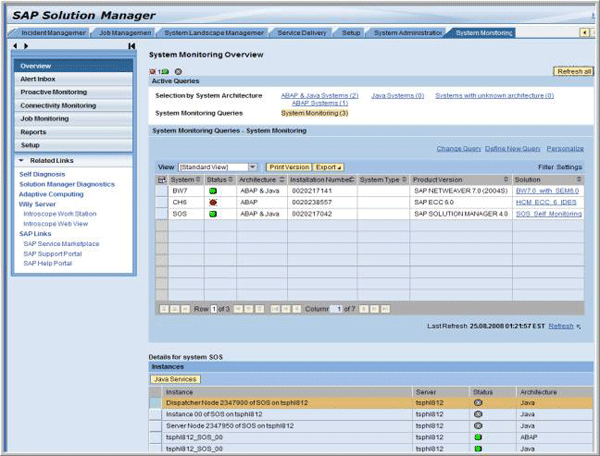
Figure 2
System Monitoring Work Center, a work center display
Starting with Solution Manager Support Package level ST-400 SPS 15, you can use work centers that offer you a central work environment with access to relevant functions, messages, alerts, analyses, and documents. You can also cover landscape-wide monitoring and various reporting options. Work centers are role based: A user can have one or more roles and a role can have one or more work centers assigned to it. They are designed to ease navigation through central role-based points of access.
The System Monitoring Overview, at the top of your screen, shows all of your SAP systems and how many have each status: red means the system is not available, green that the system is available, and gray that the system is not set up or that there is no CCMSPING data available. Below that, the System Monitoring Queries – System Monitoring section displays the statuses of all the instances and instance details. All this data is based on CCMS information and on the availability data generated by the CCMSPING agent (Table 1). Additionally, all instances and instance details are displayed in Details for system sections. For more on customizing work centers, see SAP Note 1160651on Central Alert Management. Central Alert Management (ALM) is preventive monitoring with alerts. No administrative activity is required unless the system finds a problem, notifies you, and you need to actually deal with the issue. By setting up ALM, you can receive alert notifications (e.g. via e-mail or SMS) that are triggered automatically via auto-reactions methods.
The CCMS alert is sent from the satellite system by the agents, which triggers another alert to the CEN, and is then forwarded via RFC to the ALM system. The ALM system forwards the alerts in every case to the relevant display program of the recipients (e.g., alert inbox or universal work list) and as an email, fax, or SMS if these external communication methods are configured in SAPconnect (Figure 3).
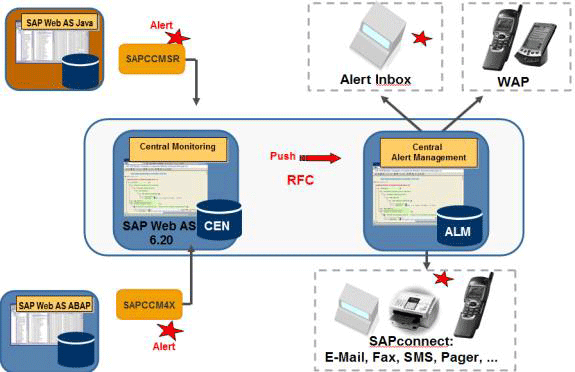
Figure 3
Central Alert Management overview
Setting Up Solution Manager to Support Central System Monitoring
Before installing CCMS agents on back-end systems, you need to set up Solution Manager to support central system monitoring. I recommend that you install Solution Manager 7.0 with the latest Support Packages.
- Step 1. Activate central system dispatching and background dispatching in client 000 in Solution Manager
- Step 2. Create the CSMREG user in CEN and all ABAP satellite systems
- Step 3. Create the CSMCONF start file for CCMS agents (CEN)
- Step 4. Download and extract the latest CCMS agent on satellite systems
- Step 5. Register the CCMS agent SAPCCM4X (ABAP)
- Step 6. Register the SAPCCMSR (Java) agent (satellite system)
- Step 7. Install availability agent CCMSPING on CEN
- Step 8. Enter monitored ABAP systems in CEN
Step 1. Activate central system dispatching and background dispatching in client 000 in Solution Manager. First, you need toactivate background dispatching in CEN and in all satellite ABAP systems in client 000. Use transaction RZ21 and follow menu path Technical infrastructure > Local Method Execution > Activate Background Dispatching. This creates the job SAP_CCMS_MONI_BATCH_DP. Background dispatching is performed by the job SAP_CCMS_MONI_BATCH_DP, which runs once an hour.
Next, you need to activate central system dispatching in CEN. To do so, use transaction RZ21 and follow menu path Technical infrastructure > Configure Central System > Activate Central System Dispatching. This creates the job SAP_CCMS_CENSYS_DISPATCHER. Central system dispatching is performed by the job SAP_CCMS_CENSYS_DISPATCHER to execute an auto-reaction in CEN for alerts from remote systems.
Step 2.Create the CSMREG user in CEN and all ABAP satellite systems. First, use transaction RZ21 and follow menu path Technical infrastructure > Configure Central System > Create CSMREG User. Enter a password for this user. CSMREG is a communication user with restricted authorizations in all monitored ABAP systems for communication between CEN, the monitored systems, and CCMS agents.
Step 3.Create the CSMCONF start file for CCMS agents (CEN). During the registration of the agent, you need data to connect from the SAP CCMS agent to CEN. Use transaction RZ21 and follow menu path Technical infrastructure > Configure Central System > Generate Configuration file for Agents.
When prompted to save the file, you want to save it at a location that is centrally available because this file is required for all CCMS agent registrations. The CSMCONF file includes all the information needed during CCMS agent registrations for CEN on the satellite systems.
Step 4.Download and extract the latest CCMS agent on satellite systems. To download the CCMS agent, go to https://service.sap.com/swdc. In the navigation bar, follow menu path Download > Support Packages and Patches > Entry by Application Group > SAP NetWeaver > SAP NETWEAVER > SAP NETWEAVER 2004S > Entry by Component > Application Server ABAP > SAP KERNEL 7.00 32 or 64-BIT > Database Independent.
After you have downloaded the file, you need to extract the CCMAGENT SAR file. Copy the file ccmagent_xx-xxxxxxxx.sar to the exe directory (/sapmnt//exe). Extract ccmagent_xx-xxxxxxxx.sar with the command SAPCAR –xvf ccmagent_xx-xxxxxxxx.sar. The files shown in Figure 4 are extracted.
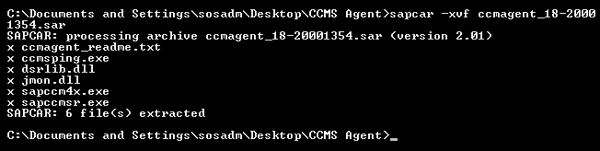
Figure 4
CCMS SAR file includes different agents depending on the satellite systems that you have installed
Step 5. Register the CCMS agent SAPCCM4X (ABAP). SAP recommends that you use an updated version of your CCMS agent SAPCCM4X. For more information, see SAP Note 957455.
To register the agent, log on to the satellite system as adm.Copy the CSMCONF file to the working directory for SAPCCM4X under D:usrsapSM4DVEBMGS00logsapccm4x.From the console, run command sapccm4x.exe -R pf=D:usrsap\SYSprofile (e.g., sapccm4x.exe -R pf=D:usrsapBW7 SYSprofileBW7_DVEBMGS01_tsphl813).
During the registration, the system displays specifications from the CSMCONF. Follow the instruction and provide the password for CSMREG user.
In the first screen that appears, respond that there is no additional central system, and then reply affirmatively until it prompts you to enter the password for user CSMREG. Set the starttype of service to auto and press Enter. When the text EXITING with code 0 appears at the bottom of the screen, you know that SAPCCM4X has been successfully registered (Figure 5).
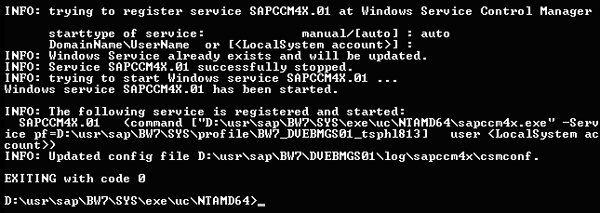
Figure 5
CCMS agent successfully registered
Next, to verify that SAPCCM4X is reporting to CEN, run transaction code RZ21. Select the Agents for Remote SAP Systems tab and click on the Display Overview button. The agent that you just registered (SAPCCM4X . TSPHL813.01) appears in the Destination column in the first row (Figure 5 ).
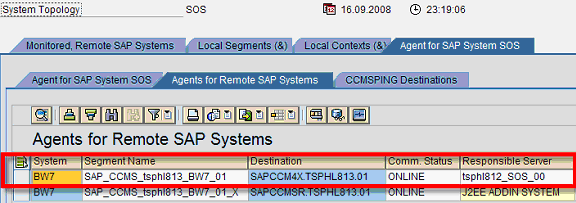
Figure 6
Display all online and offline agents in CEN
Step 6. Register the SAPCCMSR (Java) agent (satellite system). Log on to the server as adm. Copy the CSMCONF start file from the location you previously downloaded to the working directory of SAPCCMSR (e.g., D:usrsapccmsBW7_01 sapccmsr). Start the Visual Administrator (D:usrsapBW7DVEBMGS01j2eeadmingo.bat). In the navigation bar on the left, choose Cluster > Dispatcher > Services > Monitoring, and select the CCMS Agent Configuration tab on the right of the screen. Enter a password for Local Administration User (BW7), Local CSMREG USER (BW7), CEN Administration User (SOS), and CEN CSMREG User (SOS) (Figure 7). Click Register to register SAPCCMSR agent to CEN.

Figure 7
Visual Administrator CCMS Agent Configuration tab for registering SAPCCMSR agent
Verify that the SAPCCMSR agent is reporting to CEN in the same way as you did for SAPCCM4X at the end of step 5.
Step 7. Install availability agent CCMSPING on CEN . Log on to the CEN system as adm. Copy the CSMCONF file to the working directory of CCMSPING. The working directory for SAPCCM4X is under D:usrsapprfclogccmsping. From the console, run command ccmsping [-push] [-n] –R_.
During the registration, the system displays specifications from the CSMCONF file (Figures 8-12). Follow the instruction (indicated by the circle numbers in the figures) and provide the password for the CCMSREG user.

Figure 8
CCMSPING specification from CSMCONF

Figure 9
Enter a password for user I813800

Figure 10
Verify that host and service name are correct
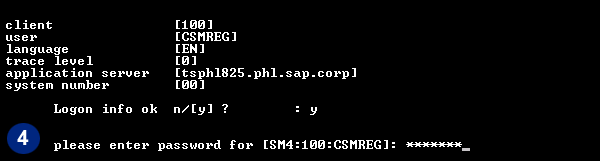
Figure 11
Enter the password for the CSMREG user created in Step 2
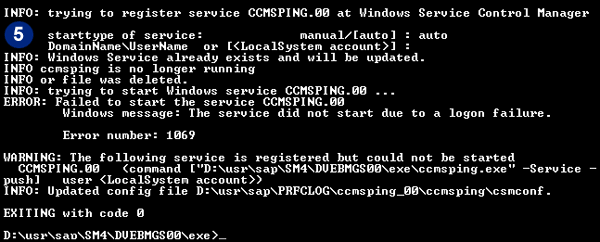
Figure 12
Register the CCMSPING agent
Verify that the CCMSPING agent is reporting to CEN by running transaction code RZ21.Under Topology, select CCMSPING Agents and click on the Display Overview icon. Figure 13 shows you all registered CCMSPING agents.

Figure 13
Display all registered CCMSPING agents
Step 8. Enter the monitored ABAP systems in CEN. You need to create two remote function call (RFC) destinations for all of the monitored ABAP systems in CEN. Each RFC destination serves as either one of the following purposes:
- Data collection (transferring monitoring data to CEN)
- Analysis (calling analysis methods in the monitored system from CEN)
1. Call transaction RZ21 in CEN.
2. Choose Technical infrastructure > Configure Central System > Create remote monitoring entry (Figure 14).

Figure 14
Choose Create remote monitoring entry
3. The Monitoring: Create New Entry screen appears (Figure 15). Enter the Target System ID (e.g., CUP) and the RFC connections created in transaction SM59 or SMSY (e.g., SM_CUPCLNT800_READ for collecting data and SM_CUPCLNT800_TRUSTED for executing the method).
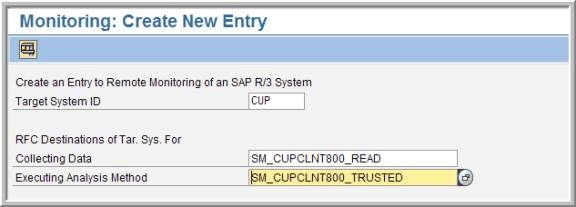
Figure 15
Enter information in the Monitoring: Create New Entry screen
For more information on sending alerts from Solution Manager to third-party applications, see the sidebar “Solution Manager Integration with Third-Party Tools.”
Labinot Bytyqi
Labinot Bytyqi graduated with a degree in computer science and business management and a minor in economics from George Fox University in 2005. Currently, he is pursuing a master’s degree in information technology management. Labinot joined SAP in 2007 as a technical consultant with more than eight years of information technology experience and SAP consulting, particularly in the application lifecycle management area, where he was a lead for an SAP Solution Manager and extensions practice in the West region. Labinot currently is responsible for field services software sales portfolio business development and strategy, as well as for SAP Extended Diagnostics by CA Wily.
You may contact the author at labinot.bytyqi@sap.com.
If you have comments about this article or publication, or would like to submit an article idea, please contact the editor.