Learn how to send purchasing document workflows to the chief position of the creator’s department. To incorporate the logic, SAP has provided an enhancement to place your own code. You can use an SAP ERP HCM organizational structure to get the chief position. You can also write logic to send approvals of purchasing documents to the project manager, who could be a person responsible for a project in the SAP system.
Key Concept
Approvals allow you to push documents through the SAP workflow in an organized way. Using specific code you're able to use approvals to ensure the document reaches the highest position necessary.
You use SAP workflows to send purchasing document releases to someone. For a release code, SAP has provided a fixed position in configuration of a release strategy. You can provide only one SAP ERP HCM position for each release code. If a person of department A creates a purchasing document for a release workflow, approval is sent to some designated HCM position that you configure in transaction code SPRO. SAP also provided an enhancement to write your own logic to find an approver. Using this enhancement, you can send releases more accurately to different people in your organization with one release code.
To configure the release strategy in the SAP system, you also need to configure workflow. For example, you can configure release code 03 for the procurement manager to release purchasing documents. Follow menu path Material Management > Purchasing > Purchase Order > Define release procedures for purchase orders (Figure 1).
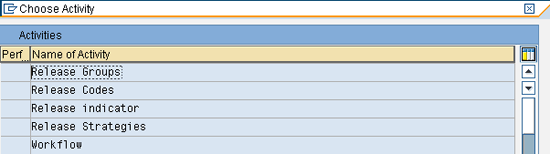
Figure 1
The release procedure window
Double-click Release Codes to view a list of the release codes (Figure 2).

Figure 2
The list of release codes and workflow options
If the workflow option is set to 1, it means that release code X3 workflow is sent to the CEO position and that release code X4 workflow is sent to the CFO position. In the next window, you can see the fixed positions that are assigned from the HCM organizational structure. After you double-click the workflow option, the screen in Figure 3 appears.
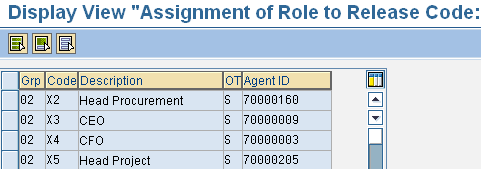
Figure 3
Assign the HCM position ID to a release code
One release code is effective for only one fixed position.
Actual Problem
In an organization different departments raise purchasing documents (e.g., purchase requisitions, purchase orders), and IT administrators define release codes to send approvals to the head of the department or chief position of a specific department. For this purpose, SAP has provided an enhancement to write your own logic to determine the chief position and send workflow for approval to that person.
SAP has provided user exit M06B0001 for purchase requisition and user exit M06E0005 for purchase orders. Follow menu path Material Management > Purchasing > Purchase Requisitions > Release Procedures > Set Up Procedure with Classification (Figure 4).
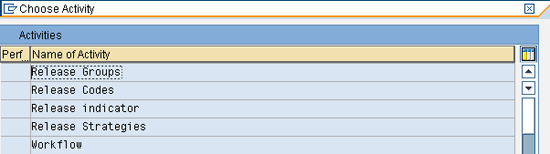
Figure 4
The release procedure window
Double-click Release Codes. In the next screen set the workflow value to 9 to use the enhancement (Figure 5). This setting allows you to trigger the enhancement, but not use the positions shown in Figure 3.

Figure 5
Set the Workflow column value to 9
Now with release code 01, the system finds the chief position of the creator’s department. To use the user exit, you need to create a project in transaction code CMOD (Figure 6).
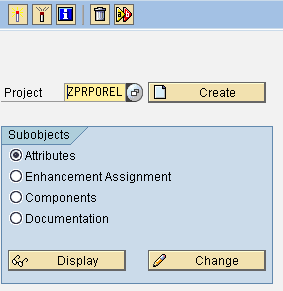
Figure 6
Create a project
Enter a name (e.g., ZPRPOREL) and click the Create button. In the next screen enter a description in the Short text field (Figure 7).
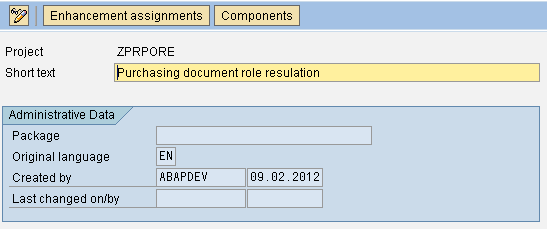
Figure 7
Enter a description of the project
Click the Enhancement assignments button. In the next screen enter the purchase requisition user exit name (Figure 8).
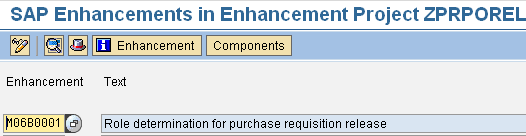
Figure 8
The purchase requisition release enhancement name
Click the Components button. In the next screen (Figure 9) double-click the exit name (e.g., EXIT_SAPLEBNF_001).
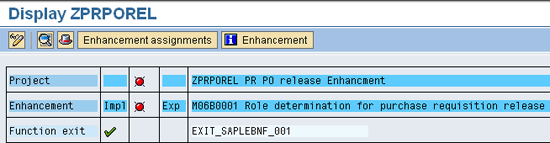
Figure 9
EXIT_SAPLEBNF_001
In this exit, there are two import parameters: I_EBAN and I_FRGCO. Structure I_EBAN contains data related to the purchase requisition, and I_FRGCO contains the release code (Figure 10).
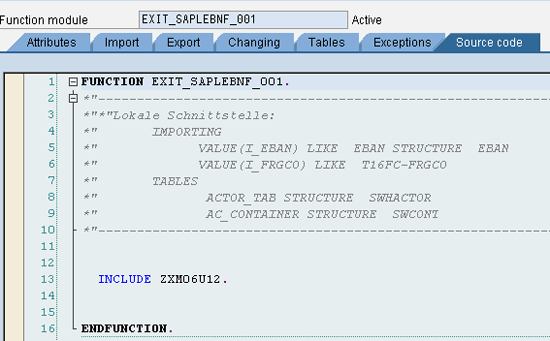
Figure 10
The user exit
After you double-click the include name INCLUDE ZXM06U12, you receive a warning message. After you press Enter, the system creates the include. Write your code to determine the approving agent of the purchase requisition (Figure 11).

Figure 11
Code to find the chief position of a department
First, you find out the employee number of the purchase requisition creator. Use the following select statement:
SINGLE PERNR INTO PRNR from pa0105 where usrid EQ I_EBAN-ernam AND SUBTY eq '0001' AND ENDDA ge sy-datum.
I_EBAN-ERNAM is the SAP user ID of the PR creator.
The employee number is shown in variable PRNR. Now you need to find the chief position of this employee number using function module RH_STRUC_GET. This function returns the position ID of the chief position of the department with object type S. Now you need to find the employee number that is assigned to the chief position. Call the above function again with the A008 path. To find out the SAP user ID of this employee, use the following select statement:
Select SINGLE usrid INTO ACTOR_TAB-OBJID from pa0105 where PERNR EQ ACTOR_TAB-OBJID AND SUBTY eq '0001' AND ENDDA ge sy-datum
Activate the include and then activate the enhancement.
Adopt the same procedure or purchase orders, except the enhancement for purchase orders is M06E0005, the import parameters are I_EKKO and I_FRGCO, and the header table is EKKO.
Now I show you how to activate the standard workflow to use with this enhancement.
The business object in this example is BUS2105 for overall release of a purchase requisition and event Releasestepcreated. Execute transaction code SWDD. Enter the standard workflow definition number (e.g., WS20000077). Press Enter to open the workflow in the designer. Click the header icon as shown in the screen in Figure 12.
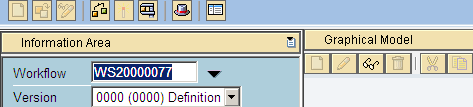
Figure 12
The workflow designer
In the next screen click the Start Events tab to view the details of the business object type and event (Figure 13).
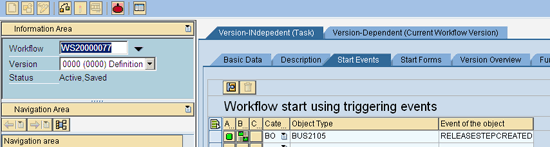
Figure 13
The business object type, event name, and active workflow
Now your workflow is configured to use. In this workflow, you use a standard rule AC 20000026 to determine an agent. You use Rule AC 20000027 for purchase orders. You use the same procedure to activate the workflow for purchase orders, except the workflow number is WS20000075, the business object is BUS2012, and the event is RELEASESTEPCREATED.
Fahim Ahmad
Fahim Ahmad is a senior ABAP consultant for Descon Engineering Ltd. He has master’s degrees in statistics and computer science from the University of Punjab in Lahore, Pakistan. He has 10 years of experience as a software engineer. Fahim specializes in ABAP enhancements and reports, workflow, RFC programming, interfacing, OLE, and SAP Web services configuration and development.
You may contact the author at fahim119@gmail.com.
If you have comments about this article or publication, or would like to submit an article idea, please contact the editor.




 Premium