Improve warehouse productivity and efficiency by streamlining your warehouse activities with wave creation logic and a wave monitor.
Key Concept
A warehouse pick wave consists of a group of deliveries or work packages that need to be processed together during picking. For example, these deliveries need to ship together on the same truck, or you need to pick these orders from the same warehouse pick zone. You can create pick waves either manually or automatically according to time criteria. Capacity or other restrictions can be taken into consideration when waves are formed. If the deliveries you need to pick are already assigned to shipments, you can refer to these shipments when the pick waves are formed by using the shipment number. This ensures all deliveries in one shipment belong to exactly one pick wave and that you are not allowed to distribute deliveries from the same shipment among different pick waves.
In today’s warehouse operations, the inbound and outbound workload is typically optimized to maximize warehouse use by providing the business services required at the right time and the right place. This requires careful planning and management of product movements through the warehouse. Wave processing allows you to take on many of the complex requirements high volume warehouse operations face in a variety of industries, such as retail or wholesale parts distributions.
One of my clients provides non-food products almost on a daily basis to national hotel and restaurant chains across the US. The company has six distribution centers nationwide processing several thousands of order lines per day that need to be confirmed and shipped within 24 hours. The most critical requirement in its distribution centers was to be able to process a large number of transactions (customer order lines) in a short period of time. Such high volume warehouse environments require the ability to schedule and optimize outbound shipments to get the maximum output throughout the day. The key to such warehouse operations is to optimize and group the large number of order lines and create warehouse pick waves to be processed efficiently.
Most people underestimate the capabilities of SAP ERP wave picking functionality during the design phase of an implementation. They think that the warehouse management (WM) application is just for creating transfer orders for picking material. I will show you how you can provide additional functionality with two enhancement options focusing mainly on the outbound process. With my enhancement options you can define specific picking waves based on wave rules that reflect your warehouse business processes.
Note
To achieve this goal, the SAP system has to apply the right set of business rules for grouping and sorting outbound deliveries. Some typical business rules to manage group deliveries into picking waves include grouping deliveries based on the combination of shipment types, routes, shipping condition, delivery priority, and transportation zones. All these criteria are used in the examples in my article.
Initiate Wave Picking
Typically, the standard SAP system without the custom wave rule logic provides something similar to what is shown in Figure 7. The system assigns deliveries to a wave based on basic weight or cube capacity limit rules for a wave. The standard logic creates only one wave per run until the maximum limit is reached. When the limit defined for the wave is reached, the rest of the deliveries remain unassigned until transaction VL35 runs again.
This functionality can be sufficient for small and less complex warehouse operations. Furthermore, you can manually handle some of the shortcomings of this functionality during your wave creation by selecting, or re-selecting, deliveries to be grouped into a wave for processing. However, if you have a warehouse that processes several thousand sales orders (or delivery lines) per day or in one shift, then this functionality isn’t possible.
The first step to unlocking the potential in your wave picking process is to look into the standard WM pick wave creation logic using transaction VL35. This transaction has a long list of useful selection criteria that allows you to retrieve the delivery notes that you need to generate specific waves (Figure 1).
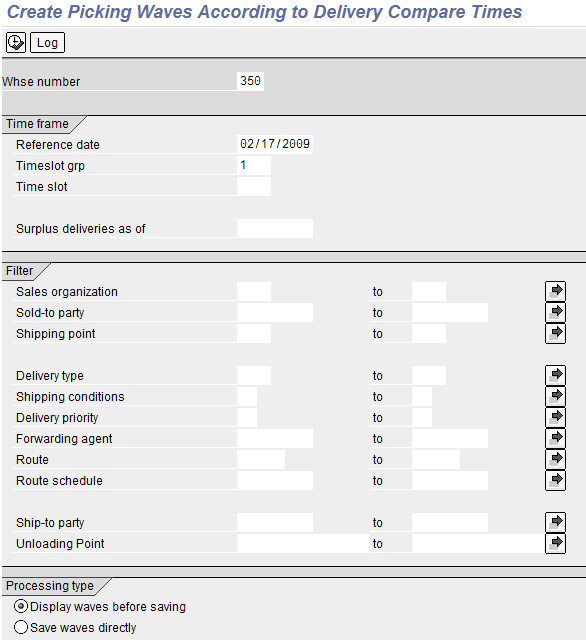
Figure 1
Initial selection screen for transaction VL35 (pick wave creation according to time criteria)
You can increase the flexibility of transaction VL35 to use it in a high volume warehouse operation. Figure 2 shows the core wave picking process flow. The process starts with the customer sales order generation. These sales orders are allocated and scheduled based on the availability of the ordered product. Then, the orders are converted to delivery notes when due to be processed by the warehouse. The delivery notes can now be assigned to shipments and then processed through the picking wave creation logic. Here is where you should position the enhancement of the wave creations.
Next, the release of the picking waves to the warehouse starts. This process is managed from the wave monitor where all activities for the outbound process are controlled. The monitor is used to manage replenishments required for the pick bins of materials belonging to a wave or release wave. The release creates picking warehouse transfer orders and prints pick tickets for the warehouse to process. The warehouse transfer orders for replenishments and/or picking can be processed via radio frequency (RF) transactions. Standard SAP RF transactions are available to process these warehouse transfer orders; however, depending on your warehouse processes customized RF transactions can be required.
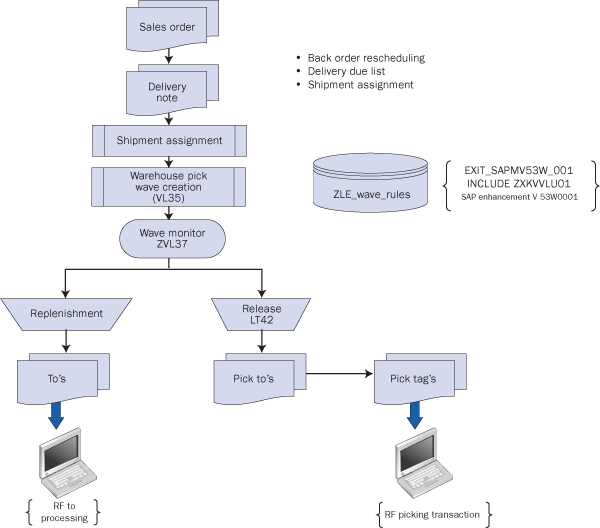
Figure 2
Process flow for wave picking
Here are the three steps to adjust transaction VL35.
Step 1. Activate user exit EXIT_SAPMV53W_001 for creation of pick waves. To activate this user exit, create an enhancement project via transaction CMOD and assign enhancement V53W0001 to the project. Enhancement V53W0001 has three user exits EXIT_SAPMV53W_001, EXIT_SAPMV53W_002, and EXIT_SAPMV53W_003.
Next activate user exit EXIT_SAPMV53W_001 from transaction CMOD. You use this user exit to create picking waves based on customized wave rules whenever transaction VL35 is executed.
Step 2. Develop the wave rule logic. User exit EXIT_SAPMV53W_001 contains include ZXKWLU01. The development to be placed within ZXKWLU01 should group the deliveries due to be picked into waves based on your business rules (wave rules). The wave building by the customized development within user exit EXIT_SAPMV53W_001 include ZXKWLU01 involves the grouping of deliveries based on wave rules as shown in Figure 5. See Download 1 (available in the Downloads section online), showing an example of the customized ABAP function module to implement wave rules within user exit EXIT_SAPMV53W_001 from a previous client.
Here is how the solution was structured. First I recommend that you create a custom Z-table to store and maintain the wave rules — an integral part of the enhancements — and build the wave rules similar to the SAP condition access sequence concept. The condition access sequence concept is a search strategy that SAP ERP uses to search for condition records valid for a condition type. Defining a Z-table to store the wave rules rather than hard-coding the wave rules in the ABAP code within user exit EXIT_SAPMV53W_001 will not only simplify the ABAP code. It also allows easy adjustment and maintenance of the wave rules with minimal or no changes to your ABAP code. This design provides more flexibility to make adjustments to wave rules in the future if required by your warehouse operations.
Figure 3 is an example of a custom wave rule table from a client showing the wave rule records defined for its warehouse operations to build picking waves. The customized ABAP development within user exit EXIT_SAPMV53W_001 searches through the wave rules Z-table to determine the best wave rule to use for grouping the deliveries due to be picked into picking waves. After the customized ABAP program within user exit EXIT_SAPMV53W_001 has completed the process of grouping the deliveries into waves, the system automatically passes these waves to transaction VL35 for further processing. Transaction VL35 generates the waves as proposed by the customized wave rule logic.
As mentioned, the concept of the wave rule Z-table simplifies the wave rule logic and provides flexibility for adjustments if business requirements change.
For example, I want to add a new wave rule for warehouse 310, shipment type Z001, and shipping condition 50. The new wave rule should be checked prior to the wave rule with sequence number 021. The wave rule with sequence 021 for warehouse 310 is defined as the combination of shipment type Z001 and shipping condition 40. I just add a new record to my custom table as shown in Figure 4. This record is assigned the sequence number 020. In my example, I manually determined the sequence number. This ensures that the system checks this record prior to sequence 021 as shown in Figure 3. The key for my wave rules Z-Table is warehouse and sequence number as shown in Figure 3.
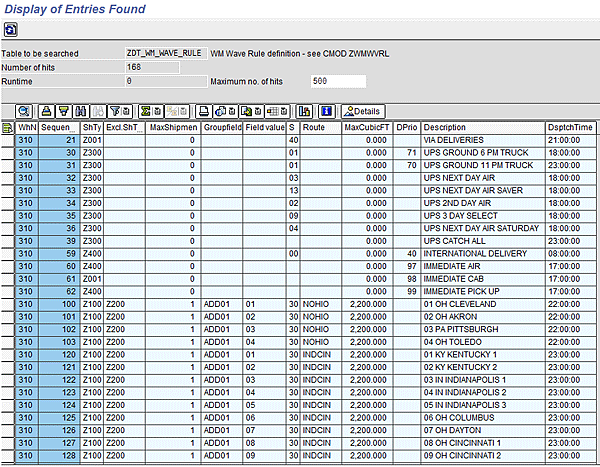
Figure 3
Wave rule table setup and records

Figure 4
Add a new wave rule
For my wave rules Z-Table in Figure 3, I primarily used reference fields from the delivery note and shipment tables LIKP and VTTK along with some custom data elements. For example, at this company’s warehouse, waves were not allowed to go across shipment types. Therefore, I added the shipment types as a field to the wave rule to my custom wave rules table.
The key to building the appropriate wave rule structure is to understand the operational requirements of your warehouse. That allows you to identify and build the optimum picking wave for your warehouse. Be sure to include additional fields that suit your wave rule requirements in the wave rule Z-table. For example, you might want to create special waves for a particular customer or transportation zones to allow the generation of picking waves specific to a delivery area. Likewise, if you want to process orders for your Tier 1 customers, it makes sense to add the customer ID to the custom wave rule table so you can create wave rules specific to customer IDs. These fields can be added via the standard SAP process of defining and creating a custom Z-table.
Once your customized ABAP code is in place within user exit EXIT_SAPMV53W_001 the system automatically invokes these wave rules during execution of VL35 to build picking waves. The custom code within the user exit works through the list of the deliveries in the user exit, analyzes each of them, and assigns the most appropriate wave rule.
The customized ABAP code assigns the deliveries due to be picked to the best matching wave rule until a limit/restriction of the wave rules is met. If the program encounters a limitation and more deliveries are available for grouping, the program starts a new wave for the rule to continue building picking waves. When the customized ABAP code analyzes and groups all deliveries are into a pick wave, transaction VL35 displays the pick waves to be generated for the warehouse. In Figures 5 and 6, you can see the result of wave creation with the user exit active.
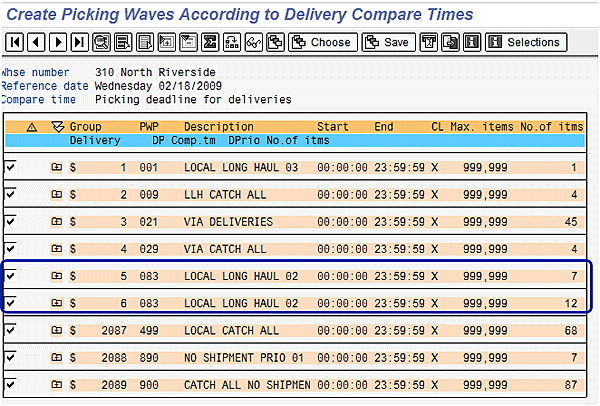
Figure 5
Example of waves proposed based on wave rules
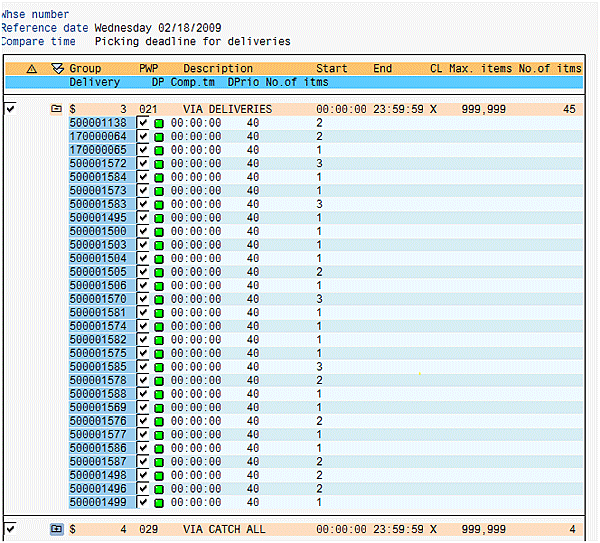
Figure 6
Detailed view of deliveries within a pick wave grouped based on above wave proposal
The standard SAP logic proposes only one wave, as shown in Figure 7. Here, the system selects deliveries 500000472, 500000819, 500000822, and 500001069. The remaining deliveries are not considered for this run because the total capacity limit — the cubic feet size — for this pick wave profile is 500 cubic feet. One reason for the capacity limit is that you don’t want to create a wave greater than the capacity of your truck. If you increase the capacity or set it to unlimited, you risk getting a gigantic wave, which defeats the purpose of optimizing the warehouse workload. You would have to run transaction VL35 multiple times until no more deliveries qualify for your selection to make sure the remaining deliveries are assigned to the wave. You can also manually select and include unselected deliveries into the current wave being generated. Either way, this is not a desired business process for a warehouse that processes a large number of delivery lines.
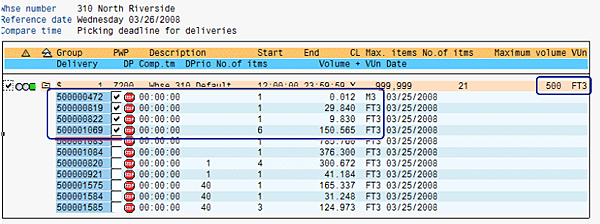
Figure 7
Example of a pick wave based on standard SAP logic
Now look at Figure 8, which shows the wave processing results for the same list of deliveries based on the proposed enhancement. All deliveries are assigned to an appropriate wave. The system grouped deliveries 500001584, 500001575, and 500001584 based on the rule number 021 (refer to Figure 4). One single run of transaction VL35 groups all deliveries, and the waves show up on the wave monitor for processing right away.
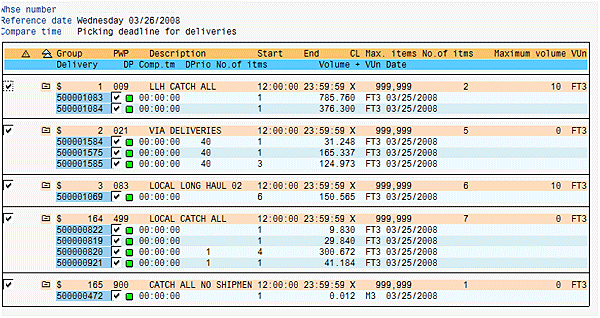
Figure 8
Wave creation with wave rule logic active
Step 3. Release the waves. The next step is to release these waves at the right time to the warehouse operations for processing. Use either transaction LT42 (standard SAP release logic) or call LT42 from the pick wave monitor, which has a button as shown in Figure 11 to execute LT42. The release and print logic creates the required warehouse transfer orders and generates any required warehouse paperwork (i.e., pick list or labels). These transfer orders (instructions) can then be processed via radio frequency (RF) transactions or as paper-based picking. I will not go into any further details of how to process the warehouse transfer orders or complete the delivery/shipments in this article.
Manage and Monitor Your Warehouse Pick Waves
The second enhancement allows you to manage and monitor the waves created via the first enhancement. Once the waves are released, it is critical to monitor the progress of the work that needs to be performed to complete the wave (i.e., picking status and packing status). This gives the outbound supervisor the ability to identify and address any issues. For example, if a wave cannot be completed by the time the carrier shows up, it can result in additional charges for transportation or delay subsequent waves. In the worst- case scenario, a shipment won’t be able to go out, causing customer dissatisfaction or possible order cancellation.
For the picking wave monitoring, SAP provides transaction VL37, which is a basic wave monitor transaction (Figure 9). It can be useful for less complex warehouses. However, this monitor is missing some critical information for typical high volume warehouse operations. Here are some examples of wave information that were critical to one of my previous clients:
- Type of shipment
- Delivery area
- Shipping condition
Look at wave number 6300000537 in Figure 9. It is not clear on the standard SAP wave monitor what type of a shipment is associated with the wave, nor any other specific information such as shipping condition or delivery routes.

Figure 9
An example of a standard SAP picking wave monitor
Click the Analysis of Groups button to retrieve more information about the wave (Figure 10). The standard SAP analysis of the picking wave doesn’t include enough wave-specific information. For example, standard SAP uses the wave creation date stamp for the wave group description (e.g., PW 04/15/2009). Finding out more information about the wave and its deliveries requires further analysis, which can be a cumbersome and time-consuming task.
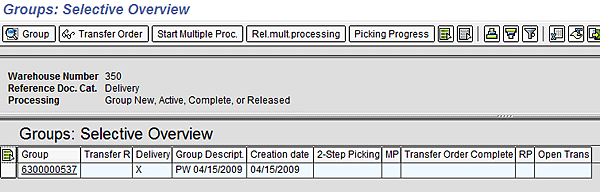
Figure 10
An example of a standard SAP picking wave monitor selective overview screen
Instead of using transaction VL37, I provide an example of how to build a custom, more advanced outbound monitor, much like an operations cockpit for the outbound supervisor.
Start with a copy of the standard SAP ERP program SAPMV53M for transaction VL37. Then, develop a custom monitor based on this program to present the critical data elements for your specific outbound processes.
Note
If you start building the new monitor with a copy of transaction VL37, you retain all the functionality transaction VL37 contains. You can then determine which standard SAP components should remain active or be deactivated.
Figure 11 shows an example of a customized monitor I created that was based on a previous client’s business requirements. In the customized monitor, the wave description for pick wave 6300000537 is IMMEDIATE AIR NEXT D, which means this pick wave contains immediate air shipments for next day delivery. This can be critical for managing and prioritizing the work to fulfill the orders of the respective wave.
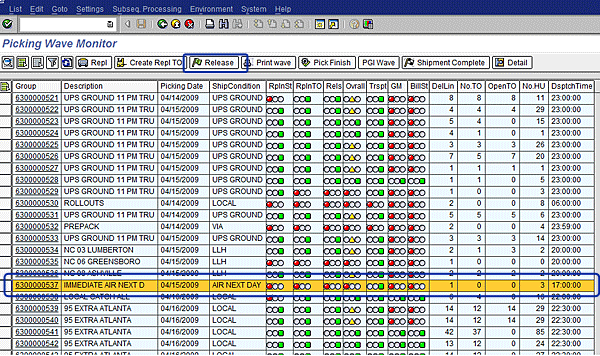
Figure 11
Example of the enhanced wave monitor
So how does it work? The custom ABAP subroutine determines the appropriate wave description showing on the customized monitor. This ABAP routine selects the correct wave description associated with the pick wave from the custom wave rule table ZDT_WM_WAVE_RULE. The wave description is part of the wave rule. When the system finds the wave description, the ABAP routine invokes the Z-table Z_FM_WM_PICK_WAVE_UPDATE_DESC to update database table VBSK with the description. This ensures that the system displays the correct wave description on your customized monitor.
For my earlier example of pick wave number 6300000537), the custom ABAP programming logic shown in Figure 12 determines the wave description IMMEDIATE AIR NEXT DAY. The ABAP routine selects the description of the wave rule in Figure 12 from the custom wave rule table ZDT_WM_WAVE_RULE for warehouse 350 of pick wave 6300000537 and sequence number 1.

Figure 12
Example of wave rules table with description
That’s just one part of the customization of your wave monitor. Any additional customization should be driven by your requirements. Here is some additional information you might want to include in your monitor.
- Replenishment Status: This status shows if prior to the release of the wave, transaction LP22 was executed to process any required replenishments for the wave. For example, at this client’s warehouse, except for full pallet picking, all picking is done from fixed bin locations.
- Replenishment TO Status: This status shows the status of the replenishment transfer orders related to the wave
- Overall Warehouse Management Status: Overall WM status based on the status of the TO line items associated with the wave
- Transportation Status: Transportation planning status based on the shipment status of deliveries of the wave
- Goods Movement: Goods movement status (post goods issue [PGI] status) of the delivery
- Billing Status: Billing status based on whether an invoice was created for the delivery
- Delivery Line Count: How many total line items must be picked for the wave
- Transfer Orders Count: How many transfer order line items to be pick/packed for the wave have been generated
- Open Transfer Orders Count: How many transfer order line items are still open, items remaining to be picked/packed
- Handling Units: Total count of handling units associated with deliveries of the wave
- Dispatch Time: Planned dispatch time of the wave and shipment carrier associated with the wave
Hasan Yakisan
Hasan Yakisan is a senior SAP LES consultant with more than 17 years of SAP implementation experience. During his career, he has focused on helping his customers optimize their logistics business processes by designing SAP solutions for highly complex logistics business requirements to maximize and enhance the functionality of the SAP R/3 product, and has been providing new solutions within the logistics area.
You may contact the author at hasan.yakisan@enowa.com.
If you have comments about this article or publication, or would like to submit an article idea, please contact the editor.