Learn the basics about how to set up workflows in Employee Central and get a high-level overview of the process. Learn the configuration details around workflow Foundation Objects in SuccessFactors Employee Central.
Key Concept
Workflow is a functionality that is provided at different levels by multiple HR software solutions as it facilitates the users’ various self-service transactions. Workflow functionality provided by SuccessFactors Employee Central is configurable to route the approval process to the desired employee or even groups of employees.
One of the significant areas in which any HCM software is evaluated is how it supports or improves a company’s business processes. In the case of SuccessFactors Employee Central, its workflow functionality can be used to support multiple business processes within a company. From the initial stages of hiring new employees, to promoting employees, all the way through to separation of employees from a company, there are standard HR approval and notification processes.
This process is where Employee Central’s workflow functionality adds value by giving users the opportunity to automate the approval and notification processes. For example, a manager who is proposing one of his or her direct reports for a promotion can do so by updating the employee’s record in Employee Central with the proposed position and compensation, and then submitting the promotion to be approved.
As I discuss the details of the SuccessFactors Employee Central workflow functionality, it should be noted that this feature is fully configurable. This means that it falls under the functional or configuration teams’ responsibility and can be managed in the same timeline as all the other functional requirements and configurations done within Employee Central. This is different from the on-premise SAP ERP HCM system workflows, which are part of the RICWEFW build and requires a technical team to build them, usually on a separate timeline. Employee Central’s streamlined workflow-building process allows companies to save time and money.
A very common scenario facing users is updating employees’ records. Whenever there is an update to any employee’s record there is an Event (called an Action in the SAP ERP HCM on-premise system) that is recorded in the employee’s record as well as in the system against this update.
In this scenario, I show the process for updating an employee’s job information in Employee Central. An employee’s job information change can be part of a number of different processes; for example, a promotion, demotion, or termination. In my example, the job information is being updated for an existing employee who is being changed from full-time to part-time. The process steps for making this change are outlined in (Figure 1).
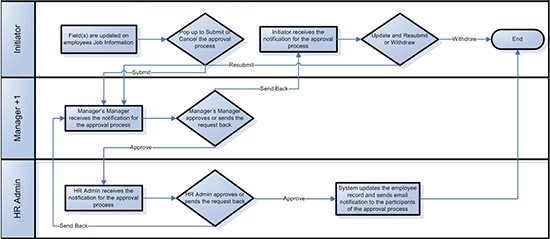
Figure 1
Process for updating full-time employee to part-time status
User Experience
Let’s take a look at what a workflow looks like once it’s triggered and through to the end, when it’s either approved or rejected. Following the process flow outlined in Figure 1, Robert Allen is a current full-time employee. In the screen in Figure 2 (the Employment Information page for the employee), click the Take Action button. This opens a list of options, shown at the bottom of the figure. Click the Change Job and Compensation Info option to select it.
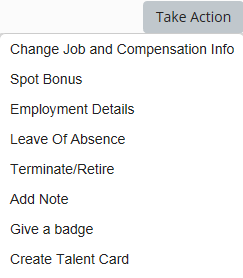
Figure 2
Choose the action
In the screen that appears (Figure 3) select the Job Information check box.
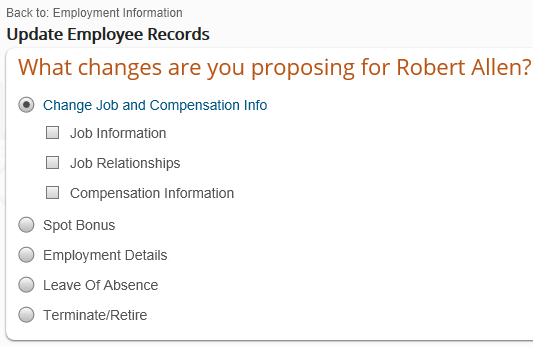
Figure 3
Select the job information changes
This expands the screen and shows all the Job Information fields (Figure 4). Select No from the Full Time field drop-down options and click the Submit button.
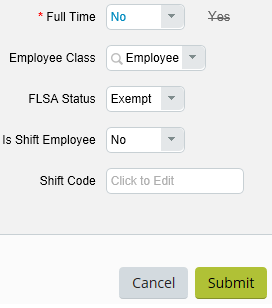
Figure 4
Update the Full Time field for the employee
Figure 5 shows the pop-up window that appears, asking the user to cancel or confirm the request—the initiation of the approval process. In this case, this workflow request is triggered by Robert Allen’s employee status change from full-time to part-time.

Figure 5
Initiate the Workflow
The submitter of this transaction has the option to make comments before confirming that he or she wants to initiate the approval process. The approval process here shows two approvers: Alexander Thompson and Nancy Nash. Alexander Thompson, the first approver, receives an email notification which is also configured. A line item shows up in his To Do portlet under Employee Change Requests (Figure 6).
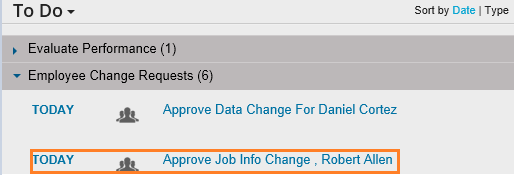
Figure 6
Portlet for to-do line items
From his To Do portlet he can access the actual approval request where comments can be added to the request, and it can be approved or denied. Upon Alexander Thompson’s approval, an email notification is sent to the second approver (Nancy Nash, in my example). This results in a line item being sent to her To Do portlet as well, and she, too, can add comments and approve or deny the request. If Alexander Thompson denies the request then the initiator of the request is notified via email and the To Do portlet is updated for all of the approvers. At that point the initiator of the request can resubmit the request or withdraw it.
Double-click the desired change request (Figure 6) and it opens up the actual approval screen (Figure 7). The screen is broken into distinct, easy-to-read sections that contain all the information for this approval request.

Figure 7
Manager’s approval screen
The first section of Figure 7 displays the details of the change request: When it was initiated, and what is or will be the effective date of the change. A link (View Workflow Participants) is also available to view the entire list of participants of this workflow (these are shown in Figure 5). The second section contains a brief snapshot of Robert Allen as well as his profile picture. The third section has the actual change displayed; in this example the Full Time field has been changed to No. The details in this section vary the most when compared with all other sections of the screen as it displays the actual change that initiated the approval process. The fourth section is where Nancy Nash can make comments and record her decision about the change request.
When the last approver approves or any approver sends back the change request, the initiator is notified of that decision via email. Initiators then have the choice to either withdraw the request or update the request and resubmit it. The fifth section shows the Activity level details of the approval process and any comments made during the process.
Instance Configuration
The remainder of the article covers, in detail, the workflow configuration steps required in the front end in the SuccessFactors Employee Central system. There are multiple steps required for successfully configuring workflows in Employee Central and, more importantly, to make them effective. It is important that users understand Employee Central’s approval process and also understand how to group existing employees as individuals and groups in order to facilitate the approval process.
Workflow configuration in Employee Central can be divided into two areas: What and who. The first area to configure is what triggers a workflow. The what part of the configuration is done in the workflow rules data model and is beyond the scope of this article. The second area of configuration covers who is involved after a workflow is triggered. I cover the “who” part of the configuration in this article. This is the basic workflow foundation object for the most part and it is done in the front-end user interface.
Note
Foundation objects are used to set up the organization and other elements that are used across the organization. Some common foundation objects are legal entity, cost center, job classification, and workflow.
Workflow Foundation Object Configuration Steps
So, how is a workflow triggered in Employee Central? From a system standpoint a workflow can be triggered by changes made to some of the fields in an employee’s record or by an Event performed on the employee’s records. This is the “what” part of the configuration discussed above. Once this information is gathered as to which fields, Events, and Event Reasons trigger a workflow, this is configured in the workflow rules data model. The workflow rules data model uses a unique workflow ID for each of the workflows. This same unique ID is used to configure the workflow foundation objects in the front end, which is the “who” part of the configuration.
To create a new workflow foundation object, follow menu path Admin Tools > Employee Files > Manage Organization, Pay and Job Structures > Create New (dropdown) > Workflow (Figure 8).

Figure 8
Workflow foundation object
The workflow foundation object (Figure 8), which is a single screen, can be divided into four sections:
- Workflow ID
- Workflow approval steps
- Workflow contributors
- Workflow notifications
Section 1. Workflow ID
The Workflow ID section (Figure 9) has the unique ID for the each of the entries made for the workflow foundation object, the name of the workflow, and a description. A unique workflow ID is created by the user every time a workflow foundation object is created or loaded as this is not generated by the system.
Note
The screens shown in Figures 9 and 10 are breakdowns of a single screen, captured in Figure 8.

Figure 9
Workflow ID section
Section 2. Workflow Approval Steps
During the workflow approval process there can be one or multiple approvers. The approvers are defined in the same order in which the approval process needs to take place, shown as steps in Figure 10.
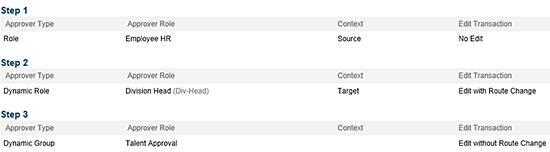
Figure 10
Approval steps
Each approval step has three parts to it:
- Configure the Approver Type and Approver Role
- Configure the Context of the approver
- Configure the workflow routing for the approver
I discuss each part in more detail below.
Configure the Approval Type and Approval Role
The Approver Type and Approver Role fields work in tandem (e.g., the Approver Role field is driven by the Approver Type field). The approvers can be one of three types. The first type of approver is someone who has a professional relationship with the employee for whom the workflow has been initiated. The Approver Type used in these cases is the Role and the Approver Role; in this example, it is Employee HR (Figure 10).
Note
The Approver Role is based on the job relationship as well as on the hierarchy of the employee. If any other individual needs to be part of the approval process then it can be configured using the Dynamic Role foundation object.
The second type of approver can be set up via a Dynamic Role; this is basically another foundation object itself. Based on who is assigned the Dynamic Role, the system determines which individual or group the workflow approval request is to be routed to. To create a new Dynamic Role foundation object, follow menu path Admin Tools > Employee Files > Manage Organization, Pay and Job Structures > Create New (dropdown) > Dynamic Role (Figure 11).
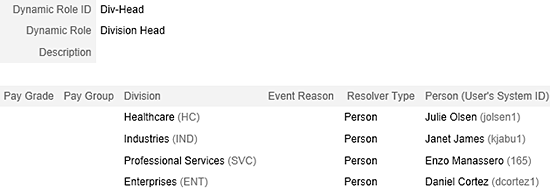
Figure 11
Dynamic Role
In Figure 11, the Division Head is the Approver Role that is used in step 2 of this workflow, which means the workflow is routed based on the employee’s division. A Dynamic Role foundation object can be configured based on a combination of different foundation objects or based on just a single foundation object. For example, a Dynamic Role can be created with a combination of Legal Entity and Pay Grade and, based on this combination, the Resolver Type is selected. In my example (the Dynamic Role Division Head), it is based only on the Division and the Resolver Type is selected for each of the divisions. Once the Dynamic Role is saved it can be used in the workflow foundation object (Figure 10).
The Dynamic Group is the third approver type and is configured separately before it can be used in the workflow foundation object. Dynamic Group configuration defines a group of people based on different elements such as Department or Cost Center. As the name suggests, this group of users will be sent the approval request. However, approval or rejection by any one of the members in the group is sufficient to move forward with the approval process. As soon as the first response is submitted by any one of the members of the group, the approval request disappears from all of the other members To Do portlets.
To create a new Dynamic Role foundation object follow menu path Admin Tools > Employee Files > Manage Workflow groups > Create New (Figure 12).
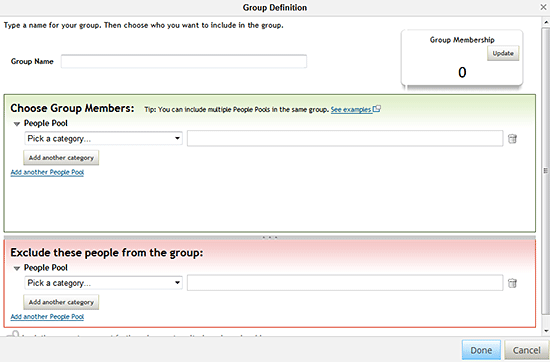
Figure 12
Dynamic Group definition
This opens the Group Definition pop-up window (Figure 12), where you create a unique group name. Enter the new name in the Group Name field. In the Choose Group Members section you select the members for this new group. In the first field (Pick a Category….), you make your selections using the drop-down options. In this example you are creating a group of employees based on country and, specifically, three Divisions within the country.
To select the country of the Dynamic Group, select Country. This opens the pop-up window in Figure 13. Once you’ve set up your Dynamic Group by country, click the Done button to save your changes to this particular category. Note that any time you choose a category in the include (Choose Group Members) or exclude (Exclude these people from the group) section (Figure 12), a pop-up window opens (Figure 13). The searchable values that are available depend on the categories you selected from the drop-down options in Figure 12.
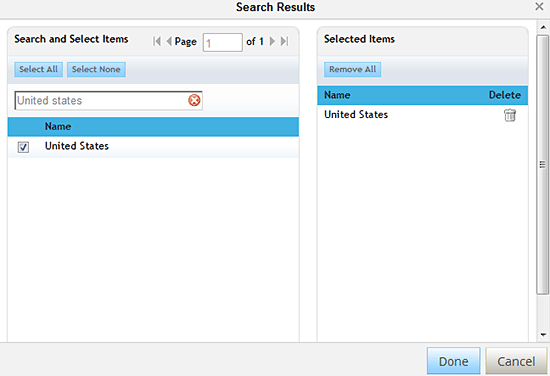
Figure 13
Country category in the Dynamic Group
By following these same steps, other categories can be added to define the group members. Figure 14 shows a Dynamic Group that is made up of all the employees by Division (e.g., Corporate, Global Services, Global Services [SVS], Healthcare [HC], Industries, and Professional Services [SVC]) under the country United States.
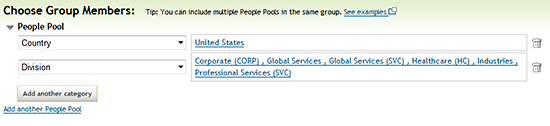
Figure 14
Dynamic Group members
After the members of the Dynamic Group are defined, you can exclude certain members from the defined group if required. This is done following the same steps used for adding the members to the Dynamic Group except these steps are done in the Exclude these people from the group section. You do this when you want to narrow down the group to meet requirements. This can be done based on the same elements you used to define the group. In Figure 15 you see that employees from Chicago and New York who are in the Client Service (SVCS) and IT departments are excluded (removed) from the Dynamic Group.

Figure 15
Dynamic Group exclusion
After the inclusion and exclusions (if any) are defined, press the Done button which saves the Dynamic Group configuration. Once the Dynamic Group is saved it can be used in the workflow foundation object (Figure 10).
Configure the Context of the Approver
The second thing that needs to be configured in any of these approval steps is the approver context. This is a field with two drop-down options: Source and target. This field gives flexibility as to where the approval should be routed (either to the employee’s current HR department or manager or to the future HR department or manager) based on the Approver Role.
Step 1 of Figure 10 shows the Context is set as Source, which means that the approval request is going to be routed to the employee’s current HR manager. In Step 2, when the Context is set as Target, the approval request is sent to the future Division Head.
Configure the Workflow Routing for the Approver
Once the system triggers the workflow of the approval process, each approver may or may not be able to edit the workflow, depending on the options you choose. The last field in an approval step is the Edit Transaction field which is configured using the following three values:
- No Edit: Selecting this option means the approver cannot make any changes to the workflow.
- Edit with Route Change: The Approver is able to make changes to the workflow and, as a result, the approval process for this item begins all over again.
- Edit without Route Change: The Approver is able to change the workflow, but the approval process continues as per the configuration and it cannot be re-routed.
Section 3. Workflow Contributors
Workflow contributors can make comments and view the approval process but are not allowed to actually approve or reject the initiated transaction. There can be just one or multiple contributors configured for each workflow. In Figure 16 you see that there are two contributors for this workflow. The first is the employee’s current Matrix Manager and the second is an individual named Carla Grant.

Figure 16
Workflow contributors
Note
The screens shown in Figures 16 and 17 are breakdowns of a single screen, captured in Figure 8.
There are only three fields that need to be configured for the contributors. These are the same drop-down fields that were used in the approval steps section, discussed above, but with different names: Contributor Type, Contributor, and Context. The only differences are in the Contributor Type and Contributor fields. In the Contributor Type field, there is a new option for Person (in addition to Role, Dynamic Role, and Dynamic Group). In the Contributor field, it now includes a list of all the active users in the system if Contributor Type is selected to be Person from the drop-down option.
Section 4. Workflow Notifications
The last step of the workflow foundation object (Figure 8) is the configuration of the CC Role. The purpose of this is to send an email notification of the workflow to someone who cannot otherwise view the approval process; in other words, they cannot make changes to the workflow, but they are notified when something is initiated for specific employees. This feature is helpful in scenarios where a simple notification is required.
For example, for users who have a career mentor program where mentors are assigned employees to whom they can talk informally, but who are not part of the same team or work group. In such a case, if an employee gets a pay increase then the mentor is informed using this feature. Although the mentor does not directly have any steps in the approval process, the company may want to keep them in the loop regarding changes to their mentees’ status (e.g., an FYI notification).
The configuration of the CC Role is the same as the Approver and the Contributor roles, except you configure these three drop-down fields: CC Role Type, CC Role, and Context. The CC Role field also has an additional drop-down value, External Email, which permits the use of the email address in the CC Role to forward the notification (Figure 17).

Figure 17
Notifications
After all three sections are configured, click the save button (Figure 8), which saves all the changes made during the configuration of the workflow foundation object.
Note
It is important to point out that the sequence of this configuration is based on the configuration of the workflow foundation object screen. However, to make sure the configuration of the workflow foundation object goes smoothly, I recommend you follow the sequence below.
- Define Dynamic Groups: Groups can be configured based on functional areas, geographical areas, and many other criteria. A good example of a Dynamic Group is a Compensation Center of Excellence where the members of the group are in the same functional area but at different work locations. This should be designed based on how the users want to use these groups in the approval or notification process.
- Define Dynamic Role: A very robust and flexible option to configure roles that are not part of an employee’s direct professional relationships. For example, in a company with a few hundred locations there are location HR representatives and functional area HR representatives. Therefore, in the employees’ profiles, the HR representative is based on the functional area, but if that employee is transferred from Chicago to San Antonio the location HR approval can be sought based on the Dynamic Role.
- Workflow: Configure the actual workflow at the very end so that all the Dynamic Groups and Dynamic Roles are available to use if needed during the approval or notification set up.
Syed Aftab
Syed Aftab has been working with SAP ERP HCM for six years on implementation as well as production support projects. His emphasis is on the different SAP Payroll system process areas and he is also a functional RICEFW lead. Syed is SuccessFactors Employee Central-certified associate and is currently working on global implementations.
You may contact the author at danish_aftab@hotmail.com.
If you have comments about this article or publication, or would like to submit an article idea, please contact the editor.



 Premium