During configuration, a transport (or change request) can pick up more changes than the configurator intended, thus causing system errors. The author explains the potential for mistakes and how to avoid them when using automatic change requests in the Change and Transport System (CTS).
Not too long ago, an experienced R/3 configurator came running over to me with a panicked look on his face and said, "All the inventory postings are suddenly going to the wrong G/L accounts in the production system! I don't know what happened. I only transported one MM account assignment change last night!" To his credit, he had indeed followed the standard configuration protocol used at most R/3 sites: make a configuration change, successfully test that change in the development and quality assurance systems, and then move it to production. So what went wrong? Two things.
First, the automatic change request generated by the Change and Transport System (CTS) picked up more than just the single account change that my colleague had made. It picked up the entire set of G/L account assignments within that area of configuration. Second, my colleague never checked the contents of his change request to ensure that it contained what he thought it should. He thus unwittingly transported other configuration changes along with his own, something that his testing did not reveal because he tested only the change he had made.
Let me show you how to avoid the situation I just described. You will learn how the CTS system works for configuration, what problems can occur when using automatic change requests, and how you can overcome these problems by displaying and editing the contents of transports (the common term used for describing change requests).
The stated purpose of CTS is to keep track of changes to an R/3 system and to aid in the movement of those changes to other R/3 systems. Why, then, does CTS sometimes transport more or less than configurators expect for any given transport? The most common reason is that configurators rely entirely too much on something known as automatic change requests to correctly record their changes.
Any experienced configurator is familiar with these and probably uses them every day. Automatic change requests are triggered by changes to configuration in the IMG if a client's Basis settings have been maintained to require them. These settings are normally turned on for any gold client, which serves as the repository for all configuration that will move to another system. The settings are normally turned off for any sandbox clients whose configuration changes are not meant to be recorded or transported anywhere.
How CTS Works
To understand the issues created by relying too much on automatic change requests, you need to have a good understanding of the basic concepts of CTS. The change request (known more commonly as a transport) is the fundamental vehicle for carrying changes from one client to another. Think of it as a suitcase. The suitcase/transport does not actually contain anything until the moment it is released. Until that time, it only contains pointers to specific places on the Basis side of R/3, such as to a specific row or rows in a table, or to entire tables, programs, etc. At the time of transport release, the suitcase is filled with whatever contents are in those locations at that specific moment.
The common misconception that individual transports are "filled" immediately at the time that configuration changes are saved often leads to problems when there are multiple transports pointed at the same items. This can happen when, in addition to using automatic change requests, either manual transports are created or special transport utilities are used that bundle all the configuration in an area. One example of these utilities is the transport operating concern option for Profitability Analysis. People who believe that transports are filled at the time they are created sometimes try to sequence their release to achieve a particular result — which sometimes does not happen if the configuration is the same at the time as when the transports are released.
Here's a simple example:
- At 8 a.m., transport DEVK910257 is created when the field assignment number is set to suppressed in field status group G001
- At 10 a.m., the assignment number is changed from suppressed to required entry in field status group G001
- At noon, transport DEVK910285 is created manually for the purpose of including the definitions of all field status groups (including G001)
- At 2 p.m., transport DEVK910285 is released and processed
- At 3 p.m., transport DEVK910257 is released and processed
- The end result in the target system is that the assignment number in G001 has the status of required instead of suppressed because that was the configuration setting at the time both transports DEVK910285 and DEVK910257 were released
The automatic change request automatically creates pointers to certain items in R/3 based on both the configurator's actions as well as some technical constraints. This causes the following problems:
- Anything that a configurator edits can sometimes be included in a transport — regardless of whether a change was made in the end. For example, if a FI/CO configurator changes the cost center that configuration transaction OKB9 will automatically assign to a particular G/L account and then changes it back to the original cost center, that row is still included in an automatic change request. This may or may not be a problem, but the configurator should be aware that when the transport is released, it picks up the current setting for that item and overwrites whatever setting exists in the target system.
- Sometimes, the automatic change request creates a pointer to more than just those particular items that a configurator edited. For example, when automatic posting accounts are configured in transaction OMWB for material movements, the insertion or change of a single account within an entire area such as BSX (inventory posting) triggers all the configuration for BSX to be included in the transport. This is a particularly dangerous aspect of automatic change requests.
- The automatic change request function often requires only a single transport to be open (unreleased) at a point in time for a given configuration area such as G/L document type maintenance. The ramification of this is that the configurator is not always prompted for a different change request every time a configuration change is made. The system automatically assigns the new change to an existing transport that references that area. Changes for multiple projects can sometimes thus be unintentionally assigned to a single transport and be transported together to a target system.
Given that these pitfalls exist in the CTS system, how is it possible to avoid them? The answer is simple: Inspect the contents of any transports prior to releasing them, and edit them as necessary to yield the desired result. To inspect your transports, you need access in your development client to one of the various transactions that can be used to view/edit transports in CTS, such as SE01, SE09, or SE10. Using any of these transactions, open up a single customizing transport (or list of transports) and expand it to see the included tasks.
Use an unreleased transport if you want to practice editing it. Then click once on the task number that you would like to inspect and choose the list icon just to the right of the trash can icon to display the object list. (Figure 1.) You also can use the 4.6C menu path Request/Task>Object List>Display Object List. This brings up the list of technical objects that are assigned to the task.

Figure 1
Navigating to the object list for a transport
Each technical object is described by a combination of program ID (PgmID), object type (Obj), and Object name. (Figure 2.) It's not important at this time to understand precisely what each of these is or does. Just know that these fields are the system's way of identifying the object for which something will be transported. In customizing, you most often see the combination R3TR/ TABU/Txxx, which represents table contents (TABU) from a T configuration table. You may also often see combinations of R3TR/VDAT/V_xxx, which represents table contents from a view (a virtual combination of several configuration tables).
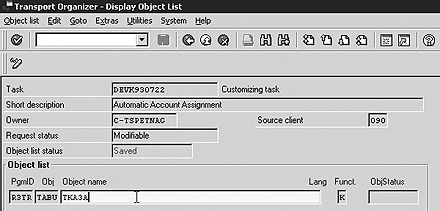
Figure 2
Object list displayed
From the object list, you can double-click on any row to go to the key list for that object (for those object types which support it, such as TABU and VDAT), which spells out more precisely what is transported if this transport is released. (Figure 3.) To fully comprehend the meaning of the key list, it's necessary to understand how configuration is stored in the SAP database.
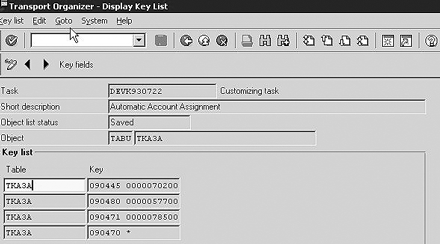
Figure 3
Key list displayed
Most customizing changes made through the IMG are client-dependent, meaning that the customizing settings can vary for different clients that are on the same SAP instance. They are stored in the SAP database as changes or additions to rows in standard SAP configuration tables, whose names typically start with a T. To handle client dependency, the first column in many of these tables is the client number. The other columns contain the configuration settings. The combination of columns that makes a row unique in any given table is called the key. For example, the key for configuration table TKA3A (which holds the automatic account assignment settings) is client number/company code/cost element. It is this combination of items that determines what cost center, order number, and other columns in the configuration table are automatically assigned to an item during a G/L posting.
The key list spells out precisely which table entries (e.g., configuration items) are included for an object when the transport is released by identifying the row keys. Each key is displayed as a text string, which is not very meaningful at first glance. Double-click on a key to see a display that lists the individual field names. (Figure 4.) Use the green arrow to back up to the first key list screen or the object list screen.
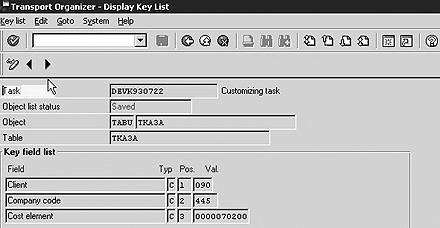
Figure 4
Key list with field names
Each key list may include several keys for several table rows that need to be transported. Keys may also sometimes include a wildcard character * to represent "all values." As an example, for table TKA3A, a key of 090470 * would indicate that all the rows for client 090/company code 470/all cost elements would be transported. To display the full configuration contents for any keys that are listed, it is possible from the key list screens to use the special menu options Goto>Display table contents>Specified by request (or Specified by key). (Figures 5 and 6.)
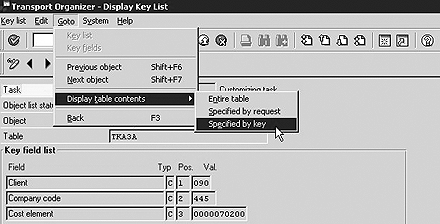
Figure 5
Displaying the table contents for a transport
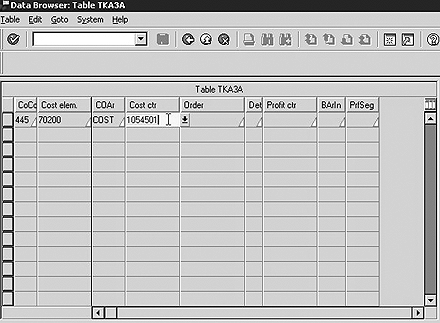
Figure 6
Table contents configuration displayed
Both the object list and key list can be edited in order to include or not include items as necessary. Editing the key list for an object is as easy as placing the screen in change mode via the pencil icon so that the insert and delete icons appear (the icons with + and – signs, respectively). Once you have done that, you can make changes to existing items, delete them, or insert new ones. Click on the save icon when you are finished with any changes. You can even use the wildcard character *. For example, for object TKA3A, you could manually insert a key for 090480 * to add all the automatic account assignment configuration for company code 480. (Figure 7.)
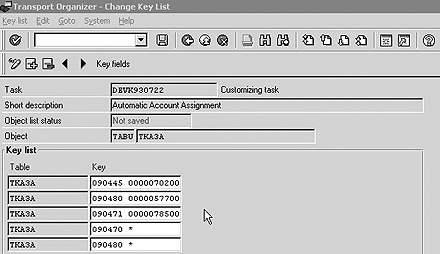
Figure 7
Adding a key to the key list
Tip!
When you add or change keys in the key list, make sure to specify the appropriate client number, and avoid transporting entire tables (such as would happen with a key of 090 * in my example) whenever possible.
Editing the object list is nearly the same as editing the key list from a functionality standpoint, but there is the additional difficulty. You need to know the specific combination of program ID, object type, and object name for any object that you want to add. Again, for configuration table contents, the combination of R3TR/TABU/tablename should work. (Figure 8.) You also need to add the necessary keys for those objects in the key list of course, and always save your work after you make changes. (Figure 9.)
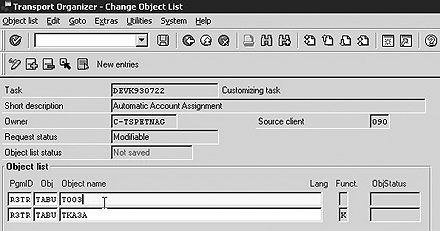
Figure 8
Adding a new object to the object list

Figure 9
Adding keys for the new object
Tip!
To access some of the advanced features of CTS in your development instance from the main screen of transaction SE01, SE09, or SE10, click on the tool icon or use the menu option Goto>Transport Organizer Tools. A number of special programs related to CTS are listed there together with some documentation that explains what they do and how to use them. Right-click on a program and choose documentation in the pop-up box that appears. With these programs, which deliver advanced CTS reporting and editing capabilities well beyond what is covered in this article, you should be able to execute just about any CTS-related function that you could desire.
In summary, the automatic change requests that R/3 generates are helpful, but should always be inspected and edited if necessary before being released to a target system. The CTS system is extremely flexible and this article has only scratched the surface when it comes to what you can do if you really want to get the most out of the CTS system. If you want to learn more, contact your local Basis administrator. That individual should be able to show you how to do even more advanced techniques, such as merge transport requests, move tasks from one transport to another, use the CTS reporting system to find all the transports associated with a particular object, and so on.
Tom Spetnagel
Tom Spetnagel, a former platinum consultant and top performer for SAP America, is a specialist in R/3's Controlling module. Since 1995, Tom has helped several major R/3 customers implement CO and has taught a number of Profitability Analysis and Product Costing classes at SAP training centers as well. Tom is currently the senior FI/CO configurator at Cox Target Media near Tampa. He has both an MBA and a master's degree in aerospace engineering from Georgia Tech and an undergraduate degree in aerospace engineering from the University of Michigan.
You may contact the author at thomas_spetnagel@coxtarget.com.
If you have comments about this article or publication, or would like to submit an article idea, please contact the editor.