Most businesses that use the pricing procedure in the SD module realize its value, yet few are aware of its full potential. In this article, the author uncovers the best secrets offered by the pricing procedure. Specifically, he describes how to optimize statistical conditions, alternative calculation types, and subtotals.
The pricing procedure, which calculates the price of an item being sold, is one of the most powerful configurations in
the R/3 Sales and Distribution (SD) module. What makes the pricing procedure so powerful is that it is flexible and
provides numerous options to meet complex pricing requirements.
This is no secret to businesses that use SD, but even so, the pricing procedure has a few hidden strengths
that SAP's documentation does not adequately cover. In particular, the pricing procedure has features that use statistical
conditions and alternative ways of calculating the condition values that you might not be aware of. With a business case,
I will demonstrate how you can exploit these capabilities to satisfy complex business requirements. The biggest advantage
of using this method is that you can enrich your pricing procedure and add information without changing the existing
calculations or postings. You can then use this information for further analysis without writing custom code or user
exits.
First, let me review a few pricing
procedure basics that are relevant to this article. Figure 1 shows an abbreviated example
of typical pricing
procedure, with a few components shown as columns. Put simply, a pricing procedure consists of various
condition types and the total of all condition types that make the price of the item being sold (a sale price). A
condition type (CType) is a category of prices, discounts, surcharges, and taxes. Typically, the value of
a condition type is populated in one of two ways: by manually entering the condition value in the pricing
procedure or automatically by a condition technique, which is the more popular method. I've assumed that you
have a basic understanding of how the condition technique works and how the R/3 system finds condition records to
calculate condition values.
| 10 |
PR00 |
Base price
|
|
|
|
|
|
ERL |
| 20 |
PB00 |
Price (gross)
|
|
|
|
|
|
ERL |
| 30 |
PR10 |
Price adjustments
|
|
|
|
|
|
ERL |
| 100 |
|
* Gross value for item
|
|
|
|
1 |
|
|
| 105 |
KA00 |
Sales promotion
|
|
|
|
|
|
ERS |
| 110 |
ZD11 |
Seasonal discounts
|
|
|
|
|
|
ERS |
| 115 |
K005 |
Customer/material discounts
|
|
|
|
|
|
ERS |
| 120 |
K007 |
Customer discounts
|
|
|
|
|
|
ERS |
| 125 |
ZD12 |
Seasonal customer discounts
|
|
|
|
|
|
ERS |
| 200 |
|
* Total discounts
|
101 |
199 |
|
|
|
|
| 800 |
|
* Net value of item
|
|
|
|
2 |
|
|
| 940 |
VPRS |
Internal cost
|
|
|
X |
B |
|
|
| 950 |
|
* Profit margin
|
|
|
|
|
11 |
|
|
| |
| Figure 1 |
Sample pricing procedure |
|
The pricing procedure is read from
left to right and from top to bottom. Rows with condition types are populated. Rows that I've marked with
asterisks (*) get their value from calculations within the pricing procedure and typically represent the addition or
subtraction of the values of higher rows. ActKy is mapped to either a revenue or discount
general ledger (G/L) account.
Business Case
Let's take a typical example of tracking discounts. The pricing procedure offers a wide range of options
to handle such special prices and discounts. It is common to see many
condition types representing different
discounts being offered. Figure 1 shows a few in row 200.
As a sales manager, I might want to analyze how seasonal discounts performed against overall discounts, or
whether my seasonal discount offers really boosted my sales. With reference to Figure 1, my seasonal discounts that I want
to analyze are the total of ZD11 and ZD12 (rows 110 and
125).
You might correctly argue that by keeping seasonal discount condition types together sequentially, you can
easily total them (as is done in row 200). In real life, however, totaling the condition types is not as
simple, because the condition types need not be arranged sequentially.
SD's little-known Stat (statistical
conditions), SubTo (subtotals), and AltCTy (alternative calculation type)
features allow you to tweak your pricing procedure so that you can analyze the seasonal discounts program without
adversely impacting the existing pricing calculations.
Statistical Conditions
Statistical conditions are purely for informational purposes. They are not real conditions in the sense
that they do not change the net pricing calculations related to billing your customer. Also, values of these statistical
conditions do not post to G/L accounts when the sales order's billing document is generated. So why bother having
statistical conditions in the pricing procedure?
While processing pricing procedure calculations, it may be necessary to determine and make the values in
the pricing procedure available for further calculations. However, these values should not change the net value of the
item. A common example is marking condition VPRS as Stat in the pricing procedure
(Figure 2). VPRS represents the cost of the material (standard or moving average cost).
Naturally, you do not want it to be included in the sale price calculations for the customer, but would like to see profit
margin. So you make this condition statistical.

Figure 2
Statistical condition VPRS in a typical pricing procedure
Alternate Calculation Type
By default, R/3 calculates a value for each condition type using an access sequence or by manually
entering the value. You can override this using the AltCTy flag in the pricing procedure. The idea of
using AltCTy is that you want to ignore the default calculation method and use the alternative
calculation method. Alternative calculation types are routines or rules identified by numbers. You can maintain these
routines via transaction VOFM.
This option might seem strange. What is the point of having a condition type in the pricing procedure if
you are going to ignore it? The primary reason is that you want to customize the calculation used.
A common example is to determine profit margin (Figure 3). Note that Profit
Margin is not entered manually and cannot be derived from a condition technique. Calculating profit margin is a
simple mathematical formula of revenues minus costs. SD's AltCTy routine 11 carries out
this
calculation. In Figure 3, komp-netwr represents the net value, and komp-wavwr
represents the costs. The difference is assigned to variable xkwert, which is assigned to routine number
11.
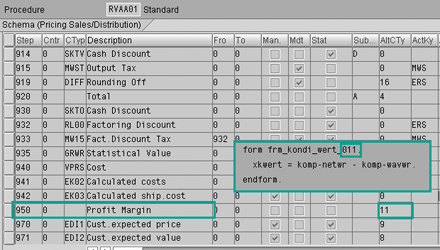
Figure 3
Profit Margin is calculated via AltCTy routine 11
Subtotals
SubTo lets you calculate and temporarily store subtotals of important condition values during the pricing
calculations. You enable running subtotals by assigning SubTo variables to any row in a pricing
procedure. That row's value is then stored in special fields. R/3 is delivered with more than 20 such variables designated
by codes 1, 2, … 9…A, B, M, etc.
Note
Subtotals 7 through C are reserved for special purposes and should not be used for custom purposes.
Which variable the subtotal is placed into depends on the SubTo code you specify.
Figure 4 shows that the value of row 100 is carried over to SubTo
variable 1, which means it stores the value in KOMP-KZWI1.
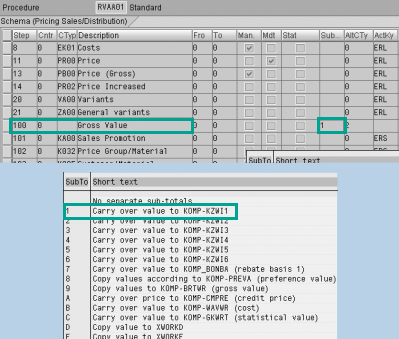
Figure 4
SubTo variables and corresponding fields
Tip!
If you use SubTo variable code 1, 2, 3, 4, 5, or 6, these values are also permanently stored in table VBAP (sales document: item data) and are available for custom reports or for export to SAP Business Information Warehouse (BW). Note that standard SAP pricing procedure RVAA01 stores the gross value to VBAP- KZWI1.
The two main objectives of subtotals are:
- Calculate the sum of more than one pricing procedure row when the rows are not sequential. For example,
if you want to add the value of ZK11 and ZK12 shown in Figure 5, you
would assign SubTo variable E for each of these rows. The sum of ZK11
and ZK12 is then stored in special field
xworke.
- Access subtotals within an alternative calculation routine. Within an alternative calculation type, you
can't refer to specific condition type values using their row numbers. Instead, you use these subtotal variables. As shown
in Figure 6, subtotal variable D can be accessed in AltCTy calculations
such as
xworkd.
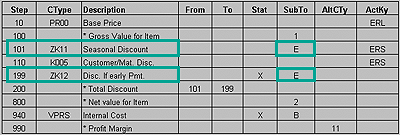
Figure 5
SubTo variable E sums the totals for ZK11 and ZK12 in xworke
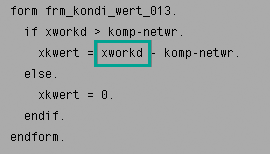
Figure 6
Use of subtotal of variable D within an alternative calculation type
Solving the Business Case
Now let's use the features of these three components of pricing procedure as building blocks for
implementing the methodology for my sample business case. The total of conditions ZD11 and
ZD12 is temporarily stored in memory variables. You use a SubTo variable to store the
value.
You need a separate condition type,
say ZD99, to report the totals of ZD conditions. So that the values of
ZD99 do not affect other pricing calculations, make ZD99 condition a statistical
condition.
The value of ZD99 is not calculated manually or by a condition technique, but is derived
based on the value of a temporary variable. To do that, an alternative calculation type routine calculates the value for
ZD99. Let's put the pieces together:
Step 1. Assign SubTo variable D to rows with condition types ZD11 and ZD12. This step
stores the totals of
specific condition type values to a
temporary variable, which in turn can be used for further calculations. Use transaction
V/08 to assign SubTo variable D to these rows. This causes R/3 to store
the total values of ZD11 and ZD12 in the temporary variable xworkd. You will later use
this variable in our AltCTy calculations. Note that the variable xworkd adds (accumulates) the values of
condition types ZD11 and ZD12 and the total is stored for further calculations.
Step 2. Use transaction VOFM to
create a user-defined Condition value formula routine (transaction VOFM> Formulas>Condition value) and
assign a customer-range number, say 991. The objective of this step is that the value of xworkd (the
total of ZD11 and ZD12) can be assigned to a condition type as an alternative method.
Add a code assigning the variable xworkd, as shown below. Save and activate the routine
(Edit>Activate).
Figure 6
Use of subtotal of variable D within an alternative calculation type
Step 3. Create a condition type ZD99 (transaction V/06). The objective here is that
condition type ZD99 is used as the placeholder to calculate the totals of the condition types
ZD11 and ZD12. Copy the condition type PR00 (highlight the
PR00 row and then choose from the menu bar Edit>Copy as). You do not need an access
sequence, as its value is calculated separately with the help of a routine as described in step 2. ZD99
is used for storing a value. So blank out any value in the Access Sequence field that was copied into
your ZD99 condition type and then save.
Step 4. Assemble the above building blocks to tweak the pricing procedure. Use
transaction V/08 and follow these steps:
- Add a condition type ZD99 to the pricing procedure as a separate row, say row
850.
- Mark the ZD99 condition as Stat for row
850, as you don't want its
calculations to adversely influence the pricing calculations. Remember, the statistical conditions do not
change the net value calculations and do not post to G/L accounts. Your FI account postings — i.e., revenue account
determinations — are not affected.
- Specify 991 in the AltCTy field for row 850, so that
system knows that the value of ZD99 is derived by an alternative formula. VOFM routine
991, created in step 2, assigns the value of variable
xworkd to condition type
ZD99.
- Assign SubTo variable 6 for row 850. Recall that the
values of variables 1 to 6 are permanently stored in table VBAP. The
value of ZD99 is stored in table VBAP-KZWI6, which in turn can be transferred to BW for
further reporting if required.
The revised pricing procedure looks like Figure 7.
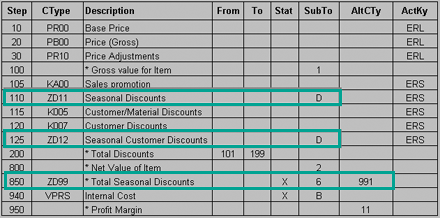
Figure 7
Tweaked pricing procedure to determine the total seasonal discounts
As the sales orders are processed, the calculations are done with tweaked pricing procedure and the total
seasonal discounts are stored in table VBAP in field KZWI6. As this information is
available in an R/3 table, you can easily review it by using transaction SE16, designing a custom report,
or exporting data to BW to create a report.

Mitresh Kundalia
Mitresh Kundalia heads the SAP practice at Quality Systems & Software (www.QSandS.com), a consulting firm specializing in SAP S/4HANA, SAP General Ledger, and complex System Landscape Optimization (SLO)-type reorganizations. Mitresh is widely acknowledged as a leading SAP expert, with multiple publications and an SAP-PRESS book to his credit. He has published more than 50 peer-reviewed articles and white papers, and he has given presentations at various SAP conferences and events. Mitresh is the chief solutions architect of General Ledger Migration Optimizer (GLMO), a leading product to accelerate and jump-start the SAP S/4HANA and SAP General Ledger initiatives; SAP Data Reorganization Optimizer (SDRO), an SLO-type product for managing complex system landscape reorganizations; and Group Currency Activation and Conversion (GCAC), a product suite to manage introduction of parallel currencies and conversion of data in a live SAP system.
You may contact the author at Mitresh@QSandS.com.
If you have comments about this article or publication, or would like to submit an article idea, please contact the editor.



 Premium