Over time every BW developer needs to write ABAP in SAP NetWeaver BW to be able to meet user requirements. ABAP might be required in a start routine, end routine, expert routine, InfoPackage, Data Transfer Process, Analysis Process Designer, query, or field. Get basic knowledge on how to write ABAP code and the differences between each routine method.
Key Concept
Start routine is a routine in transformation that is executed before transformation is executed. End routine is a routine in transformation that is executed after transformation is executed. Expert routine is a routine in transformation that is itself the transformation. In other words it contains all three: start, end, and actual. SOURCE_PACKAGE is a structure that contains the inbound fields of the routine. RESULT_PACKAGE is a structure that contains the outbound fields of the routine. APD is a workbench with a graphical user interface (UI) for creating, executing, and monitoring analysis processes.
SAP NetWeaver BW provides user exits throughout the system to take advantage of custom coding add-ons and to be able to meet user requirements. After reading this article, BW developers should be able to develop an idea of when to use ABAP code using different routine methods. I show the differences between the major methods for ABAP in the following:
- Start routine
- End routine
- Expert routine
- InfoPackage
- Data Transfer Process (DTP)
- Analysis Process Designer (APD)
- Query variable
- Transformation fields
- Start, end, and expert routines and the differences between them
Note
This article assumes:
- You have basic knowledge of SAP NetWeaver BW.
- You know how to create a DTP, transformations, InfoPackages,
DataStore Objects (DSOs), InfoCubes, MultiProviders, and SAP ERP Central
Component (ECC) database views.
- You have ABAP knowledge, which is required to understand the coding parts.
ABAP in Start Routine
For example, consider a sales orders header and line items. Standard SAP objects have two transformations, one for the header and one for line items. When the two DTPs for these two transformations are executed, two different records are created in the InfoCube. A start routine is used to merge them into one record.
This is how it is done.
Step 1. Edit the transformation. If no start routine has been created, there is a Start Routine button to create a new one as shown in Figure 1.

Figure 1
Start a new routine
If a start routine is already configured, a different Start Routine button is displayed to change the codes as shown in Figure 2.

Figure 2
Change a start routine
Step 2. Developers should declare TYPES and DATA in Figure 3 in the section labeled begin of 2nd part global.

Figure 3
Global section, which is visible throughout the transformation
Step 3. Developers should place the body of the ABAP code under the begin of routine section (Figure 4).

Figure 4
Start routine
Note
Start routine works with SOURCE_PACKAGE, which is an SAP built-in variable to the start routine.
ABAP in End Routine
When an end routine is opened, the codes for TYPES and DATA that were entered in the global part are visible, as shown in Figure 5.
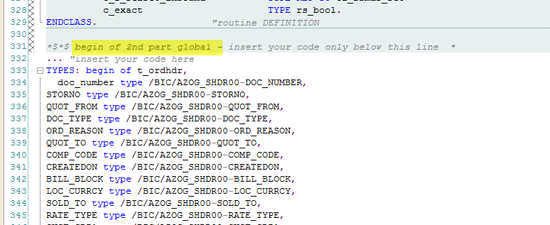
Figure 5
Global part
Figure 6 shows where you enter custom ABAP codes.
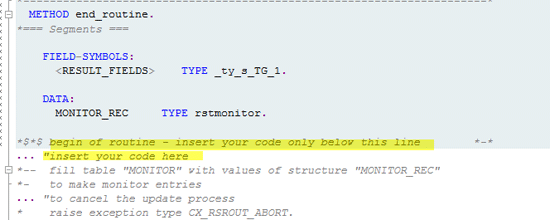
Figure 6
End routine section
To continue my example, I now populate fields from the internal table I populated in the start routine, as shown in Figure 7.
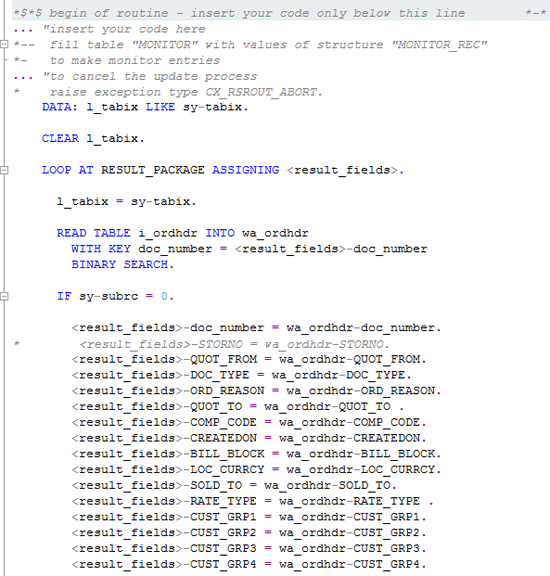
Figure 7
End routine
Note
End routine works with RESULT_PACKAGE, which is SAP’s built-in variable to an end routine.
Start and End Routine Summary
An end routine without a start routine is used when you want to do some calculations on outgoing records before they saved to an InfoProvider. Both start and end routines are used when you need to read other objects from BW and merge them with data read from the source system.
ABAP in Expert Routine
- Use this option to program the transformation without using available rule types.
- Use this option when all fields in the transformation are to be affected.
- Note to consider: If you already have created transformation rules, when you create an expert routine, the system deletes them.
An expert routine is activated when you are in transformation, in edit mode, by clicking the Edit button on the menu option. Figure 8 shows an expert routine.

Figure 8
Expert routine menu
Expert routine is used when there are not sufficient functions to perform a transformation.
Refer to Figure 9 for the routine sections.
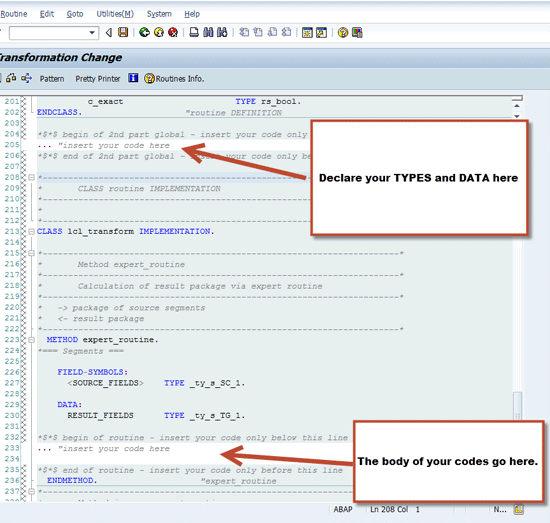
Figure 9
Expert routine parts
Note
Since expert routine is both a start and end routine, it uses
SOURCE_PACKAGE and RESULT_PACKAGE. As you know SOURCE_PACKAGE holds data
packages coming in and RESULT_PACKAGE holds data packages going out of
transformation.
When you declare an expert routine and save it, the transfomation looks something like Figure 10.
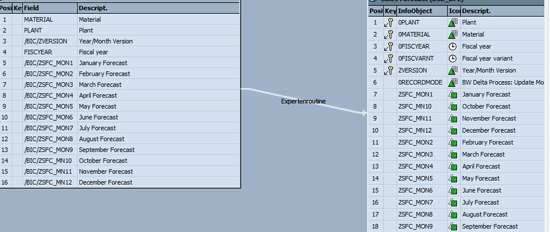
Figure 10
Expert routine transformation
You see the new Expert Routine button on the transformation (Figure 11).

Figure 11
Expert Routine button
See the sample code in "Sample Expert Routine ABAP Code" in the Code section of the BI hub of SAP Experts.
ABAP in InfoPackage
To enable an ABAP routine, edit the InfoPackage and under the Data Selection tab, click the pop-up icon shown in Figure 12.
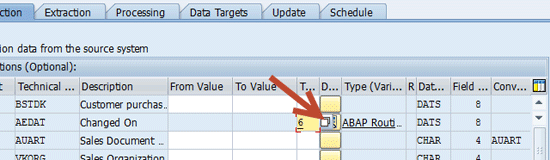
Figure 12
InfoPackage routine ABAP selection
Then click ABAP Routine (Figure 13).
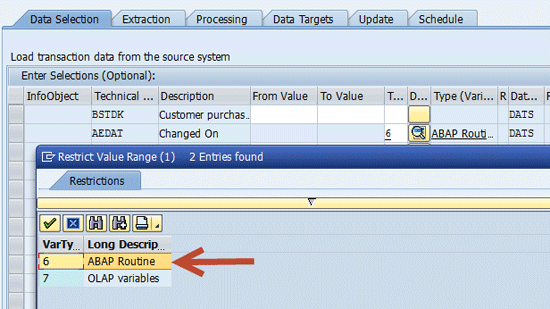
Figure 13
InfoPackage ABAP Routine selection
You are prompted to enter a name. You can use any description you like (Figure 14).

Figure 14
InfoPackage routine name
Figure 15 shows sections of the routine and where you need to add code.
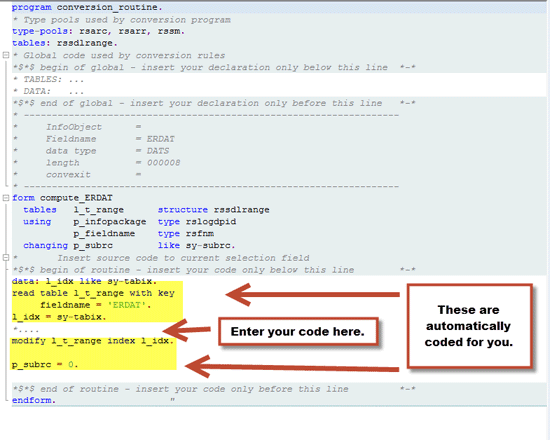
Figure 15
InfoPackage routine sections
Figure 16 shows sample ABAP to select yesterday’s date.
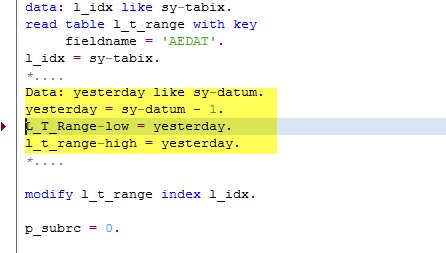
Figure 16
ABAP in InfoPackage
ABAP in DTP
To implement ABAP in DTP do the following.
Step 1. Edit the DTP and click the Filter button (Figure 17).
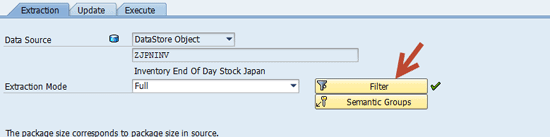
Figure 17
Filter in DTP
Step 2. Click the last icon (routine icon) to the right by the field you want to program (Figure 18).
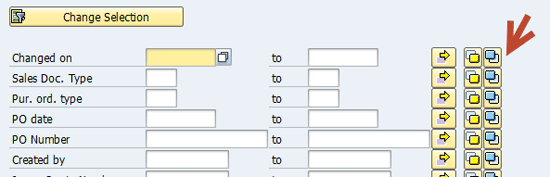
Figure 18
ABAP icon in DTP
Step 3. Give the DTP a name (Figure 19).

Figure 19
DTP ABAP name
Figure 20 shows selections of the routine and where to enter ABAP code.
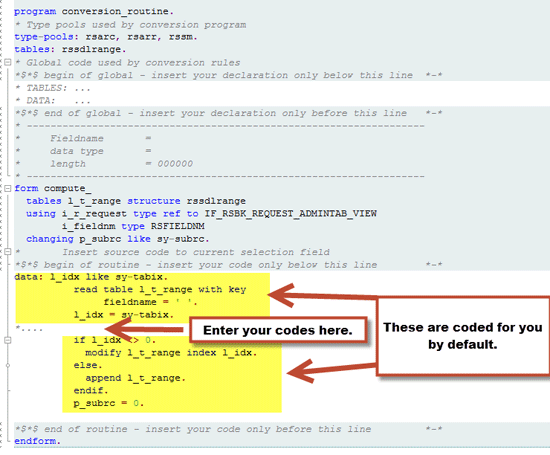
Figure 20
DTP ABAP sections
In Figure 21, all data from seven days ago up to today is extracted by DTP for the CALDAY field.
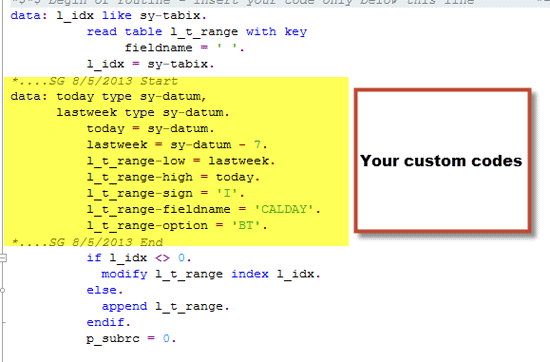
Figure 21
ABAP in DTP
ABAP in APD
You might be familiar with APD but, in a nutshell, APD is a workbench with a graphical user interface (UI) for creating, executing, and monitoring analysis processes. Data can be merged from a number of sources, can go through different transformations, and can be saved to different data targets. You can access APD by using transaction code RSANWB or by clicking the Edit button in transaction code RSA1. Then click Analysis Process Designer in Figure 22.

Figure 22
APD menu option
Note
How to use APD is out of scope of this article.
The following example shows how to transform and change data coming from a BEx report and then save it to a DSO. Here the report is the source. The result of the report goes through ABAP routing and you filter the data and finally save it into a DSO. Figure 23 shows the various options you have.
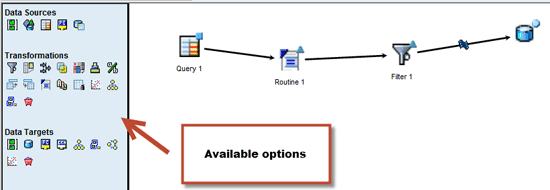
Figure 23
APD available options
Once you select the query from the Data Sources options and the ABAP routine from the Transformations options, right-click Routine 1 and then click the Properties line (not shown).
In the General tab shown in Figure 24, you give the routine a name.
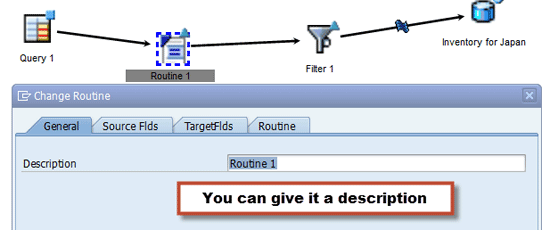
Figure 24
Routine name in APD
Go to the Source fields (Source Flds) tab. From the Field List on the right panel, choose the fields you want to extract and move them to the Source Fields on the left panel (Figure 25).
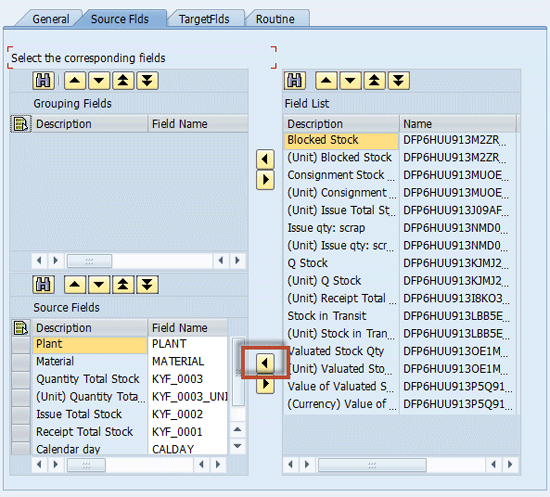
Figure 25
Source Fields selection in APD
The system then automatically fills the TargetFlds tab (Figure 26).
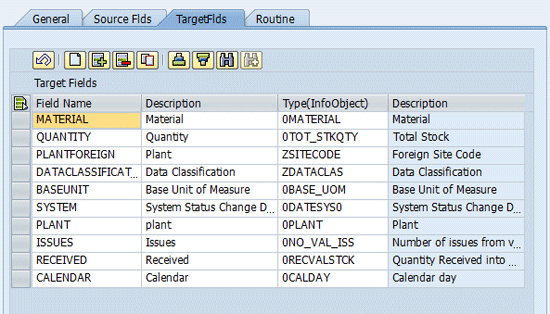
Figure 26
TargetFlds tab in APD
Click the Routine tab in Figure 27 and enter the ABAP code.
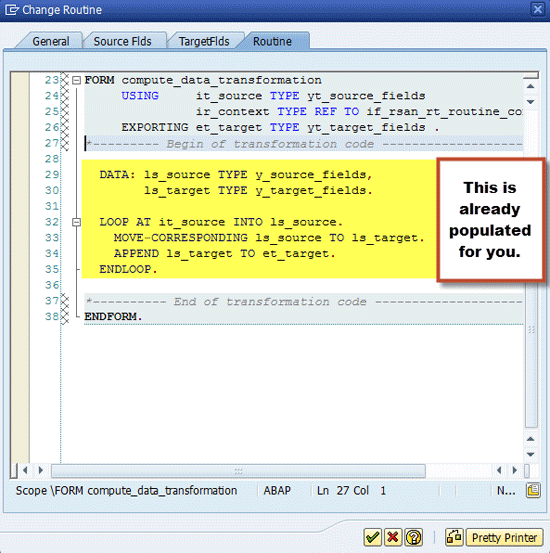
Figure 27
APD routine sections
Enter the code after the LOOP statement and before MOVE-CORRESPONDING as shown in Figure 27.
In my example below, I want to change the content of the field Plant. If the data coming from the source system is 1200 and if I want it to be A2001018, and if the content of the field plant coming from the source system is 1300 or 1600 and I want it to be different, I would use the ABAP codes shown in Figure 28.
Note
In the routine tab between LOOP AT and MOVE-CORRESPONDING you assign all fields from the source to the destination.
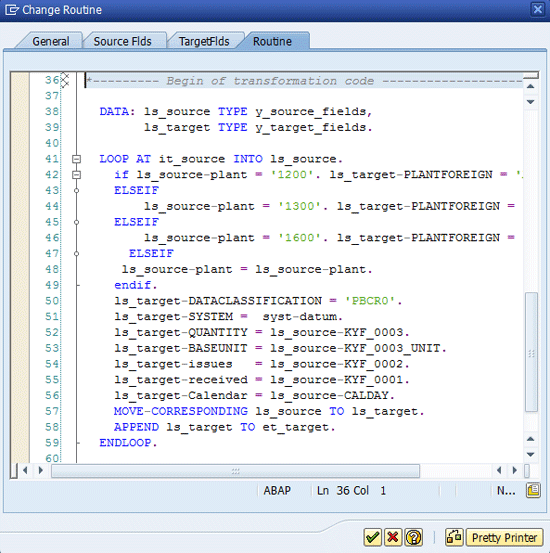
Figure 28
ABAP in APD
After checking for errors, you can then continue with the rest of APD.
ABAP in Query Variable
Data BW queries can be restricted automatically by creating a variable customer exit. This is a two-step process: One is to create a variable in Query Designer where it is processed by a customer exit. The second step is to do some ABAP coding on the BW side in transaction code CMOD.
For example you want to create a variable on Posting Date. This new variable extracts data from the system using the system date with the “offset” you choose.
In the Query Designer, locate the Posting Date and right-click the option Characteristic value variables. Then click the New Variable button (Figure 29).
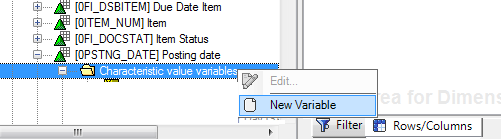
Figure 29
Create a new variable
Give the new variable a technical name that starts with Z and a description. Then choose the Customer exit option from the drop down under Processing By, as shown in Figure 30.
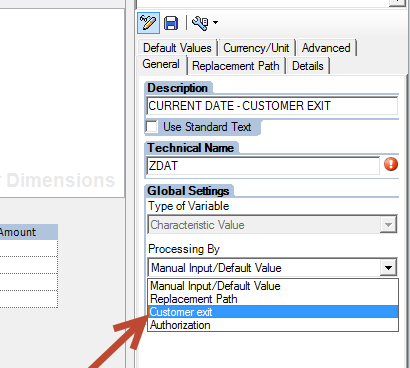
Figure 30
Customer exit option for variable
Save your variable by clicking on the save icon.
To write ABAP codes for the new variable just created, use transaction code CMOD in BW, which takes you to the screen shown in Figure 31.
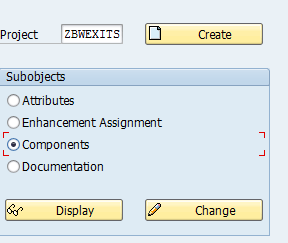
Figure 31
Transaction code CMOD screen
Step 1. Enter the Project name. Click the Components radio button. Click the Display button.
Step 2. To access the screen where you are able to start coding, click the green checkmark shown in Figure 32.

Figure 32
EXIT_SAPLRRSO_001 screen
Then the system takes you to the screen shown in Figure 33.

Figure 33
Include ZXRSRU01 screen
Step 3. Double-click ZXRSRU01 as shown in Figure 33.
When you get to program ZXRSRU01, go to edit mode by clicking the pencil icon on the top left of the screen, and implement the ABAP codes.
Another way to get to this program is to use transaction code SE38. Enter ZXRSRU01 for the program name, and then click Edit.
The most important information here is that the customer exit program receives the variable name of the BW query in the ABAP variable i_vnam, which is defined as an import parameter in the function module EXIT_SAPLRRS0_001. The BW query’s variable value is handled in the table E_T_RANGE. You can then write your ABAP code after CASE I_VNAM, starting with the keyword When. After the keyword When, enter the technical name of the variable you created in Query Designer. Figure 34 shows ABAP codes that start with WHEN ‘ZDAT’ and end with ENDIF. The variable ZDAT gets the value of the system date.
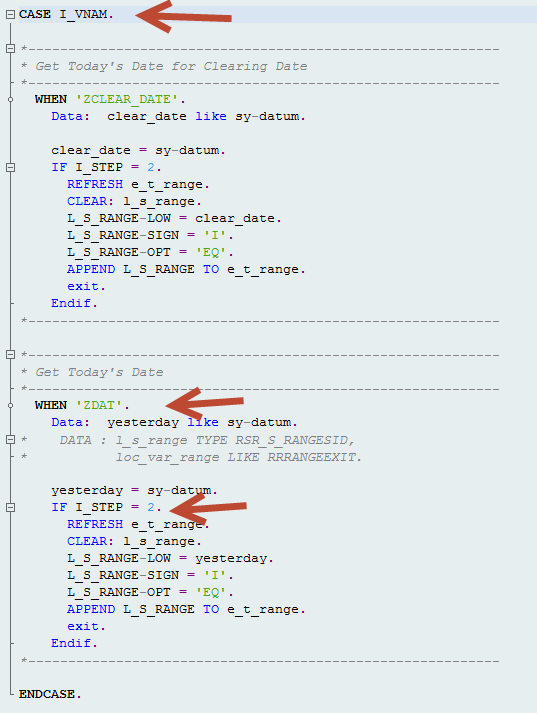
Figure 34
ABAP in transaction code CMOD
Step 4. Check your work for errors and click the save icon.
Step 5. Click the activate icon to activate your codes.
Note that there are four types of SAP built-in parameter I_STEPs:
I_STEP = 1 – Call directly before the variable is entered
I_STEP = 2 – Call directly after the variable is entered. This step is activated only if the same variable could not be filled for I_STEP = 1 and it is not ready for input.
I_STEP = 3 – In this call, you can check the values of the variables. Activating an exception (RAISE) causes the variable screen to appear again. I_STEP = 2 is also then executed once more.
I_STEP = 0 – The enhancement is not called from the variable screen. The call can come from the authorization check or from the monitor.
Now I am going to set the variable offset for my new variable to as many previous days as I need. For example, in the Query Designer I set the offset to -1500 as shown in Figure 35.
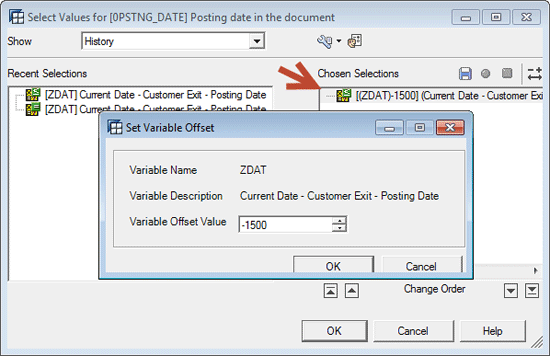
Figure 35
Variable offset
When the report runs, the system fetches and displays the data from 1,500 days ago up to today.
ABAP in Transformation Fields
In the transformation, right-click 0DOC_TYPE in Figure 36 and then click the Rule Details option shown in Figure 37.
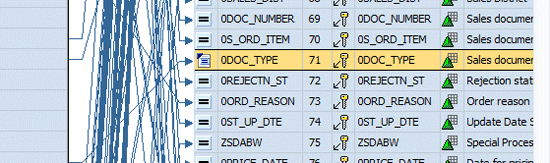
Figure 36
Transformation fields
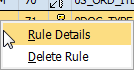
Figure 37
Rule Details
A screen pops up (Figure 38). Choose Routine from the Rule Type drop-down options.
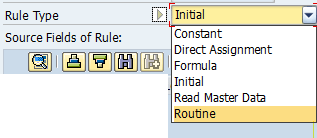
Figure 38
Routine Rule Type
Enter ABAP codes after this section as shown in Figure 39.

Figure 39
ABAP in transformation field
Note
Transformation field works with RESULT and SOURCE_FIELDS. As you know,
RESULT holds the value to be assigned to the transformation (DOC_TYPE)
field, and SOURCE_FIELD holds the value from the source system.
Differences Between Each Routine
Table 1 shows a summary of when to use each routine. Also the table shows which SAP-delivered variable is being used for each routine.

Table 1
Overview of routines
Click this link below to see a video clip of start and end routines within SAP BW transformation: Start and End Routines in SAP NetWeaver BW Transformation
To see sample code, go to "Sample Expert Routine ABAP Code" in the BI hub of SAP Experts.
Sam Gassem
Sam Gassem is senior business consultant and SAP BW lead at Rural Sourcing, Inc. (RSI). He has 13 years of experience on SAP NetWeaver BW. RSI is a leader in domestic sourcing, a cost-effective, on-shore alternative to the traditional model for IT outsourcing. RSI specializes in software development and support and maintenance for critical business applications. Its development centers are located in second- and third-tier cities across the United States. RSI was founded in 2004 by the former CIO of Baxter Healthcare with the intention of bringing jobs to areas of the United States in which historically the job market was dominated by agriculture and manufacturing.
You may contact the author at sgassem@gmail.com.
If you have comments about this article or publication, or would like to submit an article idea, please contact the editor.



 Premium