Learn how CRM Access Control Engine (ACE) provides CRM users with just the data they need, reducing the time spent maintaining data. Also learn how to set up business rules in ACE with minimal ABAP programming. Finally, take a look at lessons learned from a recent ACE implementation.
Key Concept
Access Control Engine (ACE) determines access rights on a business object level. It does not control whether you are allowed to see customers, but it controls which customers you are allowed to see. For example, you can see customers A, B, and C, but not customers D through Z. They do not show up in any search list and, as far as you are concerned, they do not exist in the system. This is based on business rules — for example, you can see customers who are assigned to the same sales area as you are or who are located in the same country as you.
Say you are an SAP CRM user and want to search for a customer, but you know only part of the name. This is not a problem if you just have thousands of customers in your SAP CRM system. It is also not a problem if you are responsible for customers in just one sales area and your authorizations are set up to limit the results of your search query. However, what if you have millions of customers or you are responsible for customers across multiple sales areas and your search result lists contain irrelevant customers? It would be more efficient if the user’s authorizations could adapt to the user’s role.
To satisfy these requirements, SAP created Access Control Engine (ACE), which controls what you can view, modify, and delete by using rules. For example, a typical rule is that users can view all customers who belong to their sales areas, but only modify those they are linked to as the responsible employee. In addition to focusing searches, ACE allows you to control what external agents can view in your system. Also, if your organizational model changes, ACE allows your sales representatives to view updated customer lists automatically. To compare this to Basis authorizations, see the sidebar, “How ACE Differs from Basis Authorizations.”
I’ll explain the components of ACE — the actors, rules, user groups, and rights. Then, I’ll explain how to create custom rules so you can use ACE in CRM Sales and Service scenarios. In the standard delivered ACE content you have only user groups and rules that are designed for Partner Channel Management and contain relationship types that are specific to Partner Channel Management. This means that you cannot use the ACE rules out of the box in standard CRM Sales and Service scenarios. In this case, you must create your own rules by copying the standard SAP rules.
I’ll also describe how to activate the rules in ACE and show how they work during runtime. Finally, I’ll share some lessons learned from recent ACE projects. ACE works only with People-Centric User Interface (PCUI). You can use ACE in all SAP CRM versions in which PCUI is delivered, including SAP CRM 4.0 and 2005.
Actors, Rules, and User Groups
The central concept of ACE is the actor — this is the characteristic the user and the object to authorize have in common (Figure 1). Each actor follows rules, which describe what the actor is, how to get from the object to the actor, and how to get from the user to the actor (Figure 2). This is best explained by three example rules:
- Users are allowed to view, modify, and delete business partners in their countries. A user has an address containing a country. Business partners also have an address containing a country, so the actor in this rule is the country.
- Users are allowed to view, modify, and delete business partners in their sales areas. Typically users are employees who are assigned to a certain level in the organizational model. This level represents a sales area. Usually you also create business partners for a specific sales area, so the actor in this rule is the sales area. With this rule a user can view the sales area data of all business partners who belong to the same sales area as he does. According to this rule, you cannot view business partners who are not linked to a sales area.
- Users are allowed to view, modify, and delete business partner activities for which they are responsible. These activities have a linked business partner who has a “responsible employee” relationship with the user. The actor in this rule is the user.
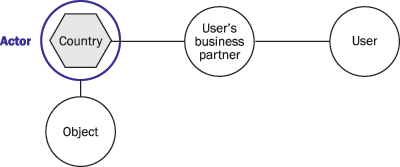
Figure 1
Example of an actor, in this case the country, which is part of the user and part of the object
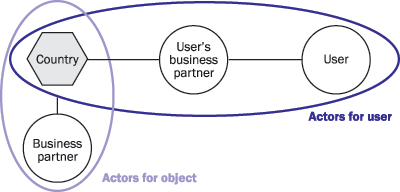
Figure 2
Example of a rule that allows users to see all business partners who are in the user’s country
Rights
The next concept of ACE is the rights you grant users to determine what the user can do with a certain rule: view, modify, or delete. A right consists of a rule plus what you can do with the objects matching the rule (view, modify, or delete). For example, in Figure 2, the user can only view business partners who are in the same country. This implies that users can have multiple rights for the same type of objects. For example, you can view all customers in your sales area, but only modify those to which you are assigned as the responsible employee.
A collection of rights forms a logical user group. For example, user group xyz - In-house user can view all business partners, activities, orders, and products in their sales area, but only modify the business partners, activities, and orders for customers for which they are responsible. You can link the logical user group to individual users, but a better practice is to link them to a regular authorization role, which can be a dummy role. You then link this authorization role to the actual users for which the ACE roles will be active (Figure 3).

Figure 3
How to link the ACE rules to the user
How to Create Custom Rules
I recently had to create some custom rules for a large company. One of these rules was to establish the link in SAP CRM between the customer and the sales representative (the CRM user) in the partner roles in SAP ERP Central Component (ECC). The system downloads the link automatically from ECC to SAP CRM. This rule allows ACE to determine which customers the users can view. Moreover, when the sales representative assignments change in ECC, ACE automatically updates which customers the user is allowed to see in SAP CRM.
As I go through the different steps I will use the example of creating a rule that allows users to see and modify all of the prospects that are in their country. This is the same example as shown in Figure 2.
Tip!
For every rule it helps to sketch a picture describing the rule — this gives you a view of what the actor is, how to get from the user to the actor, and how to get from the object to the actor. Writing down the rights and grouping them into ACE user groups completes the design.
Implementing a custom rule requires customizing and writing simple ABAP coding. This coding consists of five custom class methods that you create by copying an existing class. This also is the first step to configure a new ACE rule because you have to specify the name of this class in the customizing settings. In this step, you define the business rules and the environment by determining the following:
- Which types of users do you have (focused on authorizations)?
- On which objects do you need to set authorizations?
- Which user group is allowed to perform what action?
- What are the actors, rules, and rights?
The configuration of rules requires you to enter the ABAP class and method that the system should execute when it invokes the rule. For this reason, you must create the necessary code shells in which to input the code. Later in the process you code the specific logic required to realize your custom rule. To create these code shells, go to transaction SE24, look up a class that starts with CL_CRM_ACERULE*, and copy it to a custom class, in my example, ZCL_CRM_ACERULE_BPCOUNTRY (Figure 4). Leave all the input/output parameters as they are — for now you just need the name of the class to start customizing it.

Figure 4
Create a custom class
Next, access ACE by following IMG menu path Customer Relationship Management>Basic Functions>Access Control Engine. You can perform all of the customizing here, except for the actual coding of the methods. You start by creating the actor under Actors>Create actor types (Figure 5). For my example, I created the actor type ZCOUNTRY.

Figure 5
Create the actor ZCOUNTRY
Go to Actors>Link Object type with actor type to link the new actor to the object type (Figure 6). You can implement ACE for three types of business objects: accounts, one-order objects (e.g., orders, activities, opportunities, leads, or contracts), and products/services. This means that you cannot use ACE in marketing scenarios — you can use it only in sales and service scenarios in PCUI.

Figure 6
Link ZCOUNTRY to the object type ZBPCOUNTRY
In my example, the object type is account — also known as business partner — (ACCOUNTCRM). You also have to specify how to find the actors for the users — in my case, how to find the country of each user. Go to Actors>Actor determination for user. Define the class you created before so that the system uses the actors for user (AFU) method for your class (Figure 7). In the Actor Type ID field, enter ZCOUNTRY as the descriptive name for this method and enter GET THE COUNTRY OF THE USER in the AFU description field.

Figure 7
Enter the AFU method for your class
Next, tell the system which subset of business objects to take into account. In the Object by filter field, enter BP_WHO_ARE_CONSUMERS (Figure 8). This determines which objects the system takes into account when activating the ACE rule for the first time.

Figure 8
Specify the subset of business objects the system should consider
As I describe later, ACE uses runtime tables to store information about who is allowed to see which object. The system initially fills these tables when you activate the rule. For better performance, limit the set of objects for which the system determines actors. In my example, my rule only applies to prospects — I do not want the system to determine the country for all customers. This implies that the users attached to this rule can only maintain prospects and not customers.
Now I am ready to create the rule under Rules>Create Rules. Apart from a name and a description, a rule consists of four elements (Figure 9):
- The type of actor used
- A description of the method that determines the actor of the user
- A description of the method that determines the actor of the object
- A description of the method that determines which subset of objects to take into account

Figure 9
The main elements of the rule
The next step in the customizing is to create the right. As I explained earlier, the right describes which action (view, modify, or delete) you can perform with the objects of a certain rule. You can find the customizing for this by following menu path Rights>Create Rights (Figure 10). In this screen provide the right a name, specify the Object Type, User group, and the Action Group ID. The Action Group ID specifies the possible actions shown in Table 1. To define the user group mentioned in Figure 10, follow menu path User Groups>Create User Groups (Figure 11). You can have multiple rights for the same user group.

Figure 10
The elements of the right
| ACT_GRP_FULL |
View, modify, and delete actions |
| ACT_GRP_CHANGE |
Read and write actions |
| ACT_GRP_READ |
Only read actions |
|
| Table 1 |
Possible actions for the Action Group ID |

Figure 11
The properties of a user group
The last customizing step is to link the user group to a Basis authorization role, which administrators can then link to the users. Follow menu path User Groups>Assign Users to User Groups (Figure 12). In the User group child field, enter the SAP Basis authorization role. A common practice is to create an empty dummy SAP Basis role from the SAP Basis authorization perspective. The dummy role contains no SAP Basis authorization objects and is used solely for ACE. As soon as a user has an SAP Basis role assigned, which you link in this customizing transaction to an ACE user group, ACE is active for this user.

Figure 12
Link the ACE user group to an SAP Basis authorization role
Now let’s look at the ABAP methods used in the classes. The last three elements of the ACE rules (actors from user, actors from object, object by filter) refer to the methods of the ABAP class I defined at the beginning. This requires some basic ABAP programming, so it helps if you know the function modules used in SAP CRM. To give a rough indication of the ability you’ll need, usually the number of lines of coding in an ACE method does not exceed 100 lines. Figure 13 shows the Class Builder screen (transaction SE24) for my custom class. There are always five methods, which you can group in three groups as shown in Table 2.

Figure 13
Class Builder screen for ZCL_CRM_ACERULE_BPCOUNTRY
| 1a |
IF_CRM_ACE_OBJECTS_
BY_FILTER~GET_OBJECTS_
BY_FILTER |
Methods that determine which subset of the object to take into account |
Reads all GUIDs of the requested object type. Passes the result set to method 1b for extra filtering. |
| 1b |
IF_CRM_ACE_OBJECTS_
BY_FILTER~CHECK_
OBJECTS_BY_FILTER |
Methods that determine which subset of the object to take into account |
Gets all GUIDs from 1a
and performs the filtering function |
| 2a |
IF_CRM_ACE_ACTORS_
FROM_USER~GET_
ACTORS_FROM_USER |
Methods that determine the actors for the user |
Gets as input all ACE relevant users and stores their actors in an internal table |
| 3a |
IF_CRM_ACE_ACTORS_
FROM_OBJECT~GET_
ACTORS_FROM_OBJECTS |
Methods that determine the actors for the objects |
Gets as input the GUIDs from 1b and determines their actors |
| 3b |
IF_CRM_ACE_ACTORS_
FROM_OBJECT~GET_
ACTORS_FROM_OBJECT |
Methods that determine the actors for the objects |
Gets one GUID as input and determines its actors |
|
| Table 2 |
The five different class methods |
It is important to understand the difference between methods 3a and 3b. The system calls method 3a when the system administrator activates the ACE rule and when the engine builds up the tables used during runtime. The system determines the actors for a large result set that it gets as input from the methods 1a and 1b. The system calls method 3b when a user creates a new business object in the system and it must update the ACE with this new object. In my example, when you create a new prospect, you need to determine the country and store the country as an actor linked to the new prospect in the runtime tables (Figure 14).

Figure 14
When activating a rule the ACE engine uses the GET_ACTORS_FROM_OBJECTS method
Activate a Custom Rule
After you finish all of the customizing and developments and link the users to the ACE groups either directly or via a regular authorization rule, you are not completely there. You have to activate the user groups and the rights with the CRM ACE Administration tools (transaction CRM_ACE_ADM), shown in Figure 15.

Figure 15
CRM ACE Administration tools
On the User Group Administration tab, select the user group and press F8 to activate it. Then, on the Rights Administration tab, activate the rights by selecting the custom right and pressing F8. When you activate the right, ACE builds up its runtime tables. These tables contain authorization data that the system uses during runtime, for example, when users search for prospects. If it didn’t do this, ACE would have to calculate all of the rules for every business object for every action. This would impact response times significantly. With the activation, it builds up to three tables per object type so that during runtime, the system can check the authorizations quickly.
Table 3 lists the tables for the three business objects involved in ACE. In this table, you can replace the XX with BP for business partners, OO for one-order objects — such as activities, orders, opportunities, and leads — or PR for products. From these tables you can see how ACE works internally — it knows your users and reads your ACE group IDs in the user context table (*UCT). Then, in the access control list table (*ACL), it reads all of the objects you are allowed to see.
| CRM_ACE_XX_GRP |
Stores all possible actors (e.g., all employee numbers or sales areas) with their ACE_GROUP_IDs, which is the GUID linked to this actor |
| CRM_ACE_XX_UCT |
Stores all users with all of their ACE_GROUP_IDs (all of their actors) |
| CRM_ACE_XX_ACL |
Stores object IDs with their actors in the form of the ACE_GROUP_IDs |
|
| Table 3 |
The XX refers to the three business objects BP, OO, or PR |
How Does ACE Work During Runtime?
Function modules in the PCUI coding check which objects the user is allowed to see. For example, if you perform a search query on business partners, the system calls ACE. This call checks the runtime tables mentioned in Table 3. It also builds up a session cache for performance reasons because some processes call ACE often for the same object (Figure 16). These ACE calls are divided into two steps: first check if the object is in the cache, if not, then check the tables in the database.

Figure 16
The runtime access to the cache and database
Lessons Learned
Here are some lessons learned from a recent ACE implementation:
First write down exactly what needs to be done. Write down and illustrate the link between the users and the objects and how they relate via the actor. Then write down which rules and methods to create. This makes it easier to spot methods that you can reuse in different rules or rules that can cover multiple scenarios.
Know when to rebuild customer tables to avoid database performance issues. When you build up the runtime tables for the first time, the system determines the actors for all relevant objects. If you have many customers, the system determines all of the actors for every single customer. Therefore, it is important to program this process efficiently. In some cases, you may need to rebuild the tables, which can make ACE perform inconsistently. For large databases with millions of leads or orders it can take a couple of days if you do not focus on the performance aspects.
Know when to rebuild the access control list (ACL). There are two types of rebuilding: rebuilding the user contexts and rebuilding the object’s ACL. You must rebuild the user contexts every time you create a new user or change the roles or actors of an existing user. With ACL, the process is different because ACE also has logic that determines the actors when you create an object. The same logic re-determines the actors when you change an existing object, so it’s rare that you need to rebuild the ACL.
The only exception is what I call second-level relationships, which are relations a user has to an object via another object. For example, a user could be the employee responsible for a certain set of customers. These customers have contact persons, as illustrated in Figure 17. It makes sense that the user is also allowed to see the contact persons for these customers.

Figure 17
Example of a second-level relationship
You can configure a rule for your prospect’s contact persons so that the employees who can view the prospects can also view the related contact persons. After building up the runtime tables, the system determines the actors for all contact persons. However, when the country of a customer changes, this is a change transaction for a customer that re-determines the actors for this customer. It is not a change transaction for all linked contact persons, so it does not re-determine the actors for all linked contact persons.
Therefore I recommend that you rebuild the ACL on a regular basis and make sure to rebuild it when organizational changes occur. You can schedule the automatic jobs for rebuilding within the ACE Administration tools (transaction CRM_ACE_ADM).
How ACE Differs from Basis Authorizations
Basis authorizations are static. That means that in the authorization role you define explicitly which sales area or for which country the user can see the customers — this is like hard-coding your authorizations. If you have 100 sales areas, or have customers in 100 countries, you have 100 authorization rules.
In ACE you can specify one rule that says users can see customers in the sales area to which you assign them. Or you could have one rule specifying that users can see customers that are in the same country as they are. If a user’s responsibility changes to another sales area, the authorizations change accordingly. This way you need only one role to handle multiple situations.
Boris Dingenouts
Boris Dingenouts is a senior SAP CRM consultant for the Dutch consulting company Exxap. Boris has more than 11 years of consulting experience in SAP, with more than six years in SAP CRM. Exxap is an innovative SAP consultancy company with a focus on SAP xApps.
You may contact the author at boris.dingenouts@exxap.com.
If you have comments about this article or publication, or would like to submit an article idea, please contact the editor.



 Premium