Understand what’s new in Visual Composer 7.0. The BI Extension Kit, part of Visual Composer, includes many new design-time and run-time features that allow functional consultants to create analytical applications without coding.
Key Concept
Visual Composer is a model-driven development tool that allows business experts to create and adapt analytical and free-styled applications without writing code. Visual Composer 7.0 is the General Availability (GA) release; Visual Composer 6.0 introduced the freestyle model- to-code creation of analytical appli- cations and it was intended as a preview tool for evaluation purposes.
Visual Composer 7.0 in SAP NetWeaver 2004s includes an updated version of BI Extension Kit, which enables SAP users to create Analytical cross applications (Analytics xApps), such as the new generation of SAP- delivered analytics dashboards. Analytics xApps Release 1.1 requires SAP NetWeaver 2004s Support Package Stack 8.
Visual Composer 7.0 includes an updated version of BI Extension Kit. It adds BI functionality to Visual Composer that allows business analysts to easily configure BI applications such as a BI dashboard or a yearly financial report in a visual modeling environment. Analysts can deploy and view the results in Adobe Flash in SAP NetWeaver Portal. BI Extension Kit also allows users to model applications based on SAP NetWeaver BI data or by querying diverse SAP and non-SAP online analytical processing (OLAP) and relational data sources. Additionally, BI Extension Kit includes a wizard that builds queries to address common business questions. To know what other functionality Visual Composer 7.0 includes, see the sidebar “New Features of Visual Composer 7.0.”
We’ll explain the architecture of Visual Composer to show how BI Extension Kit fits in. Then, we’ll walk you through the processes that occur at design time in Visual Composer’s Storyboard as well as at runtime. Finally, we’ll introduce you to the four types of BI data services and explain how to use them.
Compared to the previous release (Visual Composer 6.0 BI Extension Kit), this release of BI Extension Kit adds more functionality:
- Value Help Configuration Wizard generates value helps (also known as input helps, selections helps, or F4 helps) that display possible valid values for complex BI applications (for example, to display the existing customers in the sales InfoCube)
- Usability improvements such as consistent terminology and improved look and feel
- BI query data service now supports variables, exceptions, and hierarchies
- Visual Composer now connects to SAP NetWeaver BI via a Remote Function Call (RFC) rather than a Web service connection. The resulting communication between the portal and SAP NetWeaver BI works faster, especially in cases of large query results.
With these added functionalities, users can create more user-friendly, powerful analytical applications using Visual Composer, such as executive dashboards.
Introducing BI Extension Kit
BI Extension Kit in Visual Composer 7.0, which is part of the Visual Composer core, consists of three components: BI Data Services, BI Integration Wizard, and tools (such as Value Help Configuration Wizard) that help to generate the BI model. BI Extension Kit is tightly coupled with the Visual Composer server and provides design time services such as wizards, tools, metadata access, and definition of data services. The BI Extension Kit on SAP NetWeaver Portal provides runtime services such as initiating query objects and retrieving query results. Figure 1 summarizes the components of Visual Composer. Notice BI Extension Kit on both sides of the diagram.
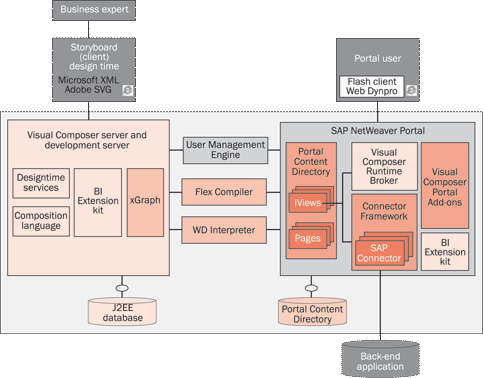
Figure 1
The architecture of Visual Composer
Components of BI Extension Kit play different roles in the Visual Composer architecture.
- BI Integration Wizard and tools are part of Storyboard. Storyboard is the client application of Visual Composer. At design time, the system creates BI models using BI Extension Kit features. A model is a deployment package in Visual Composer, similar to a document in Microsoft Word. Users can create a model, open the model for editing, and save the model.
- At design time, each BI model is represented using a predefined language called generic modeling language (GML).
- BI data services also play an important role in Storyboard. They represent data sources at design time in the BI model using GML.
Create an Application in Visual Composer
Let’s walk through the steps to create an application, including design, deployment, and runtime. We will discuss where BI Extension Kit’s design-time features fit into this process.
Figure 2 shows the first step in creating a sales analysis dashboard. This dashboard has an input form and a data service that is based on a sales query; The results are displayed in a chart. If this dashboard is deployed at runtime, users see the sales results in a chart and can filter the sales results by selected customer. At design time, the business user builds the application from Storyboard running in a browser with the client prerequisites mentioned above. Storyboard builds a model and interacts with Visual Composer and J2EE Server using HTTP protocol. Storyboard represents designed model elements in GML diagrams that contain all modeled data.
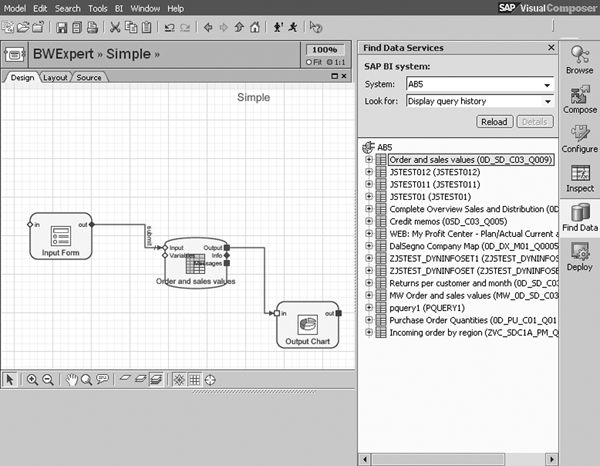
Figure 2
Visual Composer’s Storyboard
Storyboard interacts with SAP NetWeaver Portal or BI interfaces by accessing two types of kits, Portal Extension Kit and BI Extension Kit. Portal Extension Kit focuses on Business Application Programming Interface (BAPI) and RFC data sources. BI Extension Kit focuses on BI data sources. Analytical applications, such as management cockpits, use BI data sources, whereas transactional applications, such as programs updating customer information, use BAPI and RFC data sources.
Design time consists of three steps. First, the user selects the data sources for the model. (We’ll further explain data services at the end of this article.) Then the user creates the model using the tools in Storyboard. The user finishes the completed model by deploying it to the portal. As a business user, the first step of creating a report is to identify where the data is coming from. For example, an existing BI query may fit your needs. After that, you think about how to present this data to your user and what navigation options you want to offer to your user. Finally, you deploy your report and test it in runtime.
Storyboard contains several tools such as BI Integration Wizard (which helps users generate BI queries and build models) and Value Help Configuration Wizard (which helps users generate value help from input forms). We’ll explain these tools in greater detail in the next section.
When users select a data service and create the model, many processes occur in the back end. SAP NetWeaver Portal’s Connector Framework dispatches Storyboard requests to underlying J2EE Connector Architecture (JCA) Connectors. Storyboard generates iViews that SAP NetWeaver Portal’s Portal Content Directory (PCD) then deploys. Storyboard interacts with a development server on J2EE Engine to add source files to the file system, authorize access through J2EE User Management Engine (UME), and store models in J2EE Database.
In the final stage of design time, users deploy the model to the portal. During deployment, Visual Composer in SAP NetWeaver 2004s generates Flash iViews and Web Dynpro iViews in SAP NetWeaver Portal by executing the Execution Graph (xGraph) generated during the design stage. xGraph is the Visual Composer model translated into an XML file, which is later translated into code for Flash or Web Dynpro. Semantic rules are written in XML code to represent the data flow of the designed model. xGraph provides execution semantics for a model to ensure consistency between design time and different run-time engines. In the same way a hierarchy structure is the best way to represent a file system, xGraph contains all semantic rules to represent the application created at design time. Figure 3 shows an example of the xGraph semantic rules for a Material Search application.
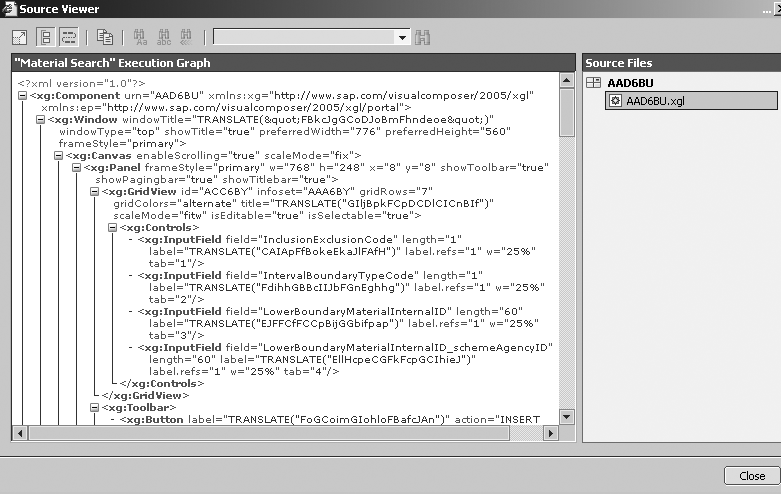
Figure 3
Semantic rules for a Material Search application
After executing the xGraph, the system deploys the iView to the portal. Figure 4 shows an example of the deployed iView for a Material Search application.

Figure 4
Generated iView of a Material Search application
After design time, Visual Composer Runtime Broker provides all services that run-time environments need. Visual Composer Runtime Broker dispatches runtime requests to BI Extension Kit Runtime Component. Visual Composer Runtime Broker and BI Extension Kit Runtime Component are components in SAP NetWeaver Portal.
BI Extension Kit Tools and Wizards
A number of tools and wizards in BI Extension Kit run at design time. These tools run in the UI via Storyboard. The tools generate part of the model, guide you through the query definition process, and verify that the results are what you would expect. Let’s explain the various tools and when you should use each.
BI Integration Wizard helps you create a complete model from scratch. It features a set of predefined query templates, including a freeform template. This wizard works with BI multidimensional OLAP and relational data sources. After you create a query, you can launch this wizard again to edit it. This tool provides more guidance for users so that functional users can use it.
Visual Composer includes Value Help Configuration Wizard, which helps generate value helps for the model. During runtime, a value help is a pop-up dialog to help the user choose what value to select. In this dialog, you can search for a specific value, make multiple selections, or create selection options. Value Help Configuration Wizard allows you to display a value help to your end users (for instance, to search for the name of a customer). This tool provides guidance so that non-developers can use it.
Entry List Manager allows functional users to create entry lists. Entry lists record values that you can use in your models (for example, in the form of a drop-down list for customer numbers or a selection box of age groups). You can choose from two options: static or dynamic. A static entry list gives you a fixed list of values during runtime, while a dynamic entry list gives you the list of values that the data service returns. You can base static entry lists on a data service or a manual input (something that users type at design time). A dynamic entry list, which is always based on a data service, can give you a different list of values based on your input to the data service. For example, you can have two drop-down lists (Region and Country) — the selection of Region updates the list of countries in the second drop-down list.
Now let’s discuss some of the more technical tools: SQL and multidimensional expressions (MDX). Editors work with BI relational and multidimensional OLAP data sources, respectively. In these editors, technical users can write statements or generate or edit a data service. They offer technical users a flexible way to create relational and OLAP queries. Technical users can create dynamic SQL or MDX statements that replace certain filter values during runtime from user input. We’ll cover some advanced scenarios in our second article about Visual Composer.
Define/Test Query dialog box is a testing tool for technical users to ensure the query works. It tests and updates the query or query view definition of an SAP BI query data service. You display the dialog box by right- clicking on the BI query data service and choosing Define/Test Query from its context menu. You can use this dialog box to enter values for variables or filters, execute the query, and select desired output fields in the BI query data service.
BI Data Services
As discussed above, the first step for creating an application in Visual Composer is choosing your data service. Analytical applications use BI data services, so we’ll explain them in detail. In Visual Composer, a data service is the data container and the basic element for interacting with other information systems. A data service could be a function call, BI query, or Web service call. In BI Extension Kit, BI data services provide access to data by defining the interaction points to the back-end BI data sources. By understanding BI data services, model designers understand the basis of Visual Composer BI Extension Kit and get a clearer picture of how it integrates with back-end systems. In addition, model designers see what is possible to create a highly dynamic BI model.
The four types of BI data services are BI query and query view, BI InfoObjects, BI relational query, and BI OLAP query. The system (or data source that users select) determines the type of BI data service. For example, when the user works with a relational database as a data source in Visual Composer, the system uses the BI relational data service automatically. You can access the data services from the Find Data Services task panel (Figure 5).
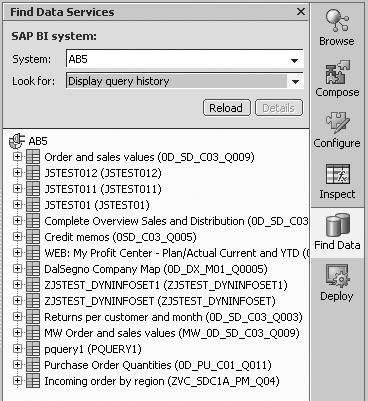
Figure 5
Access all of these data services from the Find Data Services screen
BI query data services always include a data provider and a query. Table 1 lists the four types of BI data services, their underlying technology, and supported data source. For more information about BI data services, refer to https://help.sap.com/saphelp_nw04s/helpdata/en/99/01e8187c7a46428c5b532974b0d3da/content.htm. To decide whether to create a BI data service with BI query and query views or BI OLAP query, refer to the sidebar “Which BI Data Service Creation Tool Should I Choose?”
| BI query and query view |
SAP BI connector (RFC and Java connector [JCo]- based connection) |
BI 7.0 Support Package Stack 6 BW 3.5 Support Package Stack 15 |
BEx query and query view |
| BI InfoObjects |
Same as above |
Same as above |
InfoObject master data table and dimension table You use this data service mostly to generate value helps for BI query variable input and filter on characteristics |
| BI relational query |
BI Java Database Connectivity (JDBC) Connector |
JDBC-compliant relational database management system (RDBMS) Examples: Teradata, Oracle, Microsoft SQL Server, Microsoft Access, DB2, Microsoft Excel, text files such as CSV |
BI relational query and SQL query based on relational table and view |
| BI relational query |
BI SAP query connector SAP Query, a component of SAP’s Web Application Server that allows you to create custom reports without any ABAP programming knowledge |
SAP operational applications Examples: data in transactional systems such as R/3, ad hoc, and operational reporting |
SAP classical InfoSets Note: SAP Query does not support SQL Query |
| BI OLAP query |
BI XML for Analysis (XMLA) connector based on Microsoft’s XMLA — Web services-based, platform- independent access to OLAP providers. Exchanges analytical data between a client application and a data provider working over the Web, using a Simple Object Access Protocol (SOAP)-based XML communication Application Programming Interface (API) |
Platform-independent access to OLAP data sources Examples: MS Analysis Services, Hyperion, MicroStrategy, and BW 3.x |
BI OLAP query and MDX query based on OLAP InfoCube |
| BI OLAP query |
BI Object Linking and Embedding (OLE) database for OLAP (ODBO) connector |
OLAP data sources: OLE DB for OLAP-compliant data sources Examples: Microsoft Analysis Services, SAS, Microsoft PivotTable Services |
Same as above |
|
| Table 1 |
Details about BI data services |
How to Generate a BI Query Data Service from a BI Query
You’ll recall that the first step is deciding which data service to use. Because we’re creating a sales management dashboard (an analytical application), we’ll show you how to generate the BI query shown in the model in Figure 2. The first step is to drag and drop the BI query from Visual Composer’s search panel to the design panel. Figure 2 shows the result of this drag and drop, called a data service.
To access the output and input port properties for this data service, click on the small icon next to the name of each port (Figure 6). For example, to access the properties for Output, click on the square to the right. The BI query defines these system-generated ports, so functional users generally don’t access these ports. However, technical users can change the fields in the output ports by using the Define/Test Query tool.
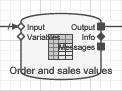
Figure 6
BI query data service in Visual Composer
Now we will explain the attributes of these ports. The two input ports are called input and variables. The three output ports are called output, info, and messages. The input ports interact with the data service and output ports contain the result to display in the UI.
Here are some details about the function of each port:
- The Input port accepts filter values to characteristics for rows, columns, and free characteristics.
- The Output port returns flattened query results. Because BI query results are multidimensional, BI flattens them so Visual Composer can display them. Depending on the query definition, the query definition or query result generates this field list. The define/test query dialog helps the user generate this field list, which we’ll explain at the end of the article.
- The Info port returns the query’s information (text elements). Fields in the Info port return the query information (text elements) associated with the query, including the query author, the last update of the data in the underlying InfoCube, and the user who last changed the data.
- The Messages port returns query-related messages, including whether the system successfully generated the query, runtime status, and currency conversion problems.
- The Variables port is optional and accepts values for variables (if variables are available in query or view). Fields in the Variables port represent the available variables of the query. Visual Composer interprets the contents of these fields as variable input to the query. The input must match the input type of the variable (single value, multi values, interval, and selection option).
Fields in the input port are the characteristics that display as rows, columns, or free characteristics, as in BEx. Figure 7 shows a query defined in BEx Query Designer. After you create a query in BEx Query Designer, your system can filter the characteristics that are under rows, columns, and free characteristics in SAP NetWeaver BI runtime. Visual Composer interprets the contents of these fields as filter values for those characteristics (Figure 6).

Figure 7
Query definition in BEx Query Designer
Figure 8 shows a list of input port fields. They correspond to the free characteristics in Figure 7. For example, the characteristic Sales organization in Figure 7 becomes the input field Sales_organization on the input port of the BI data service (Figure 8). Likewise, the variable port fields in Figure 9 relate to the available variables of the query. Visual Composer interprets the contents of these fields as variable input to the query. The input must match the input type of the variable (single value, multi values, interval, and selection option). The output port fields in Figure 10 relate to the structure and drill-down characteristics.

Figure 8
Input port fields

Figure 9
Variable port fields

Figure 10
Output port fields
Normally, query definition provides enough information to generate the output port. This is the case if a query has no characteristics in the columns.
A special situation is if a query has column characteristics. In this case, a technical user needs to generate the output port from the query definition or from query results. This is because the column structure of the query is dynamic during runtime depending on the data in the InfoProvider or the filter and variable inputs. In this case, the system generates fields based on query results instead of reading the query definition. Model designers should be aware that these design-time fields could change during runtime.
Note
As shown in Figure 8, the Web Application Programming Interface (API) (
WEBAPI) field is a special input field. It provides advanced navigation features for the BI query, such as hierarchy drill-down and dynamic suppression of sums. It is not a characteristic. It provides a command interface to the BI query. Users can send Web API commands to a data provider. For example, a user can send the Web API commands to sort the query result. After BI data provider gets this command, BI query is executed again, and the system returns the sorted query results to Visual Composer. Visual Composer also sends the filter value and variable input to BI via Web API. The WEB API 3.x Reference guide on SAP Help Portal provides more information about the commands that you could send via the
WEBAPI field:
https://help.sap.com/saphelp_nw04/helpdata/en/76/80a1393e3a6942e10000000a11402f/frameset.htm.
If you would like to learn more about data modeling, SAP Education offers this class in the US: BW305 BI-Enterprise Reporting Query & Analysis (for BI NW2004s). For more information, go to
www.sap.com/useducation.
New Features of Visual Composer 7.0
Visual Composer 7.0 is part of SAP NetWeaver Portal in SAP NetWeaver 2004s. This release focuses on SAP Analytics and offers significant changes from the previous Visual Composer release. The most notable changes include:
- Visual Composer now runs on the Java 2 Platform, Enterprise Edition (J2EE) Engine of SAP NetWeaver Application Server (SAP NetWeaver AS). Therefore, you no longer need Internet Information Services (IIS) 5, Microsoft SQL Server 2000, and Microsoft .NET Framework.
- Visual Composer now can generate iViews for Web Dynpro (the SAP NetWeaver programming model for user interfaces) and Adobe Flash Player 8 or higher in SAP NetWeaver Portal. You can create Internet applications by integrating Adobe Flex Server and Web Dynpro.
- Visual Composer now integrates BI content from SAP or non-SAP systems using BI Java Connectors (part of BI Universal Data Integration 7.0).
Visual Composer 7.0 has several technical prerequisites on both the server and client side. The server requires four programs:
- SAP NetWeaver 2004s Support Package Stack 8
- SAP NetWeaver Portal 7.0 Support Package Stack 8 installed as part of SAP NetWeaver
- Sun Java Development Kit (JDK) version 1.4.2 or higher
- Adobe Flex Server
The client also has four prerequisites:
- Microsoft Internet Explorer 6.0 Support Package 1 or higher
- Adobe Scalable Vector Graphics (SVG) Viewer 3.0 or higher
- Microsoft XML Parser 4.0 or higher
- Adobe Flash Player 8 or higher
Which BI Data Service Creation Tool Should I Choose?
You can create the data service for BI in two ways. One way uses BI query and query views, which we explained in the article. Another way is using BI OLAP query, which is based on XMLA or OLE DB for OLAP (ODBO) connections to SAP BI.
Table 1 details some of their differences.
While SAP recommends using BI query and query view for BI in Visual Composer, using BI OLAP query has some merits. BI OLAP query resides in the Visual Composer model, so you can export and import the model without worrying about transporting the query as long as the BI system’s data source does not change. Also, some developers familiar with open standards might prefer to use OLAP Query.
BI OLAP query works with external data source as well as BI, so you can reuse your models. It also works with earlier BW releases. Finally, BI Integration Wizard can generate BI OLAP Query in Visual Composer. Currently it does not work with BI query and query view. BI query and query view supports more BI query features. Its terminology is similar to BEx tool terminology, and it provides a look and feel similar to BEx tools.
| Supports tools in Visual Composer |
Test/define query |
BI Integration Wizard, MDX Editor |
| Where query exists |
SAP NetWeaver BI system |
Visual Composer model |
| Interactivity |
Filter, variable, Web API |
Filter, variable, MDX statement |
| Output |
Query result, query info, messages |
Query result |
| Additional features |
Exception, hierarchy |
None |
| Data source that query is based on |
InfoProvider |
InfoProvider and BEx query |
| Supported BW/SAP NetWeaver version |
BW 3.5, SAP NetWeaver 2004s |
BW 3.1 and up |
|
| Table 1 |
Benefits and drawbacks of using BI query and query view and BI OLAP query |
Franklin Herbas
Franklin Herbas is an SAP NetWeaver product manager in the SAP NetWeaver Application Server (SAP NetWeaver AS) group. During the past 10 years, he has served in various roles developing and managing the implementation of business applications. Currently, Franklin is responsible for rolling out new technologies as well as providing technical feedback to SAP groups, customers, and partners. His areas of expertise cover all SAP NetWeaver Application Server development tools, such as Web Dynpro, SAP NetWeaver Visual Composer, Adobe Forms integration, and Service Enablement in the Enterprise SOA.
You may contact the author at franklin.herbas@sap.com.
If you have comments about this article or publication, or would like to submit an article idea, please contact the editor.

Shan Jiang
Shan Jiang joined the BW development team at SAP Labs in 2001. He is now working on the Visual Composer BI integration project, focusing on data access via BI Java SDK in the Portal; he is also working on the BI Java SDK. Shan has been at SAP for seven years and has more than 10 years of industry experience. He has a master’s degree in electrical engineering from Shanghai Jiaotong University, China. Shan spoke at various SAP TechEd conferences.
You may contact the author at shan.jiang@sap.com.
If you have comments about this article or publication, or would like to submit an article idea, please contact the editor.


 Premium