Learn why using a quantity contract is a smarter option than individual purchase orders, and how quantity contracts can help optimize your company’s procurement business process. Understand how quantity contracts can improve efficiency in your planning and purchasing departments.
Key Concept
A quantity contract is a long-term purchasing agreement with an external supplier in which the supplier agrees to provide a specific quantity of one or more materials over a certain period of time. This agreement contains basic quantity and price data without any specific delivery dates. When the material mentioned in the contract is needed by the production and planning departments, a purchase order (also called a contract release order) is created against the quantity contract.
I was involved in an SAP ERP Central Component (SAP ECC) global rollout for a large manufacturing company that has offices and purchasing departments located in multiple countries. The company’s planning department needed many plant maintenance spare parts to keep machines running and meet its production target. To accomplish its goal, it had to go through a long process of entering the spare part requirement in the SAP system (in the form of a purchase requisition) and getting the final material at the plant production shop. Moving from the use of discrete purchase orders (POs) to quantity contracts helped streamline the company’s procurement process. I explain how contracts are different from POs, what types of contracts are available in SAP ECC, and how you can take advantage of quantity contracts to simplify your orders and remove the multiple PO approval process completely.
Both contracts and POs are forms of purchasing documents that are sent to a supplier to request materials or services. A PO is effective immediately, whereas a contract is a longer-term agreement with the supplier. In a contract, you detail the quantity of material and the purchase price for a vendor over a specified period (e.g., six months or a year, although a contract can be created for any period).
In an SAP system, there are two types of contracts — a quantity contract (SAP document type MK) and a value contract (SAP document type WK). The major differences between these contracts are their use and functionality. In a quantity contract, the purchasing buyer defines the target quantity (total quantity for the whole term of the contract) and unit price, whereas in a value contract, the purchasing buyer defines the total cost for the whole term of the contract. I focus on the use of quantity contracts.
Using quantity contracts helps streamline the procurement process. Once a buyer in a purchasing department creates a contract and the purchasing manager approves it, a user in the planning department can create a contract release order (or PO) against this contract based on the requirement generated from planning. This step saves time as there is no need to get the release order approved against a contract because the contract already has gone through an approval process. Additionally, the planning department can execute release orders, saving the purchasing department time and effort. However, note that only a buyer in the purchasing department should create this purchasing quantity contract to ensure that it goes through the proper approval process.
Using the steps I describe here, you can optimize the procure-to-pay process so that the purchasing department can handle its core responsibility — getting material at the right price — and the planning department can focus on quantity and delivery date — two factors critical for production.
Tip!
As a general rule, if your organization is buying a specific material more than five times a year, you should use a quantity contract instead of creating a PO for every order. This way, you won’t need to assign proper authorization to planners each time additional material is low or out — they can simply release orders against this contract themselves as the material is needed.
Design a Complete Planning-to-Procurement Cycle Using a Quantity Contract
The planning department in an organization is responsible for planning how much and when material is needed. It is very important for this department to work closely with the procurement department to make sure that the right quantity of required materials is delivered on time. The most efficient way to divide efforts is for the planning team to handle the parameters of quantity and delivery date. That way, the purchasing department and procurement team can concentrate on price negotiations and source selection. Figure 1 outlines how the planning and procurement departments can work together to streamline and optimize the complete procurement process.
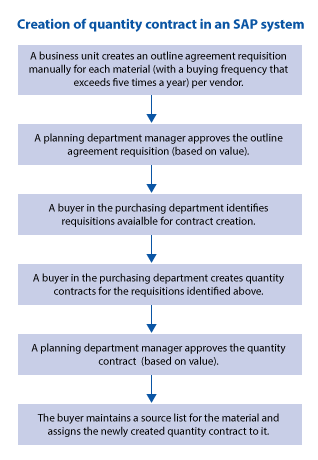
Figure 1
The steps involved in creating a quantity contract
Let’s look at these steps in greater detail:
1. Create an outline agreement requisition. An outline agreement requisition (document type RV) is a purchase requisition used for contracts. This document is a formal request to a purchasing department in which a user in the planning department specifies what material is needed and enters the approximate quantity of that material that is required over a certain period.
To create an outline agreement requisition, use transaction code ME51N or follow menu path Logistics > Materials Management > Purchasing > Purchase Requisition > Create. Specify the material number and yearly quantity, as well as the unit of measure for this material; the plant and storage location in which it is needed; and the purchasing group code of the buyer responsible for the procurement of this material. After entering these details, click the save icon  or press Ctrl+S button on keyboard.
2. Approve the requisition. Once the planning department user creates the outline agreement requisition, he or she needs to have it approved by a supervisor or manager in the planning department. In this step, the planning manager confirms that the quantity of the material mentioned in the outline agreement requisition is correct. The business can choose various levels of approval based on the total value of the requisition line item. For example, you can have multilevel approval in a production department such as:
- Supervisor A: Approval level $0 to $10,000
- Manager X: Approval level $10,001 to $20,000
- Manager Y: Approval level $20,001 to $50,000
To approve a purchase requisition, use transaction code ME54N or ME55 or follow menu path Logistics > Materials Management > Purchasing > Purchase Requisition > Release > Individual Release/Collective Release. A manager or supervisor in the planning department has to enter the purchase requisition number, verify the requisition details, and then click the release icon  .
.
3. Identify outline agreement requisitions that are approved. Once the planning or production manager approves the outline agreement requisition, it is available for the buyer in the purchasing department to create a quantity contract. To determine what requisitions are approved and available for the buyer to take action on, the buyer has to run transaction Assign and Process Purchase Requisition. To do so, use transaction code ME57 or follow menu path Logistics > Materials Management > Purchasing > Purchase Requisition > Follow on Functions > Assign and Process. In this transaction, the buyer has to provide his or her purchasing group code, select the option Release Requisitions Only, and click the execute icon. This action displays all requisitions that are completely approved by planning and production departments and ready for contract creation.
This is the same action described later in the section titled “Manually Create Requisitions.”
4. Create a quantity contract. Once the buyer determines the outline agreement requisition is available for contract creation, the buyer can create a quantity contract. To create a quantity contract use transaction code ME31K or follow menu path Logistics > Materials Management > Purchasing > Outline Agreement > Contract > Create. Select the option Reference to Preq, enter the desired requisition number identified in step 3, and press enter. This takes you to the quantity contract creation screen with fields populated automatically from the purchase requisition. Press save button at the top of the screen.
5. Approve the quantity contract. A higher level purchasing manager now needs to approve the newly created contract based on the total value of the contract. This process is similar to the approval levels described in step 2. For example, a purchasing department might use the following hierarchy for approving quantity contracts:
- Buyer A: Approval level $0 to $5,000
- Senior buyer: Approval level $5,001 to $20,000
- Purchasing manager: Approval level $20,001 to $80,000
- Global head of purchasing: Anything higher than $80,000
6. Maintain a source list. Once the quantity contract is approved, the buyer has to maintain a source list, which is master data in purchasing that includes details of materials that can be purchased from certain suppliers in a specific period. This list is required so that the system can identify which vendor and quantity contract are associated with the material. To maintain a source list, use transaction code ME01 or follow menu path Logistics > Materials Management > Purchasing > Master Data > Source list > Maintain.
In this step, the buyer enters the quantity contract number created earlier for the respective material so that whenever requirements are generated for this material, the system is able to pick this quantity contract as a relevant source of supply. The maintenance screen of the source list is shown in Figure 2. Under column Agmt, you see the quantity contract number. Here the system determines the source of supply for the corresponding material by looking at the vendor on this contract.

Figure 2
A sample source list that includes material information for easy reordering
The source list in Figure 2 is broken down as follows:
The Planning and Purchasing Process
Once a quantity contract is created, approved, and maintained in a source list, the purchase process starts. Figure 3 details the steps involved in a routine planning and purchasing process.
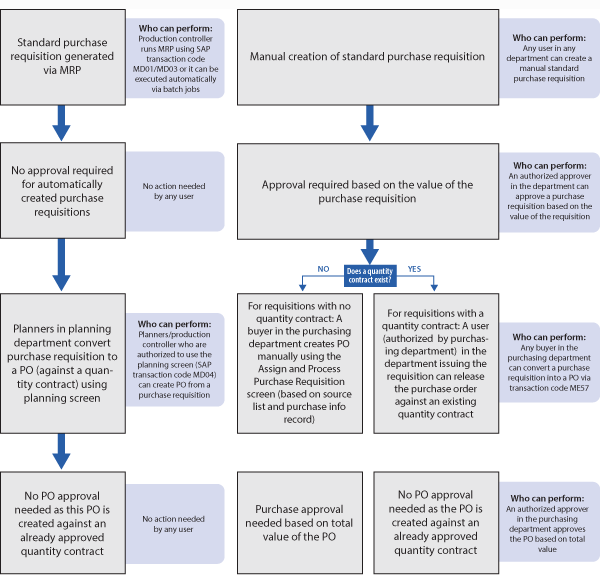
Figure 3
The end-to-end planning-to-purchasing process
As shown in Figure 3, you can create a requisition either as a result of a material requirement planning (MRP) run or manually. A standard purchase requisition (SAP document type NB) is used when creating purchase requisitions for materials.
MRP-Generated Requisitions
The requisitions described in the process on the left side of Figure 3 are generated as a result of a planning run and specify the quantity of material required on a certain date. Purchase requisitions that are generated automatically as a result of an MRP run do not require any approval. Therefore, they can be directly considered for further processing (i.e., creating a PO).
To turn a requisition into a PO after an MRP run is executed you need to access the planning screen. Enter transaction code MD04 or follow menu path Material Requirements Planning > MRP > Evaluations > Stock/Reqmnts List (Figure 4). Select the purchase requisition and convert it into a PO by clicking the display icon  . This action takes you to Figure 5. Click the Purchase Order button to create a PO against the quantity contract.

Figure 4
The planning screen in which you can see MRP results
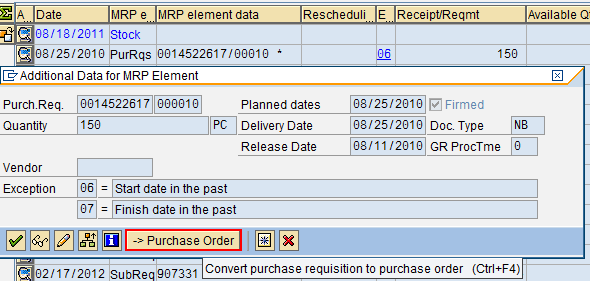
Figure 5
Convert a purchase requisition into a PO via the planning screen
Because the resulting PO is called against an already approved quantity contract, no further approval is required. In this example, note that the purchasing department was not involved at all except in creating the quantity contract, which is a one-time activity in each contract’s time period. For the remaining steps, planners can create procurement proposals themselves based on purchase requisitions generated as a result of MRP runs.
Manually Created Requisitions
For materials that are not purchased frequently or for indirect materials for which planning is not required, a user in the respective department can manually create a purchase requisition via transaction code ME51N or by following menu path Logistics > Materials Management > Purchasing > Purchase Requisition > Create. Because this requisition is created manually, it needs to be approved at different levels based on the value of the material on each line of the requisition. Once the request is approved, a PO can be created.
The person who can create this PO, however, depends on whether the material in the requisition has an existing quantity contract. If no quantity contract has been created for the material in the requisition, a buyer in the purchasing department must create the PO using the Assign and Process transaction (transaction code ME57 or menu path Logistics > Materials Management > Purchasing> Purchase Requisition > Follow on Functions > Assign and Process), as shown in Figure 6.
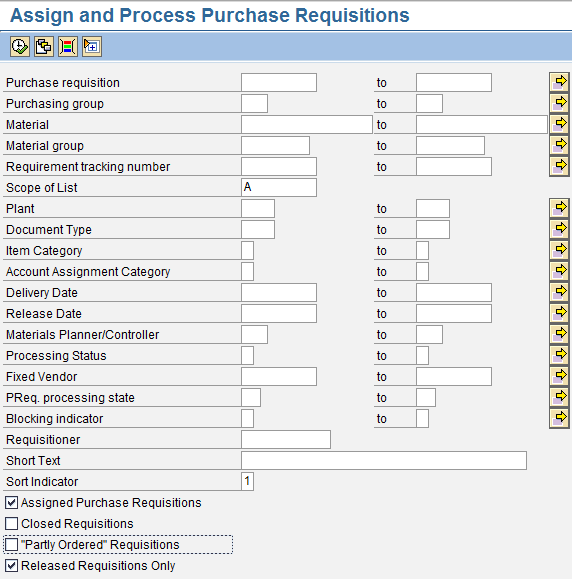
Figure 6
Assign and process a purchase requisition
The buyer enters his or her purchasing group code and determines if there are any purchase requisitions pending for action (i.e., if any requisitions are completely approved and ready for PO creation). The buyer selects the two indicators at the bottom of the screen (Assigned Purchase Requisitions and Released Requisitions Only) to make sure that only purchase requisitions that are completely released (approved) and have a source assigned are taken into consideration for the creation of a purchasing document. Once the buyer creates the PO, the purchasing manager needs to approve it based on the total value of the PO, as I described earlier.
Note
Only buyers in the purchasing department can create a PO for the type of requirements in which planning is not involved.
If a quantity contract exists for the material, the purchasing department does not need to create a PO as the user in the requesting department can release a PO against the existing quantity contract. However, the person who can release a PO against a contract needs to be determined by the purchasing department and higher management. Only those users approved by the purchasing department for release order creation roles are assigned roles in the SAP system by the Basis or security team that permits releasing a PO against a quantity contract.
To create a release order against a quantity contract use transaction code ME33K or follow menu path Logistics > Materials Management > Purchasing > Outline Agreement > Contract > Display. Then go to Contract > Follow-On Functions > Contract Release Order to create a PO against this contract.
Yogesh Lohiya
Yogesh Lohiya is a senior SAP MM consultant with Infosys. He is currently working on a large data migration project for a Fortune 500 client. He has more than nine years of consulting experience. He also has worked on various SAP global rollouts and data migration projects in the materials management area.
You may contact the author at ymlohiya@gmail.com.
If you have comments about this article or publication, or would like to submit an article idea, please contact the editor.





 Premium