Integrating SAP Document Management System (DMS) with your imports procurement process can save significant time, effort, and resources compared with a completely custom-developed or an out-of-SAP solution.
Key Concept
International trade is an integral part of many businesses. It is a complex process, requiring a large amount of documentation in areas such as legal, shipment, and banking. All banking transactions are managed through a letter of credit (LC), and shipment-related matters are attended with a bill of lading (BL).
Compared to the highly integrated financial documents for exports processing in SAP’s sales and distribution (SD) component, the imports process in the SAP materials management (MM) procurement function is not nearly as comprehensive. SAP ERP provides only an Imports tab with very limited fields that can’t handle the complexities of procuring materials from a foreign country.
There is no provision to enter the information listed in a letter of credit (LC) or bill of lading (BL), so the business process owner either manages the import process outside the ERP system or uses a custom-developed ABAP interface to input and store all the information.
The information that import personnel have to manage is not only diverse but also dynamic. For example, they might conduct transactions through four banks. To add a new bank, they must first add it as an option in the ABAP interface that has been developed to cater to the import process. Similarly, if ports of shipment or arrival change, amending the information in the SAP system is difficult because it was custom coded.
SAP ERP does not have the provisions to manage all the complexities of the imports processes, and options such as an ABAP solution that has been developed to cater to the import process need constant updates as soon as one or more of the parameters changes.
To meet these challenges, SAP Document Management System (DMS) records import-related details and offers the ability to link the information with procurement elements such as purchase order, quantity, or value contract. You also can store the original LC or BL document in the DMS for reference and recordkeeping purposes.
Change a DMS Document
To change a DMS document, follow menu path Logistics > Central Functions > Document Management System > Document > Change or use transaction code CV02N (Figure 1).
Although my example shows how to make changes to an existing DMS document, you can also use the same option to create a new DMS document by clicking the create icon (highlighted by the red box). The transaction code to create a new DMS document is CV01N.
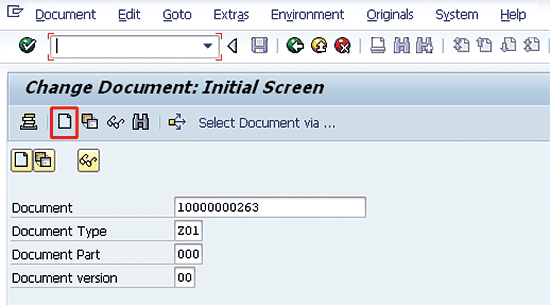
Figure 1
The initial screen of a DMS document
In Figure 1, enter a previously created DMS document number (e.g., 10000000263) and the document type (e.g., Z01). The document type Z01 is configured as an LC with its own unique configuration settings as well as number range. You do not have to type in the Document Part and Document version if there is only one part and version of a DMS document. Press Enter.
In the next screen (Figure 2), enter a short description or important keywords, which are then available during a text search in DMS. You also can enter long text if there’s any such business need. Further, in the Document Status field, you can set various statuses of a DMS document, such as LC Opened, LC in Negotiation, or LC Expired. These status settings enable you to search for all DMS documents having a particular status. When assigning a status to a DMS document, you can integrate a digital signature as a validation step.
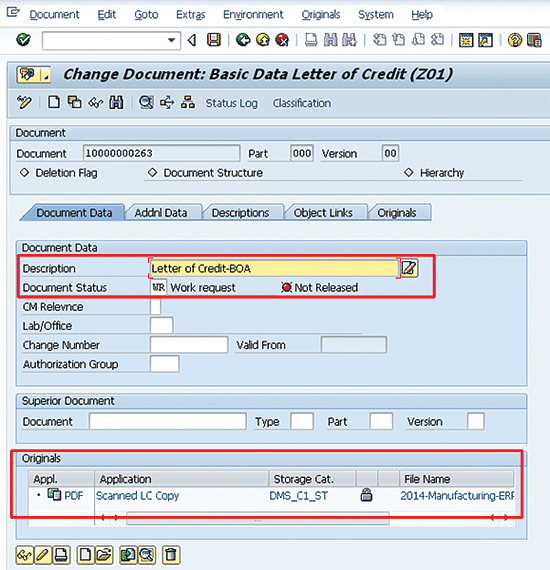
Figure 2
Document data of a DMS document
In the Originals area of the DMS document, you can upload any kind of soft copy of the document that is on your local or network hard drive. You can even scan a hard copy of an LC and upload it. When you use the function to check in an original document, the system stores it in the document repository for its eventual availability for reference and record. Click the Addnl (Additional) Data tab to go to Figure 3.
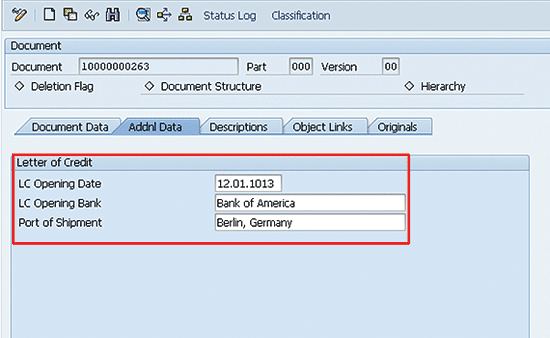
Figure 3
The Addnl (Additional) Data tab of a DMS document
Figure 3 uses classification functionality in DMS. This functionality is based on three self-defined characteristics: LC Opening Date, LC Opening Bank, and Port of Shipment. With classification, you can incorporate any number of new characteristics and their values. You also can change the existing characteristics to add or amend any values. All characteristics and their values are searchable in DMS. Click the Object Links tab to go to Figure 4.
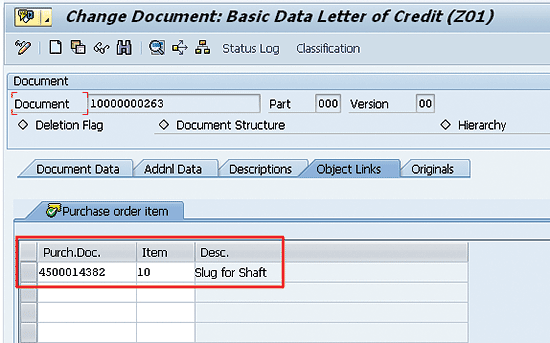
Figure 4
The Object Links tab of a DMS document
In Figure 4, enter the purchase order number 4500014382 together with its line-item number (10) so that this DMS document links to the purchase order for reference and record. In other words, link this DMS document with the purchase order against which the import process commences. If needed, you can link multiple purchase orders with one DMS document and vice versa. Click the save icon (not pictured) to save the DMS document.
Check the Object Link in the Purchase Order
I now explain how the purchase order object link that I made in the DMS document becomes available within the purchase order. To change a purchase order, follow menu path Logistics > Materials Management > Purchasing > Purchase Order > Change, or use transaction code ME22N (Figure 5).
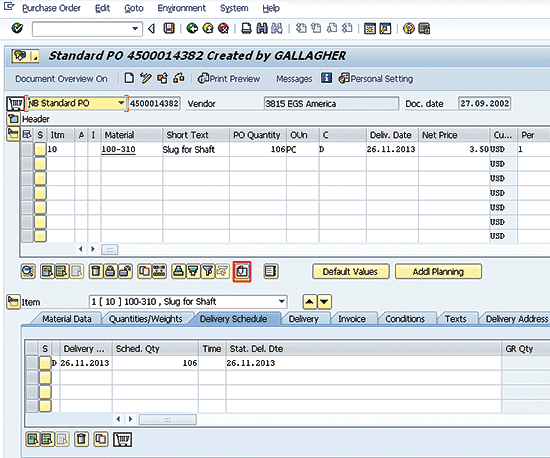
Figure 5
The purchase order screen
Figure 5 shows the same purchase order number (4500014382) that I previously used in the DMS document with object link functionality. Select a line item (e.g., 10) and click the linked documents icon (the gem clip). Figure 6 appears as a pop-up screen.
Figure 6 is the screen that contains the object link of the DMS document to the purchase order line item. In this screen the system provides you with the option to navigate directly to the attached object-linked DMS document. Further, on this screen you can also add, delete, or search for other DMS documents.

Figure 6
Link between a purchase order line item and a DMS document

Jawad Akhtar
Jawad Akhtar earned his chemical engineering degree from Missouri University of Science and Technology. He has 17 years of professional experience, of which nine years are in SAP. He has completed eight end-to-end SAP project implementation lifecycles in the areas of PP, QM, MM, PM, and DMS in the steel, automobile, chemical, fertilizer, FMCG, and building products industries. He also has worked as an SAP integration manager and an SAP project manager. He has been proactively involved in a business development and solution architect role for seven years. He is the author of Production Planning and Control with SAP ERP, it's filled with in-depth infomation on discrete, process, and repetitive manufacturing types. His profile on LinkedIn is at https://pk.linkedin.com/in/jawadakhtar. You may follow Jawad on Twitter @jawadahl. Currently, he is associated with AbacusConsulting as Head of SAP Delivery.
You may contact the author at jawad.akhtar@live.com.
If you have comments about this article or publication, or would like to submit an article idea, please contact the editor.





 Premium