From SAP ERP 5.0, SAP offers a parallel ledger solution to enable you to comply with multiple accounting standards. However, there was one inherent limitation: You could not post journal entries for open item managed GL accounts to any specific ledger. With SAP ERP 6.0 enhancement package 3, SAP has provided Clearing Specific to Ledger Groups to overcome this issue. Learn how to use this new clearing functionality with the SAP General Ledger for parallel accounting.
Key Concept
Clearing Specific to Ledger Groups is functionality provided in SAP ERP 6.0 enhancement package 3 that enables you to match offsetting credit and debit postings to the SAP General Ledger (GL) accounts, vendors, and customers.
SAP ERP provides a functionality called open item management and clearing of open items. To help you understand these functionalities, I describe one simple scenario of a vendor invoice, a subsequent payment made against this vendor invoice and matching, and offsetting (known as clearing) a payment document with a related vendor invoice document.
In this scenario, I post a vendor invoice for $1,000 in SAP Accounts Payable. When I make a payment of $1,000 against this invoice, the clearing process enables me to match and align a vendor payment made against this invoice. The clearing process can be used for vendors, customers, and GL accounts. Vendor and customer accounts are subject to clearing by default, but the clearing process is not required for all GL accounts. The clearing process cannot be used for GL accounts unless the GL account is set up as open item managed. In my example, vendor invoice and vendor payment documents are called open items. After the vendor invoice is matched and offset with payment documents with the clearing process, those documents are called cleared documents.
To use the clearing process for a GL account, I select an indicator called Open Item Management while setting up the GL account master data. The clearing process for an open-item-managed GL account enables you to match and offset one line item posted to that GL account with other offsetting line items. Line items of the GL accounts matched and offset through the clearing process are called cleared items. Line items that are not yet cleared are called open items. The total of all the open items involved in the clearing transaction must be zero. Therefore, the balance of the GL account is equal to the total balance of all open items posted to that GL account. Generally, open item management is used for bank clearing accounts or goods receipt (GR), invoice receipt (IR), or clearing accounts.
Beginning with SAP ERP Central Component (SAP ECC) 5.0, SAP offers a ledger solution for complying with multiple accounting principles. This functionality enables you to create and assign multiple ledgers with company codes. It also enables you to create one leading ledger (0L) and several non-leading ledgers to meet the requirements of parallel accounting.
Note
For more details on the ledger solution for parallel accounting, read “Streamline Your Parallel Accounting with the New G/L Ledger Solution.”
Ledger-Specific Posting Error for Open-Item-Managed GL Accounts
In my scenario, GL account 113001 is set up as an open-item-managed account for Company Code 5000. Ledger group LL is a non-leading ledger set up for local reporting. A journal entry is required to be posted to GL account 113001 only in the local reporting ledger LL, not in leading ledger 0L. Figure 1 shows the transaction FB50L screenshot for the above scenario.

Figure 1
Ledger-specific posting to open-item-managed GL account 113001 to ledger LL
Figure 2 depicts the SAP error while posting GL account 113001 to non-leading ledger LL.

Figure 2
Error occurred in posting to open-item-managed GL account 113001 to ledger LL
Activate an SAP Business Function
To use Clearing Specific to Ledger Groups, you need to activate the business function FIN_GL_CI_1. Activating FIN_GL_Cl_1 makes a new indicator available in the GL account master data. The new indicator is called Clearing Specific to Ledger Groups.
In my example shown in Figure 3, I select the option Clearing Specific to Ledger Groups for GL account 114001 by marking the check box. Use transaction FS00 or follow menu path Accounting > Financial Accounting > General Ledger > Master Records > GL accounts > Individual Processing > Centrally for display or change GL account master data.

Figure 3
Clearing Specific to Ledger Groups option activated for GL account 114001
To use ledger group-specific clearing for any GL account, you need to select this option while setting up GL account master data. By setting up this indicator, you can manage the GL account on an open item basis as well as post ledger group-specific entries to the GL account. However, you cannot select this option for the following types of GL accounts:
- GR/IR accounts
- GL accounts for cash discount
- Reconciliation accounts
- Tax relevant GL accounts
- P&L accounts
- Any GL account that is set up for automatic posting through account determination
It is also important to note that when you set up the option Clearing Specific to Ledger Groups, you cannot select the options Open Item Management and Line item display for that GL account. The underlying reason behind this is that selecting Clearing Specific to Ledger Groups activates both the functions for that GL account for each ledger individually. If you are planning to use the clearing function, but do not want to make it specific to the ledger group, you need to select the Open Item Management option for this GL account. To get the line-item display report for the GL account, select the Line item display option. Remember, you need to select the option of Clearing Specific to Ledger Groups to use the clearing function as well as to post line items to a specific ledger.
The Business Process of Clearing Specific to Ledger Group
Once the GL account is set up for clearing specific to a ledger group, you need to use a different transaction and business process for clearing than a conventional open-item-managed GL account. The rationale for this is that some open items may not be posted to all ledgers, but only to a specific ledger. Therefore, you have to use SAP transactions provided for clearing open items for each ledger individually.
Let’s first analyze the FAGLB03 – GL Balance Display for GL account 114001 and company code 5000. GL account 114001 has $200 of debit and credit postings in ledger 0L (Figure 4). To view the GL account balance, use transaction FAGLB03 or follow menu path Accounting > Financial Accounting > General Ledger > Account > Display Balances (New). I executed FAGLB03 for GL account 114001 for company code 5000, fiscal year 2012, and ledger 0L.
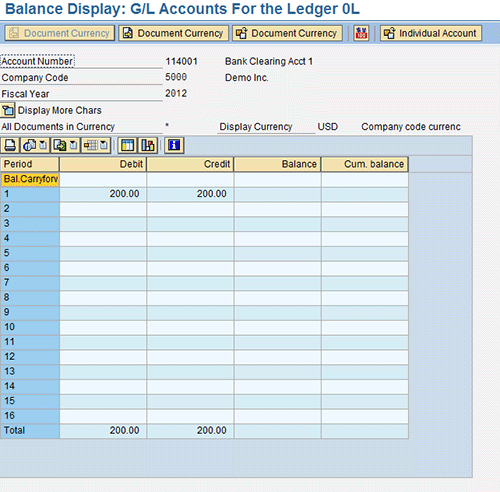
Figure 4
GL account balance of GL account 114001 in ledger 0L
This account also has additional ledger-specific credit and debit postings of $125 in periods 3 and 4 of FY 2012, respectively. Therefore, you have ledger-specific credit and debit postings of $125 that total up the debit and credit postings of $325 in ledger LL as shown in Figure 5. To view the GL account balance, use transaction FAGLB03 or follow menu path Accounting > Financial Accounting > General Ledger > Account > Display Balances (New). I have executed FAGLB03 for GL account 114001 for company code 5000, fiscal year 2012, and ledger LL.

Figure 5
GL account balance of GL account 114001 in ledger LL
To clear these ledger-specific postings for GL account 114001, use transactions provided by SAP for Clearing Specific to Ledger Groups. I discuss these new transaction codes later in this article. If you try to use transaction F-03 instead (the transaction used for clearing of GL open items) for GL account 114001 and company code 5000, it does not work. The system sends an error message suggesting that you use separate transactions such as FB1SL or FB05L for clearing of open items for the GL accounts that are set for ledger-specific clearing (Figure 6).
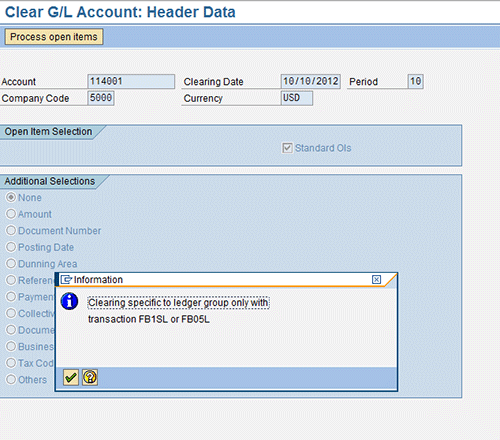
Figure 6
An error message indicating you should use transaction FB1SL or FB05L
Note that you cannot use transaction F-03 for clearing the GL accounts that are set up for clearing specific to ledger groups. Transaction F-03 is still functional for GL accounts that are set up as open item managed and that do not have any ledger-specific posting.
I now explain how to use transaction FB1SL to clear an open item posted to GL account 114001 for ledgers 0L and LL. As shown in Figure 7, FB1SL contains one additional selection field compared with F-03. That field is Ledger Group (Ledger Grp). You can use transaction code FB1SL or follow menu path Accounting > Financial Accounting > General Ledger > Account > Clear- Specific to Ledger Groups.

Figure 7
FB1SL for clearing open items of GL account 114001 but without specifying a ledger group
If you keep the Ledger Grp field blank, the system selects only open items that are posted to all the ledgers. No ledger-specific open items are available for clearing (Figure 8). Therefore, when the ledger group is not specified while clearing GL account 114001 with FB1SL, open items totaling $200 of debits and credit are available for clearing.

Figure 8
Open items posted to all the ledgers appeared for clearing when FB1SL is executed with selection fields not specifying a ledger group
After you clear the open items shown in Figure 8, notice what happens when you select a ledger group while executing FB1SL. When FB1SL is executed for Ledger Group LL and GL account 114001, ledger-specific open items posted to this GL account appear for clearing (Figure 9).

Figure 9
FB1SL executed for Ledger Group LL to clear open items pertaining to GL account 114001 for ledger group LL
Figure 10 shows that open items posted to ledger LL for $125 are available for clearing.

Figure 10
Only ledger-specific open items appeared when FB1SL is executed for clearing open items of GL account 114001 with ledger group LL specified
Therefore, I recommend that you use FB1SL first without specifying a ledger group to clear open items posted to all the ledgers and then clear the ledger-specific postings. Similarly, automatic clearing transaction F.13 has been replaced with F13L. I have not explained F13L in detail here as the difference between F13L and F.13 is same as the difference between FB1SL and F-03.
Subsequent Activation Clearing Specific to Ledger Group
What if you have an existing account that is set up as open item managed and it also has open items posted to it? You can use transaction FAGL_ACTIVATE_OP to convert the GL account from open item managed to ledger-specific clearing.
Note
Refer to “Use Subsequent Activation of Open Item Management for Better Control Over Your SAP General Ledger Account” for a better understanding of subsequent activation of Open Item Management.
To activate Clearing Specific to Ledger Groups, select the option Specific to Ledger Group instead of Standard as shown in Figure 11.
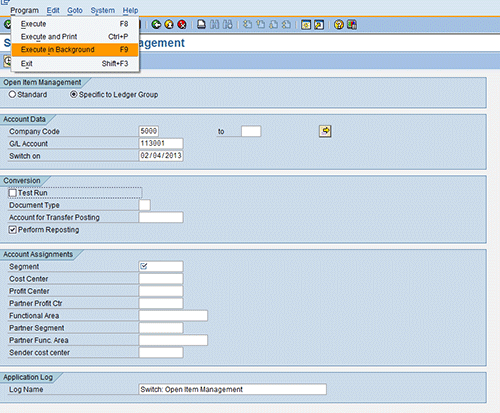
Figure 11
Select the option Specific to Ledger Group while using FAGL_ACTIVATE_OP
I first execute FAGL_ACTIVATE_OP in the background (Figure 12) as the SAP system usually allows an update run of this transaction in background mode.
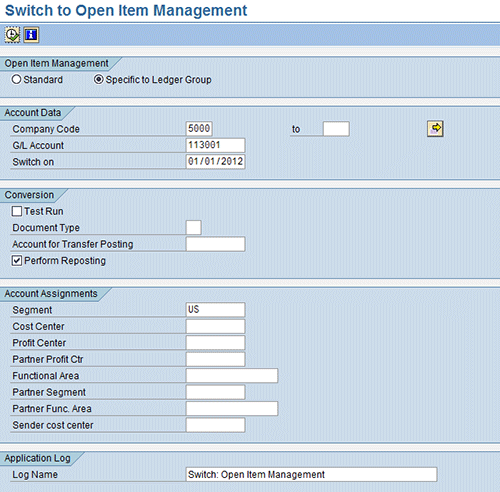
Figure 12
Execute FAGL_ACTIVATE_OP to convert GL account 113001 to Clearing Specific to Ledger Group in background mode
When I check the spool for that background job, I see a warning message stating: Canceling the activation of open item management specific to ledger grps (Figure 13).
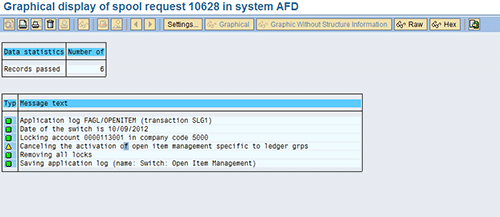
Figure 13
Spool of the background job triggered by FAGL_ACTIVATE_OP background mode execution
When I check the GL account master data, the indicator Clearing specific to Ledger Group is not turned on. If you face a similar problem, implement corrections made in SAP Note 1603673 and then execute this program in foreground mode. After implementing the solution from SAP Note 1603673, I execute this program in foreground mode. The program then runs successfully, and the warning message does not appear anymore. The only difference is the execution mode. The log of FAGL_ACTIVATE_OP foreground mode execution is shown in Figure 14. The message Canceling the activation of open item management specific to ledger grps no longer appears.
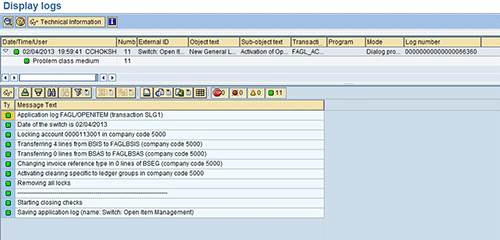
Figure 14
Log of FAGL_ACTIVATE_OP in foreground mode
After successful execution of FAGL_ACTIVATE_OP, I check the GL account master record for GL account 113001, and this GL account is now set up for Clearing Specific to Ledger Group as shown in Figure 15.

Figure 15
Clearing Specific to Ledger Groups activated for GL account 113001
Because this account has already been set up for clearing specific to a ledger group, I have attempted to post a journal entry to this GL account to ledger group LL as shown in Figure 1. I receive an error while posting a line item to this GL account 113001 to ledger LL prior to FAGL_ACTIVATE_OP conversion. After converting this account to ledger-specific clearing, I am able to post a ledger-specific entry to this GL account as shown in Figures 16 and 17.
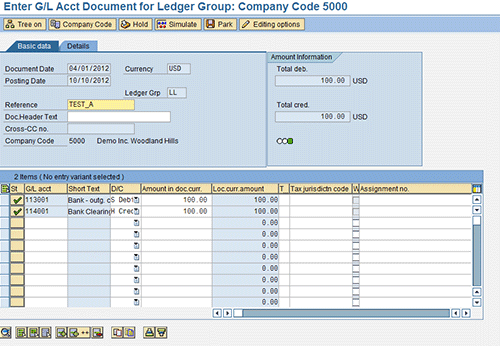
Figure 16
No error appears for ledger-specific entry to GL account 113001
I have described a basic scenario explaining the problem that existed prior to ledger-specific posting to open an item-managed GL account. You can use this new functionality of clearing specific to ledger group with SAP ECC enhancement package 3 for clearing specific to a ledger group. You can also use FAGL_ACTIVATE_OP for subsequent activation of clearing specific to a ledger group.
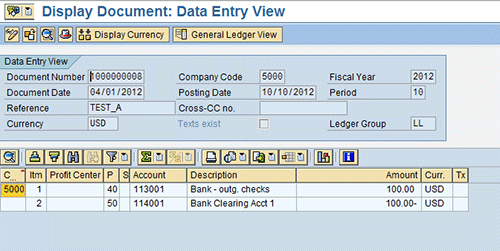
Figure 17
Document 1000000008 posted to GL account 113001 in Ledger Group LL
Chirag Chokshi
Chirag Chokshi is a solution architect for SAP Financials. He has worked on SAP Financials since 2001 and specializes in implementing the Financial Accounting (FI) and Controlling (CO) modules along with their integrated areas for companies in industries such as consumer products, the chemical process industry, pharmaceuticals, the public sector, industrial machinery, and component manufacturing. He has worked on various complex projects, including global rollouts, greenfield implementations, and SAP system upgrades. In addition, he has developed various preconfigured solutions with a focus on SAP Financials.
You may contact the author at chiragmchokshi@yahoo.com.
If you have comments about this article or publication, or would like to submit an article idea, please contact the editor.


 Premium