Understand how to configure HR Form Editor with the example of a payroll process.
Key Concept
The HR Form Editor is a tool to create forms in HR. SAP provides tools such as Smart Forms and SAPscript to perform operations and add graphics. With SAP’s partnership with Adobe, you also have the option to create process-based Adobe forms.
HR Form Editor (transaction PE51) is a standard tool that requires no programming background and automatically generates most required data in a form. One of the advantages of HR Form Editor is that it contains SAP-delivered standard forms that meet most requirements. In addition, you can use forms that you create with HR Form Editor for self-service applications. The forms support multiple countries and languages.
You can use HR Form Editor with form classes related to payroll (e.g., CEDT: Remuneration Statement, CKTO: Payroll Account, and CLGA: Wage type statement). I’ll use the example Form Class CEDT to create a remuneration statement with country grouping 10 (United States). Creating a remuneration statement involves bringing together various blocks of information before the final output. I will describe the various features of HR Form Editor and explain how and why you might configure them. For further details on wage types, refer to a list of related HR Expert articles in the sidebar, “Additional HR Expert Wage Type Resources.”
Note
The HR Form Editor in transaction PE51 supports the design of Payroll-related forms only. However, you can use the same approach for the time management Form Editor PE50, which supports the design of Form Class TEDT and TELU.
How to Build a Form
First, it is important to understand the basic framework against which a remuneration form is built. A remuneration statement is a collection of employee and payroll master data. Form Class CEDT within the HR Form Editor is built to read the master data and payroll clusters for the respective employee and pass the information on to the form.
To start building a remuneration statement, sketch the components that the business wants on the form. For example, this could include demographic information, organization assignment, tax profile, and earnings and deductions within the employee’s current pay period. Figure 1 shows an example of how you might want to set up this information on a form.
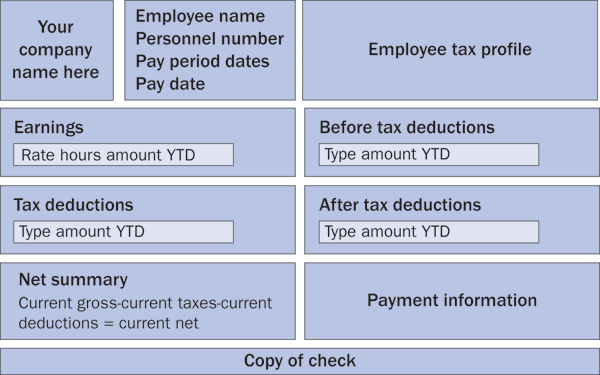
Figure 1
Draft design of a remuneration statement
Navigation in the HR Form Editor
After you have a visual idea of the form, you begin to create it using the HR Form Editor. Begin by accessing the HR Form Editor via transaction PE51. This transaction opens the initial screen, which displays the subobjects: attributes, background, single fields, window, line layout, cumulation IDs, text modules, rules, and documentation (Figure 2). Enter values 10 for Country Grouping and UF01 for the Form name.
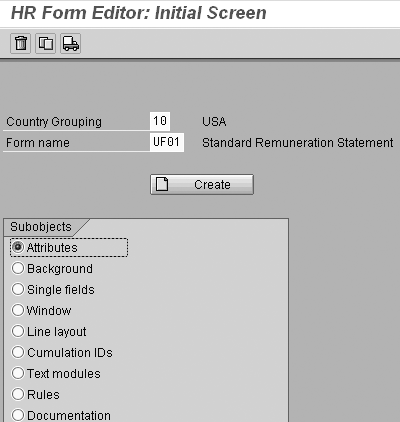
Figure 2
HR Form Editor initial screen
Navigate between the subobjects either by selecting the appropriate radio buttons and clicking on the Change button or by clicking on Goto in the navigation menu to access the individual subobjects in a form. You can use the previous and next icons to scroll between the subobjects (Figure 3). Just below the navigation pane is a ruler to help you determine the field positions for your form. The ruler’s left form margin and right form margin icons represent the width of the form.
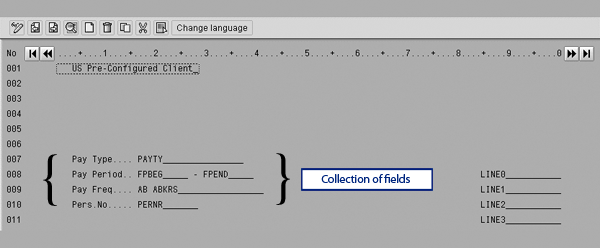
Figure 3
SAP standard Navigation bar and ruler on individual subobjects screen
The work area typically consists of single fields and windows. The lower part of Figure 3 contains the line numbers and a collection of fields in the work area to build the forms. Now that you have a basic understanding of the various navigation functions in the form editor, I’ll show you how to start building a form called ZFSD. This form will serve as a remuneration statement for a company called Degalas, Inc.
Copy a Form in HR Form Editor
SAP delivers standard forms for different countries. A good approach is to make a copy of the standard form and modify it to suit your requirements. In my example, I copied the standard form UF01 (Standard Remuneration Statement) to create a remuneration statement for my company Degalas, Inc. Go to transaction PE51 and enter 10 for country grouping and UF01 for form name. Click on the copy icon on the navigation pane to display the Copy Form UF01 screen. On this screen enter 10 and ZFSD in the Target entries section and click on the Copy button (Figure 4).
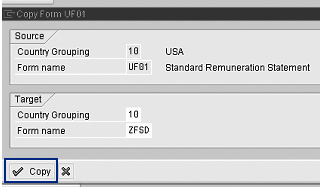
Figure 4
Copy a form
After the copy is completed, access the form ZFSD using transaction PE51. The form ZFSD inherits the standard properties of form UF01. However, I’ll use the subobjects in the Form Editor to modify and define the properties for form ZFSD to suit my business requirements. This modification occurs within the Subobjects section.
HR Form Editor Subobjects
The HR Form Editor has eight subobjects. Each provides a specific functionality that determines the output of the form:
- Attributes and the layout define the title, length, and width of the form
- Background places information that has a fixed position on the form and is static in nature (e.g., name of the company)
- Single fields places information that has a fixed position on the form but stores variable information (e.g., the name of an employee)
- Window holds information that is similar (e.g., earnings, deductions, and taxes)
- Line layout determines the positioning of related items (e.g., output earning rate and amount are located on the same line)
- Cumulation IDs determine sub-totals within a form window (e.g., sub total of earnings or deductions)
- Text modules support the background and single field objects and are used when an output of the form varies (e.g., multiple company addresses can be stored in the text module and the output on the form is based on the employee work location)
- Rules perform simple linear equations to determine outputs based on an IF/THEN clause (e.g., print off cycle if payroll is not a regular run)
Now I’ll modify the subobjects for form ZFSD. You can classify the subobjects as either related to master data or to payroll data.
Subobjects Related to Master Data
Attributes: Select the Attributes radio button on the ZFSD initial screen and click on the Change button to bring up the attributes screen (Figure 5). The attributes determine the processing parameters for the form and lay the foundation for the entire form in terms of the class, output size (default is 90x132), and country grouping. Modify the values to reflect Figure 5.
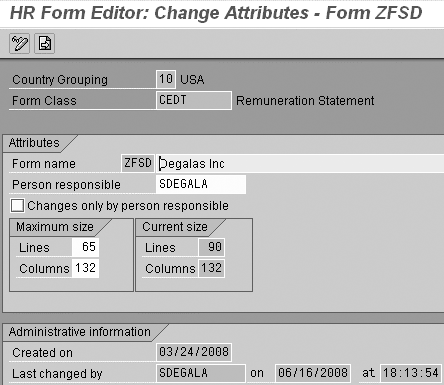
Figure 5
Attributes screen for form ZFSD
The settings in the Attributes section override many other functions. For example, you cannot add a new line to the form by following the menu path Edit > New line if the maximum number of lines in the form is equal to the current number of lines in the attributes subobject. If this is the case, you must change the maximum size of the form.
Background: Access the Change Background screen by selecting the Background radio button on the ZFSD initial screen or by using the navigation pane. The form background contains lines that can store alpha-numeric information. Typically you use this subobject to print fixed information that is static. Enter the address as shown in Figure 6. In real time the address of the firm Degalas, Inc is now printed in the top left corner whenever form ZFSD is used.
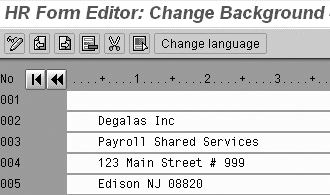
Figure 6
Display the company’s address
In most cases, the address on the remuneration statement is always unique for all companies. However, personal data such as names or personnel numbers is variable. In such cases, even though the information must be printed in a fixed position, you cannot use the background subobject to print it. Instead, use the single fields subobject. While both subobjects print information at fixed positions on the output, background is used for static information and single fields is used for variable information.
Single Fields: A single field basically serves as a placeholder for information that needs to be printed. You assign links to the data source, which feeds the appropriate data to the field. This sounds complicated but you can create it in a few simple steps. I’ll describe how to create a single field in the following example.
Using the single fields subobject, I’ll add the employee name and personnel number (PERNR) on the remuneration statement. The employee name and PERNR are stored in the master data tables of the individual employees. The technical values of these fields in an SAP system are P0001- ENAME and PERNR-PERNR respectively.
Access the single fields subobject by selecting the Single Fields radio button on the initial screen or by using the navigation panel. Create a single field by clicking on the create icon on the navigation panel to display the Insert Single Field screen (Figure 7).
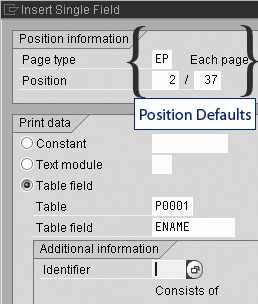
Figure 7
Insert Single Field screen
The position number is a combination of line and column number that the system defaults based on the cursor position. You can retrieve the name of the employee from various master data tables. In Figure 7, the data is being retrieved from table field P0001-ENAME. The same process can be adopted to display personnel number, location, pay type, and pay periods. Enter the table name and associated field value to display the table name on the form. Click on the Transfer button to save the information. Once the information is saved, the single field is created with the technical name (ENAME in my example) on the subobject screen.
Now every time this form is used in real time, it displays the name of the person at that position based on the respective employee information. At certain times during design it may be important to move the field position. Double- click on the field and a Change Single Field properties window appears. Change the information on the form to suit your needs. The single field also controls how information has to be displayed based on the Print options (Figure 8).
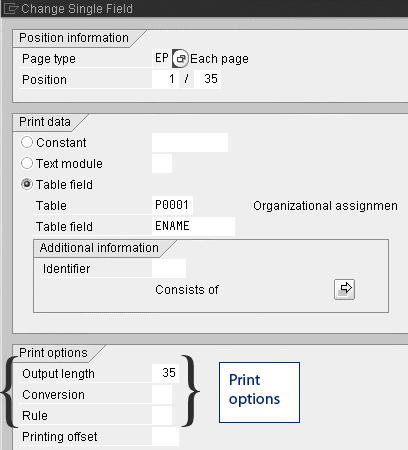
Figure 8
Change single field with a new position and display Print options
The single fields subobject can also output fixed values using the Constant radio button in the Print data section of Figure 8. This option is typically used for cosmetic needs such as adding a line or a * to distinguish areas on the remuneration forms. The other option that is available for retrieving information into the single field is to use the Text Module option. The print options determine how text has to be output during certain pre-set conditions based on the length of the field, format for numbers, and any specific conditions defined in the rules.
Text Modules: For the most part, it’s easy to understand when the displayed information is the name of a person. However, information such as PERNR needs to have a label associated with it to make it decipherable. Text modules contain at least one text element (e.g., personnel number) that you can combine with a graphical element.
For my ZFSD example, I use the text modules subobject to prepare a label for PERNR. Access the text module subobject by selecting the Text Module radio button on the initial screen and clicking on the Change button or by using the navigation panel (Figure 9). Create entries as shown. These entries are commonly used labels on most remuneration statements. In my example, the text Personnel No: is stored on line 05.
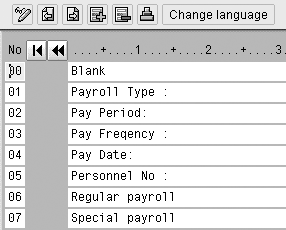
Figure 9
Display the text label for personnel number
Follow the steps given in the section on single fields and create two single fields: one field to store the Personnel No: (text module) and a field that reads PERNR-PERNR from the table. Assign 05 to the first field (Figure 10) and assign PERNR-PERNR to the second field.
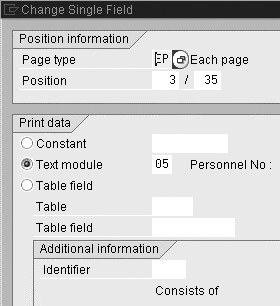
Figure 10
Assign the Text module in the Change Single Field properties
Using single fields and a combination of constants, text modules, and tables, you can output the data on a form.
Subobjects Related to Payroll Data
Apart from master data elements, single fields can also read tables related to payroll results. However, payroll information for an employee is highly variable information and differs from person to person and pay period to pay period.
Assume that you try to display the current rate of pay, earnings in the current pay period, and year-to- date salary (YTD) earnings for an employee. While you can do this by using single fields, you would need to use fields to display information for each earning type, which could create maintenance issues. Instead, use a combination of subobjects line layout and window to display payroll data on the remuneration statement.
Line layout: Based on the initial sketch of the remuneration statement, the form should display earnings information in a preset format, as shown in Figure 11. Typically, most business users want to see the type of earning, the rate of earnings, the number of hours for that period, the current pay for the period, and a YTD total. You define that type of preset format by selecting the Line layout radio button on the initial Form Editor screen and clicking on the Change button or using the navigation panel. The line layout is a combination of single fields aligned in a predefined order.
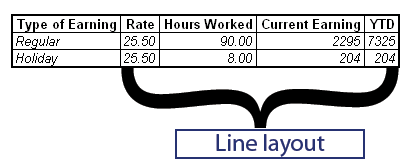
Figure 11
Typical preset format found on remuneration statement
It is important to understand that payroll data is structured in payroll clusters, which you access by using transaction PC_PAYRESULT (Figure 12). Data for the current period is stored in table RT and the YTD data is stored in table CRT. The line layout reads the data elements from each of these tables and then displays payroll values on the form. Figure 12 shows the relationship between the payroll results (left side) and single fields in a line layout (right side).
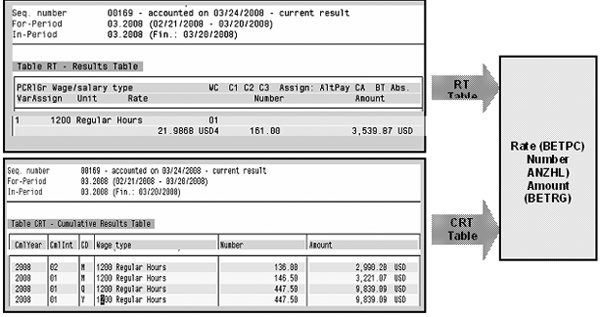
Figure 12
Relationship between data in the payroll results and single fields in the line layout
Note
Payroll clusters typically organize data generated by wage types during the payroll runs in various tables, such as
RT,
CRT, and
CRTK. While you can access the wage type data with the HR Form Editor, it is important to determine relevant wage types for the remuneration statement. This determination is made by defining wage type evaluation class
02 (Assignment of wage types for form printout). Evaluation classes are properties of a wage type that is defined on table
V_512W_O. Refer to the SAP documentation at
https://help.sap.com for more information on wage type processing and evaluation classes.
The combination of line type (vertical positioning) and column type (horizontal positioning) identifies the coordinates of a line layout. The single fields for line layout define how and where the line is printed in the window. Individual lines in a window can have an identical layout. For example, it is possible for a window to contain several lines in which the information text and the wage type amount appear in the same position. In this case, the information to be printed is not specified using printing data such as column and output length. You create line layouts based on the category of information to be displayed on the forms. For example, benefit deductions, taxes, garnishments, and payments can each have their own line layouts. In the form ZFSD, create Line type 01 as shown in the Change Single Field in Line Layout pop-up window in Figure 13. You also need to create Col type (column types) 01, 02, 03, and T, which appear in the background of Figure 13.
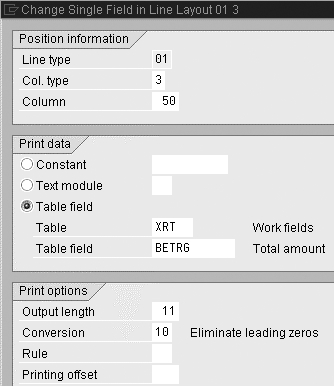
Figure 13
Properties of a single field within a line layout
In the following example, the fields LGTXT, BETPC, ANZHL and BETRG retrieve the wage type text, wage type rate, number of hours, and the wage type amount associated with payroll results (Figure 14).
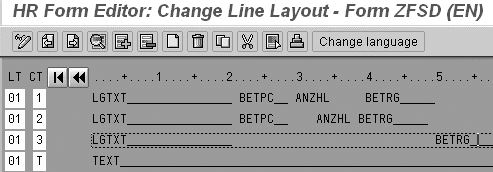
Figure 14
Line layout of single fields to create to an output that resembles Figure 11
At this point the line layout specifies the pre-set form to display data; however, it does not specify the wage types for which it needs to be used. You create the link between the wage type and the line layout in the Window subobject.
Window: A window is a particular area within a form that you can use as a place holder for data types that are similar in nature. The window can also identify unique column structures in forms.
The information in a window is only printed on the form if there is a value in the data record at the time of evaluation. If the number of lines defined in a window is smaller than the amount of information you need to print, then it prints over a few pages.
Select the Windows radio button on the initial screen and click on the Change button or use the navigation panel. Creating a window differs slightly from creating a single field. In my example, I’m creating window SD in form ZFSD. In the Change Window - Form ZFSD screen, select the area you want to create the window. Then click on the create icon. A message asks you to select the opposite corner. Make an estimate on the length of your window, place the cursor on the opposite end of the area, and click on the select icon. Enter the name of your new window (SD) in the pop-up window that appears and click on the save icon. Click on the window overview icon  to display the window you created and adjust the dimensions by using the line numbers and the ruler (Figure 15).
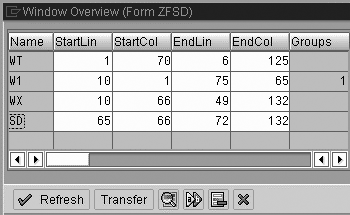
Figure 15
Assign length and width of windows
In the form ZFSD, create three more windows: W1 (for earnings, taxes, and miscellaneous), WX (for deductions), and WT (for tax profile) with the settings shown in Figure 15. These settings create four windows and ensure that the appropriate column framework is designed based on the initial sketch. While windows create the framework, Groups within each of the windows help create the links to retrieve syntax on the window in real time.
Place the cursor on Window W1 and double-click on it to bring up the Change group in Window W1. This screen is empty initially. Use the + icon to create an entry and name the group 10. Double-click on the group number 10 to display the Change Layout of Group 10 screen (Figure 16).
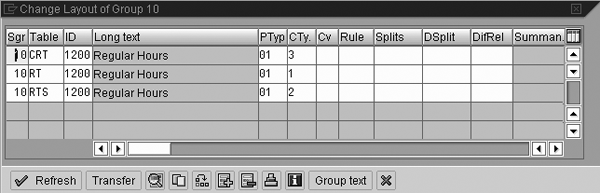
Figure 16
Group layout screen linking the payroll results table to the line layout
In the form ZFSD I created a group to display the earnings in window W1. In my example, I use wage type 1200 to process and store hourly earnings in table RT. Now I’ll establish a relationship between wage type 1200 and line layout 01, which I created in the previous section (refer to Figure 14). You should read the data in the group as “Read data from table CRT for wage type 1200 and display the data on the form based on definition in the line type 01/03.”
Now that I have created most of the building blocks for the remuneration statement, let’s look at a preview of how the remuneration statement has been formed. Use transaction PC00_M10_CEDT to retrieve the remuneration program. In the Form field, enter ZFSD and click on the execute icon. The result should be similar to the remuneration statement displayed in Figure 17.
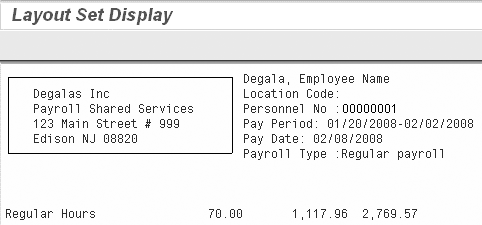
Figure 17
Preview of the remuneration statement after the initial building blocks
To make this information more meaningful, you should create appropriate headers for each of the groups. You can use the group text feature within the group window for this purpose. Group texts include text elements (e.g., employee deductions), graphic elements (e.g., lines), or blank lines.
Create a group text for the Earnings section in form ZFSD by clicking on the Group Text button shown in Figure 16 to display the Change Group Texts Group 10 (EN) screen (Figure 18). These settings create the header information on the form and make the form look more meaningful. After adding the group text, preview the remuneration form again to see the group header displayed above the Regular hours (Figure 19).
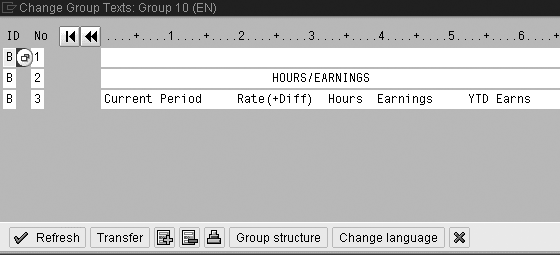
Figure 18
Group text to be used as the header for the Hours/Earnings section on the remuneration form
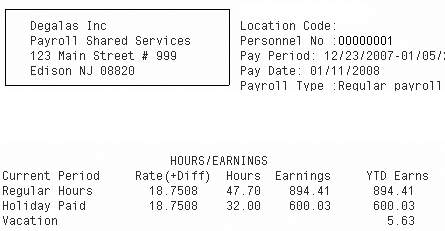
Figure 19
Group text displayed as a header for the Hours/Earnings section
In my example, I used wage type 1200. However, when the number of wage types related to a group is high — such as with earnings, taxes, and deductions — the use of an evaluation class from table T512 provides better functionality for the forms and is easier to maintain. Although, this is beyond the scope of my article.
Cumulation identifiers: Cumulation identifiers are used in windows to provide subtotals within each group or to display all of the wage types in a single line item. You create these identifiers in the Cumulation ID subobject. These entries reside in table ZRT and are retrieved by the window in which they are assigned.
You can use cumulation identifiers to display totals and subtotals or to avoid printing excess information on the forms, keeping the form simple. For example, you can display hours accrued towards paid time, compensatory time off, and sick time off as a sum total in a single line item, Accrued Quota Balance.
Let’s look at an example. I’ll create cumulation identifiers to display the sub-total of the earnings section in form ZFSD. Access the subobject Cumulation IDs by selecting the Cumulation IDs radio button on the initial screen. Click on the Change button or use the navigation panel.
In form ZFSD, create two Cumulation IDs (GR02
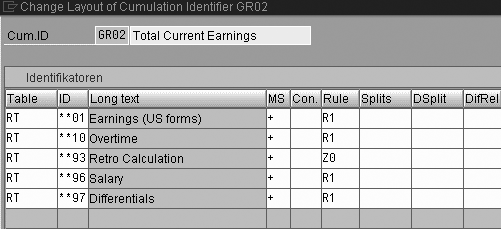
Figure 21
Add wage types in this screen that you want included as a part of the sub-total
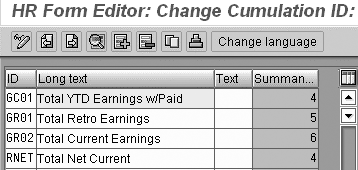
Figure 20
Change cumulation ID screen
After creating the GR02 assign it to the window W1 in form ZFSD by assigning line types, as discussed in the previous section. Preview the remuneration statement again and the sub-total of the earning sections, as shown in Figure 22.
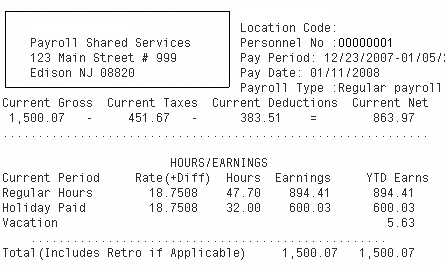
Figure 22
Preview of remuneration statement displaying subtotals created using Cumulation IDs
Now you have completed all of the building blocks required to design a remuneration statement. You can use the same process to create other sections such as deductions, taxes, and payments based on user requirements.
Sreedhar Degala
Sreedhar Degala is an SAP-certified human resources solutions consultant and is working as a manager at BearingPoint. He has 12 years of experience in information technology specializing in the human resource function.
You may contact the author at editor@HRexpertOnline.com.
If you have comments about this article or publication, or would like to submit an article idea, please contact the editor.




 Premium
