Learn how you can have an email sent to one or more people from any infotype within the SAP HR system without implementing workflow.
Key Concept
By using a combination of dynamic actions and features, you can have mail kicked off when saving an infotype. The automatic mail functionality allows you to create your own workflow by specifying that an email go out after a specific infotype is created, saved, or changed.
SAP’s automatic mail functionality works with all releases of SAP R/3 from as early as 4.5B all the way up to SAP ERP Central Component (ECC) 6.0. You must have SAPconnect activated for all emails that go outside the system. Automatic mail is very useful to notify HR users. For example, once an employee is hired, you may want an email to go out to various other personnel to notify them of actions they may need to take. An SAP security person may need to set up this employee as a user of SAP and attach the proper profiles, while another security person may need to get this employee a badge and a set of office keys, and a benefits person may need to send out information to get this employee enrolled in benefits.
The automatic mail functionality is only documented in part, so I’ll share my tips for making the most of it. I assume a certain level of competence on the part of the user for using dynamic actions and features. If you need a refresher on these topics, refer to these articles in the HR hub of SAPexperts: “Create Your Own Custom Feature and Eliminate Keying Errors” by Dawn Burns and “Unleash the Power of Dynamic Actions: Tips and Tricks to Get the Best Results” by Rehan Zaidi.
Create a Dynamic Action
The first thing to do is to create the dynamic action. Go to transaction SPRO and follow menu path Personnel Management>Personnel Administration>Customizing Procedures>Dynamic Actions (table T588Z). This takes you to the screen shown in Figure 1.

Figure 1
New Entries: Overview of Added Entries screen
The fields in the dynamic action table shown in Figure 1 are as follows:
IType: Enter the infotype where you want the dynamic action to take place (for this example, I am using infotype 0001). The dynamic action takes place after the infotype is saved.
STy.: Include the subtype, if necessary, to further define where you want the dynamic action to take place. If you’re dealing with infotype 0006 (addresses) and you only want this valid when using the permanent address type, you would enter 1 in this field.
Field N: Enter a field name, when you want to further define the infotype within the dynamic action. For example, by entering FATXT (marital status) when using infotype 0021, the system only activates the dynamic action whenever the marital status field changes, not any other time.
FC: This is where you determine under what conditions the system creates the dynamic action. I’ve listed the options in Table 1. In this case, I used 06 for when the infotype is both created and changed.
| 00 |
Independent of the current function carried out (which means anytime) |
| 02 |
Change |
| 04 |
Create |
| 06 |
Change and create |
| 08 |
Delete |
| 10 |
Change and delete |
| 12 |
Create and delete |
|
| Table 1 |
Options for creating a dynamic action |
No: This is a sequential number of the line. Each line within the dynamic action needs to be numbered. Within each new combination (infotype, subtype, field number) the numbering can start over. Otherwise, there cannot be any duplicate numbers. In my example in Figure 1 for infotype 0001, function code 06, I started the numbering with 1. I could have then made the next line 2, then 3, but I suggest skipping a couple of numbers between each line. This is because if you ever want to add an additional piece of information (say another plausibility check), you have some space without having to renumber all the subsequent entries.
S: This is the step indicator field. For the mail function, it is always M (for mail). Otherwise, it will be I to maintain an infotype record, P to check conditions, W to set default values, V to reference another step, or F to call a routine. Anything else in this field makes it a comment field, although an * is the most common way to designate a comment.
Variable function part: This is where you enter your logical expression. In the case of mail, you enter the feature to be called, which is M0001. Features are decision trees that allow you to assign default values for a field. Also, remember to document your dynamic action so those who maintain it can easily find it. Document it by entering asterisks in the step indicator field.
Update the Feature
To create and update the feature, go to transaction PE03. The first feature to maintain is M0001, Parameter settings for mail on change to infotype record (Figure 2). This is the feature called in the dynamic action. This feature enables you to control who to send mail to, the text sent, and the processing type used, such as whether the mail will go to an individual or a distribution list of multiple recipients.
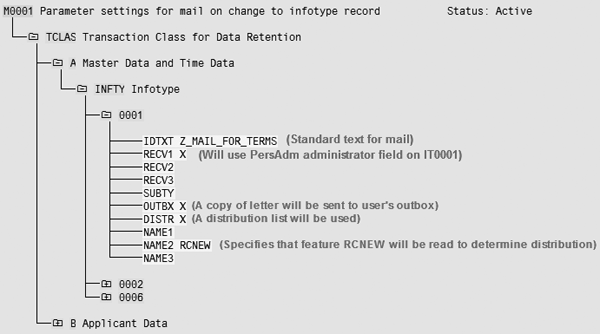
Figure 2
Maintain feature M0001
When you go into the delivered feature, you see that you first have to make a decision on whether you are going to use this on employees (master and time data), which fall under the transaction class (TCLAS) for data retention A, or applicants, which are TCLAS B. Transaction class really just refers to a database of employees or applicants.
The second decision you must make involves the infotype. You can send mail for any infotype that is created or changed. However, you have to enter a complete set of decisions for each infotype for which you want to send mail.
The return matrix of the feature has the following form: XXXXX ZZZZZ. XXXXX is the mail attribute (for example, IDTXT in Figure 2), while ZZZZZ indicates the actual value. IDTXT is the name of the standard text that you have created to be sent to the recipient.
Only use the next three attributes, RECV1, RECV2, and RECV3, to send mail to one of the administrators listed on infotype 0001 (personnel administrator, time, or payroll administrator). The value is the user name contained in administrator table T526:
- RECV1: PersAdmin
- RECV2: Time
- RECV3: PayrAdmin
SUBTY: Use this attribute if you want the employee whose data is changed to receive an email. The return value is the subtype from infotype 0105 that stores the employee’s email address.
OUTBX: Use this attribute if you want a copy of the mail to be in the sender’s SAP outbox. The return value is set to X to send mail.
DISTR: Use this attribute if you want to access a distribution list that is stored in the general folders in SAP Office (transaction SO04). This is necessary if you want to send the mail to an email address outside of SAP. The return value is set to X to use the distribution list.
NAME1: The return value for this attribute is RCIEV, which is another feature. You can only use this attribute if the infotype triggering the mail is not infotype 0001. Feature RCIEV allows you to define distribution lists and recipients.
If the infotype that is triggering the mail is infotype 0001, then you can specify whether the system reads the feature using the new data contained in infotype 0001 (meaning the data contained in infotype 0001 has been changed after the mail was sent). In this case, use attribute NAME2, return value RCNEW, or the old data contained in infotype 0001. The consequence of the third option is that the data prior to changing the infotype record that triggered the mail will be read. Use attribute NAME3, return value RCOLD for the third choice.
Remember, if you are using one of the three attributes discussed (NAME1, NAME2, and NAME3), you also need to maintain the corresponding feature. These are features RCIEV, RCNEW, and RCOLD, respectively.
The return matrices of the above features are all the same. They have the following format: X-VVVVVVVV
- X = either M for mail or V for distribution list
- VVVVVVVV = eight-digit valid mailing name or distribution list which is stored in a shared folder in SAP Office (transaction SO04)
Remember that the decision of which feature to use depends on which infotype triggers the mail. If it is infotype 0001, then it will be RCNEW or RCOLD; otherwise, it will be RCIEV.
Another thing to keep in mind is that you can see if you use the delivered feature M0001, you only are able to reference one standard text. If you want to send multiple mail messages from different infotypes, then you need to create a custom feature by copying this one. Refer to the features article I mentioned earlier by Dawn Burns (“Create Your Own Custom Feature and Eliminate Keying Errors”) to learn how to do this.
The same goes for the RCIEV, RCNEW, and RCOLD features. These all reference distribution lists. If you want to use multiple distribution lists, you need to create custom features by copying the original.
Create a Distribution List
To create a distribution list, go to SAP Office>Workplace or transaction SBWP. Click on the Distribution List button or follow menu path Environment>Distribution Lists.
Make sure that you select Shared distribution list in the type (Ty.) field (Figure 3). A private distribution list is available only under your ID. Enter the short name (eight digits in the Name field) and the long text for the distribution list title (in the Title field). After creating the title, click on the create icon.
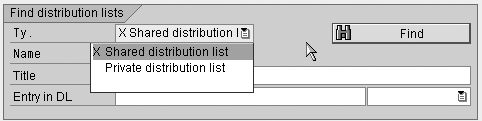
Figure 3
Choose the Shared distribution list type
You then need to select a folder that should hold this distribution list. Enter the folder’s name in the Folder field (Figure 4). You may have to create one. To do this, click on the drop- down button to the right of the Folder field (Figure 5). You can now see your distribution list at the bottom of the screen. Click on the list to select it, and then click on the change icon to open it and enter the email addresses.
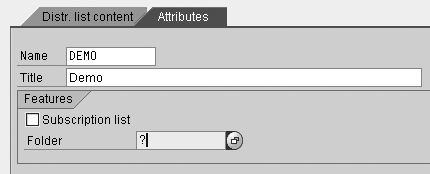
Figure 4
Select a folder to hold this distribution list
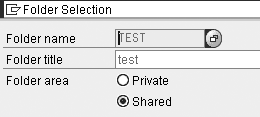
Figure 5
Create a new folder
Folders may already exist. If so, then you see them displayed when you click on the drop-down button in the Folder name field in Figure 5. When you see the existing folders in Figure 6, you can either click on the folder you want or click the Create folder button on the bottom of the screen.
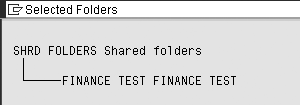
Figure 6
Existing folders
Figure 7 allows you to create your new folder. Make the name something that you can remember because this is a common folder that all users with the correct access can view. Once you have created your folder name, click on the enter icon. The newly created folder appears in your list (Figure 8). Double- click on it.

Figure 7
Create a folder
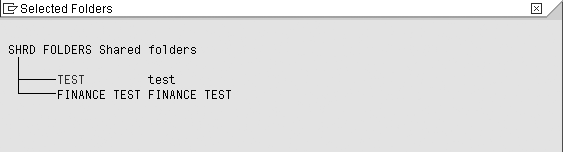
Figure 8
Double-click on the newly created folder
Then click on the enter icon and save. This takes you back to the Distribution Lists main screen (Figure 9). Click on your distribution list, and then click on the pencil icon to open it (Figure 10).
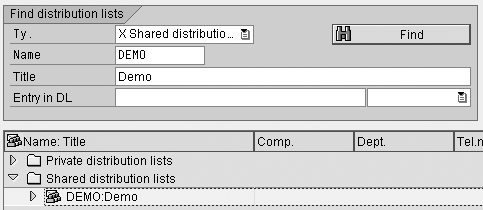
Figure 9
The Distribution Lists main screen
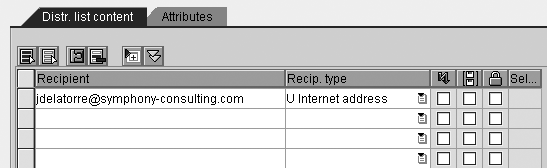
Figure 10
Open your distribution list
You can now add as many email addresses as you want to have in this distribution list. Make sure you select internet address in the Recip.type field if you are entering an outside email address (Figure 10). Click on the save icon when you’re finished.
The first field to the right after the Recip.type field is to send the mail as an express message. This means when users log on to SAP, they get a pop-up screen that says they have a message. The second field indicates the email goes out as a copy message (cc message), meaning it’s just informational. If you check the third box, it goes out as a blind copy (bcc).
Julie DeLaTorre
Julie DeLaTorre is a senior SAP HR consultant with Symphony Management Consulting. She has worked in SAP for 12 years and focused on HR for 10 of those years. She has both her public-sector certification and HR certification. She specializes in PA, OM, PD, and Training and Event Management.
You may contact the author at jdelatorre@symphony-consulting.com.
If you have comments about this article or publication, or would like to submit an article idea, please contact the editor.

 Premium