Many organizations face scenarios in which they have some assets used even after the net book value (NBV) reaches zero. Once the NBV reaches zero, no more booking happens in accounting for legal reporting. However, from a management point of view, the depreciation needs to be accounted into cost estimation even if the NBV is below zero to ensure that the product cost estimate has consistent factoring for depreciation. When you replace this asset, the new asset also has depreciation. Configuring settings for this depreciation below zero requirements in your SAP system enables you to make more realistic cost estimates.
Key Concept
Every fixed asset being used in an organization has a defined useful life (i.e., the time span for which the fixed asset is expected to be used). Based on the fixed asset’s useful life, an organization expenses out a portion of the fixed asset’s cost into its profit and loss (P&L) in the form of depreciation. Furthermore, this depreciation also becomes part of the cost of manufacturing, as the product should contain all the direct or indirect costs associated with manufacturing it.
Depreciation below zero is one of the most desired requirements in asset accounting and product costing. To help you better understand depreciation below zero, consider a scenario in which you acquired fixed assets worth US $1,000,000 with a useful life of five years. Each year you calculate the depreciation of US $200,000 (assuming a straight line depreciation method) and this depreciation forms part of the product cost. At the end of the fifth year, the asset is not disposed of and you use it for two more years.
Therefore, for the sixth and seventh years there would be no depreciation charged in the legal accounting because negative net book value (NBV) is not allowed in legal books. Assume that in the eighth year, you dispose of the assets, purchase a new one, and start calculating the depreciation again from the eighth year in legal accounting.
As you have seen, that product cost does not have a depreciation figure for the sixth and seventh years, thereby affecting consistency of your product cost and leading to incorrect managerial decisions, such as sale price determination for the product. I explain a procedure that enables you to account for that depreciation below zero NBV (i.e., in the sixth and seventh year in my example) into your product cost.
SAP provides various settings to handle the depreciation below zero requirement that has evolved with different versions of SAP ERP. I explain the concept, various customizations, and also the custom logic that might be needed using a user exit in SAP ERP Central Component (ECC) 5.0 or the Business Add-In (BAdI) in ERP Central Component (ECC) 6.0 (up to enhancement package 5.0).
These customized settings help your organization to do budgeting for product costing more accurately than without them, as without these settings your budget has only the depreciation based on main books that allow depreciation up to zero NBV only.
Note
I focus on the depreciation below zero concept, so I assume that the readers know the underlying processes, such as asset master creation, depreciation run, budgeting, and product costing. I also assume that the readers know the basic setup for asset accounting and product costing in their systems.
I explain the following steps:
- Define a new depreciation area for managerial accounting
- Define a new depreciation key for depreciation below zero
- Assign a depreciation key to asset classes
- Assign G/L accounts for a new depreciation area
- Assign an account assignment type for a new depreciation area
- Include depreciation below zero in cost components for product costing
- Define logic for period or year determination in changeover year
- Observe the impact on depreciation figures in asset accounting
- Include depreciation below zero figure into cost estimates in managerial accounting – product costing
Step 1. Define a New Depreciation Area for Managerial Accounting
In this step, you define a special depreciation area that calculates the depreciation below zero net book value (NBV) but does not post to accounting as it is not relevant for legal reporting. To complete this step, execute transaction code OAPL or follow menu path SPRO > Financial Accounting (New) > Asset Accounting > Valuation > Set Chart of Depreciation. In the selection screen for Chart of Depreciation (Figure 1) enter the chart of depreciation (e.g., CH) in the field below CHDep. Press Enter or click the green check mark icon.

Figure 1
Setting chart of depreciation
The screen now displays the following message: Chart of depreciation CH was set. Execute transaction code OADB or follow menu path SPRO > Financial Accounting (New) > Asset Accounting > Valuation > Depreciation Areas > Define Depreciation Areas. In the screen that appears (Figure 2), enter settings for a new depreciation area (e.g., Deprec. area 3). Leave the Posting in G/L field blank so that the depreciation is not posted to accounting even after the NBV falls below zero. For an NBV up to zero, the depreciation is booked in the legal books via the main depreciation area 01. In the Net book value field, select the option for All Values Allowed as the NBV may become negative due to depreciation below zero. Click the save icon to save your data.
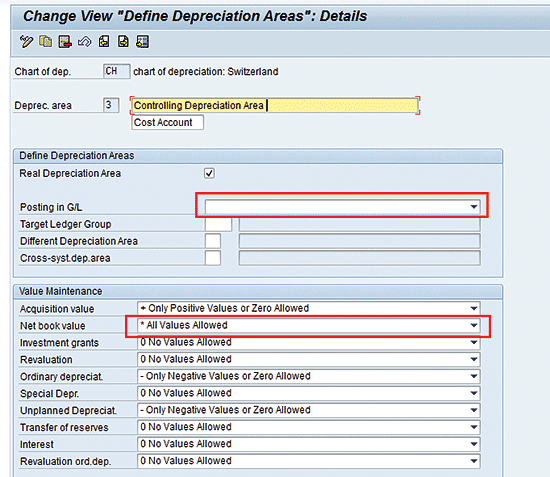
Figure 2
Settings for new depreciation area
Execute transaction code S_ALR_87009146 or follow menu path SPRO > Financial Accounting (New) > Asset Accounting > Valuation > Depreciation Areas > Specify Transfer of APC Values. In the Change View screen shown in Figure 3, enter depreciation area 01 in column valuation adoption (ValAd) for the new depreciation area (e.g., a depreciation area of 03), so that the new depreciation area has the same accumulated production cost (APC) values as posted in the main depreciation area 01. Click the save icon to save your data.
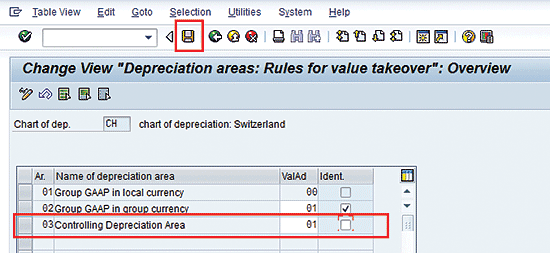
Figure 3
Setting APC value determination for new depreciation area
Execute transaction code S_ALR_87009159 or follow menu path SPRO > Financial Accounting (New) > Asset Accounting > Depreciation > Ordinary Depreciation > Determine Depreciation Areas. In the Change View screen shown in Figure 4, select the check box under the Ord. depr. (ordinary depreciation) column for the new depreciation area (e.g., depreciation area 03) to make this new depreciation area applicable for ordinary depreciation. Click the save icon.

Figure 4
Setting new depreciation area for ordinary depreciation
Execute transaction code S_ALR_87009130 or follow menu path SPRO > Financial Accounting (New) > Asset Accounting > Depreciation > Unplanned Depreciation > Determine Depreciation Areas. In the Change View screen shown in Figure 5, select the check box under the UDep (unplanned depreciation) column for the new depreciation area (e.g., depreciation area 03) to make this new depreciation area applicable for unplanned depreciation. Then click the save icon.
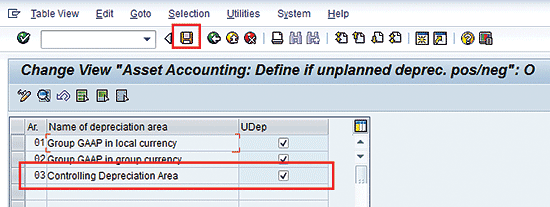
Figure 5
Setting new depreciation area for unplanned depreciation
Step 2. Define a New Depreciation Key for Depreciation Below Zero
First you define a base method for the new depreciation area. To complete this step, execute transaction code S_ALR_87015147 or follow menu path SPRO > Financial Accounting (New) > Asset Accounting > Depreciation > Valuation Methods > Depreciation Key > Calculation Methods > Define Base Methods. In the screen that appears (Figure 6), click the New entries button.
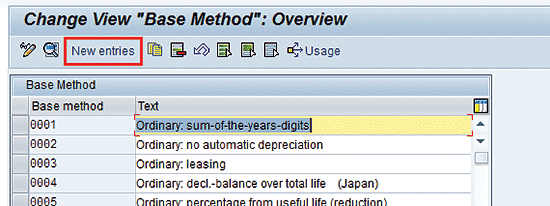
Figure 6
Creation of new base method
Now you create a new base method for depreciation below zero NBV (e.g., Z001). In Figure 7 enter parameters in the following fields:
- Type of depreciation: Select N Ord.depreciation for ordinary depreciation
- Dep. method: Select D for determining the percentage from useful life, so that the percentage applies at the same rate for depreciation below zero NBV as it was before.
- Dep. after plnd.life end: Select X yes so that depreciation is calculated until the asset is really being used.
- Dep.below NBValue zero: Select X yes so that depreciation is calculated even after NBV reaches below zero.
- Curb: Select No, as you want to keep the depreciation rate based on the original useful life. However, you can select yes if you want to reduce the percentage based on increasing the expired useful life due to an asset being used below zero NBV.
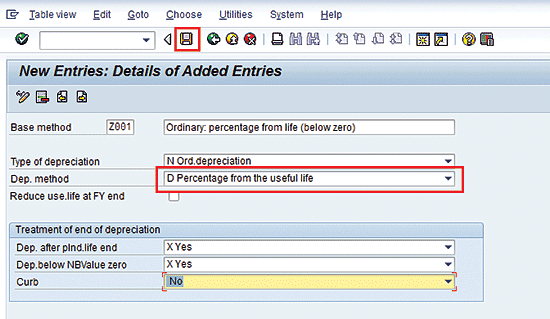
Figure 7
Define a base method for depreciation below zero calculation
After entering these different parameters, click the save icon.
You also need to define one more base method (e.g., Z002) for no calculation of depreciation up to zero NBV in the new depreciation area defined. This base method is needed because the depreciation up to zero NBV is already being calculated in actual books using depreciation area 01. Return to the New Entries: Details of Added Entries screen (Figure 8). Enter parameters in the following fields:
- Type of depreciation: N Ord.depreciation for ordinary depreciation
- Dep. method: X Customer-specific method 1, as this is compatible with the use of the BAdI or user exit to be defined for the changeover period. You can also use Y for customer-specific method 2 or Z for customer-specific method 3. You use Y for customer-specific method 2 or Z for customer-specific method 3 if some other requirement comes up similar to depreciation below zero, such as interest cost for lease financed assets.
- Dep. after plnd.life end: Select No, as you will use this base method in the first phase of asset life that is for depreciation up to zero.
- Dep.below NBValue zero: Select No, as you will use this base method in the first phase of asset life that is for depreciation up to zero.
- Curb: Select No, as you will use this base method in the first phase of asset life that is for depreciation up to zero.

Figure 8
Define a base method for no depreciation calculation
After entering these parameters, click the save icon.
Now you need to define a depreciation key. To complete this step, execute transaction code AFAMA or follow menu path SPRO > Financial Accounting (New) > Asset Accounting > Depreciation > Valuation Methods > Depreciation Key > Maintain Depreciation Key. In the screen that appears (Figure 9) click the New entries button.

Figure 9
Create a new depreciation key
This action opens the screen shown in Figure 10.
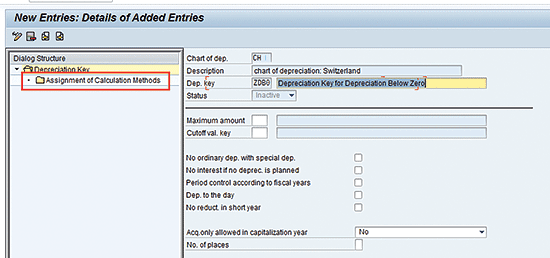
Figure 10
Define a new depreciation key
Define a new depreciation key (e.g., ZDB0) by entering a depreciation key name and description in the Dep. key and Description fields, respectively. In the left side of the screen, click the Assignment of Calculation Methods folder.
In Figure 11, click the New entries button.
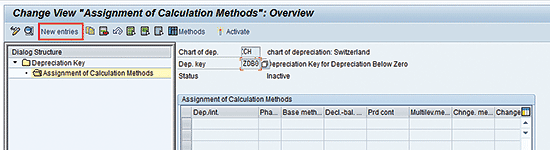
Figure 11
Create calculation methods for a new depreciation key
Note
In asset accounting, there are three phases of depreciation:
- From the start of the depreciation
- Changeover within planned life
- Changeover after end of useful life
For my depreciation below zero requirement, this new depreciation area defined should not have depreciation in phase 1 as for that phase, the depreciation is accounted for in legal books via valuation area 01 up to zero NBV. For the other two phases, it should calculate the depreciation below zero.
Create the entry for the first phase of asset life. In this entry, enter parameters in the following fields in Figure 12:
- Base method: Enter Z002, which you defined earlier for no depreciation
- Chnge. method: Select 5 (Changeover after end of useful life)
- Multiple shift: Select Increase in depreciation and expired useful life
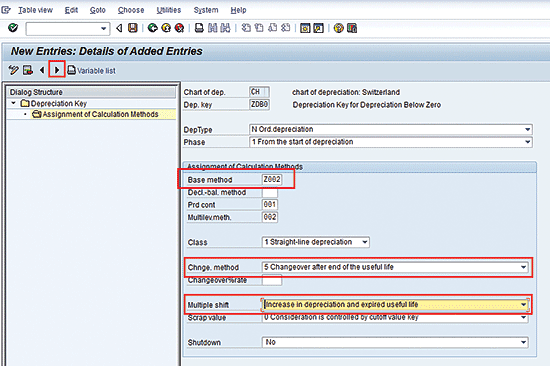
Figure 12
Define phase 1 of the new depreciation key
After you select these parameters, click the next icon (in the red square at the top of Figure 12).
Now you create the second entry for the second phase of asset life (Figure 13). In this entry, enter parameters in the following fields:
- Base method: Enter Z001, which is earlier defined for depreciation below zero
- Chnge. method: Select 5 (Changeover after end of the useful life)
- Multiple shift: Select 1 (Increase in deprec., no increase in exp. useful life), as you would always need the depreciation below calculation until the asset being used has an NBV below zero.
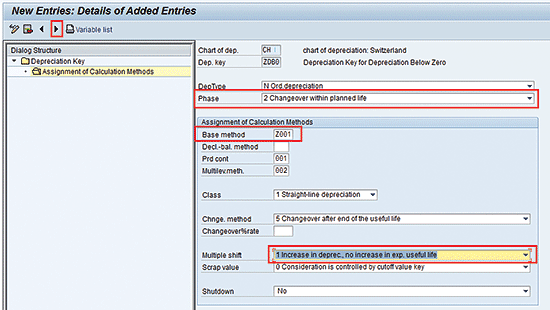
Figure 13
Define phase 2 of the new depreciation key
After you assign these parameters, click the next icon.
Now you create the third entry for the third phase of asset life. The parameters that you enter in Figure 14 are the same as the ones you enter for the second phase, except that there is no need of a changeover method as it is the last phase of the asset life cycle. After assigning these settings, click the save icon.
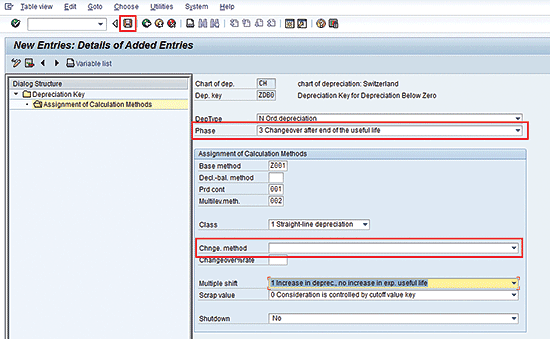
Figure 14
Define phase 3 of the new depreciation key
Click the back icon to the right of the save icon.
When the Change View screen appears (Figure 15), click the Activate button and then click the save icon.
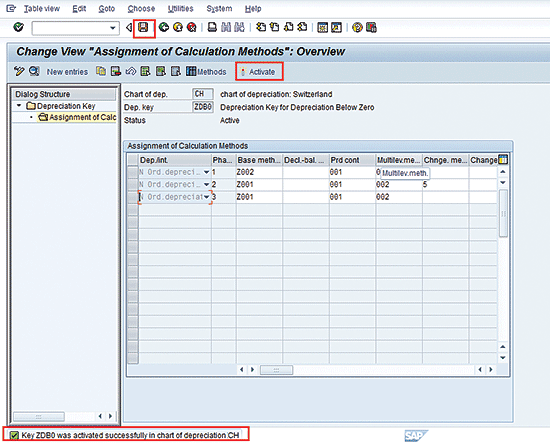
Figure 15
Activate the new depreciation key
Step 3. Assign a Depreciation Key to Asset Classes
Now assign this new depreciation key to the relevant asset classes so that these depreciation areas are populated automatically in asset masters created from the asset class. Execute transaction code S_ALR_87009152 or follow menu path SPRO > Financial Accounting (New) > Asset Accounting > Valuation > Determine Depreciation Areas in the Asset Class. In the screen that appears (Figure 16), select the asset class for which you want to apply depreciation below zero and double-click the Depreciation areas folder on the left side of the screen. (If you have multiple asset classes, repeat the following steps for those asset classes.)
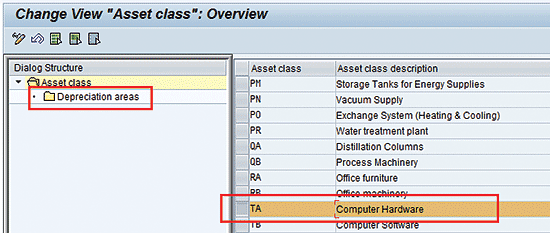
Figure 16
Select an asset class for linking to the depreciation key
In the next screen (Figure 17), enter the depreciation key defined earlier to the new depreciation area and then click the save icon.
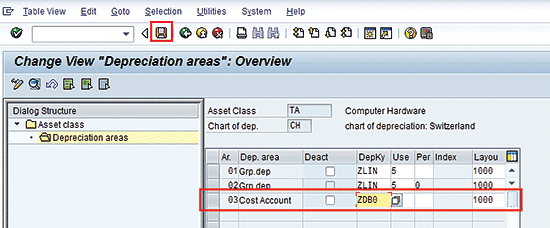
Figure 17
Link the depreciation key to the new depreciation area in an asset class
Step 4. Assign G/L Accounts for a New Depreciation Area
For a technical check, the SAP system needs assignment of the G/L account for the new depreciation area. Therefore, you need to create two new G/L accounts exclusively for this depreciation below zero requirement:
- Accumulated depreciation below zero G/L account (34599 in my example)
- Depreciation below zero G/L account (83900 in my example)
Execute transaction code AO90 or follow menu path SPRO > Financial Accounting (New) > Asset Accounting > Integration with General Ledger Accounting > Assign G/L Accounts. In the screen that appears (Figure 18), select the Group Chart of Accounts and then double-click the Account Determination folder on the left side of the screen.
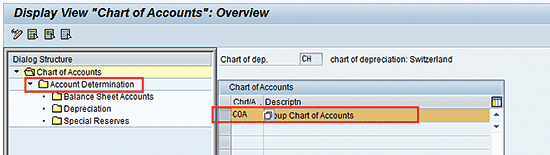
Figure 18
Selecting chart of accounts for linking GL accounts
Select the account determination applicable to your asset class (relevant for depreciation below zero) and then double-click the Depreciation folder on the left side of the screen (Figure 19).
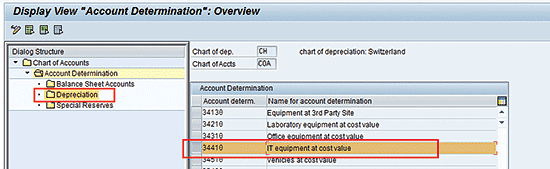
Figure 19
Select account determination for linking G/L accounts
Double-click the new depreciation area as shown in Figure 20.
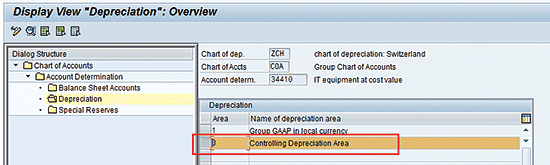
Figure 20
Select a new depreciation area for linking G/L accounts
In the next screen (Figure 21), you set the G/L for depreciation and accumulated depreciation. Enter accumulated (e.g, 34599) and depreciation below zero (e.g, 83900) G/L accounts in the fields populated in the following sections of Figure 21:
- Ordinary depreciation account assignment
- Special depreciation account assignment
- Unplanned depreciation account assignment
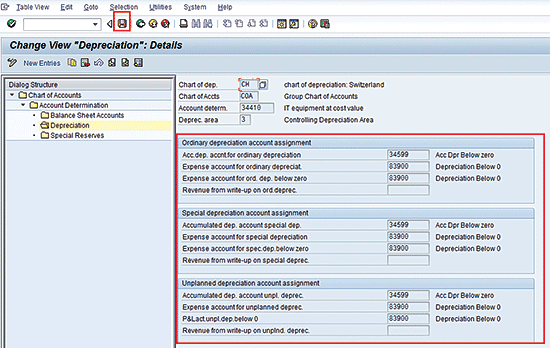
Figure 21
Link G/L accounts for a new depreciation area
After you populate these fields, click the save icon.
Step 5. Assign an Account Assignment Type for a New Depreciation Area
Because you need depreciation below zero for planning purposes, you need to define the cost object (e.g., cost center) for the new depreciation area. To complete this step, execute transaction code ACSET or follow menu path SPRO > Financial Accounting (New) > Asset Accounting > Integration with the General Ledger > Additional Account Assignment Objects > Specify Account Assignment Types for Account Assignment Objects. In the screen that appears (Figure 22), select the company code for which you want to configure the depreciation below zero and then double-click the Depreciation Area folder on the left side of the screen. (If you want to apply the setting to all company codes, select * for the company code.)
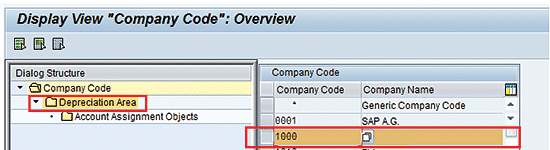
Figure 22
Select a company code for account assignment object linking
Select the new depreciation area and double-click the Account Assignment Objects folder in left side of the screen (Figure 23).
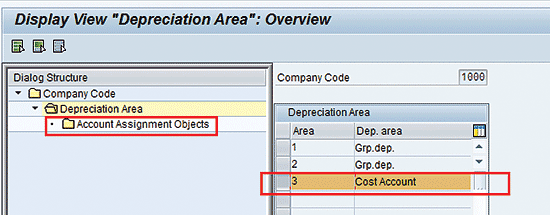
Figure 23
Select a new depreciation area for account assignment object linking
In the next screen (Figure 24), click the New Entries buttton.
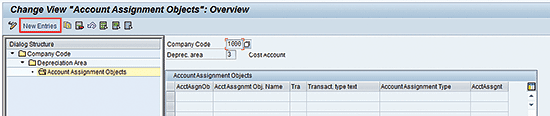
Figure 24
Create new account assignment objects linking for the depreciation area
In Figure 25, enter the cost object (e.g., KOSTL for cost center), transaction type as * so that it applies to all transaction types, enter account assignment type as 02 (depreciation run), and activate the account assignment check box. Click the save icon.
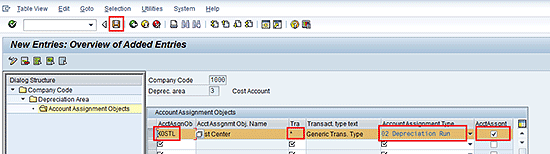
Figure 25
Linking cost object for account assignment for new depreciation area
Because you need depreciation below zero for planning purposes, you need to include this in the cost component structure for the cost estimation of the materials. Execute transaction code OKTZ or follow menu path SPRO > Controlling > Product Cost Controlling > Product Cost Planning > Basic Settings for Material Costing > Define Cost Component Structure. In the screen that appears (Figure 26), double-click the Cost Component Groups folder on the left side of the screen and then click the New Entries button.
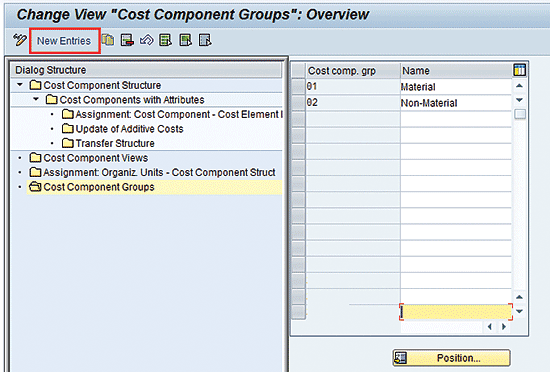
Figure 26
Create a new cost component group
Enter the name of new cost component group and a description (Figure 27). Click the save icon.

Figure 27
Define a new cost component group
In Figure 28 double-click the Cost Component Structure folder and then select the cost component structure. Double-click the Cost Components with Attributes folder.
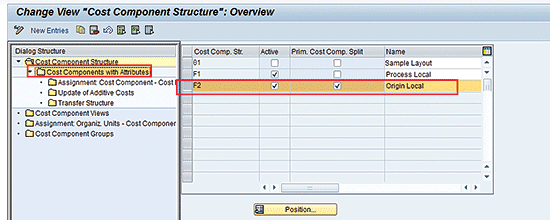
Figure 28
Select a cost component structure
In Figure 29, click the New Entries button.
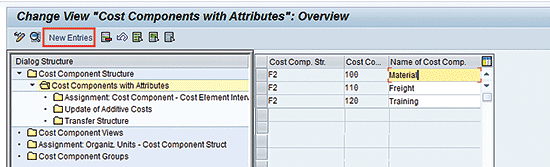
Figure 29
Create new entries inside the cost component structure
Define the new cost component with settings as relevant for your organization (Figure 30). Assign this new cost component to the cost component group as defined earlier.
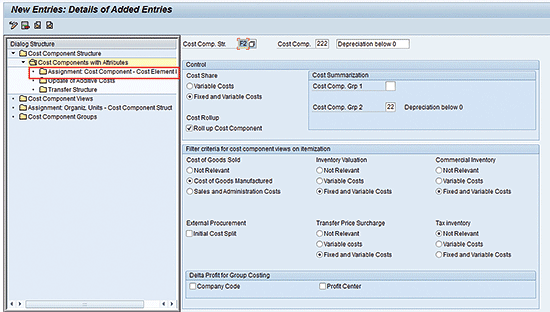
Figure 30
Define a new cost component
Double-click the Assignment Cost Component – Cost Element folder. In the next screen (Figure 31) link these two cost elements:
- Cost element as depreciation G/L defined earlier for AO90 as shown in Figure 21.
- A secondary cost element of assessment cost element category
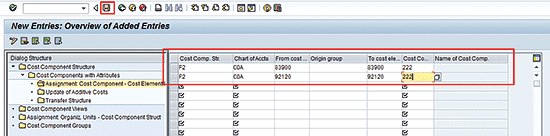
Figure 31
Link cost elements to the cost component
Step 7. Define Logic for Period or Year Determination in Changeover Year
If the asset is reaching NBV in the middle of the month, then in an ideal scenario the depreciation in this new depreciation area should start calculating from the period next to the period where NBV is zero.
This is a tricky point as different versions of the SAP system behave differently. You see different situations as follows:
- SAP ECC 6, enhancement pack 6 onward: SAP automatically determined the changeover period as the next period immediately after NBV reaches zero.
- SAP ECC 6 up to enhancement package 5: SAP has provided Business Add-In (BAdI) FAA_DC_CUSTOMER that contains the method DEFINE_CHANGEOVER_YR_AND_PRD. I show an example procedure below on how to implement this.
- Up to SAP ECC 5: SAP has provided a user exit AFAR0003. You can build the logic to include ZXAFAU03 used in component EXIT_SAPLAFAR_003 of this user exit AFAR0003. You can apply logic on similar lines as illustrated below for BAdI method code logic.
Copy the Standard BAdI into the Custom Implementation
To complete this step, execute transaction code SE18 or follow SAP Easy Access Menu > Tools > ABAP Workbench > Utilities > Business Add-Ins > SE18 – Definition. In the screen that appears (Figure 32) enter the BAdI name as FAA_DC_CUSTOMER and then select Enhancement Implementation > Create.
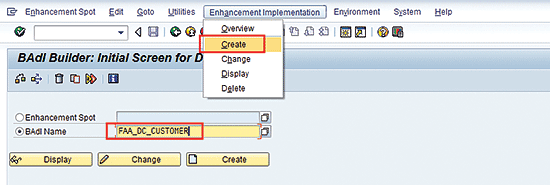
Figure 32
Create enhancement implementation for BAdI FAA_DC_CUSTOMER
In the pop-up screen (Figure 33), enter the custom implementation name starting with customer-specific names such as those starting with Y or Z. Click the green check mark icon.
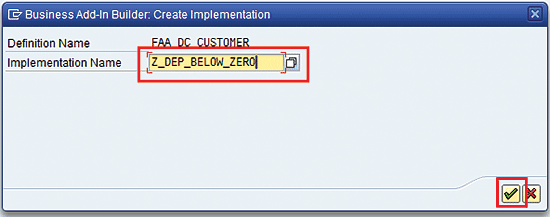
Figure 33
Enter the name for the custom implementation for the BAdI in transaction SE18
In Figure 34, enter the short text for the custom implementation (e.g., To handle depreciation below zero) and then click the save icon.
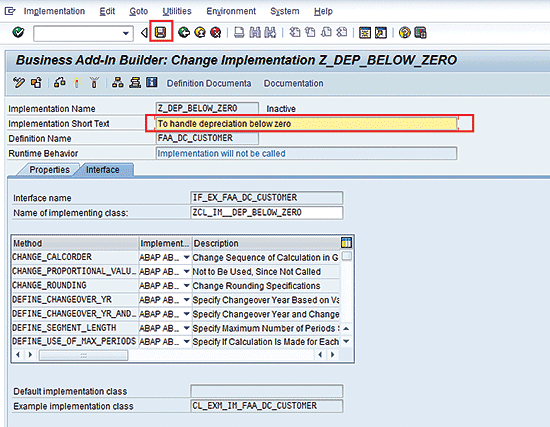
Figure 34
Save the custom implementation for BAdI in transaction SE18
Define the Logic in the Custom Implementation of a BAdI
Execute transaction SE19 or follow SAP Easy Access Menu > Tools > ABAP Workbench > Utilities > Business Add-Ins > SE19 – Implementation. In the screen that appears (Figure 35) enter the custom enhancement implementation name of the BAdI (Z_DEP_BELOW_ZERO in my example) and then click the Change button.
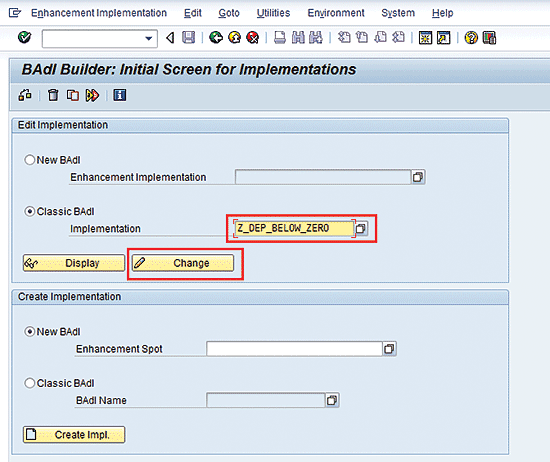
Figure 35
Change the custom implementation for the BAdI in transaction SE19
In Figure 36, click the Interface tab and double-click the Method DEFINE_CHANGEOVER_YR_AND_PRD.
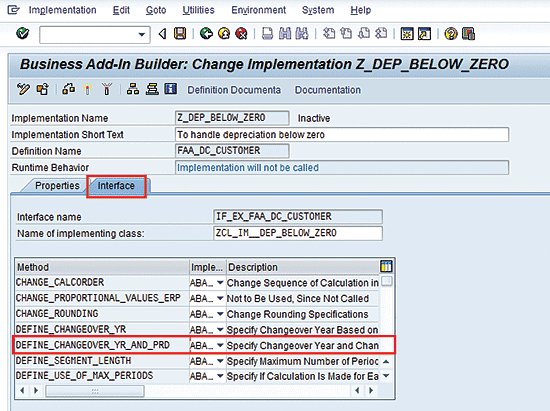
Figure 36
Change the method of custom implementation in transaction SE19
Enter the logic for determining the changeover fiscal year and period as shown in Figure 37. For simplicity, I use this logic so that the period is determined just after NBV reaches zero. After defining the logic, click the save icon and then the activate icon.

Figure 37
Define logic in method DEFINE_CHANGEOVER_YR_AND_PRD in transaction SE19
I pasted the code to define the logic in the screen shown in Figure 37.
Activate the Custom Implementation of the BAdI
Execute transaction SE19 or follow SAP Easy Access Menu > Tools > ABAP Workbench > Utilities > Business Add-Ins > SE19 – Implementation. In the screen that appears (Figure 38), enter the custom definition name as created earlier (Z_DEP_BELOW_ZERO in my example) and click the Change button.

Figure 38
Change the implementation of the BAdI in transaction SE19
In the next screen (Figure 39), click the activate icon to activate the BAdI implementation.
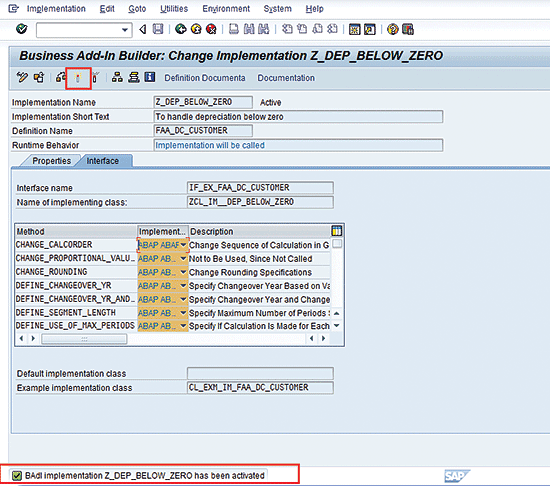
Figure 39
Activate the implementation of the BAdI in transaction SE19
Step 8. Observe the Impact of Depreciation Figures in Asset Accounting
If you see the depreciation figures for an asset having this new depreciation area, you see that for legal books (depreciation area 01), the depreciation is stopped after it reaches a net book value of zero as shown in Figure 40.
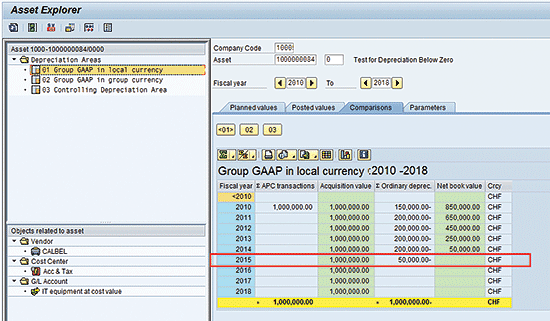
Figure 40
Depreciation figure for depreciation area 01 (legal books)
However, if you see the new depreciation area figure, you see that depreciation starts being calculated when it reaches net book value as zero as shown in Figure 41.
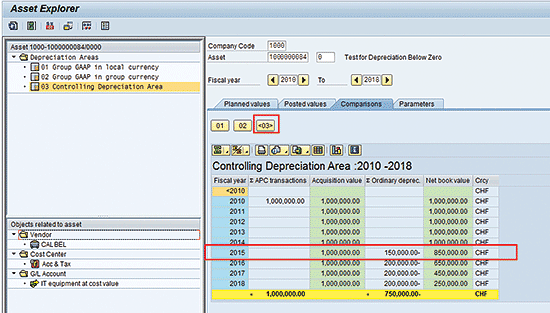
Figure 41
Depreciation figures in new depreciation area
Step 9. Include Depreciation Below Zero NBV Figure into Cost Estimates in Managerial Accounting – Product Costing
As the system is now calculating the depreciation below zero in the new depreciation area as shown in Figure 41, you are ready to include this into the product costing. First, execute transaction S_ALR_87099918 or follow SAP Easy Access Menu > Accounting > Financial Accounting > Fixed Assets > Periodic Processing > S_ALR_87099918 - Primary Cost Planning: Depreciation/Interest. In the selection screen (Figure 42), enter the company code. Check the Use asset values as of FY start radio button, enter the new depreciation area defined, define the planning period, and remove the test run option. Click the execute icon.
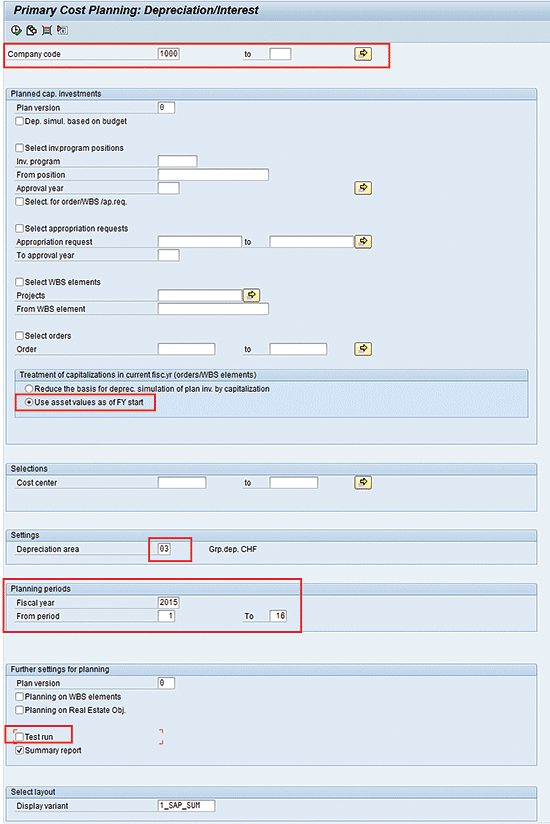
Figure 42
Primary cost planning based for Depreciation below Zero
In Figure 43, you see the depreciation below zero figure accounted for in the planning of cost element 83900 (this is the same depreciation G/L that you configured in AO90 (Figure 21) and OKTZ (Figure 31).
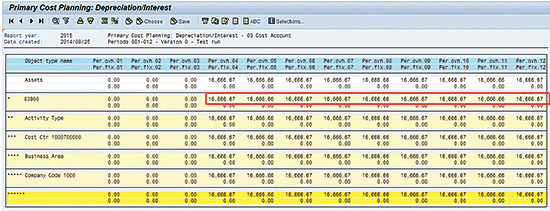
Figure 43
Loading of depreciation below zero into primary cost planning
To cross-check this primary cost planning, execute transaction code KP07 or follow menu path SAP Easy Access > Accounting > Controlling > Cost Center Accounting > Planning > Cost and Activity Inputs > KP07 – Display. The screen that appears (Figure 44) displays the cost planning. Note that the depreciation below zero figure is loaded into the primary cost for this cost element and the cost center is defined in the asset master.
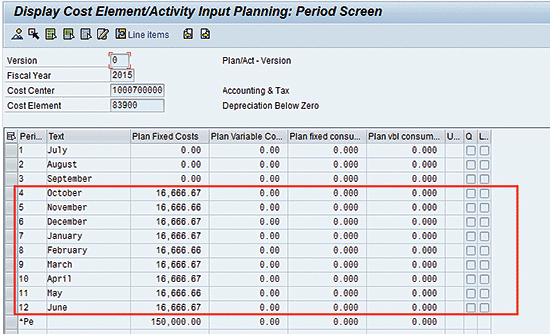
Figure 44
Primary cost planning
Now when you execute transaction code KSS4 or follow menu path SAP Easy Access > Accounting > Controlling > Cost Center Accounting > Planning > Allocations > KSS4 - Splitting, the system breaks up the planned amount uploaded above into the various activities based on the activities planned. In the screen that appears (Figure 45), enter the cost center against which planning is done and the planning period. Remove the test run option and click the execute icon.

Figure 45
Execute the planned cost splitting in transaction KSS4
In Figure 46, you see the planned amount split among various activities.
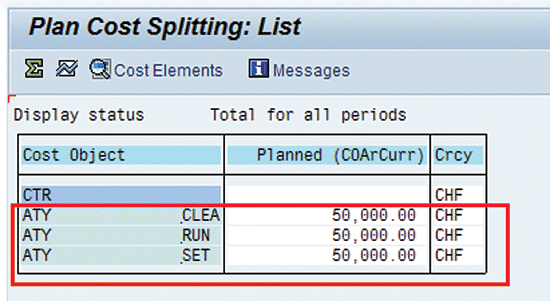
Figure 46
Execution result of planned cost splitting in transaction KSS4
After the planned cost splitting, the planned price per unit of activity also needs to be calculated. For this step, execute transaction code KSPI or follow path SAP Easy Access > Accounting > Controlling > Cost Center Accounting > Planning > Allocations > KSPI - Price Calculation. In the selection screen (Figure 47), enter the cost center group used for planning, enter the planning period, deselect the Test Run option, and click the execute icon.

Figure 47
Execute the planned price calculation in transaction KSPI
After execution, in the output you see the various activity prices calculated and updated as shown in Figure 48.
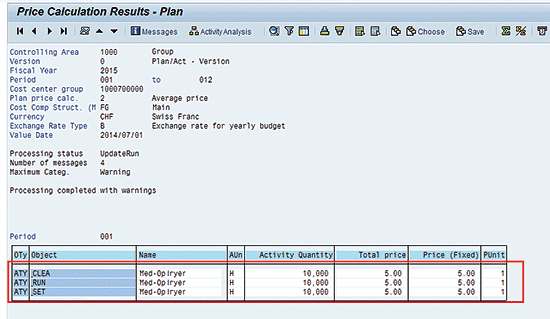
Figure 48
Results of the planned price calculation in transaction KSPI
Now when you do product costing for the material, you can see the depreciation below zero included in the material cost estimates (Figure 49). It would be included in the new cost component defined earlier.
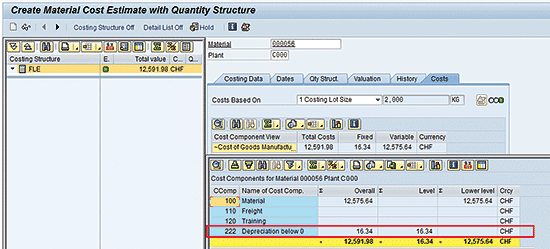
Figure 49
Material cost estimate including the depreciation below zero
Gaurav Agarwal
Gaurav Aggarwal is SAP S/4HANA lead consultant at Infosys Limited. He has more than 14 years of experience, including 11 years in SAP Finance. He has expertise in both SAP FI and Controlling (CO) with integration to other modules in manufacturing and process industries. He is a chartered accountant and SAP Certified Financial Consultant. He holds a bachelor’s degree in commerce and is a techno-functional expert with thorough knowledge of the necessary ABAP for functional experts. He is a veteran in G/L, AR, AP, banking, FA, Travel Management, and closing cockpit and has handled greenfield implementation, upgrades and conversions, rollouts, and support projects.
You may contact the author at gka2707@gmail.com.
If you have comments about this article or publication, or would like to submit an article idea, please contact the editor.