Find out how to install and configure SAP BusinessObjects Data Federator with SAP NetWeaver Business Warehouse (SAP NetWeaver BW). Then discover how to create relational universes based on your SAP NetWeaver BW InfoProviders, such as an InfoCube.
Key Concept
With SAP BusinessObjects Data Federator XI 3.1, you can create a relational universe based on your SAP NetWeaver Business Warehouse (SAP NetWeaver BW) system. Not only can this type of connectivity be an alternative in some situations compared to the existing online analytical processing (OLAP) universes, but this option also allows you to combine SAP and non-SAP data sources together.
Using SAP BusinessObjects Data Federator allows you not only to create a relational universe based on your SAP NetWeaver BW system, but it also provides the capability to combine data from your SAP NetWeaver BW system with data from another system, such as, for example, another relational data warehouse. You can use SAP BusinessObjects Data Federator to combine those data sources and provide a single view to your business users.
Table 1 shows the different level of support for specific metadata elements from your SAP NetWeaver BW system. The column MDX represents the supported elements for the OLAP universes using MDX as the language to retrieve the data. The column SQL represents the relational universes with SAP BusinessObjects Data Federator using SQL as language to retrieve the data. In Table 2 you can see that some of the missing elements have possible workarounds that you can apply for similar functionality. For example, a calculated key figure that you created as part of an SAP NetWeaver BW query would be an object that you can create as a calculated measure in the universe created using the SAP BusinessObjects Data Federator connectivity toward your SAP NetWeaver BW system.

Table 1
Comparison of OLAP universes and relational universes metadata support

Table 2
Possible workarounds
Overall, you can summarize these two different approaches in the following way:
Companies should use OLAP universes on top of SAP NetWeaver BW if they have:
- Invested in InfoCube design (e.g., hierarchies, variables, calculated, and restricted key figures)
- Defined a large number of BEx queries
- Require advanced analytics
- Require Single-Sign On (SSO)
Companies should use relational universes on top of SAP NetWeaver BW if they:
- Are not familiar with OLAP concepts (e.g., InfoCube design, MDX query, and object definition)
- Want to combine SAP NetWeaver BW with other sources (SAP or non-SAP)
- Want to access DataStore objects (DSOs) for fine-grained reporting
- Manage large volume of data
- Can wait for SSO, which is planned for the second half of 2010
Note
Product roadmap disclaimer: The above descriptions of future functionality are the author’s interpretation of the publicly available product integration roadmap. These items are subject to change at any time without any notice and the author is not providing any warranty on these statements.
In the next couple of steps, I will show you how to install and configure SAP BusinessObjects Data Federator with SAP NetWeaver BW.
Technical Prerequisites
To use SAP BusinessObjects Data Federator connectivity with SAP NetWeaver BW, you need at least the following components and releases:
SAP BusinessObjects Data Federator Installation
I explain how to install SAP BusinessObjects Data Federator XI 3.1, so you can configure SAP BusinessObjects Data Federator with SAP NetWeaver BW. You can download the software for SAP BusinessObjects Data Federator from the SAP Service Marketplace (https://service.sap.com/swdc) in the SAP BusinessObjects portfolio area and you can receive temporary license key codes at https://service.sap.com/licensekeys.
Step 1. After you download the software, start the installation routine (Figure 1). Click the Next button to move to the second step.

Figure 1
SAP BusinessObjects Data Federator Installation
Step 2. Accept the license agreement for SAP BusinessObjects Data Federator and enter the license key code. Click the Next button to proceed.
Step 3. After you enter the license key code, select the installation type. For this example activity, select the Custom option (Figure 2). Click the Next button.

Figure 2
Select the Custom option
Step 4. In the next screen, select the components. For this activity, select the following components in Figure 3:
- Data Federator Query Server
- Data Federator Designer
- Data Federator Windows Services
- Data Federator JDBC Driver

Figure 3
Select the SAP BusinessObjects Data Federator objects you need
Step 5. Click the Next button to continue.
Step 6. In the next screens, select the installation path for SAP BusinessObjects Data Federator and where you would like to create the program icons. After setting these options, you receive a summary screen for your installation (Figure 4).

Figure 4
Review the installation plan summary
Step 7. Click the Install button in Figure 4 to start the actual installation routine for the selected components.
Configuration Steps for SAP NetWeaver BW
Now that you have installed SAP BusinessObjects Data Federator on your system, you can configure your SAP NetWeaver BW system to enable SAP BusinessObjects Data Federator to connect to the system. Then you can create a new universe. The following list represents the steps that you need to configure:
- Callback registration for SAP BusinessObjects Data Federator and SAP NetWeaver BW
- Configuration of data access driver for SAP BusinessObjects Data Federator
- User configuration for SAP BusinessObjects Data Federator
I’ll start with the callback registration first. You need to register a callback ID in SAP NetWeaver BW so that SAP BusinessObjects Data Federator can retrieve metadata from your SAP NetWeaver BW system.
Step 1. Log on to your SAP NetWeaver BW system with an administrative account.
Step 2. Start transaction SE37 and enter RSDRI_DF_CONFIGURE for the Function Module (Figure 5).

Figure 5
Enter the function module RSDRI_DF_CONFIGURE
Step 3. Press F8 or follow menu path Function Module > Test > Single Test to execute the function (Figure 6).

Figure 6
Test the function module
Follow the logic shown in Table 3 to enter the values for your system.

Table 3
Values for the table in Figure 6
Step 4. Enter the configuration details and execute the function by pressing F8 or following menu path Function Module > Execute. You should receive a message similar to Figure 7.

Figure 7
Execute the function module
Next, you need to configure the callback ID and then configure the same ID in the SAP BusinessObjects Data Federator Administrator tool.
Data Federator Administrator
Step 1. Follow menu path Start > Programs > BusinessObjects XI 3.0 > BusinessObjects Data Federator > Data Federator Query Server Administrator (Figure 8). Use the following credentials, which are part of a default installation:
User: sysadmin
Password : sysadmin

Figure 8
Log on to the Data Federator Query Server Administrator
Click the Log On button to complete the sign in.
Step 2. Select the Administration tab and select the item Connector Settings on the left side of the screen (Figure 9). Select jco.sap.netweaverBI from the Resource drop-down menu. For the property callbackServerProgramID, enter the name you previously configured in transaction SE37. Click the OK button.

Figure 9
Set up the Connector Settings
You have now configured the callback ID on SAP NetWeaver BW and SAP BusinessObjects Data Federator. For the next step, you need to configure the data access driver for SAP BusinessObjects Data Federator.
Data Access Driver for Data Federator
Data Federator offers the connectivity via Java Database Connectivity (JDBC) to the universes. Therefore, you need to update a configuration file to enable the newly added SAP NetWeaver BW connectivity. The following steps assume a deployment on a Windows operating system.
Step 1. Navigate to the following folder:
Program FilesBusiness ObjectsBusinessObjects Enterprise 12.0win32_x86dataAccessconnectionServerjdbc
Step 2. Open the file jdbc.sbo with an application such as Notepad.
Step 3. Search for the phrase “Data Federator Server” in the file.
Step 4. Add the lines shown below after the tag <JDBCDriver>:
<ClassPath>
<Path>C:Program FilesBusiness ObjectsBusinessObjects Data Federator 12JdbcDriverlibthindriver.jar</Path>
</ClassPath>
The file should now look similar to the lines below:
<DataBase Active="Yes">
<JDBCDriver>
<ClassPath>
<Path>C:Program FilesBusiness ObjectsBusinessObjects Data Federator 12JdbcDriverlibthindriver.jar</Path>
</ClassPath>
<Parameter>LeSelect.ThinDriver.ThinDriver</Parameter>
<Parameter>jdbc:leselect://$DATASOURCE$;catalog="$DATABASE$"</Parameter>
</JDBCDriver>
Step 5. Save the changes to the file.
Next, you need to add a strategy to the Universe Designer so that the Universe Designer automatically offers joins, classes, subclasses, dimensions, and measures when connecting to SAP NetWeaver BW.
Step 1. Navigate to the source folder for your SAP BusinessObject Data Federator installation files. Find a subfolder named BOE-ADD-ONS. In this subfolder is a file named datafederator.stg.
Step 2. Copy the file datafederator.stg to the location Program FilesBusiness ObjectsBusinessObjects Enterprise 12.0win32_x86dataAccessconnectionServerjdbc.
Step 3. Navigate to the following folder:
Program FilesBusiness ObjectsBusinessObjects Enterprise 12.0win32_x86dataAccessconnectionServerjdbc
Step 4. Open the file jdbc.sbo with Notepad.
Step 5. Search for the phrase “Data Federator Server” in the file.
Step 6. Add the following parameter to the file as part of the parameters:
<Parameter>datafederator</Parameter>
The file should now look similar to the syntax shown below:
<DataBase Active="Yes">
<JDBCDriver>
<ClassPath>
<Path>C:Program FilesBusiness ObjectsBusinessObjects Data Federator 12JdbcDriverlibthindriver.jar</Path>
</ClassPath>
<Parameter>LeSelect.ThinDriver.ThinDriver</Parameter>
<Parameter>jdbc:leselect://$DATASOURCE$;catalog="$DATABASE$"</Parameter>
</JDBCDriver>
<Parameter>datafederator</Parameter>
<Parameter>SAP BusinessObjects</Parameter>
<Parameter>datafederator_jdbc.setup</Parameter>
Step 7. Save the changes to the file and restart your SAP BusinessObjects Data Federator services.
Next, configure the users for SAP BusinessObjects Data Federator.
User Configuration for Data Federator
Part of your default installation of SAP BusinessObjects Data Federator is the user sysadmin. When using SAP BusinessObjects Data Federator with SAP NetWeaver BW, you should create additional users to differentiate the users for your reporting from the sysadmin user.
Step 1. Follow menu path Start > Programs • BusinessObjects XI 3.0 > BusinessObjects Data Federator > Data Federator Query Server Administrator.
Step 2. Log on to SAP BusinessObjects Data Federator with the sysadmin user.
Step 3. Navigate to the Administration tab and select the User Accounts tab (Figure 10).

Figure 10
Create a new user account
Step 4. Click the Create a new user account button. Enter NW_DESIGNER for the User Name, ensure there is an administrator check box is cleared, and grant the user the designer role (Figure 11). This user can create the universes on top of SAP NetWeaver BW.

Figure 11
Set up the new user account for the designer role
Step 5. Select a default catalog. In my example, I selected the root and activated the check box Grant SELECT privilege on default catalog. Click the OK button.
Step 6. Repeat steps 1-3 and click the Create a new user account button.
Step 7. Enter NW_VIEWER as the User Name, ensure the check box is an administrator is cleared, and grant the user the reader role (Figure 12). You use this account to view the reports based on the universes.

Figure 12
Set up the new user account for the reader role
Note
The configuration shown is only for demonstration purposes. In a production environment, you want to ensure that the security is not assigned on the default catalog “/” unless the user is supposed to be an administrator for all catalogs.
You are now in a position to create your first SAP BusinessObjects Data Federator project and then create a new universe based on the project.
Create the Data Federator Project
Step 1. Follow menu path Start > Programs > BusinessObjects XI 3.0 > BusinessObjects Data Federator > Data Federator Designer. Log on to Data Federator Designer with the NW_DESIGNER credentials.

Figure 13
Log on to Data Federator Designer as NW_DESIGNER
Step 2. Click the Add project button and provide a name and description for your new project. Click the OK button.
Step 3. Follow menu path Add > Add datasource to add a new data source to your new project (Figure 14). Select the SAP NetWeaver BI connection and click the OK button.

Figure 14
Add a new data source to your project
Step 4. In the next screen, provide the details from your SAP NetWeaver BW system (Figure 15). Select JCO.SAP.NETWEAVERBI as the Defined resource. Enter the system details for your SAP NetWeaver BW system. Set the Authentication mode to the option Use the Data Federator logon.

Figure 15
Enter the details about your SAP NetWeaver BW system
Note
If you want to select the Use the Data Federator logon authentication mode, you need to ensure that the SAP BusinessObjects Data Federator credentials you are using also exist on the SAP NetWeaver BW system with the identical password.
Step 5. Click the Get gateway parameters button. The system retrieves the gateway parameters — click the Close button when you see the success message.
Step 6. Click the Test the connection button to test if your configuration is correct.
Step 7. Click the retrieve fact tables icon  next to the Fact table name field to select the fact table for your InfoProvider (Figure 16). For this example, use the InfoProvider 0D_NW_C01 from the SAP NetWeaver Demo Model. The fact table is shown with an I as the prefix to the technical name of the InfoProvider. Select the fact table and click the OK button.

Figure 16
Select a fact table
SAP BusinessObjects Data Federator retrieves all the information for the selected InfoProvider and then displays the tables in the lower screen (Figure 17). Click the Save button.

Figure 17
View the information for InfoProvider 0D_NW_C01
Tip!
- Fact tables for the InfoProvider are shown with a prefix I
- Master data tables are shown with a prefix D
- Text tables are shown with a prefix T
Step 8. Select the folder that contains your data source on the left side of the screen that appears (Figure 18). Click the Make final button.
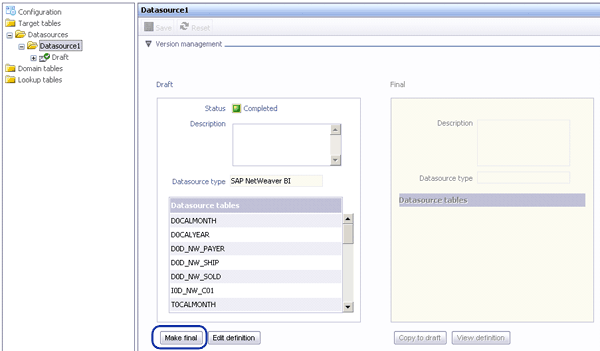
Figure 18
Click the Make final button after selecting your data source
Now you need to deploy the project to the SAP BusinessObjects Data Federator server so you can create a universe using your project as a data source. Click the Deploy button in the toolbar to start the deploy process (Figure 19).
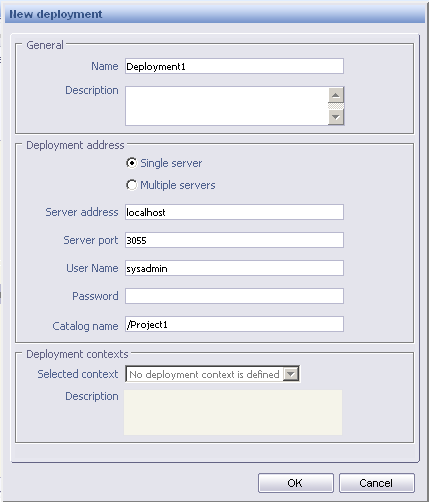
Figure 19
Set up the deployment to the SAP BusinessObjects server
Step 1. Enter a new name for the deployment. Then enter the NW_DESIGNER credentials for the User Name and Password that you created during the installation process.
Step 2. Define a Catalog name — in my example I used /Project1. Make note of the name as you will need this name when creating a universe. Click the OK button.
You just created and deployed an SAP BusinessObjects Data Federator project with SAP NetWeaver BW as the data source. In the next part of the process, create a universe on top of the newly created SAP BusinessObjects Data Federator project.
Create a Universe on Top of the Project
Step 1. Start the Universe Designer by following menu path Start > Programs > BusinessObjects XI 3.1 > BusinessObjects Enterprise > Designer.
Step 2. Log on to your SAP BusinessObjects Enterprise system with an administrative account.
Step 3. Click the quick design wizard icon  in the toolbar to start the Quick Design Wizard (Figure 20). Ensure the option Click here to choose strategies is activated, then click the Begin button.

Figure 20
Start the Quick Design Wizard
Step 4. Enter a name for the universe and click the New button to create a new connection (Figure 21). Click the Next button.
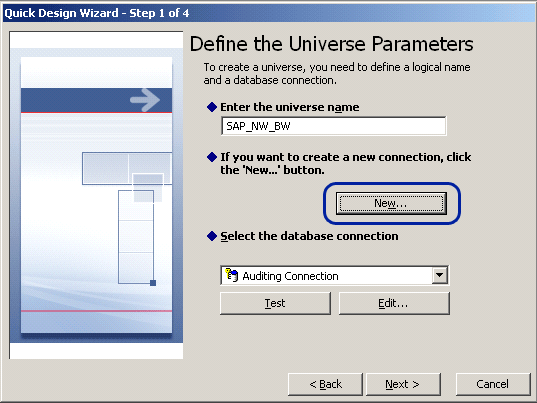
Figure 21
Click the New button
Step 5. Enter a name for the middleware connection and select the JDBC Drivers option for the Data Federator Server (Figure 22). Click the Next button.
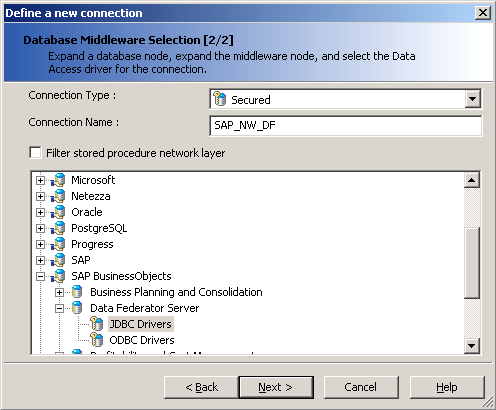
Figure 22
Set up the middleware connection
Step 6. In the next screen, enter the SAP BusinessObjects Data Federator user you created during the installation (Figure 23). Enter the hostname of the Data Federator Query Server. Then enter the Catalog name. The syntax follows the logic <Name of deployed project>/sources.

Figure 23
Set up the logon parameters for the new connection
For the Authentication Mode, you can choose between the Use specified username and password option or the Use BusinessObjects credential mapping option. In this example you want to configure the connection with SAP BusinessObjects credential mapping, so you need to log on to the Universe Designer with the SAP BusinessObjects Enterprise credentials in place.
Step 7. Click the Next button, and then click the Finish button. This returns you to the Quick Design Wizard. Click the Next button to continue.
Step 8. Set the object strategy and join strategy to the Data Federator strategy (Figure 24). Click the Next button.
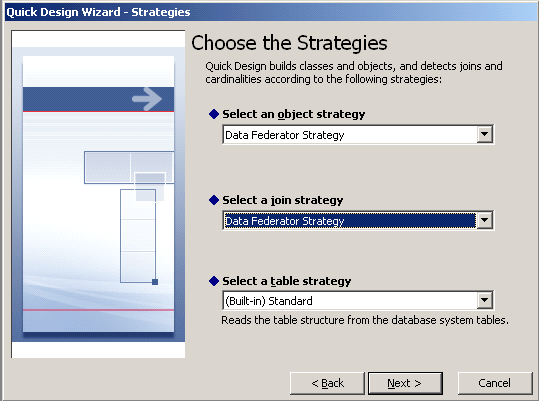
Figure 24
Set the object strategy and join strategy to the Data Federator Strategy
Step 9. You are presented with a list of classes, dimensions, and detail objects. Select which object you would like to include in your universe (Figure 25). Click the Add button to move them to the Universe classes and objects list. Click the Next button, and then click the Finish button.
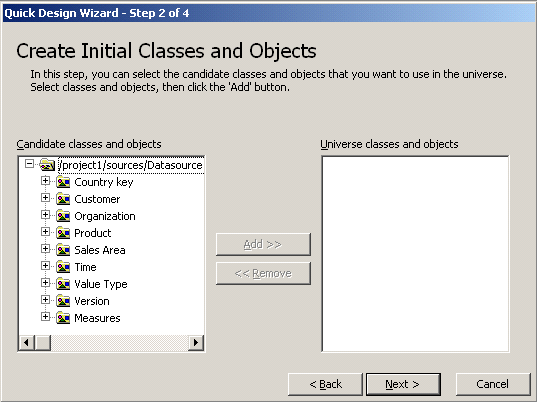
Figure 25
Select the universe classes and objects for your universe
Step 10. You are presented with the universe and the table schema for the selected InfoProvider (Figure 26). Follow menu path File > Export to save and export your universe to SAP BusinessObjects Enterprise. After you export the universe, you can create an SAP BusinessObjects Web Intelligence report based on this universe.
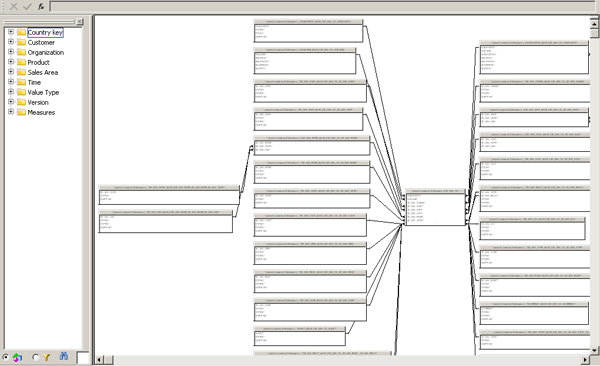
Figure 26
The universe and the table schema for the selected InfoProvider
Carry Out User Mapping
Currently, the connectivity of SAP BusinessObjects Data Federator XI 3.1 SP02 on top of SAP NetWeaver BW does not offer a complete SSO solution. This means that the users accessing the SAP NetWeaver BW system via SAP BusinessObjects Data Federator needs to exist as users for both SAP BusinessObjects Data Federator and SAP NetWeaver BW. If your users on the SAP BusinessObjects Enterprise system have different user names or passwords, you can also apply the user mapping option in SAP BusinessObjects Enterprise.
In the next couple of steps you apply the user credentials from the SAP BusinessObjects Enterprise system and configure those credentials with mapped user credentials. SAP BusinessObjects Data Federator then uses the credentials for the SAP NetWeaver BW connection. Whichever option you select — user mapping or a single user — to connect to SAP NetWeaver BW via SAP BusinessObjects Data Federator, it is important to know that the users need to exist in each of the systems involved with the exact same username and password.
The following steps are required to permit an SAP BusinessObjects Enterprise user with credential mapping to connect to SAP NetWeaver BW.
Step 1. Log on to the Central Management Console (CMC) of your SAP BusinessObjects Enterprise system.
Step 2. Navigate to the Users and Groups area and select the User List entry.
Step 3. Select the user you want to use to authenticate for the SAP BusinessObjects Enterprise. In my example, I use a user imported from an SAP role.
Step 4. Right-click the user and select Properties on the left side of the screen (Figure 27). Enable the Enable Database Credentials check box.
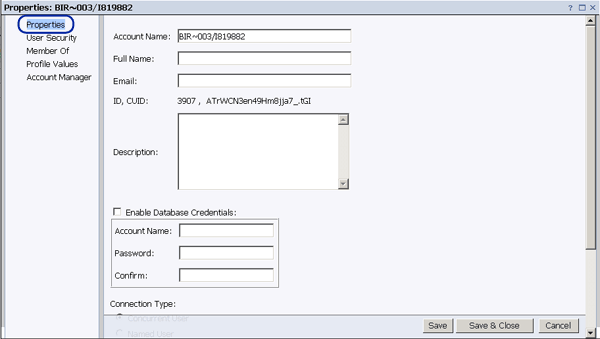
Figure 27
Set up the user properties
Step 5. Enter the SAP BusinessObjects Data Federator credentials that you would like to use into the Account Name field in the box. In my example, I am using the user NW_VIEWER.
Step 6. Enter the Password and confirm the password by repeating it into the Confirm box. Click the Save & Close button and close CMC.
Step 7. Start the Data Federator Designer by following menu path Start > Programs > BusinessObjects XI 3.0 > BusinessObjects Data Federator > Data Federator Designer.
Step 8. Log on with credentials that have been configured for SAP BusinessObjects Data Federator designer — in, my example, this is NW_DESIGNER.
Step 9. Open the Data Federator project and navigate to the data source of your project (Figure 28). Click the Copy to draft button so that you can change the definition.
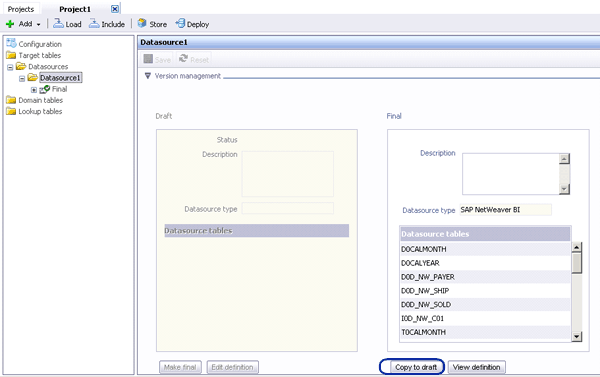
Figure 28
Click the Copy to draft button
Step 10. Click the Edit definition button. Ensure you set the Authentication mode to the option Use the Data Federator logon (Figure 29). Click the Save button.
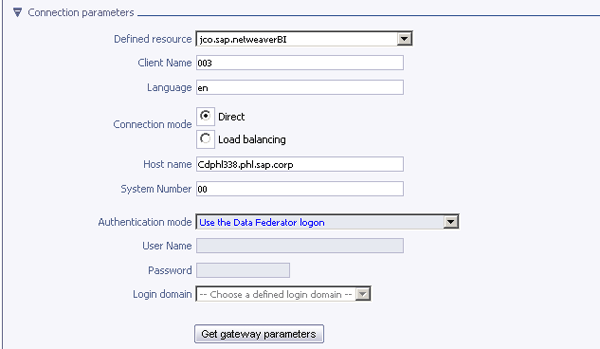
Figure 29
Select the Use the Data Federator logon option for the Authentication mode
Step 11. Navigate to the Datasources folder on the left side of the screen (Figure 30). Click the Make final button and close the Data Federator Designer.
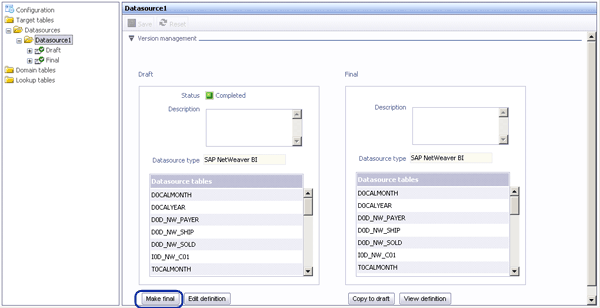
Figure 30
Open the Datasources folder
Step 12. Start the Universe Designer and follow menu path Tools > Connections. Select the connection you created on top of the SAP BusinessObjects Data Federator project.
Step 13. Click the Edit button. Set the Authentication Mode to the option to Use BusinessObjects credentials mapping (Figure 31). Click the Next button, click the Finish button, and then click the second Finish button. Finally, close the Universe Designer.
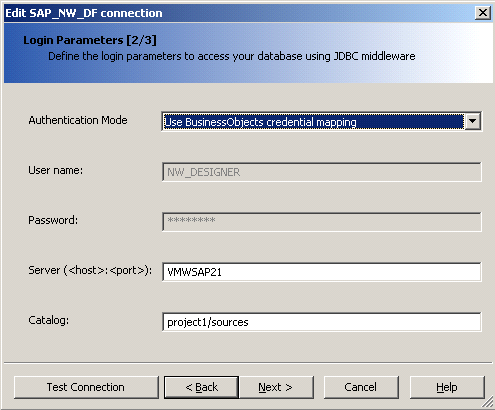
Figure 31
Set the authentication to use the SAP BusinessObjects credential mapping
At this stage, you have configured an SAP BusinessObjects Enterprise user based on the SAP authentication with mapped credentials. In addition, you configured the SAP BusinessObjects Data Federator data source to use the SAP BusinessObjects Data Federator logon. You also configured the universe connection to use the SAP BusinessObjects credentials mapping.
Remember, NW_VIEWER needs to exist in both the SAP BusinessObjects Data Federator administration and the underlying SAP NetWeaver BW system. Note that the user NW_VIEWER needs to exist in these systems with identical passwords. Based on this configuration, you should be able to authenticate with the configured user within the SAP BusinessObjects Enterprise system and view the SAP BusinessObjects Web Intelligence report based on the SAP BusinessObjects Data Federator data source. Based on the credentials mapping, the connectivity with the SAP NetWeaver BW system is established with the user NW_VIEWER.

Ingo Hilgefort
Ingo Hilgefort started his career in 1999 with Seagate Software/Crystal Decisions as a trainer and consultant. He moved to Walldorf for Crystal Decisions at the end of 2000, and worked with the SAP NetWeaver BW development team integrating Crystal Reports with SAP NetWeaver BW. He then relocated to Vancouver in 2004, and worked as a product manager/program manager (in engineering) on the integration of BusinessObjects products with SAP products. Ingo's focus is now on the integration of the SAP BusinessObjects BI suite with SAP landscapes, such as SAP BW and SAP BW on SAP HANA, focusing on end-to-end integration scenarios. In addition to his experience as a product manager and in his engineering roles, Ingo has been involved in architecting and delivering deployments of SAP BusinessObjects software in combination with SAP software for a number of global customers, and has been recognized by the SAP Community as an SAP Mentor for SAP BusinessObjects- and SAP integration-related topics. Currently, Ingo is the Vice President of Product Management and Product Strategy at Visual BI Solutions, working on extensions to SAP’s product offering such as SAP BusinessObjects Design Studio and SAP Lumira. You may follow him on Twitter at @ihilgefort.
You may contact the author at Ingo@visualbi.com.
If you have comments about this article or publication, or would like to submit an article idea, please contact the editor.