Learn how to use business place functionality in an SAP Financial Accounting (FI) system to pay invoices branch-wise. Discover how business place can help a local branch of an organization meet its requirement to pay its own invoices through automatic payment programs for audit trails.
Key Concept
SAP introduced business place as a reporting entity below the company code level. Business place functionality is normally used in some countries (Brazil, Thailand, and South Korea) to report their value-added tax (VAT) on the local entity below the company code level. The local entity below the company code level is defined in the SAP system as business place.
Some organizations typically decentralize their payments for some of their regions. In my experience, I have seen some regions within an organization have a requirement to pay only their branch invoices for an audit trail. In a typical payment scenario, the accounts-payable (AP) clerk runs the payment program and generates the payment proposal. The AP manager then reviews the payment proposal and signs the same by taking a printout and authorizing the payment. The payment proposal signed by the AP manager is filed for an audit trail. There can be multiple branches for a single company, and each of the branches pays its own invoices through automatic payments.
I show you how to achieve branch-wise invoice payments using standard SAP configuration with validation.
Note
I assume the readers of this article are well versed with SAP AP configuration, and I do not discuss automatic payment configuration in this article. Branch-wise refers to paying the invoices from the branch where they originate.
To achieve the branch-wise payments, you need to configure the following settings:
- Activate and define business place at the country level
- Maintain validation to make the business place mandatory in an invoice document
- Post an invoice with business place
- Run the automatic payment program with business place as an additional character
In my example I create a business place for each branch and include the business place in each invoice to segregate the invoice based on branch. I use the same business place as an additional character within the automatic payment program F110 transaction while running the payment to pay branch-wise invoices.
Activate and Define Business Place at the Country Level
To configure business place activation and validation, you activate business place at the country level and not at the company code level. Therefore, once the business place is activated at the country level, it is applicable for all the company codes within that country.
In my scenario, the company code is in India, and it has two branches: one in New Delhi and the other in Mumbai. I create two business places and use them as branches for my company code:
- Z001 (for New Delhi)
- Z002 (for Mumbai)
Activate Business Place for India
To access the business place configuration follow menu path Cross-Application Components > General Application Functions > Business Place. Click the node named Activate Business Place. In the next screen click the New Entries button (Figure 1).

Figure 1
Click New Entries to enter the country for which business place needs to be activated
Enter IN in the Cty (country) column and check the box in the BP Active column (Figure 2). Click the save icon  .
.

Figure 2
Business place activation configuration screen
Business place functionality is activated for India. This function adds a new field named BSEG-BUPLA (business place field) to all the General Ledger (G/L) postings.
Create Business Places at the Company Code Level
The second step is to create business places at the company code level. In my scenario, I assume the company has two branches, and therefore, I need to create two business places. The number of business places typically equals the number of branches the company has.
Follow menu path Cross-Application Components > General Application Functions > Business Place. Click the node named Define Business Places to create multiple branches (Figure 3).
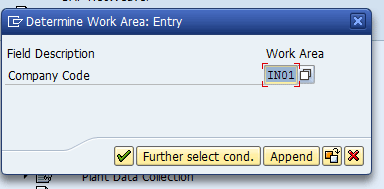
Figure 3
The pop-up screen for company code in business place definition configuration
In the pop-up box that appears, enter the company code for which you need to create a business place. In my scenario, I enter company code IN01. Press the Enter key on your keyboard or click the green check icon.
In the next screen, click the New Entries button. Enter the business place definition and description (Figure 4). Click the save icon.

Figure 4
Define business place
Note
There are multiple fields in the configuration that are required if you use the business place for value-added tax (VAT) requirements. In the screen shown in Figure 4, I leave these fields blank because I am using business place for a different requirement.
In the next screen, the address fields appear (Figure 5). Populate the Company Code and Business Place fields and add descriptions for them. When you click the save icon to save the data in these fields, a pop-up screen appears in which you can enter address details if necessary. You can ignore this box if address details are not required. The fields related to Nota Fiscal are required, especially for Brazil. The tax information fields are required in some countries to report the tax at the business place level. I do not maintain those fields as I don’t use business place for the intended SAP VAT reporting or Nota Fiscal tax functionality.
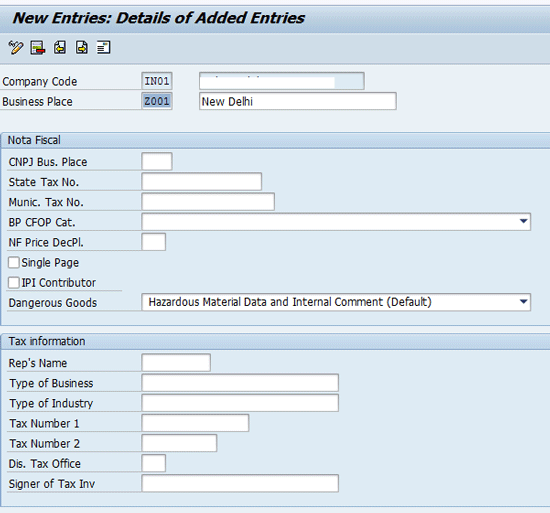
Figure 5
Business place configuration settings at the company code level
After you enter the business place and description, press F3 or click the back icon  from the menu bar. The system returns to the initial screen for configuration of business place (Figure 6). Click the save icon to save the entries.
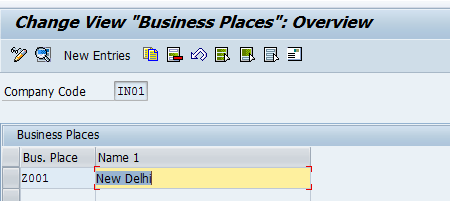
Figure 6
The initial screen for business place configuration
Now follow the steps that I just described to create a business place for a Mumbai branch.
Note
The process for creating a business place for a Mumbai branch is the same as the steps for creating a business place for a New Delhi branch. Therefore, I do not repeat them for the Mumbai branch.
Figure 7 shows that configuration for the second branch (Mumbai) is complete.
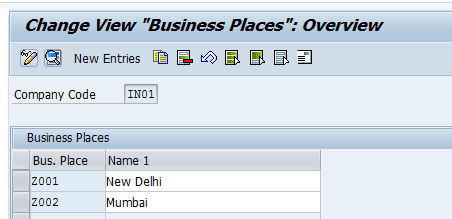
Figure 7
The business place configuration screen for a second branch (Mumbai)
Note
There is a configuration node for business place assignments to plants. The business place can be assigned to plants and automatically populated in the invoice documents from a purchase order. This configuration is useful for purchase order invoices. In my example, I only show the non-order invoices that originate from finance. The automatic assignment of a business place can be overwritten while posting invoices in transaction MIRO. SAP picks the correct overwritten business place in the materials management (MM) document; however, the same is not picked in the FI document. The FI document populates the business place from the configuration. SAP released
SAP Note 1812288 - Business Place wrongly updated in FI document from MIRO to fix the issue.
Maintain Validation to Make Business Place Mandatory in an Invoice Document
Validation is based on a prerequisite. If the prerequisite in the validation is met, the validation checks the conditions mentioned in the check. If the condition in the check is not met, the system sends an error or warning message based on the configuration.
Follow IMG menu path Financial Accounting new > Special purpose ledger > Tools > Maintain validation/substitution rules > Maintain validation. You can also use transaction code GGB0 to access the validation screen directly. In the change validation screen, click the Financial Accounting folder and select Line Item. Click the Validation button (Figure 8).
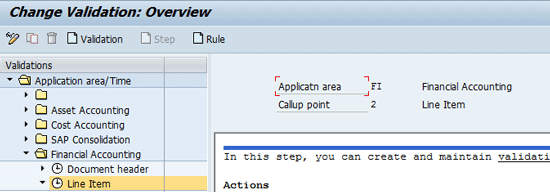
Figure 8
The Change Validation screen
In the next screen (Figure 9) enter the name of the validation (e.g., IN01) and the description of the validation (e.g., Validation for CC IN01). Press Enter.

Figure 9
Create a new validation
The validation IN01 now appears under Financial Accounting > Line Item (Figure 10). To create a new validation step, select the validation name and click the Step button.

Figure 10
The new validation name
The next screen shows that a new step 001 appears in the validation. Enter Business Place Check as the name for validation step 001 (Figure 11).

Figure 11
Create the validation step
Now define the prerequisite for the validation. In my example, I create the validation for company code IN01 and Posting key 31 for the vendor invoices. Click Prerequisite in the left side pane shown in Figure 11.
In the next screen, enter the Prerequisite in expert mode. Expert mode allows you to enter the table and field names directly in the prerequisite, whereas in the normal mode, you cannot enter the table and field names. Instead, you select them by double-clicking the available tables and fields in the bottom. To enter these names in expert mode, click Settings and select Expert mode from the drop-down menu or press Ctrl and F3.
In my example, I create the validation based on the company code and posting key. The validation is triggered only if the company code is IN01 and the posting key is 31. Posting key 31 is normally used for vendor invoices. My aim is to populate the business place with branch details for all vendor invoices and so I use the posting key in the validation. Note that there are multiple ways within validation to populate business place. You can also use account type BSEG-KOART - K within the prerequisite to populate the business place. However, I use posting key as an example. To simplify the example, I am not considering credit memos in the demo. In my example, I have to populate the prerequisites using the technical names. The technical name for the company code is BUKRS, and the posting key is BSCHL. I use the FI header table BKPF to call the company code and line-item table BSEG to call the posting key. The prerequisite also uses an operator AND that ensures that the system checks both the conditions in the prerequisite before proceeding to the Check (Figure 12).
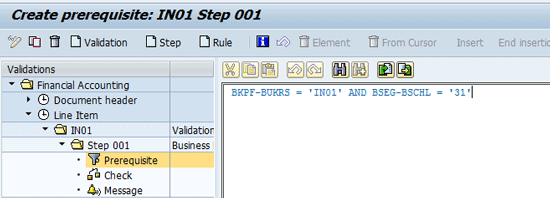
Figure 12
Enter the Prerequisite for validation
Now click the Check icon in the lower left pane of the screen to enter the condition that needs to be checked (Figure 13). I check that the business place is not blank for all vendor invoices. Within the check I have to enter the criteria that need to be checked using technical field names. BUPLA is the technical name for business place, and I have used FI line-item table BSEG to check that the business place field is not blank. I used operator <> for not equal to and operator ’’ for blank.
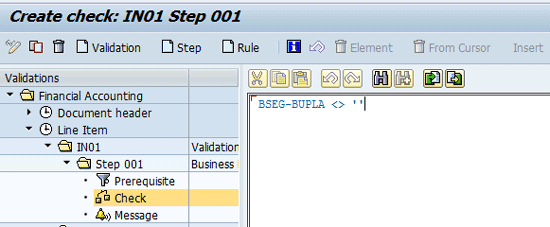
Figure 13
Enter the check for validation
Click the Message button in the left side pane and enter the error message that needs to be populated if the prerequisite is met and the check is not fulfilled. In my example the error message Business Place is mandatory for invoice displays if a user tries to enter an invoice with posting key 31 in company code IN01 without a business place (Figure 14). Save the validation by clicking the save icon. ABAP code is generated in the background upon saving the validation.
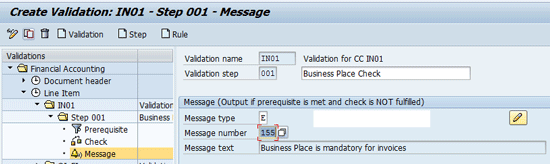
Figure 14
Enter the message for validation
You have now created a validation. Next I show you how to activate validation IN01 for company code IN01. This step is critical because the validation created in the system is activated in the company code only if it is assigned in validation transaction OB28.
Use transaction code OB28 to access the validation screen (Figure 15). In this screen I enter the company code (CoCd) as IN01 and the call point (CallPnt) as 0002. I choose call point as 0002 because I have created my validation at line-item level and the same call point is activated when the users enter the line item. I enter the validation as IN01 that I created in an earlier step. Enter 1 at the activation level to activate the validation. Save the changes by clicking the save icon from the menu bar.

Figure 15
Company code and validation assignment
You have completed the configuration requirements. I now show you the scenario of invoice posting and subsequent automatic payment program to pay invoices by branch. To make the example simpler, I post two invoices: one for a New Delhi branch and one for a Mumbai branch. I also show you how to run the payment program branch-wise.
Post the Invoice
I use transaction code FB60 to post the invoice. In the screen that appears, enter the vendor, invoice date, reference, and amount (Figure 16). In my example I use vendor 1 with the amount of 1000 INR to post my first invoice. Press Enter.
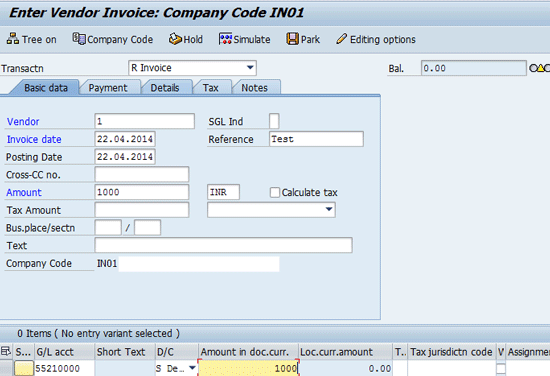
Figure 16
The invoice entry screen with parameters
A pop-up message appears with the error message Business Place is mandatory for invoices (Figure 17). I configured this message in my validation. Click the enter icon (the green check mark).

Figure 17
A pop-up screen with a message for business place validation
In the next screen, enter the business place in the Bus.place/sectn field. In my example I entered the business place as Z001 (Figure 18). Press Enter to save the document.
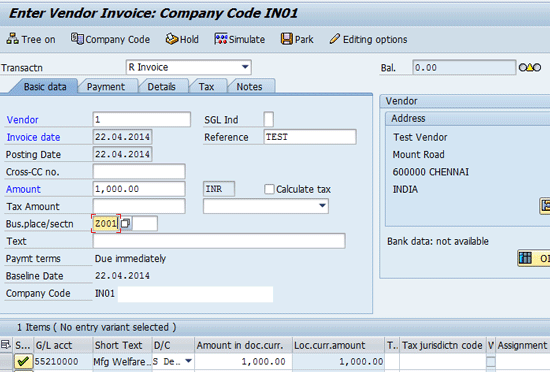
Figure 18
The vendor invoice screen with business place
The invoice document is posted with business place Z001 (Figure 19).
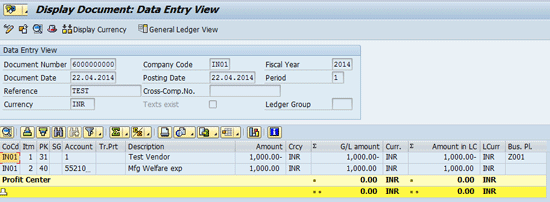
Figure 19
The vendor invoice displays with business place Z001
I have posted another invoice for 2000 INR with business place Z002 (Mumbai) for the same vendor. You need to follow the steps that I described earlier in this section to post the invoice (refer back to Figures 16 to 19).
Figure 20 displays the invoice with business place Z002 added.
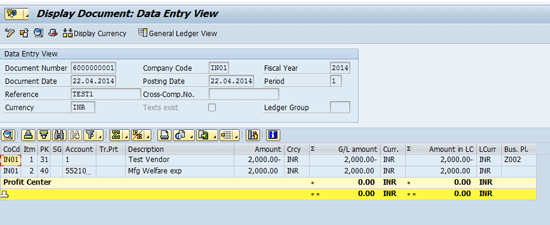
Figure 20
Display the vendor invoice with business place Z002
I have two invoices: one for branch Z001 (New Delhi) for 1000 INR and another invoice for branch Z002 (Mumbai) for 2000 INR. I now show you how to run the branch payments using business place in an automatic payment program.
First, I run the payment for New Delhi branch. Use transaction code F110 to run automatic payments (Figure 21). I also show you how to run the payments only for New Delhi branch using the business place functionality. In the initial screen for automatic payments, enter the run date (the date on which the payment is run) and identification.
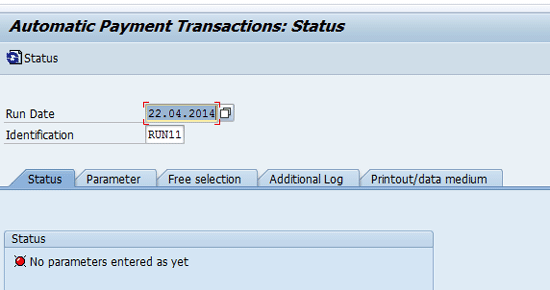
Figure 21
The initial screen for automatic payments
Click the Parameter tab and enter the parameters that need to be included for the payment run. For my example, I restrict my payment run to company code IN01, payment type E, and vendor 1 (Figure 22).
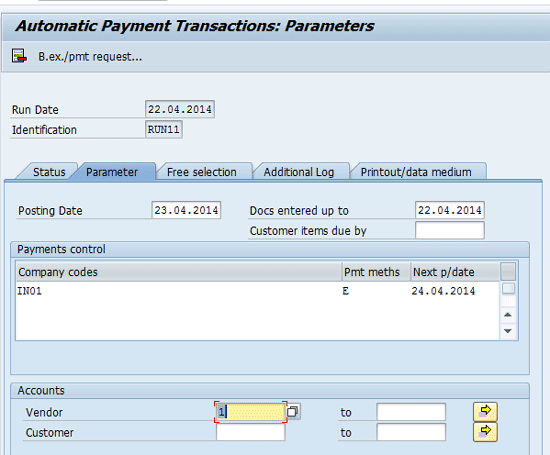
Figure 22
Automatic payment run parameters
Click the Free selection tab (Figure 23).
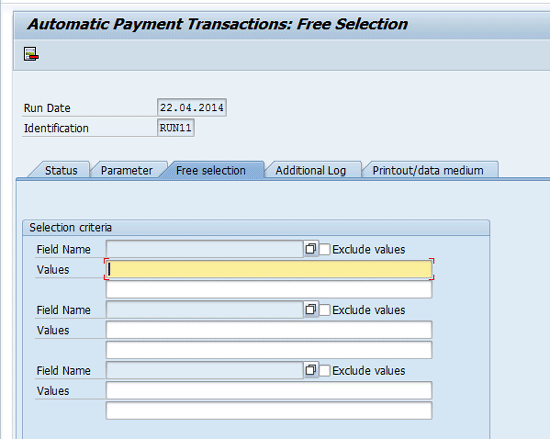
Figure 23
Free selections tab
Use the drop-down box or press F4 after placing your cursor in the first Field Name. Select the BSEG-BUPLA business place in the free selection criteria. Input the value as Z001 (Figure 24). This free selection ensures the payment run includes only invoices that originated from business place Z001. Typically the AP clerk has to be trained to use this free selection screen with their business place so that only invoices originated in their branch can be paid.
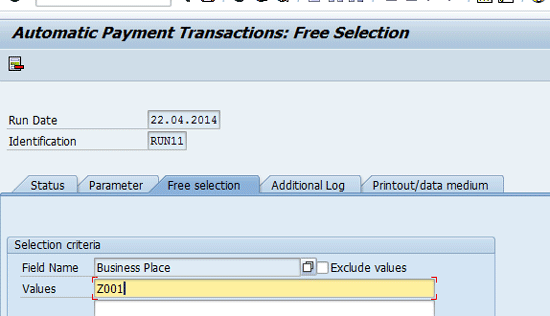
Figure 24
Input value Z001 in the free selections tab
Click the Additional Log tab to select the additional fields that need to be shown in the payment proposal log (Figure 25).
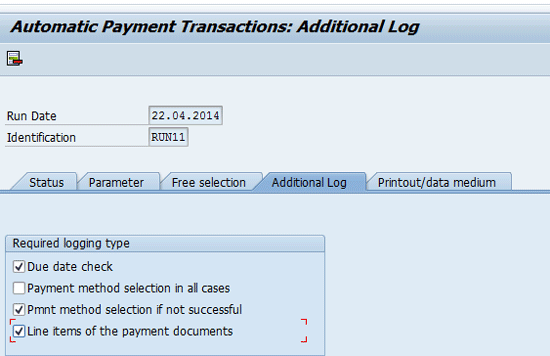
Figure 25
The Additional Log tab
Click the Status tab. A pop-up box appears with a message asking you if you want to save your data (Figure 26). Click the Yes button to save the parameters.

Figure 26
The pop-up box for saving the parameters
Now the parameter for the automatic payment run is saved. The status in the payment program includes the following message: Parameters have been entered (Figure 27).

Figure 27
The automatic payment program status screen
You have to run the payment proposal now before running the actual payment. Click the Proposal button. In the pop-up box that appears, enter the start date and check the Start immediately check box (Figure 28). Click the enter icon.
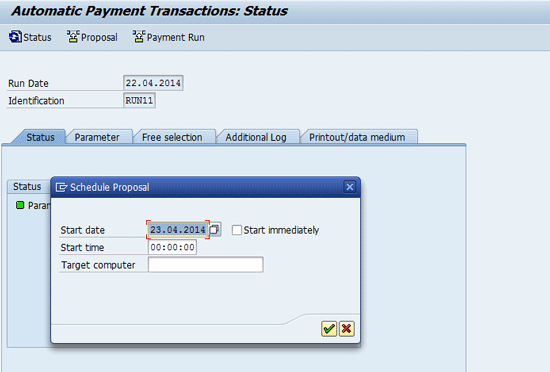
Figure 28
The pop-up box for scheduling the payment proposal
The proposal now runs and the status tab is updated with the following message: Payment proposal has been created (Figure 29).
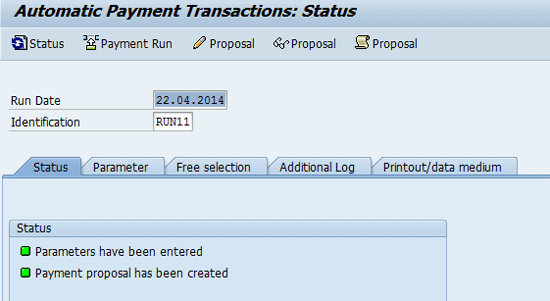
Figure 29
The initial screen for the payment run after the proposal run
I use the Proposal button to display the proposal. The payment program has picked up only the invoice with business place Z001 as shown in Figure 30. The free selection parameters that I provided in the earlier screen ensure that only invoices originated in Z001 are considered for this payment run.

Figure 30
Display the payment proposal
Click the back icon from the menu bar to return to the initial screen for the payment run after completion of the proposal run. Click the Payment Run button to run the payments. In the pop-up box that appears, enter the start date and check the Start Immediately box (Figure 31). Press the enter icon.
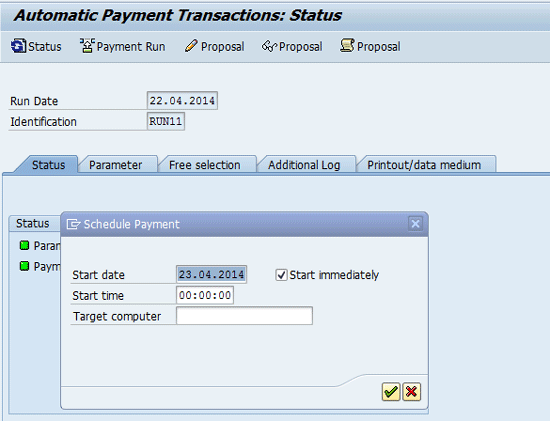
Figure 31
The pop-up box during the payment run
The status tab is now updated with the following message: the payment run has been carried out (Figure 32).

Figure 32
The initial screen for the payment run
Now click the Payment button to view the payment log. The payment document for the invoice of New Delhi branch 1000 INR can be seen in the payment log (Figure 33).
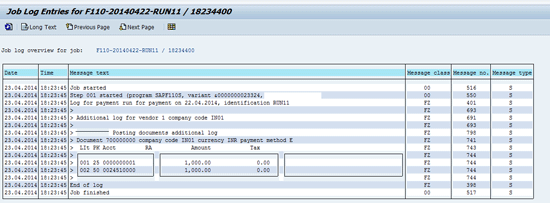
Figure 33
The payment log
I now run the vendor line-item report to show the invoice that has been paid and the overdue invoices. The report shows that one invoice pertaining to Mumbai branch business place Z002 is open and the other invoice related to New Delhi branch business place Z001 is paid (Figure 34).
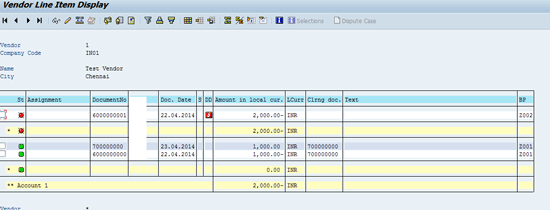
Figure 34
The vendor line-item report
The open item is shown with a red button for business place Z002, and the green radio button specifies the cleared invoices for business place Z001 during the payment run. The same payment steps shown above have to be followed for running the automatic payments for Mumbai branch business place Z002.
Palani Swaminathan
Palanichamy Swaminathan has 12 years of experience in banking, finance, and consulting. He has more than seven years’ experience in SAP systems with expertise in SAP FI, CO, PS, and JVA modules. He currently works with Accenture LLP and has been involved in multiple global SAP implementations, rollouts, upgrades, and support projects.
You may contact the author at palswams@gmail.com.
If you have comments about this article or publication, or would like to submit an article idea, please contact the editor.



 Premium