/GRC
Learn how to archive data from the SAP Global Trade Services system, which contains all the trade-relevant compliance and customs data, without affecting any feeder systems (SAP or non-SAP) that are connected to it. See how archiving that data enhances system efficiency and boosts performance, resulting in lower operational costs.
Key Concept
Transaction SARA, also known as Archive Administration, lets you manage all your archiving programs such as write, delete, and restore. It generates background jobs for these programs.
You can archive hundreds of gigabytes (GB) of data that you no longer require from your database to enhance your SAP Global Trade Services system’s operational performance. You are still required to retain the unwanted data for providing evidence to customs authorities at any time in relation to your export or import transactions during compliance audits. The archiving process in SAP systems is carried out with transaction SARA, also known as Archive Administration. If you are not familiar with the basics of archiving, see the sidebar “Archive Administration.” SAP Global Trade Services has the following standard archival objects: business partners, sanctioned-party list master data, audit trail logs, change documents, customs documents, vendor declarations, and application logs.
Archive Administration
These are the basic functions in an archiving process:
- Write lets you schedule and execute a write program to generate
archive files. The system selects all entries with the To Be Archived
flag and copies the respective data objects successively to the
previously created archive files.
- Delete lets you schedule and execute delete programs. Data
objects that have been imported into archive files successfully are
deleted from the database.
- Read lets you schedule and execute a program that reads and evaluates archived data.
- Storage lets you transfer archive files to a connected storage
system and retrieve the archive files saved on that storage system.
Archive Business Partners
Business partners in SAP Global Trade Services are your customers or vendors whom you transfer from the feeder (SAP ERP Central Component [ECC]) system. Using archiving you can store business partners that are no longer required from the system database. As a prerequisite for archiving of business partners, you must ensure that all the business partners that you wish to archive have the Archiving flag check box marked. Use transaction code BP in your SAP Global Trade Services system (Figure 1). Enter your business partner number in the Status tab and set the flag for archiving to make the business partner eligible for archiving.
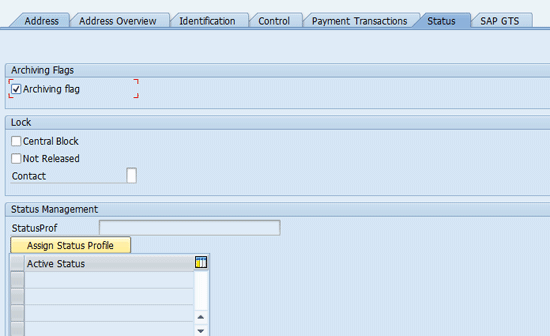
Figure 1
Check the Archiving flag check box
If you want to set the Archiving flag for multiple business partners at once, execute transaction code BUPA_PRE_DA in the SAP Global Trade Services system (Figure 2).
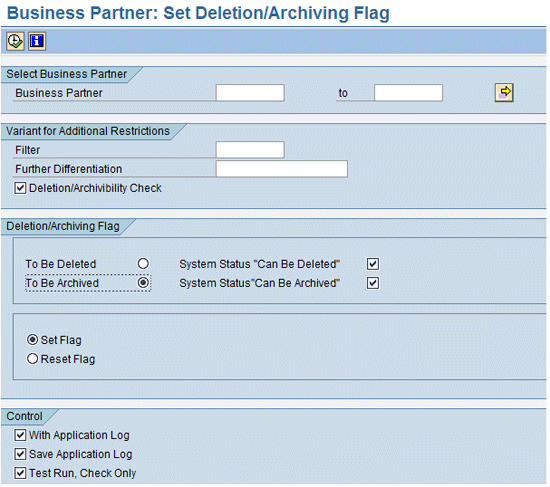
Figure 2
Set the Archving Flag check box for multiple business partners
The standard archiving object for business partners is CA_BUPA. To archive business partners from your SAP Global Trade Services system, execute transaction SARA and enter CA_BUPA in the Archiving Object field (Figure 3).
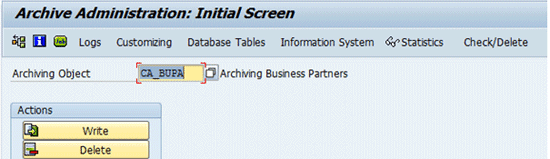
Figure 3
Archive business partners
Click the Write button in Figure 3 to write the business partner data whose status is archivable to an archive file. The data in the archive file is stored in a folder or file share outside the SAP environment for audits or future reference after the Write function is complete. If you click the Delete button in Figure 3, the system deletes the business partners and their dependent data from the database. When the business partner’s data is archived from the SAP Global Trade Services system, the standard tables are affected, and data is archived. Table 1 shows the standard SAP Global Trade Services tables related to business partners. When a business partner’s data is archived from the system, the data is also deleted from these tables.
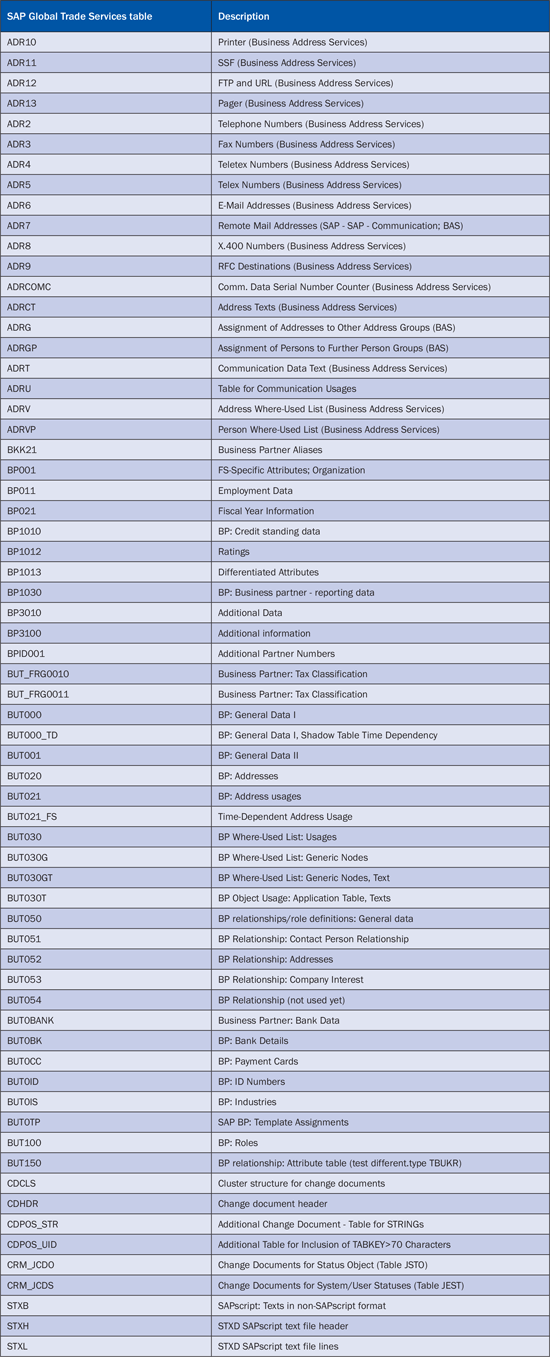
Table 1
Tables archived for business partners
When you archive these business partner tables, follow these recommendations:
- Ensure the business partners are no longer required
- Check the dependencies on business partners with any active documents before archiving
- Archive the same business partners in SAP ECC to make the data consistent with the data in the SAP Global Trade Services system
- Ensure that the data archived is not deleted but retained for future audits
Sanctioned Party List Master Data
Sanctioned-party list screening in the SAP Global Trade Services Compliance Management module screens your customers, vendors, and orders transferred from the SAP ECC system. Sanctioned-party list records are maintained as master data in the system against which the orders, customers, and vendors are screened. The master data for screening is obtained from several data providers in an XML format. SAP Global Trade Services consumes the XML file and creates sanctioned-party list master global data. Several XML files are frequently obtained from the data providers, and several expired records can occupy a large space in the system. For example, a full set of XML files can consume a space of up to 400 MB. You can archive the sanctioned-party list records with the standard archiving object SPL_MD through the transaction SARA in SAP Global Trade Services (Figure 4).
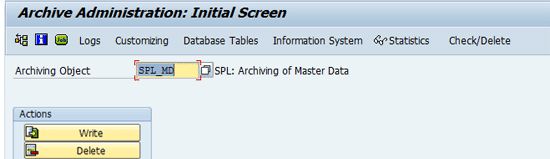
Figure 4
Archive sanctioned-party list master data
Clicking the Write button allows you to write the archived data in a file. Clicking the Delete button deletes the sanctioned-party list master data from the system database. After you archive the sanctioned-party list master data from the system, some standard SAP Global Trade Services tables are affected. These are the tables from which the data is archived (Table 2).

Table 2
Sanctioned-party list master data-related tables
When you archive sanctioned-party list master data, follow these recommendations:
- Check the status of blocked business partners and orders
- See if there is any impact on the audit trail functionality for business partners and orders.
- Ensure that the archived data is not being screened by the sanctioned-party list functionality. This action validates that the data is deleted from the system.
Sanctioned-Party List Audit Trail Logs
When you screen sanctioned-party list business partners and orders, the results of the screening are stored in the form of logs in the system. These logs store all the details related to screenings and serve as an important source of documentation for legal audits. An audit trail enables you to comply with legal authorities by providing proof about what checks were performed on the business partners and orders, when the screening took place, what the results of the screening were, and the user comments that were logged when the blocked business partners and documents were released. These logs can be archived to reduce the load on the system and can be deleted using the standard archival object for sanctioned-party list audit trail: SPL_AT using transaction SARA (Figure 5).
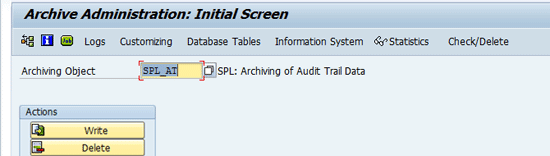
Figure 5
Archive the sanctioned-party list audit trail data
To write the archived data in a file click the Write button. To delete the sanctioned-party list audit trail data from the system database, click the Delete button. After you archive the sanctioned-party list audit trail data, from the system, some standard SAP Global Trade Services tables are affected. Data is archived from these tables (Table 3).
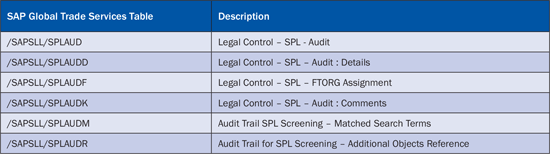
Table 3
Sanctioned-party list audit trail-related tables
When you archive sanctioned-party list audit trail logs, follow these recommendations:
- Check the deletion of the archived audit trail data from the database tables
- Check the database space saving
- Check if the delete function deletes all the records from the respective sanctioned-party list audit trail tables
- Enter the archived data and check if the audit trail records are available
Archive Change Documents
Activating a change document object in the SAP Global Trade Services system records all the changes made to the object. Change documents are generated for both transactional and master data in the SAP Global Trade Services system. The change log includes the content of change, type of change, time of change, and the user responsible for the change. The logs can be archived using the standard archiving object CHANGEDOCU using the SARA transaction (Figure 6).
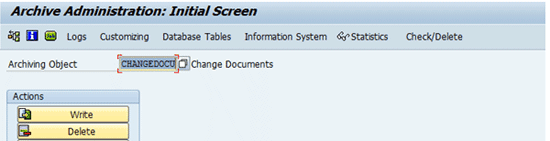
Figure 6
Archive change documents
To write the archived data in a file click the Write button. To delete the change documents data from the system database, click the Delete button. When you archive change documents, some standard tables are affected (Table 4).
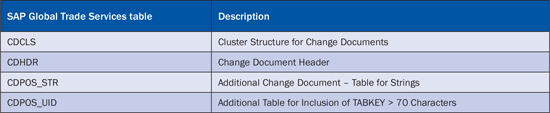
Table 4
Change documents-releated tables
When you archive change documents, ensure that the transactional or master data is not affected when the change documents data is deleted.
Archive Customs Documents
Export- and import-related documents created in SAP ECC are transferred to SAP Global Trade Services for customs activities. When a document is transferred, a customs document is created for the transferred documents. Because the transactional data from SAP ECC is critical to SAP Global Trade Services for customs purposes, you can expect a large number of customs documents to be created in SAP Global Trade Services. Standard SAP archiving object CUHD can be used to archive the customs documents in SAP Global Trade Services using the SARA transaction (Figure 7).
Note
Customs documents are created in SAP Global Trade Services from orders
and deliveries transferred from SAP ECC. Customs declarations are
created in SAP Global Trade Services from the billing documents
transferred from SAP ECC. The standard archiving object is available for
customs documents and not for customs declarations.
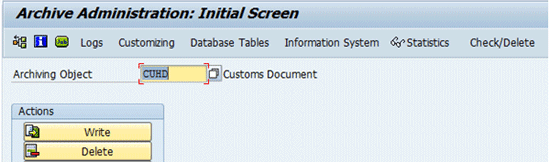
Figure 7
Archive customs documents
To write the archived customs document data in a file, click the Write button. To delete the customs documents data from the system database, click the Delete button. When you archive customs documents some standard tables are affected (Table 5).
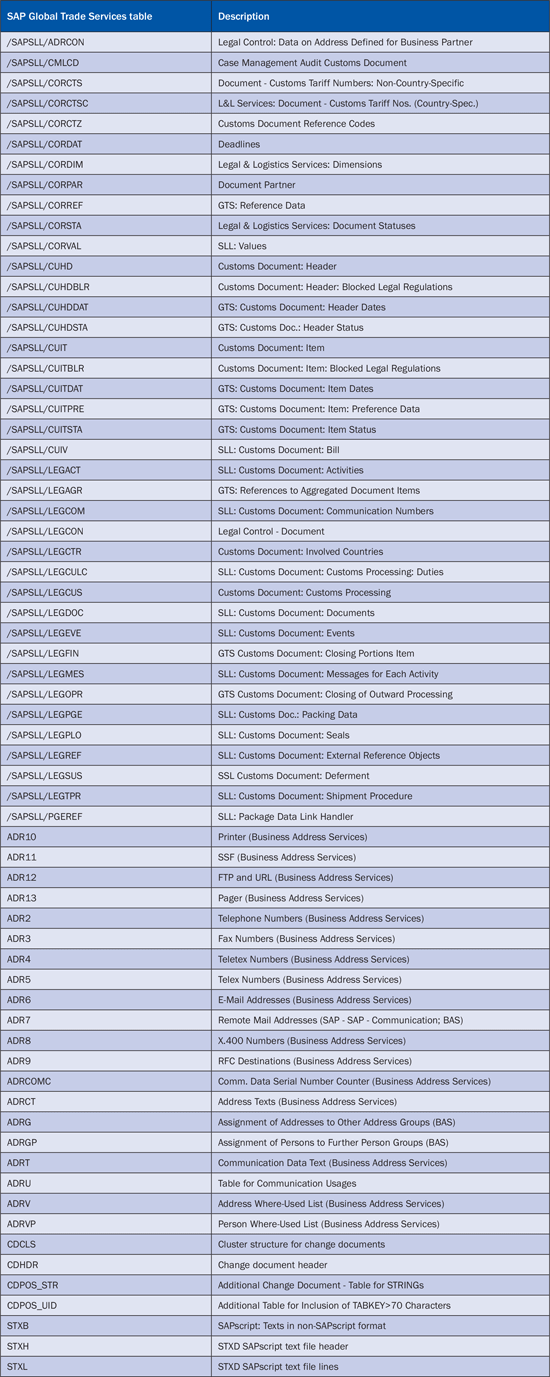
Table 5
Customs documents-related tables
When you archive customs documents, follow these recommendations:
- Archive only those customs documents whose corresponding SAP ECC documents are not blocked by SAP Global Trade Services
- Check that the customs declarations are not archived
- Check the deletion of the customs documents from the corresponding database tables
- Archive the SAP ECC documents for which the corresponding customs documents are archived in SAP Global Trade Services for data consistency across systems
Archive Vendor Declarations
As part of the NAFTA/EU trade agreements you request long-term vendor declarations from your suppliers so that your importers can claim preferential customs duties. This request is done using the preference processing functionality in the Risk Management module of SAP Global Trade Services. The vendor declarations are stored in SAP Global Trade Services. You need to archive these declarations if the data is no longer needed. Use the standard archiving object PREVD to archive vendor declarations using transaction SARA (Figure 8).
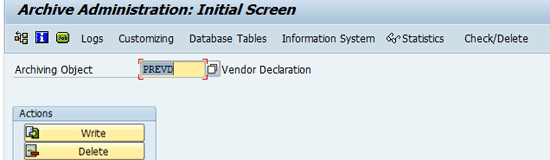
Figure 8
Archive vendor declarations
To write the archived vendor declarations data in a file, click the Write button. To delete the vendor declarations data from the system database, click the Delete button. When you archive vendor declarations, some standard tables are affected (Table 6).
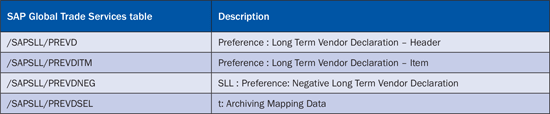
Table 6
Vendor declarations-related tables
When you archive vendor declarations, follow these recommendations:
- Do not archive active vendor declarations
- Exclude from archiving any vendor declarations for the corresponding SAP ECC documents that are blocked by SAP Global Trade Services
Archive Preference Determination Log
Preference determination is a prerequisite for calculating a preference statement for products of mixed origin or from in-house production as part of the Risk Management module in Global Trade Services. Its results must be available for internal and external audits for a long period. To reduce the load on the database and avoid deteriorating system performance the parameters and results of preference determination are required. The standard archival object PRFCALC is used for archiving of preference determination log using transaction SARA in Global Trade Services (Figure 9).
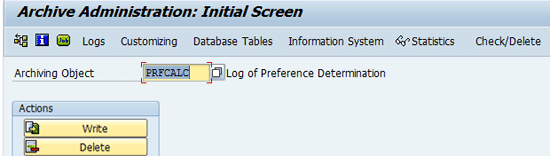
Figure 9
Archive the preference determination log
To write the archived log of preference determination data in a file, click the Write button. To delete the log of preference determination data from the system database, click the Delete button. When you archive the log of preference determination, some standard tables that are affected (Table 7).
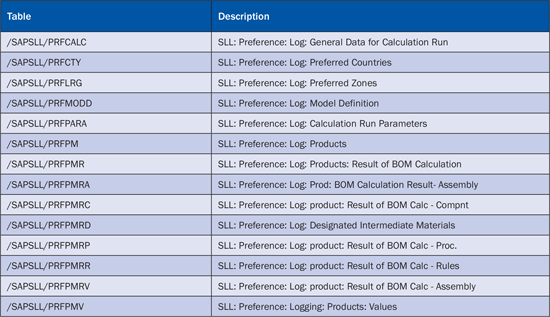
Table 7
Log of preference determination-related tables
When you archive vendor declarations, follow these recommendations:
- Do not flag incomplete logs in which the preference determination has not been calculated as ready to archive
- Check the data deleted from the respective database tables to confirm archiving of the log
Archive Application Logs
You can archive the application logs that the system creates for all customs documents in SAP Global Trade Services. Customs documents are replications of feeder system documents that the system uses in areas such as the Compliance Management module. To archive the application logs use the standard object BC_SBAL with transaction SARA (Figure 10).
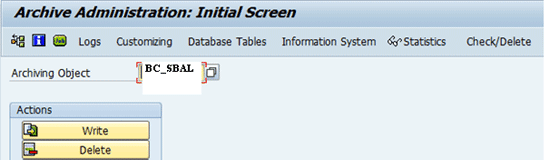
Figure 10
Archive application logs
To write the archived application logs data in a file, click the Write button. To delete the application logs data from the system database, click the Delete button. After you archive the application logs, some standard tables are affected (Table 8).

Table 8
Application log-related tables
When you archive application logs, follow these recommendations:
- Remember that the archived data cannot be accessed by the transaction SLG1, which is used to view application logs
- Ensure that the application log data is deleted from the database tables
Archive Customization Check List
Now that you understand the archiving process for each object, let’s look at the customizing steps needed for archiving of any of these objects. These steps are a prerequisite for implementing the archiving process. All the customizing steps for archiving are performed in SAP Global Trade Services by executing transaction SARA and clicking the Customizing tab (Figure 11). A screen pops up with the heading Data Archiving Customizing. Click the Technical Settings clock icon, which takes you to Figure 12.
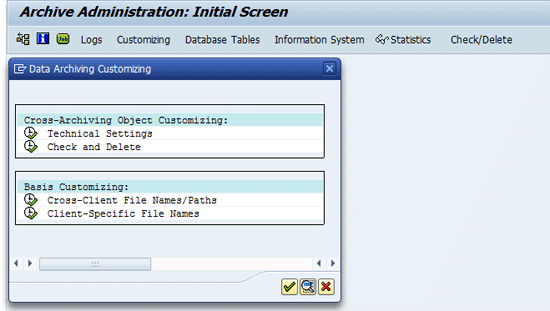
Figure 11
Archiving configuration main screen
Technical Settings
After you click Technical Settings, you need to provide the data for the relevant fields in the screen shown in Figure 12. Select or populate all the fields in Figure 12. You need to enter the values for the size of the data present in your system. You can obtain the help of your SAP Basis team to determine what values should be entered and also to determine the present size of your database.
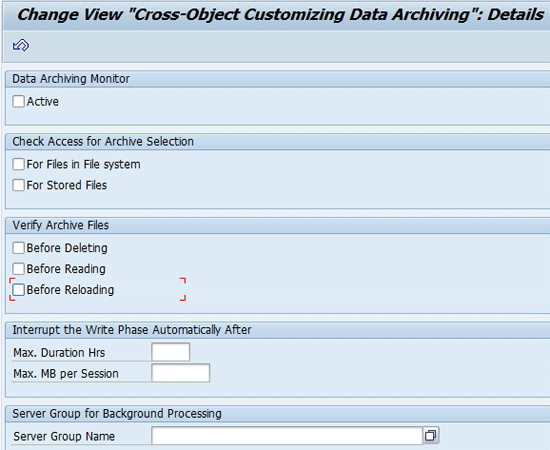
Figure 12
Technical settings configuration
Check and Delete
Populating the fields in the screen shown in Figure 12 causes the system to check if the files are archived and prepares you for the next step — deleting data from the system. These two tasks are activated in this screen.
Press Enter after you populate the fields and check the boxes in Figure 12. Exit the screen and go back to the screen shown in Figure 11. Click the Check/Delete tab. This takes you to Figure 13. You then provide technical details in consultation with your Basis team for the fields shown in Figure 13, all of which need to be populated. Checking the Check Active check box makes the system check if the archival file has been prepared or not. Checking the Delete Active check box makes the system perform deletion of the data after checking for the generation of the archival file.
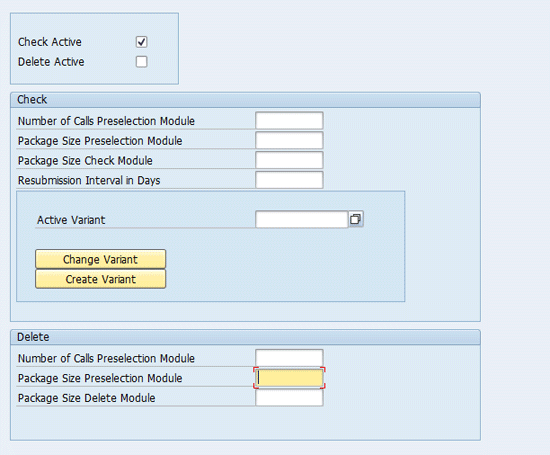
Figure 13
Check and delete settings
Cross-Client File Names/Paths
In this step you configure a file path. Start by clicking the execute icon beside the Cross-Client File Names /Paths in the Basis Customizing: section of the screen shown in Figure 11. In the screen that appears enter the name of a path and save it in the system by pressing Enter. Click the standard Save button (not shown in Figure 14). The file path refers to a folder that is created inside the SAP system. A file path specifies the path under which the archive files are stored. After you create the file path you need to assign it to a physical path (Figure 15). Once the name of the file path is saved, click the folder called Assignment of Physical Path, which takes you to Figure 15. A physical path is the external file share or an external folder outside the SAP system.
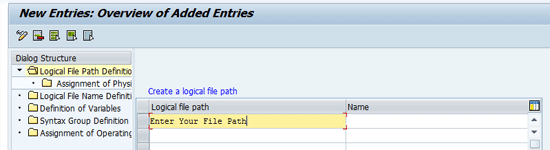
Figure 14
Configure a file path
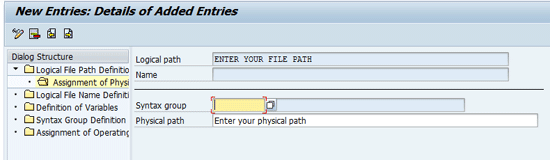
Figure 15
Assign a file path to a physical path
Client-Specific File Names
In this step you configure a logical file name inside the SAP system and save it (Figure 16). Click the execute icon beside Client-Specific File Names in the Basis Customizing: section of the screen shown in Figure 11. The logical file name and file name are the same. A logical file name specifies the file name and the menu path under which the archive files are created. On this screen you create a file name the same way you created a file path in Figure 14. Once the file name is created, all archive files are created under this file name. This screen is not shown in detail as it contained client-specific information. Therefore Figure 16 shows only the overview.
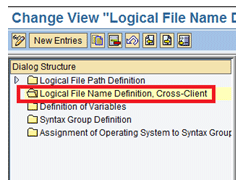
Figure 16
Configure a Logical File Name
With these steps done, all the customizing activities required as a prerequisite for archiving in SAP Global Trade Services system are completed. Post completion of customizing, you are ready to use SARA transaction and archive the standard objects as per your business need and requirements.
Ravi Kalluri
Ravi Kalluri is an SAP BusinessObjects Global Trade Services consultant at Accenture Services Pvt Ltd. His focus is on the entire global trade area, including Compliance Management, Customs Management, Risk Management, and Electronic Compliance Reporting. He has an excellent understanding of SAP ERP logistics processes and their integration to global trade in a supply chain environment. His interests are networking, participating in conferences, and writing articles.
You may contact the author at ravi.kalluri@accenture.com.
If you have comments about this article or publication, or would like to submit an article idea, please contact the editor.