Go beyond data warehousing to data mining. You can use Analysis Process Designer (APD) to discover hard-to-find trends that allow your company to make more informed decisions. Learn what APD is, how it differs from data warehousing, and how to implement it.
Key Concept
Analysis Process Designer (APD) explores the data that SAP BW collects, consolidates, and manages. APD allows various data transformations, such as data mining, statistical and mathematical calculations, and building intelligence into the data. It allows business users to access, transform, and deploy information in a single step.
Companies often find it difficult and time consuming to evaluate millions of historical records to uncover and explore the trends in their existing data, but these trends are critical to success. Using this otherwise hidden information allows businesses to make proactive and knowledge-driven decisions. Analysis Process Designer (APD) is one of only a few tools such as SAS Enterprise Miner or thinkAnalytics that addresses these data issues that are otherwise technically challenging.
Although transactions in previous versions of SAP BW provided similar functionality to APD, SAP intended these transactions mainly for customer relationship management (CRM) content. Transaction RSCRM_BAPI performs tasks similar to APD and was released in SAP BW 2.0B/2.1. SAP BW 3.5 introduced APD as a distinct data-mining tool whose capabilities greatly surpass RSCRM_BAPI capabilities.
In this article, I will show you how APD, a data mining process, differs from extraction, transformation, and loading (ETL). I’ll also describe APD’s capabilities and provide detailed steps describing how to implement it.
ETL vs. APD
In practice, many users would have difficulty distinguishing between APD (part of data mining) and ETL, part of data warehousing, but they do differ.
The first step of the ETL process is extraction: procuring relevant data from source systems. In the second step, transformation, the system processes and transforms data to ensure quality and meet business requirements. The last step, loading, brings the data physically into the data warehouse.
In contrast, APD creates new information out of existing data. It transforms data using several data-mining techniques and statistical formulas and writes the new information back to an SAP BW database or a CRM system.
The ETL process gives you the ability to store data in a well-structured format and process it. APD can further process and transform data, as demonstrated in the following business cases.
Business Cases
You can use APD to do the following:
- Gain insight through data mining: A company launching a new product wants to find its cross-selling potential, probable customers, and its effect on existing products. You can use data-mining tools effectively to answer these questions and shift your organization from retrospective analysis to proactive decision making.
APD provides the capability to predict future trends and behaviors by analyzing historical data using advanced data-mining techniques such as calculating classes, determining frequency distribution, or scoring information. As you form these data-mining models using historical data, they can uncover previously unknown patterns and hidden associations in the historical data. You can export the results of this learning process to systems such as CRM, or you can store the results in SAP BW data targets. APD also can integrate with third-party data-mining tools that can transform data.
- Build intelligence into master data: Have you ever wanted up-to-date classification information about your customer, vendor, or product? Traditionally, companies build transaction systems to set up the master data (for customers, vendors, products) once. The real value of master data comes from constantly evaluating transactions they make and updating master data. You can enrich vendor master data through APD by building intelligence with the data on historical purchases or the quality of deliverables. Similarly, you can gain intelligence about customer master data by analyzing recent purchase activities or how you classify customers. You can also find out about product associations and a particular age group’s response to a product using APD.
- Create complex reports: Business analysts would like to optimize SAP BW query results from complicated MultiCubes — created by combining disparate processes such as sales, operations, or finance — by mining the generated result set. You can use APD to join the relevant data from MultiCubes and store the data in a new data target to provide further mining ability.
For example, your company may need to find your top 50 customers based on order value, and of the 50 customers, find the top 10 customers that frequently exceed a median of 10 days. APD can deal with these reporting issues easily.
- Maintain global KPIs: This challenges every global company. Problems include maintaining the consistency of KPI definitions while creating or changing the reports and while redefining KPIs. You can use global structures to maintain KPI definitions, but whenever the definitions change, you need to redefine the global structures and replicate these global structures in all the relevant InfoCubes and queries.
You can use APD to define complicated KPIs from the data available in SAP BW and house the resulting simplified KPIs in a simple model. As business rules change, you can simply modify the global KPI definitions that feed the resulting data target.
- Improve system performance: No matter how many aggregates you build and how effective your SAP BW system is, you always have to deal with system performance issues. When you execute a dashboard that has numerous queries, system performance usually suffers. You can use APD to consolidate the necessary data into an intermediate data target to provide a complete set of pre-aggregated data from multiple InfoProviders.
- Create effective models: Business transactions such as open orders change periodically. SAP BW modeling can uncover customer-service trends in dynamic data in many ways, but APD is one of the easiest tools to build such trends.
How to Implement APD
Now that you understand APD and its benefits, let’s look at how you configure it in four steps (Figure 1).

Figure 1
Configure APD in four steps
Step 1. Procurement. Based on the requirements, SAP BW delivers statistically relevant data through a flat file, a query, or data targets. APD provides a user-friendly graphical environment for delivering this data.
Step 2. Preparation. This step ensures that you have a clean, complete, and error-free database for the analysis process. To ensure high-quality data, APD provides the following data operations for preparing and cleansing the data:
- Filter: Restrict the data volume by entering selection conditions.
- Aggregation: Group the data according to the values in specific fields (grouping fields, database function group by) and aggregate the data within this group into other fields (aggregation fields).
- Join: Connect two different data sources with one or more common InfoObjects.
- Sort: Arrange data in the data source according to the selected fields.
- Transform list to data records: Change the internal data structure by converting a list of table rows to a one-line data record. This process includes transposing rows into columns.
- Transform data records into lists: Change repeat columns in a table into several rows. This creates several output records for each individual data record.
- Hide columns: Hide fields and rename fields or text.
Step 3. Transformation. APD allows you to use the following data-mining transformations to uncover hidden information relationships such as ABC classification and clustering.
ABC classification, a frequently used analytical data-mining method, classifies objects using a particular measure. For example, you can classify your customers into three classes — A, B, and C — according to the net value of incoming orders or the quantity of the orders they generate. ABC classification lets you sort your data based on specified rules. The classification rules refer to a single key figure value in your data and implicitly specify the range of absolute or relative key figure values that map to the relevant classes.
Clustering, a widely used data-mining technique, creates groups of associated data by discovering links that are not apparent in given data. It allows you to segment data automatically into clusters. This includes determining the criteria for clustering as well as the mappings between datasets. You execute clustering by training a model based on historical data and applying the same segmentation to another dataset.
To transform data even more, you can use APD data-mining models such as regression algorithms, scoring analysis, and decision trees. In addition, APD allows you to use non-SAP data-mining models or a custom ABAP routine to suit business needs.
Step 4. Loading. You save the transformed data in either SAP BW targets or a CRM system. You can also feed this data to data-mining algorithms for further analysis.
Complete and error-free data is important to any analysis process, so APD lets you check the intermediate results and the quality of the data after each process step. The system temporarily stores the interim results of each transformation of data for performance reasons.
Sample APD Configuration
I’ll present a simple example to discuss how to configure APD in detail. In my scenario, I’ll show how to build intelligence into customer master data by classifying customers into different categories based on their up-to-date sales order information in the system. I’ve grouped the customers into three different classes (A, B, and C) based on the order quantities. This classification helps the business to identify prospective customers of a new product. For example, class A customers are more likely to buy the new products, and class C customers are least likely to buy the new product. With the help of this information, the company can launch marketing campaigns targeting the potential customers.
My example shows how you can use APD to mine the data from query ZSD_C03, which is built on the standard InfoCube 0SD_C03 (sales: overview). The query generates a report that includes the order quantity, incoming order value, number of order items, and sold-to party. I use this query source of information in my example. Figure 2 shows the query definition.
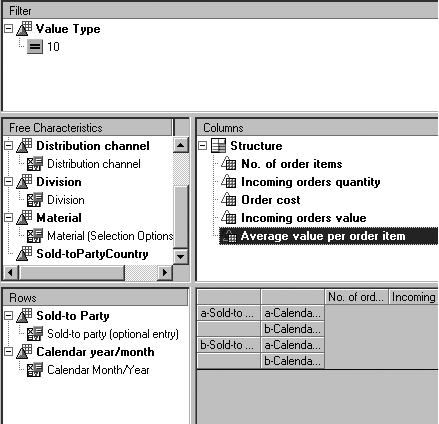
Figure 2
The query definition
Create an InfoObject by following menu path Administrator Workbench>Modeling>InfoObjects. Click on Create from the context menu of an InfoArea. Enter the description Customer: ABC Class and the technical name ZCLASS. Set the object type as characteristic and length as 2. Activate the InfoObject.
Add the newly created InfoObject, ZCLASS, to to the customer master data as an attribute of 0CUSTOMER. This attribute holds the value of the class that categorizes the customer and segments the customers into A, B, and C classes. To do this, go to Administrator Workbench> Modeling>InfoObjects. Select 0CUSTOMER InfoObject, and go to the Attributes tab. Add ZCLASS InfoObject to the list of attributes, and activate the InfoObject 0CUSTOMER. Now you are ready to create a model to analyze the data from the query ZSD_O03 and fill the ZCLASS attributes of 0CUSTOMER InfoObject.
Step 1. Extract data. Go to APD via menu path Administrator Workbench>Data Mining>Analysis Process Designer. Alternatively, you can use transaction RSANWB. Click on the create icon and choose General for the Application field (Figure 3). Click on the enter (check mark) icon to activate the analysis process interface.
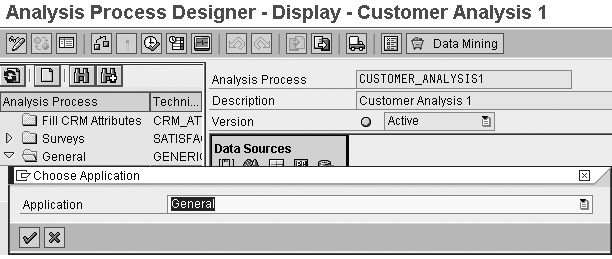
Figure 3
Choose a General Application
APD’s graphical environment analyzes data. The APD interface includes an application toolbar and areas for navigation, function selection, and work (Figure 4).
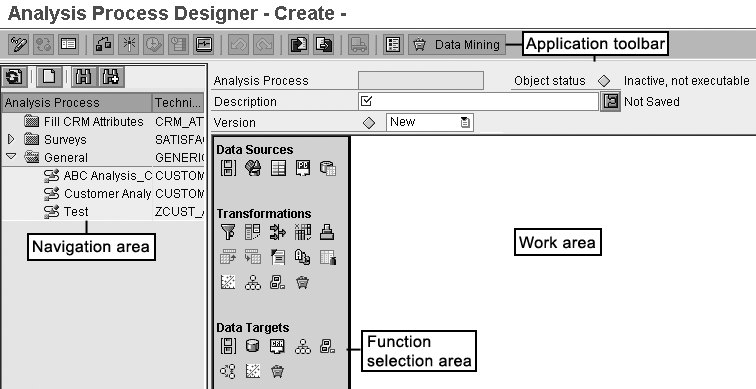
Figure 4
APD’s interface contains work, function selection, and navigation areas
The navigation area on the left displays all the available analysis processes that you can assign to an application component — Fill CRM Attributes, Surveys, and General. The function selection area displays all the available data sources, transformations, and data targets as icons. The application toolbar shows the description and the status of the analysis process. The work area is where you model or change the analysis process. In the application toolbar, describe the Analysis Process as Customer Classification.
To extract the data for analysis, drag and drop the query icon  from the function selection area into the work area and select the query ZSD_C03 from the Available Objects list. Double-click on the query icon to get the Source Query screen (Figure 5). In this screen, select the InfoProvider and the query. Click on the Choose query… button to see the list of available objects on the server. You can also choose a variant if it is already defined for the query. The Extended Settings tab on the Source Query screen allows you to partition data based on any characteristic in the query definition. You can also choose the servers for load balancing. If you leave this field empty, all available servers share the load.
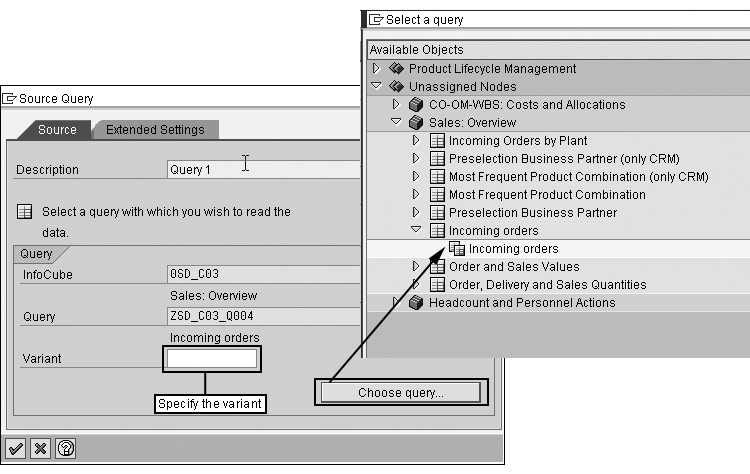
Figure 5
Choose your query
Step 2. Aggregate data based on the characteristic sold-to party. Drag and drop aggregate data from the function selection area into the work area and draw a line from the query to the aggregate icon  by dragging the mouse. Double-click on the aggregation, and choose the grouping and aggregation fields (Figure 6). In this example, use 0SOLD_TO as the grouping field and the incoming order quantity field as the aggregation field. Change the description to
 SOLD_TO Aggregation. By aggregating data based on SOLD_TO, you see the total quantity of orders for each customer in the query (orders for individual calendar months are aggregated). Use the aggregation type SUM because you are classifying a customer based on the total number of incoming orders for a given period.
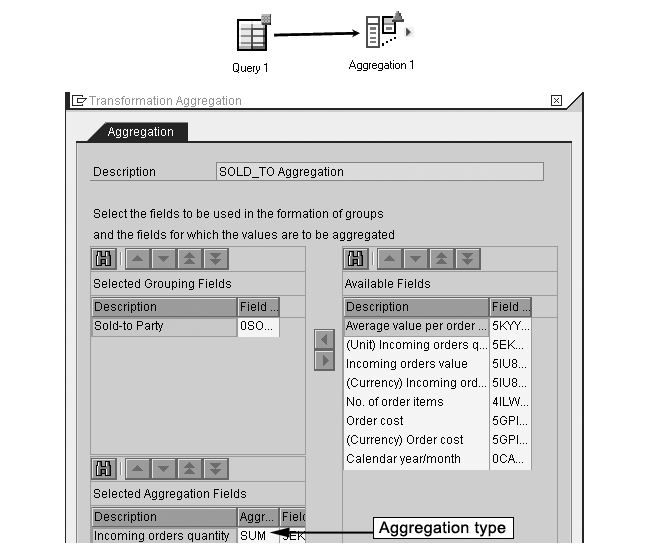
Figure 6
Choose the grouping and aggregation fields
Step 3. Classify data. Drag and drop the ABC analysis icon  from the function selection area into the work area, and link SOLD_TO Aggregation to ABC Analysis 1 by drawing an arrow between them (Figure 7).
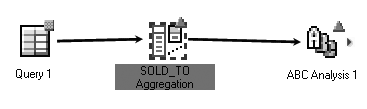
Figure 7
Link SOLD_TO Aggregation to ABC Analysis 1
Double-click on the ABC Analysis 1 icon . Name it Customer Analysis. Enter the name of the Model as ZCUST_ABC, and click on the create icon (Figure 8).
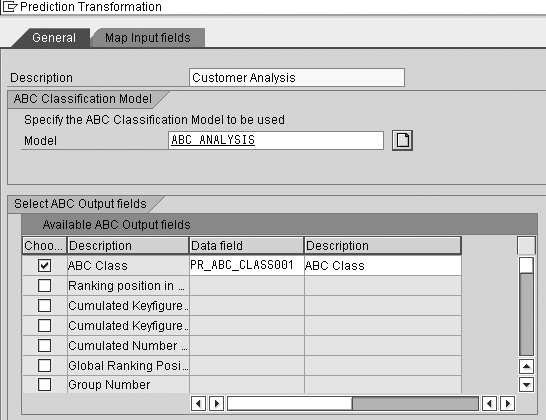
Figure 8
Name and describe ABC Analysis 1
Enter the description as Customer Analysis for the ABC analysis. In the Fields tab, choose the Content Type of 0SOLD_TO as Classified Object. For the second row, specify the Content Type of 0QUANT_B as Classification Criterion (Figure 9). The other fields populate automatically based on the aggregation object values.
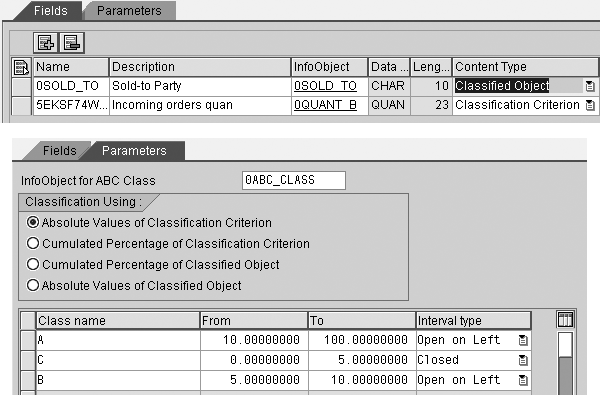
Figure 9
Settings for the Fields and Parameters tabs
Classified Object specifies the characteristic values to classify. My example classifies InfoObject 0SOLD_TO (customers). Classification Criterion chooses the key figure field on which the system classifies. In this example, the system classifies based on InfoObject 0QUANT_B, (customers’ incoming orders quantity). This configuration ensures that the system classifies the SOLD_TO party based on the incoming orders quantity.
In the Parameters tab, select Absolute Values of Classification Criterion as the classification type and the range for the classes, depending on the business requirements. The Interval typedecides whether or not to consider the boundary values. In Figure 9, the Interval type Closed specifies that all the customers with incoming orders quantity between 0 and 5 fall under class C. The Open on Left Interval type includes the range between From and To including the maximum (To) value. Check for consistency  and then activate the model. Depending on the analysis, select the ABC output fields. This example outputs ABC Class.
Step 4. Save the classified data. Save the customer class information ABC Analysis generated in the master data. Drag and drop the characteristic data target icon  from the function selection area into the work area, and link it to Customer Analysis (Figure 10). Double-click on the InfoObject and enter SOLD_TO Party Class as the Description. Select the 0CUSTOMER InfoObject to save the classification in its master data. You select 0CUSTOMER because SOLD_TO Party is its reference characteristic. In the Attributes tab, select the attribute Customer: ABC Class and press Enter (Figure 11).

Figure 10
Link the Data Target: Characteristic 1 to Customer Analysis

Figure 11
Select the attribute Customer: ABC Class
As shown in Figure 10, click on the field assignment icon  on the line between Customer Analysis and Data Target: Characteristic 1. Click on the map icon
  shown in Figure 12 and the system proposes the field assignments between source structure objects and target structure objects. It automatically assigns by mapping the same InfoObjects or data elements in the source structure to the target structure. Figure 12 shows the results of the automatic assignment: Customer number to Sold-to Party and Customer: ABC Class to ABC Class from Source Structure.
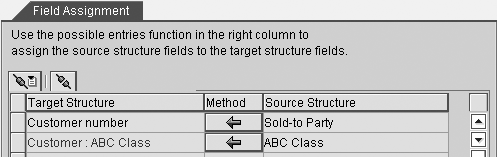
Figure 12
Field assignments from Source Structure to Target Structure
You can change the proposed field assignments according to your requirements by clicking on the arrow under the Method column in Figure 12. That takes you to Figure 13 where you can fill the objects in the target structure with source characteristics, any constants, or maintain the initial values. Check for any inconsistencies and then activate the design.
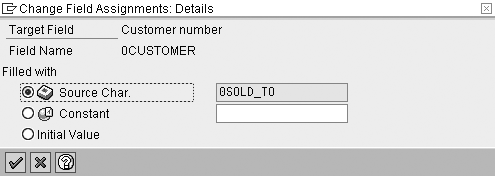
Figure 13
Change field assignments for 0CUSTOMER
Now, go to the top menu and choose Analysis Process>Execute>Execute, or click on the execute icon  . You could schedule the job instead. You can verify the master data of 0CUSTOMER for the ABC Class field. Go to RSAL>Modeling>InfoObjects>0CUSTOMER. Right-click on 0CUSTOMER and select Maintain master data, and then click on the execute icon to see Figure 14.
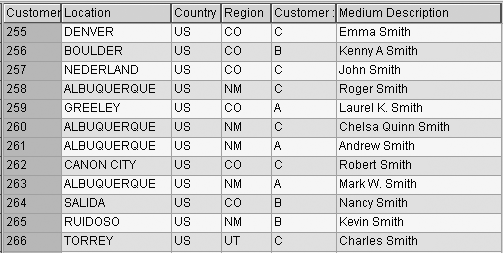
Figure 14
Verify the master data
The master data of 0CUSTOMER shows the different customer classification classes. Companies can use this information to identify target customers and launch marketing campaigns for these customers.
Rajesh Yerragunta
Rajesh Yerragunta is an SAP-certified consultant specializing in Business Intelligence solutions. He is currently leading the Business Intelligence practice at Platinum-DB Consulting, a Chicago-based company that helps clients with design and development of SAP’s new dimension products such as SEM, SAP BW, xRPM, cProjects, mySAP CRM, and SAP NetWeaver Portal.
You may contact the author at Ryerragunta@Platinum-DB.com.
If you have comments about this article or publication, or would like to submit an article idea, please contact the editor.



 Premium