SAPexperts
User Interface (UI) Patterns are SAP BI Web templates that are based on popular patterns in layout designs and elements used in Web pages. They allow developers to push decision details regarding Web template content down to end users without sacrificing quality or control. Learn more about these patterns and how to create and edit them.
Key Concept
UI Patterns are preconfigured SAP BI Web content available as templates within the SAP BI 3.5.2 Content Add-On. Based on common layouts, they provide template uniformity and allow end users to plug data providers into Web templates as well as enhance basic content elements without extensive Web development.
If you’re looking to offer your end users an easier way to configure Web templates, the new UI Patterns feature in SAP BW 3.5 might put an end to your search. UI Patterns provide preconfigured layouts to help users make important design decisions such as where to place icons, menus, tables, and content. The benefits to pattern-based design include reduced template creation effort, design consistency across Web pages, and less potential for end-user error.
UI Patterns are based on SAP client feedback and are part of the SAP BI 3.5.x Content Add-Ons. Content Add- Ons are content layers that sit on the SAP BW 3.5 technology.
SAP is launching three types of UI Patterns as a way of providing better Web-based interfaces in the SAP BW 3.5 technology layer. They range in complexity to meet the various analytical and reporting needs of SAP BI end users.
Note that since the launch of SAP NetWeaver ‘04, SAP has been phasing out the term SAP Business Information Warehouse and SAP BW. You’ll still see references to “SAP BW 3.5” or “SAP BW 3.0B” for historical purposes, but I use the term SAP BI for what was formerly known as SAP Business Information Warehouse.
UI Patterns increase productivity by separating template pattern design complexity from individual template instance deployment. This allows you to build a pattern once and deploy it to many audiences with minor tweaks in appearance and content as needed. The underlying template complexity is hidden from the end user.
Occasional users can configure and deploy a complex Web template without much knowledge of HTML, JavaScript, or the BI Web API via UI Patterns by populating the relevant input parameters. This assures uniformity in Web template design while simplifying the process for rapid, business-oriented template generation. I will show you how to create your own templates using the SAP BI Template Wizard (See the “Create Your Own Patterns” sidebar below).
Content Add-Ons
The SAP BI 3.5.2 Content Add-On supports the Information Consumer Pattern (ICP), which is designed for a wide number of SAP BI users, especially those who need continual access to data in a format supported by simple-to-use OLAP controls. The SAP BI 3.5.3 Content Add-On will support two additional patterns: the Casual User Pattern (CUP) and the Analyst Pattern (AP). Casual users are primarily information consumers interested in basic reporting while analysts are more demanding users who author reports, use advanced OLAP functionality, and create ad hoc queries. SAP delivers more than 240 Web applications based on the ICP as part of SAP BI 3.5.2 Content Add-On. In general, you can recognize these templates by the 0TPLB prefix in the technical name of the query. When deployed, UI Patterns do not require an end user to have any background in SAP BI or data warehousing.
Note
To use the ICP-based SAP delivered content, activate the SAP role SAP_BW_BCT_GENERIC_TEMPLATES via transaction RSOR along with the specific 0TPLB_xxxx content in which you are interested. Make sure that whatever activation grouping you use includes the item library 0LIB_BAP. SAP note 732311 has more details on the activation of ICP-based content.
ICP Features
The ICP provides interaction options via embedded links (Figure 1). These options include switching from a chart to a table view via the Chart and Table links, Info (technical details about the template, data relevancy, etc.), Detailed analysis (which launches the BEx Web Analyzer where you have the option of saving new local views), and sorting and scrolling in tables. Other options are Save as Start View (effectively a means of personalizing your start view from all that are available in the list) and variable entry (not shown here — simply a link to pop up the SAP BI variable entry screen).
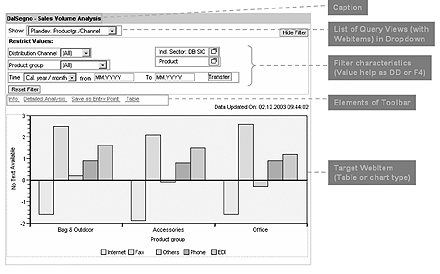
Figure 1
SAP BW Web template based on the ICP
ICP offers several user-friendly functions. For instance, you can switch template views with the Show drop-down box in the upper left side of the screen in Figure 1. Tables displayed in ICP deployments do not allow drill-down states. Because drill-downs and slicing directly on a template is something that advanced users might want, however, you can define a view for each drill-down state your users require via the Advanced button.
The ICP pattern also offers ad hoc filter options via the Hide (or Show) Filter link. Report-report interface (RRI) navigation using the context menu is also available. To be displayed as shown in Figure 2, RRI drill targets must be maintained in transaction RSBBS. In my example, the six targets (Web templates) listed have been assigned to the underlying InfoProviders that the query views are based on.
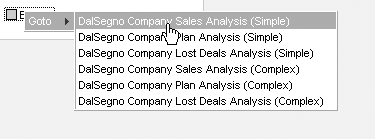
Figure 2
RRI options available from the context menu
Web Item Support
Two new SAP BW 3.5 Web items in Web Application Designer (Web AD) — Query View and Template — support the new UI Patterns. The Query View Web item provides for drop-down selection of tables or charts presented in the target display area at the bottom of a template (Figure 3).
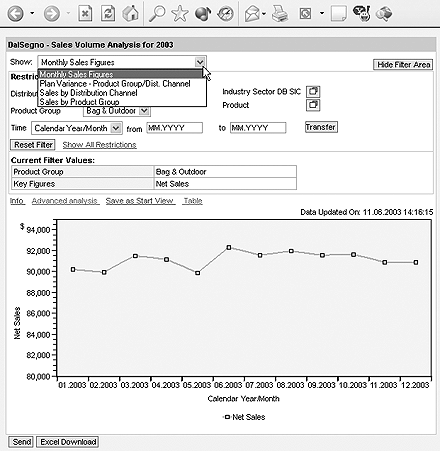
Figure 3
The Query View Web AD Web item incorporated into the pattern accommodates quick content selection
The new SAP BW 3.5 Web Template Web item is the technical basis of the UI Pattern template. It allows a master template to support numerous embedded templates. (See my article “Quickly Build Impressive Dashboards in SAP BW 3.5” for more details.) By providing predefined content on a master template, the content is deployed as a pattern. The entire display in Figure 3 is an example of the new Web Template item. The SAP BI Template Wizard, which is discussed in more detail in the “Create Your Own Patterns” sidebar beginning on page 12, generates this master template, in which the other templates and content are embedded.
The system uses automatically generated SAP BW Web API and JavaScript calls behind the links on a report to affect output and launch new windows as needed (e.g., the Advanced option displays the BEx Web Analyzer with the currently selected view). These custom calls are transparent to Web template users and are used to toggle between the hide or show filtering options, the query view drop-down menu, and to select settings in the toolbar links such as Info, Detailed Analysis, Save as Entry Point, and Table. These elements are generally incorporated in the SAP-delivered 0TPLB_XXXXX pattern-based templates. An example of an ICP-based template from delivered content is shown in Figure 4.
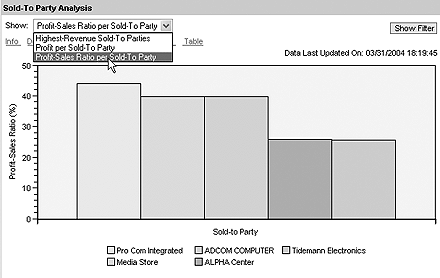
Figure 4
Sample ICP-based template from SAP CRM business content in SAP BW
Four Key Templates
Within the delivered SAP_BW_BCT_GENERIC_TEMPLATES role are four key templates that play a part in the ICP display. The template 0TPL_BAP_MASTER functions as the master template into which other elements (e.g., list of query views, caption to be displayed, filter display) are embedded at runtime. Think of this template as the container template that holds all the other content in place on the page as designated by the pattern.
Template 0TPL_BAP_MENUBAR_ALL is embedded in the master template. The ALL at the end of the name indicates that the template displays all link options, as shown in Figure 4. The ICP instance creators can change which links to display if they so choose.
Template 0TPL_BAP_MORE_INFO appears as a separate window when you click on the INFO link in the ICP template. It displays detailed data such as online documents, technical information, and documentation for the query (or view) that is currently on display in the ICP.
Users who click on the SAVE AS START VIEW link launch the 0TPL_BAP_PERSONALIZATION template. Another window appears that lists the query views and you can select/deselect the desired view via the Personalize Initial View/Delete Personalization buttons, respectively. When deleted, the initial view reverts to the default set by the ICP instance creator.
Create Your Own Patterns
The SAP BI Template Wizard allows you to edit or create your own patterns. It is a standalone, Windows-based framework of several wizards for developing or modifying a pattern. Because UI Patterns are supported by SAP BW 3.5, you can not deploy UI Patterns in earlier versions of SAP BW.
Figure 1 shows the Template Wizard with the ICP template loaded. This template is included in the June 2004 release of the Template Wizard, and more are planned in the future. Check https://www.sdn.sap.com for updates.
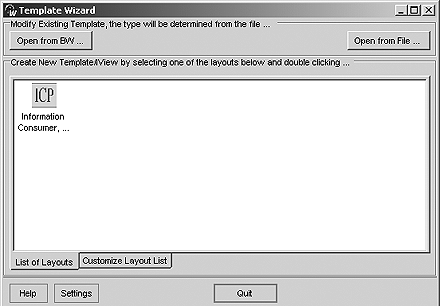
Figure 1
BI Template Wizard with ICP pattern
To use the Template Wizard to edit or create patterns, follow these steps.
Step 1. Launch the Template Wizard and pick a template. In the current release, the SAP-delivered ICP template can’t be changed from within the template itself. To edit, double-click on the ICP icon (Figure 1) and launch the Template Wizard, then select the master template (Figure 2) you wish to change. Use transaction SE38 to specify an ABAP report text for the report caption (Figure 3).
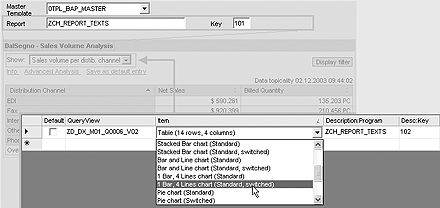
Figure 2
Select the master template in the Template Wizard
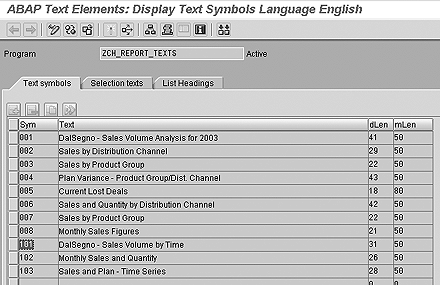
Figure 3
ABAP report text keys used by Template Wizard

Figure 4
Query view selection details
Select query views to populate the drop-down list (Figure 4). You can select the view in the QueryView column and choose from a variety of display formats in the Item column. These display types are stored in the Web item library 0LIB_BAP. Note that these items revert to their technical name once you exit the item field. The text descriptions are keys called from the ABAP texts report as shown in Figure 3.
Step 2. Populate the InfoObjects. Click on the next icon and select one of the time characteristics from the query view list in Figure 4. Currently, time characteristics cannot be selected from a drop-down list, so you must enter the technical names (Figure 5). You can select up to eight InfoObjects for use as filters. They must appear in either the free characteristics or rows of the underlying query views.

Figure 5
Set InfoObject filters and F4 onscreen help options
The F4 Visible check box provides two options for runtime display. Setting a flag allows users to select multiple values via a dialog box, or they can select a single filter value via a drop-down menu if the F4 Visible box is not checked. Other options for the template can also be set in the main section of the screen such as the Filter by Time Variables, which allows users to filter by a specific time frame (year, month, etc.) or the current or previous period at runtime. The Choose tool bar menu allows you to display specific toolbar links noted in the article.
Tip!
The current version of the wizard requires that all InfoObjects in the drop- down list are common to all the queries — not the query views themselves, but the underlying queries that provide the views. If you select 0SOLD_TO in the list of InfoObjects in Step 2, you must be sure that 0SOLD_TO is a free characteristic in every one of the selected queries in Step 1. This also applies to the chosen time characteristic.
Step 3. Customize settings for the template. Clicking on the next icon allows you to set customization options that override the settings of each query view with a global size. Set the Width, Height, and Block size of table or chart items in the appropriate fields. Other options include sorting the entries in the query view drop-down menu shown in Step 1. To specify a banner and footer template for runtime, enter text in the Template ID for Top or Bottom fields. Click on the Save to BW or Save to File buttons to save the template definition to the SAP BW server or to a text file on your local drive.
Once saved, you can launch the template (Figure 6) via the following command URL: https://:/sap/bw/bex?cmd=ldoc&template_id=. Pattern templates should be maintained only in the wizard. When they are opened in Web AD, patterns are displayed and edited in a text-only mode. Beware that all changes made in Web AD will be overwritten if the template is again opened in the BI Template Wizard and saved.
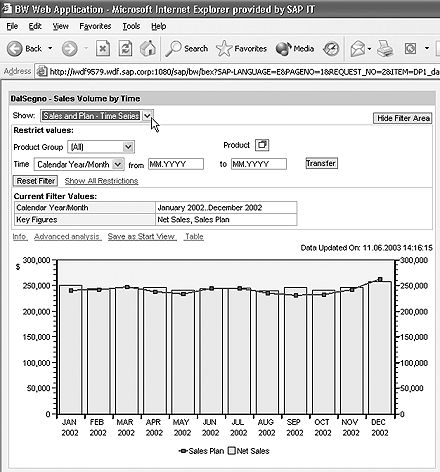
Figure 6
Final template view
Glen Leslie
Glen Leslie is a product manager for SAP’s Business Intelligence solution. Originally a data warehousing consultant, Glen has been working with SAP BW since the 1.2B release in a variety of environments.
If you have comments about this article or publication, or would like to submit an article idea, please contact the editor.