To report on custom attribute fields in business partner master data, you need to extract them from SAP CRM into SAP NetWeaver BI. Get an overview of this process and find out what information you need to share with your BI team for a successful extraction. Then see what your reporting options are so that you can determine the best option for your data.
Key Concept
An SAP system stores marketing attributes in SAP CRM via tables that were originally the R/3 classification system. During the extraction phase, SAP NetWeaver BI DataSources read these tables using standard extractor programs.
In recent articles, I showed you three ways to add custom fields to business partner master data. To use these fields in reporting, you need to extract them to SAP NetWeaver BI. The most challenging type of field to extract involves business partner marketing attributes. SAP NetWeaver BI has a hard time storing this information, especially on the BI business partner master table. BI master data is set up to handle only a single value in a unique business partner’s attribute at any one moment.
I’ll explain how to store marketing attributes in SAP NetWeaver BI for both single-value (Joe likes tennis) and multi-value (Joe likes tennis and golf) attributes. The target audience for this article is both CRM functional and BI technical team members. These two teams need to work together to implement the processes described.
Marketing Attribute Review
Before I delve into the extraction of these attributes, let’s review the basics of business partner marketing attributes. To create the attributes, access menu path CRM>Marketing>Segmentation>Marketing Attributes>Maintain Attributes (Figure 1). Selecting the Multi-Val. check box in this screen allows users to select multiple values. In my example, a person can have more than one hobby — tennis and golf — at the same point in time.
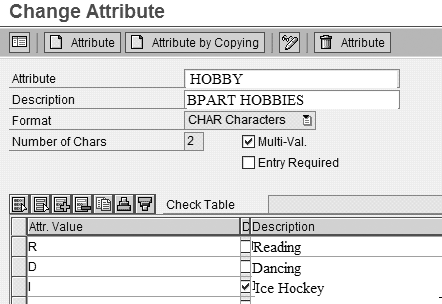
Figure 1
Create attributes
The system collects attributes in attribute sets. You can assign these attribute sets to business partners by following menu path CRM>Marketing>Segmentation>Marketing Attributes>Maintain Attribute Sets (Figure 2). For my example, I named the attribute set Hobbies and Clubs. This includes the Hobby attribute from Figure 1, plus an additional attribute called Club.
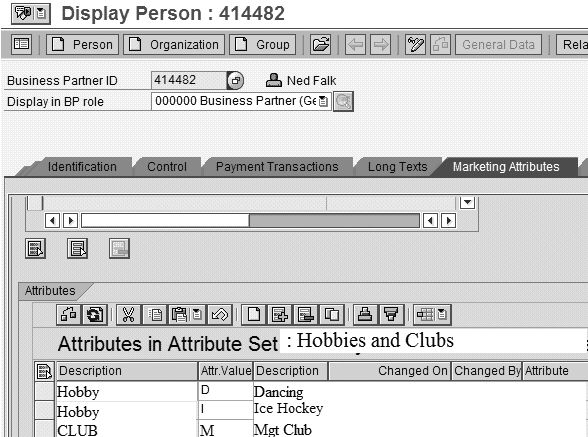
Figure 2
A business partner’s attribute set and attributes
In this screen, I first assign the business partner Ned Falk to the attribute set, and then I assign values to the attributes in the attribute set, such as Hobby and Club. I am using multi-value attributes, so I can assign more than one hobby to each business partner. In my example, Ned belongs to the management (Mgt) club and has both Dancing and Ice Hockey as hobbies.
Boolean Method
You could simplify this process in SAP NetWeaver BI by using Boolean attributes. For my example, instead of one attribute called Hobbies with three allowed answers, I could have three separate attributes: Dancing, Ice Hockey, and Reading. Each attribute has a possible value of 1 = yes or 0 = no. With this design, I end up with a 1 value for each of Ned Falk’s attributes.
If most of your attributes are single value, converting just a few of the multi-value ones to Boolean makes sense. If you have many multi-value attributes, this might not be practical. On the other hand, it keeps things simpler later in the SAP NetWeaver BI extraction phase. Let me show you how to handle the multi-value attributes when they arrive in SAP NetWeaver BI.
Note
When defining your attribute system, you need upfront coordination with the BI team to make it as easy as possible to use the marketing attributes in beneficial BI analysis.
Load the Multi-Value Attribute Data
In SAP NetWeaver BI, you have the concept of transaction data and master data — for example, sales data and business partner (0BPARTNER). The logical place for the business partner marketing attributes to arrive is on master data in SAP NetWeaver BI, next to fields such as city, state, and business partner type. The problem with this is the limitation that an attribute can have only one value for each business partner if you want to store it easily in master data.
Note
The CR900 CRM analytics class dives a little deeper into the options for handling marketing attributes.
These attributes are a critical component in CRM analytics, so SAP NetWeaver BI must provide options to work around this issue. To do this, SAP delivers extractors for the business partner marketing attributes, as shown in Figure 3. I will now focus on these extractors and mention customization options for storing multi-value attributes on the business partner SAP NetWeaver BI master table.
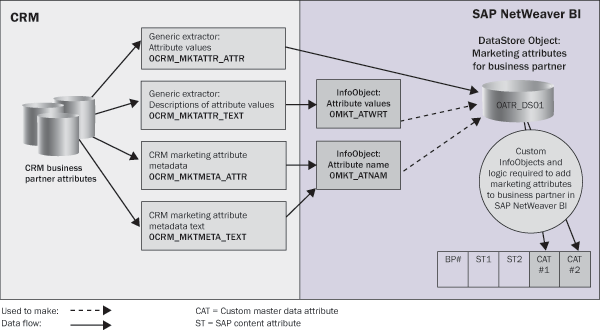
Figure 3
SAP NetWeaver BI standard and custom content for marketing attributes
DataStore Object Method
Whether you have single- or multi-value attributes, you can use SAP’s delivered concept of storing the business partner and its attributes on an SAP NetWeaver BI object called a DataStore object (formerly operational data store [ODS] object). Although this is not the most intuitive place to store them (the business partner master is), a DataStore object is at least a workable final solution or interim step to a custom solution. Let’s discuss the solution I detailed in the diagram in Figure 3. You need to know some SAP NetWeaver BI terms, so you may require your BI team’s assistance for this section.
SAP provides four DataSources to extract marketing attributes to SAP NetWeaver BI:
- 0CRM_MKTATTR_ATTR: Generic extractor for attribute values
- 0CRM_MKTATTR_TEXT: Generic extractor for attribute value descriptions
- 0CRM_MKTMETA_ATTR: SAP CRM marketing attribute meta data
- 0CRM_MKTMETA_TEXT: SAP CRM marketing attribute for meta data text
Behind the scenes, each DataSource contains a function module to extract the data from the related CRM table. The system executes each DataSource separately, but the data they extract comes together in SAP NetWeaver BI for analysis.
SAP delivers all the extractors, DataSources, InfoObjects, and DataStore objects needed to extract CRM data to SAP NetWeaver BI as part of the SAP NetWeaver BI content. Go to https://help.sap.com and follow menu path SAP Customer Relationship Management>BI Content>Marketing Analyses to find information about the SAP NetWeaver BI content needed for multi-value marketing attributes.
Note
You can extract single-value attributes directly to the business partner master data. These marketing attributes are based on the SAP R/3 Enterprise and SAP ERP Central Component (ECC) classification system. In many cases, I find that users need multi-value attributes, so the SAP-delivered content for marketing attributes (as I describe in this article) alternatively routes the data to a DataStore object.
The goal of the delivered content is to populate the DataStore object 0ATR_DS01 in Figure 4. However, before you can use the delivered content, you must activate it. This builds the underlying database tables and generates the connected ABAP programs that feed these tables. To activate the delivered content, your BI team needs to activate all the objects that feed 0ATR_DS01, as shown in Figure 3. The screen in Figure 4 shows all the required checked objects.
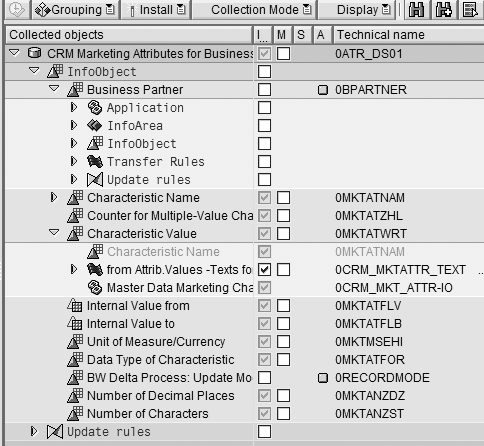
Figure 4
Activate the business content
After the BI team activates the CRM DataSources and BI content objects on the BI side, they then execute the data loads to populate the BI objects with attribute data. The system populates tables in BI with the results of these data loads — in this case, both master data tables and a DataStore object. Figure 5 displays these populated objects from Figure 3 in detail.
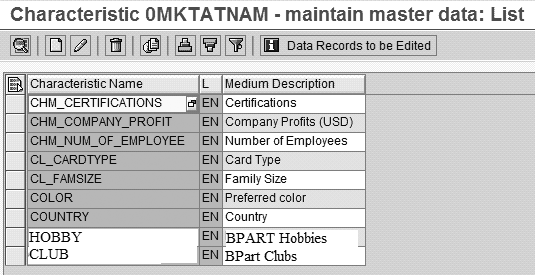
Figure 5
0MKTATNAM holds all the possible marketing attributes and their descriptions
0CRM_MKTMETA_ATTR and 0CRM_MKTMETA_TEXT provide the names and descriptions of the attributes. These DataSources feed InfoObject 0MKT_ATNAME. Note that after your BI team loads this DataSource, your attributes have arrived in SAP NetWeaver BI but haven’t yet been connected to a business partner.
0MKT_MKTATTR_TEXT extracts the descriptions for all the attribute values. It feeds the 0MKTATWRT InfoObject, which consists of just a text table. However, this InfoObject is compounded to the InfoObject 0MKTATNAM because the attribute value R means Reading when 0MKTATNAM is HOBBY, but it means Running Club when 0MKTATNAM is CLUB. Figure 6 displays the results of this DataSource as seen in SAP NetWeaver BI. For instance, the hobby attribute has multiple values.
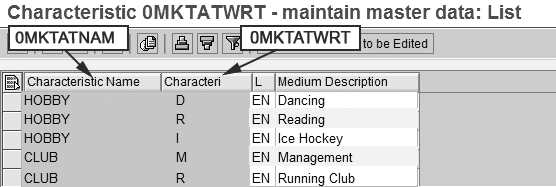
Figure 6
0MKTATWRT contains only a text table that holds the descriptions for all the marketing attribute values
Now that you have the building blocks, you can extract the last DataSource, 0CRM_MKTATTR_ATTR. This feeds DataStore object 0ATR_DS01. Functionally, a DataStore object is just a table; Figure 7 shows the fields of the table.
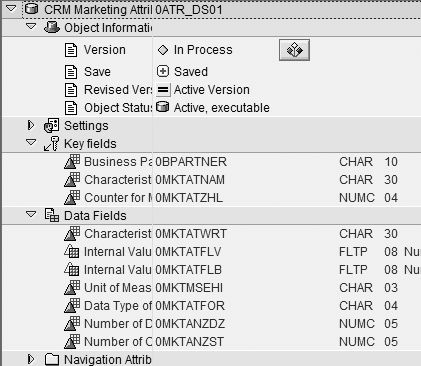
Figure 7
0ATR_DS01 stores multi-value marketing attributes
Figure 8 shows 0ATR_DS01 with the data after extraction. In this screen, you can tell that Ned Falk (414482) likes reading and ice hockey and is in the management club, which matches the CRM data in Figure 2. The system populates 0ATR_DS01 after you populate the supporting InfoObjects when the system extracts the DataSource that feeds it during your nightly BI extraction runs. 0ATR_DS01 contains the values of each attribute for each business partner. The Counter field is part of the table’s key (unique record ID) that allows more than one hobby or club at the same time. The 0MKTATWRT InfoObject mentioned above provides the possible values and their descriptions.
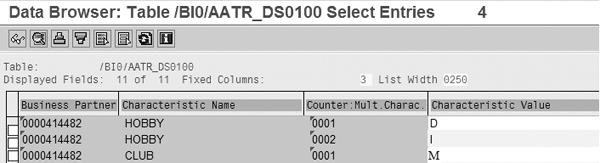
Figure 8
0ATR_DS01 populated with the business partner and marketing attributes values
Reporting Options
Now that I have discussed the delivered content, let’s take a look at the reporting options for these attributes. You can report against the DataStore object 0ATR_DSO1, which is very straightforward and the only SAP-delivered way to report this. However, you need separate reporting on all the other business partner master data not included in this DataStore object, which means that you need two reports.
Another option is to link 0ATR_DSO1 with the business partner master using a BI InfoSet (similar to Microsoft Access). You could also link 0ATR_DSO1 to transaction data, but make sure to watch out that your key figures (numbers) on the transaction data are not replicated — and therefore erroneous in the case of multi-value attributes.
Another more complex option is to use a custom business partner object that converts multi-value attributes to Boolean in SAP NetWeaver BI, which I discussed as an option when you first created the attribute in CRM. Figure 9 shows how to set up the business partner InfoObject for this option. You should set the attributes to Navigation attributes, which enables filtering in SAP NetWeaver BI reports. These attributes are represented by Boolean 1 = yes or 0 = no values.
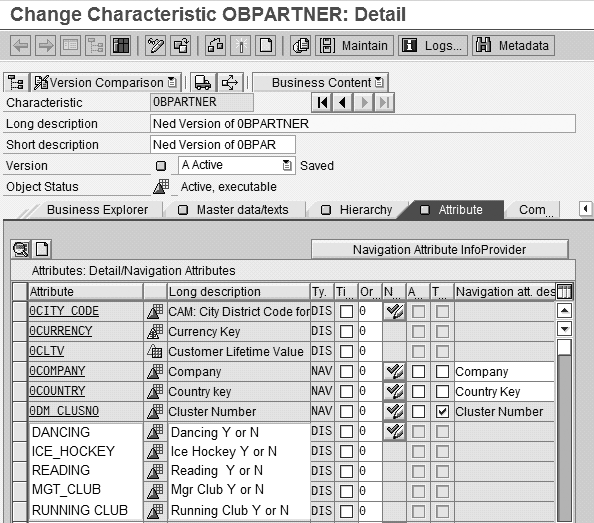
Figure 9
The custom business partner with Boolean multi-value attributes
This part of the solution is not supported by official BI content, because SAP does not know the names of the attributes or their possible values in your business. SAP provides an example of the code for the SAP NetWeaver BI update rules that you need to load from the delivered DataStore object, convert to Boolean, and load to a hypothetical example of a customer created in the SAP NetWeaver BI business partner object called Marketing BP.
This code is provided as part of BI demo content. Your BI team knows that demo content is activated in the same way that the BI content above was activated, except it comes along with a flat file of data to simulate CRM. Using the demo, you can evaluate the code that converts to Boolean in the SAP demo and modify it to populate your custom object.
Ned Falk
Ned Falk is a senior education consultant at SAP. In prior positions, he implemented many ERP solutions, including SAP R/3. While at SAP, he initially focused on logistics. Now he focuses on SAP HANA, SAP BW (formerly SAP NetWeaver BW), SAP CRM, and the integration of SAP BW and SAP BusinessObjects tools. You can meet him in person when he teaches SAP HANA, SAP BW, or SAP CRM classes from the Atlanta SAP office, or in a virtual training class over the web. If you need an SAP education plan for SAP HANA, SAP BW, BusinessObjects, or SAP CRM, you may contact Ned via email.
You may contact the author at ned.falk@sap.com.
If you have comments about this article or publication, or would like to submit an article idea, please contact the editor.