Learn tips and techniques to help you get organized and manage your projects better.
For the past five years I have supported my company’s SAP ERP HCM initiatives without the help of a single outside resource — even completing an acquisition during this period. I do have the assistance of an ABAP programmer, who has written or revised several programs, and a Basis team that applies my transports.
The plus side of this model is that if you are the sole source of configuration, you are always familiar with what’s going on in your system. It also means that projects can be moved through linearly — if something needs to be done immediately, I don’t have to rely on someone else to do it. From the business perspective, paying one resource is obviously less expensive than paying multiple resources.
Admittedly, this approach also carries some risks. It can be extremely stressful having to manage multiple projects and their deadlines and not having someone else in the company with which to discuss and resolve issues. For the company, there is the risk of having only one point person, which can pose problems if that resource is unavailable. In short order you could go from 100 percent staffed to 0 percent staffed, without an appropriate transfer of knowledge. All resources are finite, but a one-person team is a particularly finite resource.
I know I’m not alone. Many of you — even those working as part of a larger team — are faced with some of the same challenges and opportunities that I have experienced. In this article, I discuss how I manage my workload and some of the ways that I am able to expedite the process of configuration and testing as a one-man tech team.
I have found that the most critical piece to managing the process of changes to SAP ERP HCM configuration is controlling how you receive change requests. As a technical resource, the volume of requests is beyond your control; however, with the proper support from your management team, how those requests reach you is not. I insist that users request their changes through the help desk ticket system. This gives me a clear and concise record of the requests, and at a glance I can track where I stand with those requests. This record of requests has also allowed me to understand at a high level where I’m spending my time, and consequently, where improvements in configuration processes results in the best returns.
Managing Requests With Forms
Although I have identified many ways to improve processing, perhaps the best example is requests for additional work schedule rules. At first, managing these requests was chaotic, mostly because end users did not know exactly what information was needed. Sometimes hours would be spent on each request, ensuring that each request was completely understood. Realizing that a change was needed, I created a form — basically a Microsoft Excel spreadsheet (Figure 1) —specifically for requesting new work schedule rules. Users complete the form and submit it to the SAP ERP HCM super user, who reviews it and ensures that there are no errors, and then opens up a help desk ticket request. In addition to the work schedule form, I have created forms for new pay rates, wage types, and other common and frequently used points of configuration.
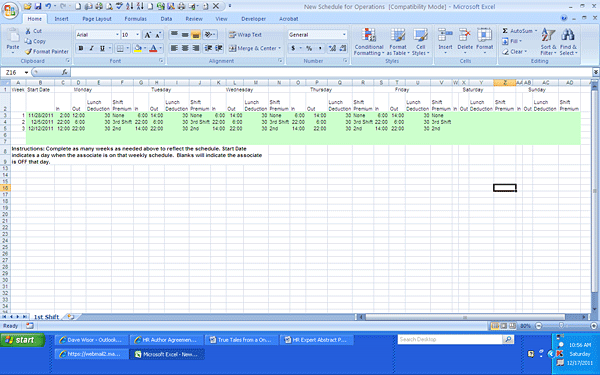
Figure 1
Sample new work schedule rules request form
Using Projects in the SAP Implementation Guide (IMG)
In the IMG, I regularly use project management, especially for IMG activities that are done often, but also for those that are done much less frequently. Using project management allows users to quickly and efficiently complete all the activities associated with a request, such as creating a new work schedule rule or revising pay scale groups and levels, without displaying the entire IMG.
Creating a project makes it easy to ensure you have captured every step of configuration without hunting through the entire IMG. To create a new project, be sure to understand which IMG activities you need to complete for a particular task. This could be based on your previous understanding of the IMG, through the IMG documentation, or online help. Once you’ve identified all the activities, enter the initial IMG screen using transaction SPRO. In the Customizing: Execute Project screen select Goto > Project Management from the top menu. Click the create icon and give your project a name. Press Enter, record the long text name of the project, and then click the save icon.
Select the Scope tab (Figure 2), then select the Specify project scope by making manual selections in Reference IMG radio button option. Click the Specify scope… button, which opens the Select IMG Nodes window (Figure 3).
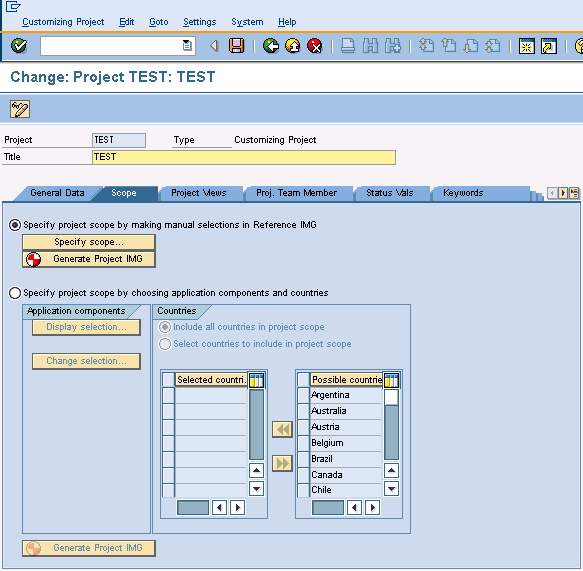
Figure 2
Creating a new IMG project
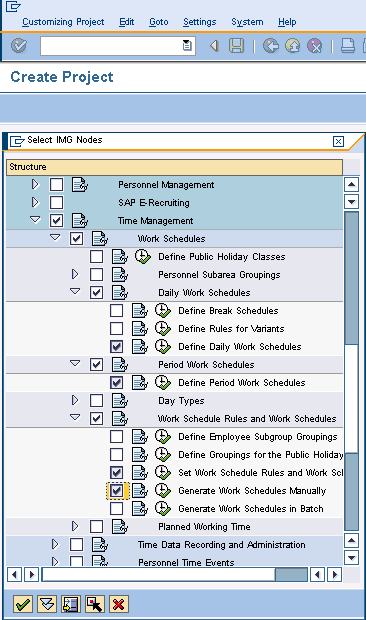
Figure 3
Selecting IMG nodes for a new project
Navigate through the IMG nodes by clicking the triangles, expanding sub-nodes, and then selecting the check boxes next to the specific activities you would like to include. Once you’ve added all the activities associated with a task, press Enter or click the green check mark icon at the bottom left corner of the window (Figure 3).
Now, generate the project by clicking the Generate Project IMG button (Figure 2). Once you do so, a window is displayed informing you that components and countries are not included. Acknowledge this window by pressing Enter (Figure 4).
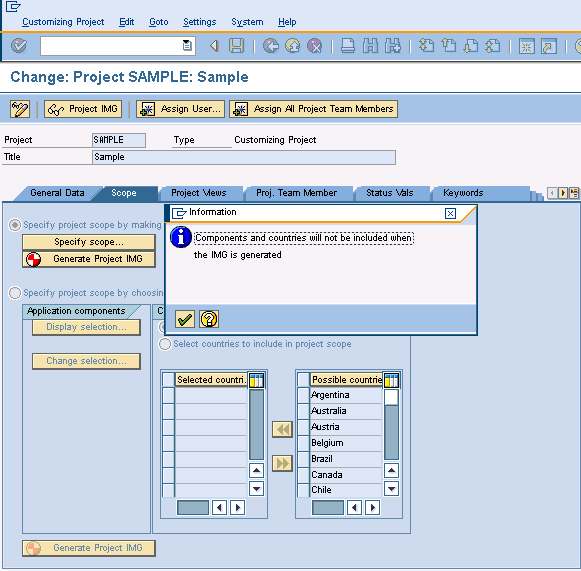
Figure 4
Generate the project IMG
A separate window is displayed giving you the choice between generating the project in the background, which is the default, or generating it in the foreground (Figure 5). To generate in the background, which is what I do, press Enter. If you prefer to generate in the foreground, uncheck the Generate in background check box.
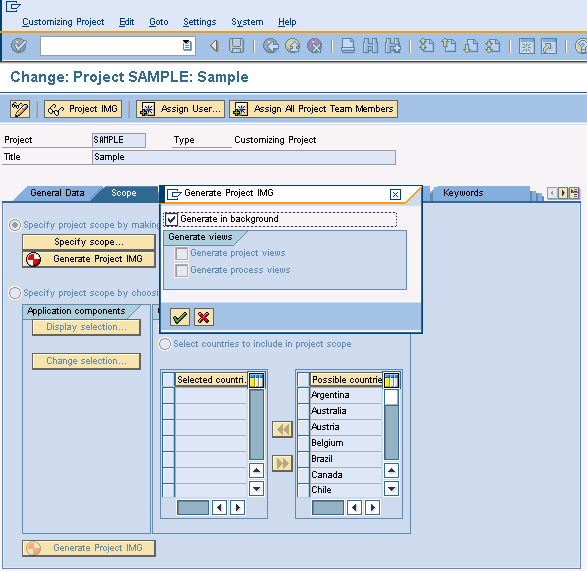
Figure 5
Generating the project IMG in the background
You are now ready to add the project to your worklist. Click the green back icon twice to return to the Customizing: Execute Project screen. Add the project to the My Customizing Worklist by clicking the add to worklist icon highlighted by an arrow in Figure 6. A window with the available projects is displayed; place a check mark next to the project you have created and press Enter (Figure 6).
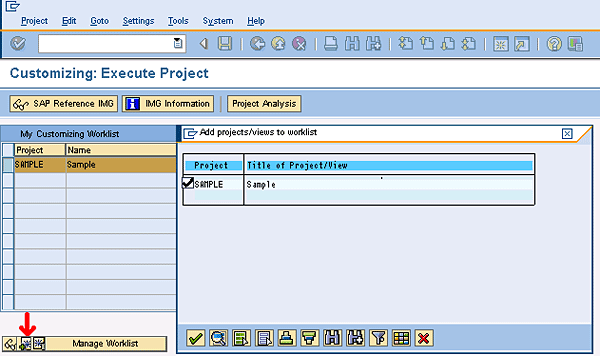
Figure 6
Adding a project to your worklist
The new project should appear in your worklist. Then, any time that you need to do that particular task, simply select it from the list by double-clicking it. When you do so, only IMG activities that you have specified (and their parent folders), are displayed, making it easy to navigate to specific activities (Figure 7).
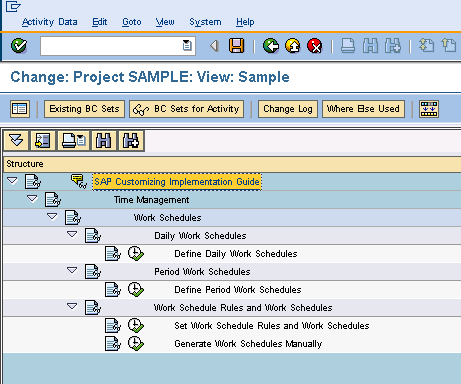
Figure 7
Project view of the IMG
Along with proper documentation, an IMG project you create within the SAP system is an easy way to assist someone in learning a new task in the IMG. Rather than having to trudge through the entire IMG, users simply expand the folder or folders and then click each IMG activity. I currently have many projects that I have created for tasks, such as creating a new work schedule rule, changing posting rules, creating new wage types, creating new pay rates, and changing SAP factory calendars.
Using Excel to Expedite Configuration Changes
Some of the most time-consuming activities in the IMG can be expedited by using Excel to prepare the data, and then copying and pasting the data back into tables in the SAP system. Using this copy and paste technique saves hours of configuration time and eliminates key-punch errors. For example, when my company applies hourly pay increases, the requirements are more complicated than simply increasing rates by a fixed percentage or a fixed dollar amount. Fortunately, using Excel in conjunction with SAP ERP HCM simplifies and streamlines the process.
Start by extracting the data from the SAP system and importing it into Excel. From the IMG Select Personnel Management > Personnel Administration > Payroll Data > Basic Pay > Activity Revise Pay Scale Groups and Levels. Enter the pay scale type and pay scale area you are going to change in the appropriate fields and press Enter. The change view for pay scale groups is displayed (Figure 8).
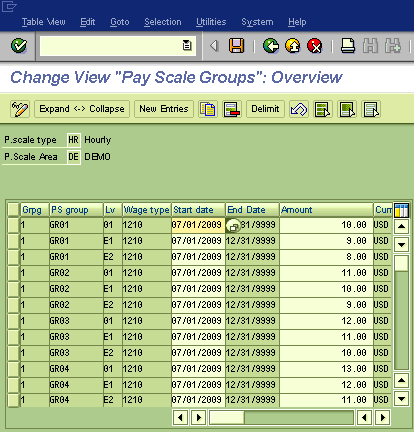
Figure 8
Change pay scale groups overview
Click the print icon, then select List > Export > Spreadsheet from the top menu (Figure 9), and acknowledge the three windows by pressing Enter three times. This results in the generation of a spreadsheet (Figure 10).
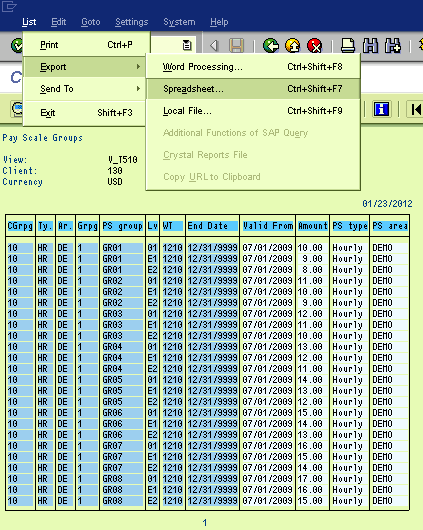
Figure 9
Exporting from the SAP print view to Excel
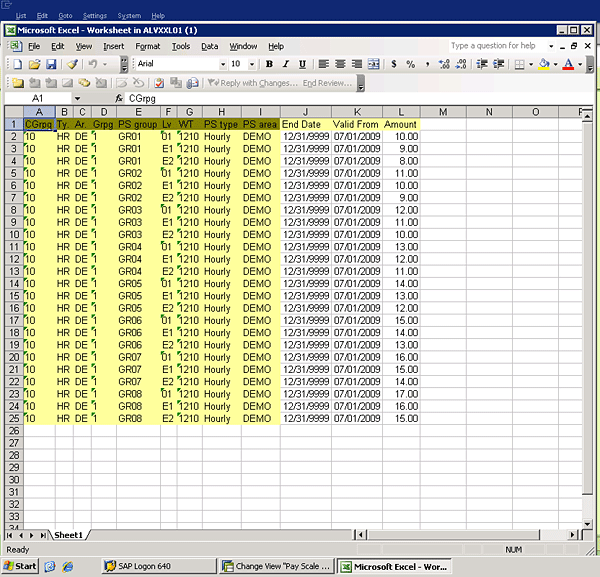
Figure 10
Data successfully exported to Excel
Copy all the columns to a new spreadsheet. Add three columns just to the right of the columns that already contain data. The first column should have the start date for the new value, the second column is blank, and the third column is the new rate, which you can type in manually or fill using formulas in Excel.
When the values have been updated in Excel, copy the three columns you have created (start date, blank column, and new rate), and then return to the SAP system and paste those values into the table using the keyboard shortcut CTRL V. Depending on the number of entries, you may be required to move through multiple pages and perform multiple copy and pastes. This same technique can be used anywhere where multiple table entries need to be updated — just be sure to properly align the columns and leave empty columns whenever pasting over a read-only portion of the table (Figure 11).
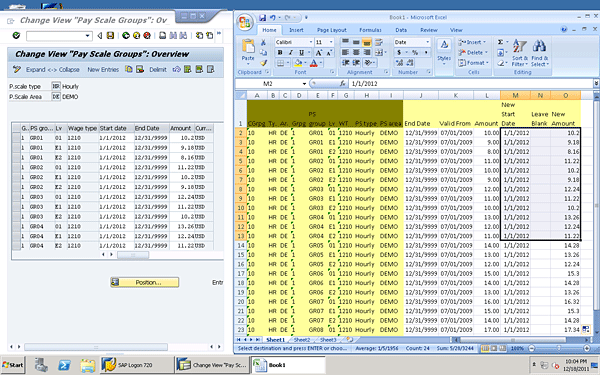
Figure 11
Updating SAP tables using data imported from Excel
Ensuring Proper Testing of Transports
Once you have improved your own process, transports begin to flow rapidly into your quality assurance environment. You are then faced with a new issue: How do you ensure that your transports are being tested accurately and quickly? First of all, tracking is extremely important. I keep an up-to-date spreadsheet with a list of transport numbers, names, descriptions, dates, and to whom they are assigned.
Transports are requested by email, and these requests generally include a test script. Nearly all transports in SAP ERP HCM are tested by either the HR or the payroll super user. By limiting the number of people doing the testing I am able to avoid the bottlenecks caused by people who are unfamiliar with test procedures or who can’t remember their passwords in the quality system. This also means that test scripts are uniformly followed. Since these individuals understand the importance of testing, it means that incorrect transports to the production system just don’t happen.
Occasionally, a transport can be forgotten. To ensure that this does not happen, I meet with my super users every day and discuss any transports that have not been tested. This daily five-minute conversation avoids any potential confusion caused by managing a multitude of untested transports in the quality system.
Absence and Succession Planning
Part of providing excellent customer service means planning ahead for when you are on vacation and, yes, even for that day that when you are no longer configuring SAP. For short-term absences, such as vacations, planning is critical. As soon as I’ve made any vacation plans, I communicate them to my customers — in this case, fellow employees who count on my services. I also meet with these internal customers several times a year to discuss upcoming projects and company initiatives, even when it doesn’t appear that those initiatives impact configuration. These meetings ensure I have my finger on the pulse of my customers, and can adequately prepare ahead for a week where there is a group of requests for new work schedule rules or new pay rates. Despite your best efforts to plan for every contingency, however, be prepared to be flexible. On more than one occasion I’ve cancelled vacations, worked company holidays, and taken phone calls on the beach.
The more difficult task is planning for the future. It can be flattering to imagine that your company cannot continue without you, but this is simply not the case. It is easy to avoid properly documenting your work, as it’s likely that you won’t be the person who needs that documentation. Keep in mind that this isn’t just about your personal job security. If you have failed to establish a path where you can be replaced in your current position, you’ve also made it difficult for your company to transfer or promote you.
Your approach should be more about why and not about how. Focus on company policies and practices — why your time schema has that personnel calculation rule, not how you configured it. Keep all your transport requests, and any related documents you’ve created, in a folder structure that is easy for someone to understand — even if you’re not there to explain. Finally, be sure to maintain a project list for those things that you do on a regular basis, and don’t forget to document those items that you only do once a year, as they are the most likely to be forgotten.
Where to Get Help
As I mentioned earlier, one of the biggest limitations of working on your own is the lack of internal resources with whom to brainstorm. In my case, I’ve replaced this inside help with training, networking, and online resources. If your company’s culture and budget allow it, attend training. Whether it’s in the classroom, a session at a conference, or a Webinar, training provides not just the immediate opportunity to learn a new skill or strategy, it also allows you to make contact with an expert who you can contact again if you have a question or need a fresh set of eyes.
I can’t stress the importance of networking enough. Make connections wherever you go. Don’t pass up a networking opportunity at a conference, meeting, or training session. Use networking sites such as LinkedIn to keep track of colleagues. Most importantly, offer yourself as a resource to others. Remember, you are more likely to get help from someone you’ve already helped than from someone you’ve never spoken to.
David Wisor
David Wisor, SAP HR, Time, and Payroll Analyst, is a twenty-year employee of Mannington Mills, Inc., in Salem, NJ, as well as a featured speaker at SAP conferences and seminars. David has been working as an analyst in the SAP Human Capital Management module since 2004.
You may contact the author at davidwisor@gmail.com.
If you have comments about this article or publication, or would like to submit an article idea, please contact the editor.