Help SAP users audit configuration changes and reduce the time needed to resolve issues caused by configuration by tracking and analyzing the changes to customizing tables.
Key Concept
With many different people working on the implementation and support of the SAP ERP HCM system, it is vitally important to track SAP configuration changes. This step is essential when the system is already live, the implementation is complex or global, or when a small change or entry in a configuration table may significantly affect the system. Tracking changes helps users find the root cause of the problem and is a faster solution because users know who made the change and what changes caused the issue. This knowledge helps users correct these issues when they occur.
The SAP system gives users the power to configure, store, and report on the stored data. By using standard SAP tools, you can configure what needs to be logged and how to view the logged changes.
Configuration is done once at the initial phase of the project, but its benefits are reaped throughout the life of the SAP system. Most standard SAP system users use SAP reports for analysis, but very few users are involved in the configuration work behind it. This article is intended for people who are using the system for analysis and those who are involved in configuration as there is not much detailed information readily available on this functionality. I use examples to explain how to use SAP standard functionality.
Companies use this functionality for system audits and resolving configuration issues. Many organizations have strict processes and guidelines about moving changes to the production environment. This functionality helps companies keep track of the changes in the production environment and also helps with faster issue resolution when issues are caused by updates to configuration tables.
You can use two methods to execute the reports for table log changes:
1. Program RSTBHIST/Transaction code SCU3
2. Program RSVTPROT
Two configuration settings control the logging of tables:
1. Technical settings (at the individual table level)
2. Profile settings (at the system level)
I explain these settings in detail later in this article. First, I discuss the methods for analyzing the changes to customizing objects and tables, and executing the reports using SAP standard transactions.
Note
There are pros and cons to activating the logs. You receive this additional functionality at the expense of some system performance, so a balance has to be found. One of the best options is to carefully use this functionality only when and where it is needed. For example, do not set this functionality in all the SAP clients, but only in specifically required ones. Set it only for the duration when you need it (e.g., do not set this for the initial prototype period, but only when tracking the changes during the actual realization period or just before go-live, depending on the specific need and complexity of the system).
Report 1. Program RSTBHIST/Transaction Code SCU3
Program RSTBHIST/transaction code SCU3 provides two items: a list of tables that are logged for changes and a detailed view of the change documents.
This SAP standard report gives a complete analysis of the changed customizing objects, including customizing tables and views. It allows users to choose from the two reports (Figure 1):
1. A list of logged tables (a list directly executed from the report)
2. An evaluation of change logs (program RSVTPROT)
When users execute transaction code SCU3 by entering it in the command field, they see the output screen (Figure 1).

Figure 1
Initial screen of program RSTBHIST/transaction code SCU3
Two options are displayed on this screen. The first one is the List of the logged tables. When you select the List of the logged tables button, it runs a query for the tables that have been configured to be logged for changes. The list gives more than 25,000 tables. This list includes SAP standard and custom tables that have been configured to be logged. In a normal SAP ERP HCM implementation with basic modules of Personnel Administration, Organizational Management, Time, and Payroll, the user group is interested only in the 100 or so tables needed to track the updates and change logs. The output list is a consolidated list of tables across the entire SAP database, which includes tables not limited to HR.
For example, user groups such as system auditors and configurators in SAP ERP HCM are interested in logged changes to SAP standard tables such as T503 (employee group/subgroup), T500P (personnel areas), and T51P1 (wage type assignment).
Custom-built tables (that start with Z or Y) can also be set for logging. This feature is particularly useful for custom tables with purposes similar to the SAP standard configuration tables. For example, in one scenario, a custom table in a multicountry implementation system includes a custom workflow controlling table. This table decides the levels of approvals for vacation absences based on the country. It is important to track the changes to this table as updates are done with the new country being added in the scope. When you use this custom table, tracking which user made what specific change or update is easy. If there are any issues, they are easily identified and solved because of the required logging configuration done for this custom configurable table.
Figure 2 displays the output list of tables logged for changes. Later in this article, I discuss how to find out if an individual table is configured to be logged to capture the changes.
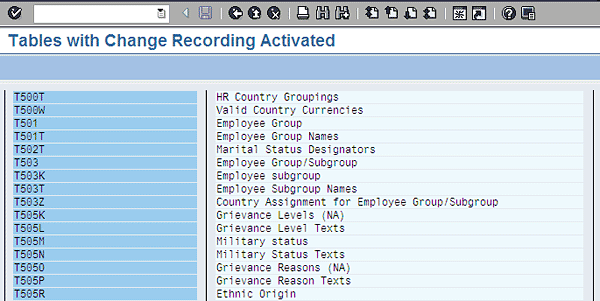
Figure 2
Output of a partial list of the logged tables
Report 2. Program RSVTPROT
Program RSVTPROT is the SAP standard report that provides a detailed view of change documents or evaluation of change logs. You have two ways to access program RSVTPROT. The first way is through transaction SCU3 and then clicking the Evaluate Logs button on the report’s initial screen (Figure 1). The second way is to run it as a normal report RSVTPROT using transactions SA38 or SE38.
This report (RSVTPROT) provides you with an SAP system client-dependent view that helps analyze the change logs of tables and customizing views. The table-level changes log shows the changes done at the table level (e.g., database table T503), whereas the customizing view level shows the changes done at the customizing view level (e.g., V_503_E).
You write a change document in the database log table for each change to a table entry. This document contains information such as the time of the change and the name of the user who made the change (including create, update, and delete); what transaction triggered the change; and the old values in the system before the change and the new values that are entered in the system after the change.
Use transaction SE38 to run the report. Enter the report name RSVTPROT in the Program field and execute the report by pressing F8 or clicking the execute icon in the upper left side of the screen. The screen shown in Figure 3 appears, and you need to populate the key fields to receive the required output.
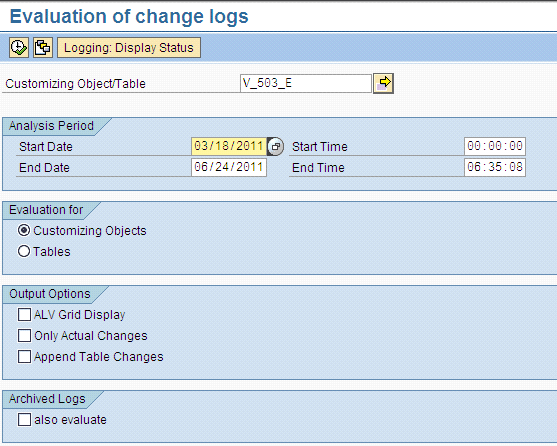
Figure 3
Initial selection screen for report RSVTPROT
The details of these inputs in Figure 3 are as follows:
Customizing Object/Table field: This is an input field for the object for which you need to run the report. It can be a customizing object or view or a table, and you can enter multiple customizing objects or views or tables. This input field, however, does not allow mixing of multiple customizing objects or views and tables at the same time.
Analysis Period tab: There are four fields under this tab: Start Date, Start Time, End Date, and End Time. The date and time range represents the interval of time for which the user wants to view or analyze the changes.
Evaluation for tab: This tab provides the user with the opportunity to select either the Customizing Objects or Tables radio button. Selecting the Customizing Objects radio button extracts the log for customizing objects such as V_503_E, which is a customizing view. Selecting the Tables radio button extracts the log for tables such as T503, which is a database table.
Output Options tab: This tab gives users the flexibility to select what they want included in the report output. You can select these three check-box options individually or in combination:
- ALV Grid Display: This option provides the display output in ALV (SAP List Viewer) format.
- Only Actual Changes: This option outputs only actual changes or actual changed entries.
- Append Table Changes: This option provides display output related to table changes associated with the selected customizing object. This selection check box works only when the Customizing Objects radio button is selected (Figure 3). If you need a more detailed analysis, select this option.
Note
For customizing objects, the system shows changes that were made only within the selected customizing objects. If an individual table is part of other customizing objects that are similar to the selected customizing object, or it has been changed by a direct database update using an ABAP program, then these other changes are not shown in the output report generated.
Archived Logs tab: Selecting the also evaluate check box initiates reading the update logs that are already archived, as well as the update logs from the current system. To execute the report, press F8 or click the execute icon in the upper left side of the screen (Figure 3). This action results in the output screen in Figure 4.

Figure 4
Changed log report output
The output report (Figure 4) displays the logged changes of the views and tables, as follows:
The Technical Name (V_503_E, in my example) is the object for which the log is created.
The Client is the SAP instance client in which this report runs and where the changes were made.
The Date is the date on which the changes occurred and the User is the user ID through which these changes were done.
The tabular Time format at the bottom of the screen is the time when the changes took place.
The fields grouped under the Key Fields column contain the key fields of the table or view for which the report is run.
In the fields grouped under the Function Fields, Changed column, the Field Name indicates the field that was changed; in my example, ES grpg is the field that was changed. The Old column has the old value that was in the table or view (1 in my example), and the New column has the value that was put in place of the Old value (9 in my example). The time in the left-side Time column that shows 06:34:53 is the time when this update happened.
Note
Program RSVTPROT can be scheduled to run in background to check if there are changes to particular table entries, such as table HRP1000 (database table for infotype 1000) or any custom database table that is logged for changes.
Configuration 1: Technical Settings at the Table Level
The configuration for the technical settings allows users to decide whether they want to allow particular tables to be logged for changes. The SAP system has this parameter already configured for standard customizing tables. For example, if you look at an SAP-standard configuration table such as T503, you see that the Log data changes check box is already selected (Figure 5).

Figure 5
Table technical settings with selected Log data changes check box
Note
The SAP system does not default selecting data log changes for the majority of transaction data tables such as PA0001 and HRP1001.
The main objective is to look at log-related information, so I am not describing in detail the rest of the screen displayed in Figure 5. I discuss only the technical settings and the Log data changes check box. For additional information about each field, highlight the specific field and press F1 (to select Help in the actual SAP system).
Now I describe the steps for how to view the technical attributes of a table.
Step 1. Use transaction SE13 (Dictionary: Technical Settings). On the initial screen, enter the table name (ZTESTJFA in my example) in the Table/view name field (Figure 6).

Figure 6
Technical settings initial screen
Step 2. Select the Display button, which takes you to next screen (Figure 7) and displays the technical information about the table.

Figure 7
Display the table’s technical settings
The Log data changes check box (circled in Figure 7) is very important in logging changes functionality. For custom-developed tables, the user has the option to select this check box. You need detailed information about what the table is being used for to help you determine if you want to select this parameter. Generally, if a table is related to configuration and does not contain transaction data, this parameter is selected. However, if the table is going to be used for transaction data, do not select this option.
You need to make this decision carefully because when this parameter is selected, it leads to additional data being created, which quickly fills up both the log tables and the database. Selecting this parameter creates new logging entries in log tables every time an update is made to the table. Most of the transaction tables are day-to-day data tables with high volumes; tracking changes for these tables is not as important as tracking changes for the configuration tables. Creating logs for all transaction data fills log tables quickly and demands frequent archiving of that data.
Configuration 2: Profile Settings at the System Level
Previously, I discussed the configuration that controls changes logging at an individual table and object level. The SAP system provides functionality for setting this at the system level, called the profile setting at the system level.
These setting updates are done only by someone who has detailed knowledge about the basis technical settings. Here I explain how to read these settings and what it means to the process.
The functionality of change documents at the system level is controlled via the profile parameter rec/client. Generally used values against this parameter are OFF/ALL/<Client number>.
If the parameter is set as rec/client = OFF, it means that the change document logging function is inactive in the system.
If the parameter is set as rec/client = ALL, it means that change document logging function is active in the system.
If the parameter is set as rec/client = <client number> (the client number in an instance; for example, client 100 or client 200), it means that the change document logging function is active for a chosen client.
SAP recommends that the automatic table change logging be authorized only in systems in which this is deemed worthwhile or necessary. If you allow logging, it consumes system resources for storing logs in database tables and a large database space for these log tables. These systems are:
- The SAP system in which the customizing is performed
- The actual production system
It is not important to have this setting turned on for sandbox or test system, as it is very rare that you would want to track the changes or audit the changes in the sandbox or test environments/clients.
Now I explain how to view these settings in the system. The SAP system provides a standard report via transaction RSPFPAR (display profile parameter) for this purpose. Figure 8 shows the inputs provided to the report. Enter rec/client in the Profile Parameters field of the report.

Figure 8
Selection screen for report RSPFPAR (display profile parameter)
Execute the report using the F8 key or the execute icon (in the upper left side of the screen in Figure 8). This action results in the screen displayed in Figure 9. The first two columns in this output report are the parameter name and the user-defined value.
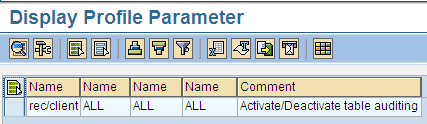
Figure 9
Output of report RSPFPAR (display profile parameter)
This output of report RSPFPAR in the example shows that all the clients in the instance are logged for the changes. It is possible that the second column (value not shown) could have a number such as 100 (an SAP-instance client). This indicates that only client 100 is being logged for the changes.
Note that this logging does not take care of direct database updates to tables. In some project environments teams do use different methods for updating direct tables, including using ABAP programs. I do not recommend that you use direct updates to tables if logging of changes to those particular tables is required.
Note
A note of caution: setting the rec/client parameter to ALL can seriously reduce system performance as it consumes system resources. Before you decide to set the parameter to ALL, you must first consider the consequences. SAP recommends that you not use the ALL value and that you limit automatic logging to a particular client.
Nitin Fuldeore
Nitin Fuldeore is an SAP consultant who specializes in the SAP ERP Human Capital Management module. For the last decade he has been helping his global clients implement SAP HR in the US, Greater China, Singapore, and India. Nitin is currently working with IBM’s HCM practice.
If you have comments about this article or HR Expert, or would like to submit an article idea, please contact the HR Expert editor.
You may contact the author at nitin_ful@yahoo.com.
If you have comments about this article or publication, or would like to submit an article idea, please contact the editor.


 Premium