Learn how to better use the Automatic Payment Program (APP) feature in an SAP system for making payments to your vendors. Discover tips to optimize the APP process, such as automating APP, automating email generation from APP, restricting selections, and grouping open items.
Key Concept
The Automatic Payment Program (APP) is a commonly used SAP process by which a business makes payments to its vendors or customers in different modes. Large organizations have thousands of payments going out every month, and thus, it becomes important to use and optimize this SAP tool. You can execute APP via transaction F110 for various company codes, multiple vendors, and different payment methods. The system automatically determines the relevant information for making the payment (e.g., the bank account from which the e-payment is to be made or the kind of output to be generated) based on customization settings.
Many organizations have already set up their SAP systems to automatically create payments for multiple vendors in a single run. I explain various tips to optimize the Automatic Payment Program (APP) process, such as the automation of the next step after executing APP in which an organization can pass the payment information from the SAP system to vendors via email or fax. Using an SAP system for this process could save you a lot of costs involved in manual transmission of information to vendors to keep them updated on what payments have been made to their accounts.
I assume that your organization has already implemented APP and thus can execute APP with the basic features for creating a payment proposal, editing a payment proposal list after verifying what is to be paid, and executing an actual payment run that creates payment documents. I explain the following useful tips to optimize the use of APP:
- Automate email generation for payment advice to vendors with various flexibilities
- Restrict accidental generation of automatic emails during payment proposal
- Separate or combine options for vendor line items in APP
- Separate outputs for different payment methods in the same APP
- Use options for including or excluding open items or vendors in the APP
- Automatically schedule a payment program proposal run and automatically send proposal logs via email to relevant reviewers to authorize payments
- Restrict authorizations on critical APP sub-functions
Note
I assume that readers understand how to execute APP and are familiar with the basic configuration for APP. I focus on the advance settings for meeting various extra features for APP, such as payment advice triggering via email.
Tip 1: Automate Email Generation for Payment Advice to Vendors with Various Flexibilities
Many businesses are interested in automatically sending payment advice from APP execution to their vendors via email or fax. SAP has provided a BTE 00002040 Autom. pmnt transactns: Output of pmnt advice note. For activating a Business Transaction Event (BTE) refer to the section titled “Configuration Steps to Activate a BTE.” You define your logic in your custom function module copied from the standard function module SAMPLE_PROCESS_00002040). In your logic you can define on what basis the system sends an email to a vendor. In this development you can also achieve the following flexibilities:
- Trigger payment advice for a particular company code or payment method
- Trigger payment advice for a particular vendor or vendor range
- Determine whether email has priority or fax has priority in triggering automation
- Determine the sender of email for payment advice to a vendor
- Determine the subject of the email triggered and the file name of PDF triggered in email. (This step is completed by using a separate BTE 00002050 Autom. pmnt transactns: Output of pmnt advice note.)
- Determine the content of the body in email
The logic that can be implemented in the custom function module for the BTE is explained in the next section.
Step 1. Create a Custom Table
First, you need a new custom table that can control various settings and options that you want to see in the APP output – for example, whether for a particular company code you want to trigger email or not. You can use this custom table as a customization table that your custom program refers to for building logic. Create a custom table with the final settings shown in Figure 1. (An ABAP team can create such custom table via transaction SE11, where it can add the various fields as shown in Figure 1.)
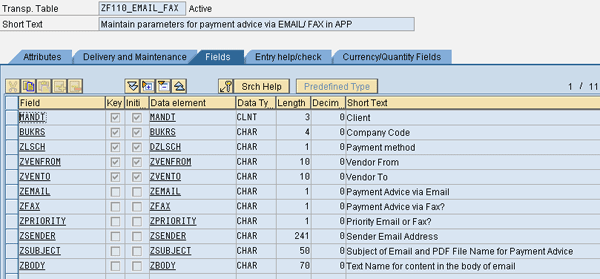
Figure 1
Custom table to control the setting for payment advice via email or fax
The fields in Figure 1 are used in the function module logic as follows:
- Company Code, Payment Method, and Vendor Range (Vendor From and Vendor To). You use these fields to check against the payment document generated from APP so that you have the flexibility to make different settings for different company codes or for different payment methods or for different vendors.
- Payment Advice via Email. This function module sends the payment advice via email (As message type I in field c_finaa-nacha in function module for BTE 00002040) only when this indicator is set and vendor master has fax number.
- Payment Advice via Fax? This function module sends the payment advice via fax (as message type 2 in the field c_finaa-nacha in function module for BTE 00002040) only when this indicator is set and the vendor master data has the fax number.
- Priority Email or Fax? If the vendor master data has an email address and a fax number, this indicator is used to determine whether payment advice should be sent via email or fax.
- Sender Email Address. You can mention the email address here as it would appear as a sender in an email to the vendor. This value is filled in the field c_finaa-mail_send_addr in the function module for BTE 00002040. If you do not default any email in your logic, then the SAP system selects it from the email ID of the office user assigned to the accounting clerk. You have several ways to find this information: follow menu path accounting clerk from vendor master data > company code data > correspondence tab; use transaction OB05 and follow menu path Office user of the accounting clerk from the customization setting; follow IMG menu path SPRO > Financial Accounting (New) > Accounts Receivable and Accounts Payable > Vendor Accounts > Master Data > Preparations for Creating Vendor Master Data > Define Accounting Clerks); or use transaction SUO1D to find the email ID of this office user from the office user ID’s master data. If nothing is determined based on the accounting clerk, then the SAP system uses the email address from the user who is running F110 by referring this user’s master data in transaction SU01D.
- Subject of Email/ PDF file. You can mention here the text that would appear in the subject of the email and PDF file attached to email also has this name. This value is filled in the field c_itcpo-tdtitle in function module for BTE 00002050.
- Text Name for body in email. Here you need to give the standard text name that contains the text that appears in the body of the email. This value is filled in the field c_finaa-mail_body_text in function module for BTE 00002040. You maintain the standard text using transaction SO10 or following menu path SAP Easy Access Menu > Accounting > Financial Accounting > Vendors > Periodic Processing > Print Correspondence > Standard Letters > SO10 - Enter Text. You maintain it for Text ID FIKO and for the language needed (Figure 2).

Figure 2
Maintain standard text for email body containing payment advice
Step 2. Maintain Entry in the Custom Table
In the custom table that you just created, create the relevant entries for your organization setup (e.g., company code and payment method) using transaction SM30. In transaction SM30, enter your custom table name and click the Maintain button. Now click the New Entries button. Figure 3 shows an example entry created. While maintaining an entry in this table, you can also put a variable character that can be replaced in the function module dynamically using the payment data. For example I have maintained INFO FOR PAYMENT DOC. XX FOR YY and have written logic to replace XX with payment document number and YY with vendor number so that the subject becomes more informative to the recipient.
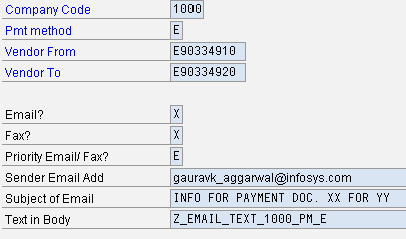
Figure 3
Maintain entries in a custom table to control APP output
Step 3. Create a Function Module as a Copy of the Standard Function Module for BTEs
Create two custom function modules as a copy of standard function modules — SAMPLE_PROCESS_00002040 and SAMPLE_PROCESS_00002050. In these function modules put the logic to trigger email or fax. You can create these modules by using transaction SE37 with developer access from your ABAP team. Examples of this code are shown in Figures 4 and 5.
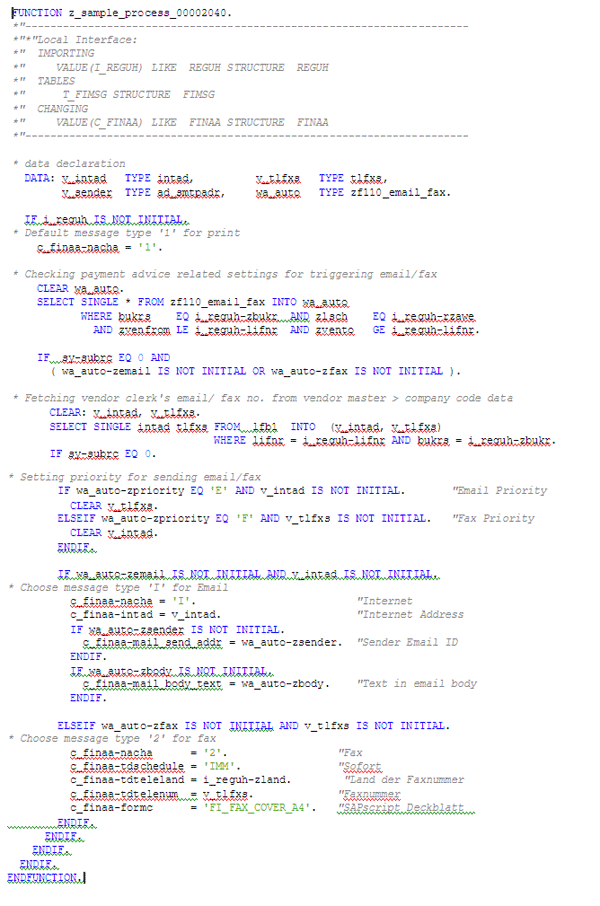
Figure 4
Example code for BTE 00002040

Figure 5
Example code for BTE 00002050
Figure 6 shows an example of an email triggered from APP execution in transaction F110. Note the sender, subject, and body as per the preceding setup.

Figure 6
Example email to vendor containing payment advice
Tip 2: Restrict Accidental Generation of Automatic Emails During Payment Proposal
During the APP process, the first payment schedule is run. The first payment schedule is a simulation of what payment is made and then the actual payment run is executed if things look satisfactory as per the payment schedule. When a business has the functionality of sending automatic emails from APP execution, it is important that no email is generated during payment schedule execution as this is not the actual payment run. While defining the logic for sending email in BTE (00002040 Autom. pmnt transactns: Output of pmnt advice note), you can also build additional logic: If the field Indicator: Only Proposal Run? (i_reguh-xvorl) is blank, then only create the payment advice output. (This field has value X in case of proposal run and blank value in case of actual run.)
Tip 3: Separate or Combine Options for Vendor Line Items in APP
Sometimes a business may want various open items for vendors to be grouped in a certain way using APP for reasons such as instructions from a vendor or different payment currencies. Here are the various options in the SAP system for achieving this procedure.
Use the Grouping Key in the vendor master using transaction FK02. The grouping key is defined in customization transaction OBAP or by following IMG menu path SPRO > Financial Accounting (New) > Accounts Receivable and Accounts Payable > Business Transactions > Outgoing Payments > Automatic Outgoing Payments > Payment Method/Bank Selection for Payment Program > Define Payment Groupings. Here you can define a maximum of three fields in a grouping key to group various open items in a payment. Figure 7 shows the payment grouping key definition.
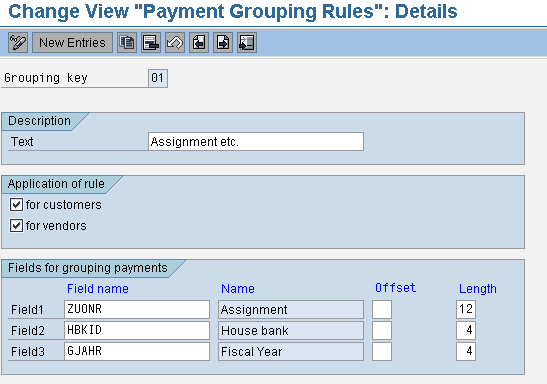
Figure 7
Setting for Payment Grouping Rules
You can assign this grouping key by following menu path Vendor master > Company Code Data > Payment Transactions (Figure 8). To access the vendor master execute transaction FK02 or follow path SAP Easy Access Menu > Accounting > Financial Accounting > Vendors > Master Records > FK02 – Change.
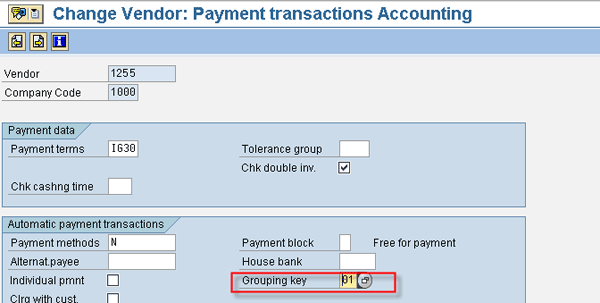
Figure 8
Vendor master with a Grouping key
You can find the Individual Payment option by following menu path vendor master > Company Code Data > Payment Transactions or using transaction FK02. If this option is selected, then each invoice is paid via a separate payment document (Figure 9).
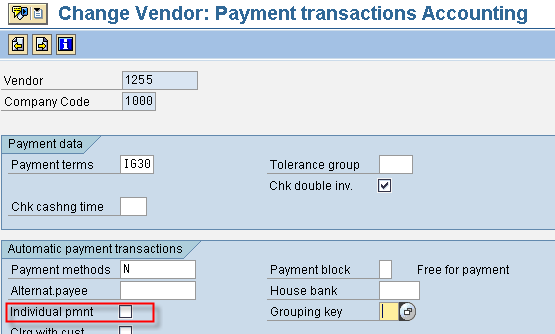
Figure 9
Vendor master with the indicator Individual pmnt for each item
You can group items as per payment method definition in customization transaction FBZP > Payment Method in Company Code (Figure 10).
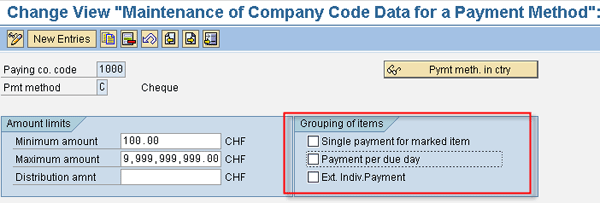
Figure 10
The payment method setting at company code level in transaction FBZP
There are three options in this customization:
- Single payment for marked item (marked item means an open item in which the payment method is entered explicitly)
- Payment per due day
- Extended individual payment (individual items are paid separately after applying rules such as the adjustment of credit memo against an invoice)
Maximum items are determined from the customization setting in transaction FBZP at Payment Method in Company Code. If you enter less than 99 here and also select the option Distribute lines, … lines per payment, the system splits the payment document into multiple documents if it has more lines than the number entered here. If you enter 99 here, then no maximum open items per payment document apply (Figure 11). In Figure 11, you have made this setting for four items, so if in a payment run a vendor has 10 invoices to be paid, then APP creates three payment documents — a payment document for four invoices, a second payment document for the next four invoices, and a third payment document for the remaining two invoices.
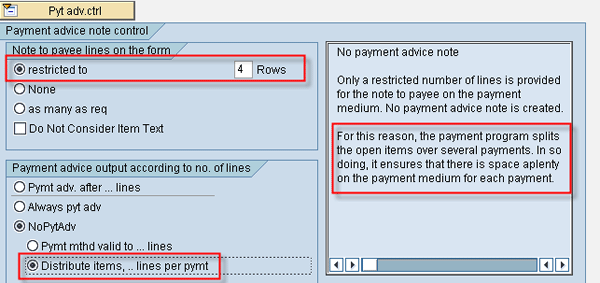
Figure 11
The payment method setting at company code level controlling lines
Tip 4: Separate Outputs for Different Payment Methods in the Same APP
You might be executing a payment run for multiple payment methods and you want the payment output (e.g., payment advice) to be printed in different ways: for example, a check payment to be sorted by location and other payments to be sorted by a vendor number. You can create multiple variants for the printout program and can assign those different variants (a maximum of 40 variants at a time) in the Printout/data medium tab in transaction F110 (Figure 12).

Figure 12
Enter multiple variants in APP execution
Tip 5: Include or Exclude Open Items or Vendors in an Automatic Payment Program
There are situations in which a business does not want to pay certain vendor invoices (e.g., if any particular invoice is to be exceptionally paid such as a payment to be done much before its due date, a blocked vendor invoice, or a disputed vendor invoice). The standard SAP system also provides the functionality to include or exclude open items in a payment run via some customization or data selection during the payment run processing. Apart from these options, there are custom-defined exits available. Use the Free Selection tab while executing a payment run in transaction F110. Here you need to provide the following details for inclusion or exclusion:
- Field Name. The field name is based on the parameter by which you want to make your document selection (e.g., document number or vendor’s country). The field can be from an accounting document, vendor master data, or customer master data.
- Exclude Values. Select this indicator if you want to exclude open items matching the field values. Otherwise, items would be included matching the field values.
- Values. Enter the field values here. For example, if you have selected Document Number in Field Name, then enter the document numbers you want to filter in the Values field. You can enter the following: a single value (e.g., 0012345678); multiple values separated by comma (e.g., 0012345679,0012345680); a value range within parentheses: (0012347777,0012348888); a combination of these options, such as 0012345678,(0012347777,0012348888),0012345679,0012345680
You can enter a maximum of three such criteria at a time in the payment run.
Note
For numeric fields you need to enter the values with leading zeroes (e.g., if a document number in your system is 12345678, then you need to enter it with leading zeroes as 0012345678 because the document number field length is 10 characters.)
To make a vendor invoice blocked for payment, use transaction FB02 and enter the Payment Block in the vendor line item. The payment blocks are defined in customization transaction OB27 or by following menu path SPRO > Financial Accounting (New) > Accounts Receivable and Accounts Payable > Business Transactions > Outgoing Payments > Outgoing Payments Global Settings > Payment Block Reasons > Define Payment Block Reasons. Here the payment block to be used is marked as Manual Payment Block.
If a business wants a vendor to never be paid via an automatic payment program, then remove all the payment methods from the menu path Vendor Master > Company Code Data > Payment Transactions or using transaction FK02. When you complete this step, no open items can be paid in transaction F110 for this vendor.
The SAP system provides a standard process named Business Transaction Event (BTE) 00001820 PAYMENT PROGRAM: Item Selection in which you can define your own logic on what items should be included or excluded. For using BTE refer to “Configuration Steps to Activate a BTE” and define your logic in your custom function module copied from standard function module SAMPLE_PROCESS_00001820). In your logic you can enter or remove the payment block so that item gets included or excluded in the payment run execution.
The SAP system also provides a standard process named Business Transaction Event (BTE) 00001830 PAYMENT PROGRAM: Edit Group in which you can define your own logic on what items should be excluded. You define your logic in your custom function module copied from standard function module SAMPLE_PROCESS_00001830). In your logic you can remove any particular open item or entire payment group from the payment run execution and then that item or group appears in an exception list.
Tip 6: Automatically Schedule a Payment Program Proposal Run and Automatically Send Proposal Logs via Email to a Relevant Reviewer to Authorize Payments
A business may also want to automate the process of running the payment proposal automatically. The output of this proposal log can be sent automatically to an approver email ID. Whenever the approver authorizes, the actual payment run can be done manually. (Businesses normally do not do actual payment run automatically to avoid accidental payments.)
This automation of proposal run involves the following steps:
Step 1. Create a variant for a proposal run using transaction F110S (program SAPF110S). Remember to enter the following date fields as dynamic fields (e.g., current date) while saving the variant so that when you schedule the batch job, dynamic dates are defaulted automatically during execution:
- Posted up to date
- Next posting date (e.g., current date plus 15 days)
Step 2. Create a variant for program RFZALI20 for creating the proposal execution result list. Keep the program run date as a dynamic field with the same setting as done in step 1.
Step 3. Create a Distribution List for sending proposal run logs.
Step 4. Create a batch job for executing a proposal run periodically with the first step for program SAPF110S with the variant created in step 1 and the second step for program RFZALI20 with the variant created in step 2. Fill the batch job spool recipient with the distribution list created in step 3.
For details on how to configure these standard features of the SAP system, refer to the Financials Expert article “Automate Travel Expense Settlement and Transfer to Finance.”
Tip 7: Restrict Authorizations on Critical APP Subfunctions
An automatic payment program process includes various subfunctions, such as executing a schedule run or editing a schedule run. You can restrict the access to these subfunctions based on the activity code. You can provide different accesses to different users to segregate the duties (e.g., proposal run access to a user and payment run access to another user). You see the various authorization keys in transaction F110 by following menu path Environment > Authorizations (Figure 13).
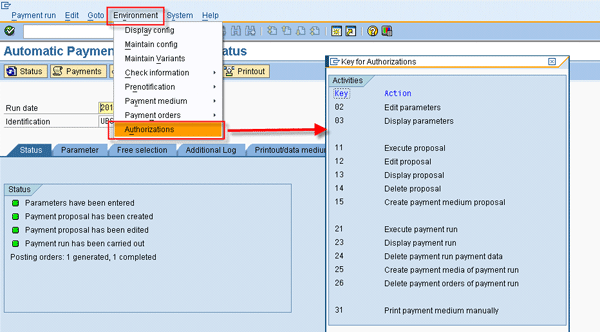
Figure 13
Various authorization keys related to APP
Many businesses prefer not to give authorization key 24 (Delete payment run payment data) and 26 (Delete payment orders of payment run), as this access enables users to delete the payment outputs by using transaction F110 and following menu path Edit > Payments > Delete output. Deleting output results in related data becoming deleted from background tables (e.g., REGUH and REGUP). You cannot see which documents were paid from this automatic payment run, and therefore, I recommend that you restrict the following access authorizations that allow users to delete the payment run data:
- Authorization Object = F_REGU_BUK
- Authorization Field = FBTCH (Value 24 or 26)
Now that you have an understanding of all the tips, you are ready to learn how to activate process BTEs in an SAP system. The use of these BTEs has already been discussed in tips 1, 2, and 5. The procedure for activating these process BTEs remains the same as I explain in the next section.
Configuration Steps to Activate a BTE
Step 1. Create a function module as a copy of the standard function module available for the process BTE. You create this module by using transaction SE37 with developer access by your ABAP team. The name of the standard process function module is SAMPLE_PROCESS_xxxxxxxx, where xxxxxxxx is the BTE number, so for BTE 00002040 standard function module is SAMPLE_PROCESS_00002040. Do not make any change in the standard function module because it is overwritten with every SAP system upgrade. Copy this standard function module into your custom module and build the logic there.
Step 2. Assign a custom function module to the BTE. To complete this step execute transaction FIBF and navigate to Settings > Process Modules > …Of a customer. Create entries to map custom function modules to BTE (Figure 14).
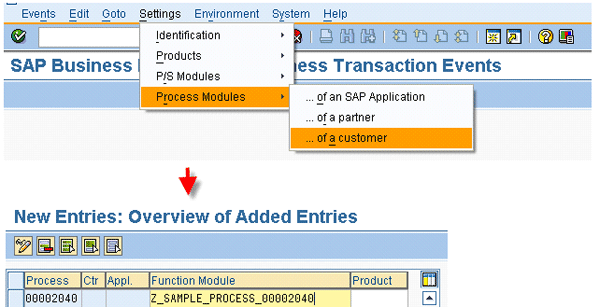
Figure 14
Various authorization keys related to APP
Gaurav Agarwal
Gaurav Aggarwal is SAP S/4HANA lead consultant at Infosys Limited. He has more than 14 years of experience, including 11 years in SAP Finance. He has expertise in both SAP FI and Controlling (CO) with integration to other modules in manufacturing and process industries. He is a chartered accountant and SAP Certified Financial Consultant. He holds a bachelor’s degree in commerce and is a techno-functional expert with thorough knowledge of the necessary ABAP for functional experts. He is a veteran in G/L, AR, AP, banking, FA, Travel Management, and closing cockpit and has handled greenfield implementation, upgrades and conversions, rollouts, and support projects.
You may contact the author at gka2707@gmail.com.
If you have comments about this article or publication, or would like to submit an article idea, please contact the editor.