You can transfer instructions between documents in an SAP system through text copy configuration and IDocs. Learn how the system passes them through the supply chain cycle via a simple three-step approach.
Key Concept
IDocs are standard formats provided by SAP to exchange data electronically with business partners. Text exchange with logistics partners (shippers, forwarders, carriers) is one of the key components of successful integration of the supply chain and can contribute greatly to customer satisfaction.
Table 1
| Instruction type |
Description |
| Shipping |
Involves cargo details
and the physical movement requirements |
| Warehouse |
Includes specific picking
and putaway details |
| Carrier |
Carrier-specific details |
| Customer |
Greeting messages and
customer-specific requirements |
| Table
1 |
Business
instruction types |
Consider this business scenario: A customer
orders a graduation gift for his son
and wants to send the message "HAPPY
GRADUATION DAY, MARK" with the
package. The customer enters this message
in a text field while ordering the gift
online. I will show you how this customer
message travels in SAP across the supply
chain documents to the gift recipient
(Figure 1). You can
use the settings and methodology described
in this article for all types of instructions.
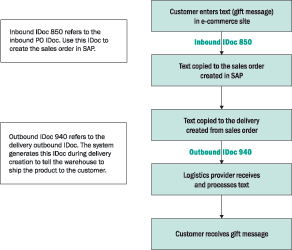
Figure 1
Data flow of gift message
Transfer the Gift Message
I'm going to demonstrate how
to copy the gift message to the sales
document header, then copy the gift message
from the sales document header to the
delivery header, and finally, pass the
gift message to the logistics partner,
a shipping company.
You can also copy text from a sales
order to a purchase order. See the sidebar, "Copy
Sales Order Item Text to Purchase Order
Item Text," for
more information.
Step 1. Copy text from the
inbound IDoc 850 to the sales document
header. An SAP system configures
instructions as text IDs. You can create
user-defined text IDs, which start
with a Z and contain three additional
alphanumeric characters, say, Z999.
This text ID captures the customer
instructions, in this case a gift message.
To create this text ID, use the standard
SAP R/3 transaction VOTXN.
You can also follow IMG menu path Sales
and Distribution>Basic Functions>Text
Control>Define and Assign Determination
Procedures. In this transaction,
among the list of Text Object options,
choose the Header button
under Sales Document and
click on the Text types button
(Figure 2). (Text
object is a fixed term that connects
the transaction and related texts.)
This launches the Maintain
Text ID overview screen (Figure
3). Click on the New
Entries button.

Figure 2
Use VOTXN to define the text ID for the gift message
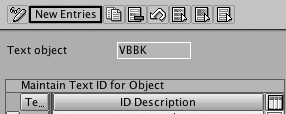
Figure 3
Maintain text ID overview
This launches the Maintain
Text ID New Entries screen.
Enter the text ID Z999 and
the ID Description Customer
Instructions (Figure
4). Save the entry. The
system creates the sales document
header text ID Z999.

Figure 4
Sales document header text ID Z999
Add the text ID Z999 to
the sales document header text determination
procedure to copy the customer instructions
text from the IDoc to the sales document
header. This text determination procedure
identifies a group of text IDs and
the sequence in which they appear in
the sales document header. The standard
R/3 text determination procedure for
sales document header is 01.
Add the text ID to the text determination
procedure through the VOTXN transaction.
In this transaction, choose the Header radio
button under Sales Document
Text Object and click on the Change button
shown in Figure 2. This launches the Text
Determination Procedure Overview screen
in Change mode.
Now, choose the text determination
procedure 01 and click
on the Text ID's in Textprocedure node
in the dialog structure shown in Figure
5. This displays a list of
text IDs assigned to the text determination
procedure. To add the new text ID Z999,
click on the New Entries button.
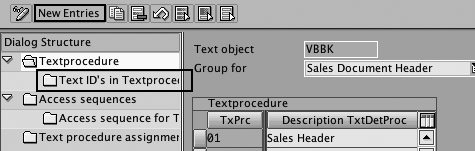
Figure 5
Determine the Sales Document Header text
In the Text Determination
Procedure New Entries screen,
enter an appropriate sequence number
in the Seq. field.
Select the Referenced check
box and add the text ID in Z999 the
ID column (Figure 6).
The sequence number controls where
the text ID appears in the sales
document. The Referenced check
box indicates that the system references
the text ID. You can also make the
text mandatory or not via the Text
is obligatory option.

Figure 6
Add the text ID Z999 to text determination procedure 01
Note
If you enable the Text is obligatory option, the text becomes a mandatory field. If you do not enter text in the required field during the sales order creation, the sales order changes to incomplete status and the system logs an error.
Now you can transfer the text message
from the online ordering system to
the SAP sales order through the inbound
IDoc 850. To do this automatically
(without user exits), the trick is
to pass Z999 as the
text ID in the inbound IDoc 850using
the header text fields E1EDKT1 and E1EDKT2.
The specific fields are E1EDKT1-TDID
= Z999 and E1EDKT2-
TEXT = HAPPY GRADUATION DAY, MARK (Figure
7).

Figure 7
Header text segments in inbound IDoc 850
Tip!
You can configure texts at the item level using a method similar to the one used for the header level texts. To define item text, go to transaction VOTXN and, instead of selecting the Header button for the Sales Document, choose the Item radio button. Note that the text object for sales order header is VBBK and for the item it is VBBP. The IDoc position text segments E1EDPT1 and E1EDPT2 correspond to the item level segments the system uses for the inbound IDoc 850.
The standard inbound function module IDOC_INPUT_ORDERS automatically
copies the text into the sales document
header.
Step 2. Copy text from Sales Document
Header to Delivery header. The
next step is to set up an access sequence
to copy the text from the sales document
header to the delivery header and add the
text ID to the delivery header text procedure.
Access sequence defines the order in which
the system searches for condition records.
To create the access sequence use
transaction VOTXN.
In this transaction, choose the Header button
under Delivery in
the Text Object area
in Figure 2 and click on the Change button.
The system displays the dialog structure.
Choose the Access sequences node
(Figure 8). Click
on the New Entries button
and create a new access sequence, say 9999 and
save.
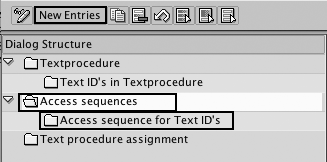
Figure 8
Delivery header access sequence
Now, choose the access sequence 9999 and
click on the Access sequence
for Text ID's node in
the Dialog Structure in
Figure 8. This launches the Access
Sequence Header Overview screen.
Enter an appropriate sequence number,
the text object VBBK, and the text
ID Z999. Select the All
Languages check box (Figure
9) and save. Checking the All
Languages check box ensures
that the system copies multilanguage
texts for the text ID. This creates
the access sequence 9999 to
copy the sales document header text
to the delivery header.
Tip!
You can use requirements in access sequence to control the copying of texts based on a set of user-defined conditions. For example, you can use the standard R/3 requirement 1 to control the copying of texts only when a reference document is present. These settings copy the header text from sales order to the delivery during delivery creation. If a single sales order contains multiple deliveries, the system copies the header text to each of the deliveries.

Figure 9
Link Access sequence 9999 and text ID Z999
Once you define the access sequence,
you can add the text ID Z999 to
the delivery header text procedure.
This process is similar to using the
sales document header settings. In
the VOTXN transaction
in Figure 2, choose the Header button
under Delivery in
the Text Object area
and click on the Change button.
The standard R/3 delivery header text
determination procedure is 02.
Choose this text determination procedure
and add the text ID Z999 by
assigning the access sequence 9999 (Figure
10). When you complete these
settings, the system automatically
copies the text from the sales document
header to the delivery header.

Figure 10
Delivery Header text determination procedure
Note that for third-party orders,
you need to use a workaround to send
the text. The sidebar, "Third-Party
Orders," shows how to implement
this workaround.
Tip!
After the system transports the access sequences, they are not automatically available in the destination system. To make them available, you must regenerate the accesses by clicking on the Generate accesses option in VOTXN under the Table entry menu.
Step 3. Pass the texts to
the logistics provider. As
soon as the system passes the text
to the delivery header, send the
texts through the outbound IDoc 940
to the logistics provider. The external
agent delivery note of the outbound
IDoc 940 Electronic Data Interchange
(EDI) message is IDoc DESADV01 (shipping
notification). Use transaction WE60 (documentation
for IDoc types) to display the structure
and documentation of DESADV01.
Note
A known issue with IDoc DESADV01 is that its structure has incorrect segment sequencing. The item segment E1EDP09 and the text segment E1EDPT1 both appear at the same level, so it may be impossible to see which text belongs to which delivery item. SAP suggests implementing SAP note 84916 to work around this problem. You can also create a new custom segment for item level texts as a child segment of E1EDP09 and pass texts through this segment to the logistics provider.
The system transfers the header text
to the IDoc through the output processing
function module in the header text
segments E1EDKT1 and E1EDKT2.
The segments are similar to the inbound
IDoc 850. Alternatively, you can use
email or other means of communication
to send the texts to the logistics
provider.
In situations in which the customer
is a reseller or a retailer, the system
could also send the texts to the customer's
logistics system through IDoc 856.
This sends the Advance Shipping Notification
EDI message to the customer once the
materials ship from your warehouse.
The logistics provider receives the
text "HAPPY GRADUATION DAY, MARK," prints
it on the gift box, and ships the package
to Mark.
Copy Sales Order Item Text to Purchase Order Item Text
It is possible to copy texts from the sales order item to the purchase order item. For example, consider a scenario for which you have to copy the sales order line item text Delivery Text (standard SAP R/3 sales order item text id 0004) to the purchase order line item text Delivery Text (standard SAP R/3 purchase order item text id 04). To do this, set the Purchase order item text linkages to copy from the sales order.
The configuration path for setting this is SPRO>Material Management>Purchasing>Purchase Order>Texts for Purchase Order>Define Copying Rules for Item Texts. In this screen choose Delivery text and click on Text linkages in the dialog. This launches the maintain text linkages. Click on the New Entries button. In the multi-line structure as shown in Figure 1, enter an appropriate sequence number to indicate the priority of searching for the source text, and choose Sales order for the Source object. Set the Source text as Delivery text and save.

figure 1
Use the Purchase Order text overview screen to link to Sales order item text
Third-Party Orders
If the customer orders third-party products (line item category TAS in the sales order), the system does not generate deliveries. In this scenario, the system can pass the text to the third-party vendor through the outbound purchase order (outbound PO) IDoc 850.
Using the outbound PO IDoc (user exit MM06E001 [EXIT_ SAPLEINM_002]) is an easy way to process the texts. You can use the function module READ_TEXT to read the text from the sales order header. Pass the text object as VBBK for header texts, the language of the text, and the text ID as input parameters to the function module to read the text. Figure 1 shows a sample function call.
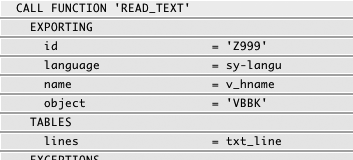
Figure 2
Sample function call
Ganesh Sundaramoorthy
Ganesh Sundaramoorthy is a logistics consultant with more than seven years of consulting experience. He holds a bachelor’s degree in chemical engineering and a master’s degree in business administration. He has worked in high-tech manufacturing, the watch industry, and retail.
You may contact the author at ganesh_s01@infosys.com.
If you have comments about this article or publication, or would like to submit an article idea, please contact the editor.





 Premium